
FAQ
No. | Title | Description |
| 1 | Device Connection & Setup | Receiver connection, differential communication, working modes, and device parameter settings. |
| 2 | Project, Coordinates & Data | Project management, coordinate systems, data files, and import/export. |
| 3 | Survey, Stakeout & Tools | Survey collection, engineering stakeout, industry applications, and calculation tools. |
| 4 | Accuracy & Troubleshooting | Positioning accuracy, fixed solution issues, software errors, and common problem resolution. |
| 5 | Account, Cloud Services & Version Management | Account authorization, cloud projects, device binding, and software upgrades. |
1 Device Connection & Setup
1.1 Quick Start
Answer: Install the APP and grant the required permissions, log in or register for the software, create a new project and select a coordinate system, connect the receiver, configure it as a rover or base station, and confirm the positioning status is normal before starting work.
Answer: File permissions are used to access projects and import/export data. Location and nearby device permissions are used to search for and connect to receivers and display your current position. Denying these permissions may cause some functions to be unavailable. Please check and re-grant the appropriate permissions from the APP details.
Answer: Yes. Long-press a function icon, and a pop-up window will appear with options: Remove / Favorite / Edit Home Page. Select "Remove" to move the function to the "More" section.
Option | Description |
| Remove | Moves the function icon from the main page to the "More" section. To restore it, simply click the plus sign (+) icon in the top-right corner of the function icon in "More". |
| Favorite | Adds the function icon to the Favorites menu for quick access. |
| Edit Main Interface | Supports sorting and removing icons on the home page. |
Long-press Icon 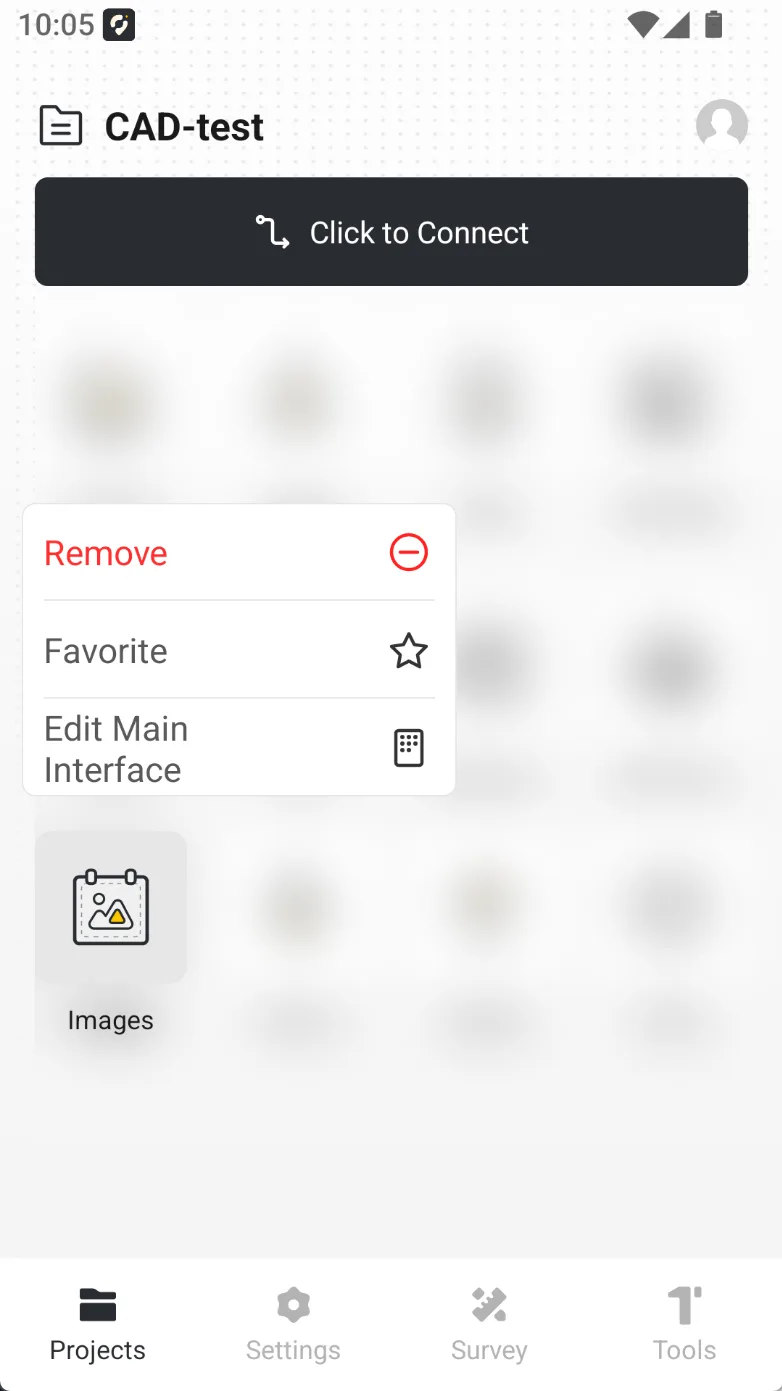 | Move to "More" 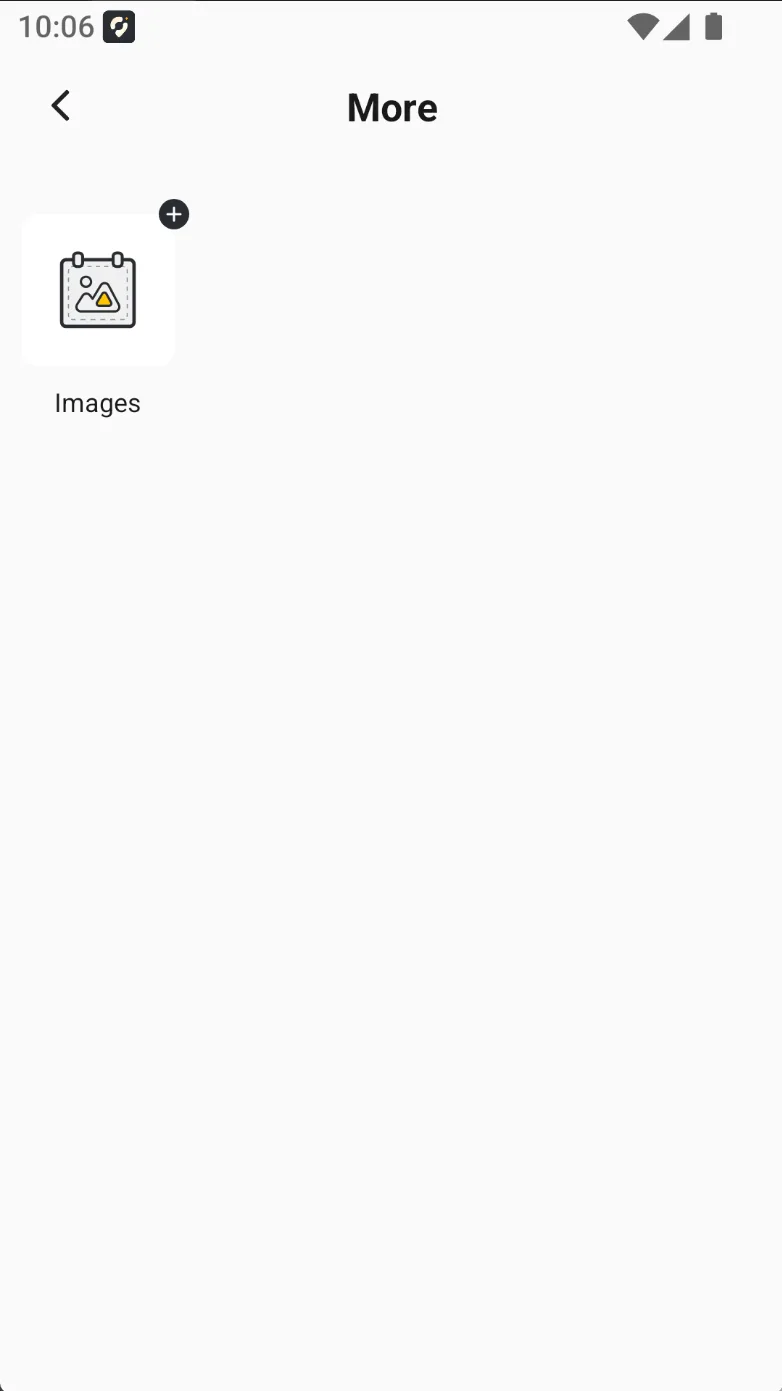 | Favorite 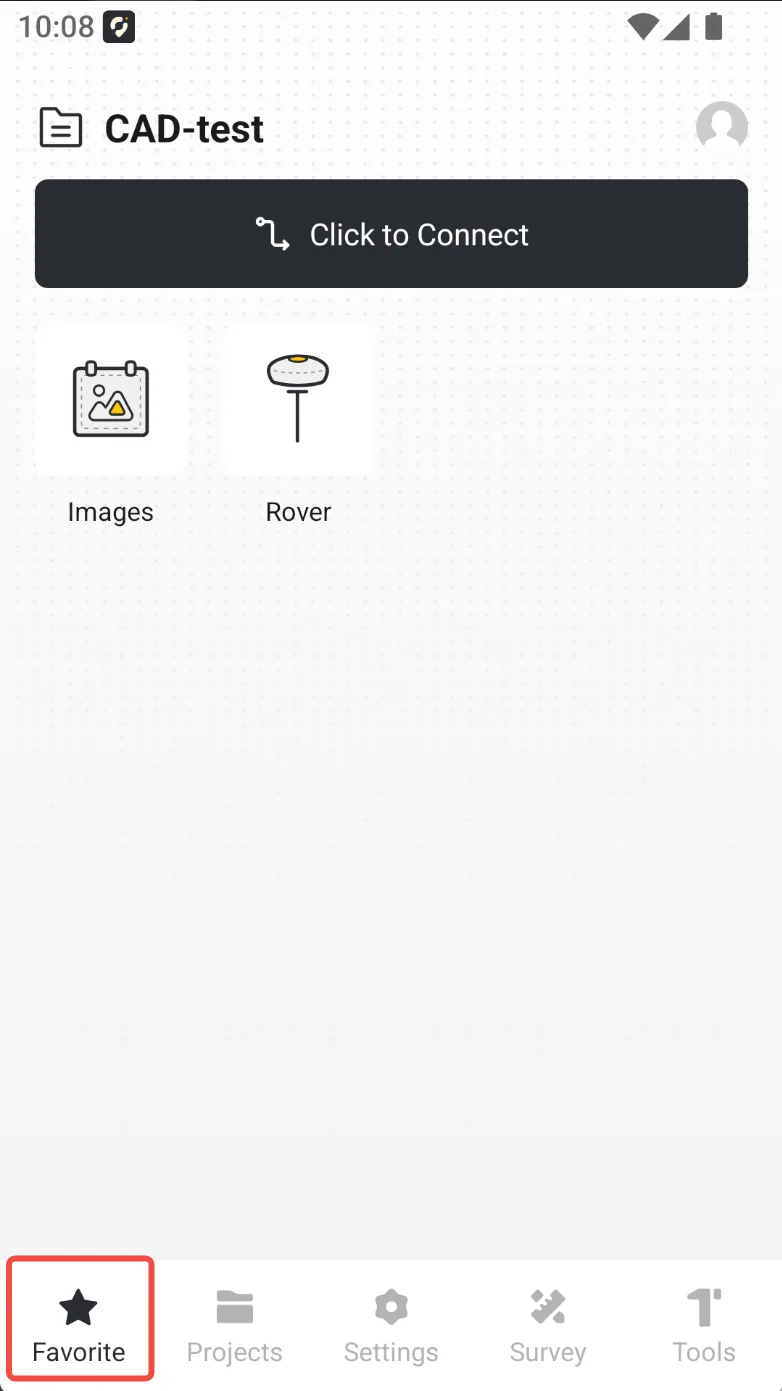 | Edit Home Page 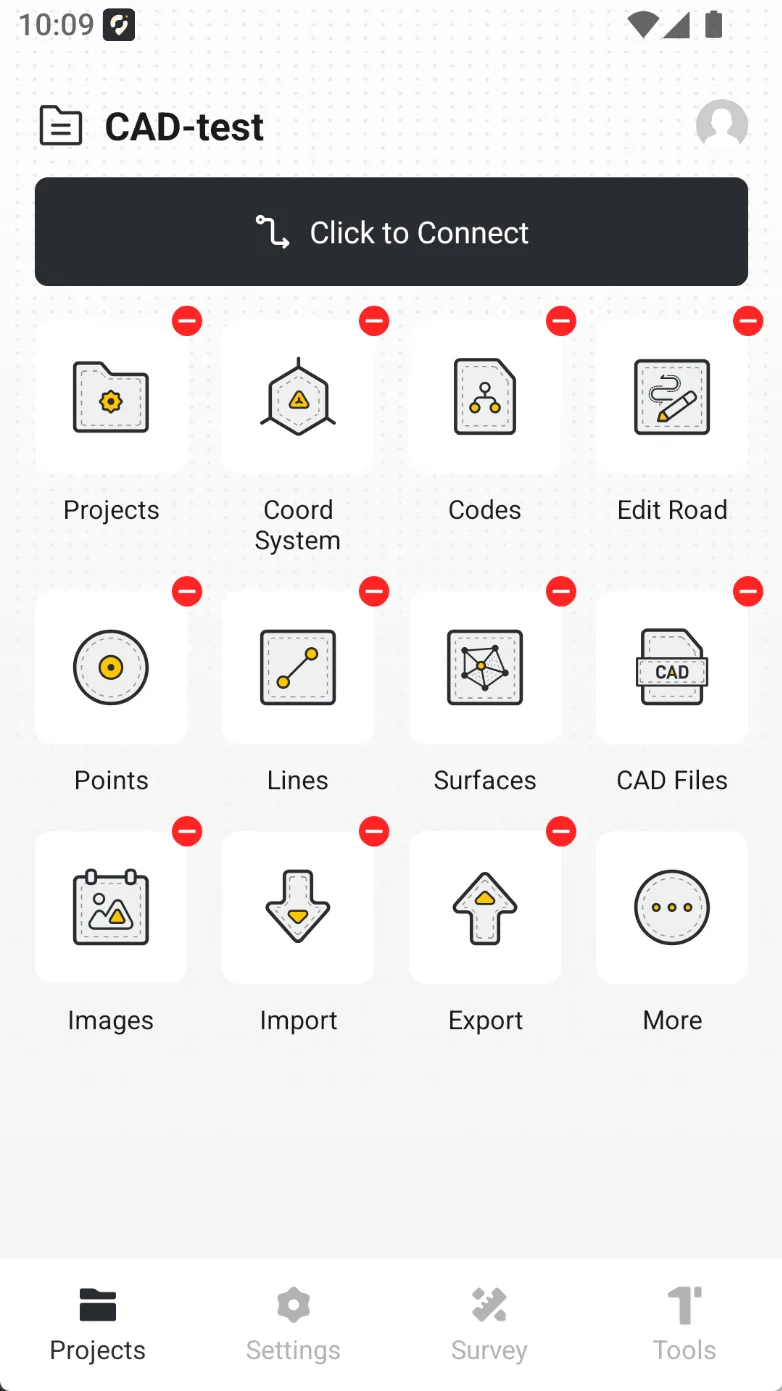 |
1.2 Receiver Connection
Answer: FJD RTK devices can establish radio communication with Leica, Trimble and Topcon devices. The effective communication protocols are as follows:
Radio Protocol | Leica | Trimble | Topcon | |
| GS18I | R12 | R2 | Hiper VR | |
| TT450S | ||||
| TRIMTALK | ||||
| TRIMMARK3 | ||||
| TRANSEOT | ||||
| SATEL | ||||
Answer: FJD receivers support three radio types: Internal 400 MHz radio, Internal 900 MHz radio, and external high-power radio. The corresponding protocols and baud rates are as follows.
| Internal Radio (400M) | Internal Radio (900M) | External Radio | |||
| TRIMTALK | 9600 | / | 19200 | TRIMTALK | 4800 |
| TRIMMK3 | 19200 | 38400 | 9600 | ||
| TT450S | 9600 | 115200 | TRIMMK3 | 4800 | |
| 19200 | 19200 | ||||
| TRANSEOT | 9600 | TRANSEOT | 4800 | ||
| 19200 | 9600 | ||||
| SETAL | 9600 | SATEL | 9600 | ||
| 19200 | 19200 | ||||
| LORA | 11000 | ETALK | 4800 | ||
| 12000 | 9600 | ||||
| 15000 | 19200 | ||||
| 18000 | |||||
Answer: The FJD Trion V1/V10 series receivers have 4 LED indicators, while the V4e Pro receiver has 2 LED indicators. The meanings are as follows:
V1/V10 Series Receivers:
Indicator | Color | Description | Picture |
| power | ■ Green | Battery:≥ 60% | 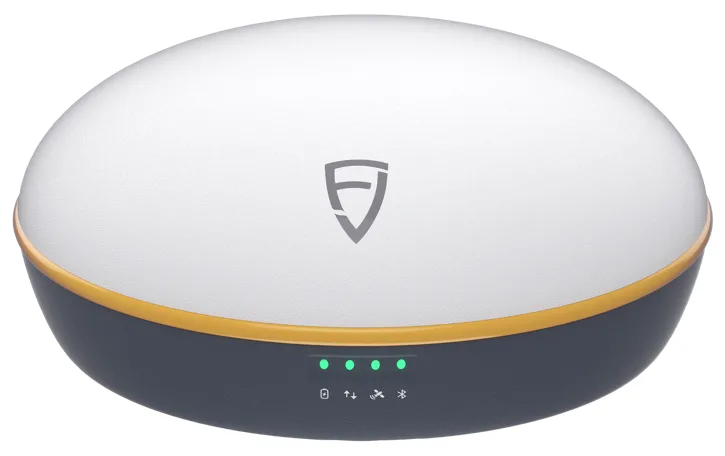 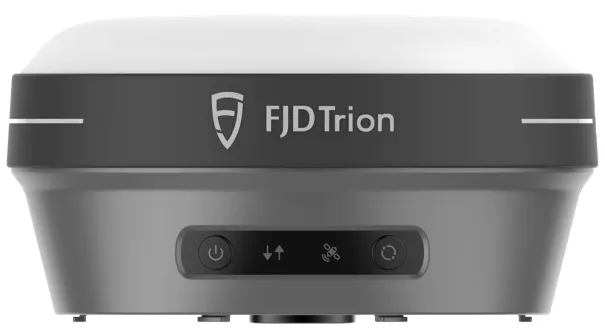 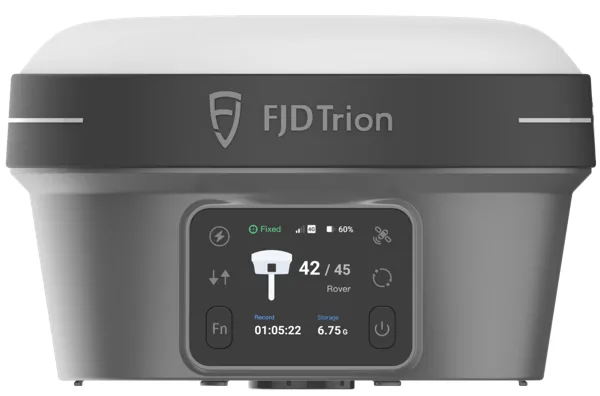 |
■ Blue | Battery:60%~99% | ||
■ Red | Battery:<30% | ||
| Data | ■ Green (Solid) | Not transmitting/receiving data | |
■ Green (Flashing) | Transmitting/receiving data | ||
| Satellite | ■ Red (Flashing) | No satellites found | |
■ 绿色 (Flashing) | Searching for satellites | ||
■ 绿色 (Solid) | Position acquired | ||
| Communication | □ Off | Not connected | |
■ Blue | Connected |
V4e Pro Receiver:
| Indicator Light | Color | Description | Picture |
| Status | ■ Blue | Bluetooth not connected | 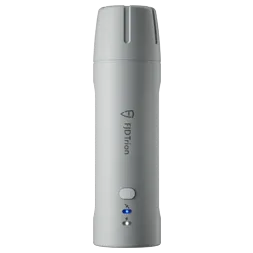 |
| ■ Red | Bluetooth connected but not fixed | ||
| ■ Green | Fixed solution | ||
| Power | ■ Red | Charging | |
| ■ Green | Fully charged |
Answer: Press and hold for 3 seconds to shut down the device normally, then restart it, and the device will return to normal. The specific operation video is as follows:
Answer: Check the communication status indicator: in Bluetooth mode, the light is off when not connected and stays solid blue once connected; in WIFI mode, the blue light flashes rapidly when not connected and flashes slowly after connection. After switching V1t to Bluetooth communication mode and establishing a successful connection, press and hold the power button for 10 seconds while the device is powered on, until the indicator lights up in alternating green and blue simultaneously (lasting for 3 seconds), then release the power button during this period to complete the mode switch. The specific operation video is as follows:
Answer: In the USB dialog, select File Transfer, then navigate to Settings → Display → USB-A Switch On in the system.The specific operation video is as follows:
Answer: When enabling laser measurement/laser stakeout, the connection mode between the controller and the receiver needs to be switched to Wi-Fi connection.
1.3 Receiver Configuration
Answer: Satellite tracking can be checked and configured in Device info → Receiver Settings → Satellite Tracking, and all satellite tracking functions shall be enabled.The specific operation video is as follows:
Answer: Connect the receiver to the laptop to copy data, and try to access the storage again after formatting the receiver's memory.
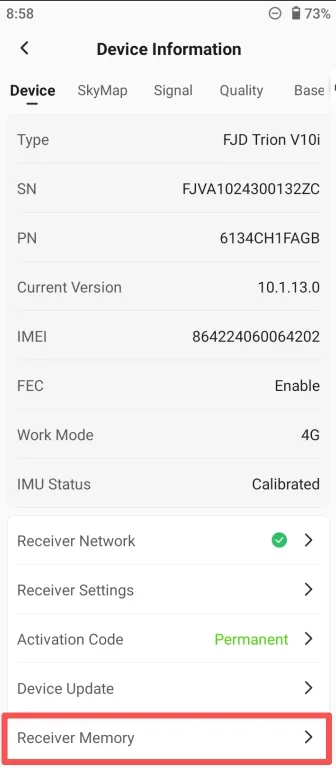
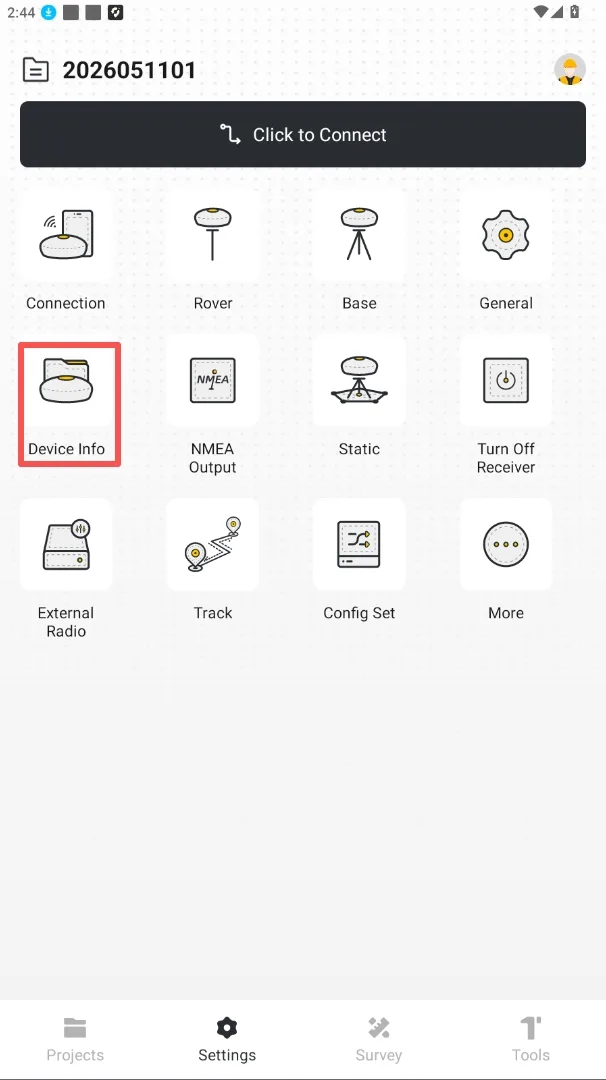
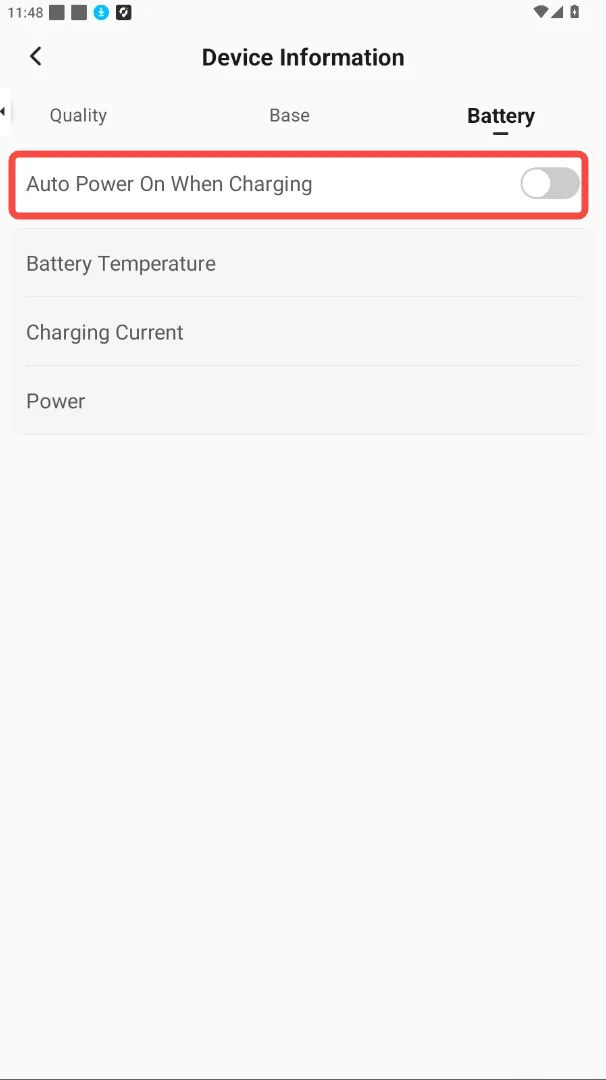
Answer: After connecting the receiver, go to the device information page, where there is a toggle switch for automatic power-on during charging in the battery information section.
 |  |
Answer: Click on Communication Settings, select External Radio as the device type, then choose the serial number starting with C or D from the Bluetooth devices to pair and connect. Once connected successfully, click on External Radio to enter the settings page. Below are the videos for configuring the external radio via direct connection and via connection to an RTK base station respectively:
Answer: After connecting the receiver, go to Device info → Receiver Settings → Work Mode in the settings interface to switch modes. The specific operation video is as follows:
2. Project, Coordinates & Data
2.1 Project & Configuration
Answer: No. A project is based on the currently selected coordinate system. To use a different coordinate system, it is recommended to copy or create a new project to avoid mixing systems.
Answer: This is a normal phenomenon. When the receiver is in base station mode, it does not have a measurement function, so you need to switch to rover mode to complete Data Acquisition, and the base station setup process will resume after the acquisition is finished.
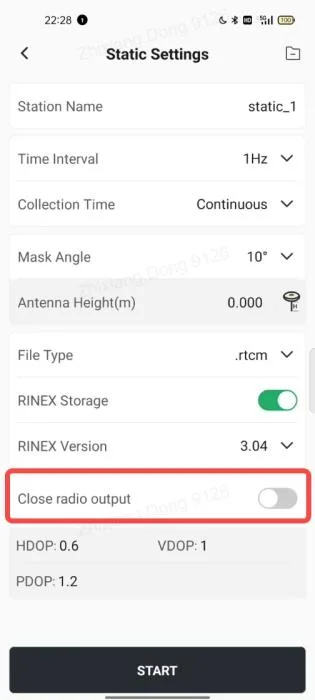
Answer: Check whether the radio output in the base station settings on the static acquisition configuration interface is turned off, and turn it on if it is off.
2.2 Coordinate System
Answer: You can download or select a model within the Coordinate System settings, or copy a compatible model to the handset's FJDynamics/TrionSurvey/Grid folder and then load it.
Note: The model must cover the operating area, have the correct datum and units. The APP performs strict validation on the grid model.
Answer: The "Known Point" method typically only affects newly measured points after application. The "Base Point" method will change the coordinates of all survey points associated with that base station.
2.3 Data
Answer: Yes. You can download code templates from the APP, which support a simple CSV template and a comprehensive XLSX template. CSV is suitable for quickly defining names and types, while XLSX allows further setting of point styles, line types, colors, and fills. For details, refer to Trion Survey User Manual - Appendix - 1.5 Code Template.
3. Survey, Stakeout & Tools
3.1 Survey
Answer: Saves can be triggered by time, 2D distance, 3D distance, or elevation change. When multiple conditions are enabled simultaneously, meeting any one condition will save the point.
3.2 Stakeout
Answer: You can use the "Real-time Elevation" option in the stakeout panel. This allows the stakeout to primarily check the horizontal position, while the elevation difference is handled using the current receiver height.
Answer: Yes, multiple CAD drawings can be added during CAD layout, and the specific operation video is as follows:
3.3 Tools
Answer: Path: Tools → Serial Port, enter "ppp show on", then check the PPP function in Settings → Device info → Receiver Settings → PPP. The specific operation video is as follows:
4. Accuracy & Troubleshooting
4.1 Positioning & Survey Accuracy
Answer: Confirm that the current project, coordinate system, receiver connection, working mode, differential data, solution status, antenna height, and quality indicators all meet the requirements. It is best to also verify by re-measuring a known point.
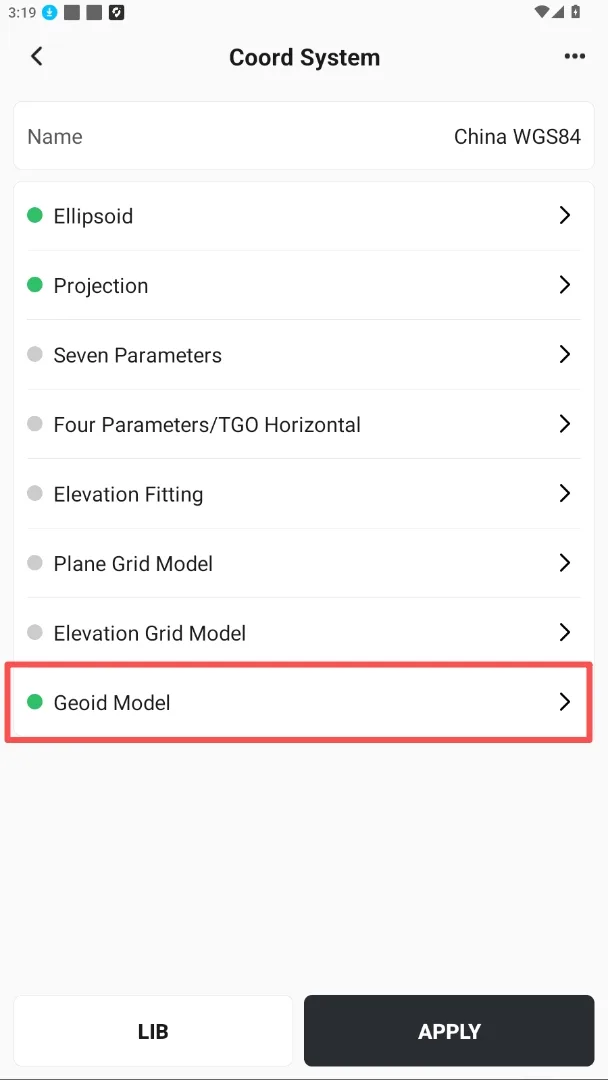
Answer: Confirm whether the correct geoid model is applied in the project. If not, please verify again after applying it.
4.2 Troubleshooting
Answer: Connect the receiver to the controller, and when the controller is connected to the internet, click "Upload Logs" to upload the latest logs to the FJD server. The specific operation video is as follows:
5. Account, Cloud Services & Version
5.1 Account & Authorization
Answer: Currently, one account can be logged into a maximum of 2 mobile devices simultaneously. If this number is exceeded, you will need to log out of other devices.
Answer: The Trion Survey APP Basic version supports simple survey/stakeout operations. To use Professional functions on a third-party terminal, you must upgrade to the Professional version. Details are described below.
Controller | Professional Version Rights Description | Remarks |
| FJD RTK Controller | Pre-configured. Regardless of the APP's source, the APP is the Professional version and has access to all functions. | Factory pre-installed, installed via APK, or downloaded from Google Play. |
| Other Android Devices | Enter an APP registration code (temporary/permanent), which is bound to the device. | Device unbinding is currently not supported. |
| After logging in, you can apply for one 30-day Professional version trial, bound to the account. | Only one application per account. | |
| After logging in, you can purchase Professional version rights (1 month/6 months/1 year), bound to the account. | During the validity period, the device logged into the account will have full functionality. |