
FJD Trion Survey v2.1.9.9 Release Notes
1. Basic Information
| Product Name | FJD Trion Survey |
| Version | v2.1.9.9 |
| Release Date | 2026-9-24 |
| Controller | FJD E200 / E600 / E800 / UA80 / D10 |
| Platform | Android 8 or above |
| Update Method | OTA |
| Recommended Related Products | FJD Trion V1 / V1t: v5.0.3.4 FJD Trion V10a / V10i / V10L: v10.2.7.12 FJD Trion V4e / V4e Pro: v1.0.0.25 |
2. Overview
| New Features |
|
| Improvements |
|
| Bug Fixes |
|
3. New Features
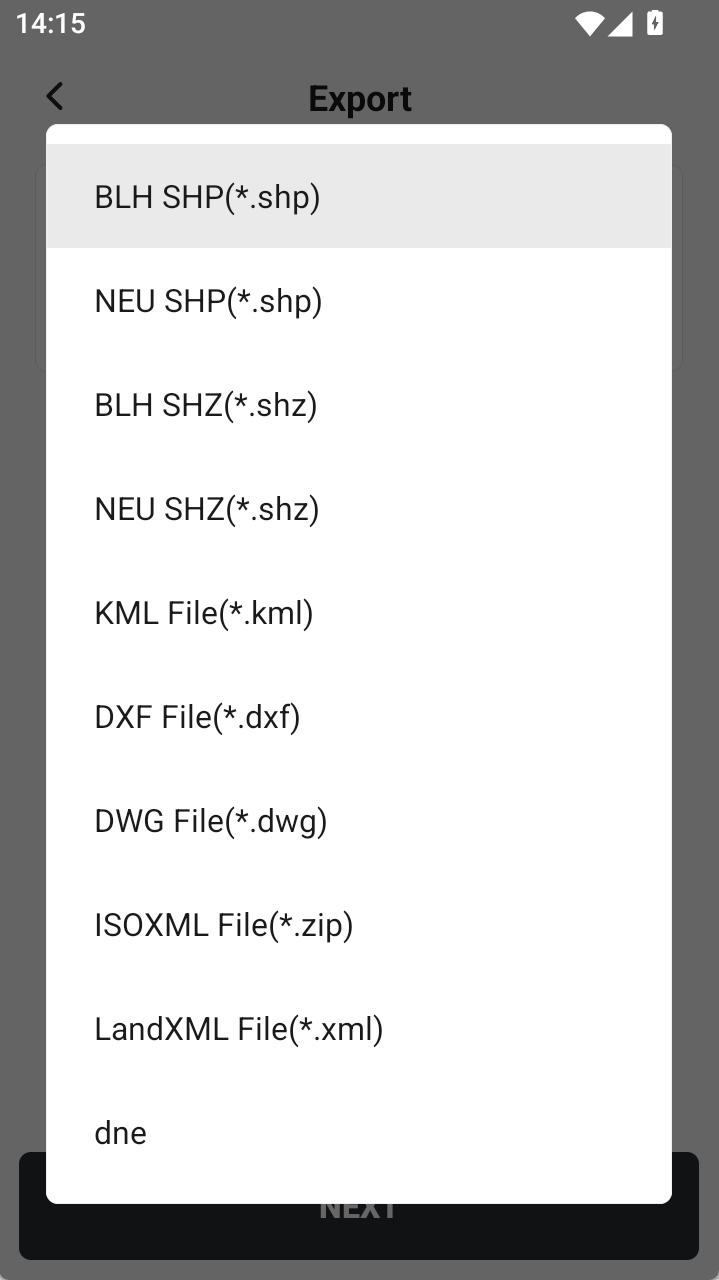
3.1 LandXML Export Added to Measure & Draw - Graphics Library
The Graphics Library in Measure & Draw now supports LandXML (*.xml) export. Supported feature types include lines, polylines, two-point rectangles, three-point rectangles, and closed polygons, together with their node data.
- Arc, curve, and circle features are not supported at this time.
- Exported points are the nodes of line and polygon features; independent measured points from the Point Library are not included.
 |
3.2 Expanded V4e Pro Laser Measurement and Stakeout Scenarios
After connecting a V4e Pro receiver, laser options are available in Measure & Draw, Stake Lines , and Stake CAD , allowing laser measurement or laser stakeout in the corresponding workflows.
3.3 Stake / Edit CAD Updates
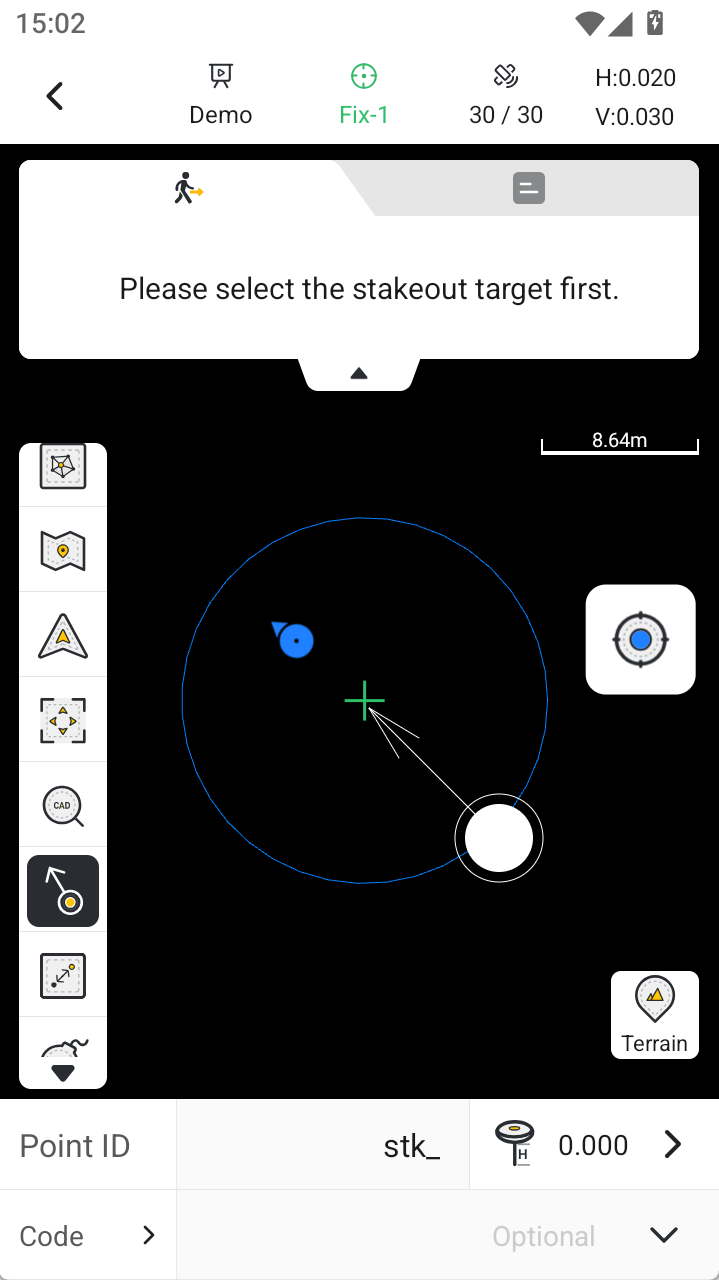
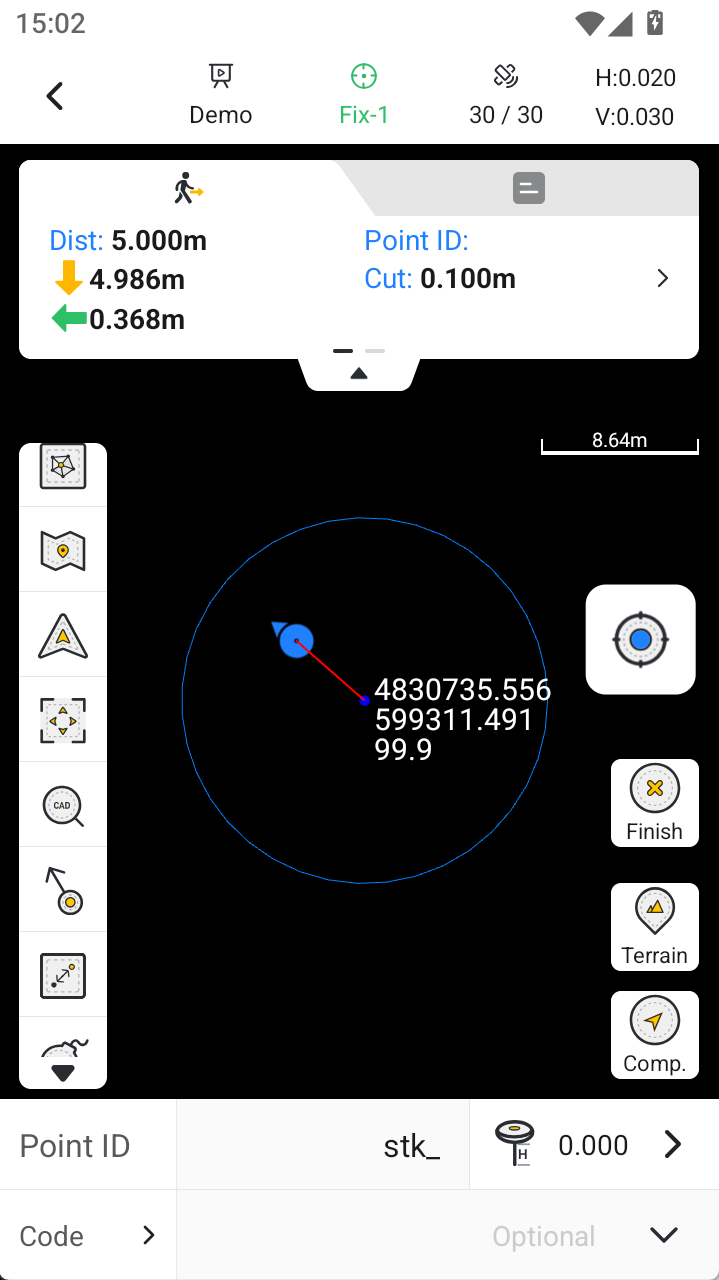
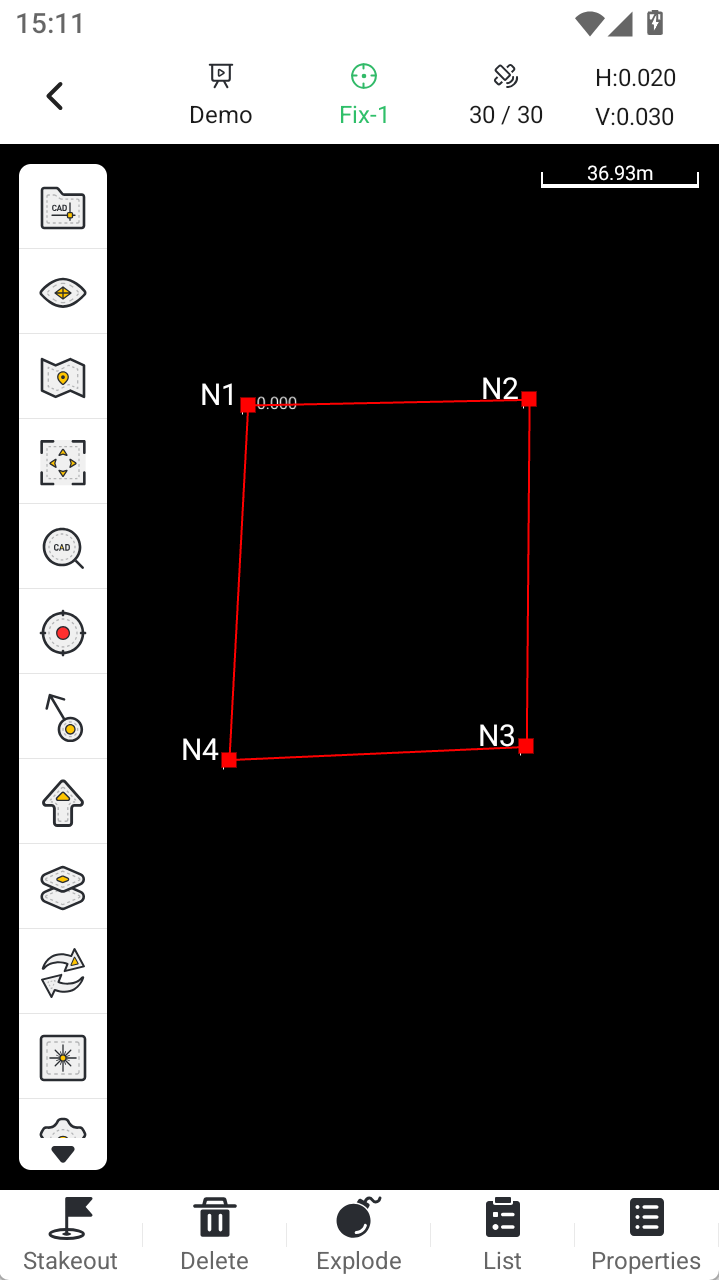
CAD is a key feature that Trion Survey continues to develop and optimize. This version includes the following CAD improvements:
| NO. | Title | Description | ||
| 1 | When using the Alpha CAD engine for CAD Stakeout, circle-center snapping is supported, making it easier to select the center of a circular entity for stakeout. |
| ||
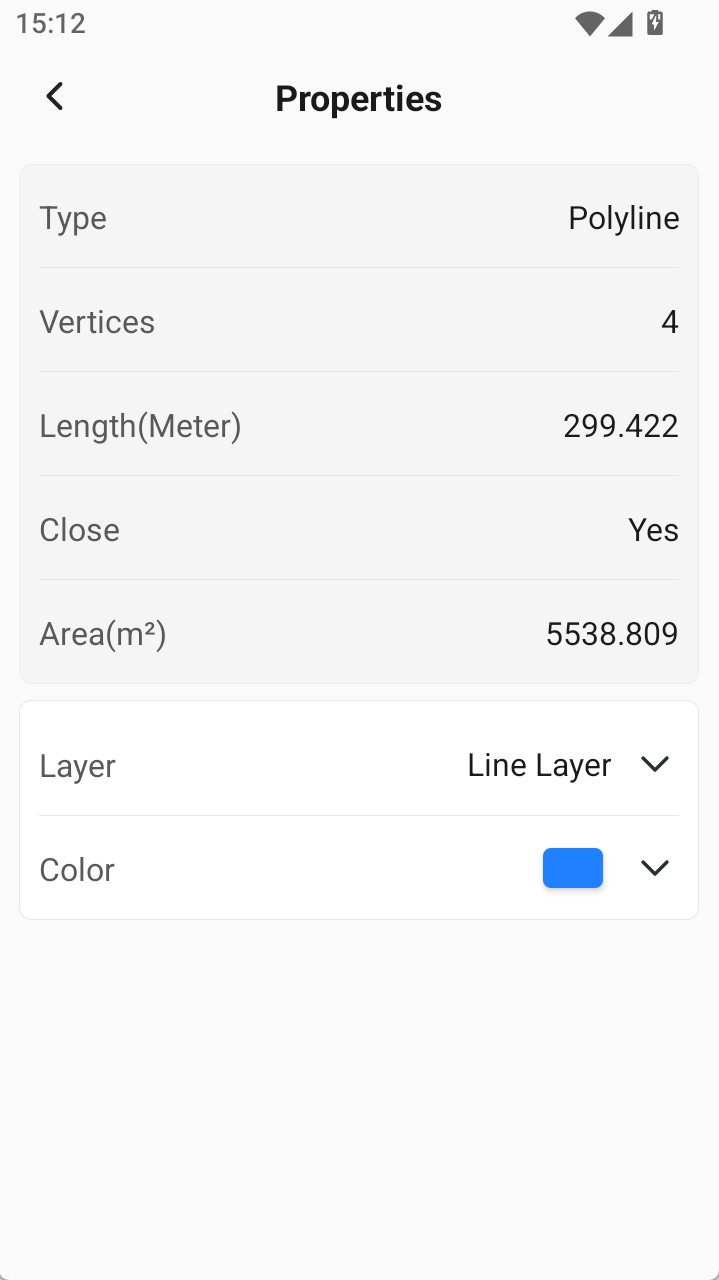
| 2 | After drawing and closing a polygon in Edit CAD, Properties now shows the perimeter and area. |
| ||
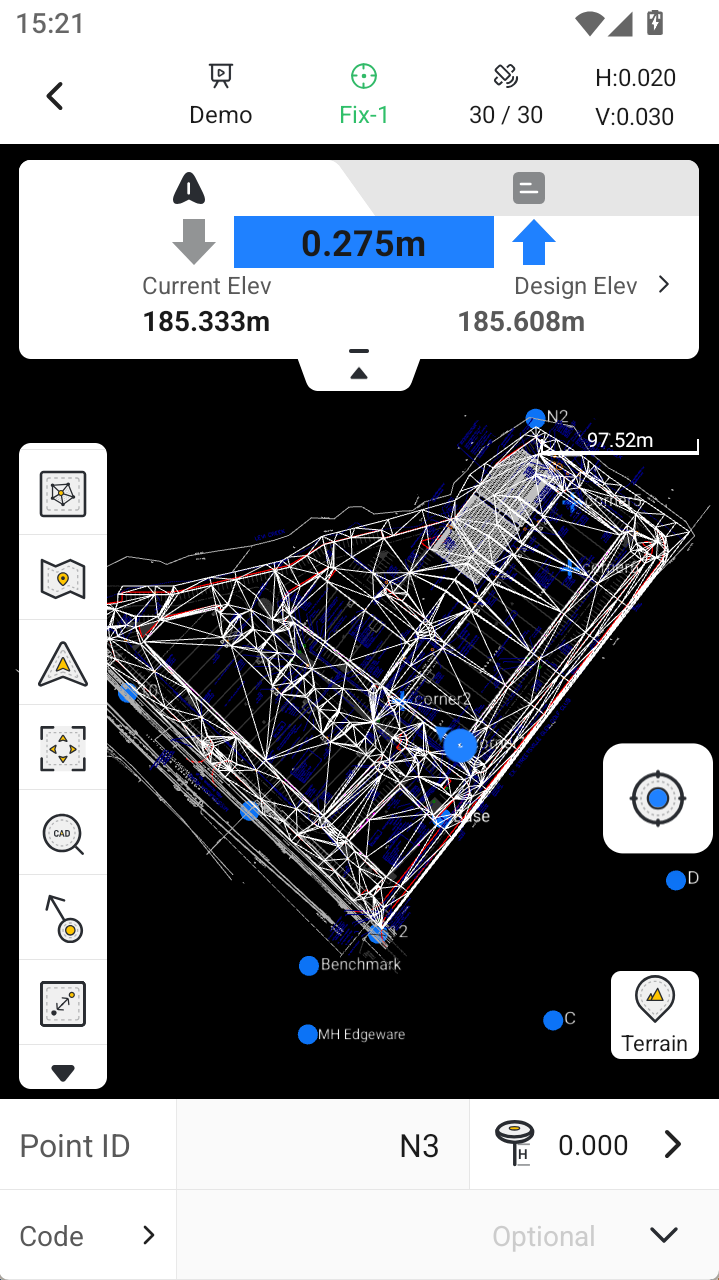
| 3 | In Alpha CAD Stakeout, after opening a Surface file, the cut/fill value is displayed directly when the receiver position is within the Surface boundary. |
| ||
| 4 | Optimized node display for closed polygons by removing the final node that duplicates the first node. | |||
| 5 | Optimized Zoom Extents boundaries on the Point Survey and CAD pages, reducing obstruction from the point ID/code area at the bottom and the controls on the right, so field data can be viewed more completely. |
- For Trion Survey 2.1.9.9, we recommend continuing to use Alpha CAD.
- Alpha is the default CAD engine. If you have switched to MX, switch back to Alpha to use map overlay features; the MX CAD engine does not provide map functionality.
- If the scale appears incorrect in CAD Stakeout/Edit, check the CAD drawing unit again. The APP reads the unit defined in the CAD drawing; many drawings use millimeters (mm) rather than meters (m) by default.
3.4 Quick Coding Now Supports Creating Codes Directly
In the Quick Coding panel, long-press "+" to open the New Code page. After confirmation, the new code is automatically loaded into the Quick Coding panel. A regular tap on "+" continues to open the existing code selection flow.
Quick Coding 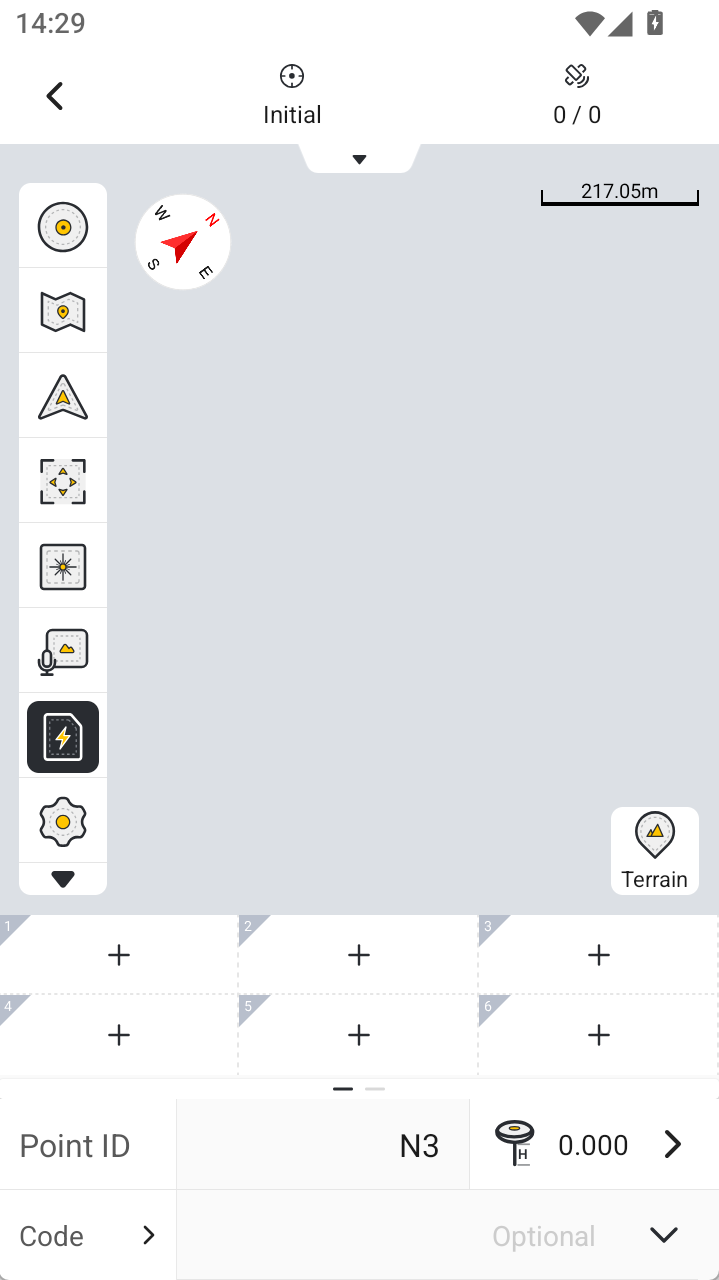 | Short-press "+" 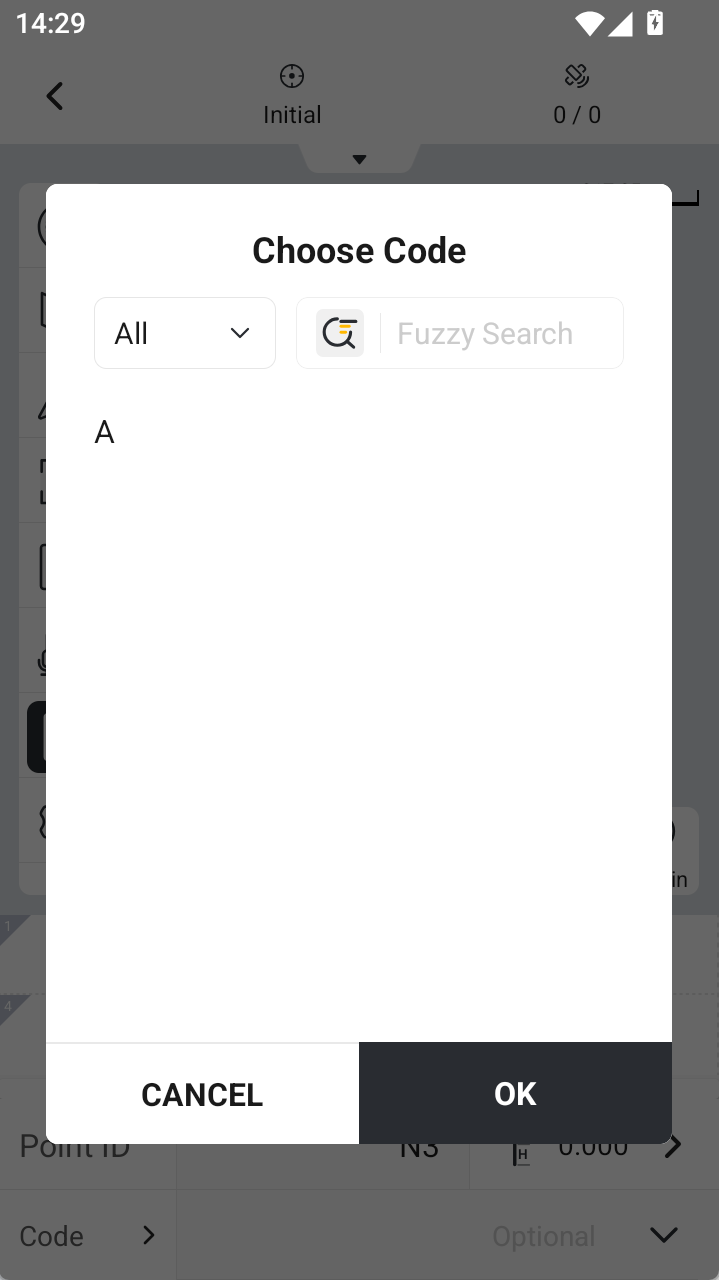 | Long-press "+" 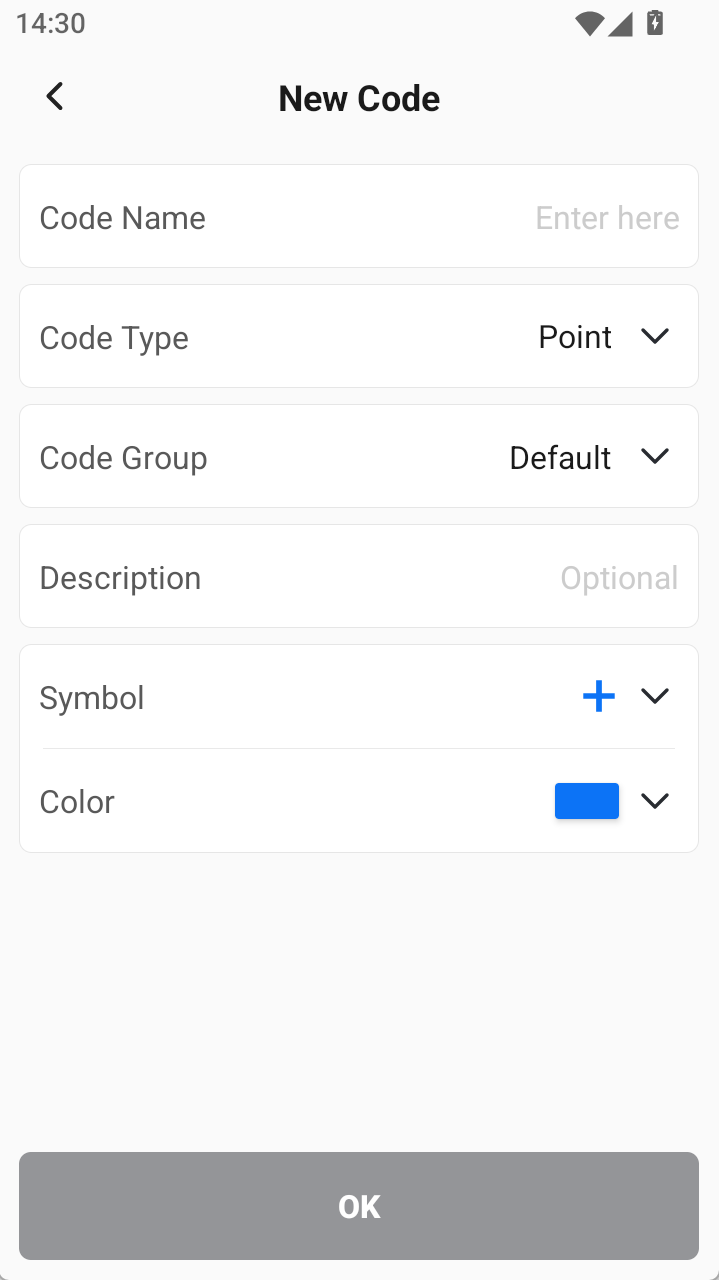 |
3.5 Predefined CSV Export Format with Sigma Fields
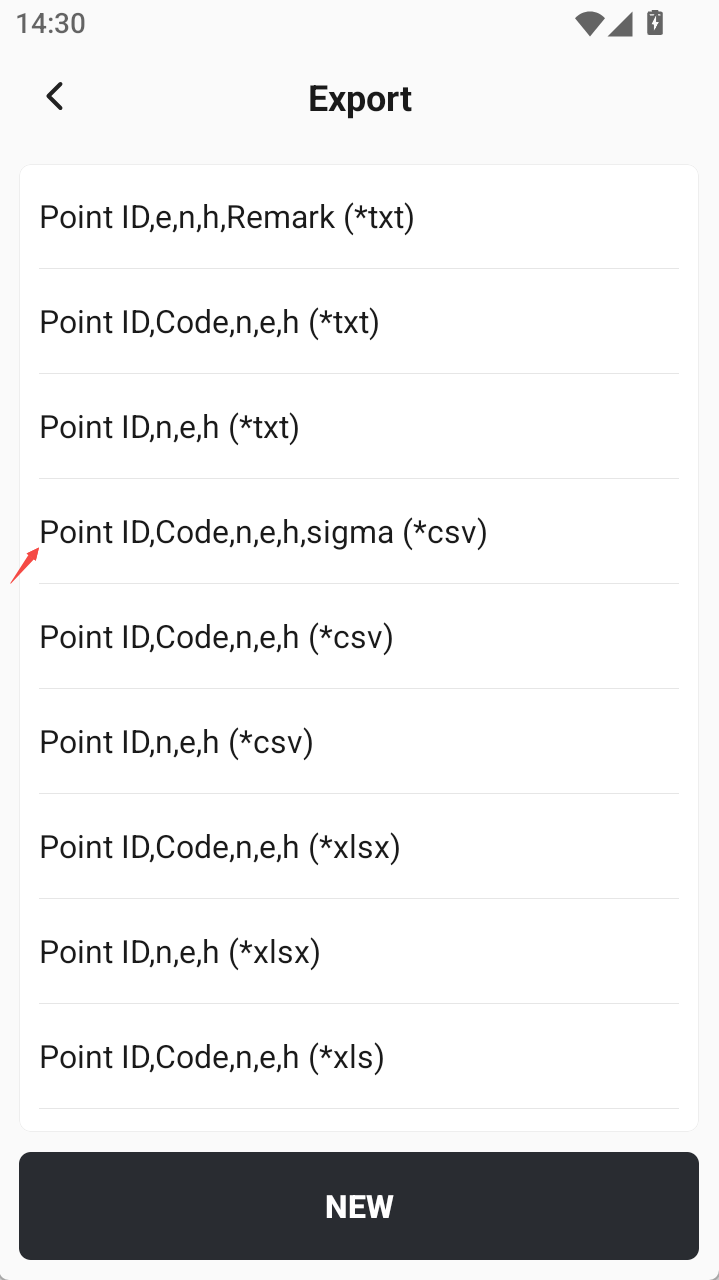
Point Library text export now includes a predefined format named "Point ID,Code,n,e,h,sigma (*.csv)". The exported file includes a header with the following fields: Point ID, Code, n, e, h, Sigma N, Sigma E, and Sigma U.
When exporting Sigma fields, measured points use the accuracy information from their corresponding base station. See Section 4.3 for the detailed rule.
 |
3.6 Added Latvian Language Support
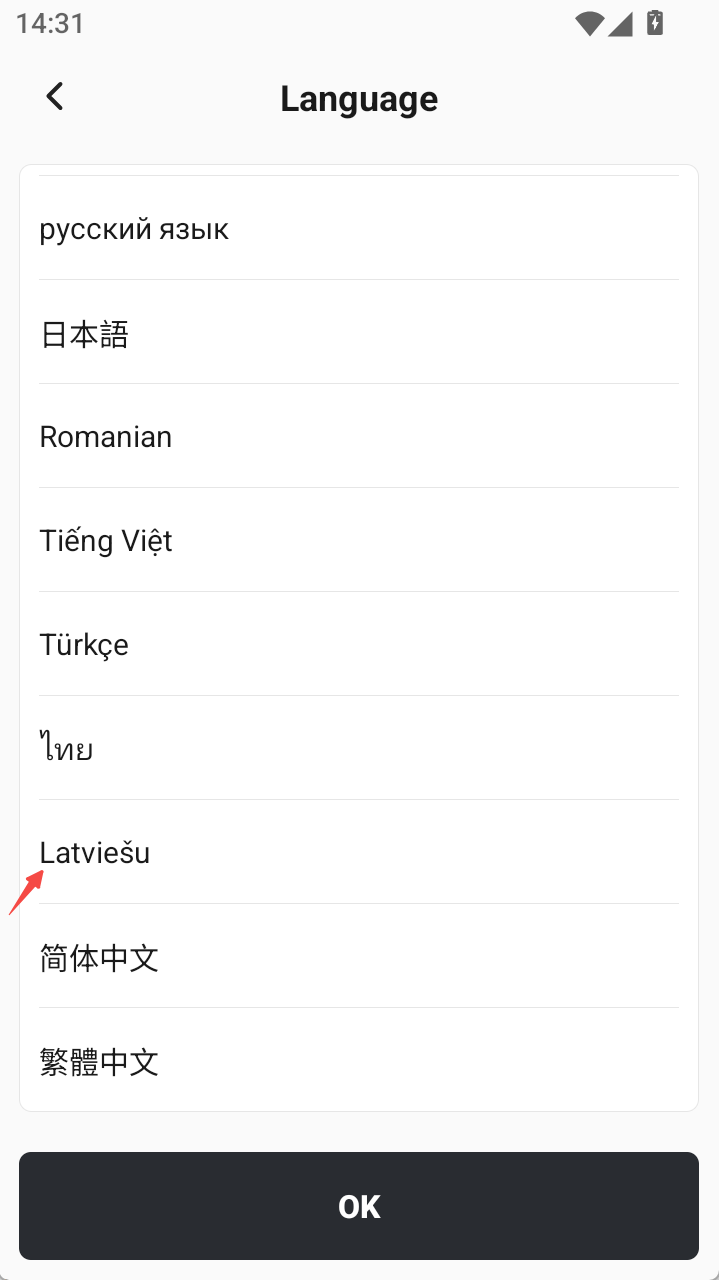
The Language settings now include Latvian ("Latviešu"), allowing the APP interface to be switched to Latvian.
Please contact us if you need localization support for additional regions or languages.
 |
4. Improvements
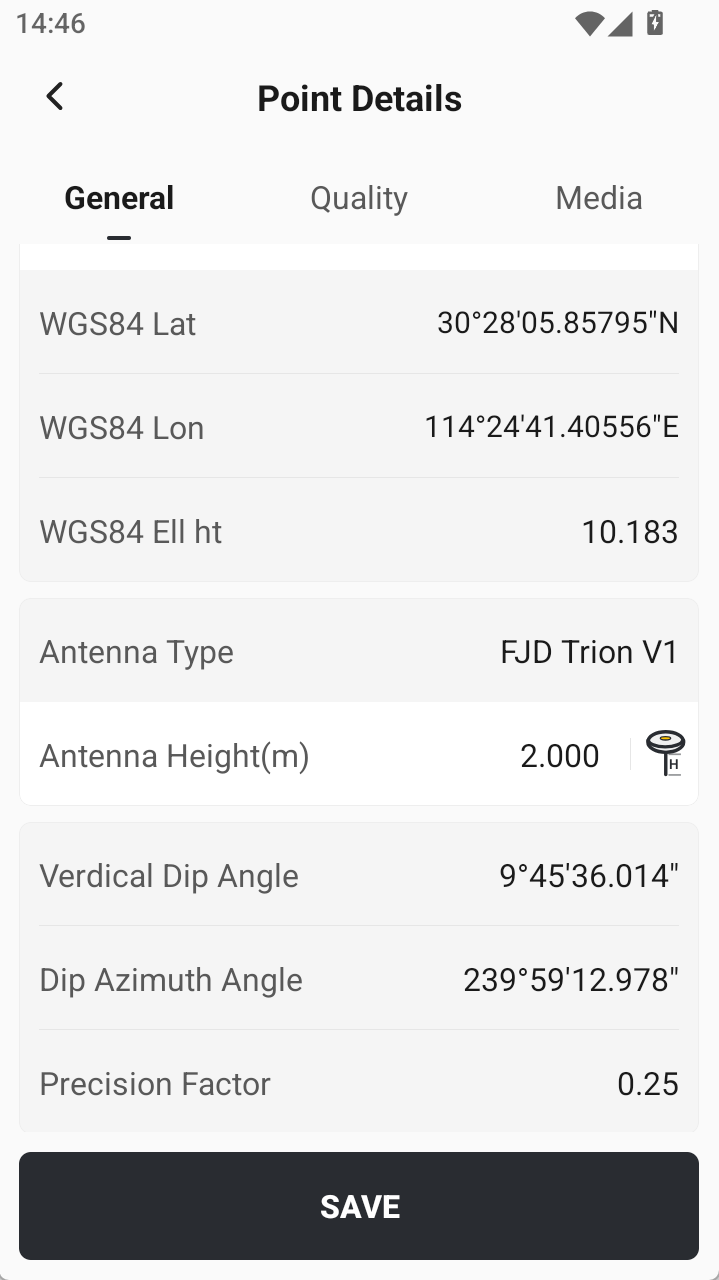
4.1 Optimized Antenna Height Editing for Tilt-Surveyed Points
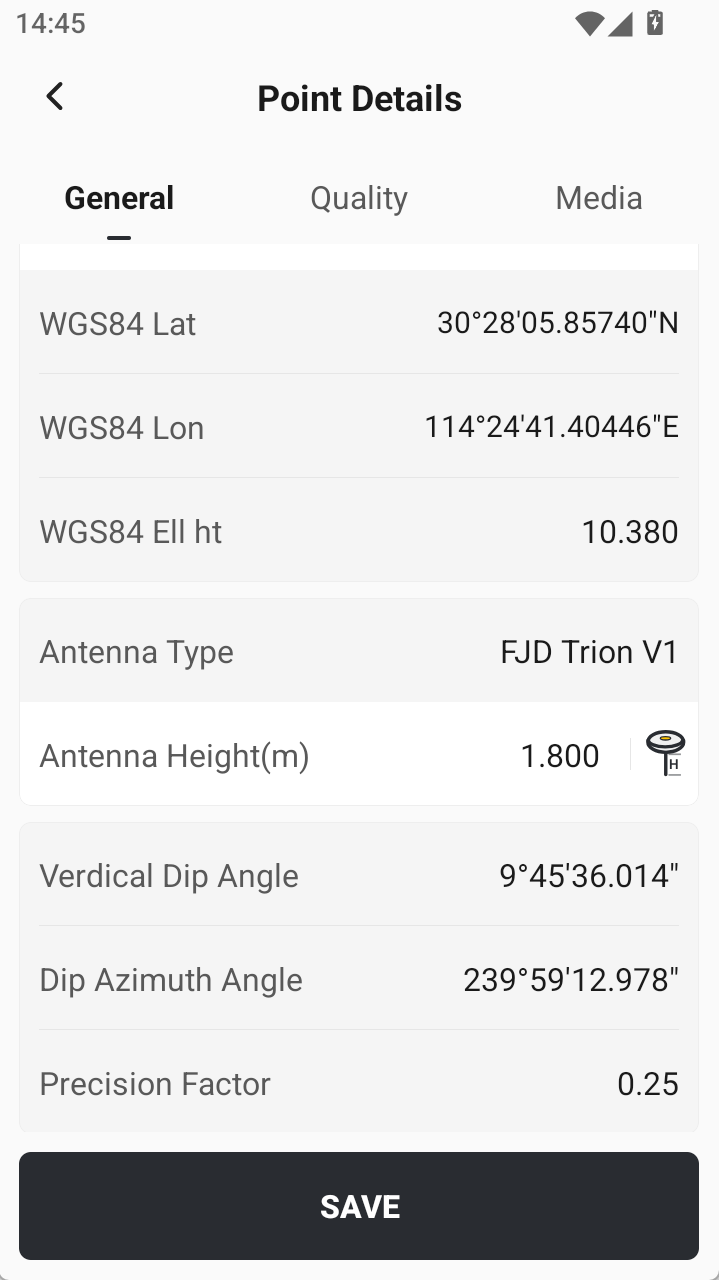
After editing the antenna height of a tilt-surveyed point in the Point Library, the APP recalculates the N, E, and U coordinates based on the Vertical Dip Angle and Dip Azimuth Angle, improving the coordinate correction logic for tilt measurements.
 |  |
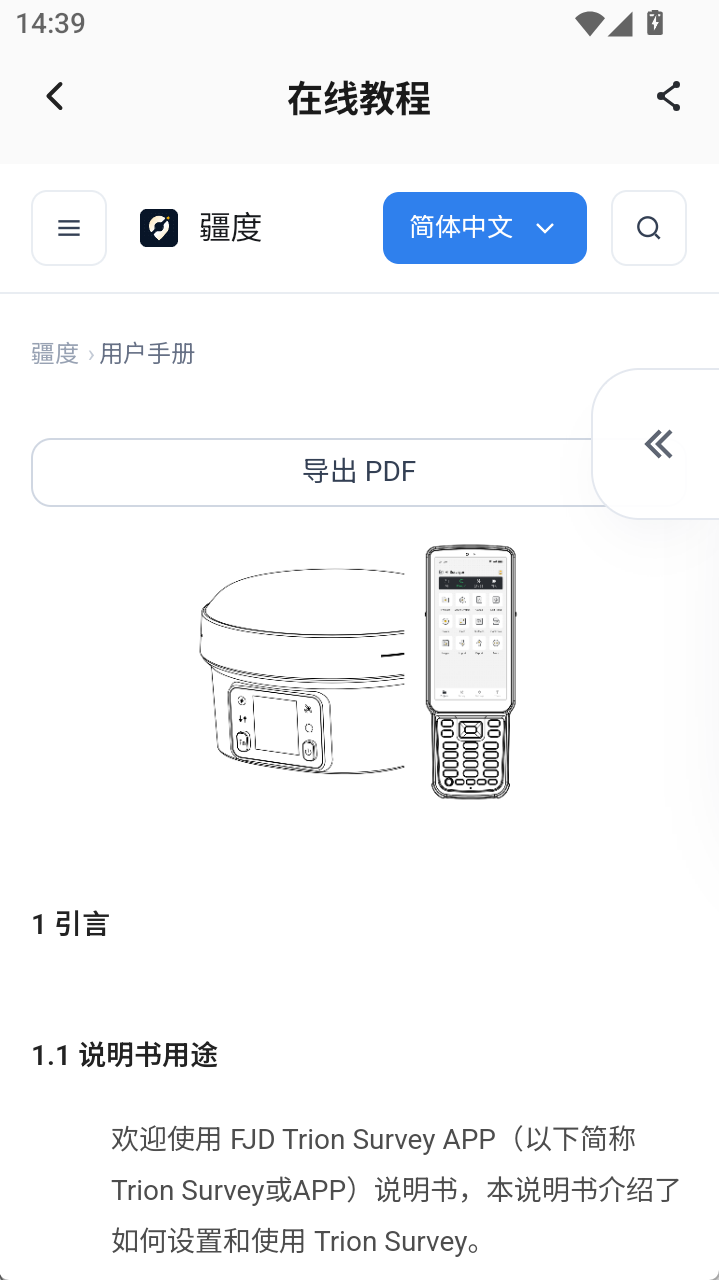
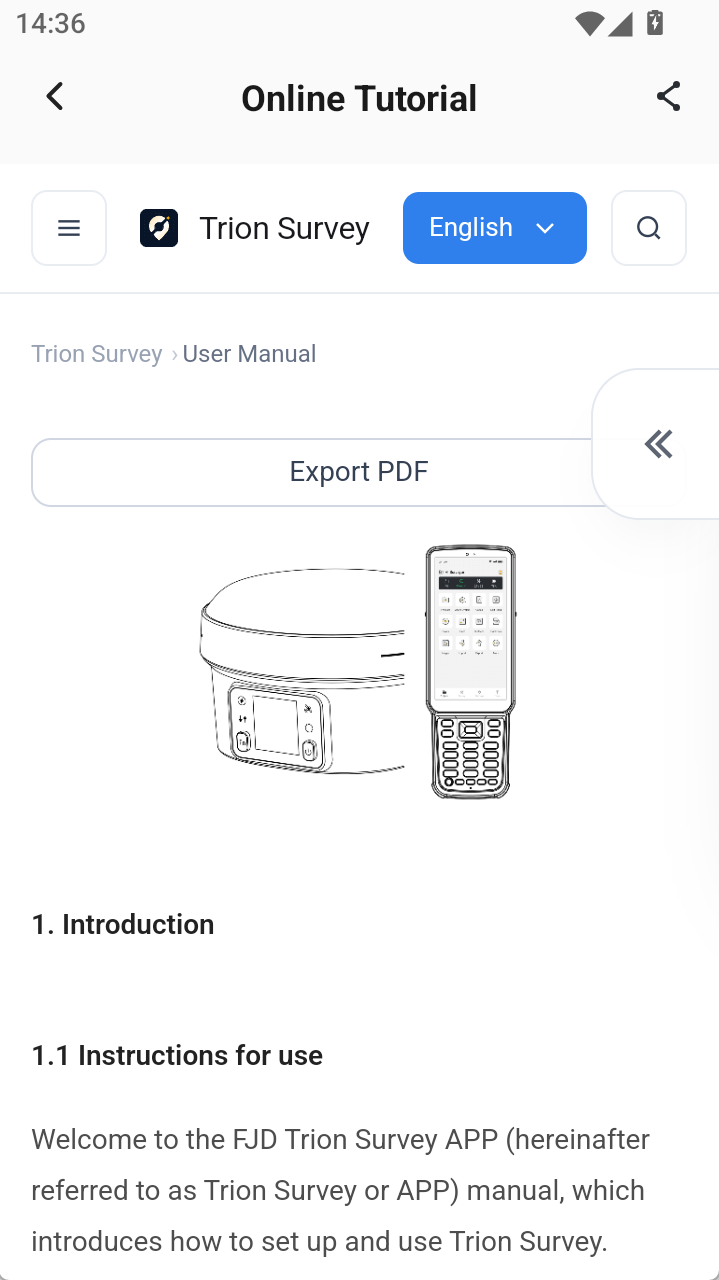
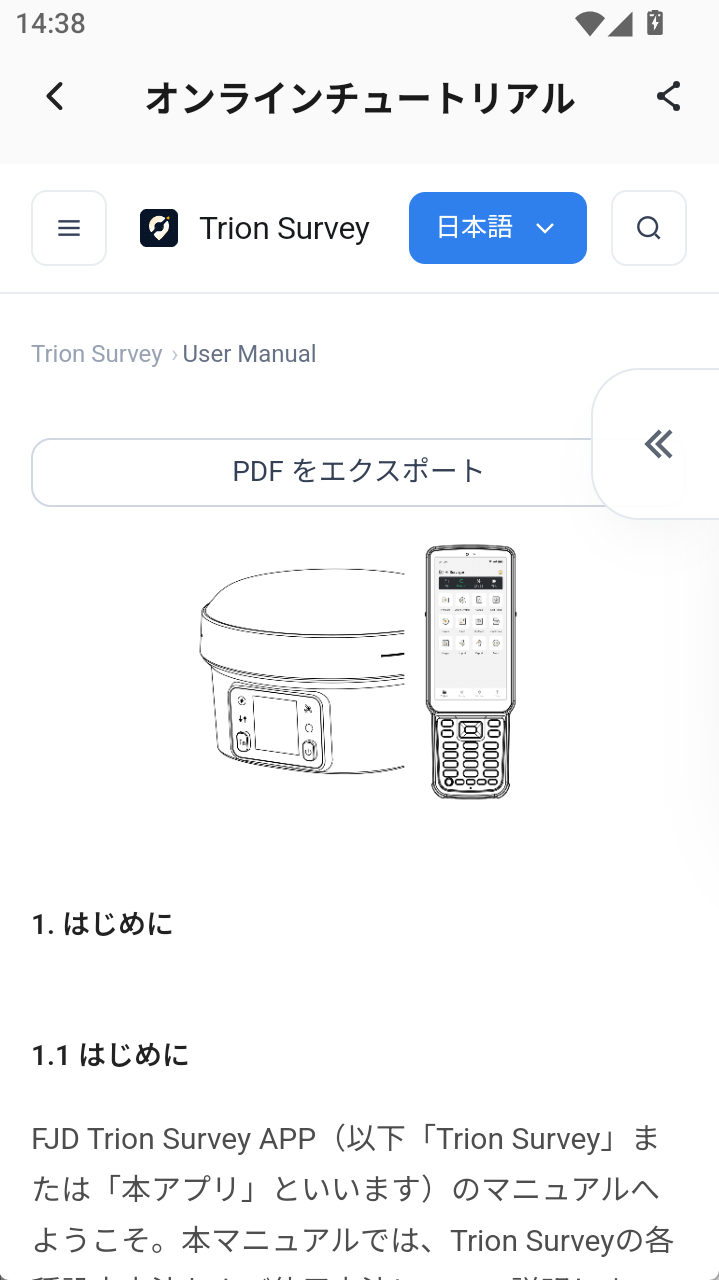
4.2 Online Tutorial Updated to the New Help Manual
The Online Tutorial in Personal Center now opens the new online Help Manual. In Chinese and Japanese environments, the corresponding language version opens by default; all other languages open the English version by default. The sharing function is retained, allowing users to copy the link to the current chapter.
When exporting a PDF, the APP prompts the user to copy the link. Open the copied link in an external browser to download the PDF.
 |  |  |
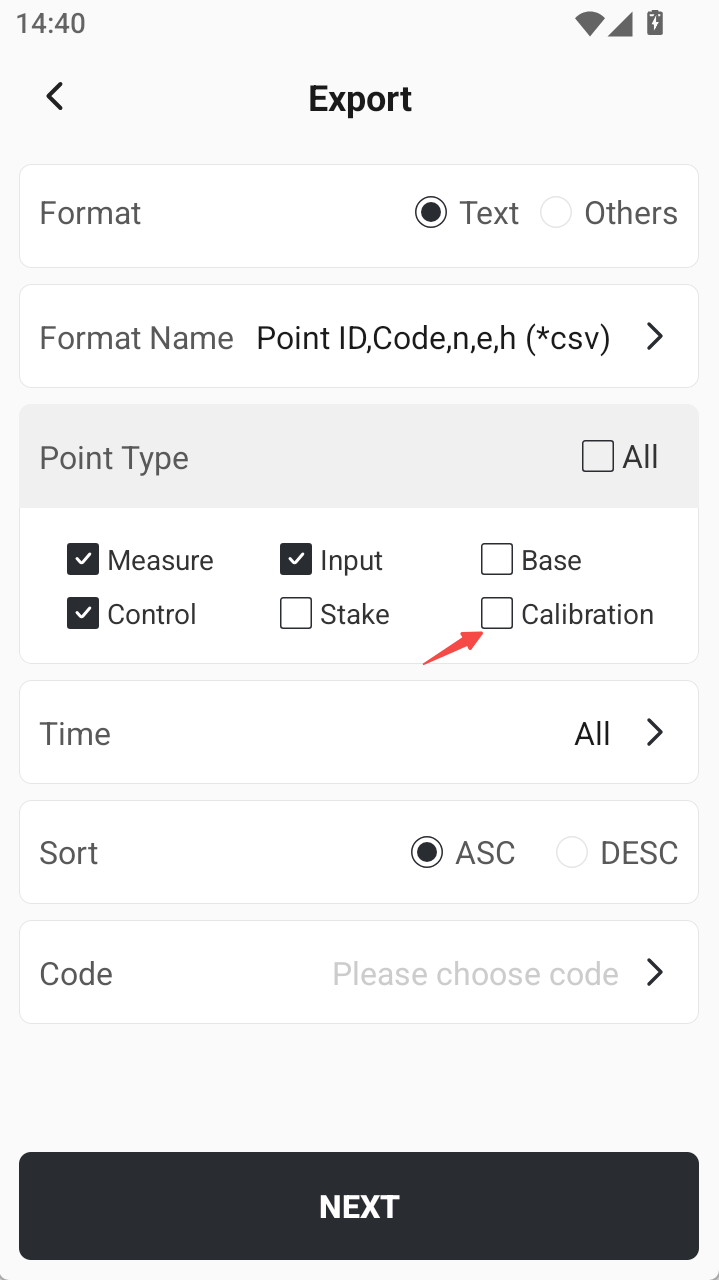
4.3 Optimized Point Type and Sigma Data Export
The general export entry now includes a "Calibration" point type option.
Base point details now include editable Sigma N/E/U fields, with a default value of 0.
Sigma fields have been removed from measured point details.
When Sigma fields are selected for export, the Sigma values of the base station corresponding to each measured point are used.
 |
4.4 Other Improvements
1. Optimized contact information labels and empty-value prompts in Feedback: The Chinese interface displays "Phone/Email", while other language versions display "Email".; the English term "Problem" has been changed to "Issue".
2. The Base/Rover connection confirmation dialog now consistently uses "Receiver connected" to avoid ambiguity caused by the current working mode.
3. Updated the V4e/V4e Pro pole-height measurement illustration to match the receiver-specific height measurement method.
4. Optimized the illustration for COGO - Stake by Distance.
5. The Ionospheric Forecast feature has been discontinued. In the Chinese environment, its entry has been removed from the home page, and the corresponding section has also been removed from the online user manual.
6. Optimized Japanese report formatting.
4.5 App Multilingual Optimization
| Based on ongoing market feedback, the app will continue to improve multilingual translations. 1. The app now supports 22 languages. 2. On first launch after installation, the app automatically selects the corresponding language according to the Android system language. If the language is not available, English is selected by default. 3. Many minority languages have already been optimized with the help of distributors or sales teams. If sales teams find inappropriate translations during use, they can contact rtk-support@fjdynamics.com for optimization. | Language switching |
5. Bug Fixes
5.1 CAD File Compatibility
Fixed issues where some CAD drawings could not be opened or were displayed abnormally in Alpha CAD, improving compatibility with the affected drawings.
5.2 CAD Layer Visibility
Fixed ineffective visibility controls for elevation and line-name layers in the Working Layers panel, as well as an issue where text remained visible after the layer containing it was turned off.
5.3 CAD Entity and Text Display
Fixed oversized point styles and abnormal text display in some drawings.
5.4 CAD Snapping Lag
Fixed lag when dragging the snapping icon in Alpha CAD for some drawings.
5.5 CAD Drawing Deletion and Drawing Position
Fixed an issue where deleted drawings could still appear after re-entering the page, as well as an issue where drawn graphics shifted after leaving and reopening the page.
5.6 External Data Loading and Zoom Extents
Fixed delayed layer display after adding external data, and fixed Zoom Extents not including existing Point Library points after external data was loaded or deleted.
5.7 Measurement and Stakeout Point Display
Fixed cases where Point Survey could not display the full extent in some projects, as well as occasional missing points in Measure & Draw, Point Survey, and Point Stakeout.
5.8 LOK Coordinate System File Import
Fixed import failures for some .lok files from the Common Coordinate Systems page.
5.9 Feedback Submission
Fixed continuous loading and failure to submit feedback after tapping Send.
5.10 HTML File Export
Fixed continuous loading and export failure when exporting Point Library data to HTML in some projects.
The fixes above apply only to issues and drawing samples reported by markets, agents, or users after the previous release. They do not mean that all CAD file compatibility issues have been resolved.
6. Compatibility
| Receiver | Version | Description |
| V1 series | 5.0.3.4 | This update is delivered via OTA. When prompted, tap "Upgrade Now" to download and install it. |
| V10 series | 10.2.7.12 | 1. Added an elevation mask configuration feature. 2. Improved system stability. 3. Fixed an occasional issue where the satellite system would turn off unexpectedly. 4. Fixed an image lag issue in the V10 Sep version. |
| V4e series | 1.0.0.25 | 1. Added static acquisition. 2. Added base station mode settings. |
7. Known Issues
Our development team is aware of the following issue and plans to address it in a future release. We sincerely apologize for any inconvenience this may cause:
- [Issue 1]: Large CAD files, or files with many entities or text, may fail to load or cause the app to crash during use.
- Temporary workaround: Use a desktop CAD tool to remove unnecessary layers, then re-import the file and attempt to load it again.
- [Issue 2]: If a CAD file has many text labels, when opening it with Stake/Edit CAD, some text labels may be missing.
- Temporary workaround: This only affects the preview display and does not impact actual measurement or staking. We are continuing to optimize this behavior.
8. Update Notes
Thank you for updating! This is a minor update. To ensure a smooth process, please note the following:
| Update Process | The update will be downloaded and installed automatically via OTA (Over-the-Air). Simply agree and tap “Update Now” to start. |
| Data Safety | This update will not erase any personal data or account information. However, as a best practice, we recommend manually backing up any critical data before updating. |
| Preparation | We recommend performing the update over a stable Wi-Fi or 4G connection, and ensuring your device has more than 50% battery or is connected to a charger. |
| After Update | Once the update is complete, the app will automatically restart to ensure all new features and fixes are applied correctly. |
| Rollback | After updating, it will not be possible to revert to the previous version. |
9. Support
If you encounter any issues during use or have valuable suggestions, please feel free to contact us. Your feedback is extremely important to us.
- Technical Support Email: rtk-support@fjdynamics.com
- To help us resolve issues more efficiently, please provide the following information when reporting a problem:
- App version, including both the original and updated versions
- Controller model and serial number
- Operating system version
- Detailed description of the issue and steps to reproduce it
- Relevant screenshots or screen recordings
Thank you again for your continued support of our products!
Copyright © 2026 FJDYNAMICS PTE. LTD. All Rights Reserved.