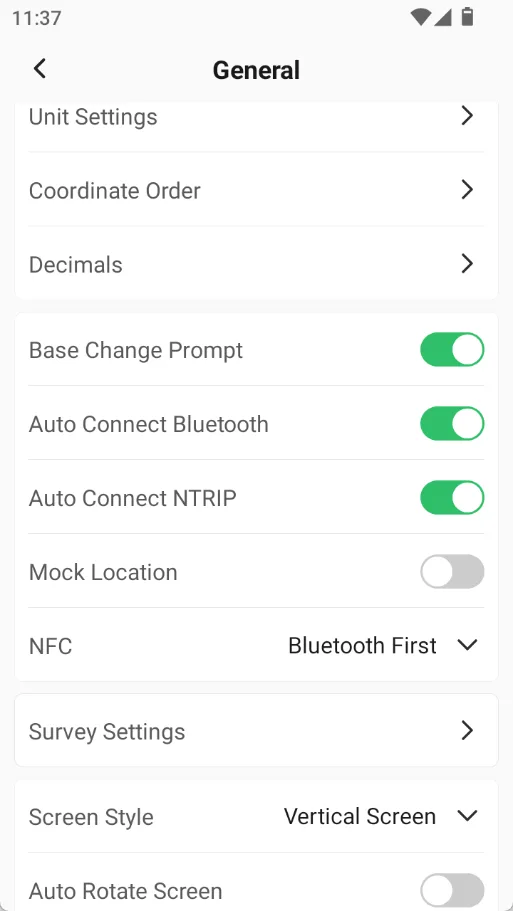
Off by default, turn on to automatically rotate the screen
6.4.2 Length Unit
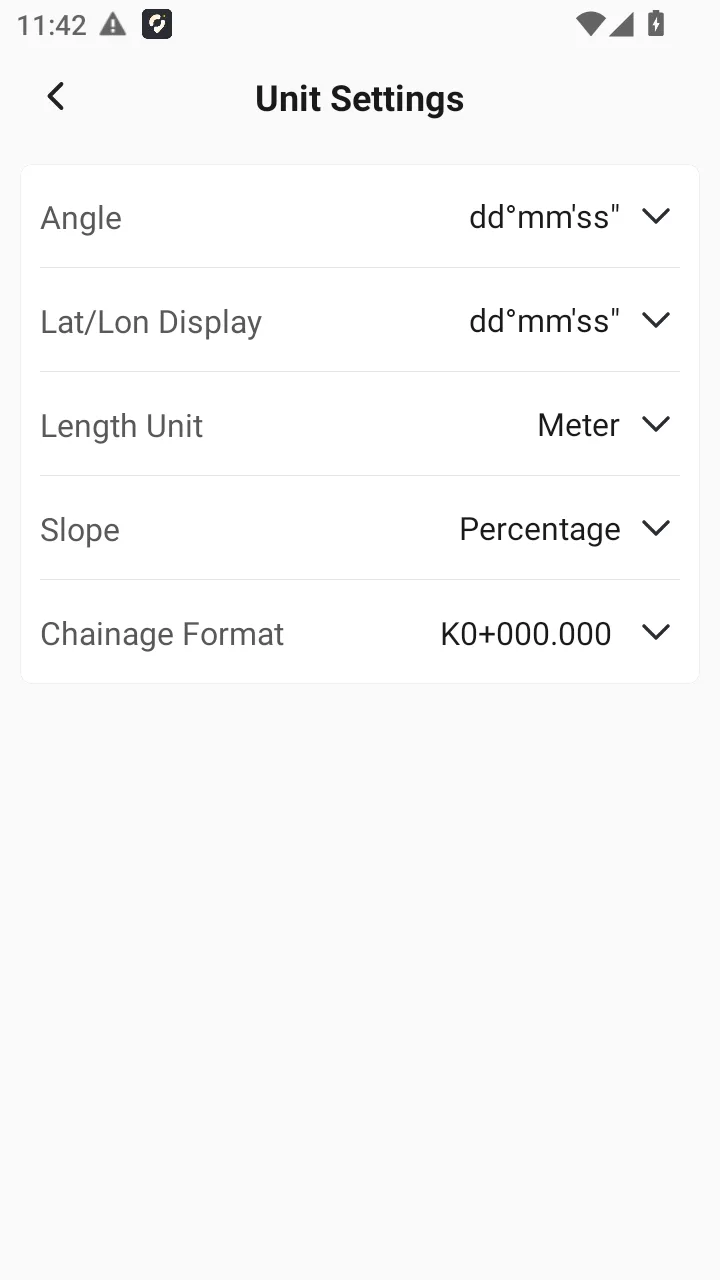
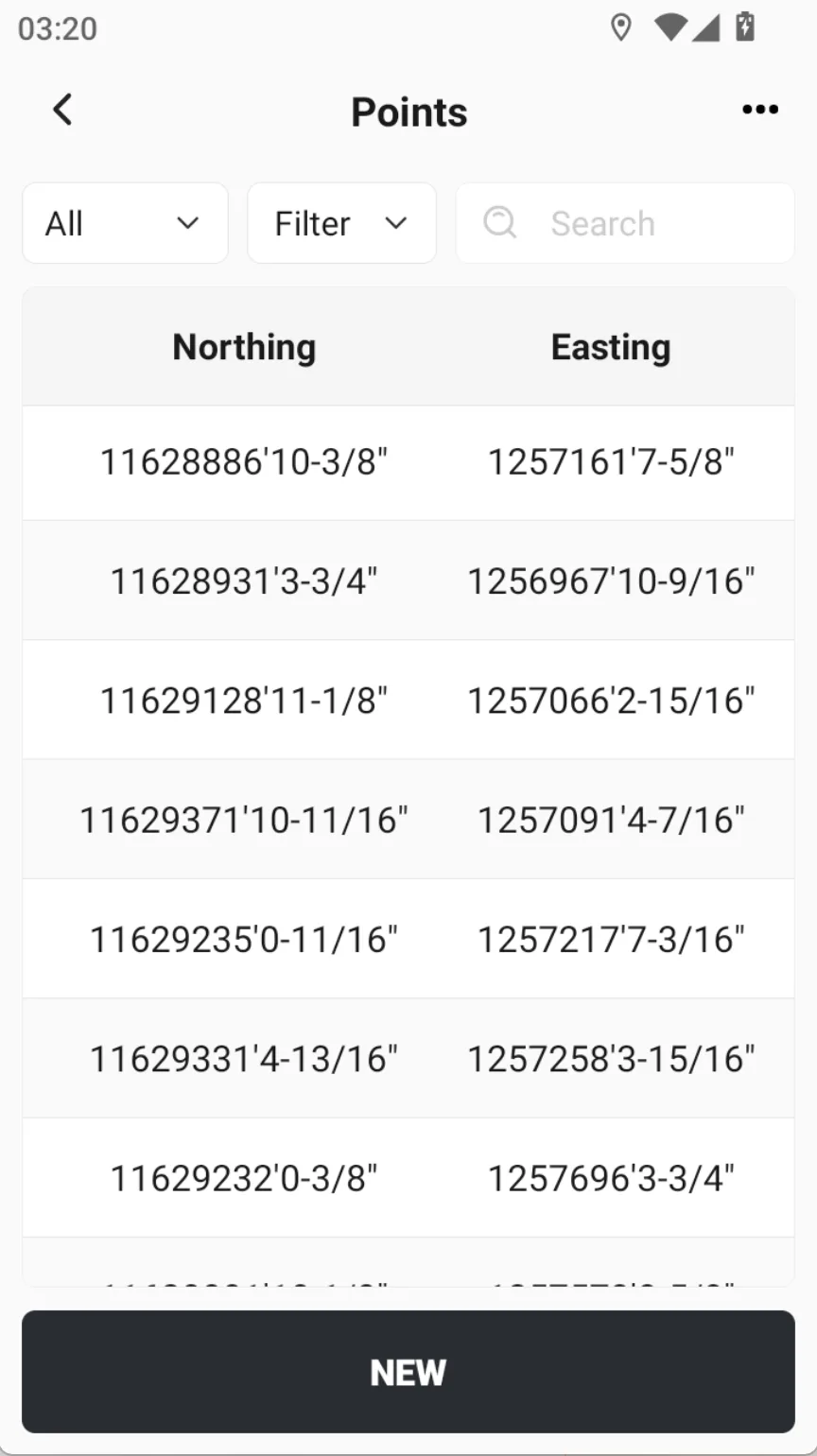
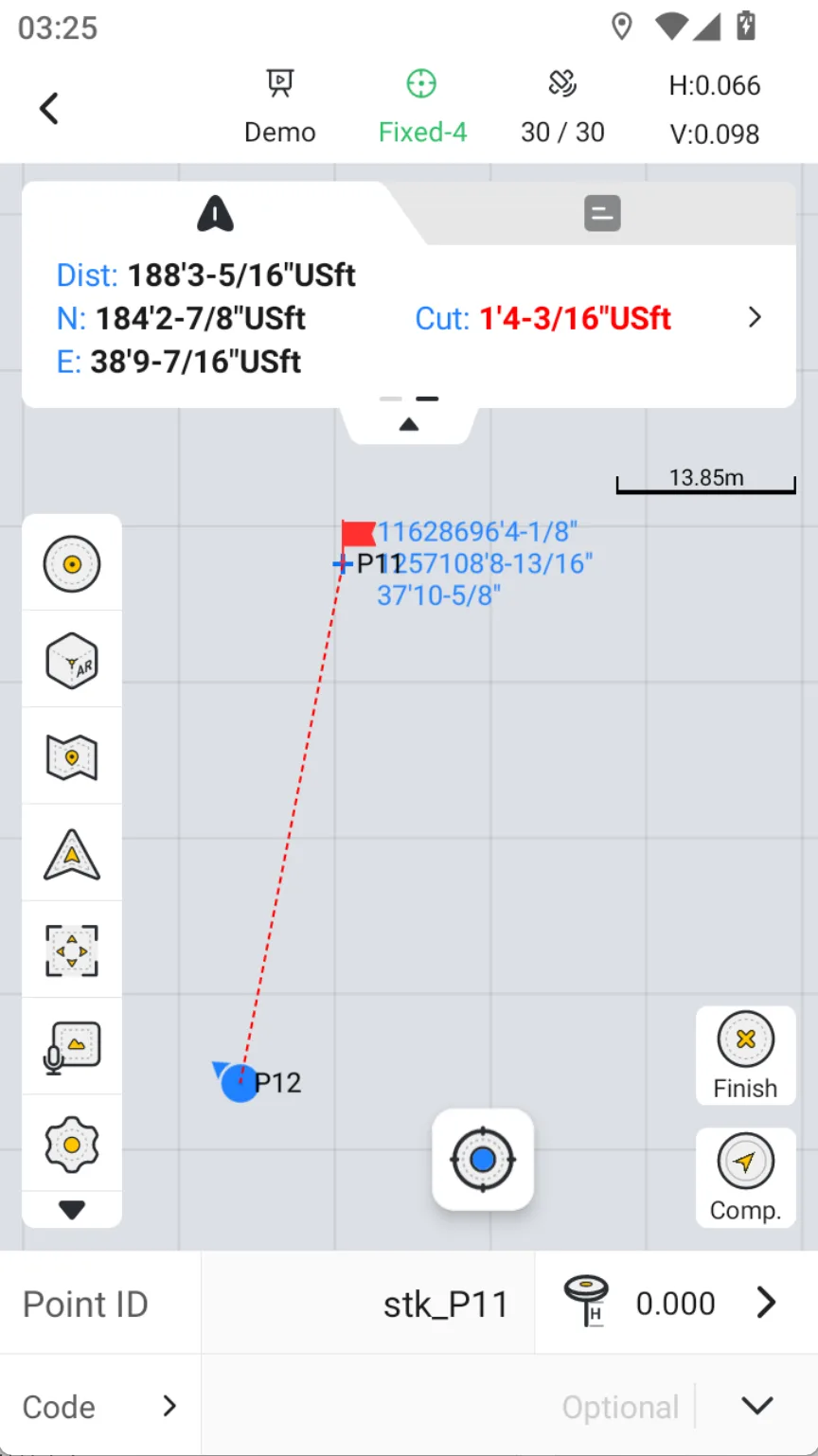
Support switching between commonly used length units, including meter, international feet, and US feet. When choosing feet or US feet, supports using fractions to represent the decimal part of inches. The larger the denominator, the higher the accuracy.
Unit conversion
1 ift = 0.3048 m
1 sft = 0.3048006 m
1 ift = 12 inch
For example, the length unit selection is sft/inch, which supports inch tolerance. Default is 1/16, and the highest precision can be selected as 1/64. Note: Fractional format only supports display, and import and export functions do not support it.
6.4.3 Mock Location
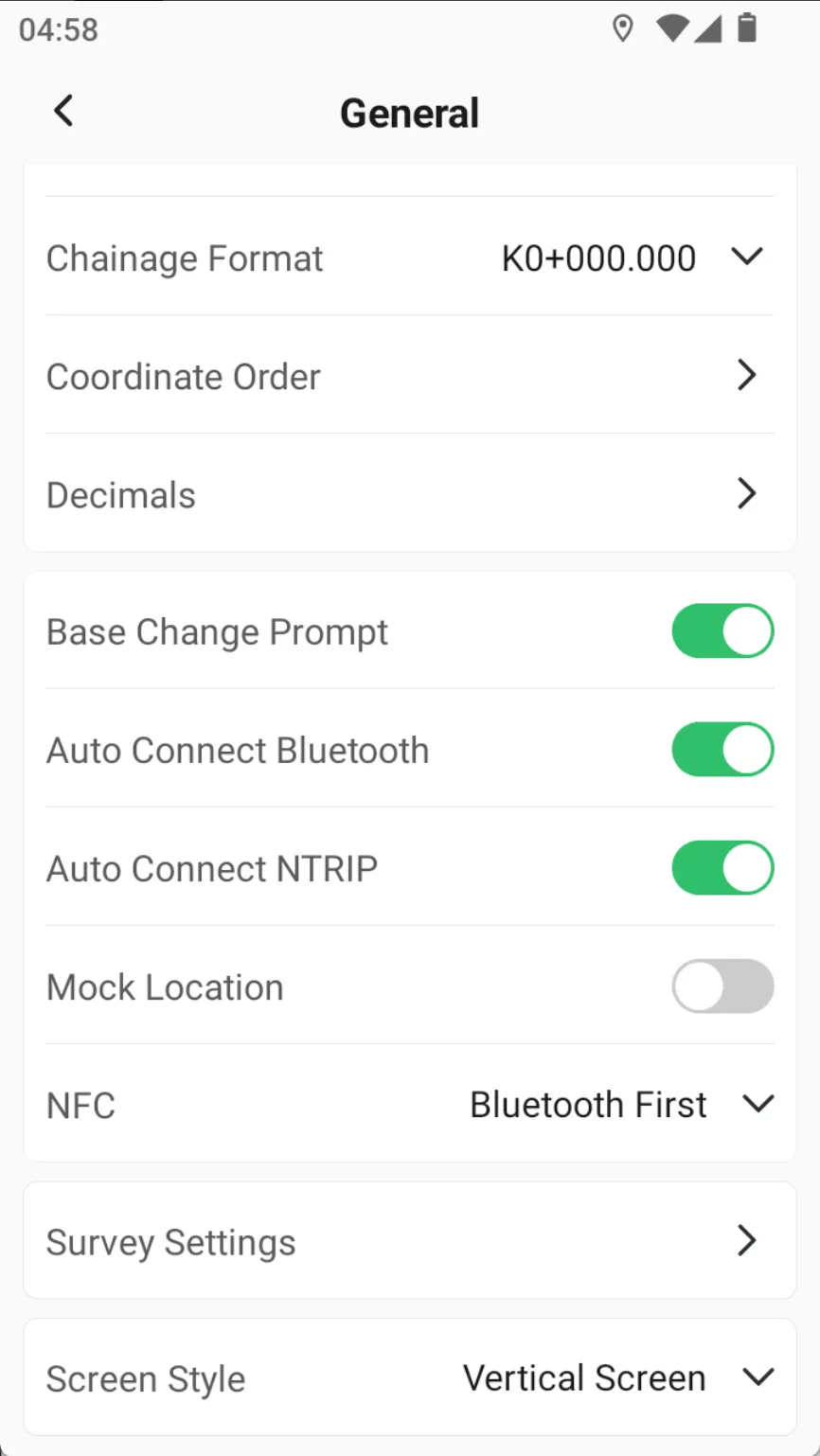
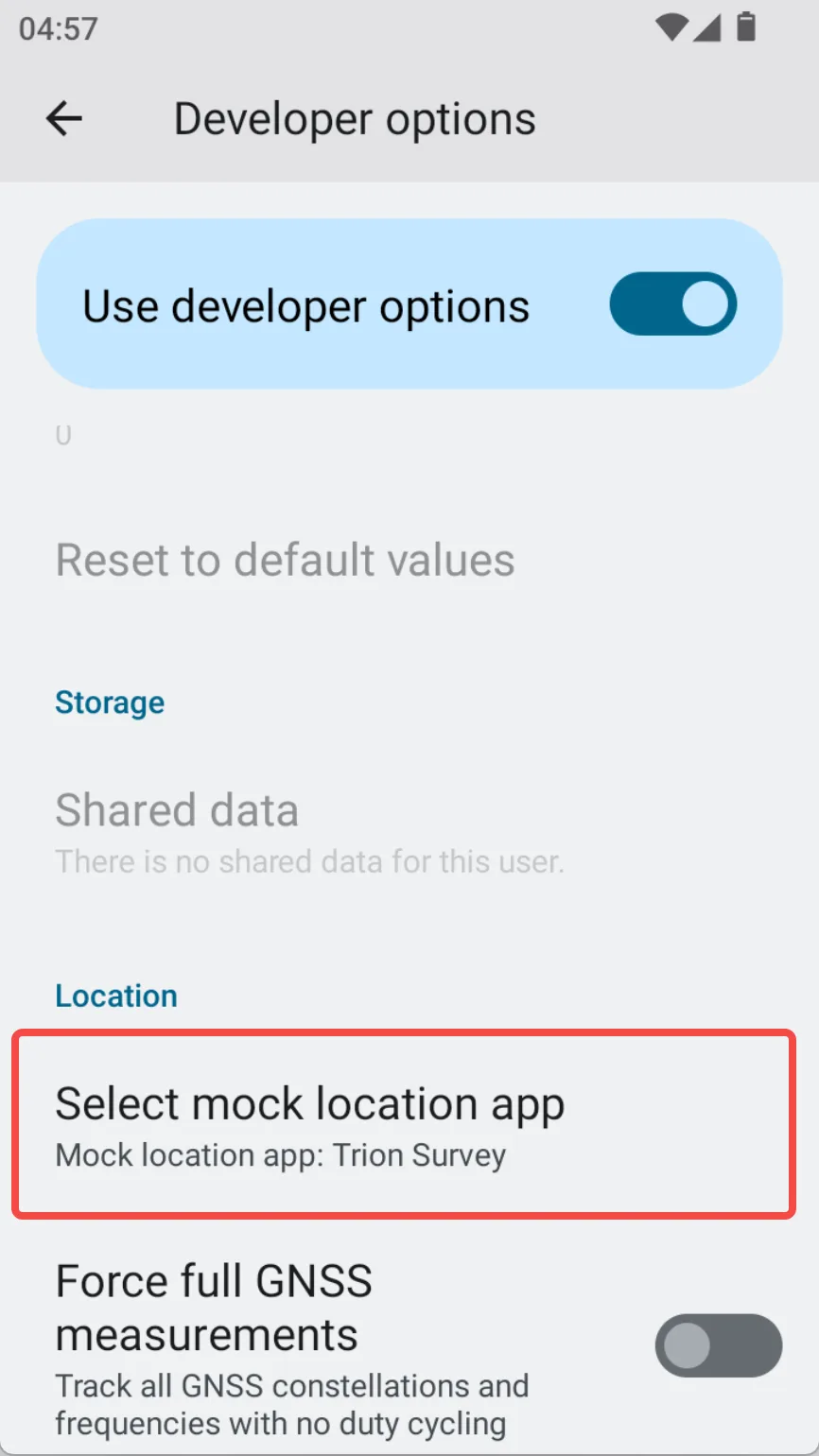
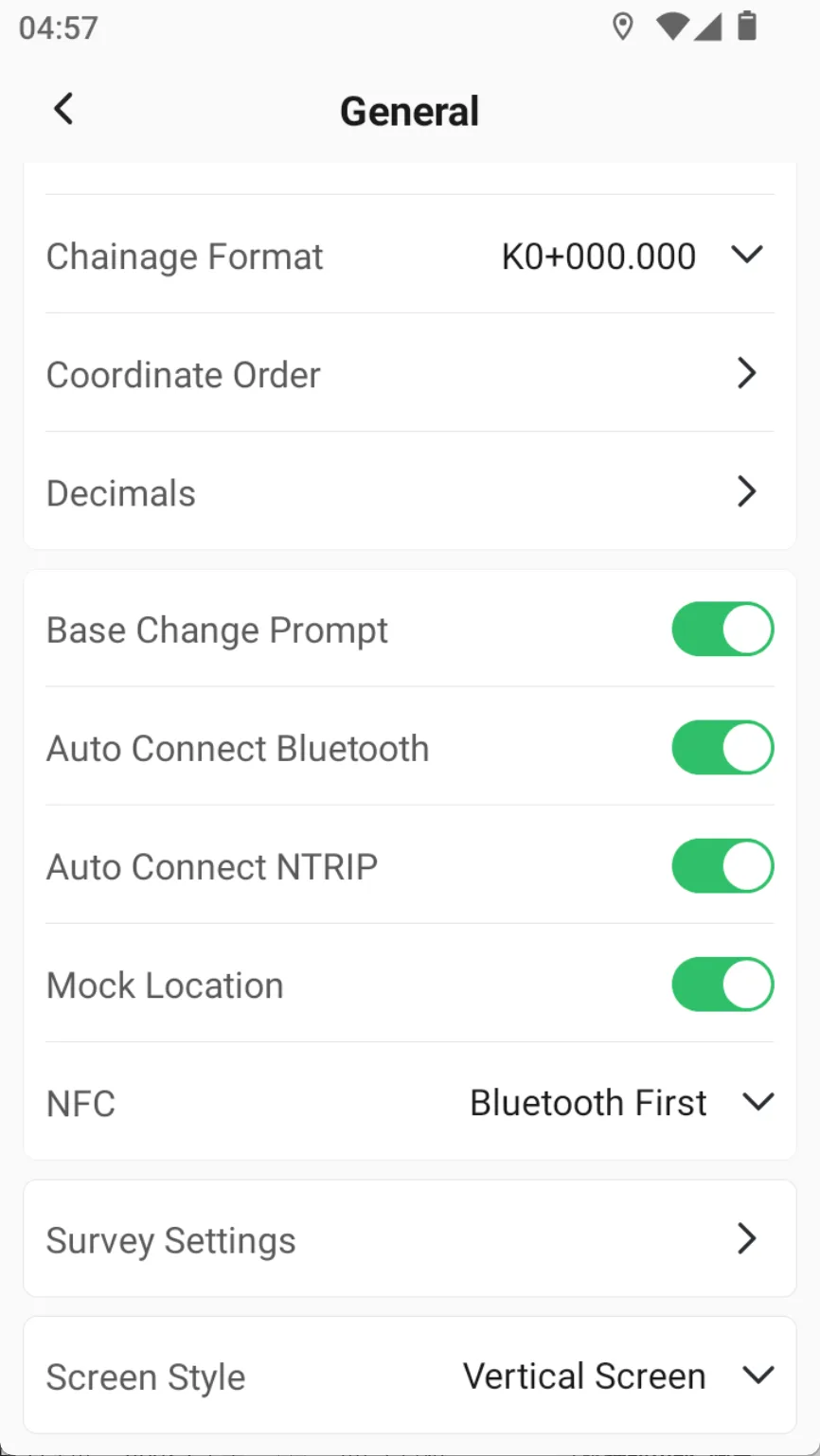
The Mock Location feature allows users to simulate the GPS location of a device through Trion Survey without actually moving. This feature is very useful for application testing, privacy protection, or obtaining GPS location from a controller in conjunction with third-party apps.
📌
Note that the Mock Location feature involves sensitive information and is disabled by default.
6.4.4 Survey Settings
Survey Settings includes Survey, Stake, Road and Show settings, which can be accessed by clicking the toolbar setting button in the corresponding measurement module.
6.4.4.1 Survey
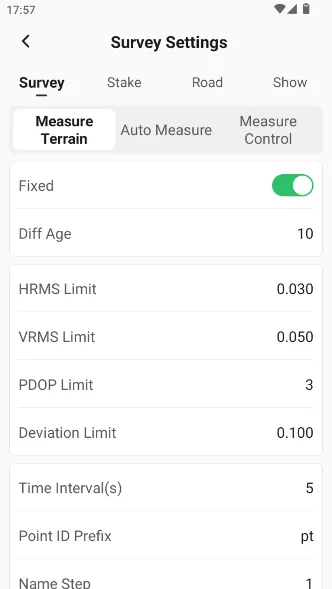
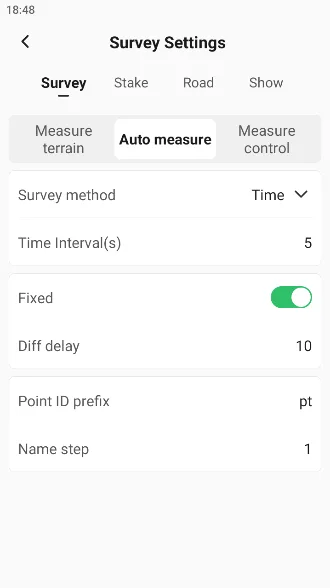
The Survey settings are divided into [Measure Terrain],[Auto Measure]and [Measure Control], each corresponding to different measurement functions.
Measure Terrain setting instructions are as follows:
Name
Description
Fixed
After the switch is turned off, the measurement result will no longer be used as a verification basis for whether it is a fixed solution.
Diff Age
Default 10s, fixed solution will be lost if exceeded 10s
HRMS Limit
Horizontal Root Mean Square
VRMS Limit
Vertical Root Mean Square, elevation accuracy
PDOP Limit
Position Dilution of Precision, the strength of satellite position accuracy, the better the satellite distribution, the smaller the PDOP value, generally less than 3 is a more ideal state
Deviation Limit
The mutual difference limit of any two values at the observation point
Tilt Limit
Set the tilt angle, and a pop-up prompt will appear when it exceeds the limit.
Time Interval(s)
Time to acquire coordinates for each measurement cycle
Observation Rate
Optional 1Hz/2Hz/5Hz/10Hz/20Hz (depending on the specific receiver model)
Point ID Prefix
Default measurement point prefix
Name step
The difference between two adjacent point numbers
Confirm before saving
It is turned off by default. After it is turned on, it prompts to confirm before saving.
E-Bubble
After starting the IMU, E-Bubble can be optionally displayed on the measurement page.
Use Quick Code
After starting, add a code icon to the measurement toolbar, and click to open the quick code panel.
PPK Measure
After startup, a PPK icon will be added to the measurement toolbar. For more details, please refer to Chapter 8.6.
Visual Measure auto-save picture
It is turned off by default. When the image measurement point is saved after it is turned on, the image will be automatically saved as the point property.
Laser Measure auto-save picture
It is turned off by default. When laser measurement is turned on and a point is measured, the preview image will be automatically saved.
Auto Measure setting instructions are as follows:
Name
Description
Measure Method
Optional Time interval, 2D distance, 3D distance, △H. Choose different measure methods and display different parameter settings accordingly.
Time Interval (s)
It varies with the choice of measure method.
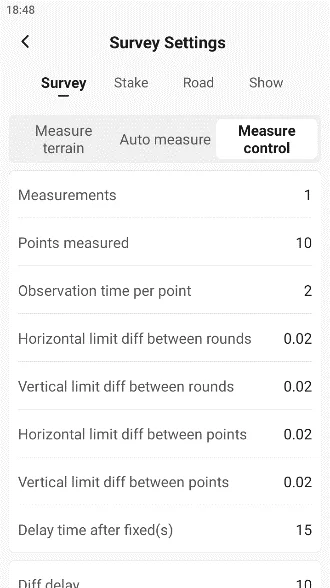
Measure Control setting instructions are as follows:
Name
Description
Measurements
Set measurement cycle
Points measured
Set the number of measurements per cycle point
Observation time per point
When the value is greater than 1, the measurement result is averaged over multiple epochs
2D dist limit between rounds
The current mean of all points measured back and the plane difference limit of other measurements
H dist limit between rounds
The elevation difference between the mean of all points currently measured and other measurements is limited
2D dist limit between points
The difference between the last measured point and the mean plane of all points in the current measurement is limited
H dist limit between points
The difference between the elevation of the last measured point and the mean of all points in the current measurement is limited
Waiting time after fixed(s)
After obtaining the fixed solution for the first time, wait for several seconds before starting the measurement
6.4.4.2 Stake
Name
Description
Page
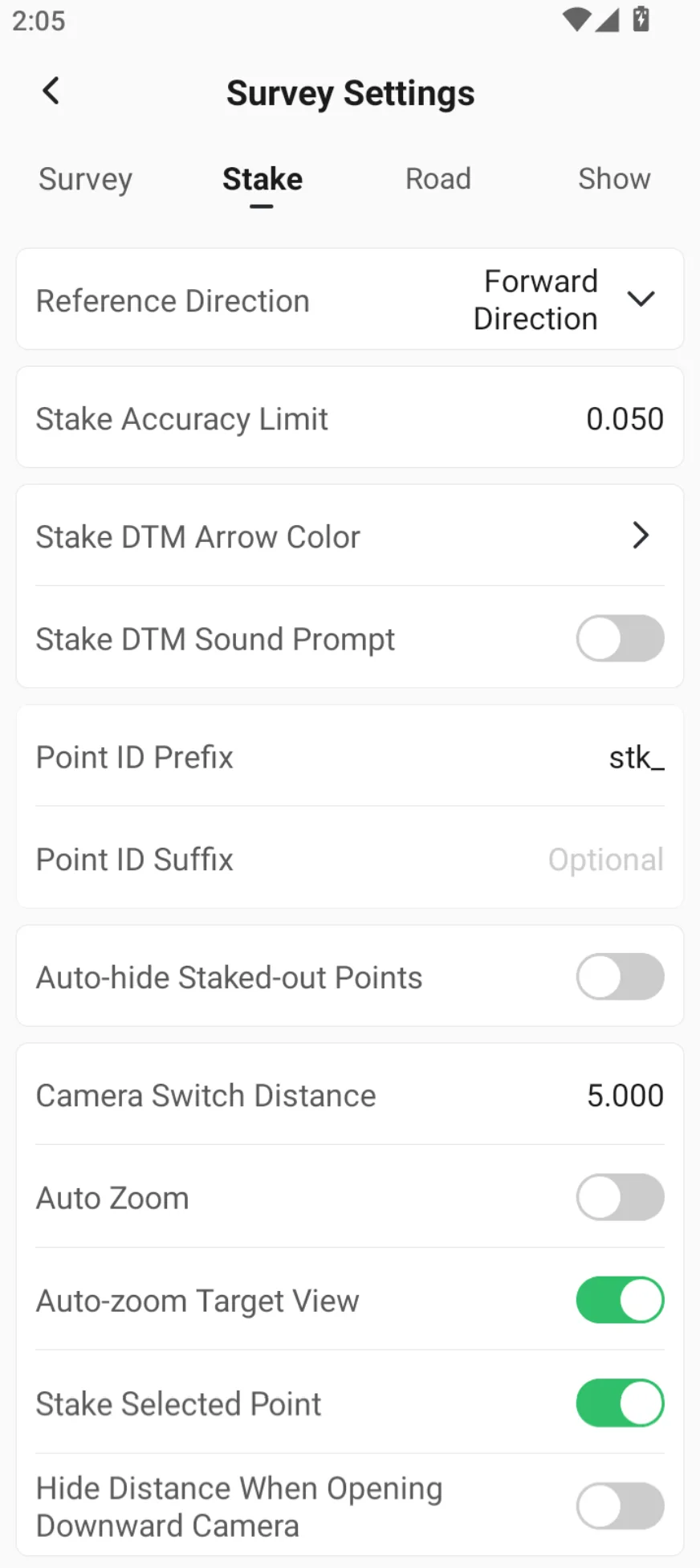
Reference Direction
Default forward direction, optional Sun, Shadow (opposite to sun), known point.
Stake Accuracy Limit
The plane distance limit between the measurement point and the stakeout point
Stake DTM Arrow Color
Set the arrow color for cut / fill in the Stake DTM
Stake DTM Sound Prompt
After opening, you can set the limit difference. There is a prompt sound for the inner surface stakeout
△H limit
Set elevation threshold
Point ID Prefix
Default point name prefix for measure points during stakeout
Point ID Suffix
Default suffix for measure points during stakeout
Auto-hide Stake-out Points
After stakeout is completed, the stakeout points and measured points are automatically hidden from the map, so the number of points displayed gradually decreases.
Camera Switch Distance
Distance threshold for automatic switching between front and bottom camera views during AR Stakeout
Auto Zoom
The view automatically scales to display the current and target positions
Auto-zoom Target View
Enabled by default, the bullseye view automatically zooms in when approaching the stakeout point
Stake Selected Point
Support clicking the stake point on the map to start directly.
Hide Distance…
It is turned off by default, and the AR stakeout hides the distance when viewed downwards after it is turned on.
6.4.4.3 Road
Name
Description
Page
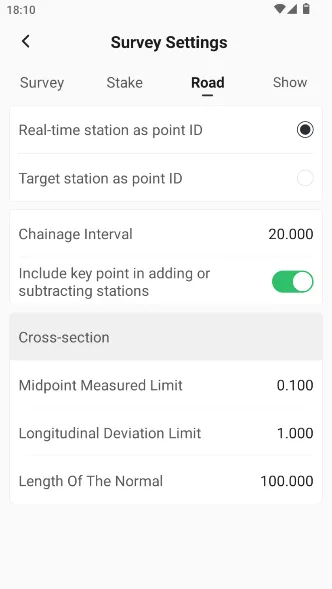
Point ID style
Optional: Real-time station, target station
Chainage Interval
The distance between adding and subtracting piles when setting road stakeout
Include key point in adding or subtracting stations
Set whether to include the main point station number defined by the line
Midpoint Measured Limit
Measurement limit of the midpoint of the cross-section
Longitudinal Deviation Limit
Longitudinal measurement limit of the cross-section
Normal length
Default the length of the cross-section normal auxiliary line
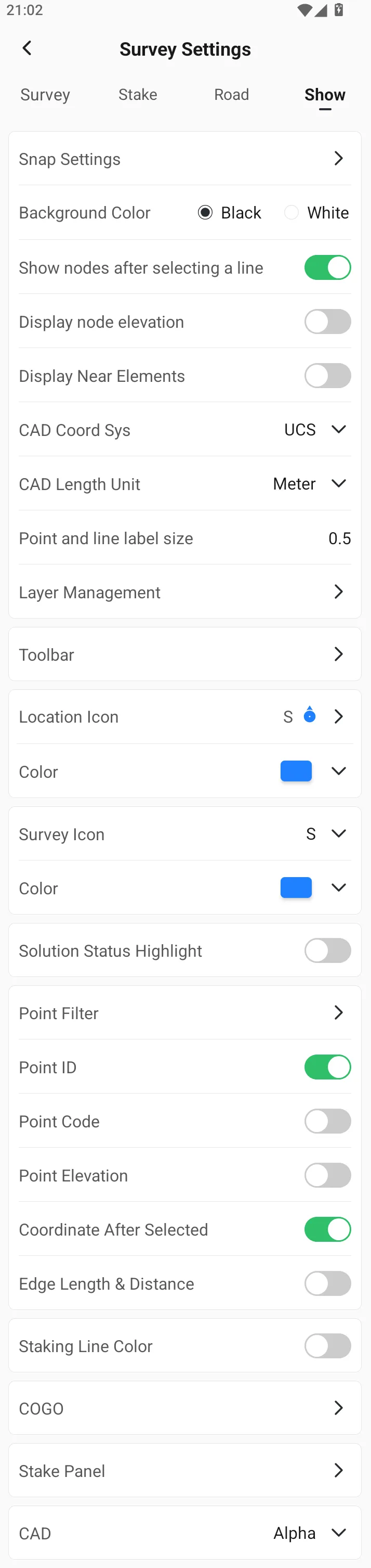
6.4.4.4 Show
Name
Description
Page
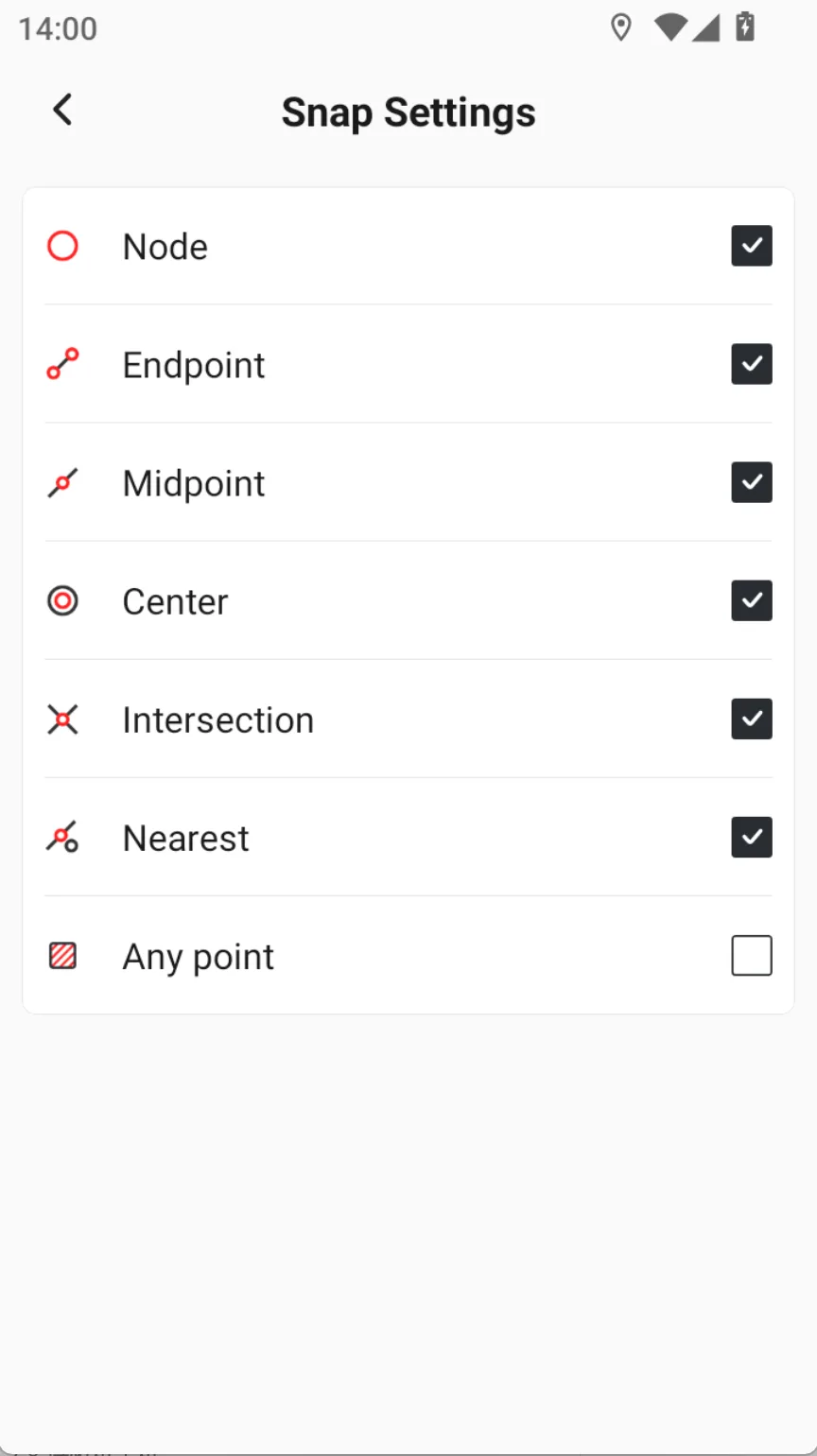
Snap Settings
Display/hide nodes in Stake CAD / Edit CAD
Background Color
Set CAD view background color
Show nodes after selecting a line
Can be set to turn on/off, turned on by default
Display node elevation
Default off
CAD Coord Sys
Default UCS, optional WCS
CAD Length Unit
Default meter, optional mm, cm, feet, US feet
Point and line label size
Set the display size of labels drawn in CAD
Layer Management
Open layer for CAD files
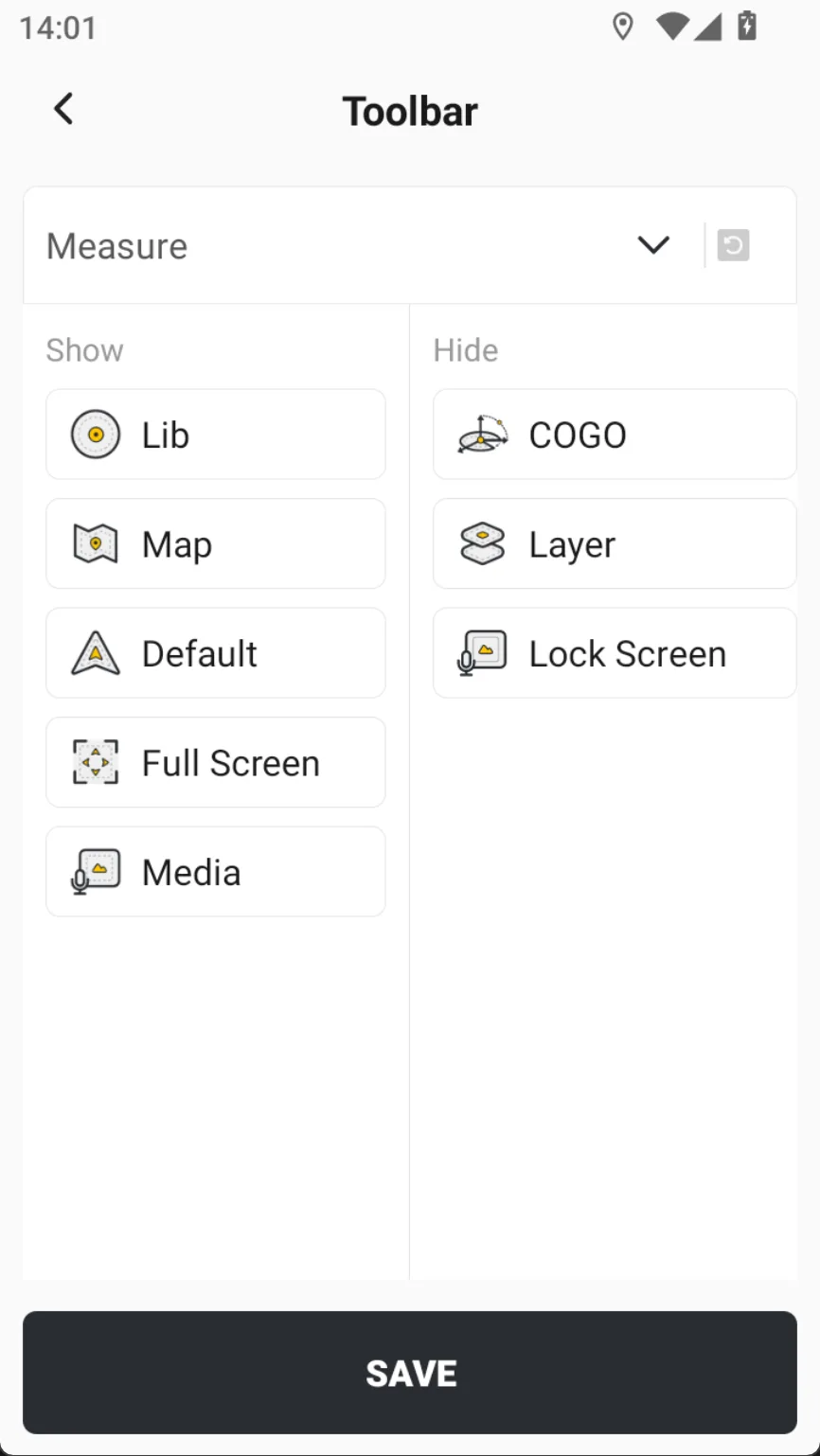
Toolbar
Set the display icon on the left toolbar of the map
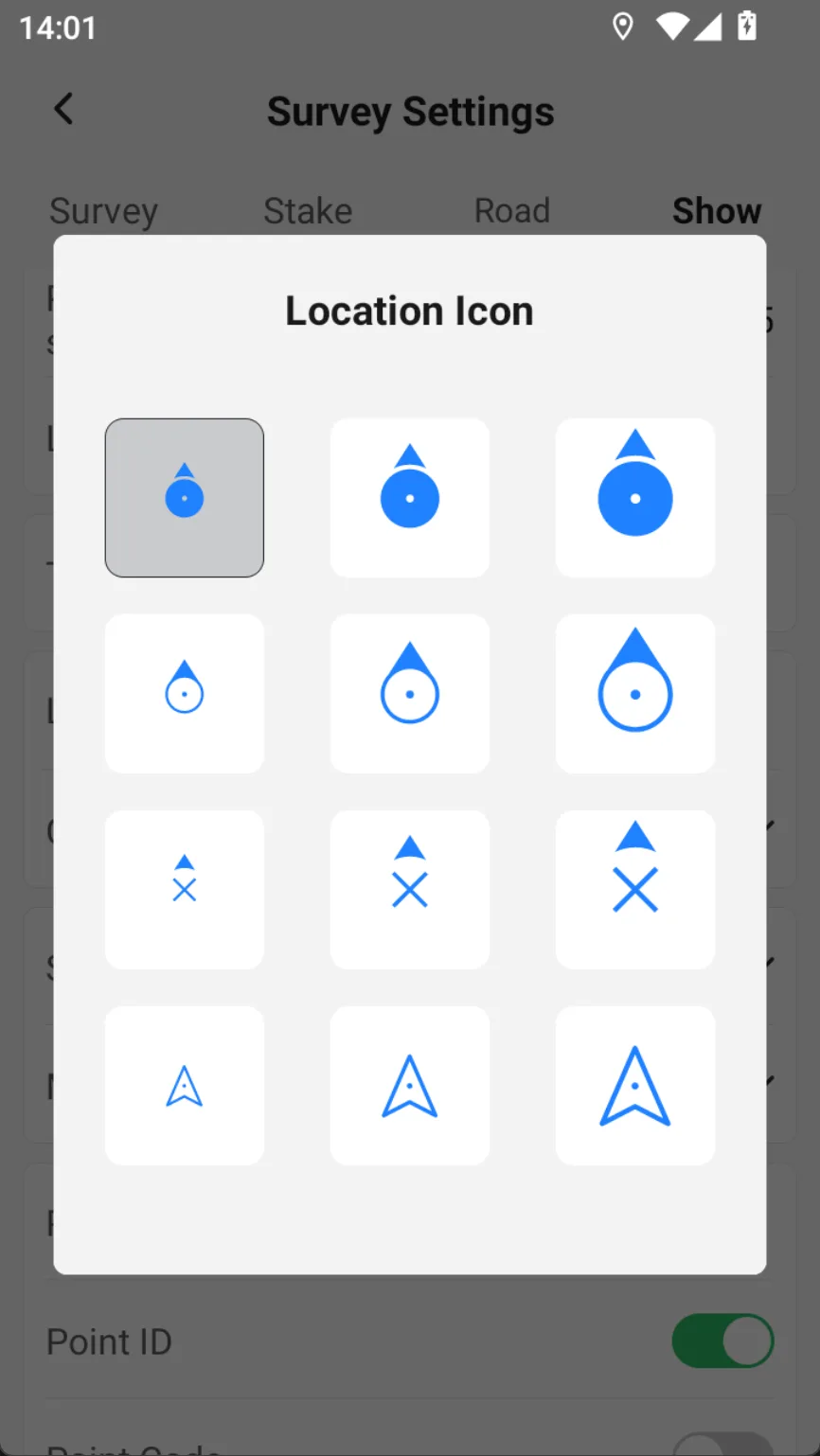
Location Icon
Set the style and size of the positioning icon
Color
Set the color of the location icon
Survey Icon
Set the style and size of the survey icon
Color
Set the color of the survey icon
Sloution Status Highlight
Default off. After turning it on, the background color will be added to the solution state.
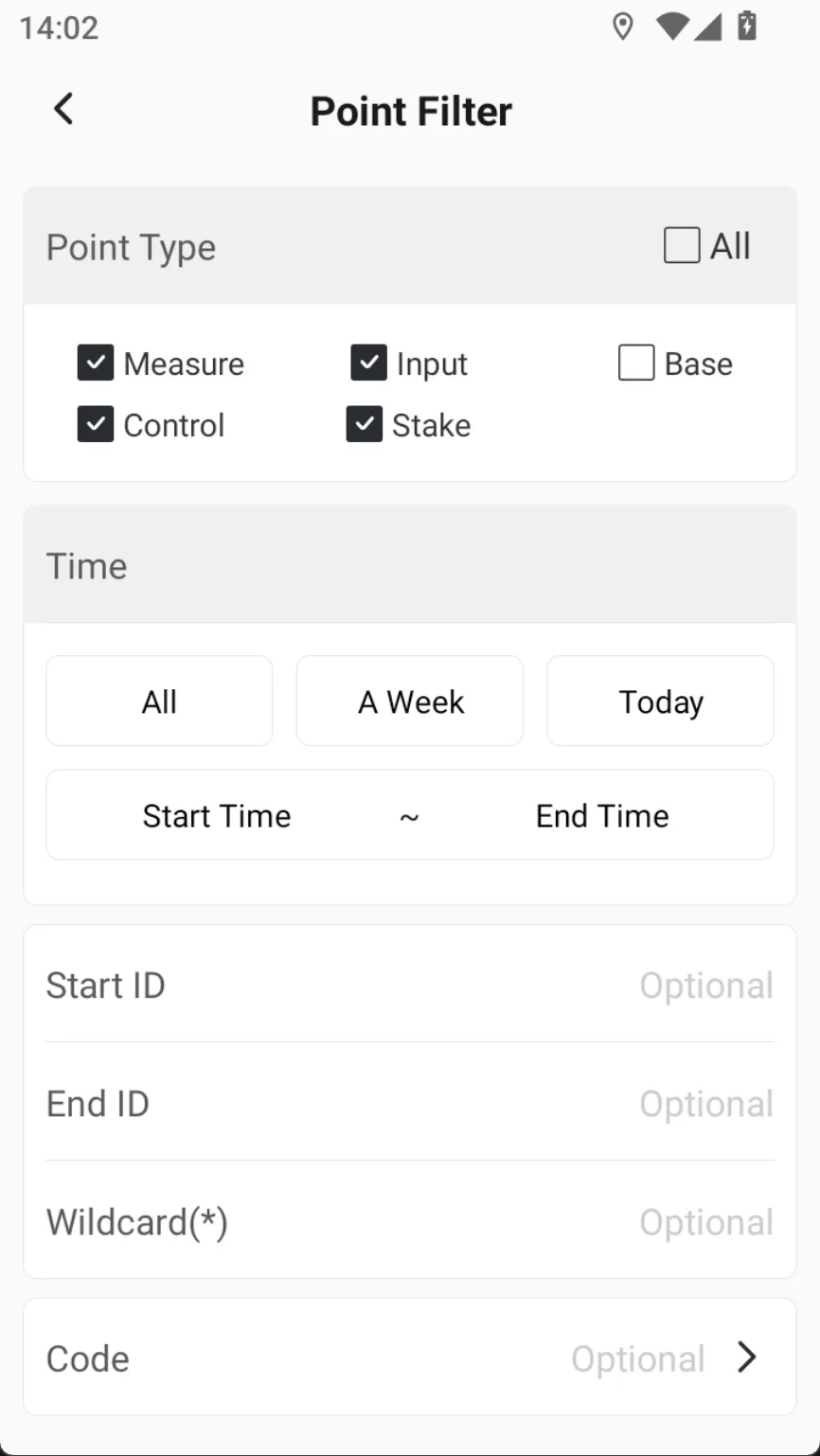
Point Filter
Display/hide of points on the map
Point ID
Display/hide point IDs
Point Code
Display/hide point codes
Point Elevation
Set whether point elevation is displayed on the map
Coordinates After Selected
Click on a point on the map to display coordinates
Staking Line Color
The color of the completed staking line is customized. It is off by default.
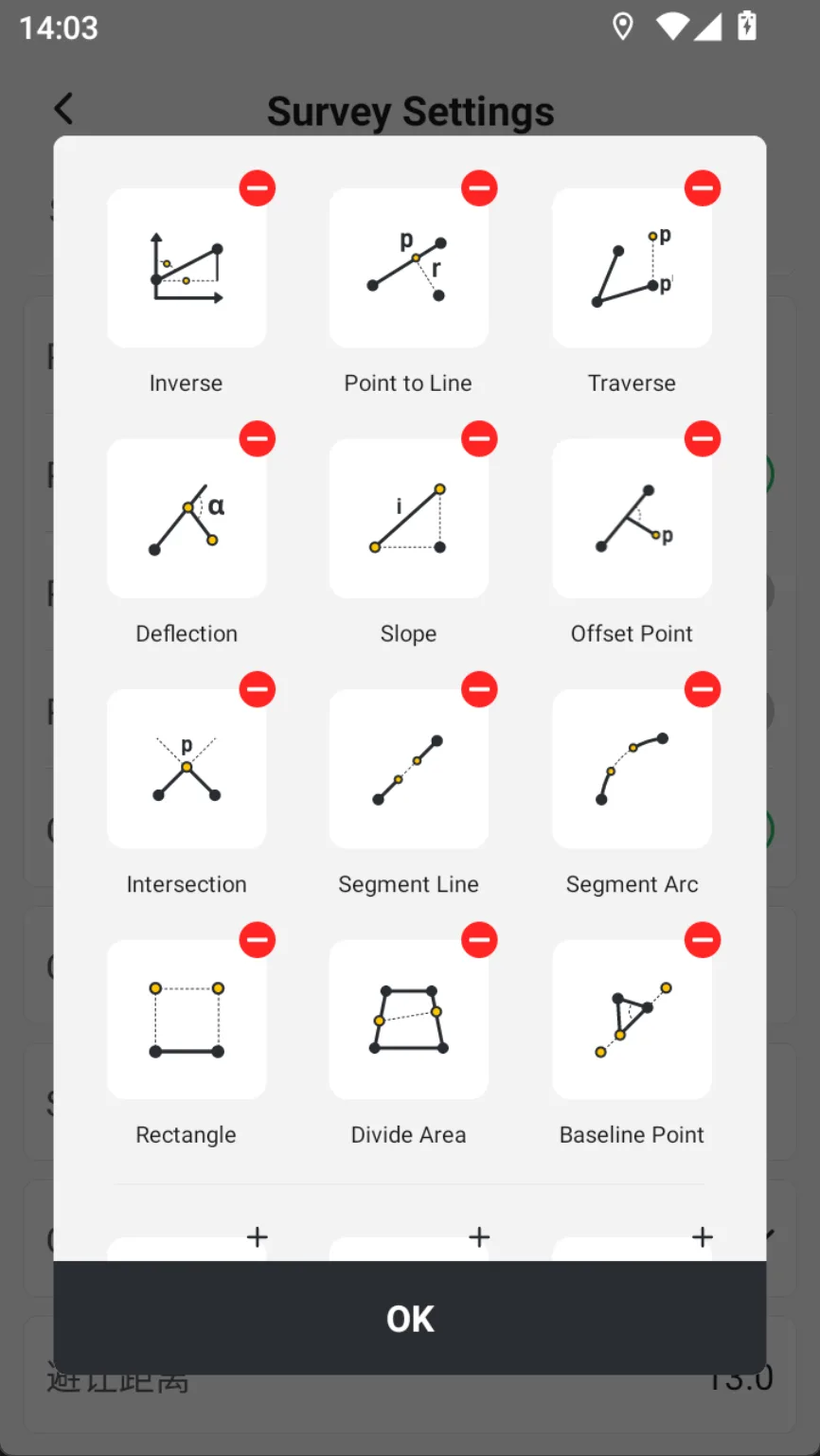
COGO
Set the display and sorting of functions in the COGO shortcut window of the map toolbar
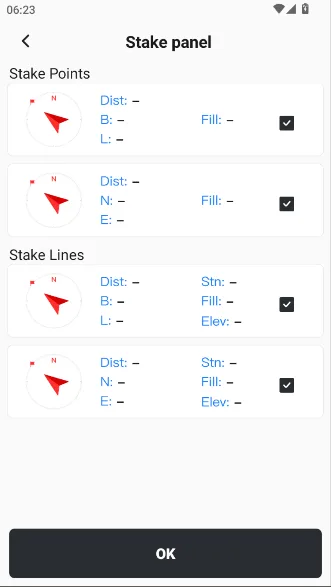
Stake panel
Display/hide the interface panel of Stake points/lines/road/CAD