
Video Tutorials
1 Getting Started
| No. | Description | Video |
| 1.1 | Quick Start 6 Steps:
| |
| 1.2 |
2 Projects
| No. | Description | Video |
| 2.1 |
3 Settings
| No. | Description | Video |
| 3.1 | OTA Upgrade - V1t Keep the controller connected to the internet and connected to the V1t via Bluetooth. When the new firmware notification pop-up appears, tap [Updade]. | |
| 3.2 | OTA Upgrade - V10i Depending on the network setup, there are three scenarios:
| |
| 3.3 | RTK Connection - BT | |
| 3.4 | RTK Connection - Wi-Fi | |
| 3.5 | Base - Work with UAV - controller Select base Wi-Fi mode to establish a local network connection between the UAV remote controller and the RTK controller. This allows differential data to be transmitted to the remote controller via the hotspot — no internet access is required throughout the entire process. | |
| 3.6 | Base - Work with UAV - receiver In base Wi-Fi mode, you can also connect the RTK receiver directly to the UAV remote controller via the receiver's Wi-Fi. Once configured this way, you can turn off the RTK controller. | |
| 3.7 | Rover - Radio Setting | |
| 3.8 | RTK Static | |
| 3.9 | High-power external radio easy set up | |
4 Survey
| No. | Description | Video |
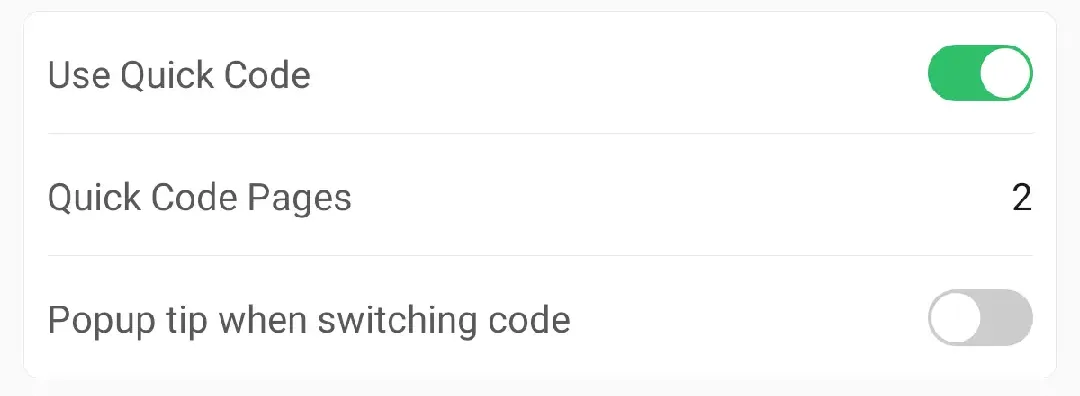
| 4.1 | Measure & Draw If you want to survey multiple lines simultaneously in one direction, this video shows you how to do. Note: when measuring with a code, you'll be prompted to either continue an existing segment or start a new one. You can check the box at the bottom to prevent this popup from appearing again, and you can re-enable it later from the quick code settings.
| |
| 4.2 | AR Stake Points
| |
| 4.3 | AR Stake Lines | |
| 4.4 | Visual Measure | |
| 4.5 | Laser Measure | |
| 4.6 | SureFix - V100F | |
| 4.7 | Visual Measure - V100F | |
| 4.8 | Scan - V100F | |
| 4.9 | Scan Tasks - V100F | |
| 4.10 | Site Calibration | |
| 4.11 | Measure with Mock mode Using Mock mode, positioning data is sent to the controller, and third-party app obtains the coordinate from Built in GNSS. The video shows that after configuring Mock mode, the solution status in Trion Survey changes, and the HRMS and VRMS values in the third-party app also change accordingly. | |
5 Tools
| No. | Description | Video |
| 5.1 | Volume | |
| 5.2 | Area | |
| 5.3 |
6 Others
| No. | Description | Video |
| 6.1 | The image measurement tasks in Trion Survey support modeling in third-party software. Please refer to the video for the specific workflow. |