
7.10 Stake CAD
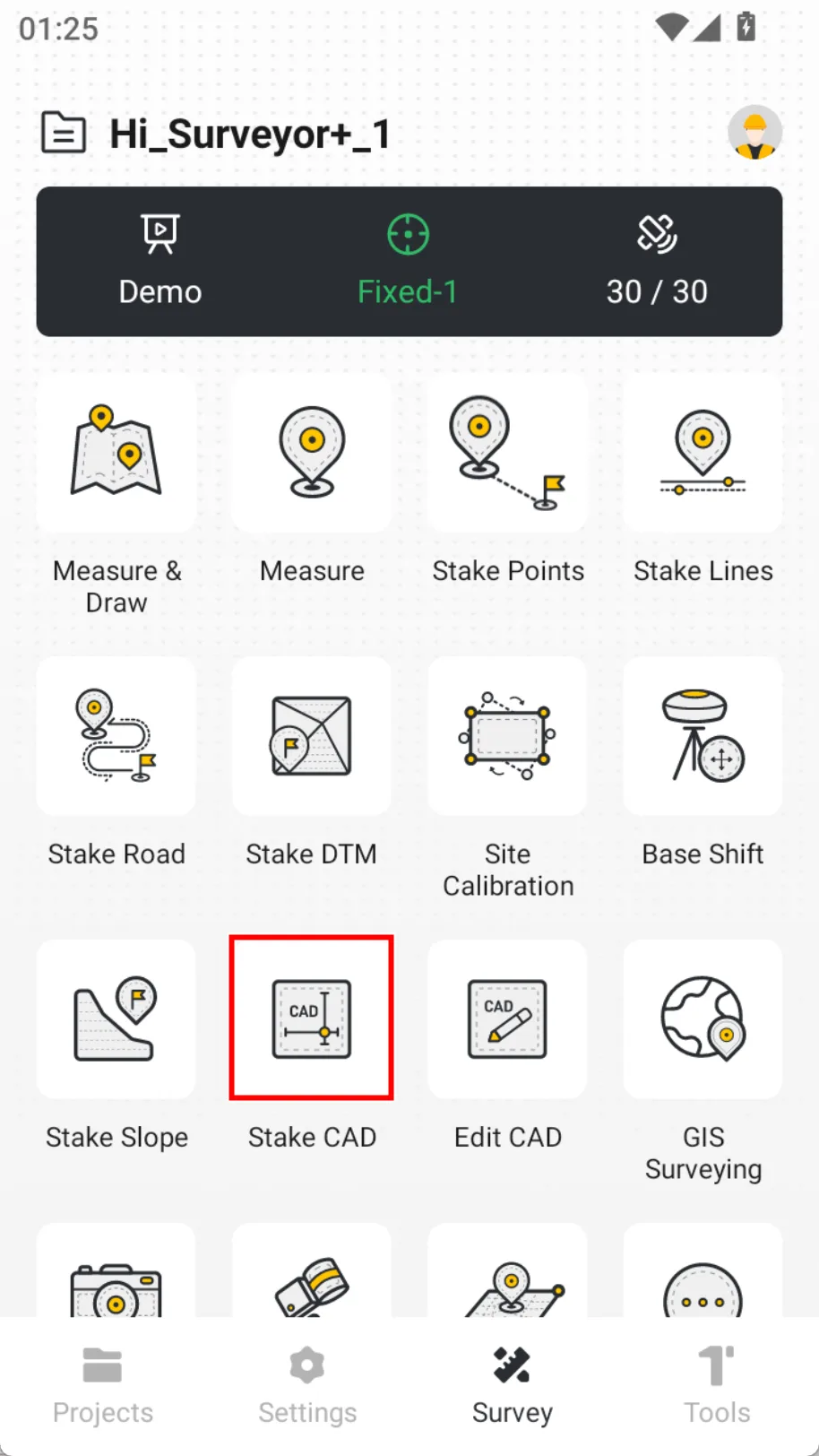
Based on existing CAD files (* .dwg, * .dxf), select points or lines on the drawing and start the stakeout work directly.
Stake CAD allows users to directly import CAD design drawings (such as DWG/DXF format) and visualize them on Trion Survey. This function can dynamically navigate to target points in the drawing (such as coordinate points, road centerlines, or building outlines), and provide guidance such as direction and distance deviation to help surveyors quickly and accurately complete on-site layout. It supports automatic coordinate system matching, layer filtering, etc.
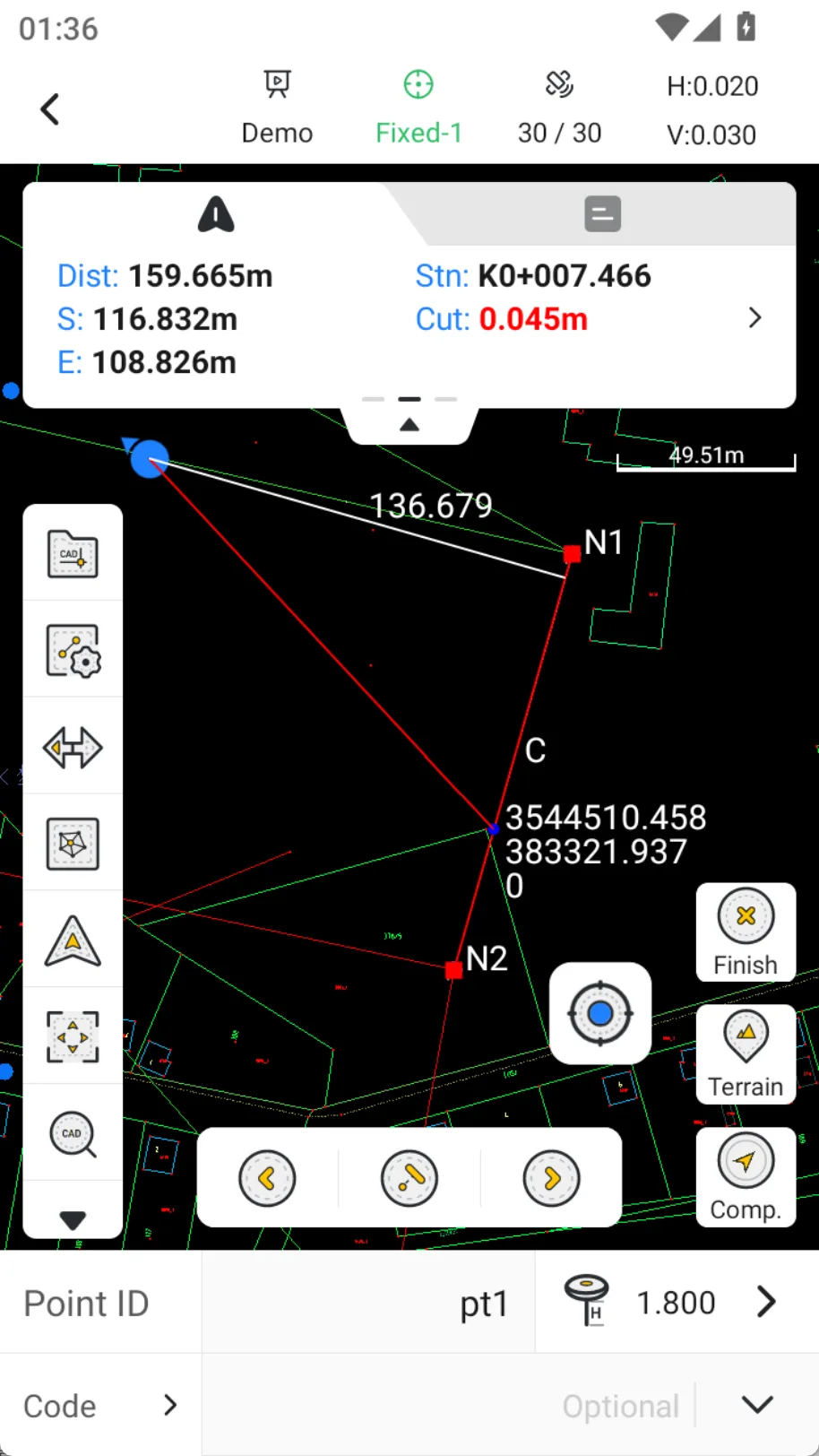
7.10.1 Stake CAD interface
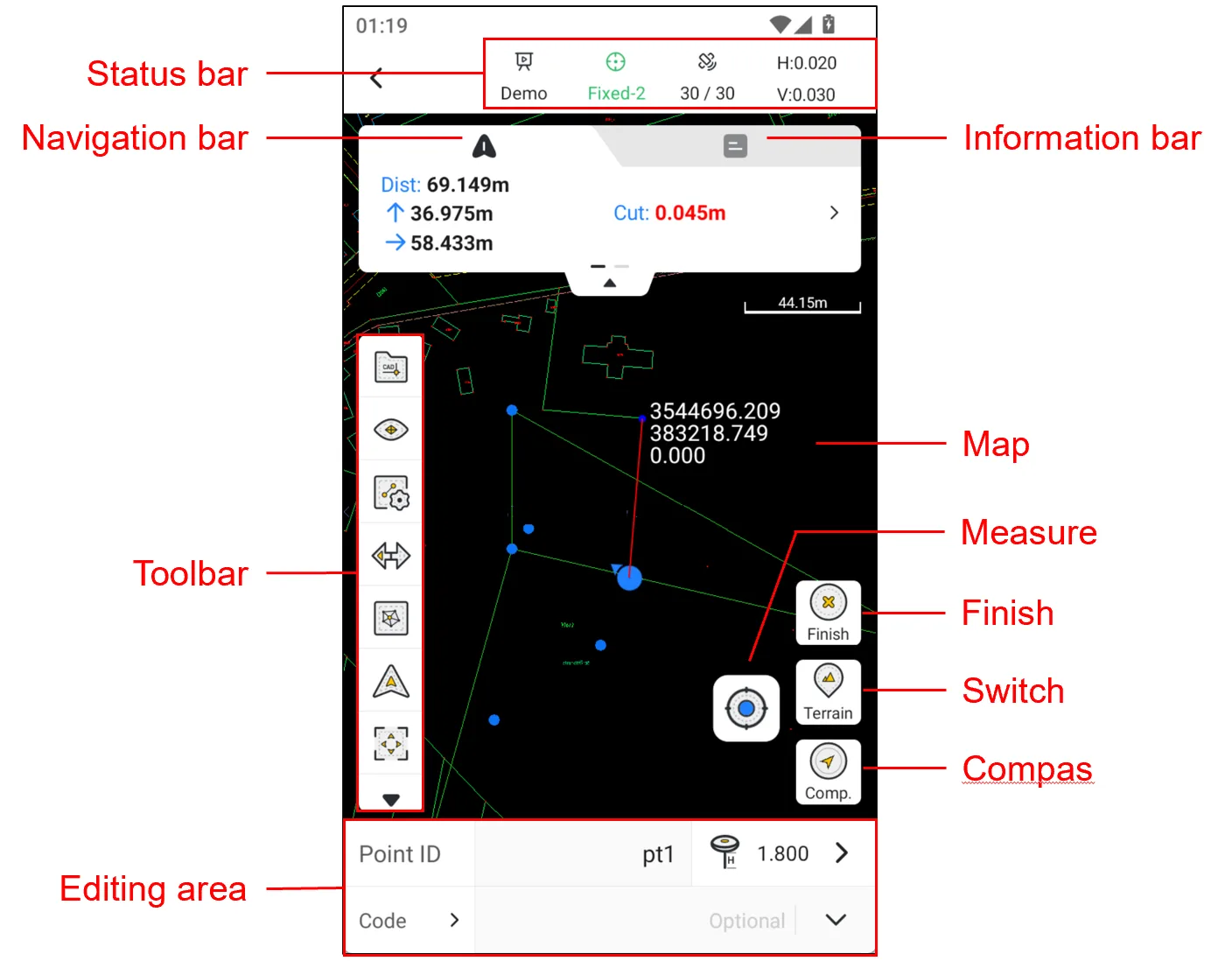
7.10.2 Stake CAD toolbar
| Icon | Name | Description |
 | Open CAD | Click to load CAD files from the CAD file library. |
 | DTM display | Click to display surface files or display surface boundaries. |
 | Map | Click to select street map and satellite map; map mode is off by default. |
 | Points | Click to open the point library and quickly browse the historical measured points. |
| Default Centered Follow | Default: The map will not automatically zoom during measurement and stakeout, and manual operation is required. The interface will not update when the position changes. Centered: The current position and target point are always displayed in the interface. If you manually drag the map, wait a few seconds and it will automatically return to the centered mode. Follow: The map rotates as the stakeout direction changes, and the current position is always in the middle of the interface. |
 | Full screen | Click to zoom in and show all points or lines. |
 | Find CAD | Click to display the loaded CAD file. |
 | Capture | Precise selection of points. |
 | Line setting | Optional three ways of selecting line stakeout: 1. Chainage: Customize the distance between adjacent stations and achieve continuous stakeout by adding or subtracting chainage; 2. Line: Find the position closest to the stakeout line segment at the current position; 3. Node: including start point, midpoint, node and end point. |
 | Inverse | Exchange starting and ending points, and when adding the chainage, follow the new forward direction. |
 | Open DTM | Open a surface file from surface library. |
 | Input point | Stakeout according to the manually entered point coordinates. |
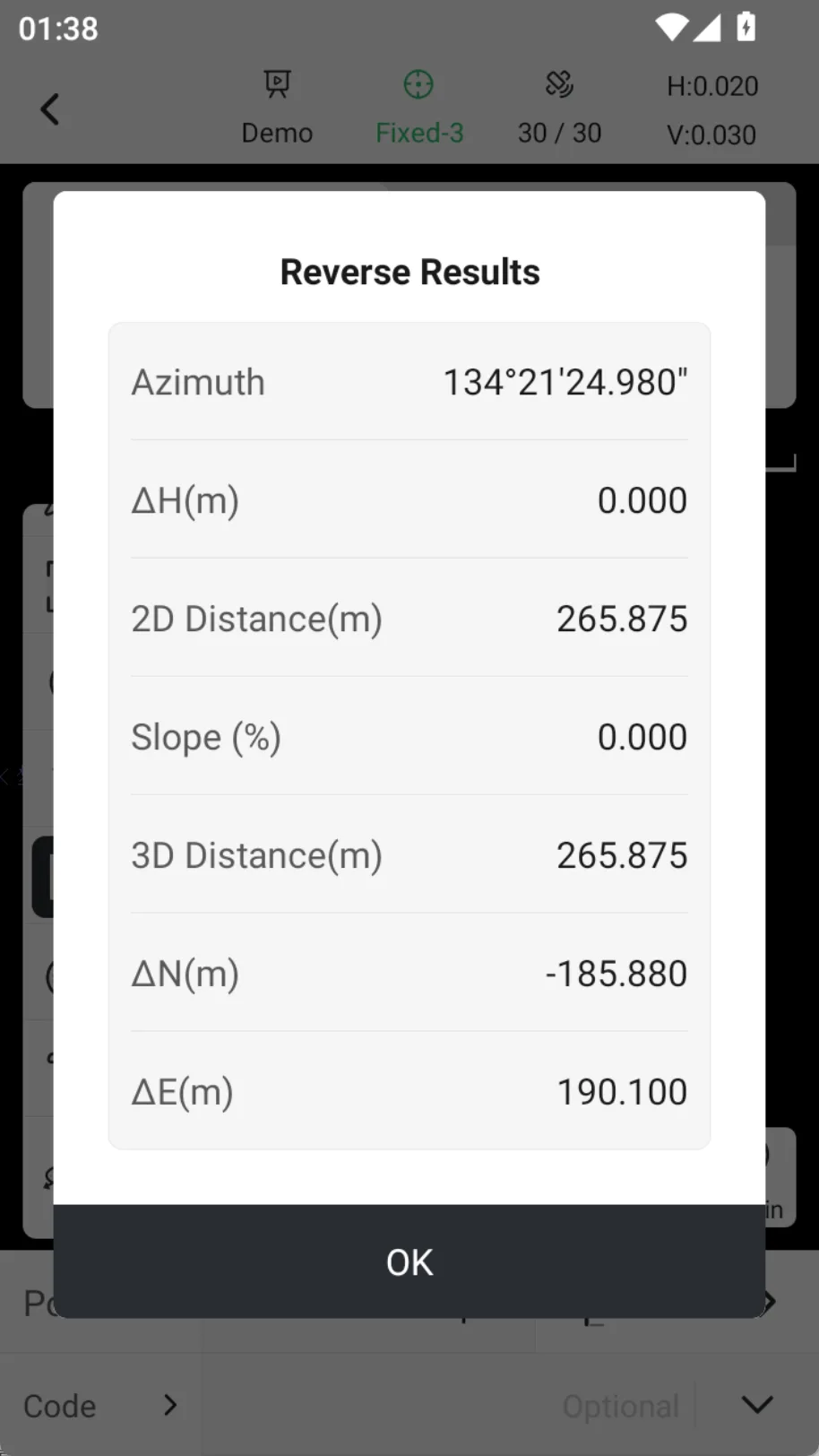
 | Reverse calculation | Select two points and calculate azimuth, coordinate difference, slope distance, etc. |
 | Redraw | Reload the CAD drawing. |
 | Blast | Separate the selected blocks by reference or polyline. |
 | Save | Save the selected point and modify the basic information before saving. |
 | Delete | Delete the selected point or line. |
 | COGO | COGO tool shortcut entrance, can configure display/hide and sort in display settings. |
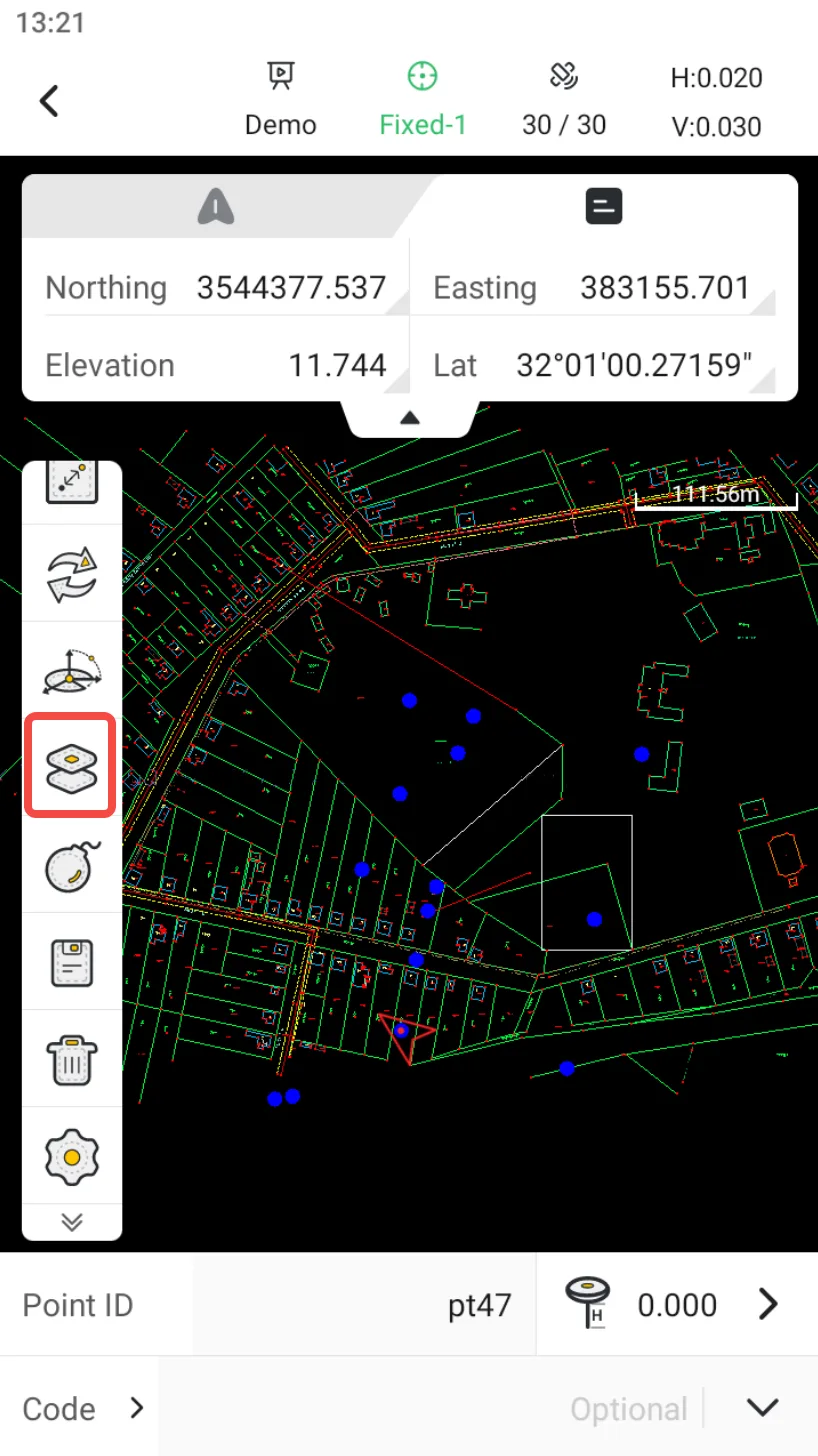
 | Layer | Click to open the layer management page, where you can load vector layers on the default map. |
 | Settings | Measurement settings entrance, see Chapter 7.4.4 for details. |

 |  |  |
7.10.3 Layer
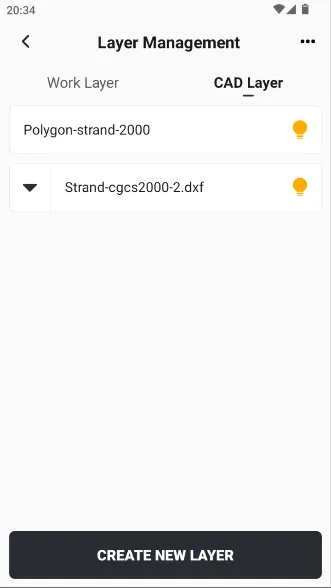
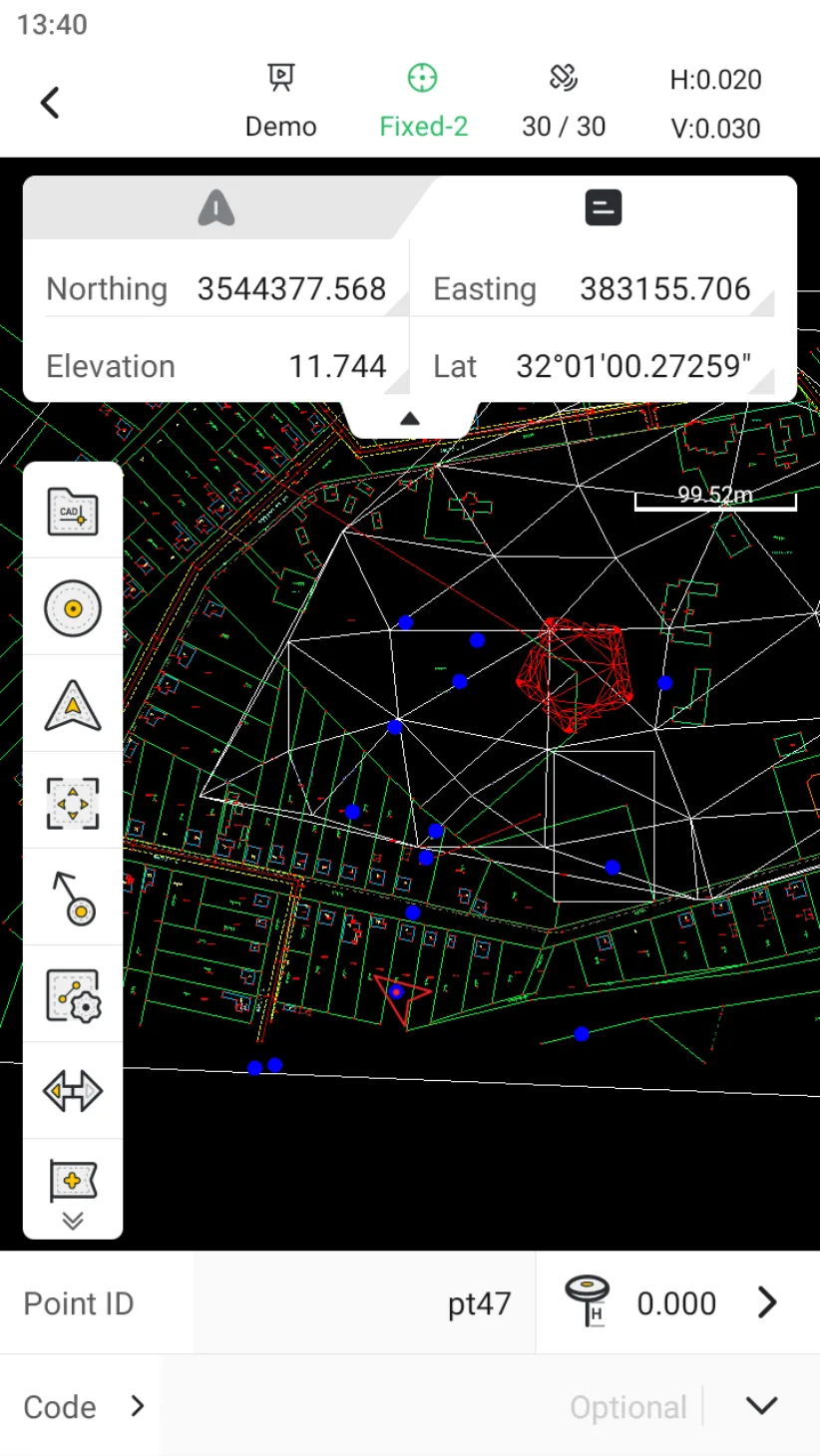
Trion Survey supports importing dxf/LandXML/shape/kml files and overlaying them with CAD files to assist with Stake CAD. Click the layer icon in the toolbar to add the files that need to be loaded.
In layer management, you can also create new layers. In Edit CAD, you can switch layers for specified elements.
 |  |  |
Note:
- The size of a single file should not exceed 20 MB as much as possible. If the file is too large or too complex, there may be parsing failures or errors.
- Import no more than 5 files.
- If there is a situation where the drawing file cannot be parsed, please contact our dealer or technical support team.
7.10.4 Elevation settings
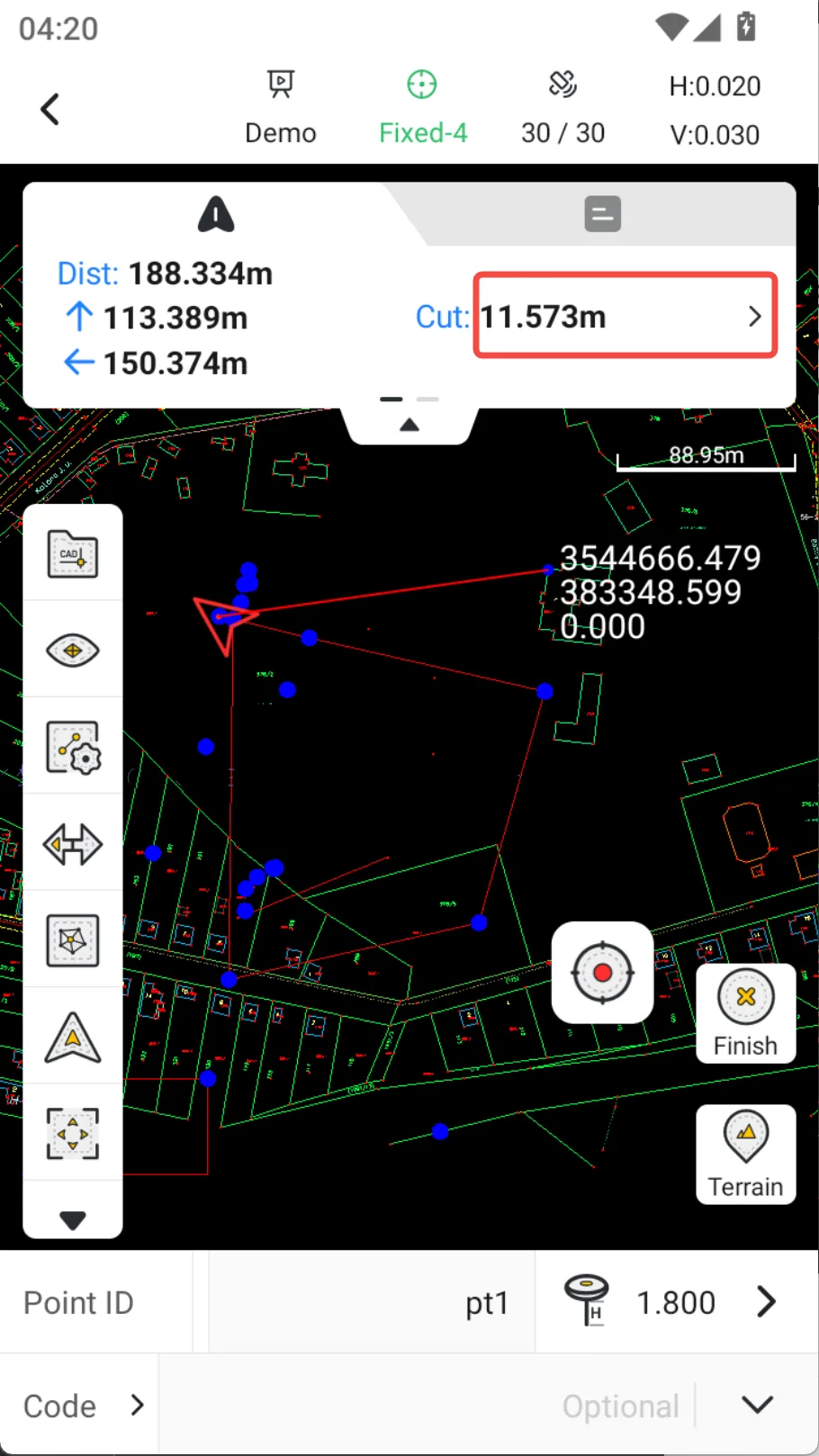
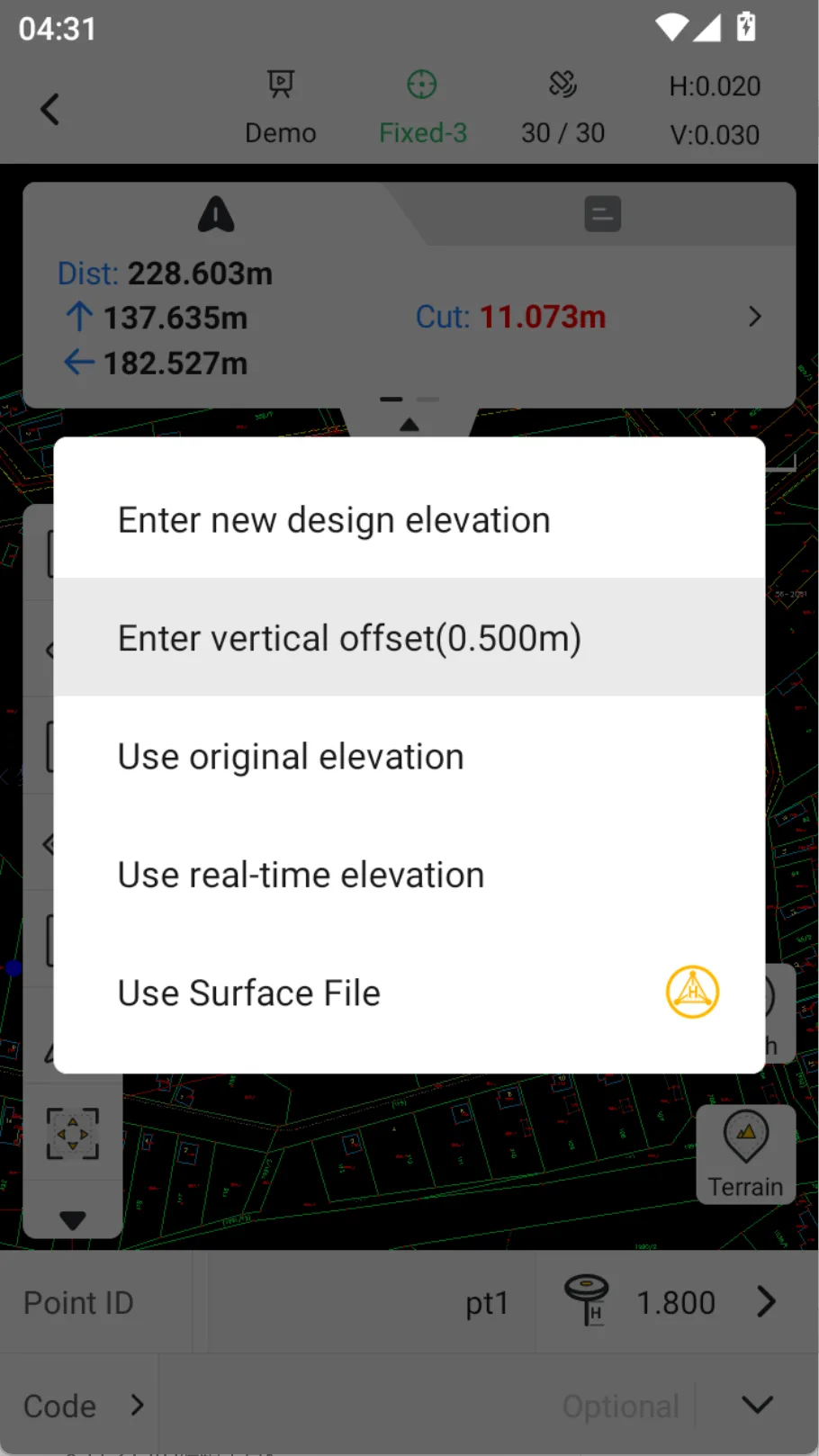
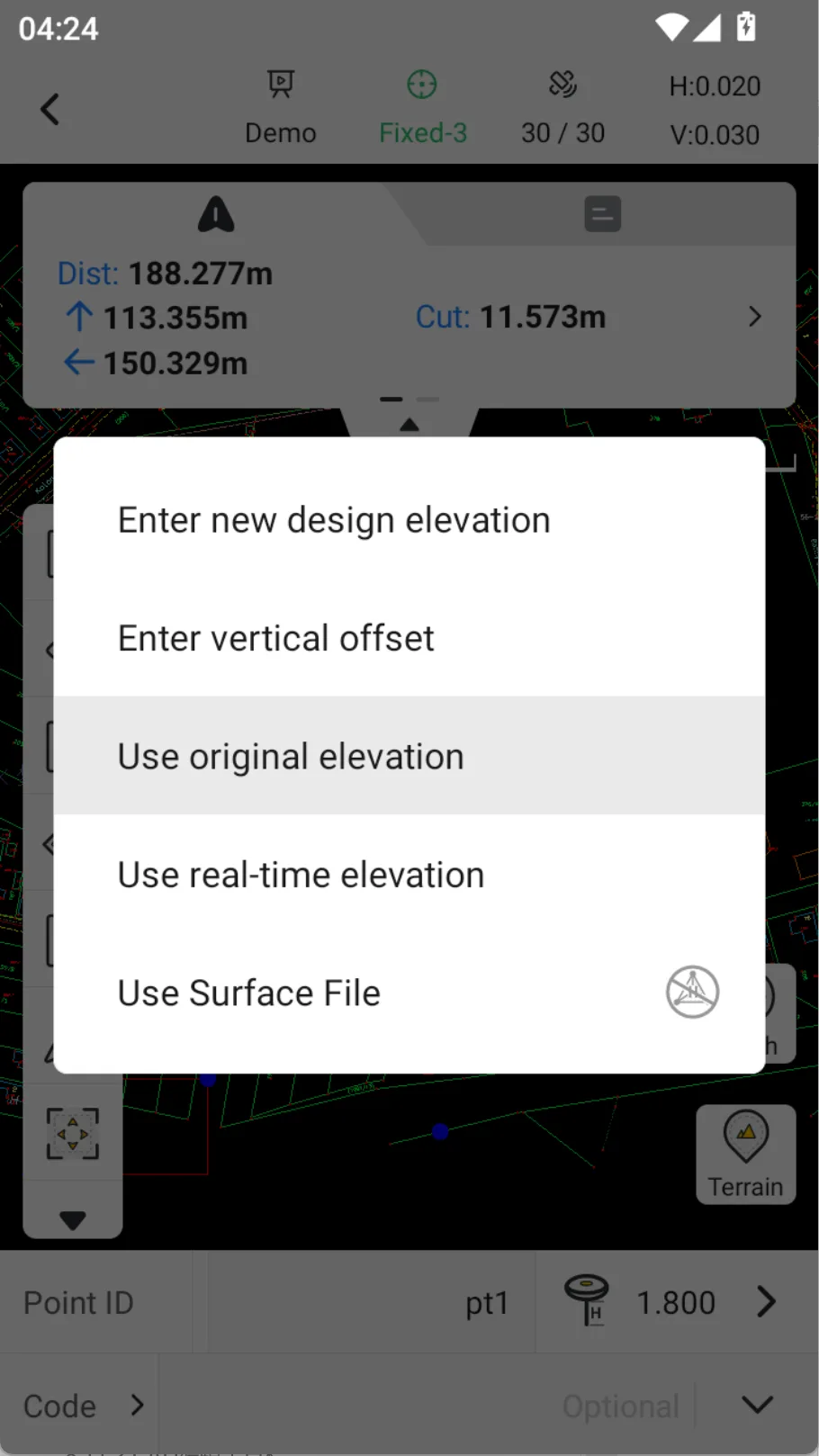
The elevation of the stakeout target can be configured differently as needed. Click on the elevation value of the stakeout panel to switch.
| Name | Description |
| Enter new design elevation | Enter a fixed value to replace the target elevation. During the stakeout process, the target elevation remains unchanged. |
| Enter vertical offset | The input value will be added to the target elevation. |
| Use original elevation | Default option, target elevation is original and true. |
| Use real-time elevation | The target elevation is always the measured elevation at the bottom of the center rod, and the elevation difference is displayed as 0. It is generally used in AR Stakeout when the target elevation is inaccurate. |
| Use Surface files | Use the design height of a surface file as the elevation of the corresponding target location. Click the elevation enable icon at the back to unuse the surface design height for the target. |
 |  |  |