7.15.6 Manage Lots
Lot Management is used to divide an existing lot polygon into multiple sub-lots according to specified conditions, and to manage and export the split results in a unified manner. Users can select different lot-splitting methods according to actual field requirements. After splitting, both the original lot and its sub-lots are saved to the Lot Library.
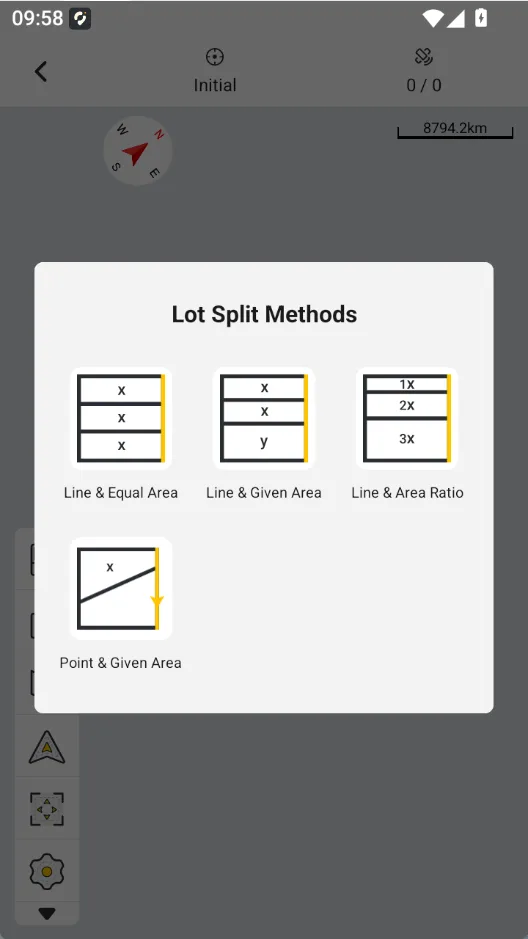
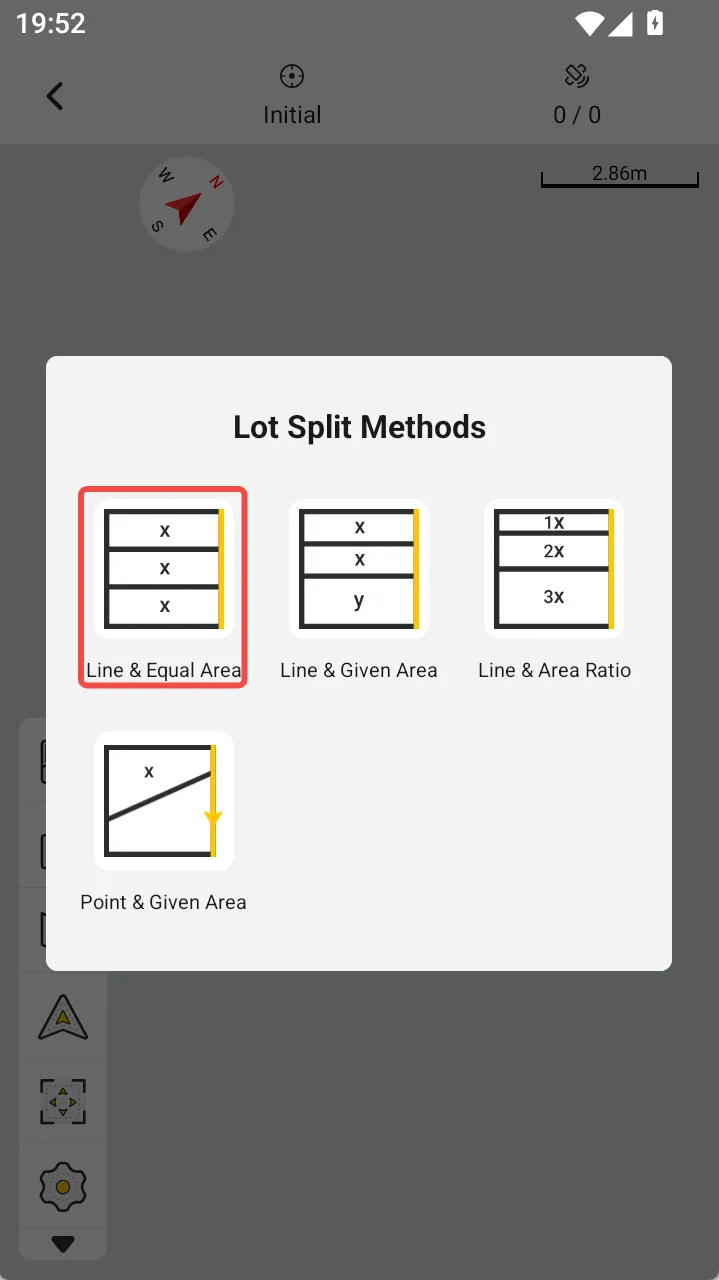
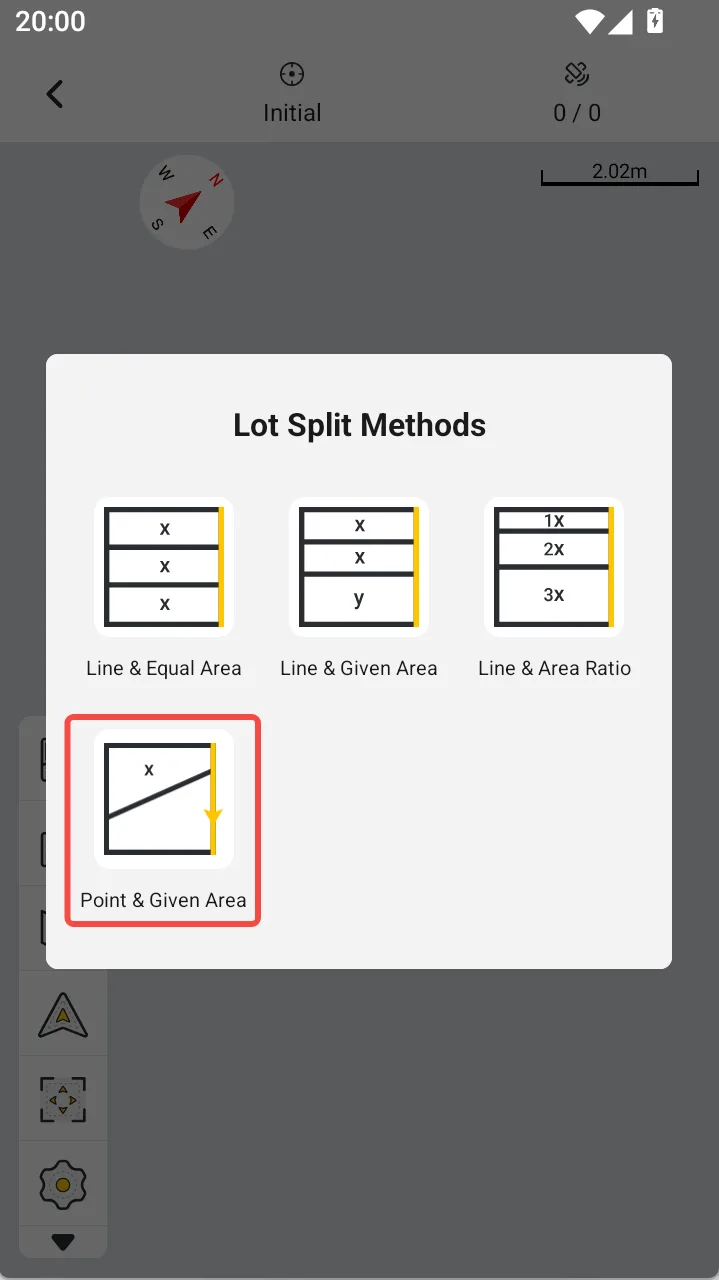
Lot Management currently supports the following four splitting methods:
- Line & Equal Area
- Line & Given Area
- Line & Area Ratio
- Point & Given Area
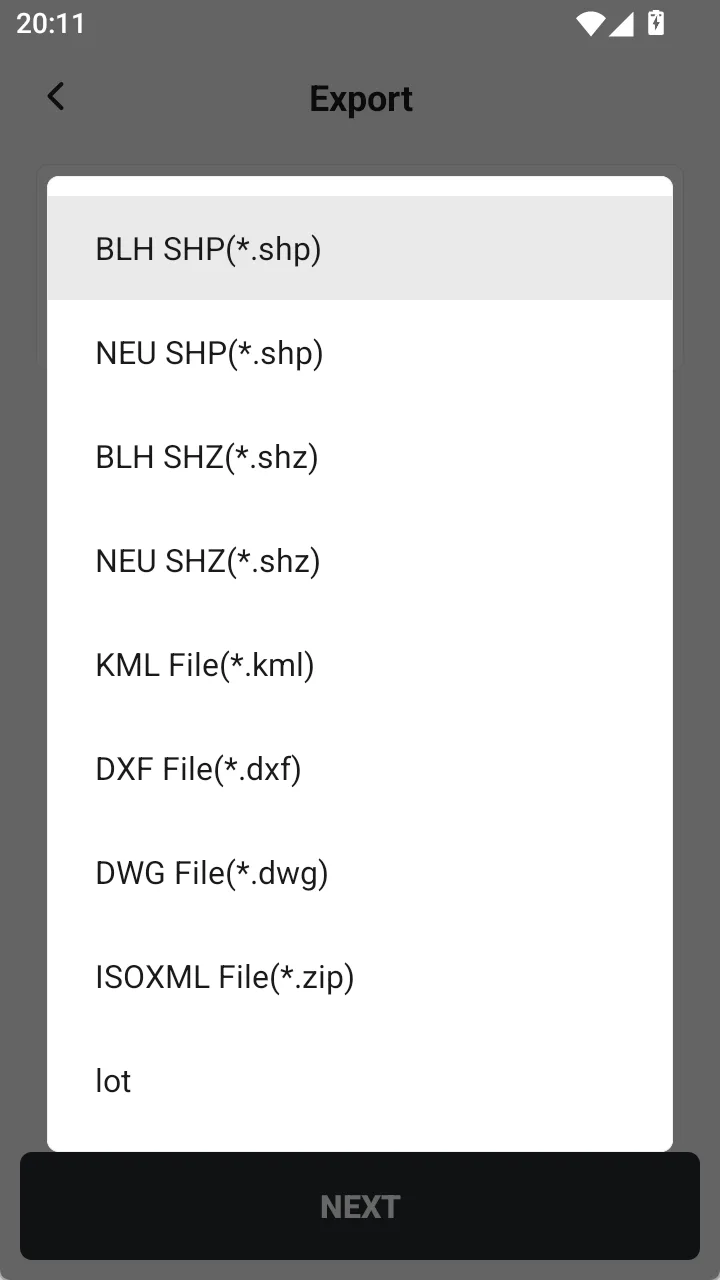
The resulting lots can be exported in *.shp、*.shz、*.kml、*.dxf、*.dwg、*.ISOXML and *.lot formats.
- The current version supports splitting convex polygon features in the Graphics Library only.
- Before using Lot Management, create and save the polygon feature to be split in [Measure & Draw].
- Different split directions may produce different lot shapes. Preview and verify the result before saving.
- The specified target area must not exceed the total area of the original lot.
- When creating multiple sub-lots, verify that the area and boundary of each sub-lot meet the actual field requirements.
- Lot area and 2D perimeter are calculated using the current project coordinate system. Confirm that the project coordinate system is configured correctly before use.
*.lotis the Trion Survey lot data format and is suitable for transferring lot data between devices or software that support this format.
 |  |  |  |
Line & Equal | Line & Given Area | Line & Area Ratio | Point & Given Area |
1. Prepare the Lot to Be Split
Before using Lot Management, create a closed polygon in [Survey] → [Measure & Draw], and save it to the Graphics Library.
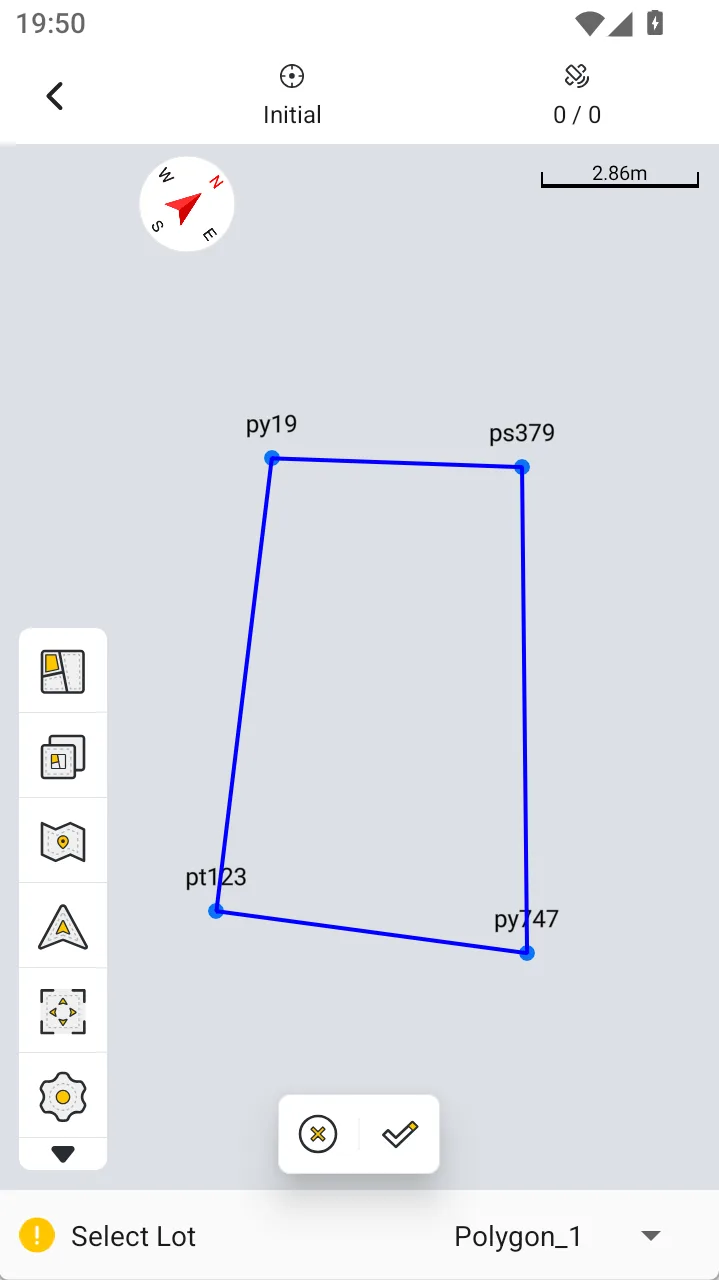
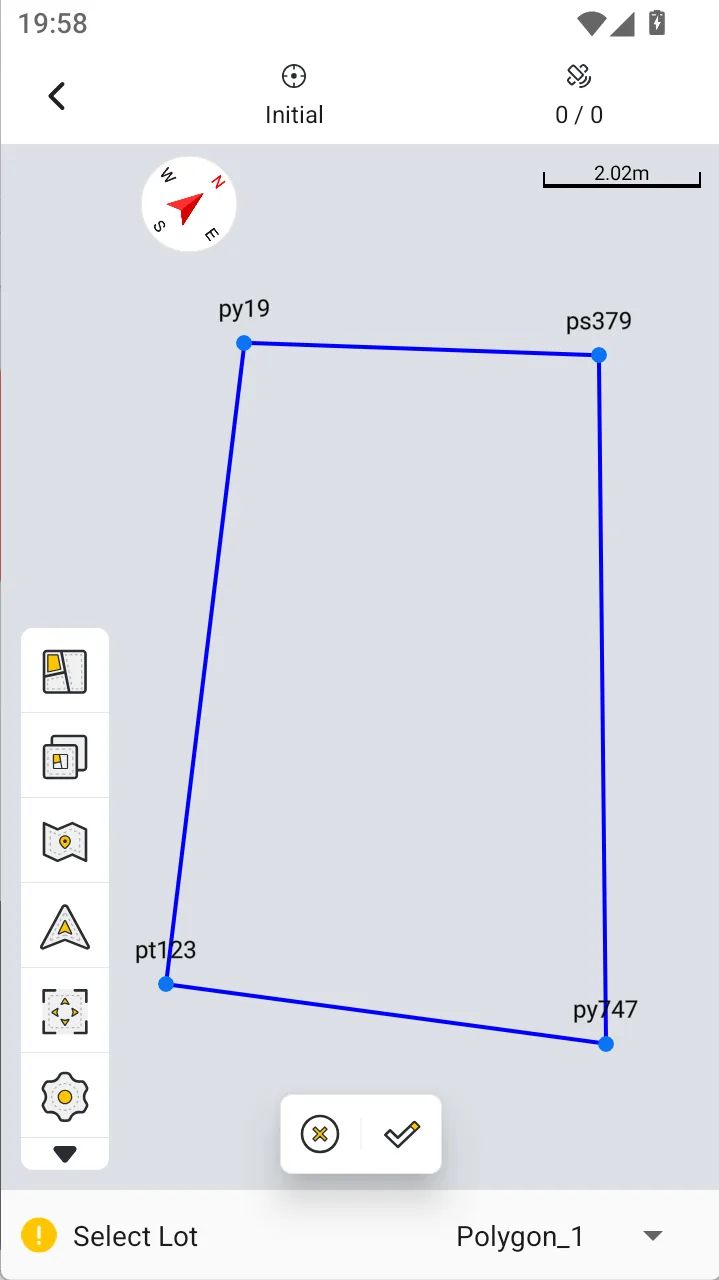
Go to [Survey] → [Industry Apps] → [Manage Lots], and select the lot to be split on the map.
Note
The current version supports lot splitting only for convex polygon features stored in the [Graphics Library] under [Measure & Draw]. Concave polygons, open figures, and other figure types are not currently supported.
2. Select a Splitting Method
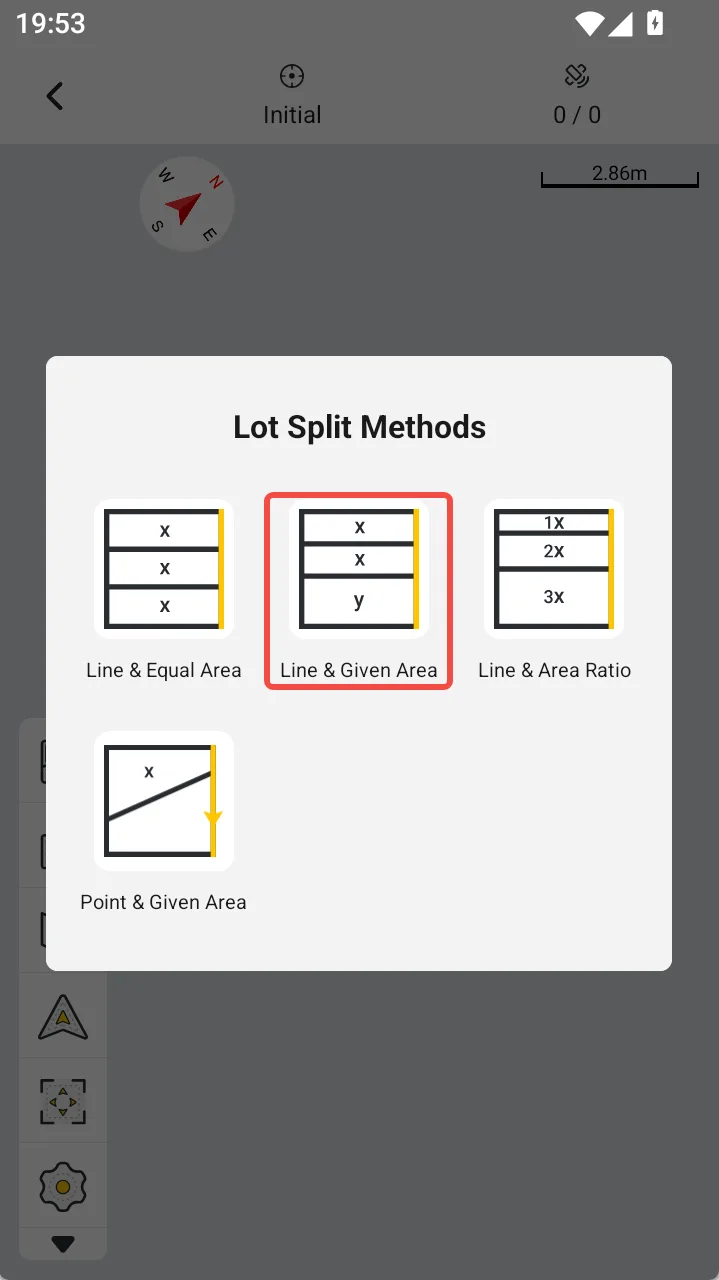
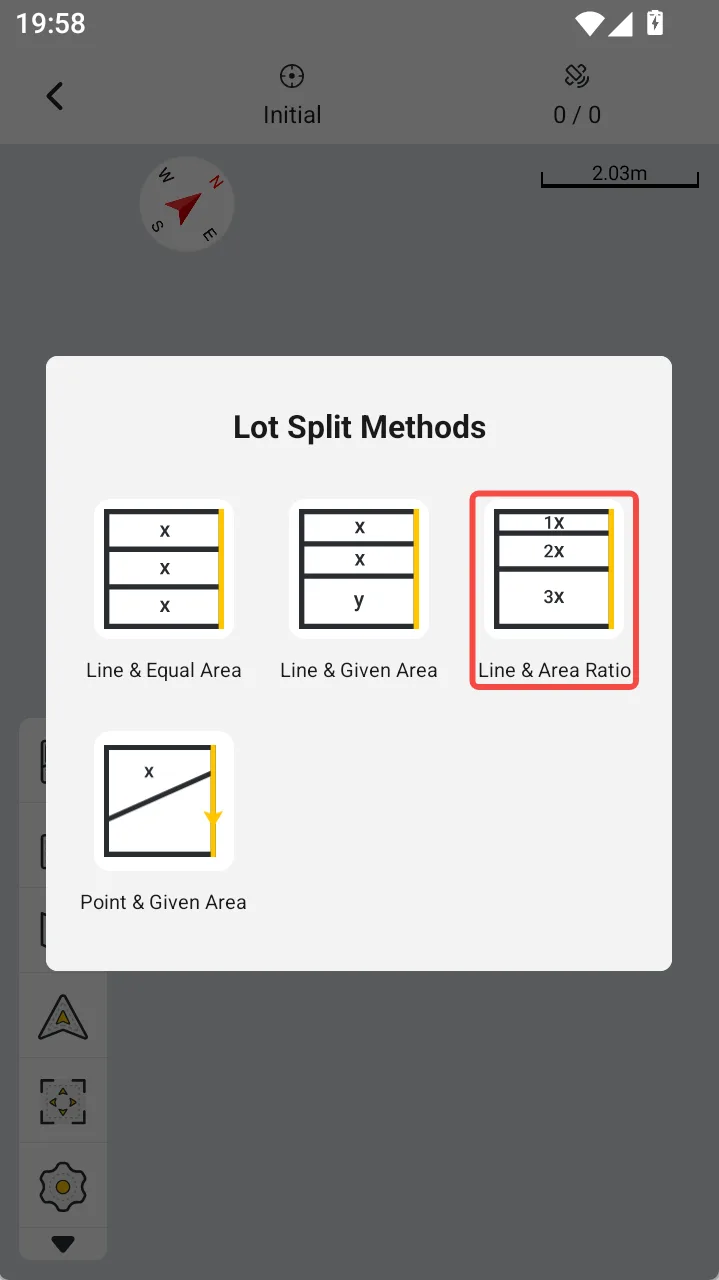
After selecting the lot to be split, the [Lot Split Methods] window appears. Select any of the following methods.
2.1 Line & Equal Area
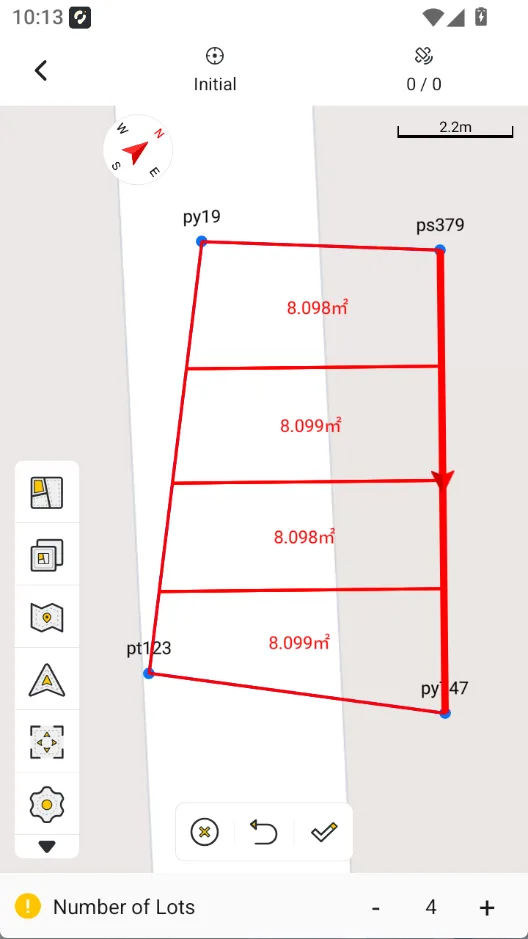
Line & Equal divides one lot into multiple sub-lots with equal areas.
Procedure:
- Select [Line & Equal Area].
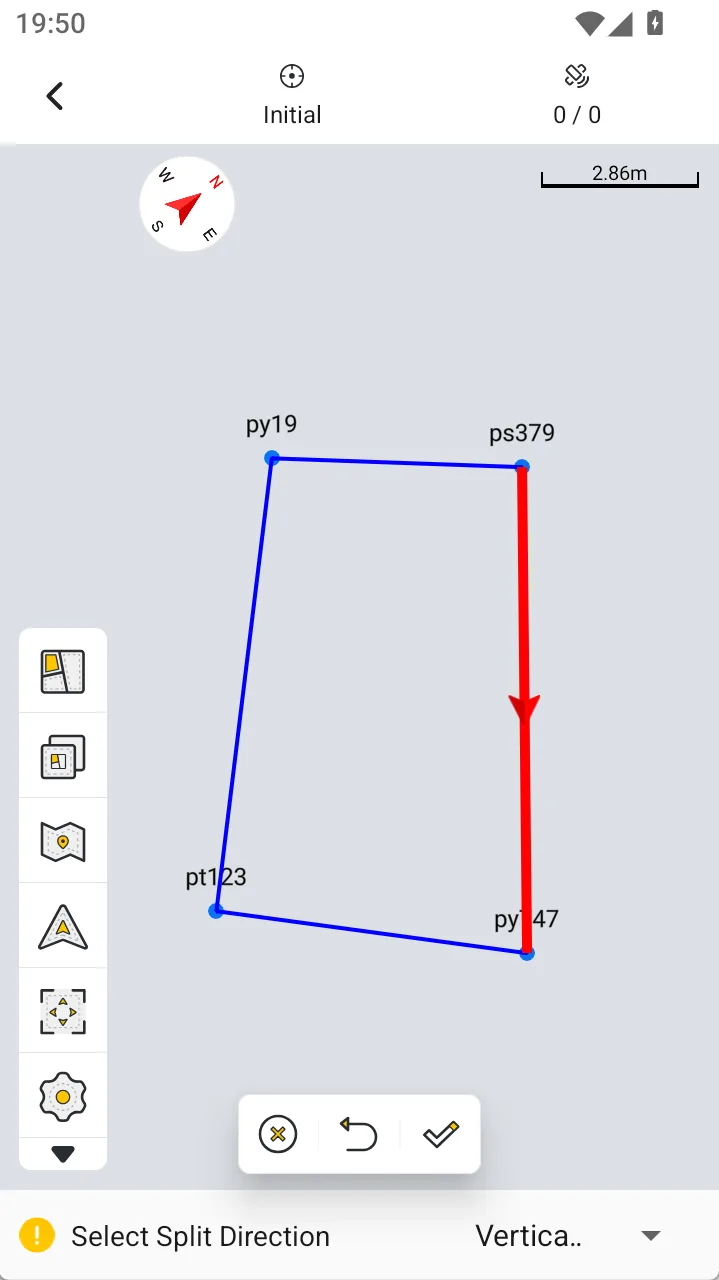
- Select or define the split direction.
- Set [Number of Lots] at the bottom of the page.
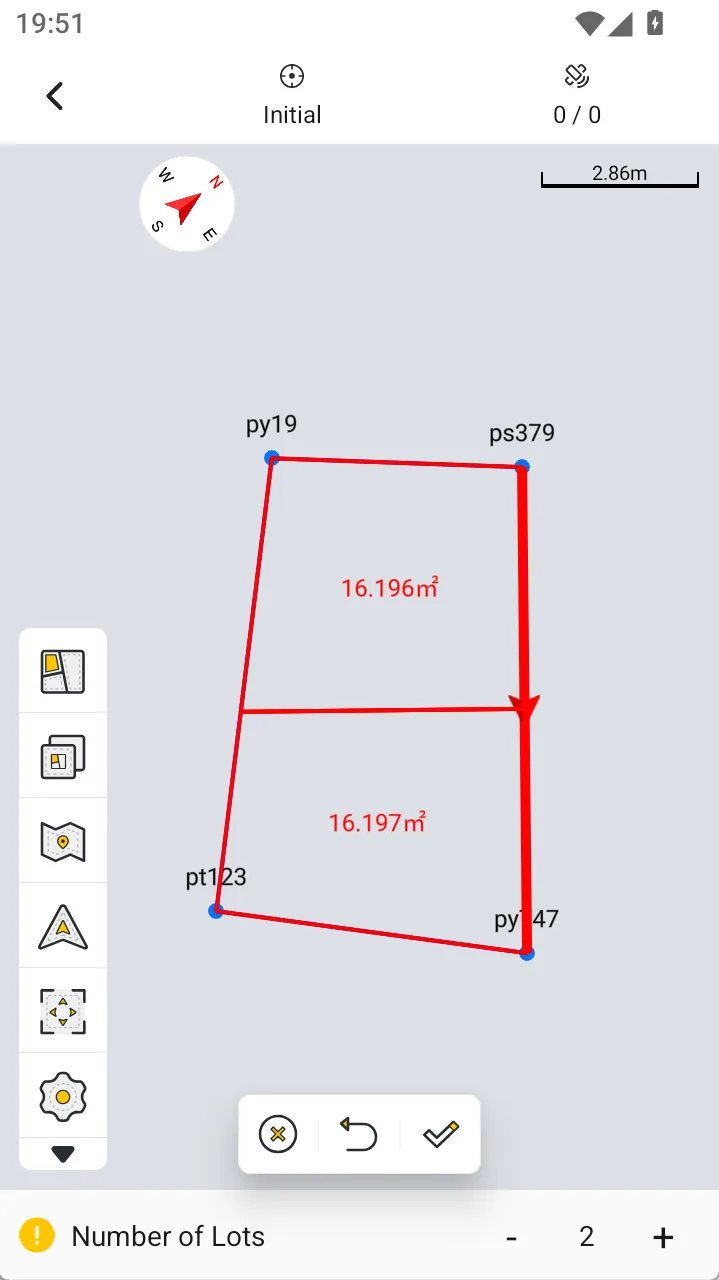
- The system generates the split lines according to the specified number of lots and displays the area of each sub-lot in real time.
- Check the split result. If it is correct, tap [√] to save.
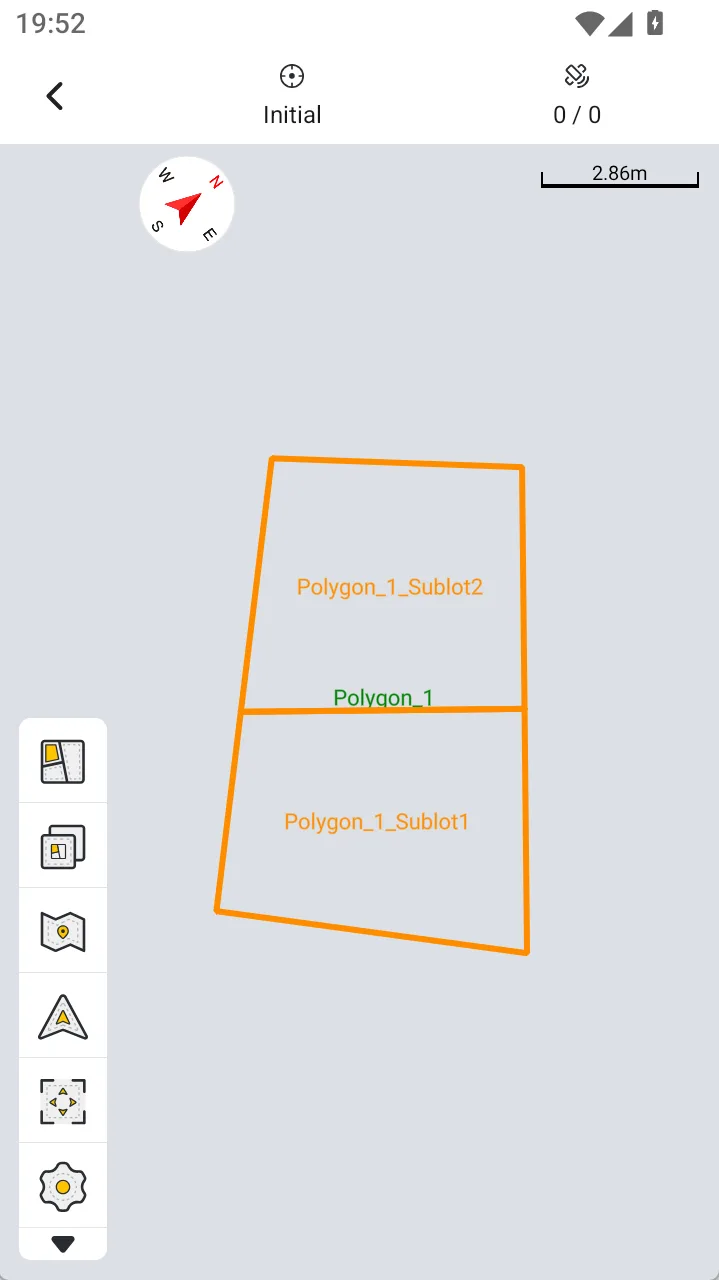
For example, when the number of lots is set to 2, the system divides the original lot into two sub-lots of equal area.
 |  |  |  |  |  |
2.2 Line & Given Area
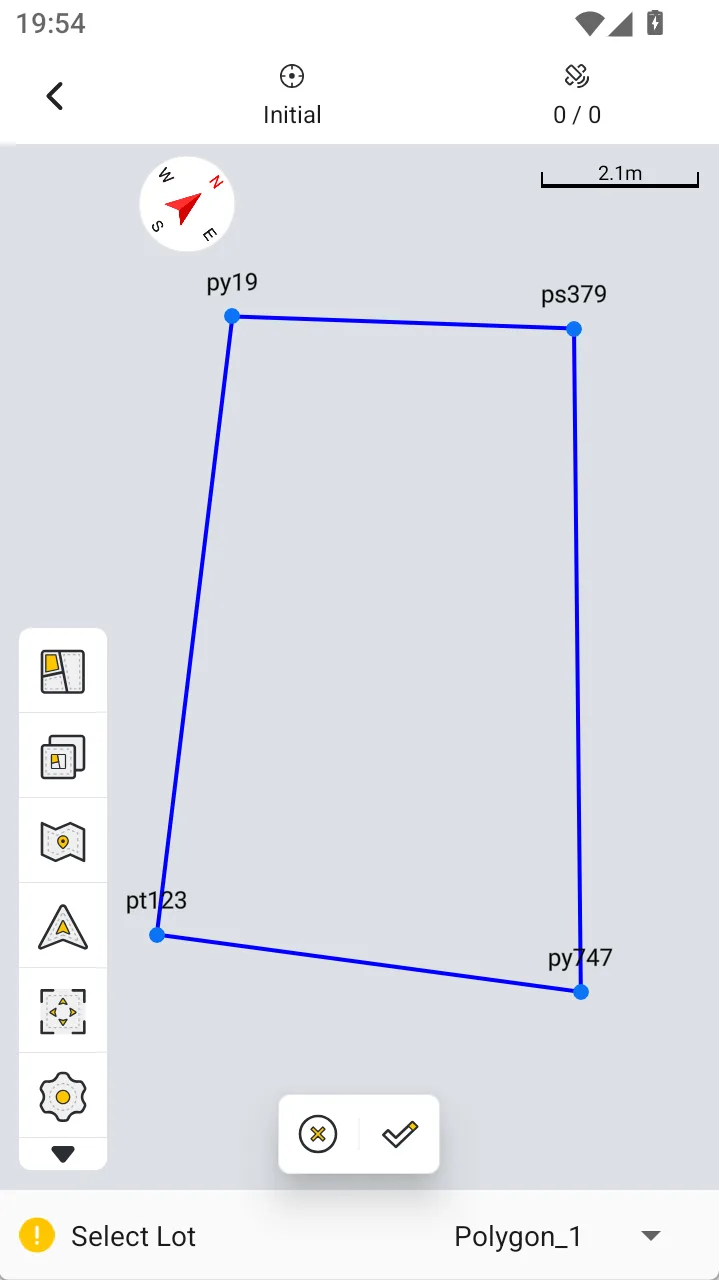
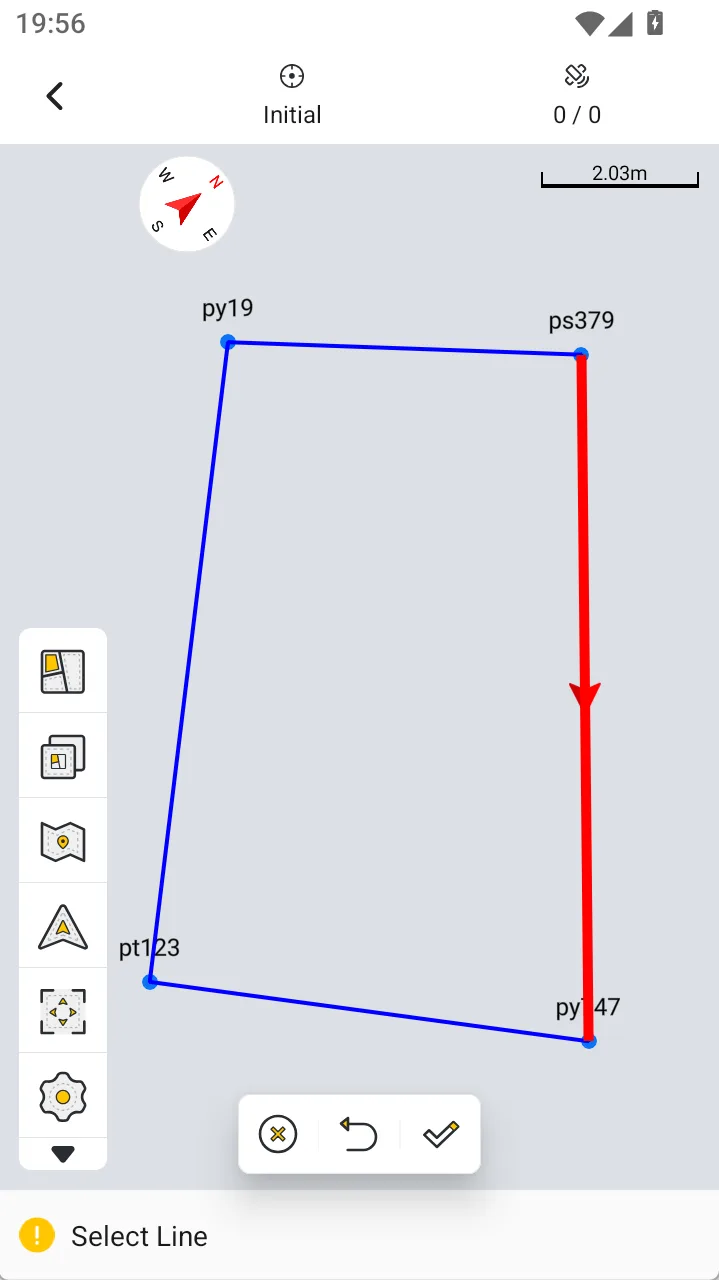
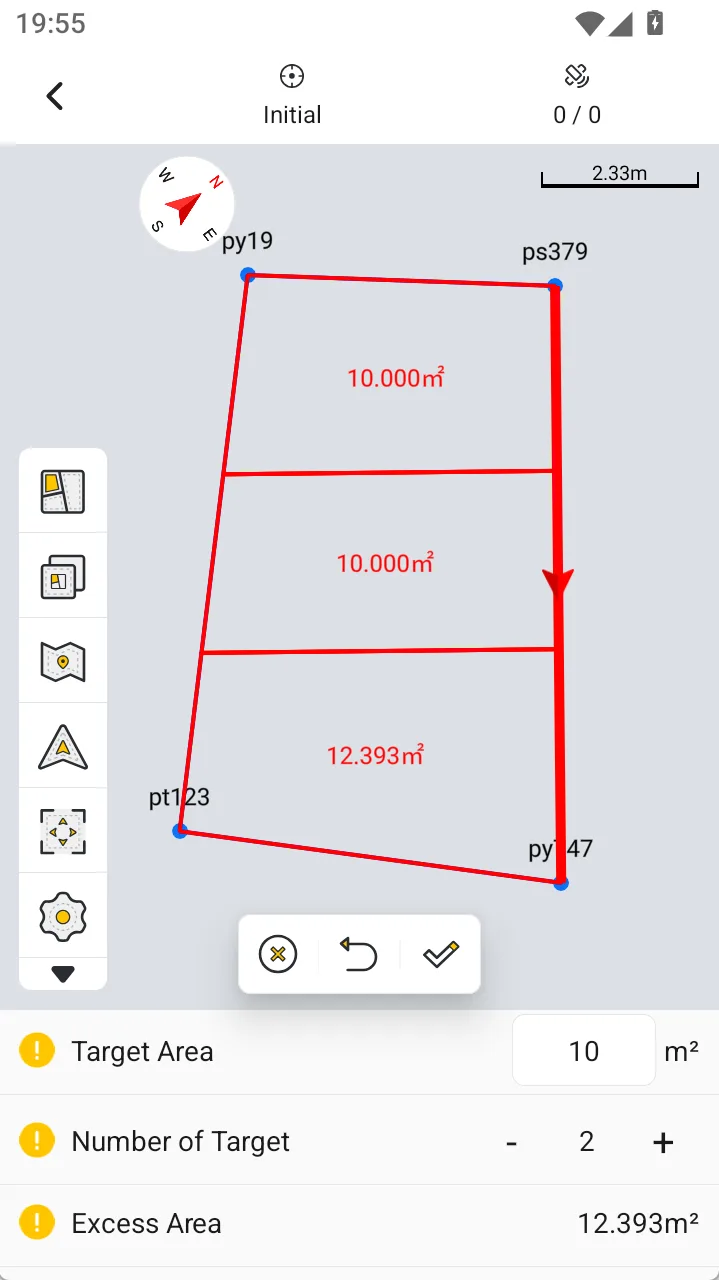
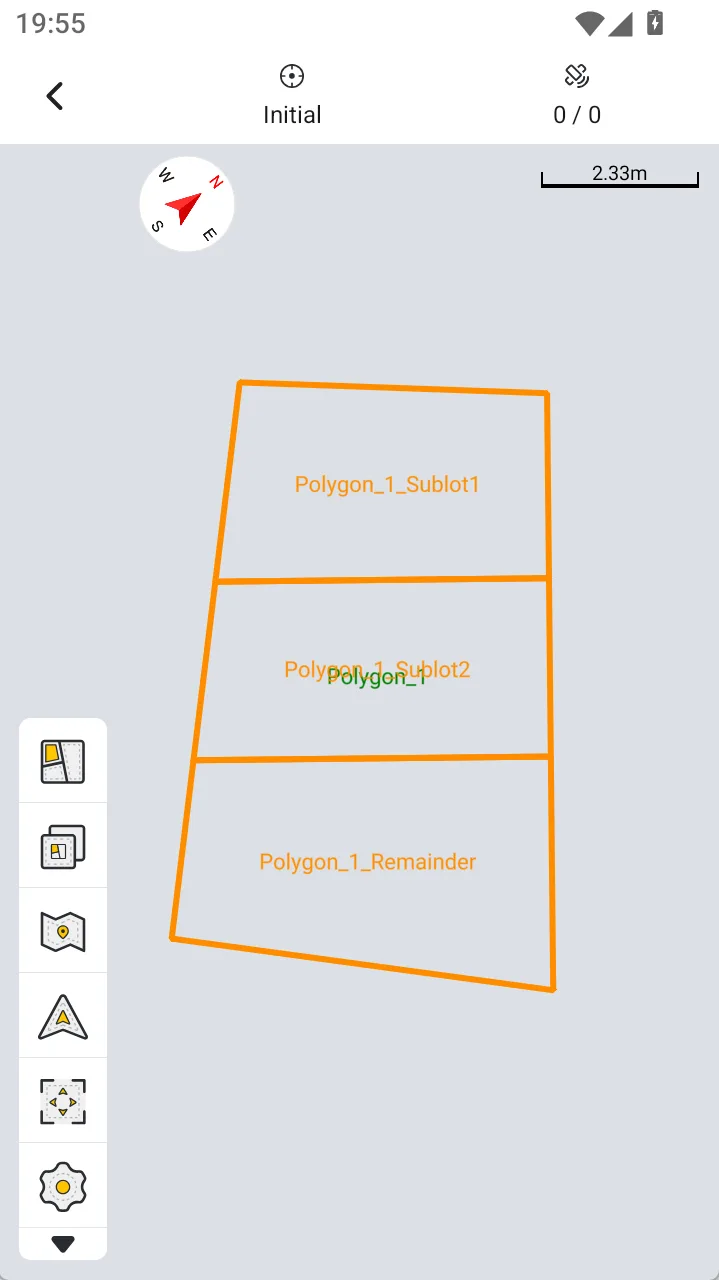
Line & Given Area divides a sub-lot that meets the specified target area from the original lot along a defined direction.
Procedure:
1. Select [Line & Given Area].
2. Select or define the split direction.
3. Enter the target area and the number of target lots.
4. The system calculates the split-line positions according to the target area.
5. Preview the lot on the map and confirm the position and area of the target sub-lot.
6. Tap [√] to save the split result.
The side of the split line on which the target lot is created is determined by the preview shown on the page.
 |  |  |  |  |  |
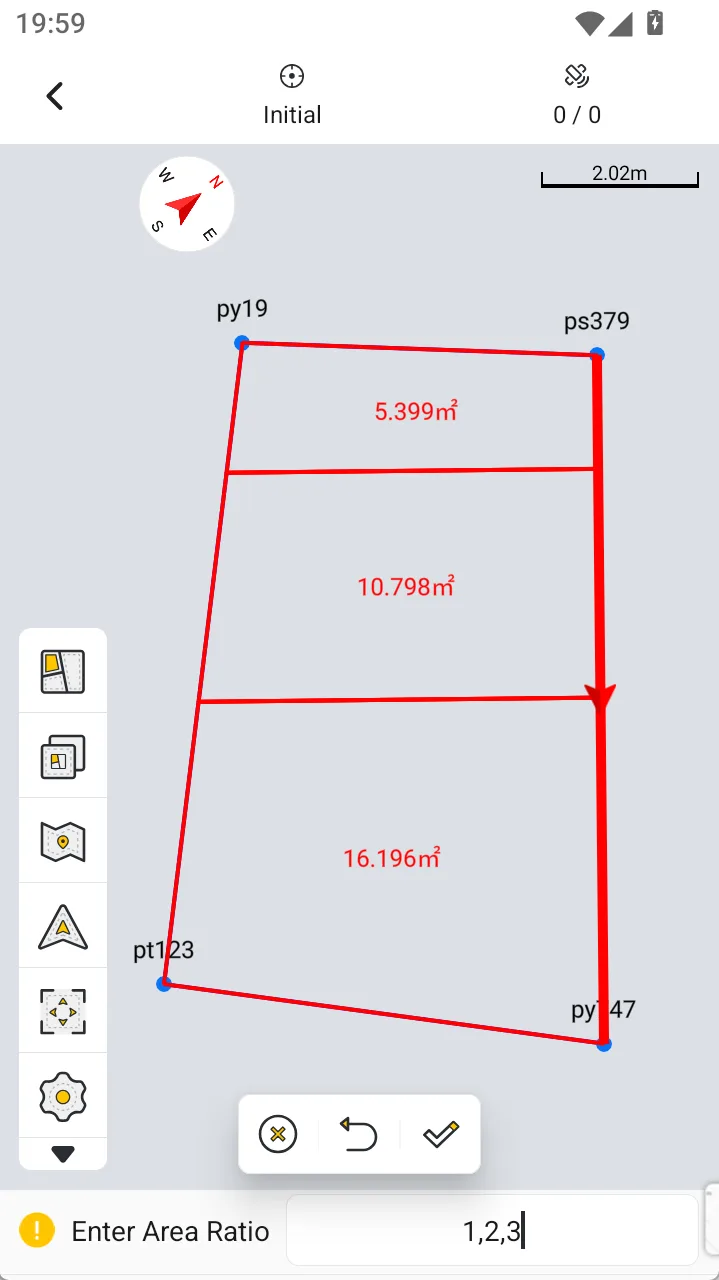
2.3 Line & Area Ratio
Line & Area Ratio divides a lot according to the specified area ratio.
Procedure:
1. Select [Line & Area Ratio].
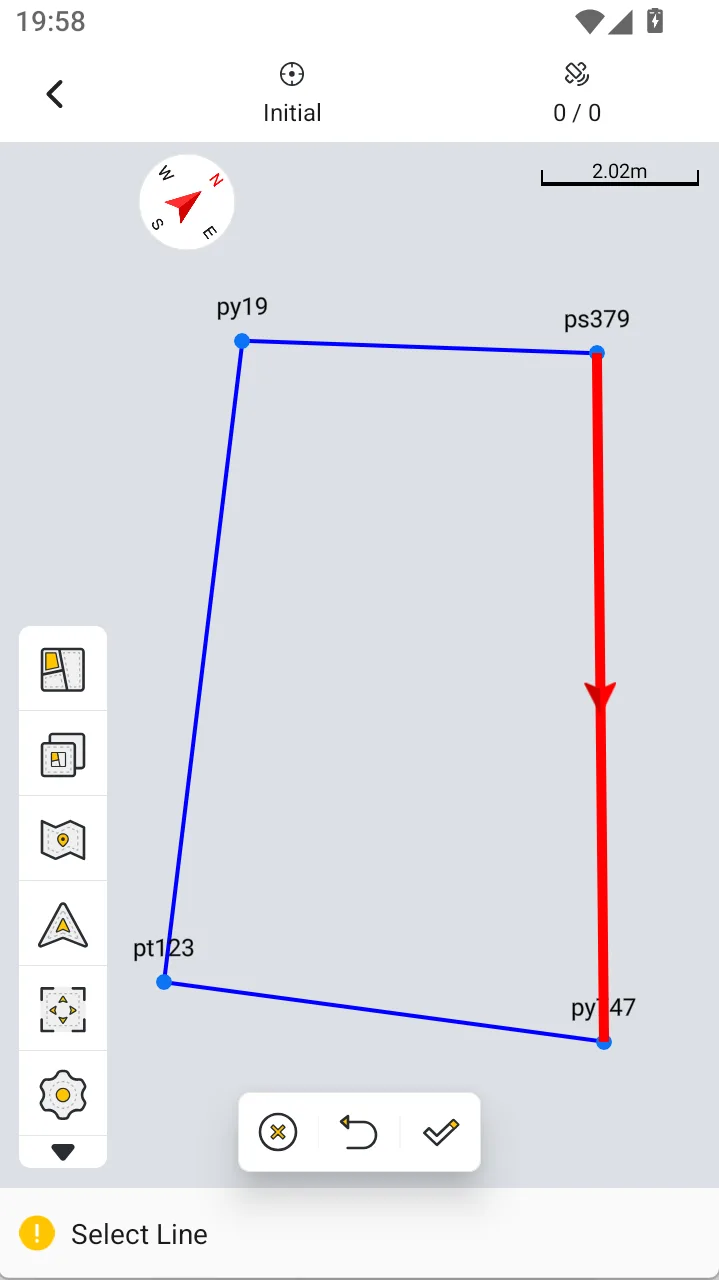
2. Select or define the split direction.
3. Enter the area ratio among the lots.
4. The system automatically calculates the split-line positions according to the ratio.
5. Check the area results displayed on the map.
6. Tap [√] to save.
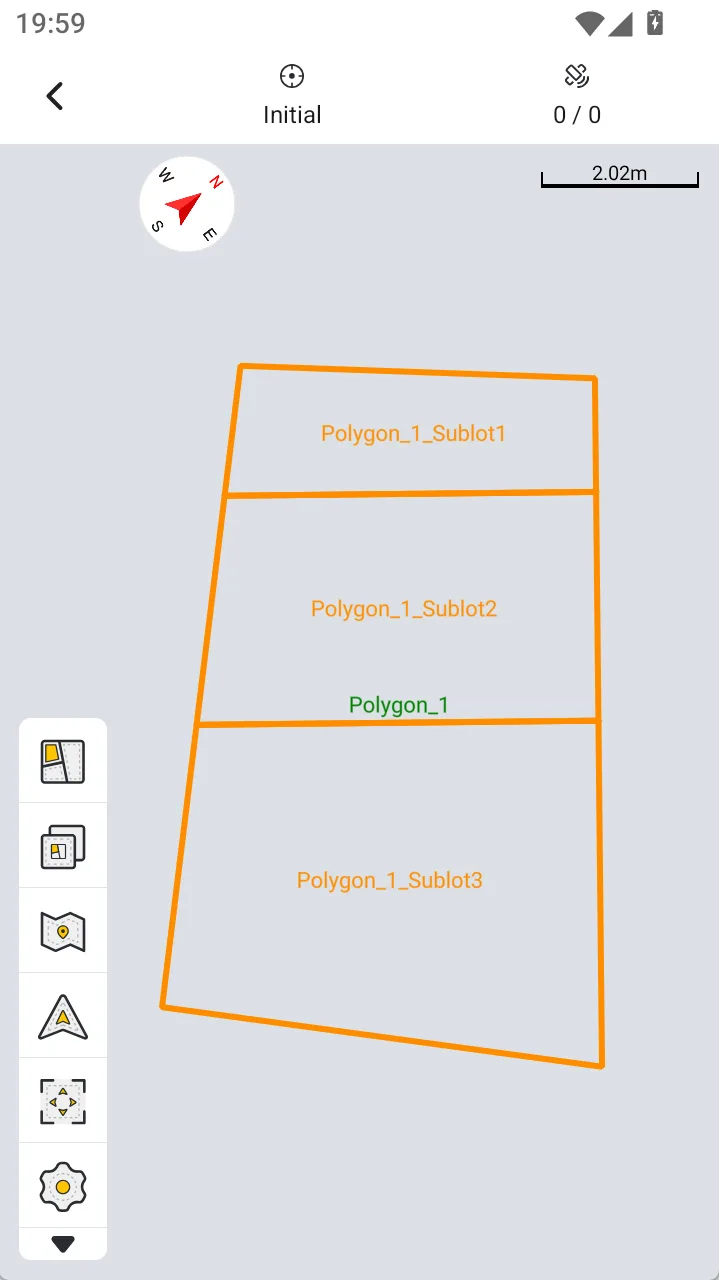
For example, when the area ratio is set to 1:2:3, the system divides the original lot into approximately one-sixth, one-third, and one-half of the total area.
 |  |  |  |  |  |
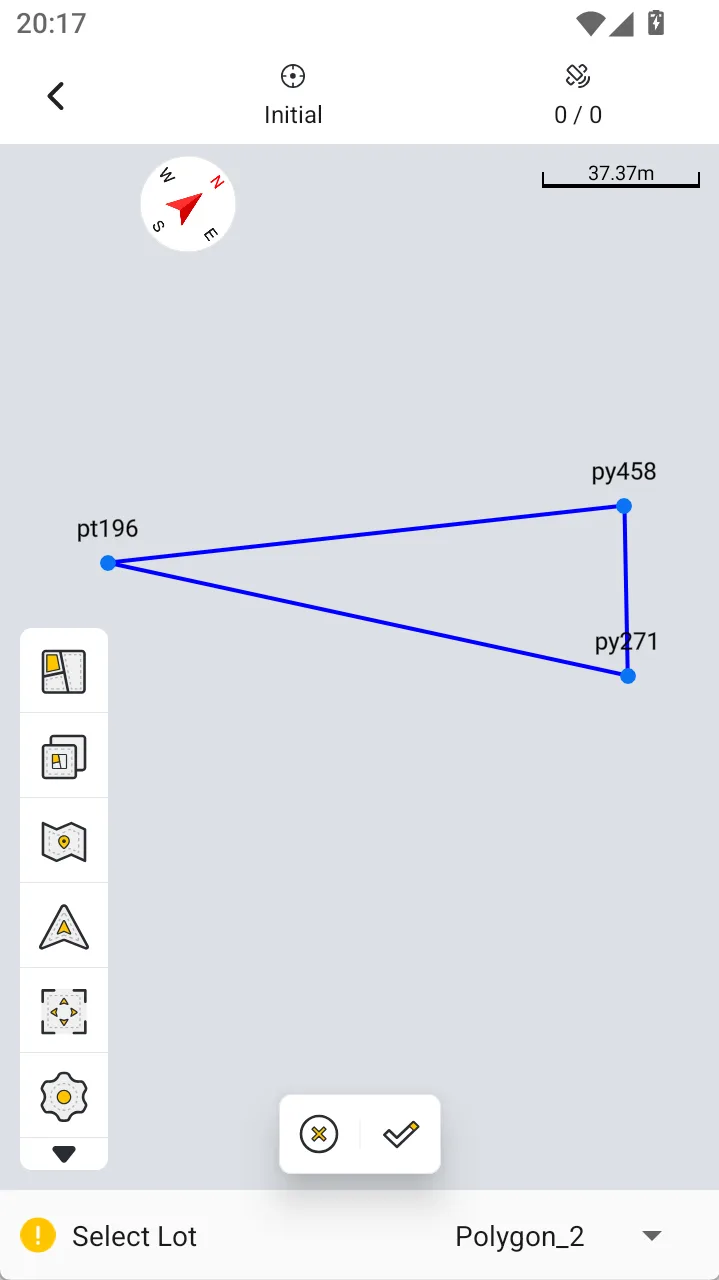
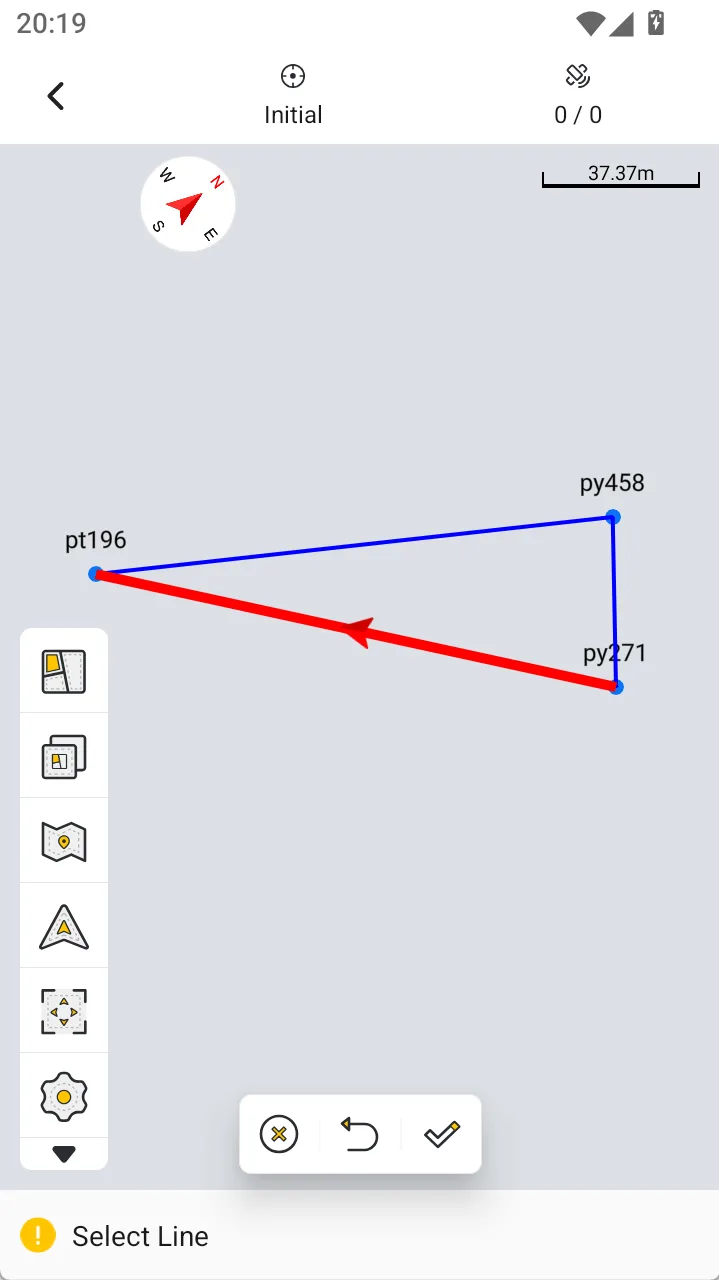
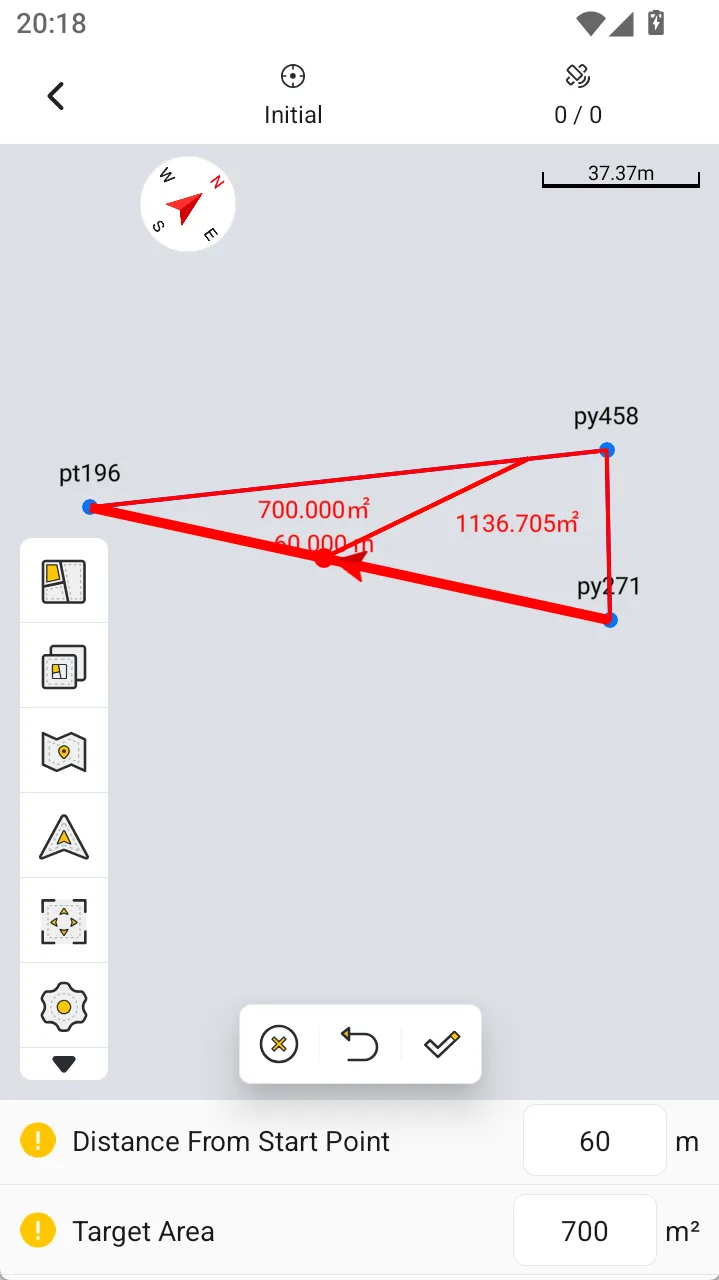
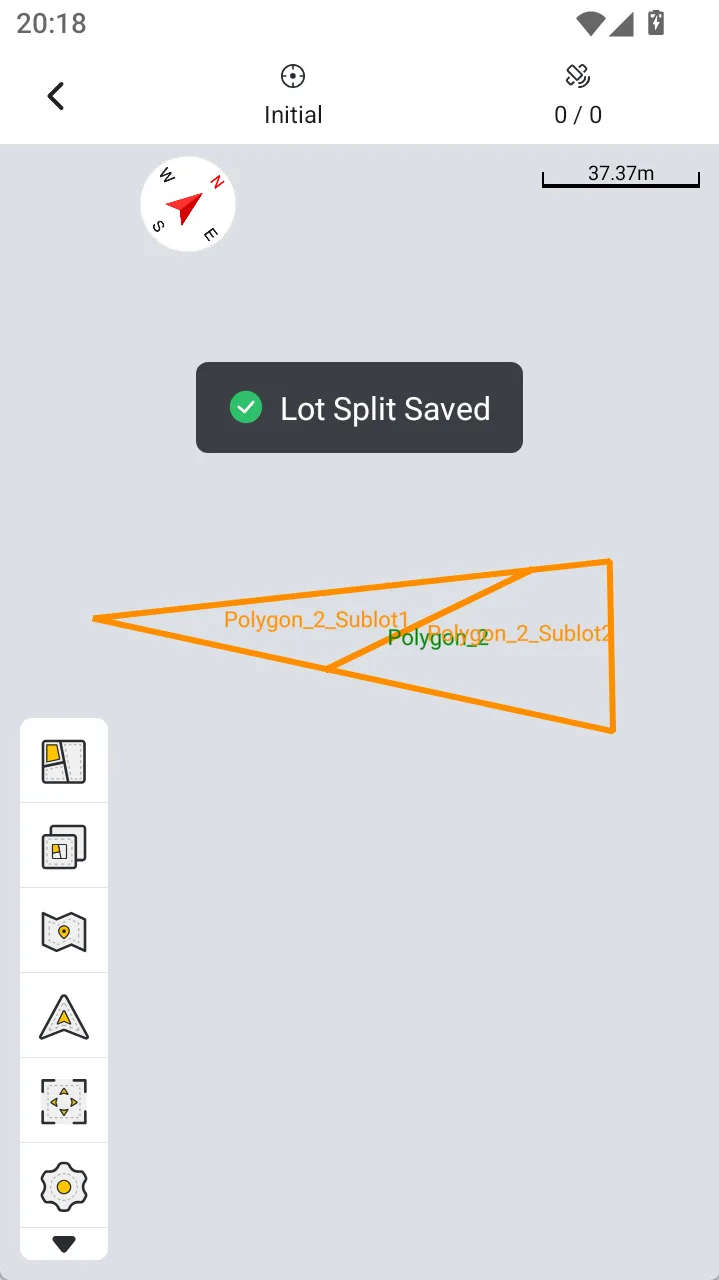
2.4 Point & Given Area
Point & Given Area determines the lot-splitting result using a reference point and a target area.
Procedure:
1. Select [Point & Given Area].
2. Select a reference point on the map.
3. Enter the target area.
4. The system calculates the split line according to the reference point, lot boundary, and target area.
5. Preview the split result.
6. Tap [√] to save.
Because the reference-point position affects the split direction and the location of the target lot, verify that the preview meets the field requirements before saving.
 |  |  |  |  |  |
3. Adjust and Confirm the Split Result
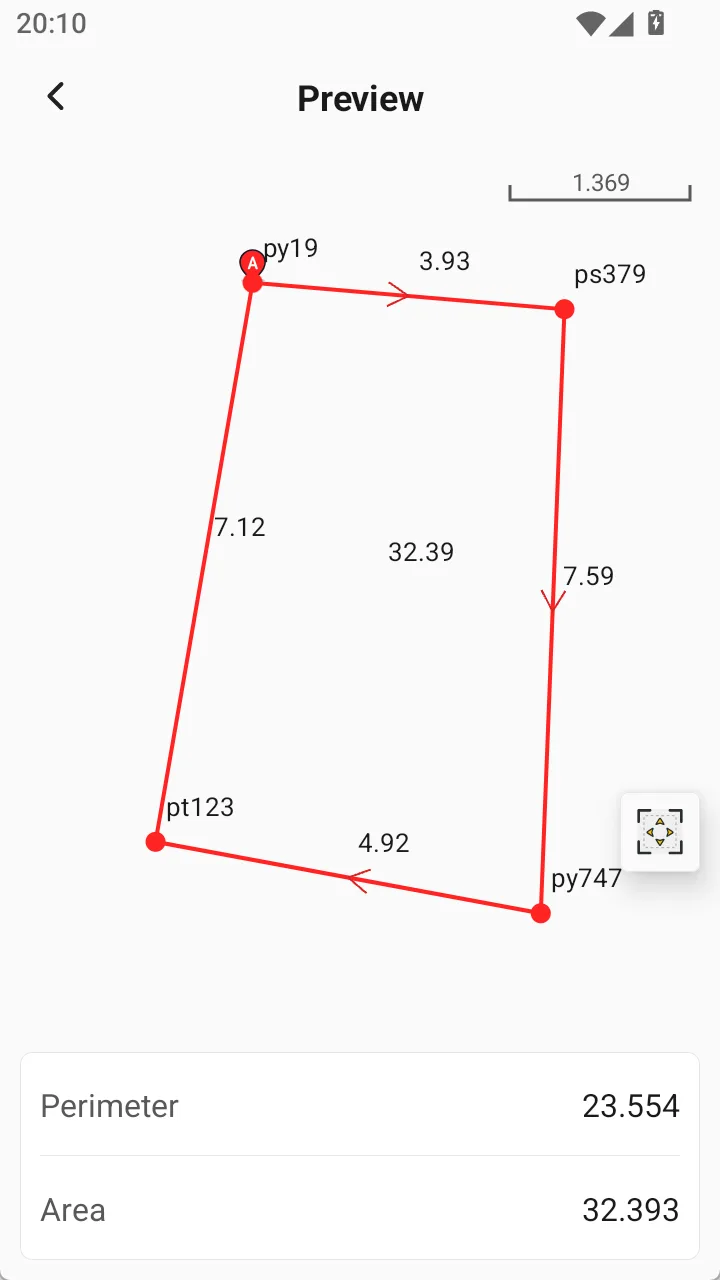
The lot-splitting page displays:
• Original lot boundary
• Sub-lot boundaries
• Split lines
• Area of each sub-lot
• The current number of lots or splitting parameters
Use the Undo, Recalculate, or parameter adjustment functions on the page to modify the split result. After confirming the result, tap [Done]. The system generates the sub-lots and saves them to the Lot Library.
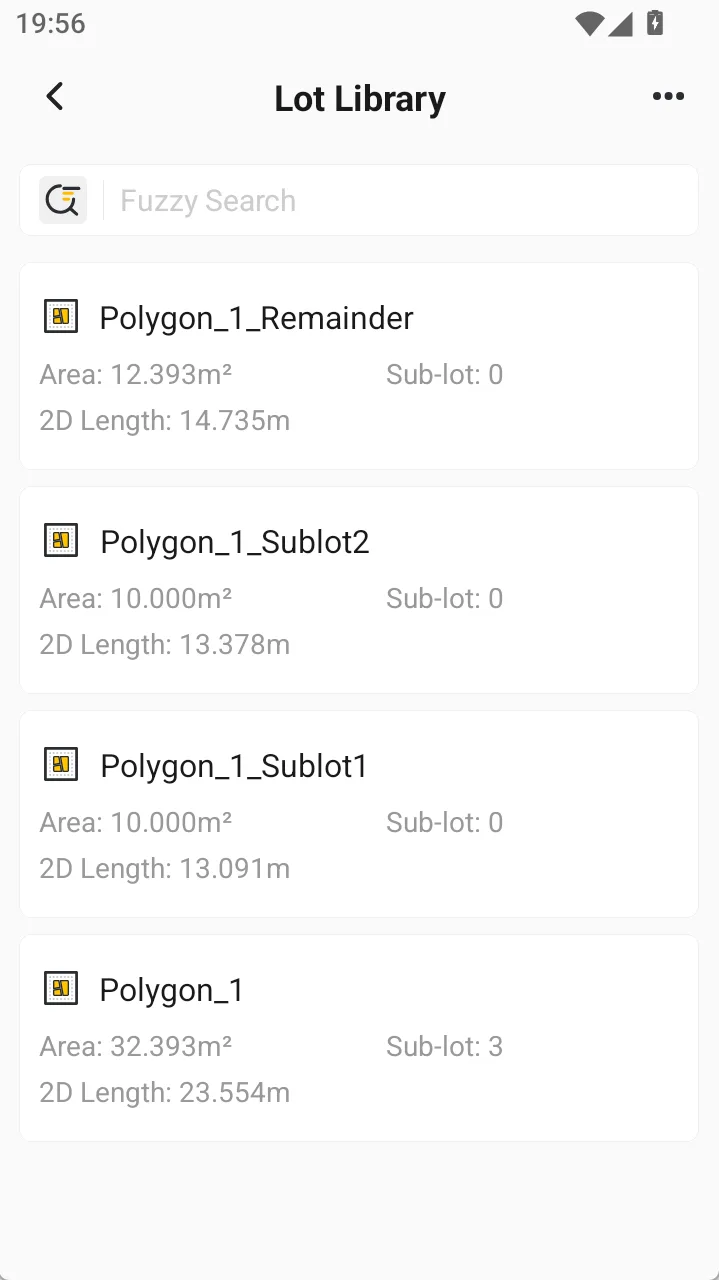
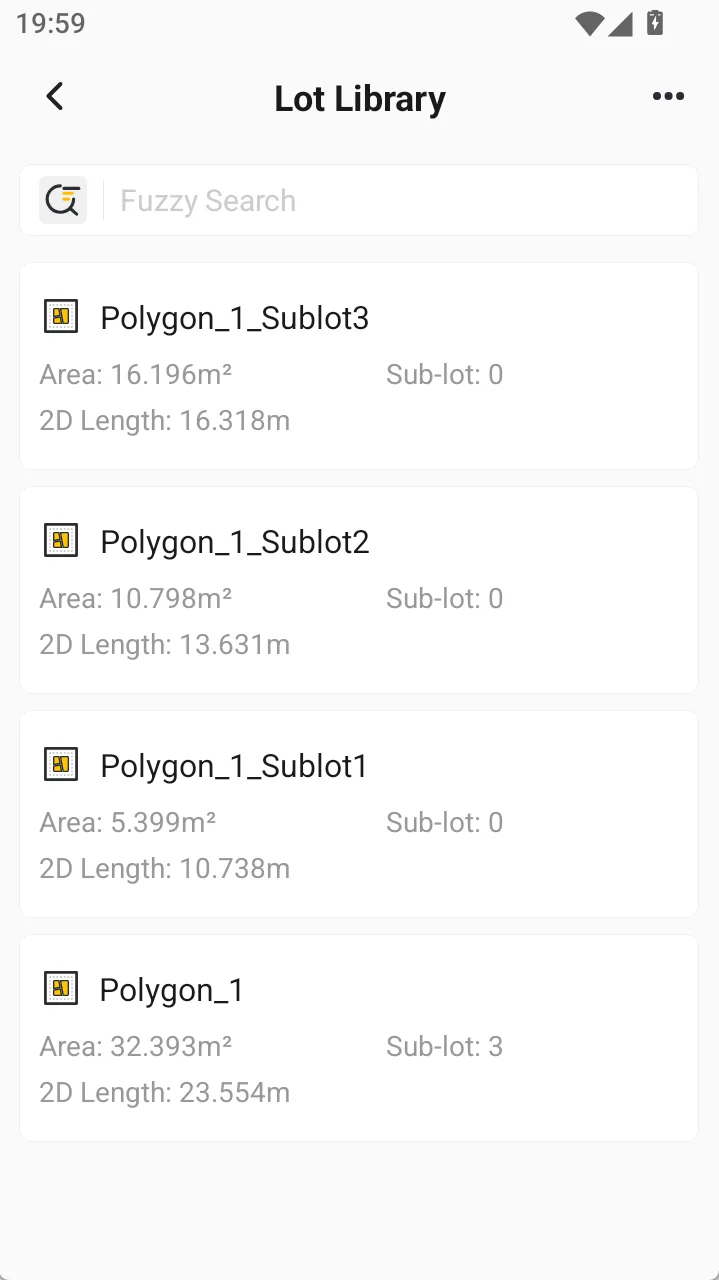
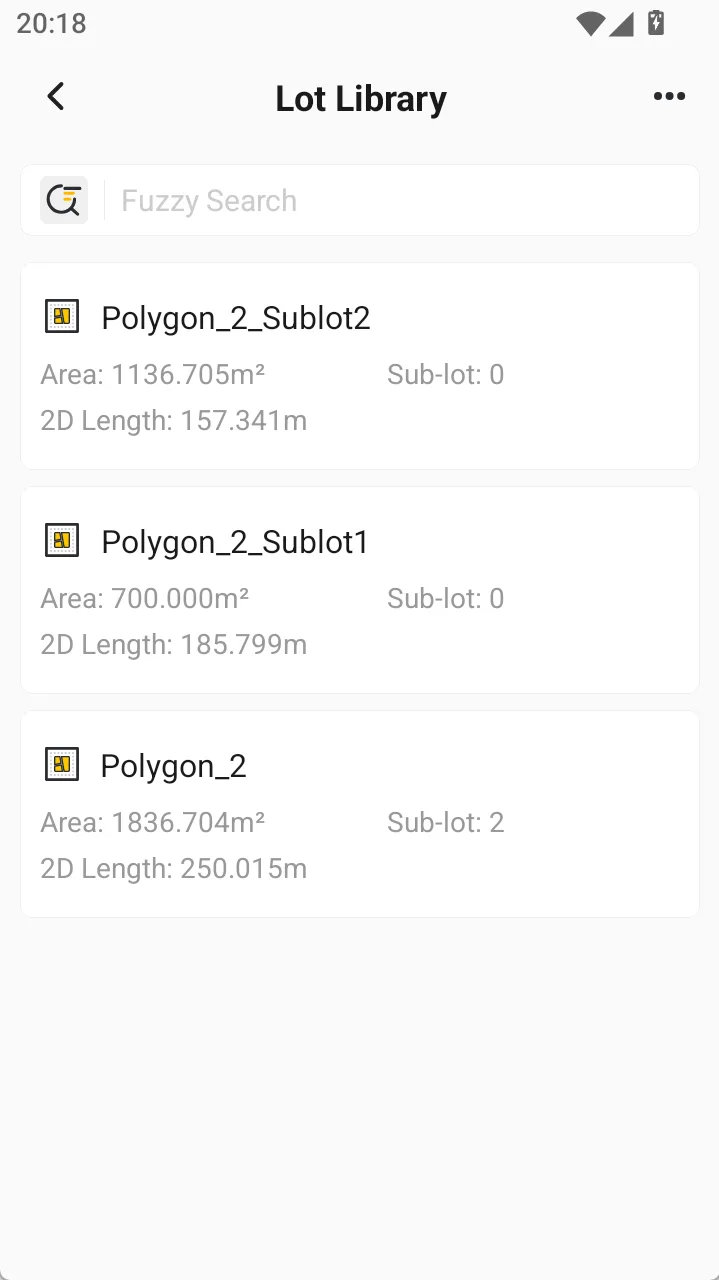
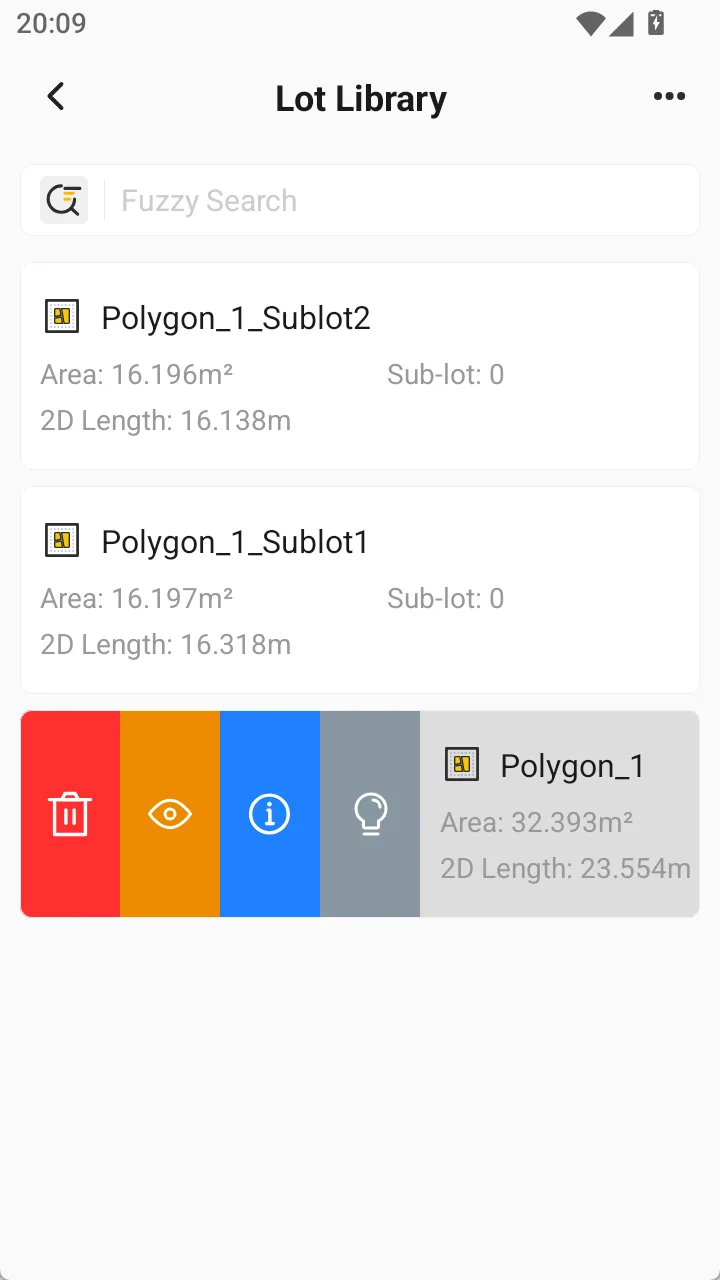
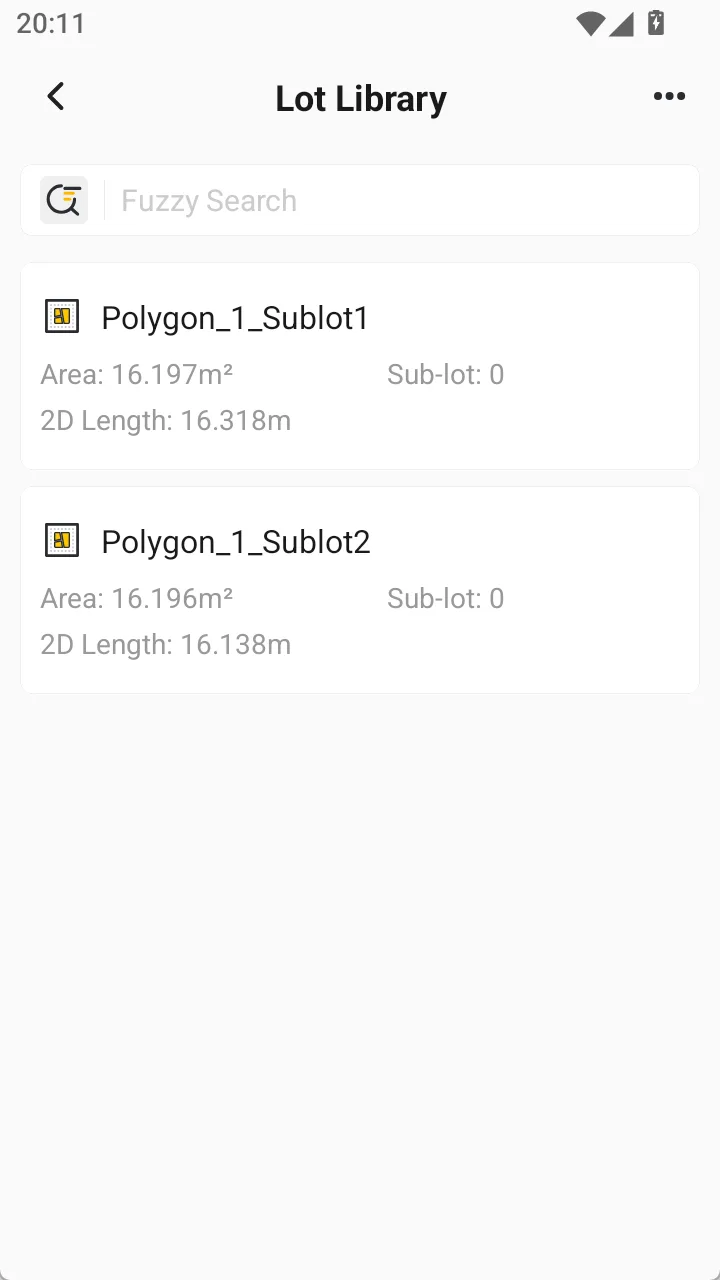
4. Lot Library
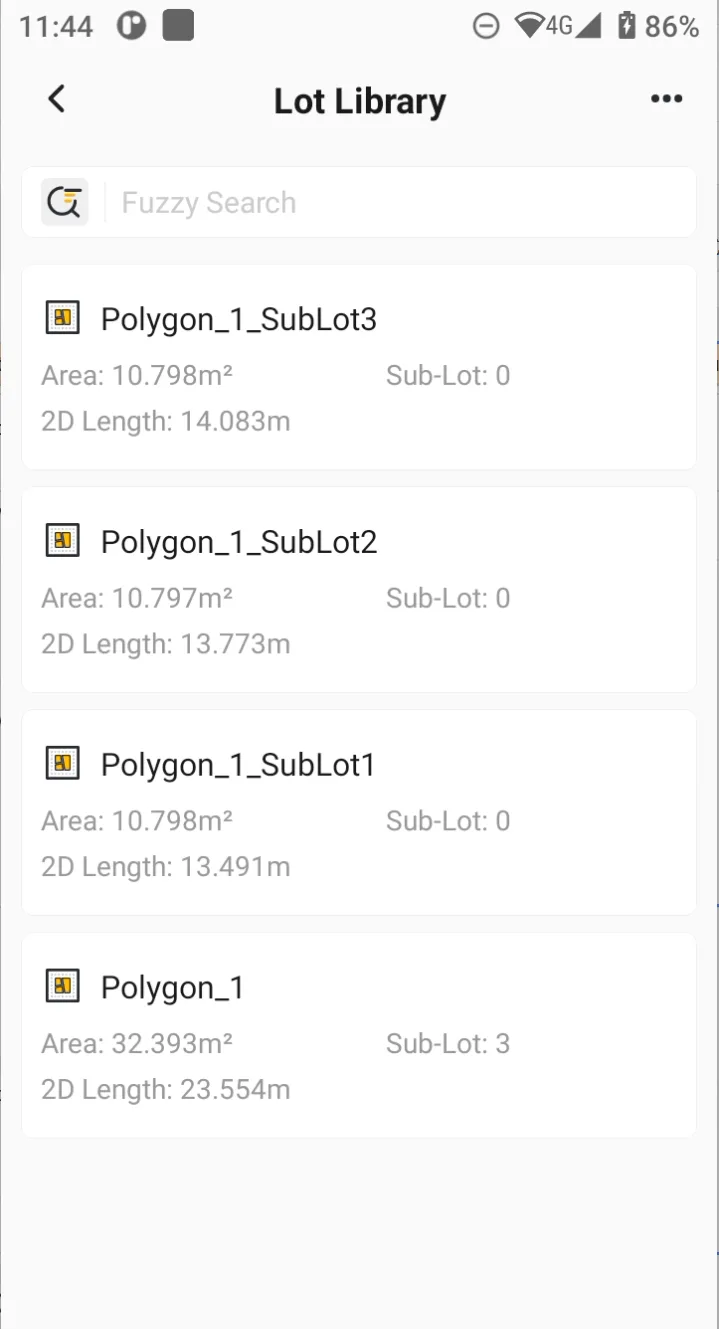
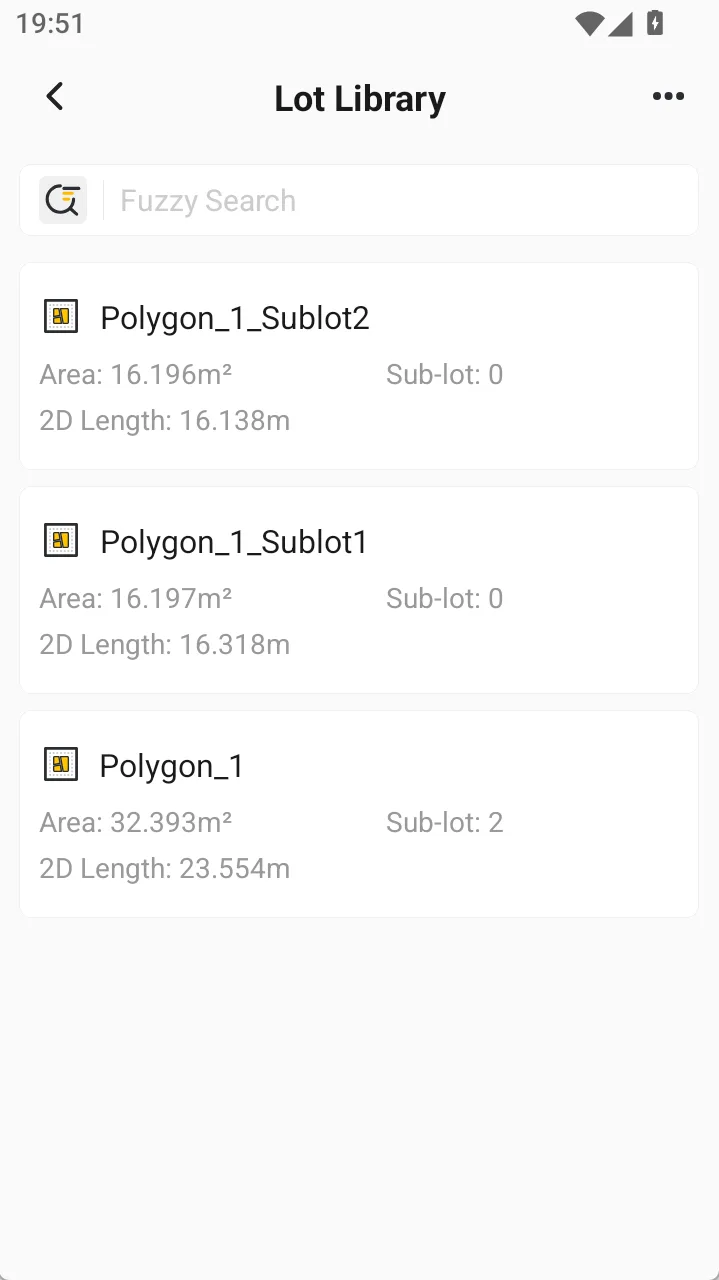
Tap [Lot Library] on the Lot Management page to view the lots and sub-lots saved in the current project.
The lot list mainly displays the following information:
• Lot name
• Lot area
• 2D perimeter
• Number of sub-lots
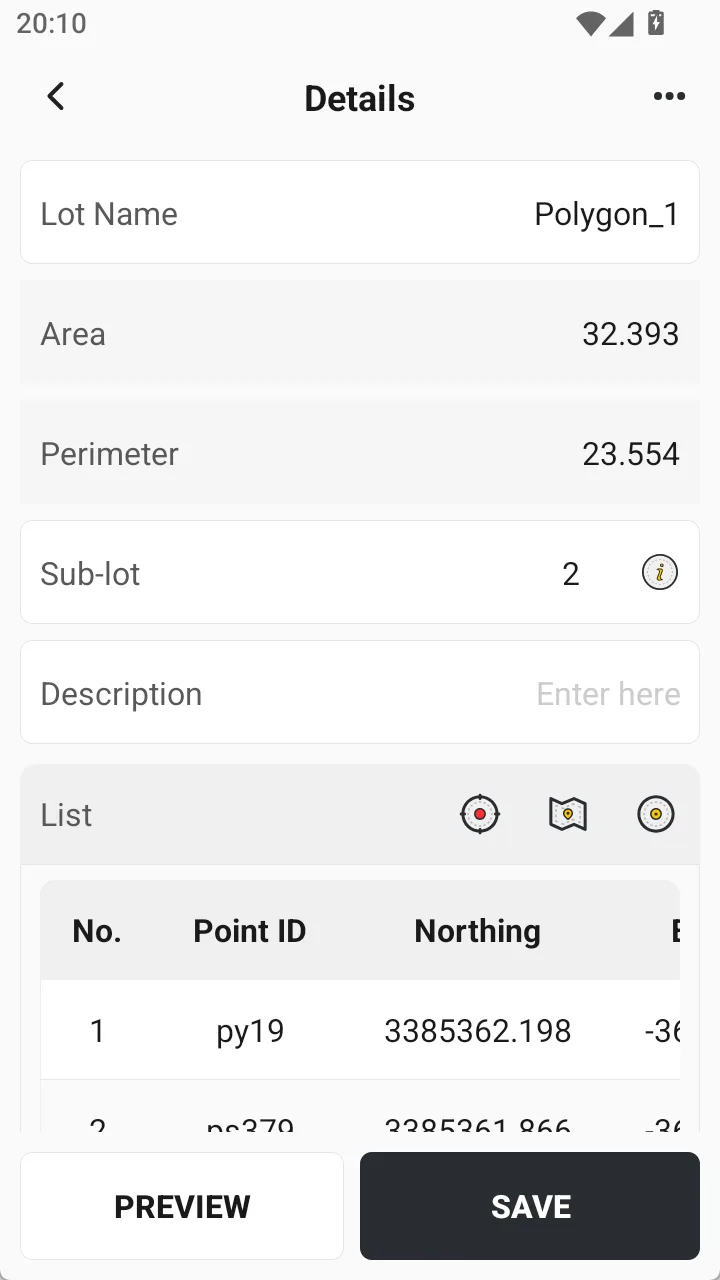
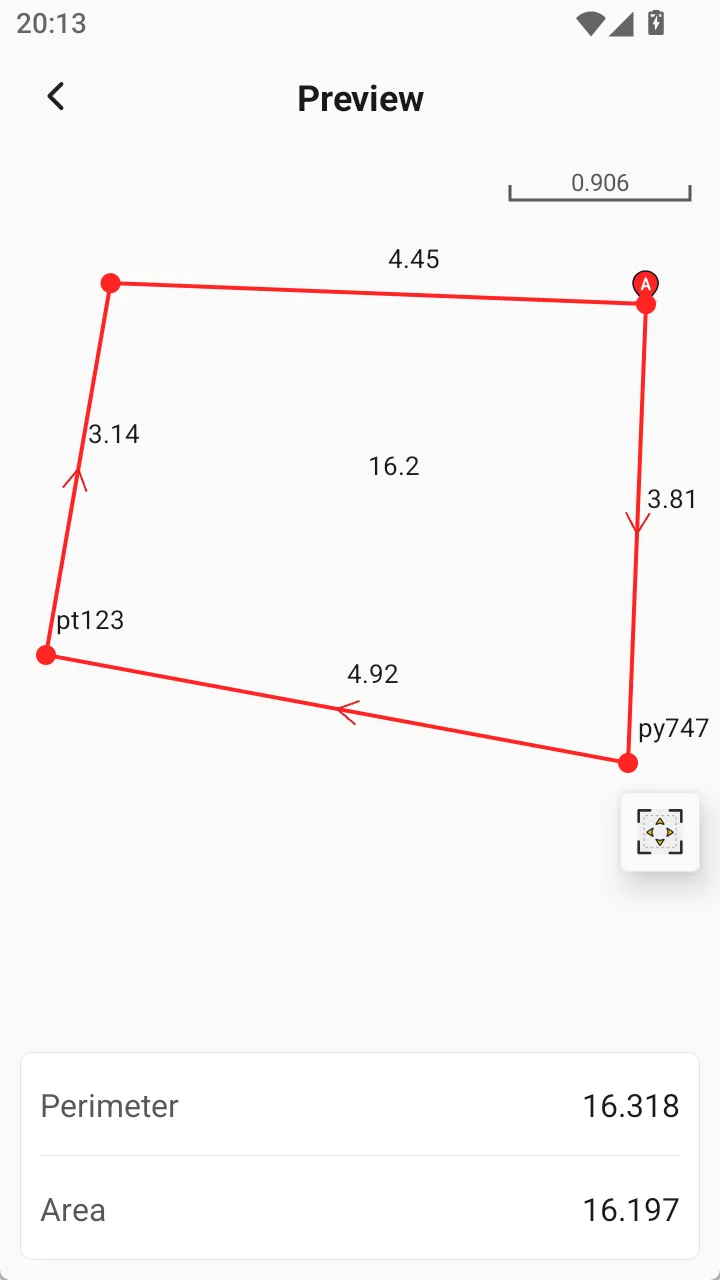
Use the search box at the top to search for lots by name. After the original lot is split, the system automatically names the generated sub-lots and records their parent-child relationship with the original lot.
 | 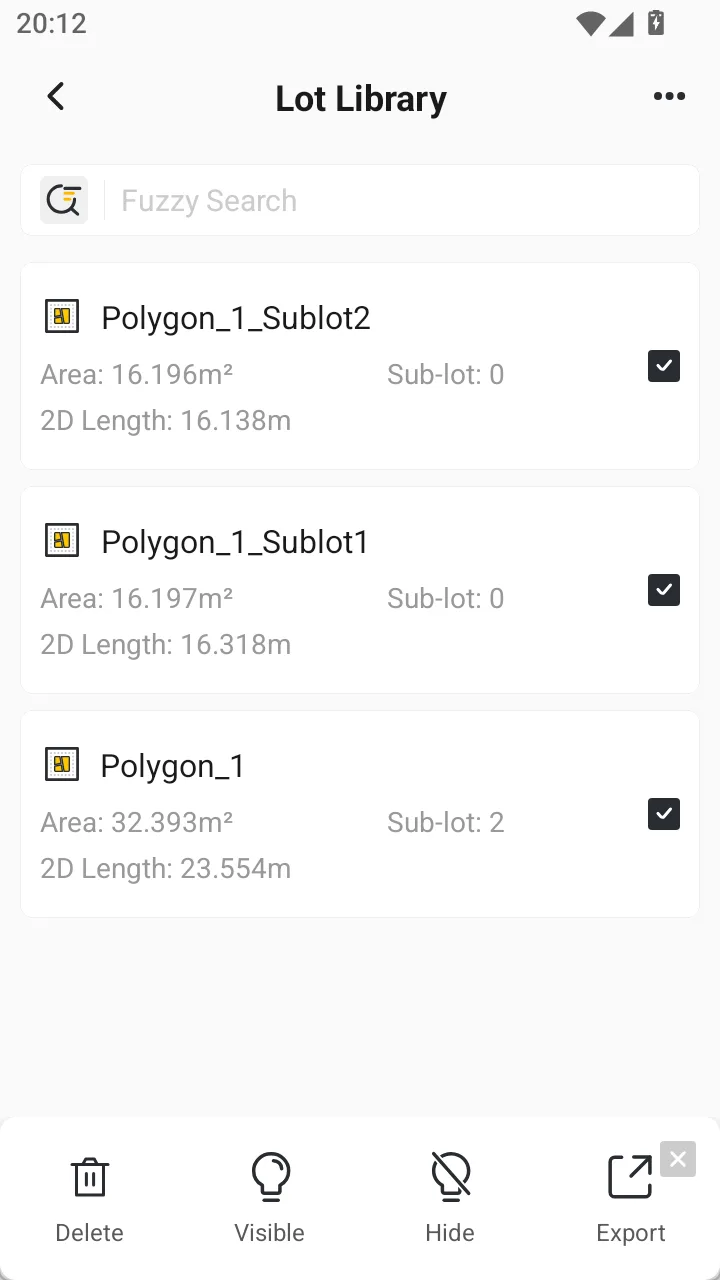 |  |  |  |  |
5. Export Lots
In the Lot Library, select the lot or sub-lot to be exported, tap [Export], and then select the file format and save location.
Supported export formats include:
• Shapefile: *.shp
• Compressed Shapefile: *.shz
• KML: *.kml
• CAD: *.dxf, *.dwg
• ISOXML: *.ISOXML
• Trion Survey lot format: *.lot
Exported files can be saved locally, uploaded to Cloud Drive, or shared using a share code, depending on the options available on the Export page. Lot Management preserves the attribute information of split lots, allowing the results to be used in other software or devices.