
9 Appendix
9.1 Antenna height definition
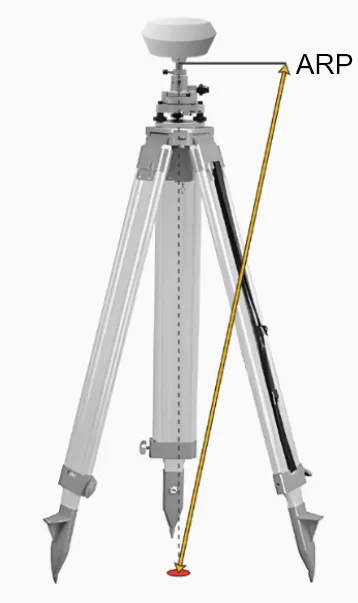
There are four ways to measure the antenna height of Trion Survey: pole length, direct, oblique, and oblique film. For the three different receiver types, the antenna size and measurement position are referred to as follows.
APC: Antenna Phase Center
ARP: Antenna Reference Point
| Type | Size (mm) |
| V1 / V1t | 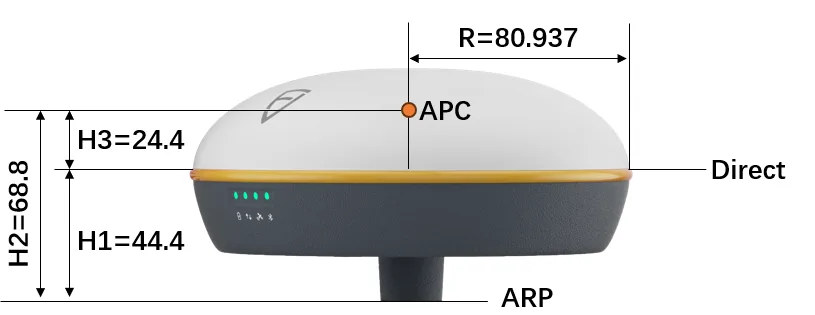 |
| V10a | 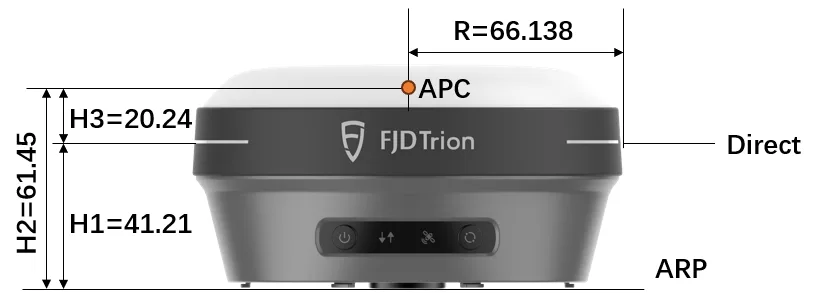 |
| V10i | 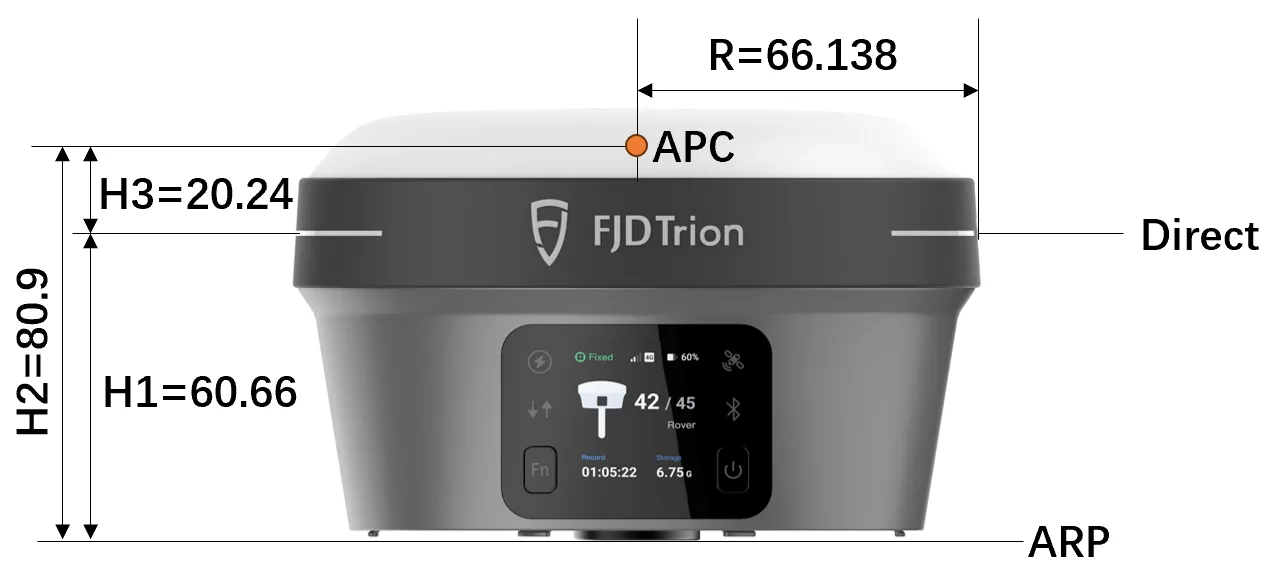 |
| V10L | 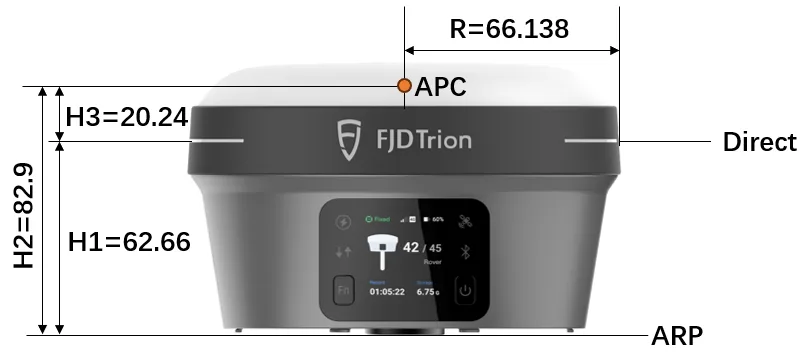 |
| V4e | 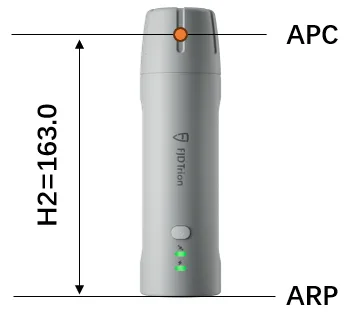 |
Antenna Measured From:
| Pole Length | Direct | Oblique | Oblique Film |
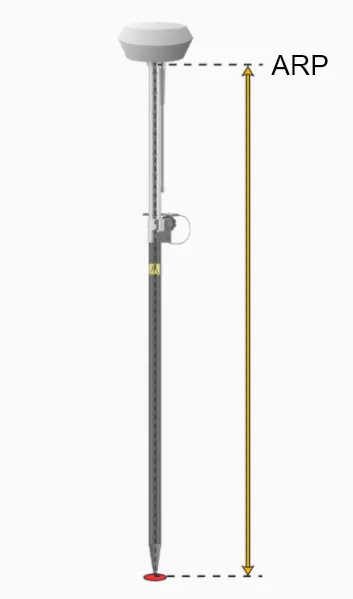 | 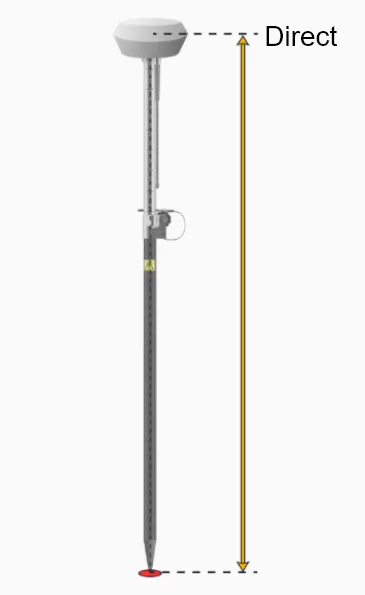 | 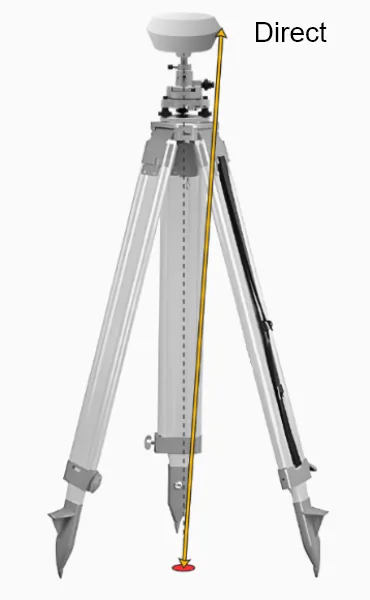 |  |
9.2 Radio frequency
Internal Radio (400M) | Internal Radio (900M) | External Radio | |||
TRIMTALK | 9600 | / | 19200 | TRIMTALK | 4800 |
TRIMMK3 | 19200 | 38400 | 9600 | ||
TT450S | 9600 | 115200 | TRIMMK3 | 4800 | |
| 19200 | 19200 | ||||
TRANSEOT | 9600 | TRANSEOT | 4800 | ||
| 19200 | 9600 | ||||
SETAL | 9600 | SATEL | 9600 | ||
| 19200 | 19200 | ||||
LORA | 11000 | ETALK | 4800 | ||
| 12000 | 9600 | ||||
| 15000 | 19200 | ||||
| 18000 | |||||
9.3 SHP file
Shapefile (abbreviated as .shp file) is a geographic information system (GIS) data format developed by Esri (US Environmental Systems Research Institute) for storing vector data. It is currently one of the most widely used GIS data exchange formats.
A Shapefile is not a single file, but a collection of files composed of multiple files. All files must have the same name but different extensions to form a complete Shapefile. The main function of a Shapefile is to store geometric objects such as points, lines, and surfaces on a map and their attribute information.
A complete .shp file usually includes the following files:
| Suffix | Necessary | Description |
| shp | Yes | The main file stores geometric data (points, lines, polygon). |
| shx | Yes | Index files are used to quickly locate records in .shp files |
| dbf | Yes | Attribute table, using dBASE format, stores attribute data (such as number, name, etc.) for each graphic. |
| prj | Recommended | Store coordinate projection information (such as WGS84, UTM, etc.) for easy coordinate recognition |
| cpg | Optional | Specify the character encoding (such as UTF-8, GBK) in the .dbf file to prevent garbled characters |
| qpj | Optional | Some GIS software-specific projection files have a function similar to .prj |
| sbn/sbx | Optional | Used for spatial indexing (mainly to provide acceleration for ArcGIS). |
| xml | Optional | Metadata file, describing detailed information about the data (such as source, field meaning). |
Currently, the shp file exported by Trion Survey contains the first 5 files in the table above.
9.4 RTCM1021-1027
RTCM 1021-1027 belong to a set of messages related to the definition of coordinate reference system (CRS), coordinate transformation, and projection parameter broadcasting in RTCM 3.x. Their purpose is not to transmit observation values themselves, but to allow the rover station to obtain the base, transformation parameters, residual grid, and projection definition currently used in the network while receiving differential correction data, so as to directly complete the conversion from GNSS reference frame to engineering coordinate system on site.
This set of messages is usually used in conjunction with network RTK/VRS services. Among them, 1021 or 1022 generally appear as control messages and must contain at least one of them to define which benchmark conversion model to use. The remaining messages are optional and can be sent as needed, such as ellipsoidal residual grid, planar residual grid, and projection definition parameters.
Although 1021-1027 is a formal message type defined in the standard, it is not as common as MSM observation messages and base station coordinate messages. Some devices or software only support a part of them, or even only support control messages, and may not fully support all projection or grid broadcasting.
| Message number | Category | Name and main purpose |
| 1021 | Reference conversion control | Helmert / Abridged Molodensky Transformation Parameters Broadcast parameters or simplified Molodensky class 7 transformation parameters |
| 1022 | Reference conversion control | Molodensky-Badekas Transformation Parameters Broadcast Molodensky-Badekas transformation parameters |
| 1023 | Residual grid | Residuals, Ellipsoidal Grid Representation Reference residual grid on broadcast ellipsoid |
| 1024 | Residual grid | Residuals, Plane Grid Representation Broadcast plane coordinate residual grid |
| 1025 | Projection definition | Projection Parameters, Projection Types other than Lambert Conic Conformal Broadcast projection parameters other than specific Lambert/OM |
| 1026 | Projection definition | Projection Parameters, Projection Type LCC2SP Broadcast Lambert Conformal Conic Two Standard Parallel Parameters |
| 1027 | Projection definition | Projection Parameters, Projection Type OM Broadcast Oblique Mercator Parameters |
The above names and uses are from the RTCM message list public information (Link: https://www.use-snip.com/kb/knowledge-base/rtcm-3-message-list/); where 1021 corresponds to Helmert/Abridged Molodensky, 1022 corresponds to Molodensky-Badekas, 1023 and 1024 correspond to two types of residual grids, and 1025-1027 corresponds to projection parameter broadcasting.
9.5 Code template
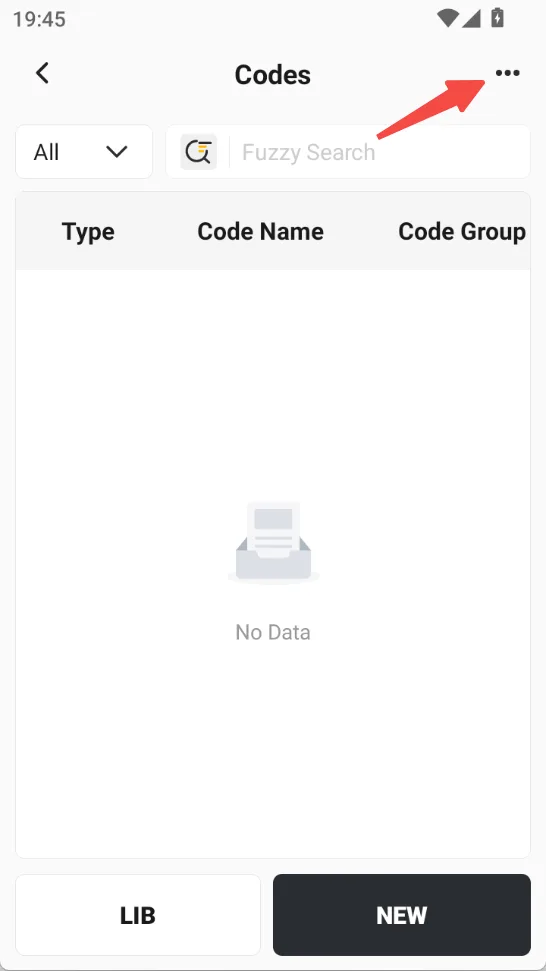
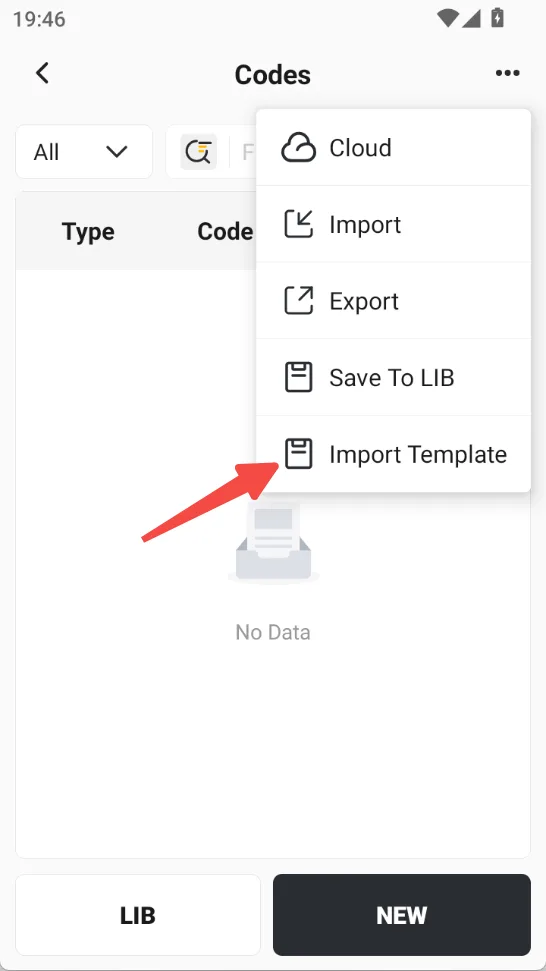
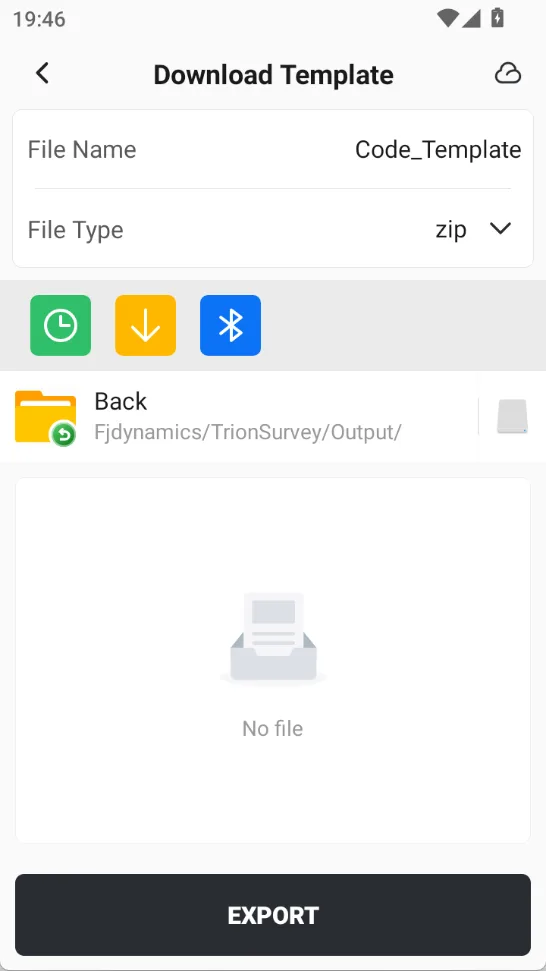
On the code management page, you can download code template. Users can add custom code information in batches according to the format, and then directly import it into the software. The downloaded zip compressed package contains:
 |  |  |
| File Name | Description |
| Code_Template.csv | Simple template, simply define the type and name for quick import, with optional group and description fields. 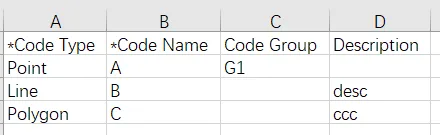 |
| Code_Template.xlsx | Complete template, can define point style, line style, and surface fill color. For specific information, please refer to the definition table in the template file. 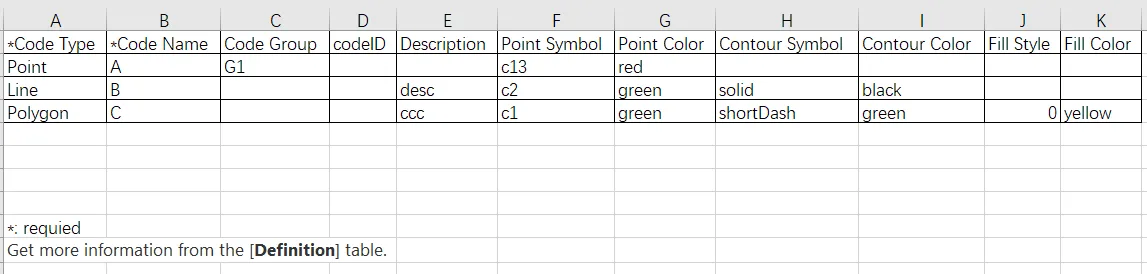 |
9.5.1 Point style
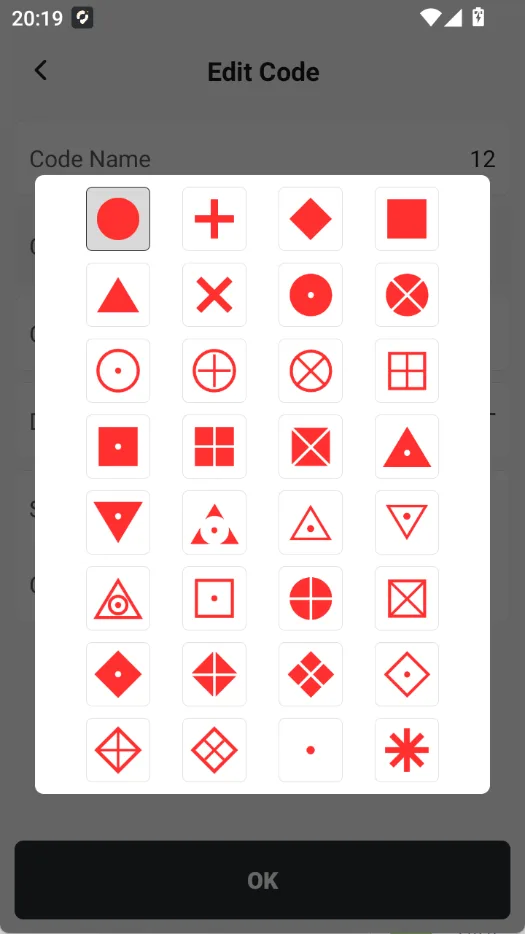
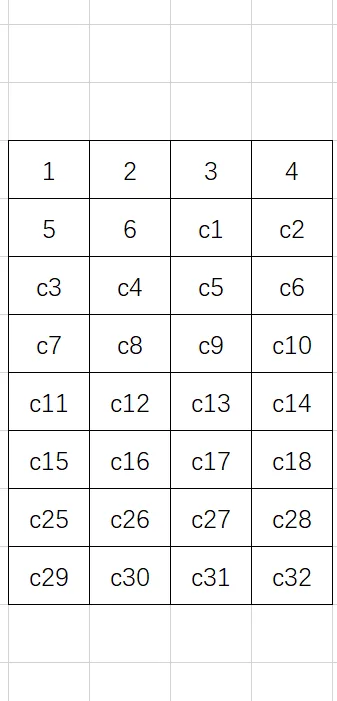
Whether it's point code, line code, or surface code, point styles can be defined. Currently, the system has 24 built-in point styles, each with a corresponding value, which can be flexibly defined when importing codes.
 |  |
9.5.2 Contour style
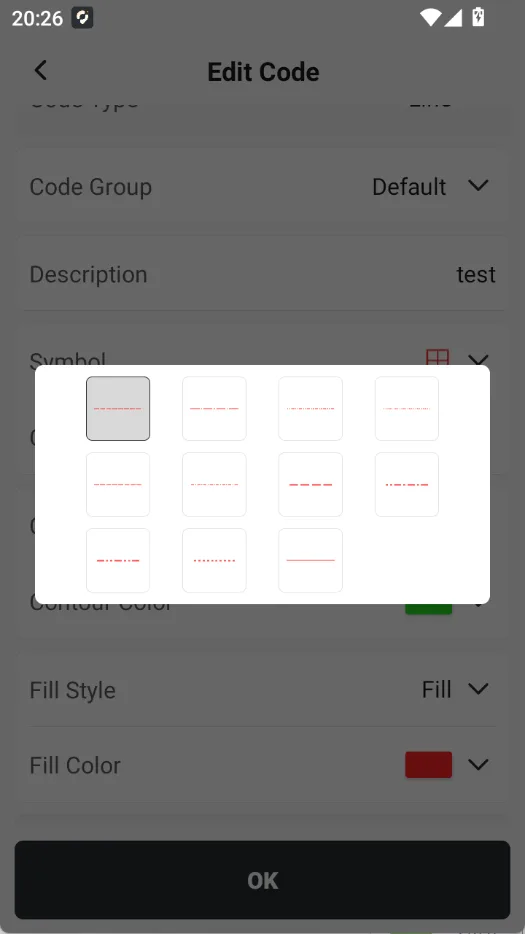
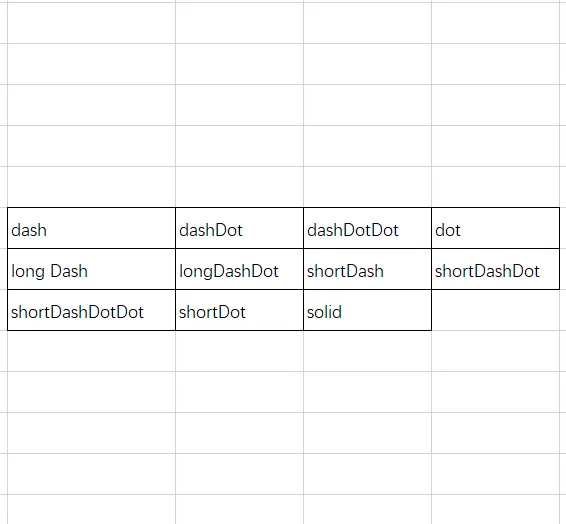
Currently, the system has built-in 11 contour styles (line styles), each with a corresponding value.
 |  |
9.5.3 Color
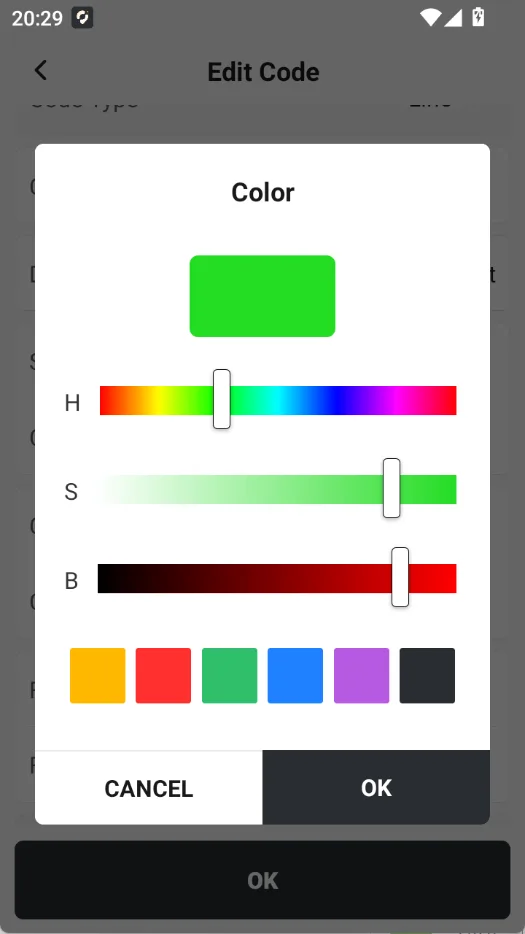
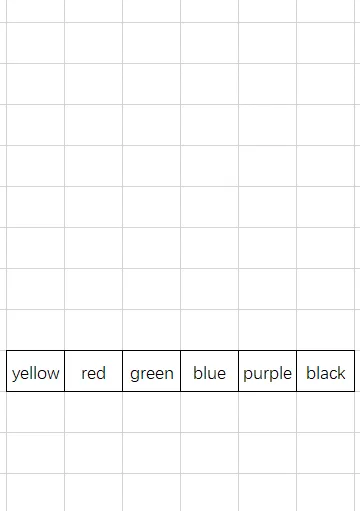
Supports entering binary color values or predefined 6 colors.
 |  |
9.5.4 Filling
| Fill style | Value |
| Fill | 0 |
| Unfilled | 1 |
Once the template file is finished, simply use the import function to complete the task.
9.6 IMU Status / Accuracy Factor
9.6.1 IMU Status
The IMU has three status states, as shown below:
| No. | Icon | Status |
| 1 |  | IMU is disabled. |
| 2 |  | IMU is enabled but unavailable; move or shake the receiver to calibrate it. |
| 3 |  | IMU is enabled and available. |
After the IMU is enabled, the IMU status icon changes from gray to red, indicating that the IMU is enabled but has not yet completed initialization. Follow the on-screen instructions to move or shake the receiver for initialization. When the IMU Accuracy Factor is less than 0.3, the status icon changes from red to green, indicating that IMU initialization is complete and tilt measurement can be performed normally.
During measurement, the IMU Accuracy Factor changes in real time. If the IMU Accuracy Factor exceeds the configured threshold, the status icon changes back to red, indicating that the current IMU accuracy does not meet the operational requirements. In this case, pause tilt measurement and follow the on-screen instructions to move or shake the receiver again to complete IMU initialization.
9.6.2 IMU Status
The IMU Accuracy Factor reflects the current status of the IMU attitude solution. A smaller value indicates better IMU status.
To maximize measurement accuracy, it is recommended to confirm that the IMU Accuracy Factor meets the following condition before starting measurement: Recommended IMU Accuracy Factor < 0.3.
When the IMU Accuracy Factor exceeds the configured threshold, the IMU status turns red, indicating that the current attitude accuracy does not meet the measurement requirements. In this case, pause measurement and follow the prompts in the app to move or shake the receiver and complete IMU initialization again.
0.3 is the recommended operating threshold for obtaining more stable results in tilt measurement and laser measurement. The IMU Accuracy Factor does not represent GNSS positioning accuracy. During measurement, the FIX status, HRMS, VRMS, and other GNSS quality indicators should also be monitored.
9.7 APK Version and Google Play Version
Trion Survey for Android can be installed through pre-installation/OTA updates on FJD field controllers, manual APK installation, or Google Play. The main surveying, stakeout, and data processing workflows are generally the same across these installation methods. However, due to differences in Android storage permissions, application distribution methods, and some local processing components, the APK version and Google Play version differ in certain functions and data management methods.
Trion Survey supports three installation methods: pre-installation/OTA, Google Play, and APK installation. When launching the app for the first time after installation or update, grant the required permissions, such as file management permissions, as prompted. Otherwise, some file reading, import/export, or historical project recovery functions may not work properly.
9.7.1 Functional Differences Between the APK Version and Google Play Version
| Item | APK Version | Google Play Version |
|---|---|---|
| Installation Method | Manually install the .apk package; FJD controllers can also use pre-installation or OTA updates | Download and update from Google Play |
| Applicable Devices | FJD controllers and third-party Android | Android phones and tablets that support Google Play |
| Local Calculation for Visual Measurement | Supported | Not supported |
| Cloud Calculation for Visual Measurement | Supported | Supported |
| Data Root Directory | \Fjdynamics\TrionSurvey | \Download\Fjdynamics\TrionSurvey |
| Project Directory | \Fjdynamics\TrionSurvey\Projects | Managed by the app; direct user operation is not recommended\Download\Fjdynamics\TrionSurvey\Projects |
| Manually access project files | The APK data directory can be accessed | Restricted by Android storage permissions |
| Project Recovery After Reinstallation | If the project directory is retained, historical projects can be rescanned and recovered | Do not rely on local automatic recovery. Export or upload |
| Project Backup / Migration | The project directory can be used; project export and Cloud Drive are also recommended | Project export, Cloud Drive, or sharing functions are recommended |
| Software Update | APK overwrite installation or FJD OTA update | Google Play update |
9.7.2 APK Version
Project files in the APK version are stored independently in: \Fjdynamics\TrionSurvey\Projects. Therefore, uninstalling the Trion Survey APK alone does not delete the project files.
When reinstalling the app, historical projects can be recovered if all of the following conditions are met:
- The \Fjdynamics\TrionSurvey directory still exists.
- The project files in the Projects directory have not been deleted by the user.
- Android has not cleared the related files.
- File management permission is granted to the app after reinstallation.
Trion Survey will then scan the existing project data and recover historical projects.
After file permissions are granted following the first installation or an update, the app automatically performs historical project recovery. Therefore:
Uninstall APK -> Project directory remains -> Reinstall APK -> Grant file permissions -> Historical projects can be recovered.
However, if either \Fjdynamics\TrionSurvey or \Fjdynamics\TrionSurvey\Projects is also deleted, the app cannot recover these projects from the local directory.
In addition, restoring the device to factory settings, formatting the storage, or using system file-cleaning tools may also delete project files.
9.7.3 Google Play Version
Data storage in the Google Play version is subject to Android application permissions and Google Play application management mechanisms. Therefore, uninstalling and reinstalling the app is not recommended as a method of project recovery.
Before performing any of the following operations on the Google Play version:
- Uninstalling Trion Survey;
- Clearing app data;
- Replacing the phone or tablet;
- Restoring the Android device to factory settings;
back up the project first by using Trion Survey to export the project to local storage or upload the project to Cloud Drive.
After reinstalling the Google Play version, restore the project by importing the project or downloading it from Cloud Drive. The current project module supports local project export, upload, and download. These methods are therefore recommended as the standard project data migration methods for the Google Play version.