
3 Personal center
3.1 Login/Sign Up
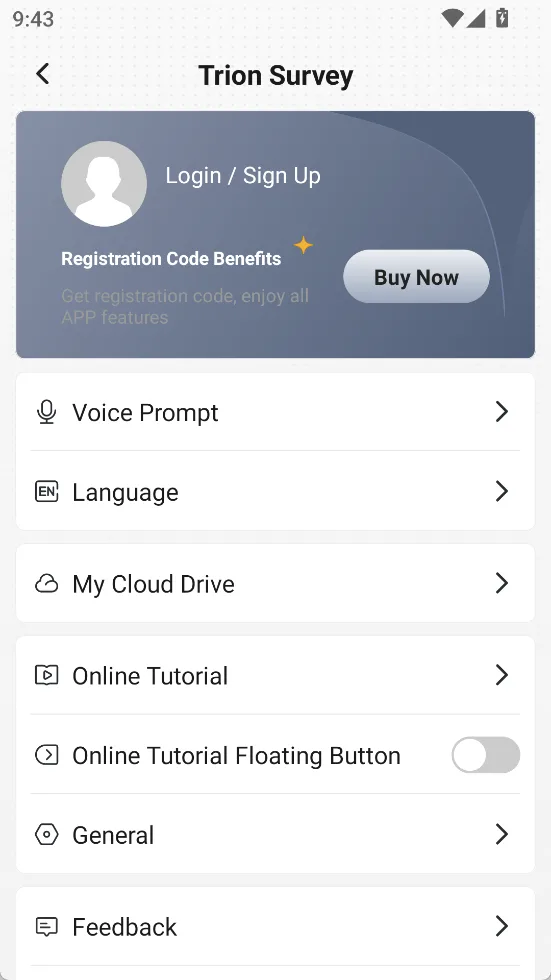
Click the avatar icon in the upper right corner of the main page to open the page [Personal Center].
| Name | Description |
| Login/Sign Up | After successful login, the icon will change and display the login account |
| Voice Prompt | Adjustable APP prompt volume |
| Language | Android system language is selected by default during installation and can be changed |
| My Cloud Drive | After logging in, you can upload, download and share data. |
| Online tutorials | Including Quick Guide and Tutorial, Floating Button can be shown/hidden |
| General | Software settings shortcut entry |
| Feedback | Obtain suggestions from end users on the daily use of the APP |
| About | Software registration, version update logs, and checking for updates |
| Upload Logs | Upload receiver and APP's logs |
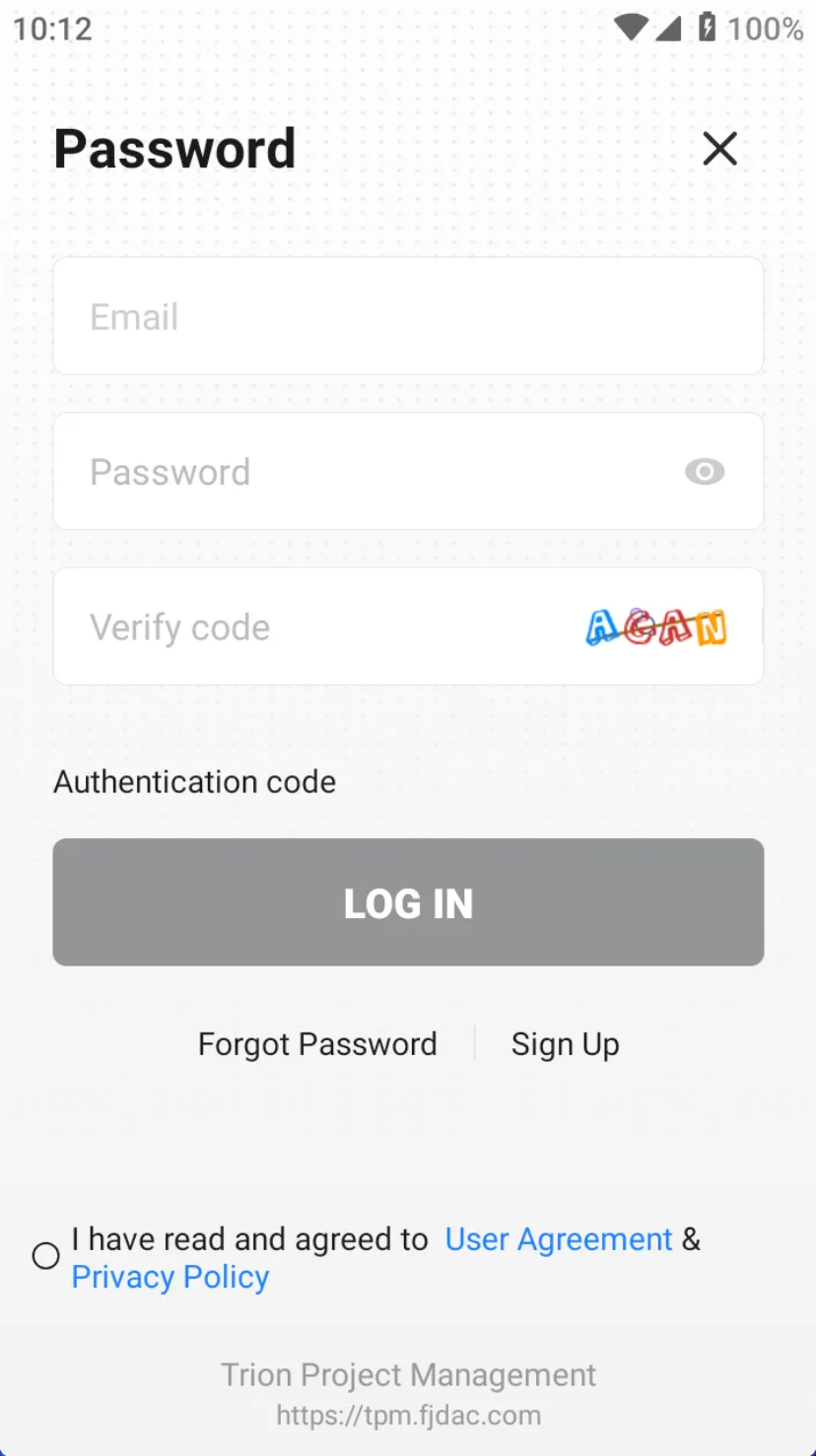
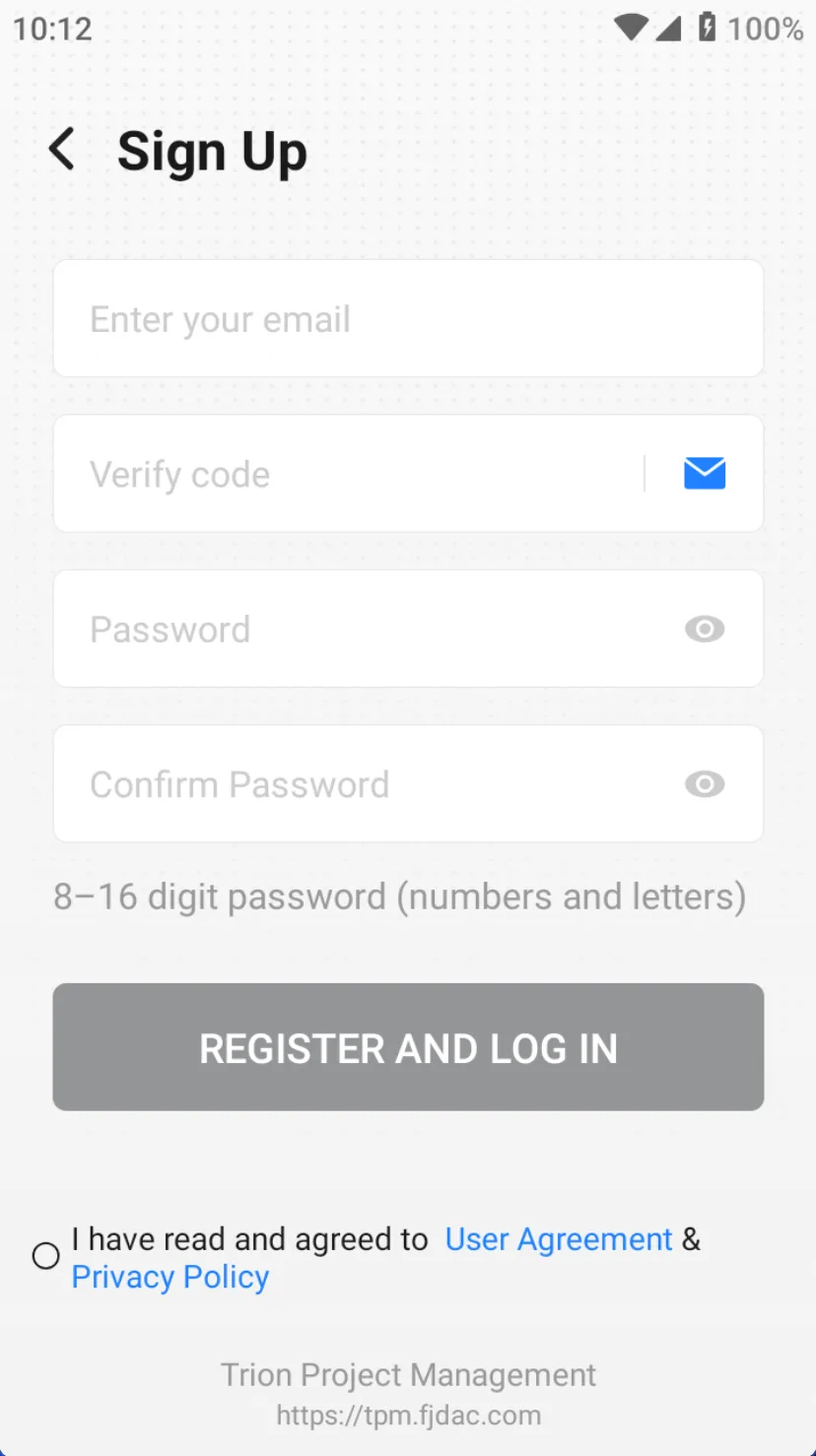
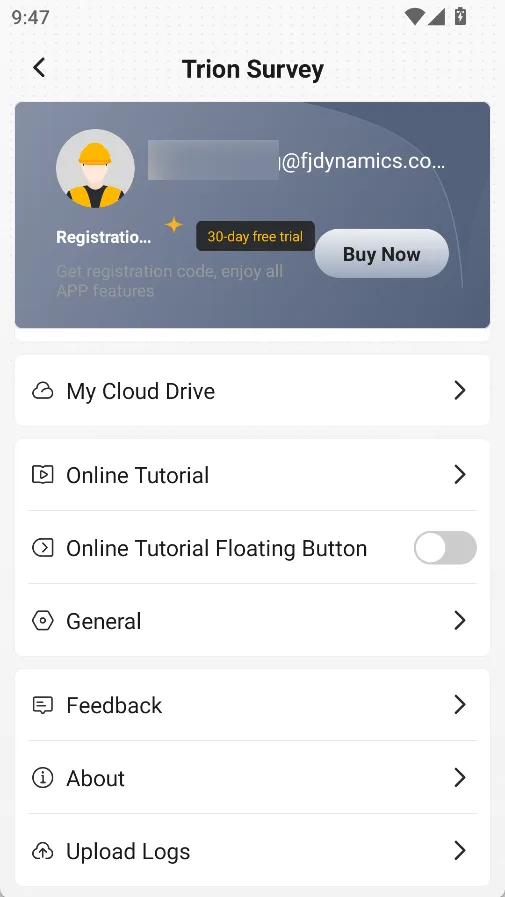
Click [Login/Sign Up] to enter the Trion Survey login page. If you don't have an account, you can click [Sign Up]. After logging in, users can use more functions such as Trion Project Management. Please check the login address at the bottom of the login page.
 |  |  |
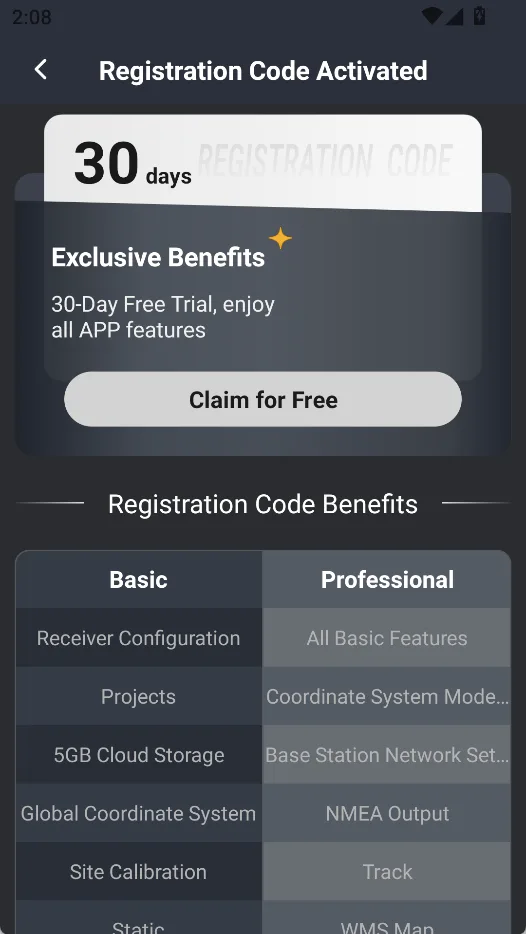
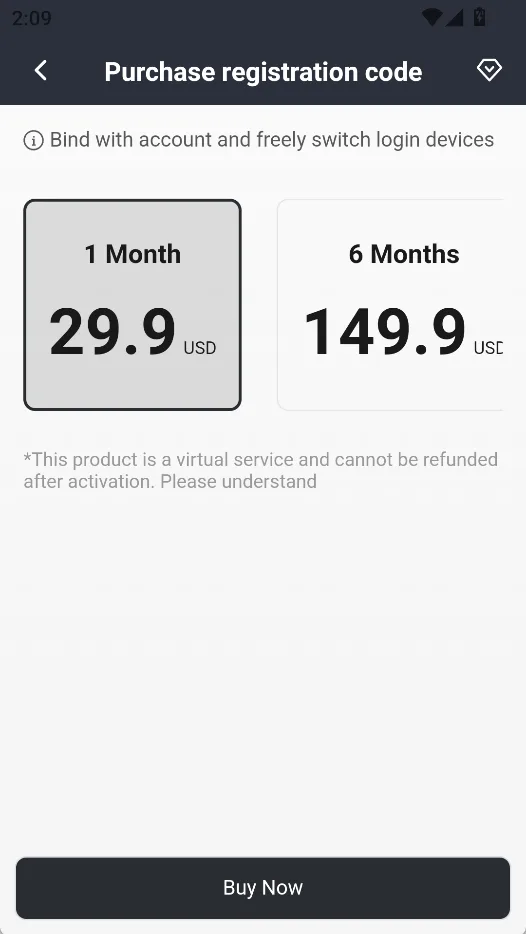
After successful login, the user can claim 30 days of free benefits and enjoy all functions. FJD controllers always enjoy all functions. Now the account is divided into basic version and professional version, with corresponding benefits as follows:
| Basic version | Professional version |
| Receiver Configuration | All Basic Functions |
| Projects | Coord System Model File Download |
| 5GB Cloud Storage | Base Station Network Settings |
| Global Coordinate System | Track |
| Site Calibration | WMS Map |
| Static | Measure & Draw |
| Measure | Stake Lines |
| Stake Points | Surface DTM |
| Import/Export | Stake Road |
| NMEA Output | Stake CAD |
| GIS Survey | |
| Intersection | |
| Rectangle | |
| Divide Area | |
| PPK Calc |
Note:
- Your benefits are bound to your account, and they will always be retained when you switch login devices.
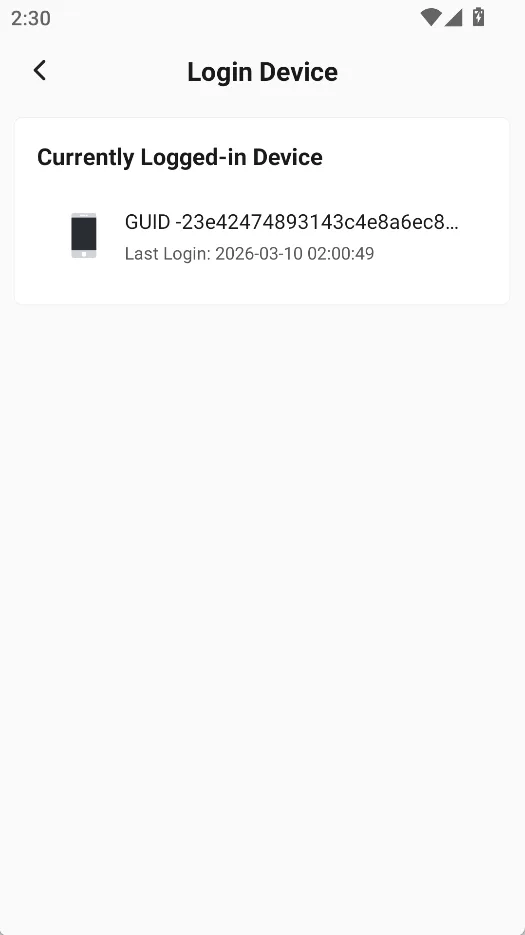
- One account can be logged in on up to two mobile devices at the same time.
 |  |  |
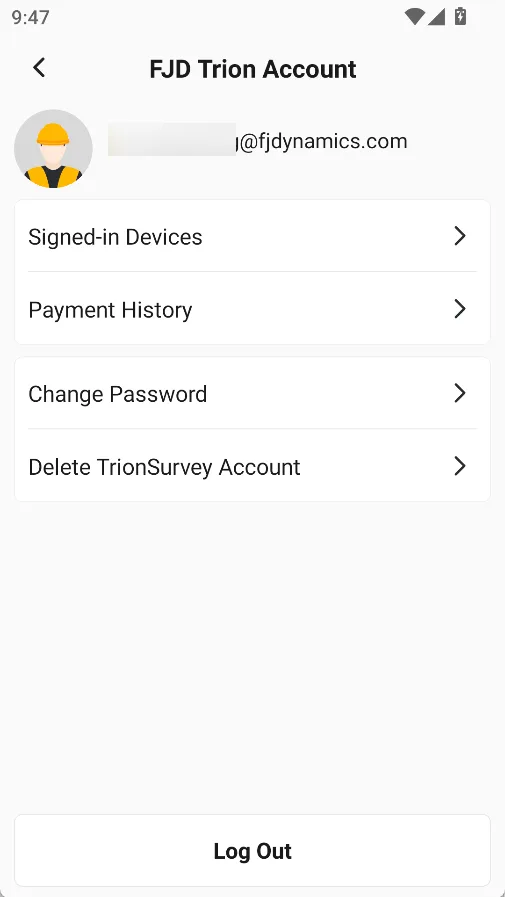
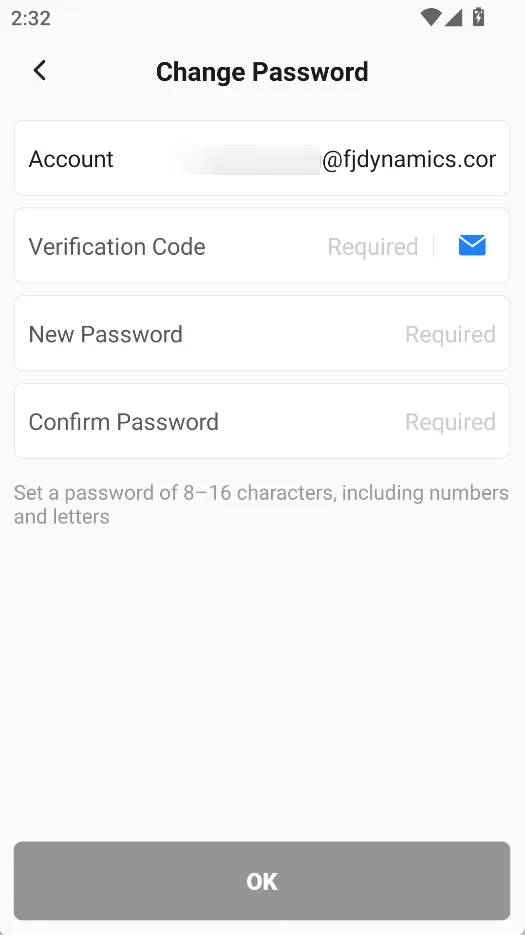
After logging in, click on the profile picture to open the account management page, where you can check the device information of the account that has been successfully logged in. You can also view payment records, change passwords, and delete Trion Survey accounts. Note that once the account is deleted, all data under the account, including cloud data, will be deleted. Please operate with caution.
 |  |  |
3.2 Voice prompt
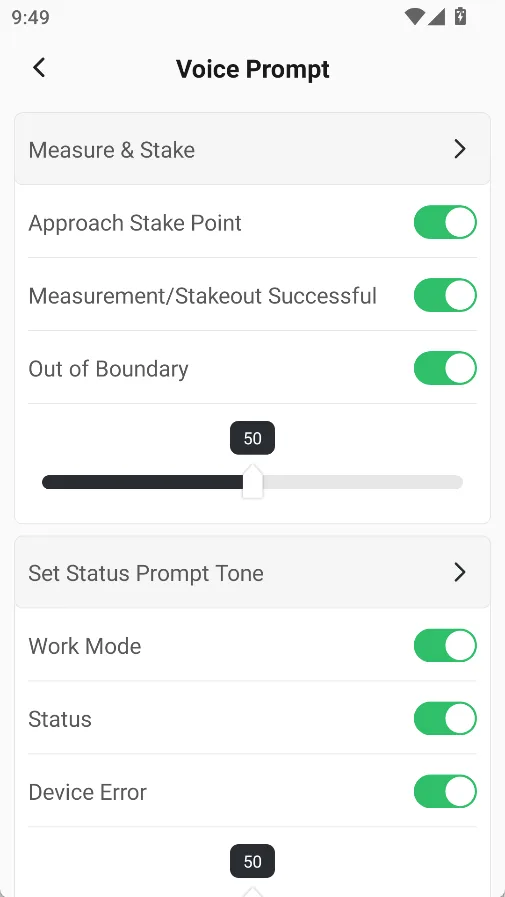
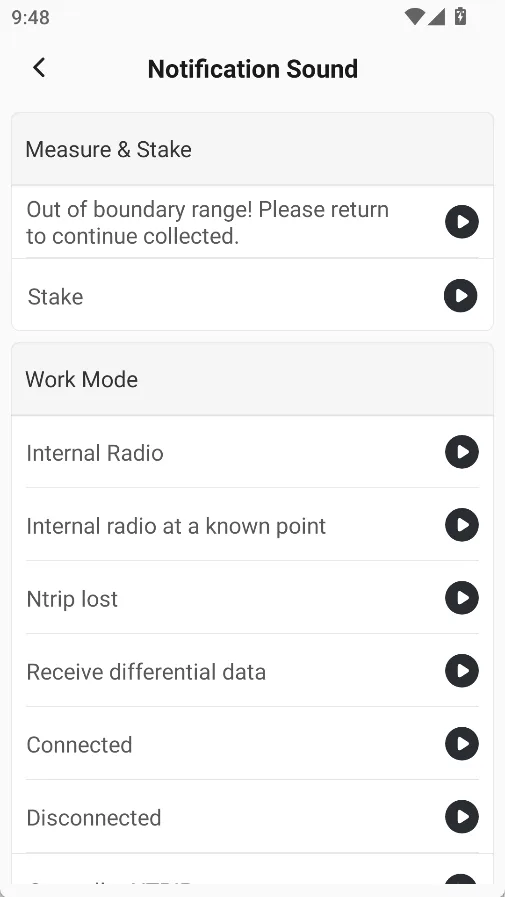
You can set whether to enable voice prompts, and drag the slider to increase or decrease the prompt volume.
 |  |
3.3 Language
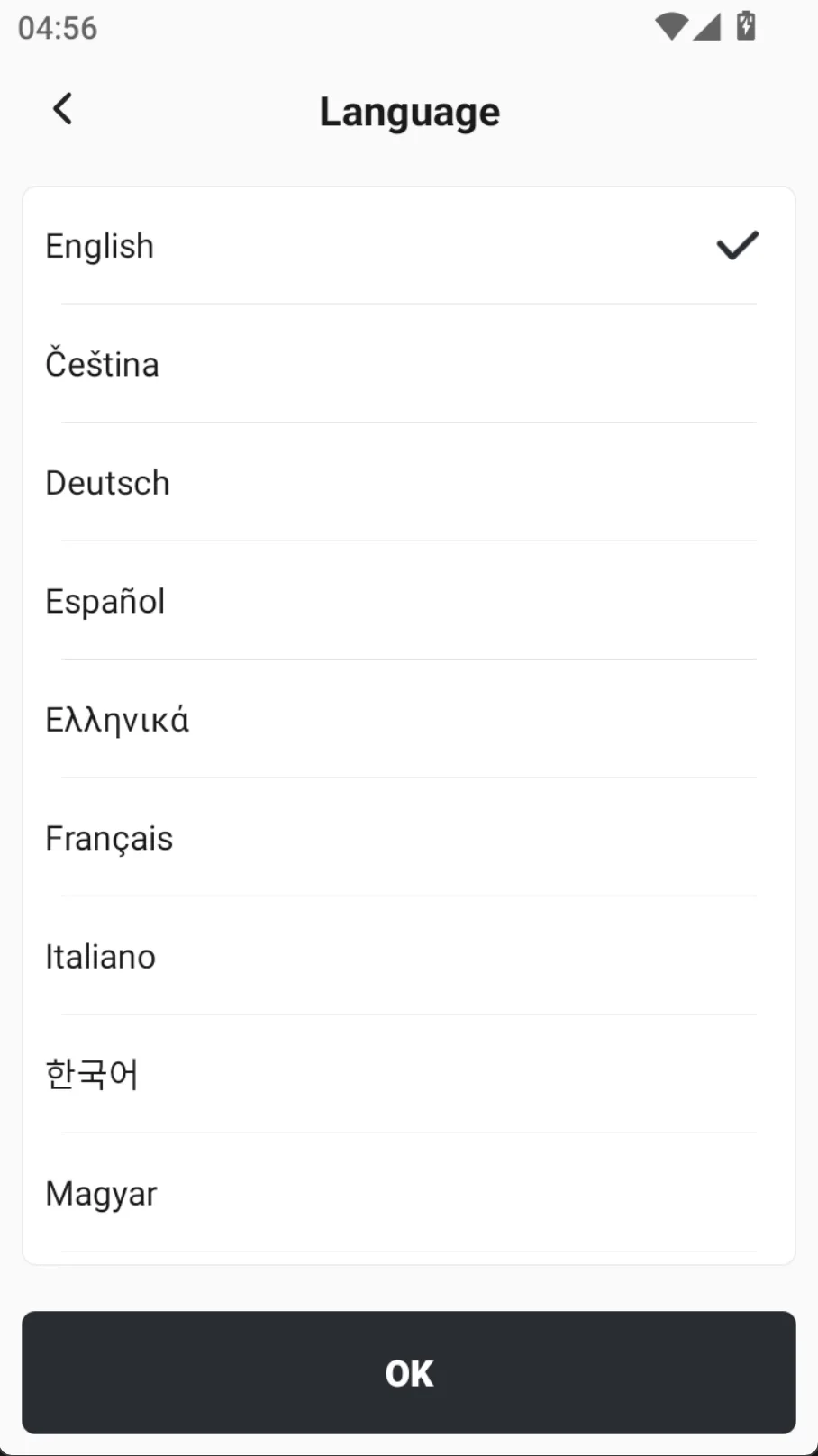
Currently, the software supports multiple languages including: English, German, Spanish, Greek, Portuguese, Russian, Japanese, Korean, Hungarian, Simplified Chinese, etc.
When switching languages, in order to ensure the integrity of the APP display and functions, the APP will automatically restart.
3.4 My Cloud Drive
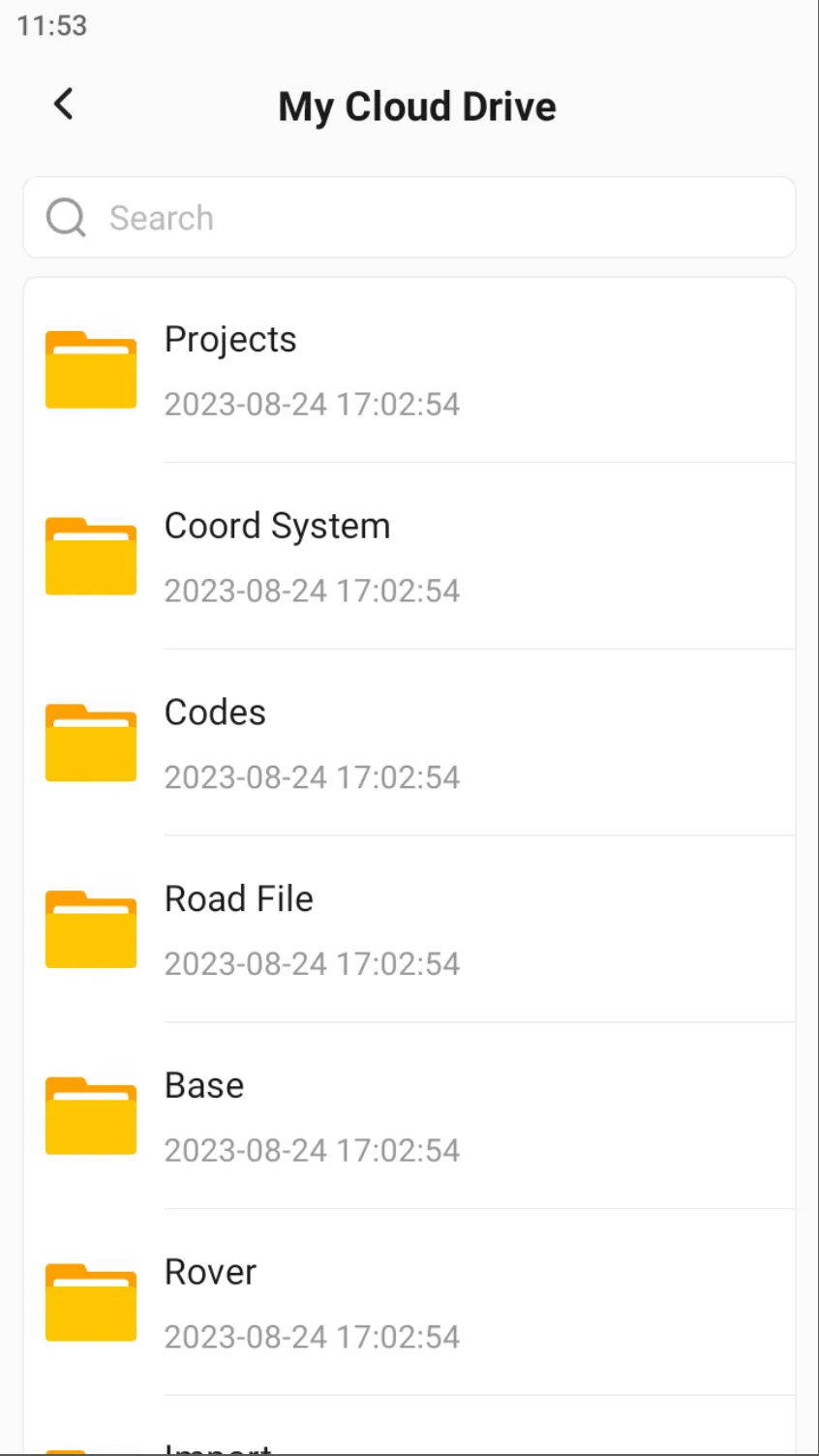
When logged in, click on [My Cloud Drive] to open the list of Cloud Drive folders. If you are not logged in, you will be redirected to the login page. At the bottom of the folder, there is a web login address for Trion Project Management. Users can log in and access [My Cloud Drive] in the browser.
Note: The login address may be adjusted as the product is upgraded. Please refer to the actual address displayed on the page.
3.5 Online tutorials
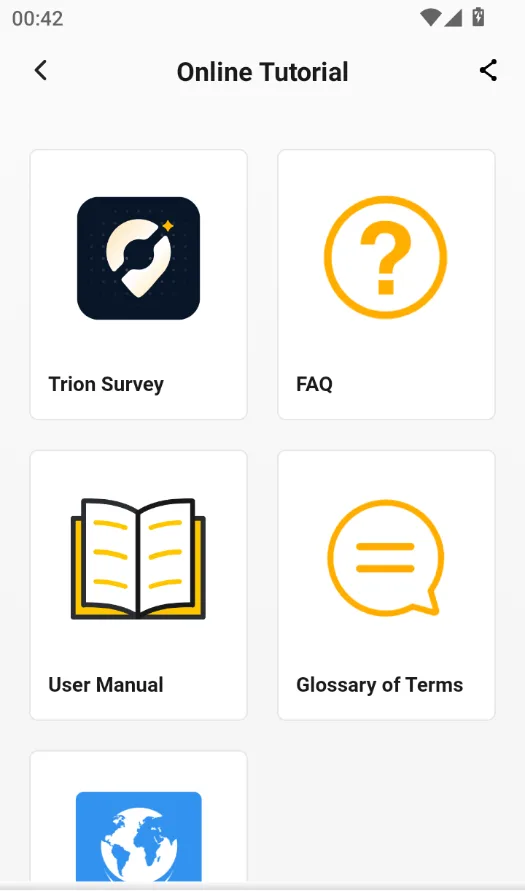
Trion Survey supports access to online resources:
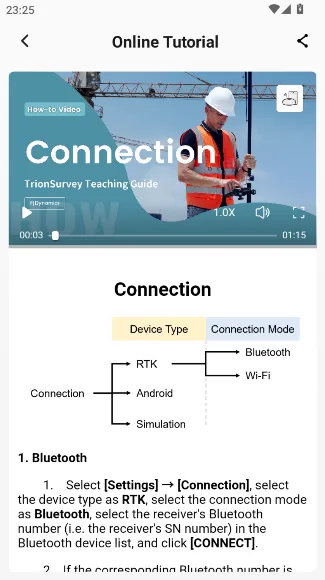
- Click on [Online Tutorial] – [Trion Survey] to view more graphic and video tutorials to view more graphic or video tutorials.
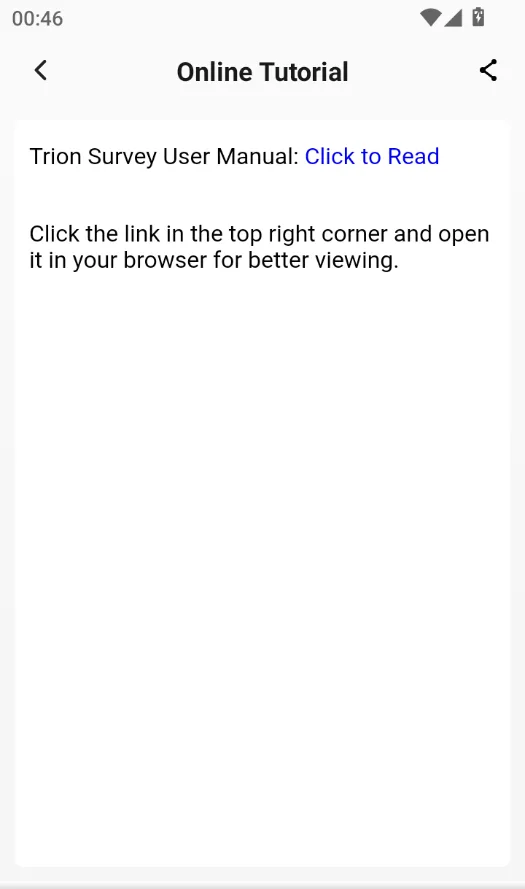
- Click on [User Manual] to browse online or download the complete user manual from the link in the upper right corner.
 |  |  |
3.6 General
Click on [General] to open the software's general global configuration. For detailed information, please refer to Chapter6.4.
3.7 Feedback
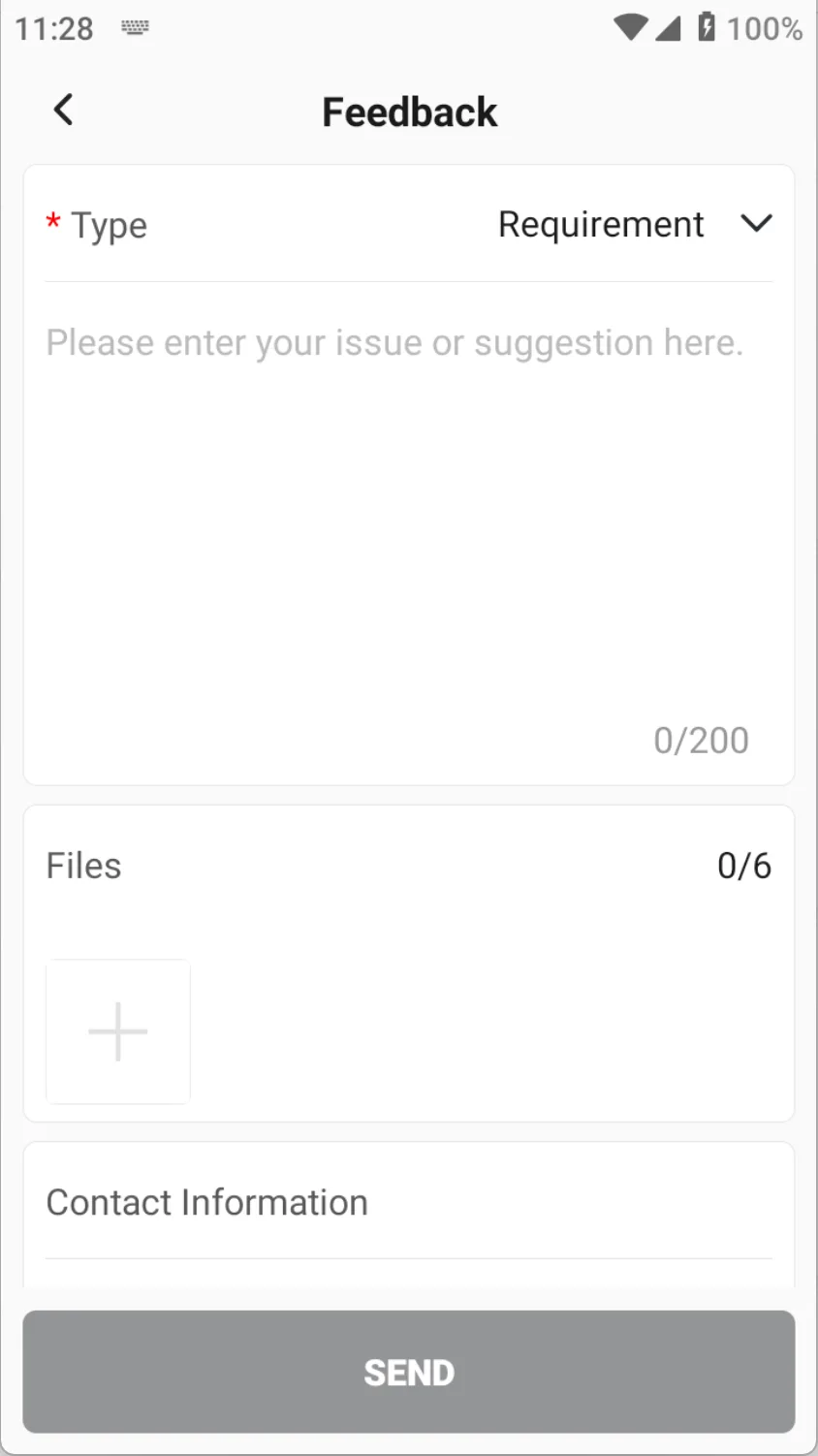
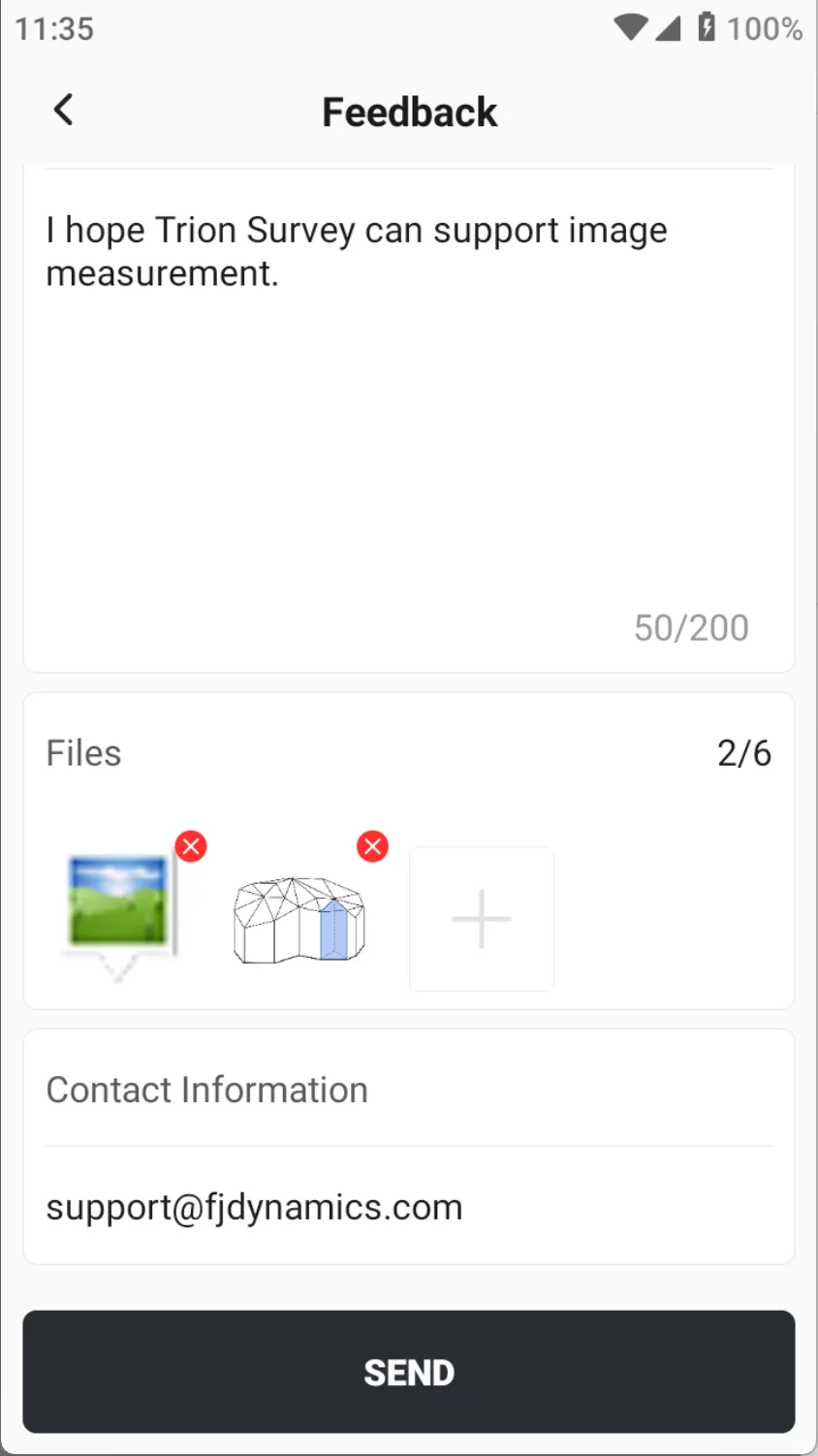
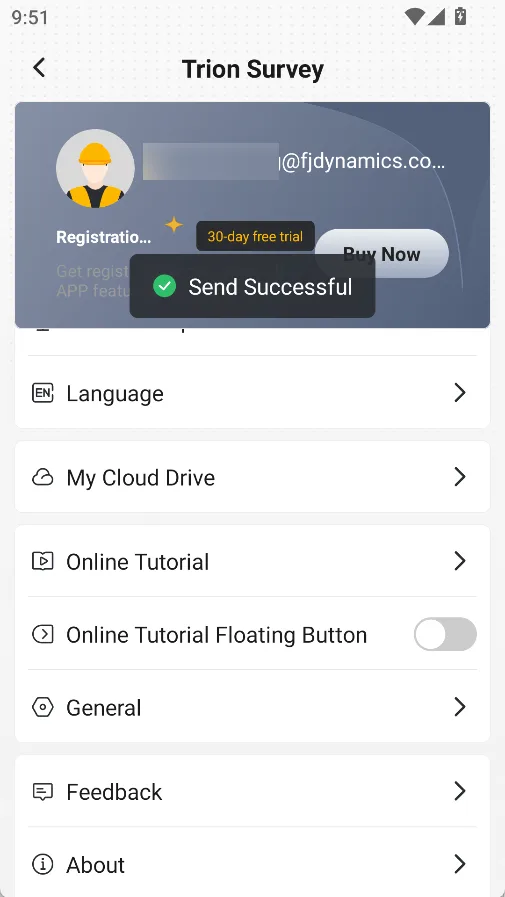
Click on [Feedback], users can fill in any questions and suggestions, and attach relevant files and contact information. We will reply as soon as possible.
 |  |  |
3.8 About
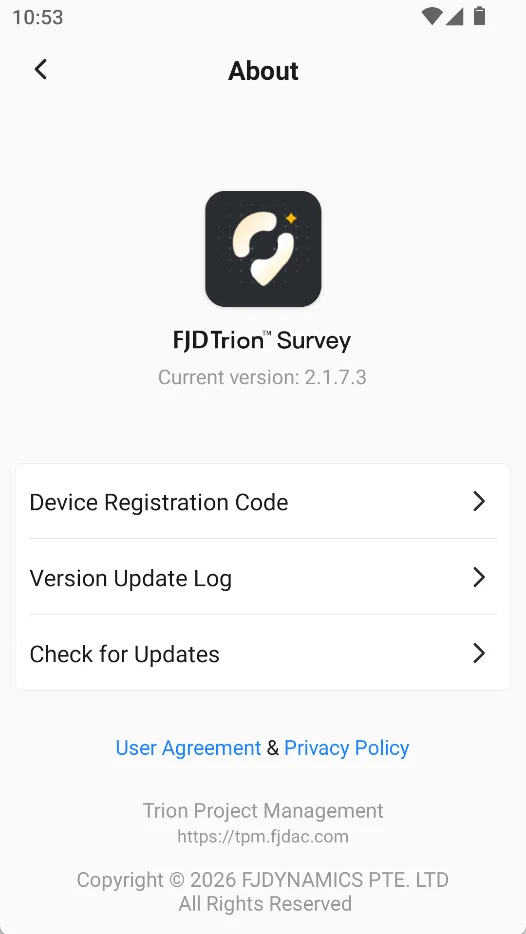
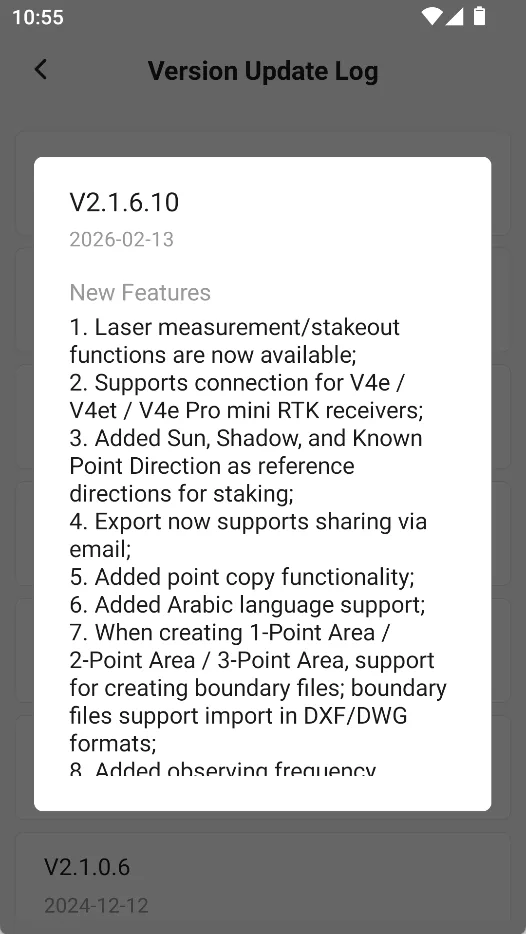
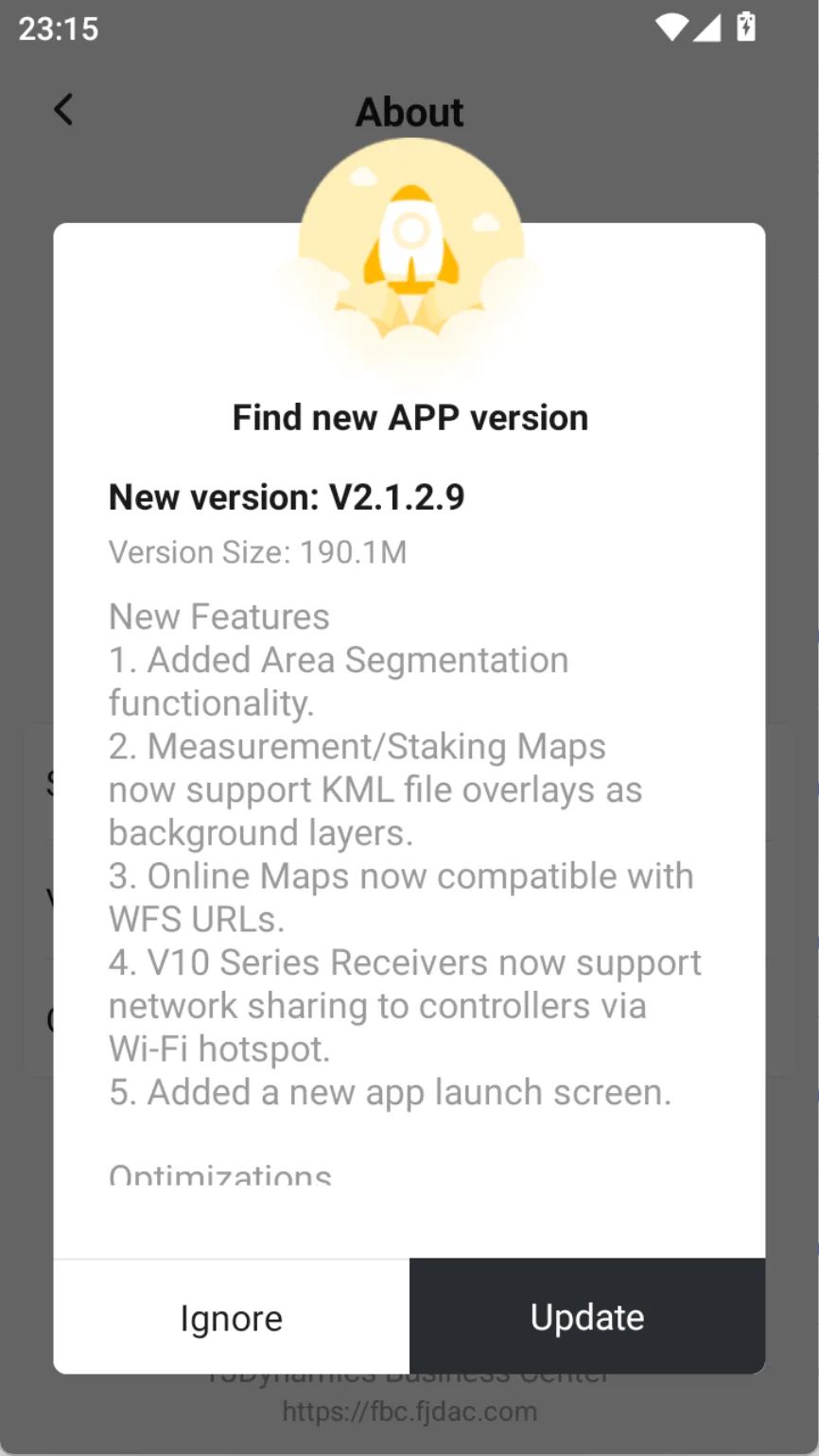
Click [About] to view the version number of the current software. If you are using the APP without a matching controller or tablet, please click [Software Registration Code] before connecting the receiver to complete the registration. Click the [Version Update Log] to view the update log of the historical version, including new and optimized functions. Click [Check for Updates]. If there is a new version, you can choose to update immediately.
 |  |  |
3.9 Upload Logs
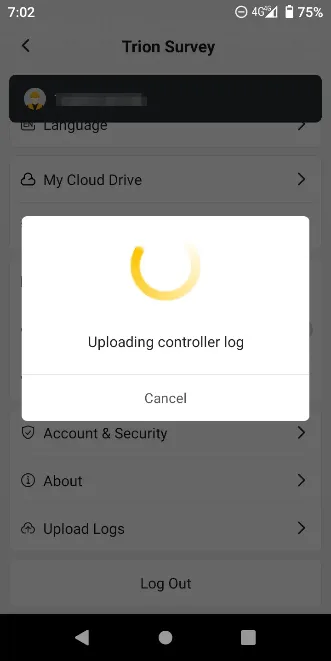
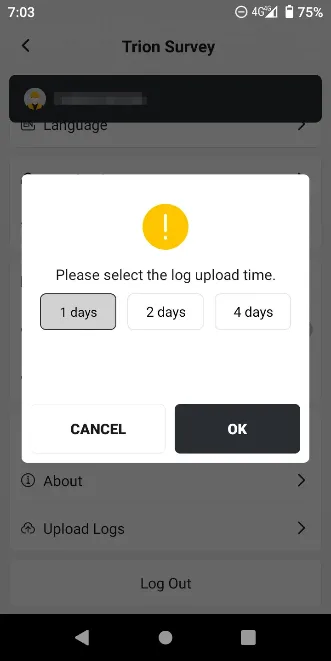
If there is any abnormal use of the receiver or APP, click [Upload Logs] when the controller is connected to the internet, and the latest logs can be uploaded to the FJD server to assist engineers in checking the problem. If the receiver is not connected, only the APP logs will be uploaded.
Note: If using V1 series devices, due to limited Bluetooth connection, the log upload speed is slow. Please be patient and wait, or directly copy the log file from the receiver memory and send it back to the relevant technical personnel.
 |  |