
6.5 Device information
6.5.1 Device
After connecting the receiver, click [Settings] → [Device Info] to view the detailed information of the current receiver.
| Name | Description | Page |
| Type | Display receiver model | 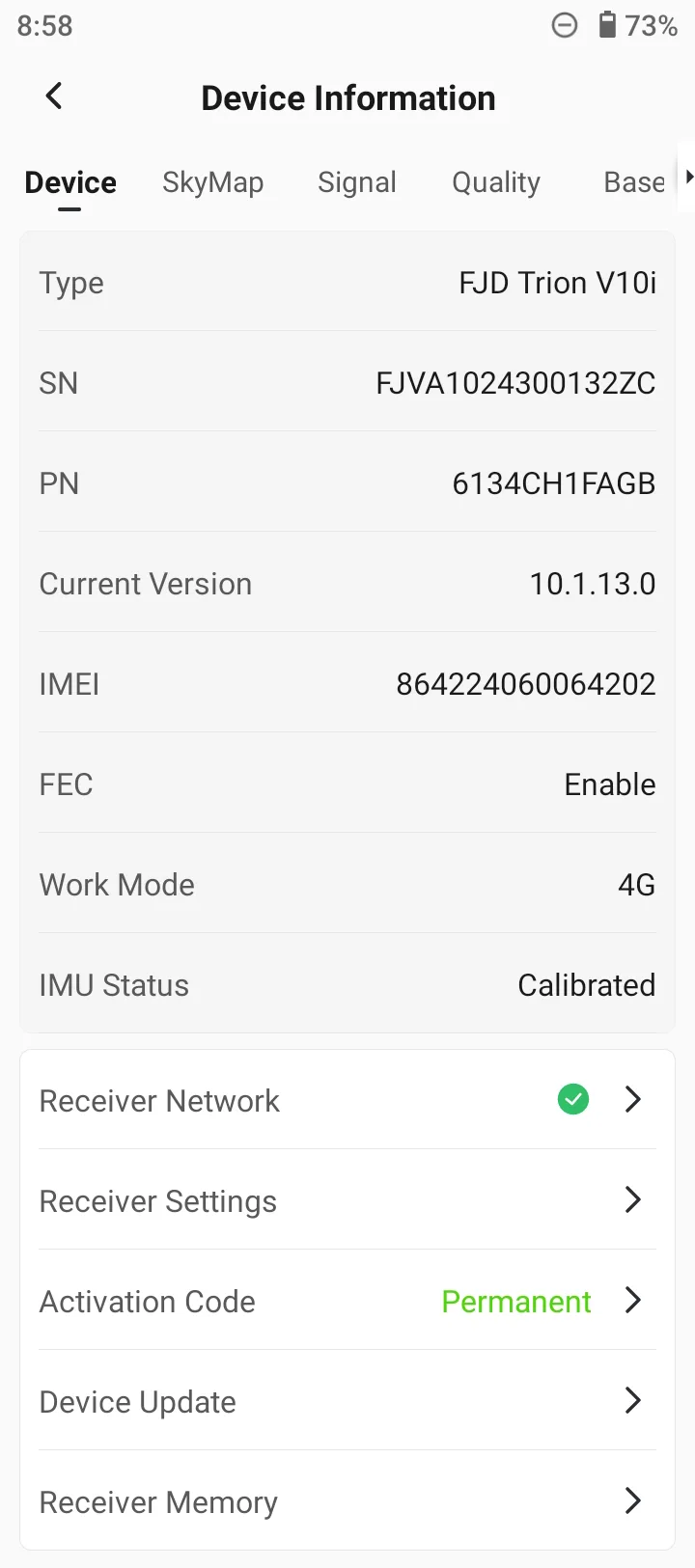 |
| SN | SN number of the display device | |
| PN | PN number of the display device | |
| Current Version | Display the firmware version number of the receiver | |
| IMEI | Display the IMEI number of the receiver | |
| FEC | Radio forward error correction code status | |
| Work Mode | Display receiver configuration mode | |
| IMU Status | Calibrated by default | |
| Laser Status | Calibrated by default | |
| Receiver Network | Set the network configuration of the built-in SIM card in the receiver | |
| Receiver Settings | Set receiver related configurations, including volume, screen language, receiving satellite, etc. | |
| Activation Code | Display the device valid period, enter to refresh the valid period time | |
| Device Update | Include firmware and module update, optional online or local | |
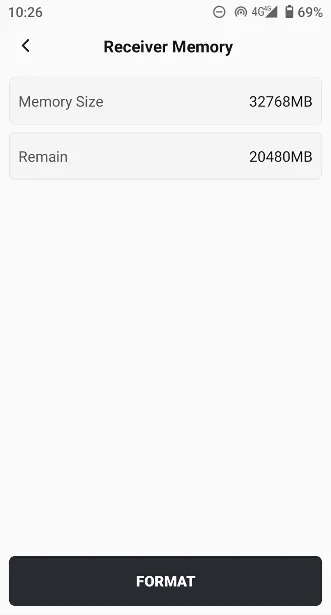
| Receiver Memory | Display the total memory size and remaining memory size of the receiver, optional formatting | |
6.5.1.1 Receiver network
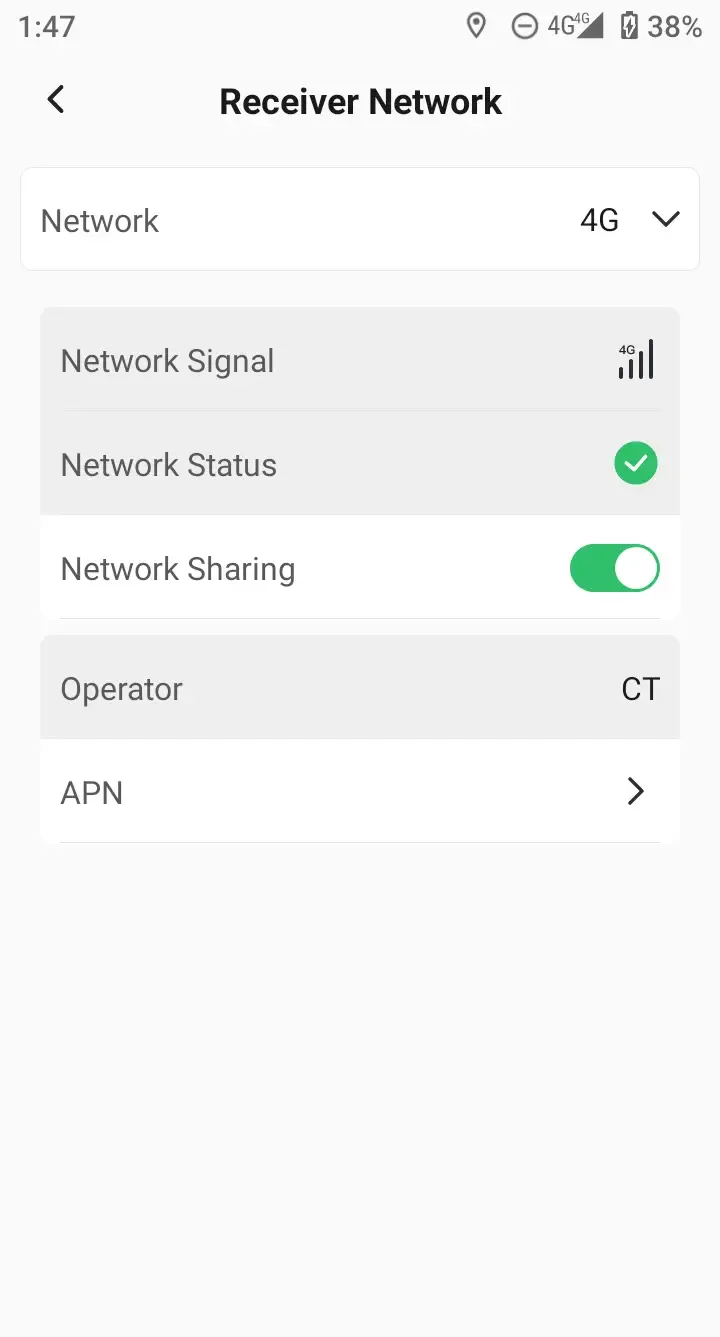
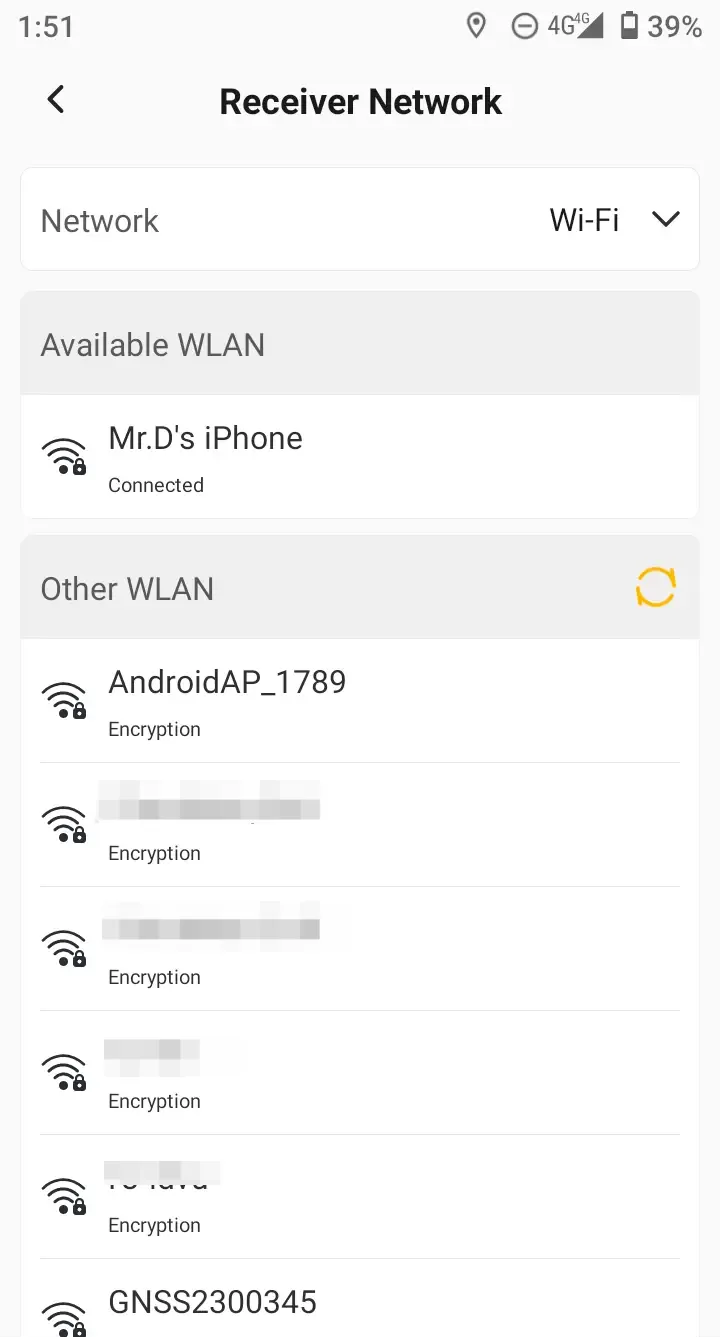
The V10i receiver supports 4G/Wi-Fi networks and can configure network parameters through Trion Survey.
| Network | Description |
| 4G | 1. Default Internet access method, the receiver needs to insert the SIM card 2. Support receiver network sharing for controller use 3. Support manual configuration of APN |
| Wi-Fi | 1. After switching, the receiver can be connected to a Wi-Fi hotspot to access the Internet 2. Does not conflict with the controller connected to the receiver via Wi-Fi |
Note that when choosing 4G internet access, users need to set up according to the APN requirements of the local network operator. If the receiver can access the internet, a green tick will appear.
 |  |  |
6.5.1.2 Receiver settings
After the controller is connected to the receiver, the receiver can be configured. Note that different receivers display different configuration items.
| Name | Description | Page |
| Device Volume | Set V10 series receiver volume | 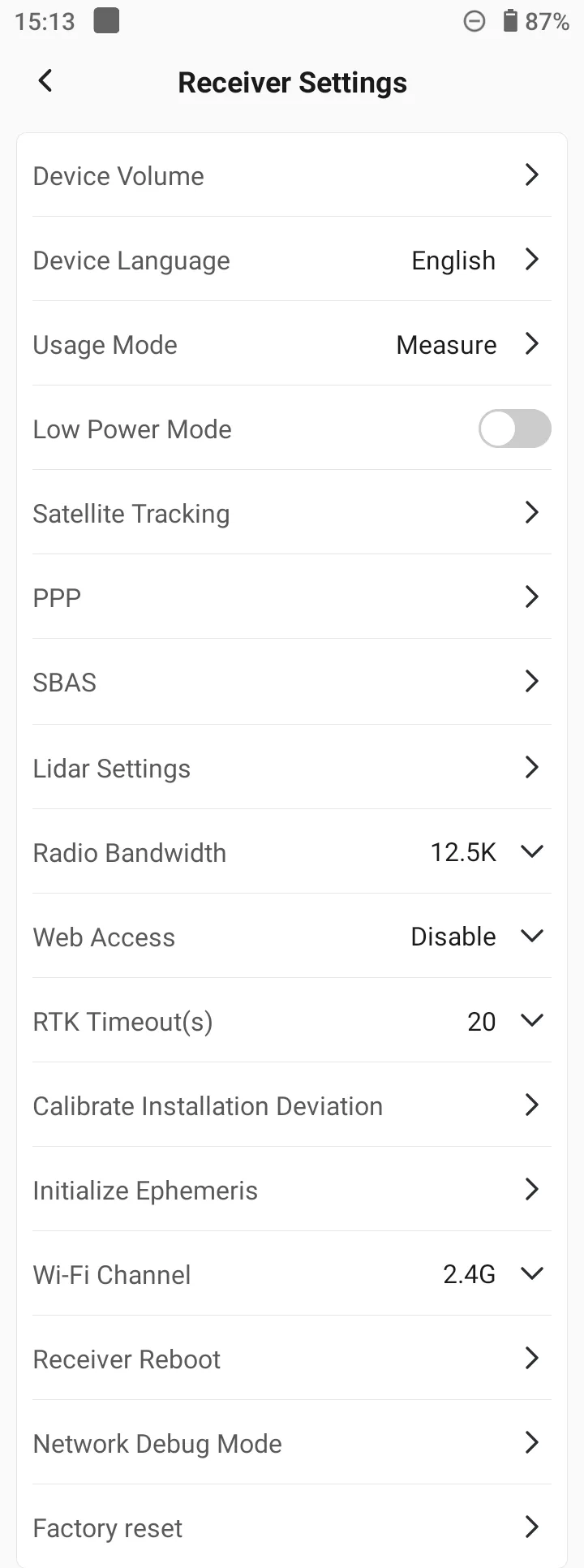 |
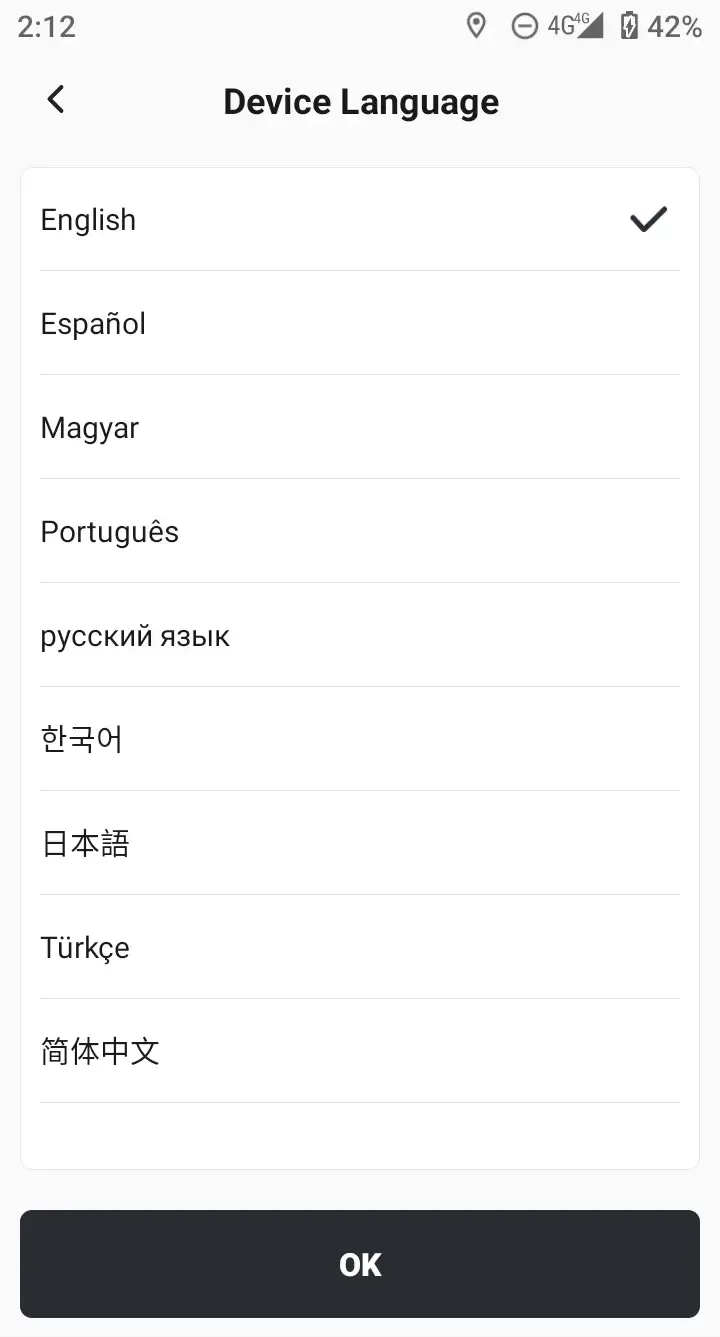
| Device Language | Set receiver panel display language, supporting English, Spanish, Korean, etc. | |
| Work Mode | Available for EG10/SG10 V10a | |
| Low Power Mode | Default off | |
| Satellite Tracking | Set up satellite systems for receiver tracking | |
| Mask Angle | Set the height cutoff angle, optional: 5 °~ 45 ° | |
| PPP | Set PPP with a convergence time of 5-15 min. | |
| SBAS | Set SBAS with about 60cm error | |
| Radio Bandwidth | Default 12.5K, optional 25K | |
| Web Access | Available for V10 Sep version | |
| RTK Timeout(s) | Set the time for the fixed solution to be maintained after the diff data is disconnected | |
| Calibrate Installation Deviation | Calibration receiver IMU sensor | |
| Measure with Power Button | Available for V4e devices. | |
| Initialize Ephemeris | The receiver will automatically clear the ephemeris and research the satellites. | |
| Wi-Fi Channel | Default 2.4GHz, optional 5GHz | |
| Receiver Reboot | Click to restart the receiver. | |
| Factory Reset | Click to restore the factory settings of the receiver. |
Device language:
The V10i receiver has a display screen and supports modifying the display language through the APP or directly on the receiver panel.
Low power mode:
When the receiver needs long battery life, you can turn on the low power mode through the receiver panel or APP. The low power mode will turn off some functions.
| Working mode | Turn off features | Available features |
| Base | 2 cameras, speaker, 4G, Wi-Fi | Static, radio broadcast |
| Rover | 2 cameras, speaker, 4G, Wi-Fi, radio | Static, controller network NTRIP |
Note that the low power mode setting status is invalid after restarting and is only valid during the current boot cycle.
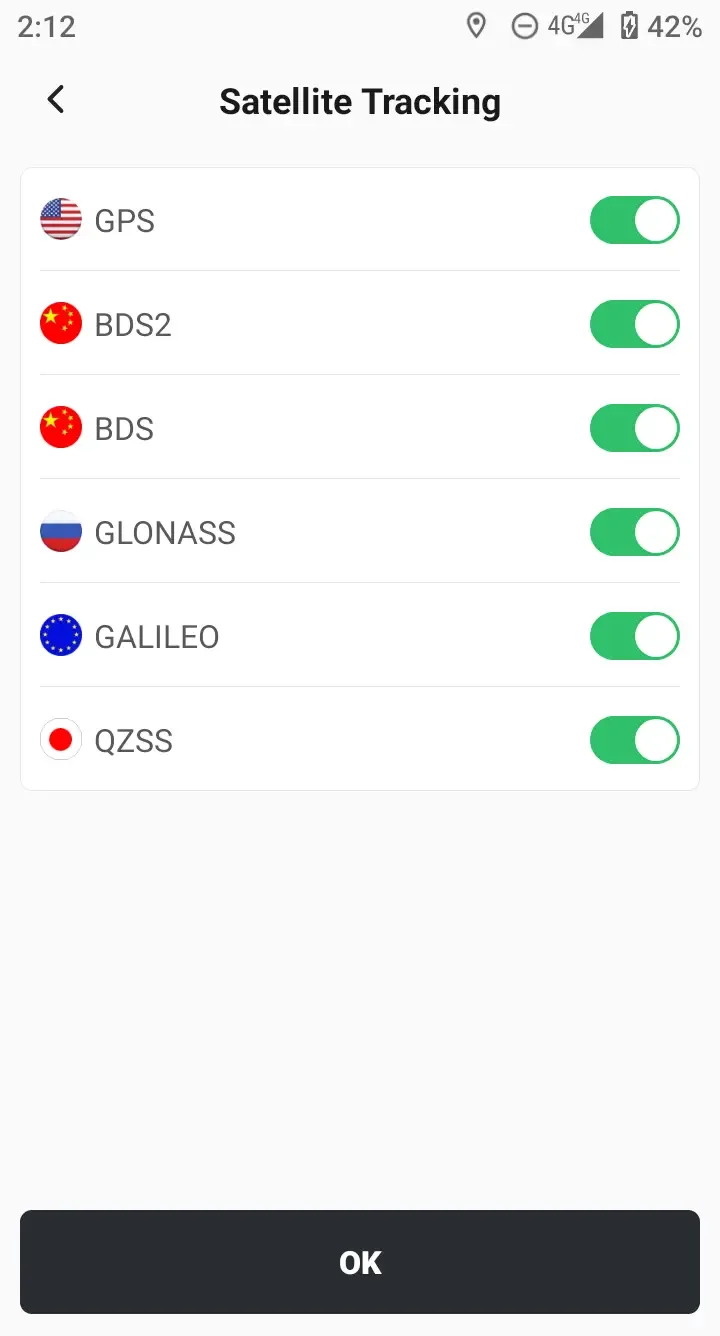
Satellite tracking:
The tracking satellite system can be turned on/off, and BDS2 can be turned off separately.
PPP:
Precision Point Positioning (PPP) is a high-precision global satellite navigation system (GNSS) positioning technology. It uses precise satellite orbits and clock error correction data from a global reference station network, combined with observations from a single receiver, to achieve absolute positioning accuracy at the centimeter or even millimeter level. Unlike traditional differential positioning (RTK), PPP does not require a base station and only requires a single receiver to achieve high-precision positioning worldwide.
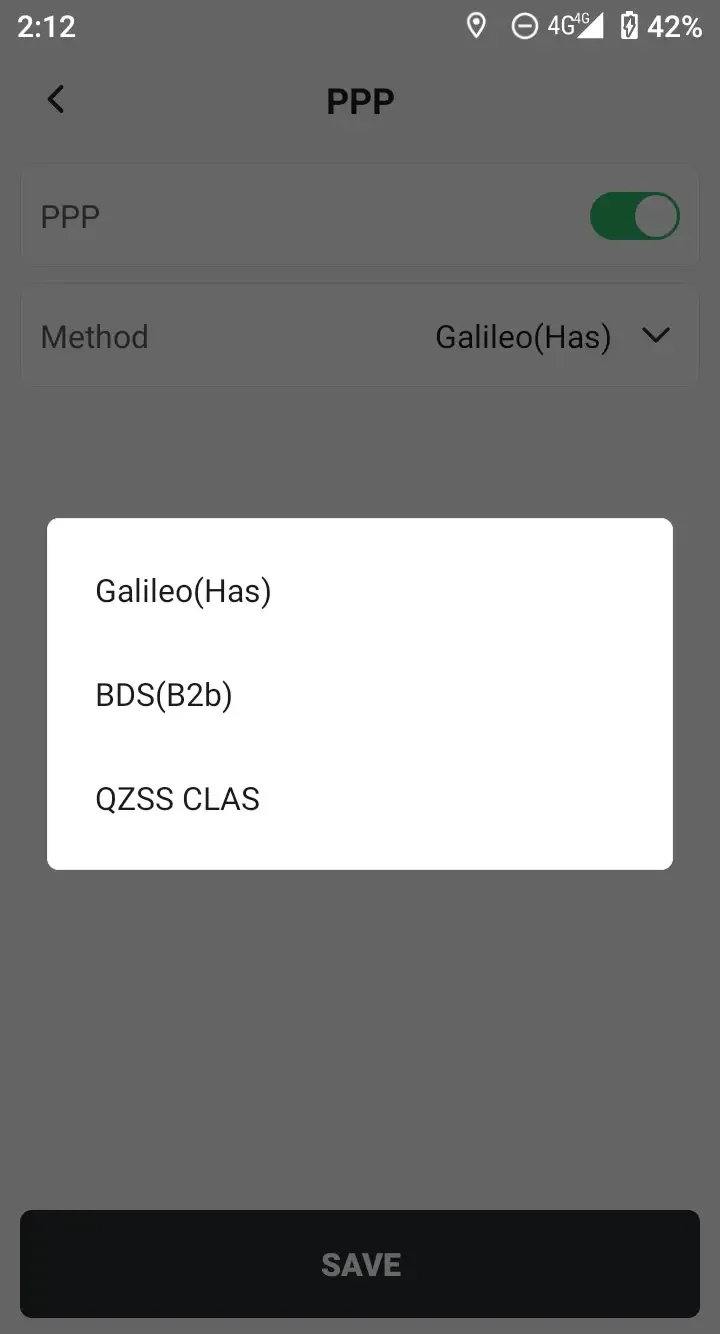
If the connected receiver supports PPP, this option will be displayed. The positioning methods are optional: [Galileo (Has)], [BDS (B2b)], and [QZSS CLAS]. The first convergence time is 5-15min.
 |  |  |
Calibrate installation deviation:
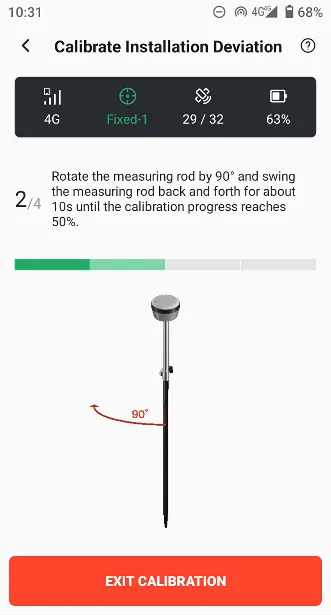
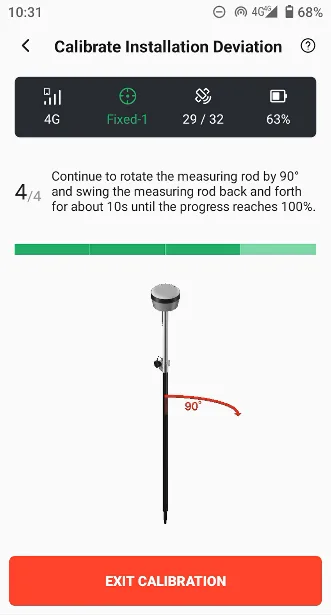
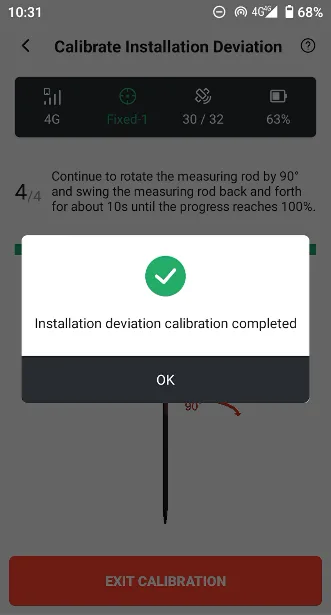
Receivers with IMUs are strictly calibrated for deviations when they leave the factory to ensure the availability of the IMU. Users can also manually perform repeated calibration. Calibration is very simple, check the height of the center rod according to the prompts, and then shake in four directions according to the animation.
 |  |  |
6.5.1.3 Activation Code
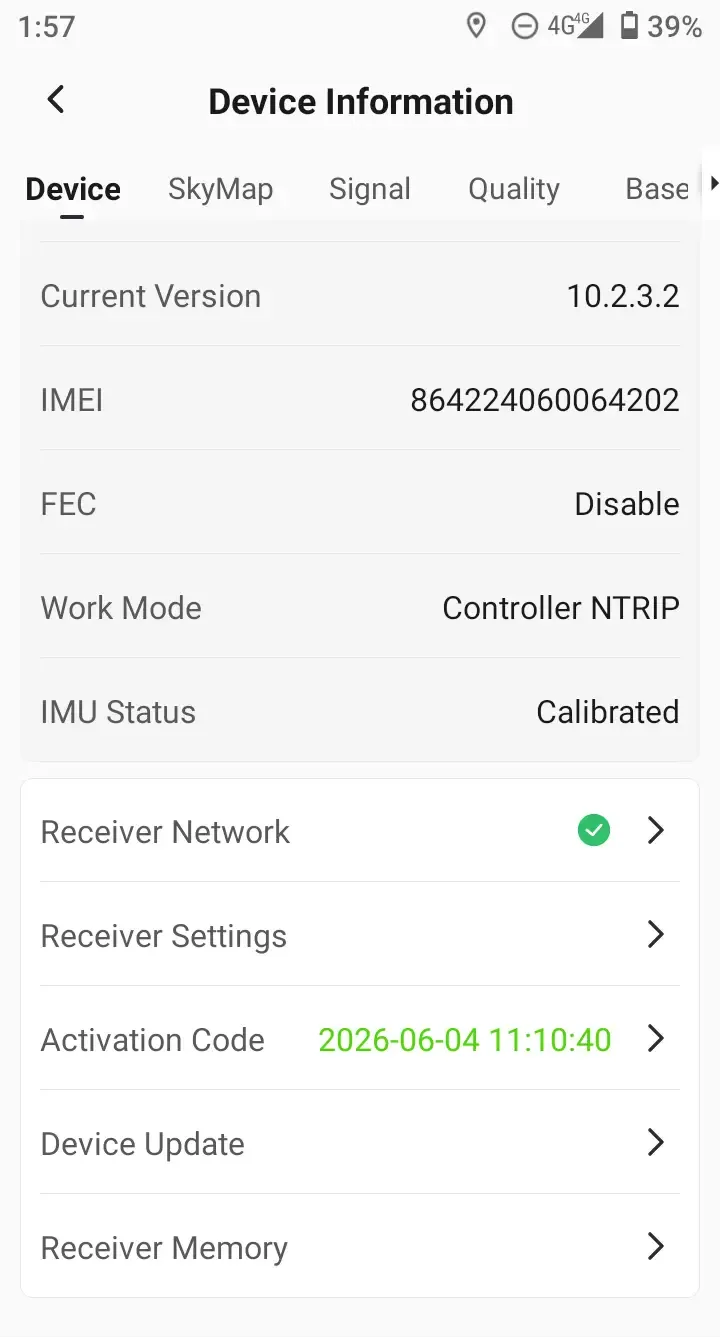
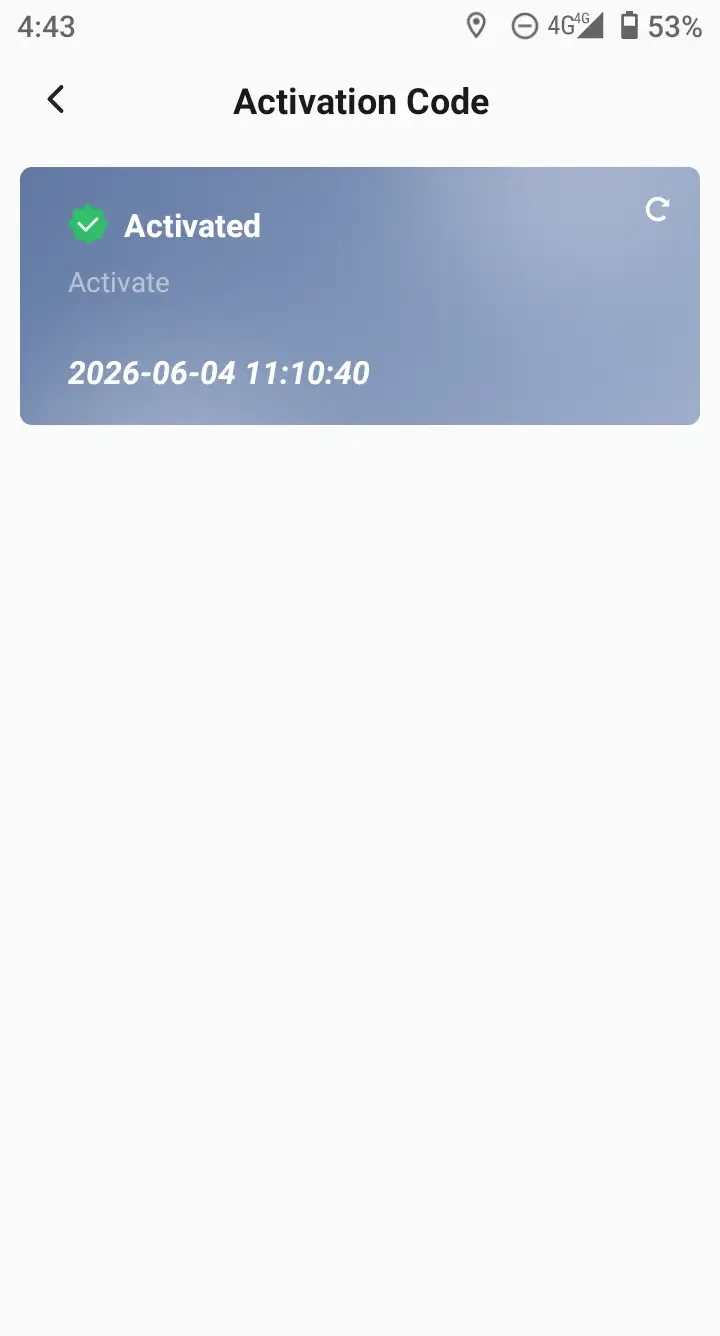
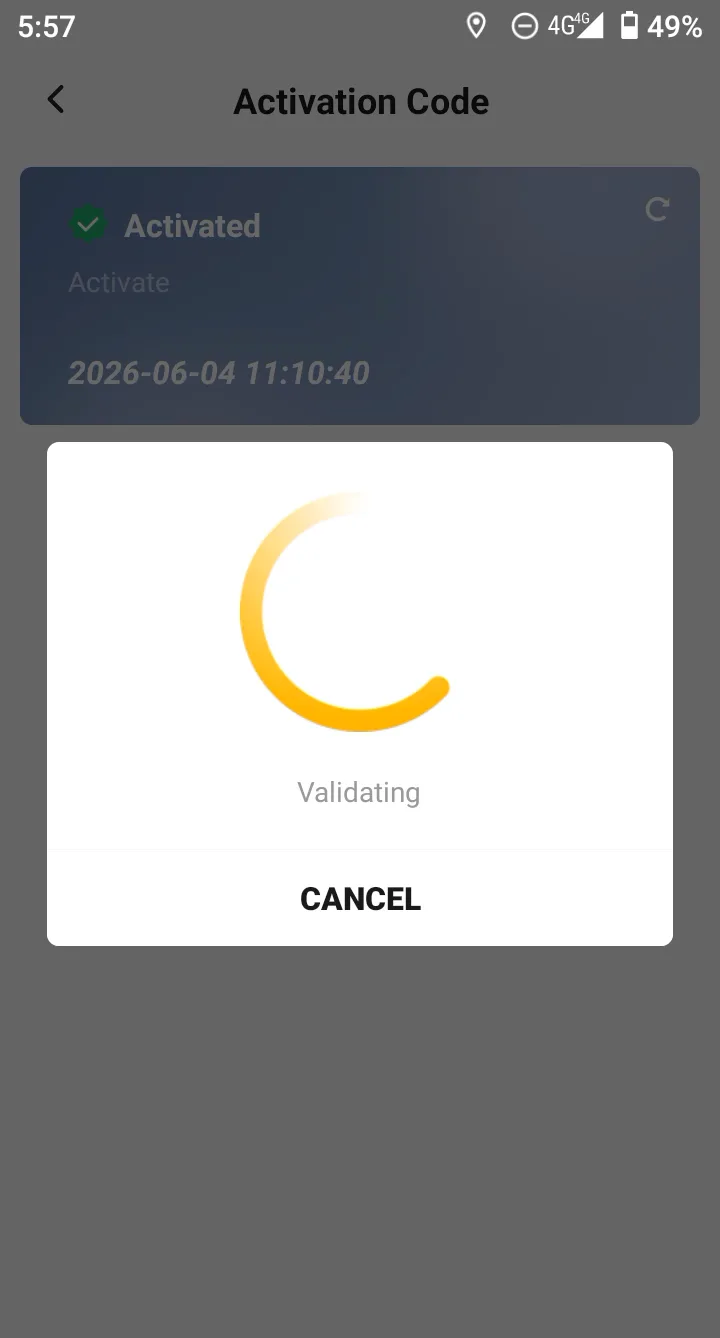
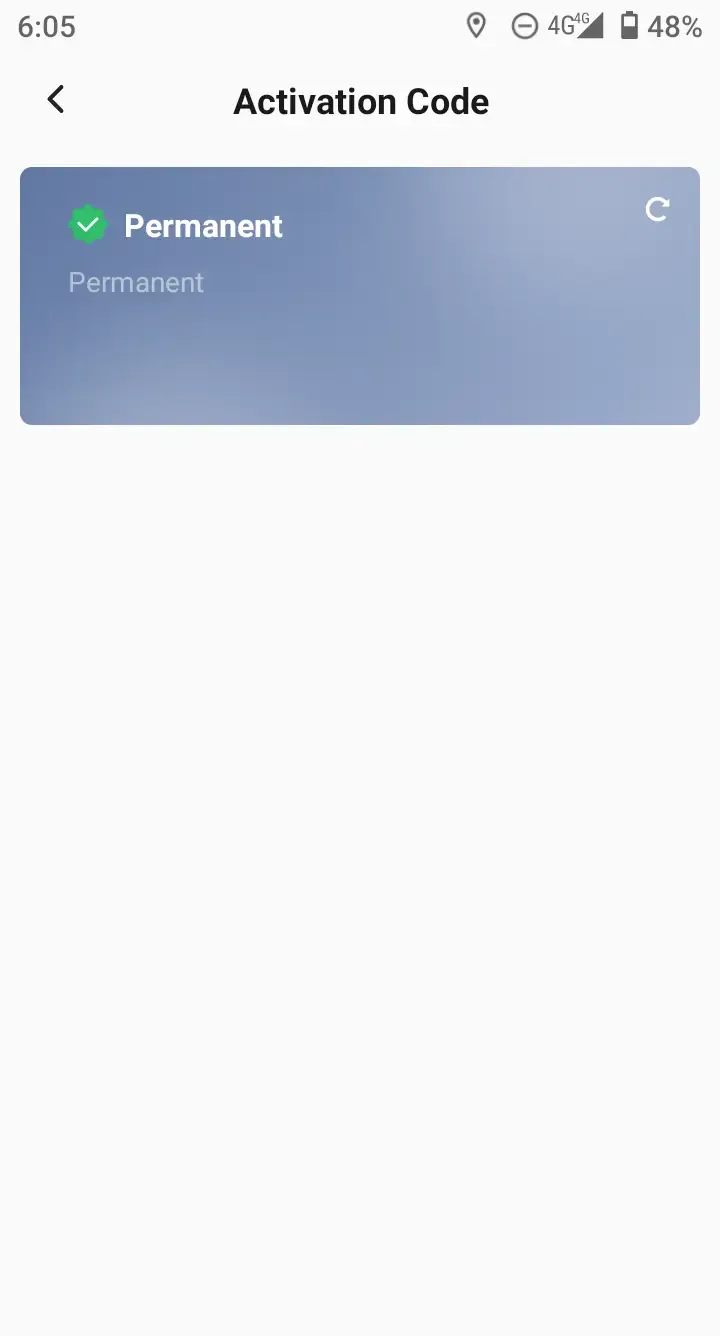
The receiver has two states: activation required and no activation required. If activation is required, the device's valid period will be displayed. Click to enter to view the valid period status and expiration time. The activation code of the receiver is automatically configured.
After purchasing the activation code, simply connect the receiver or controller to the internet to activate it automatically. Click the button in the upper right corner of the page to manually refresh the activation status.
 |  |  |
6.5.1.4 Device Update
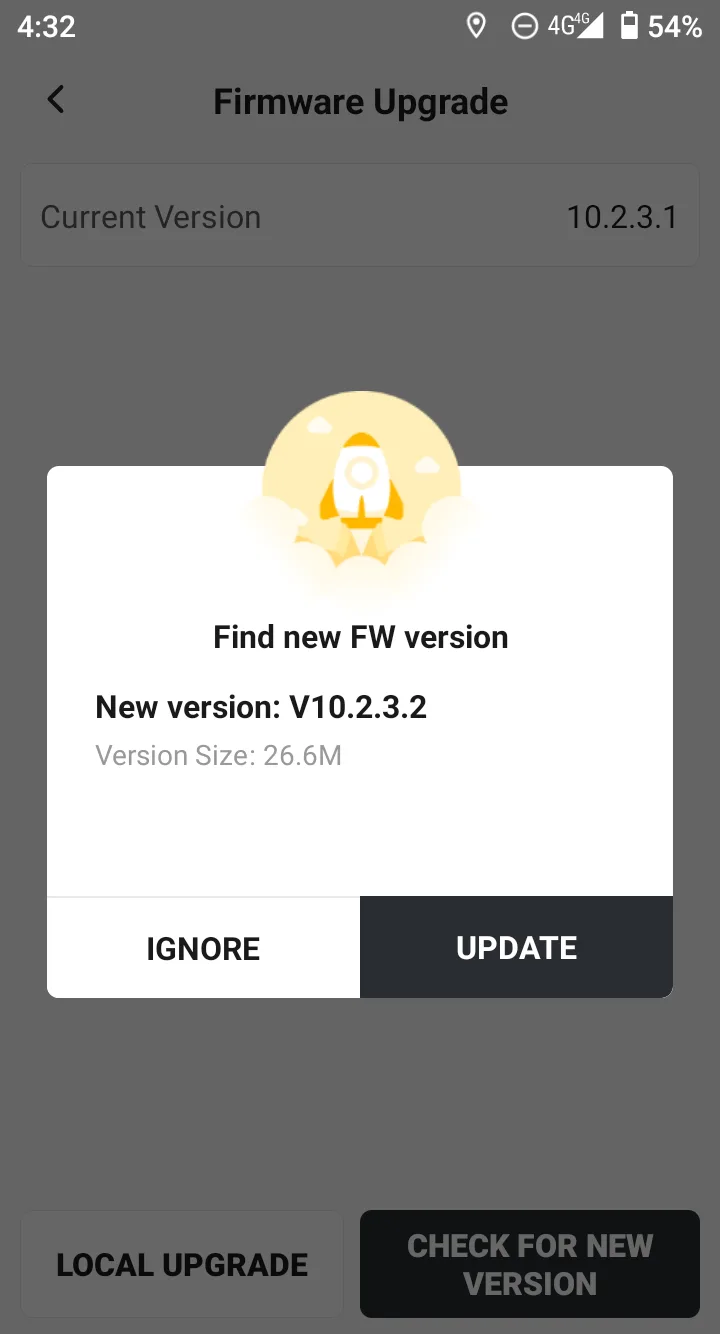
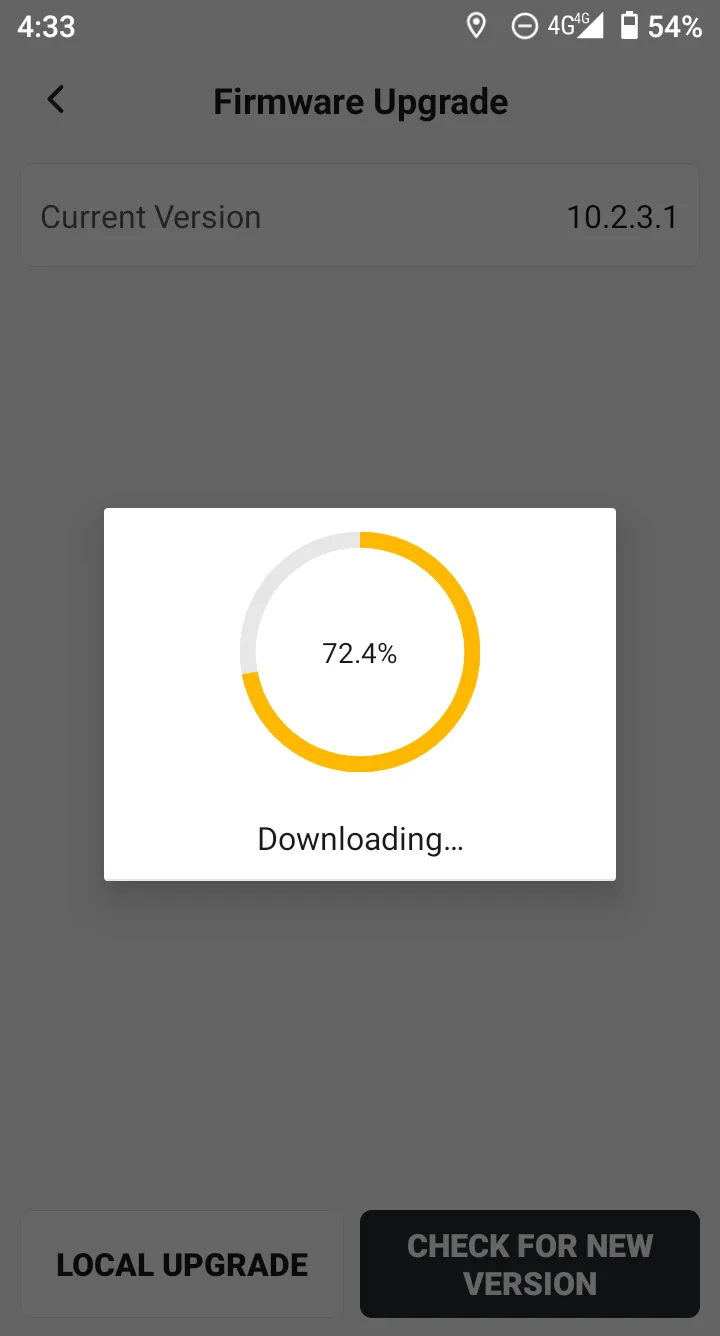
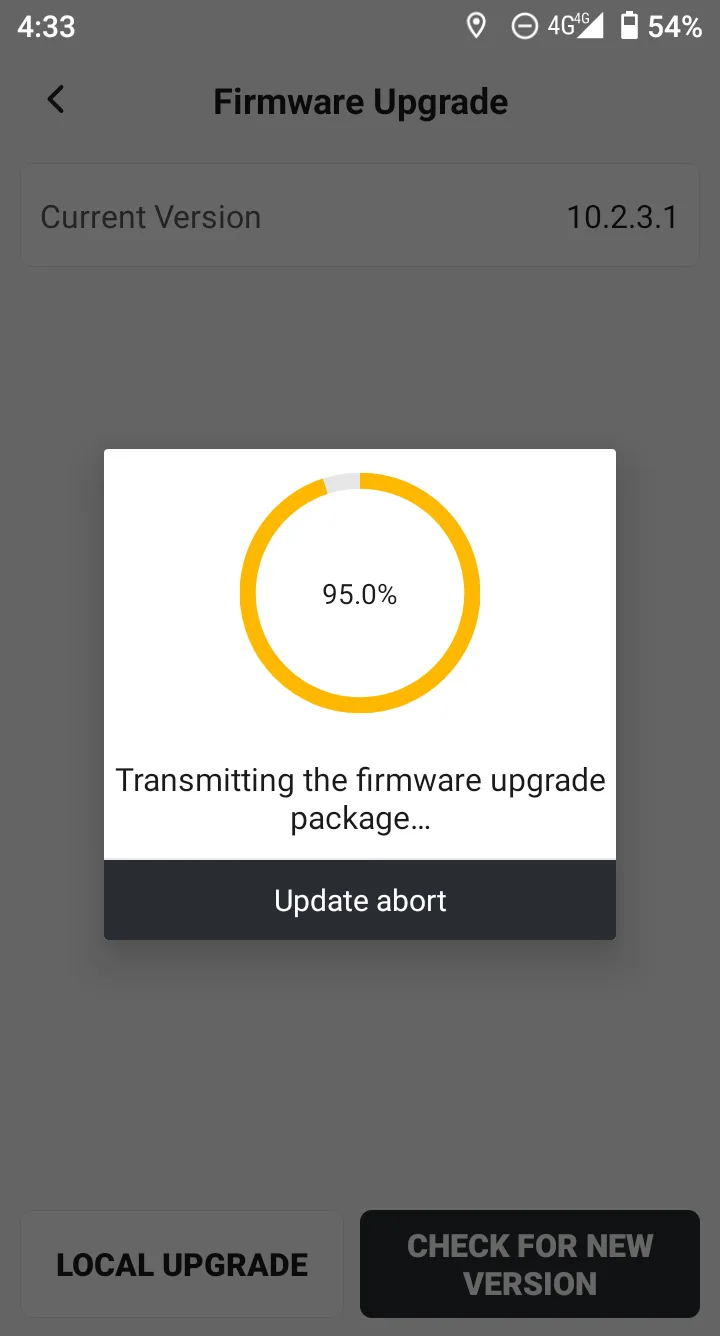
When a new firmware is released for the receiver, every time the receiver is connected to the Internet, a pop-up window will prompt that there is a new firmware. Click Update to start downloading directly. If you do not update temporarily, there will also be a red new version icon prompt on the page.
The receiver firmware can be update as a whole package, or by module (Radio, GNSS, IMU). It can be automatically updated on the cloud or locally loaded.
Note:
1. It is recommended that the receiver always be upgraded to the latest firmware;
2. The V1 series receiver firmware is small in size, and the upgrade operation can be completed on the controller by Bluetooth connection;
3. The firmware of the V10 series receiver is relatively large. If it is downloaded from the controller network, it needs to be transmitted to the receiver through Wi-Fi. The specific upgrade method can be determined according to the APP prompt.
 |  |  |
6.5.1.5 Receiver Memory
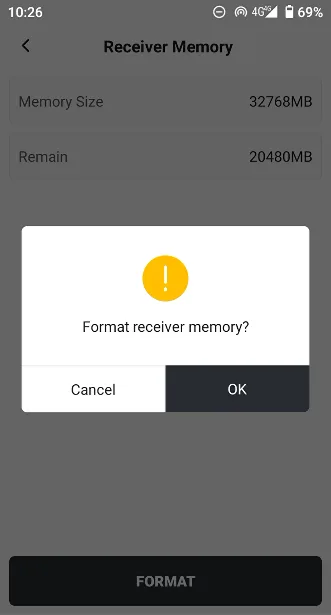
Display the total memory and remaining capacity of the receiver. The operating system and system security backup function of the receiver will occupy some space. Click the bottom button to complete the memory formatting.
 |  |
6.5.2 SkyMap
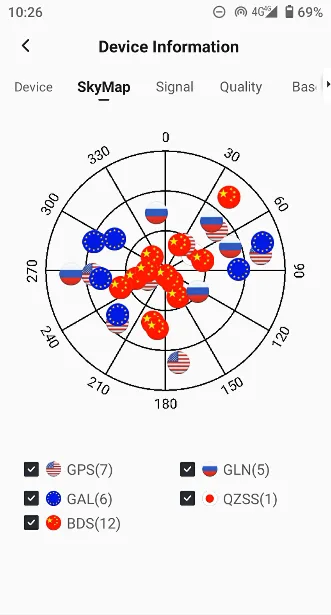
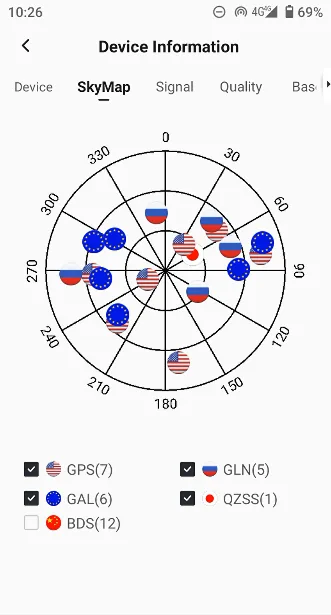
Click [SkyMap] to display the current distribution of satellites, check the satellite system at the bottom, and set the display and hide.
 |  |
6.5.3 Signal
| Displays the signal to noise ratio, altitude and azimuth information for different frequency bands of the tracking satellite. | 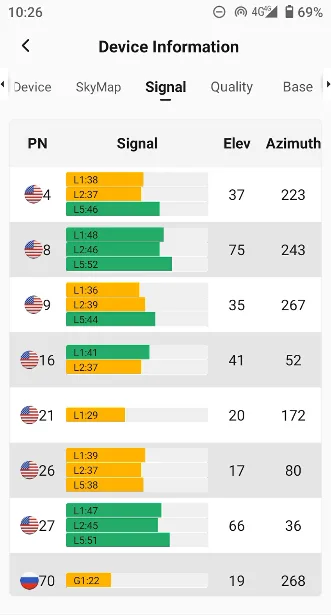 |
6.5.4 Quality
| Display the current positioning status, including solution status, coordinates, number of observation satellites, and positioning accuracy. | 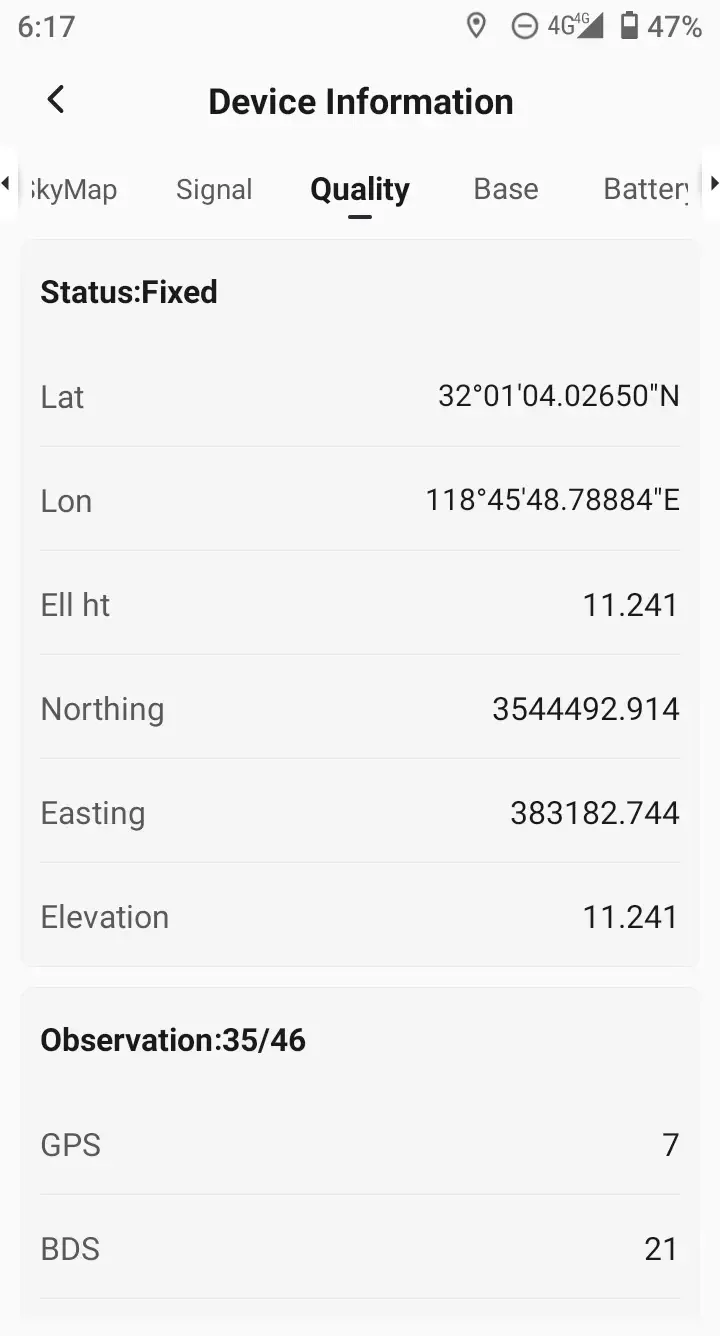 |
6.5.5 Base
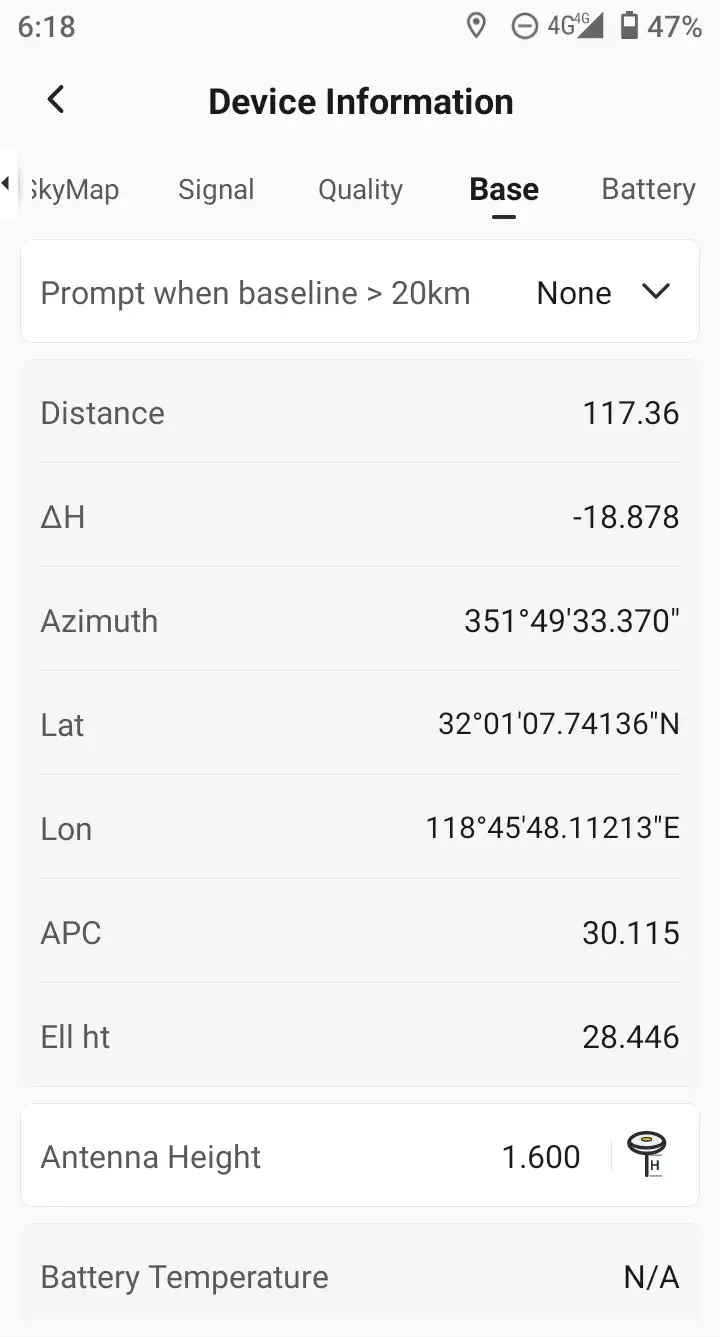
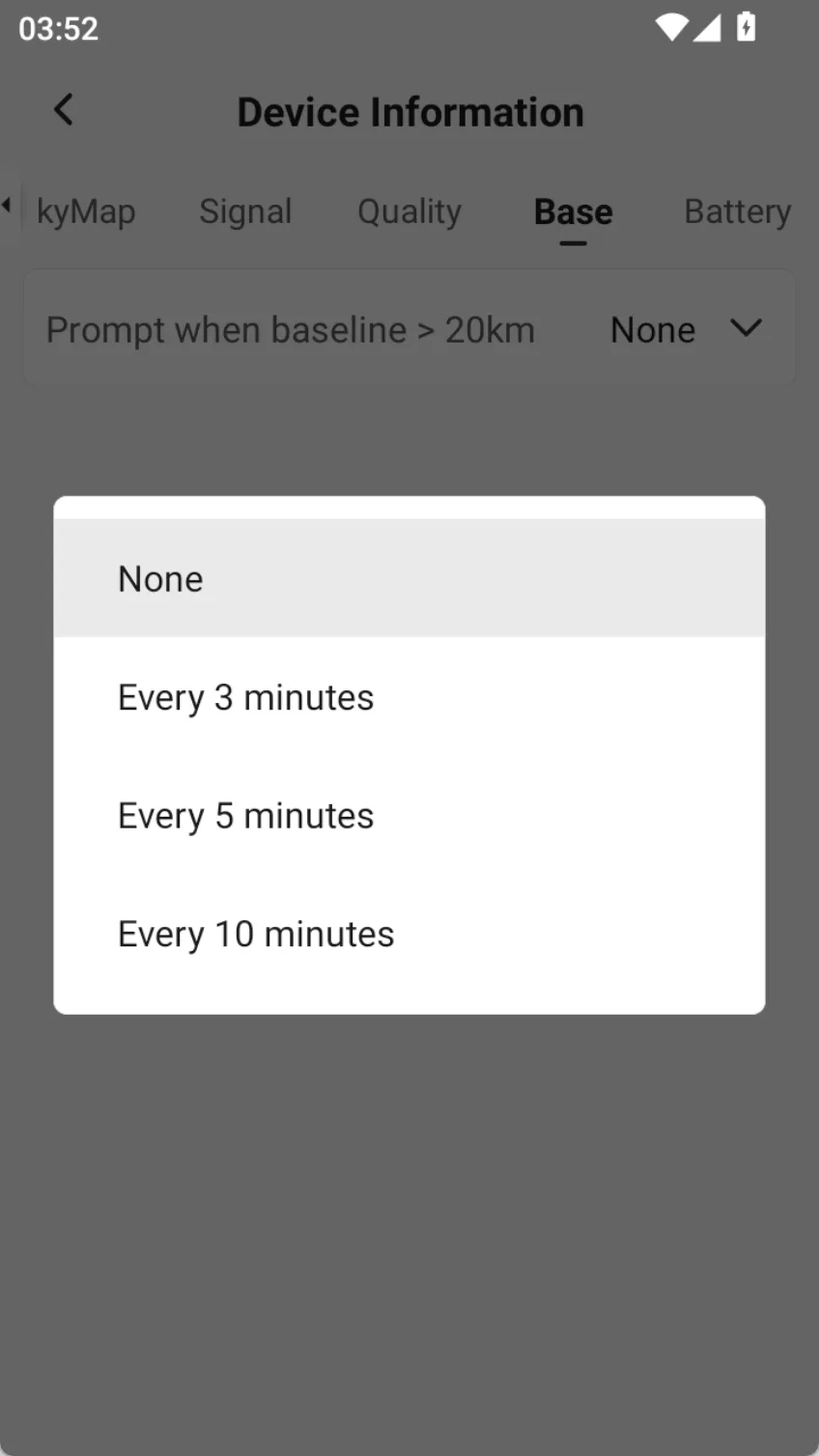
View relevant APC information of the corresponding base station in rover mode, including baseline distance, elevation difference, azimuth angle, and latitude and longitude coordinates. When the baseline distance exceeds 20km, you can set the prompt frequency, which can be selected every 3 min, every 5 min, or every 10 min.
 |  |
6.5.6 Battery
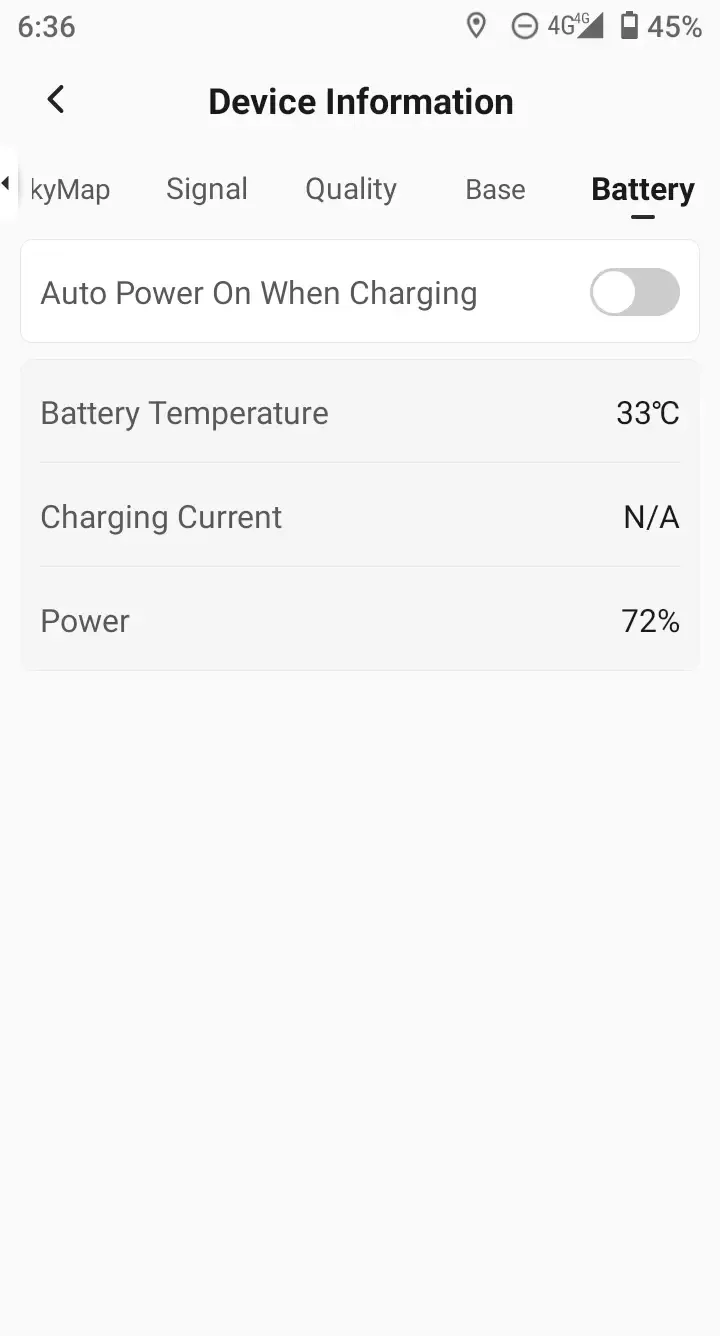
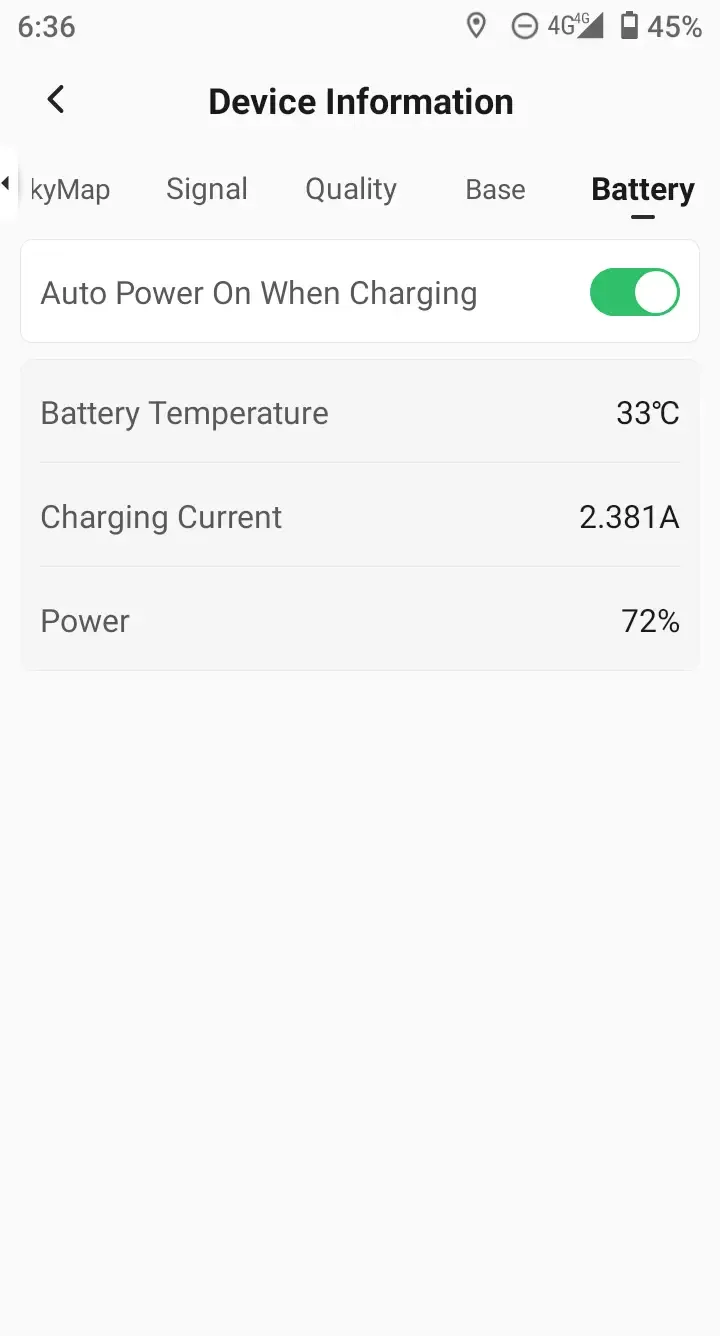
Check the battery temperature, charging current and current power. You can also control whether the receiver needs to be turned on when connected to the power supply in the off state through the switch.
Note: If the device is charging abnormally, remember to check the charging current. It is recommended to use original accessories to charge the device.
 |  |