
7.13 Visual Measure
Visual Measure integrates RTK positioning technology with close-range photogrammetry technology, combining the advantages of RTK real-time, high accuracy, high efficiency of close-range photogrammetry and rich measurement results. It can effectively solve the problem of poor signal and photogrammetry relying on control points in urban measurement environments without fixed measurement stations and control points. Traditional point measurement has higher operational efficiency (photos or images as information carriers contain the largest information of the measured target, surface measurement), and richer measurement results (various types of data, graphics, images, digital surface models, and 3D dynamic sequence images).
| Classification | Description |
| Applicable scenarios | Building facade, exterior wall, and roof structure surveying |
| Special-shaped structures such as bridges, piers, and culverts | |
| Targets that cannot be directly contacted, such as rivers, embankments, and gates | |
| Complex structures such as power facilities and substations | |
| Urban 3D modeling, digital cultural relic protection | |
| Earthwork survey | |
| Supplement ground image data with drone integrated modeling | |
| Not applicable scenarios | In areas with dense vegetation, the image texture is repeated and difficult to match |
| Scenes with strong changes in lighting such as glass curtain walls and highly reflective water surfaces | |
| Targets that are too small or slender, such as wires, electric poles, railings, etc. | |
| White walls, concrete platforms, and other surfaces lacking texture | |
| Rainy days or waterlogged roads | |
| Scenes with dim lighting or unclear images |
7.13.1 Start Visual Measure
The RTK GNSS receiver with a camera is connected to the controller via Wi-Fi. After obtaining a fixed solution, click [Survey] → [Visual Measure].
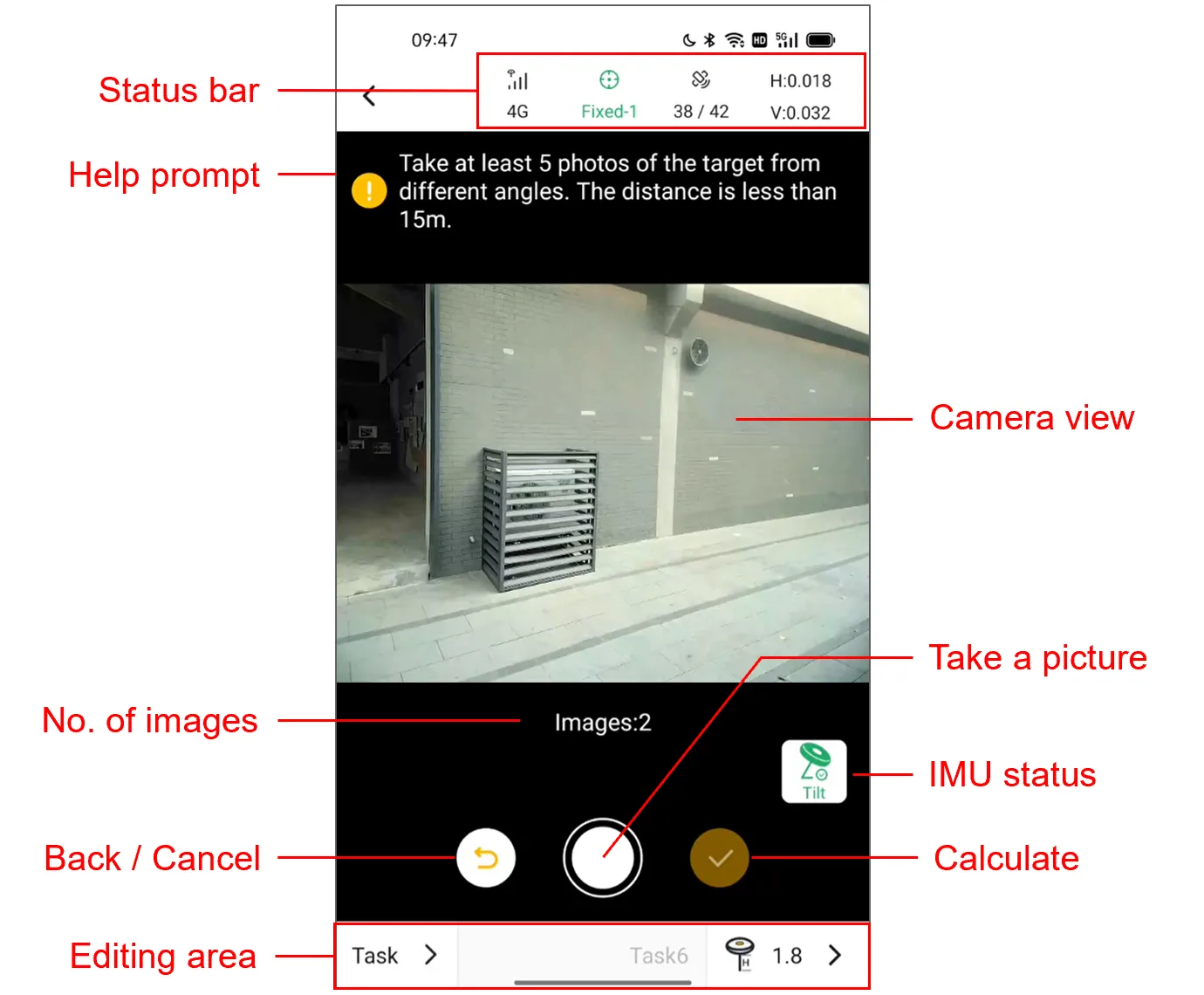
The page post script:
| Name | Description |
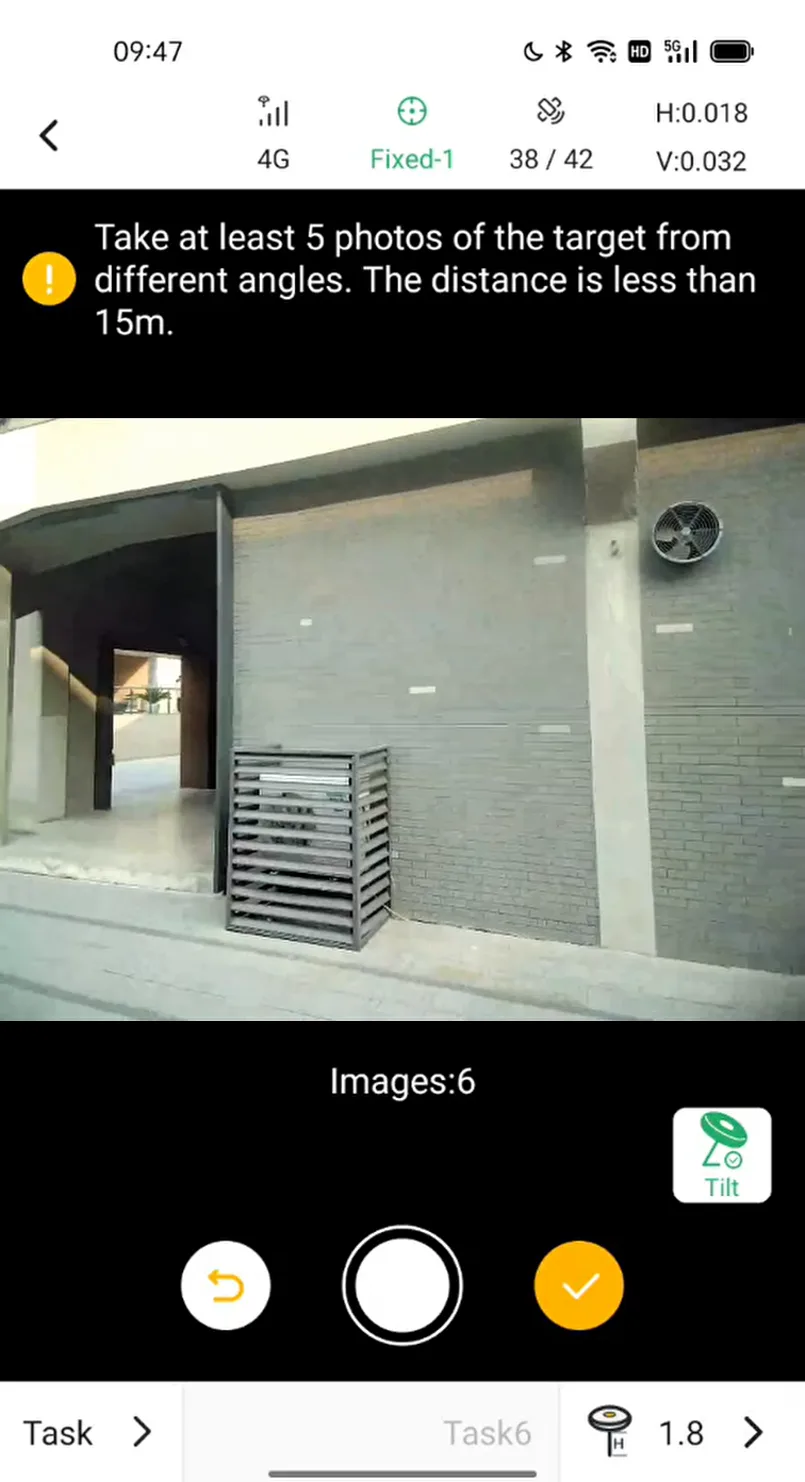
| Help prompt | Users are prompted to take at least 5 photos of the target from different places, with a recommended distance of no more than 15 meters. |
| No. of images | Real-time display of the number of pictures taken. |
| Cancel | Cancel the current photo. |
| Take a picture | Click to take a picture at a time, and the page will have feedback of successful taking. If the taking fails, it will prompt to retake. |
| Calculate | When the number of images is ≥ 5, the button is available, click to start calculating. |
If the currently connected device does not have a camera, after entering the function, a prompt dialog box will pop up: The device does not support Visual Measure, click to exit to return to the main page; if it is connected via Bluetooth, a pop-up window will prompt the user to switch the connection method to Wi-Fi.
7.13.2 Take photos
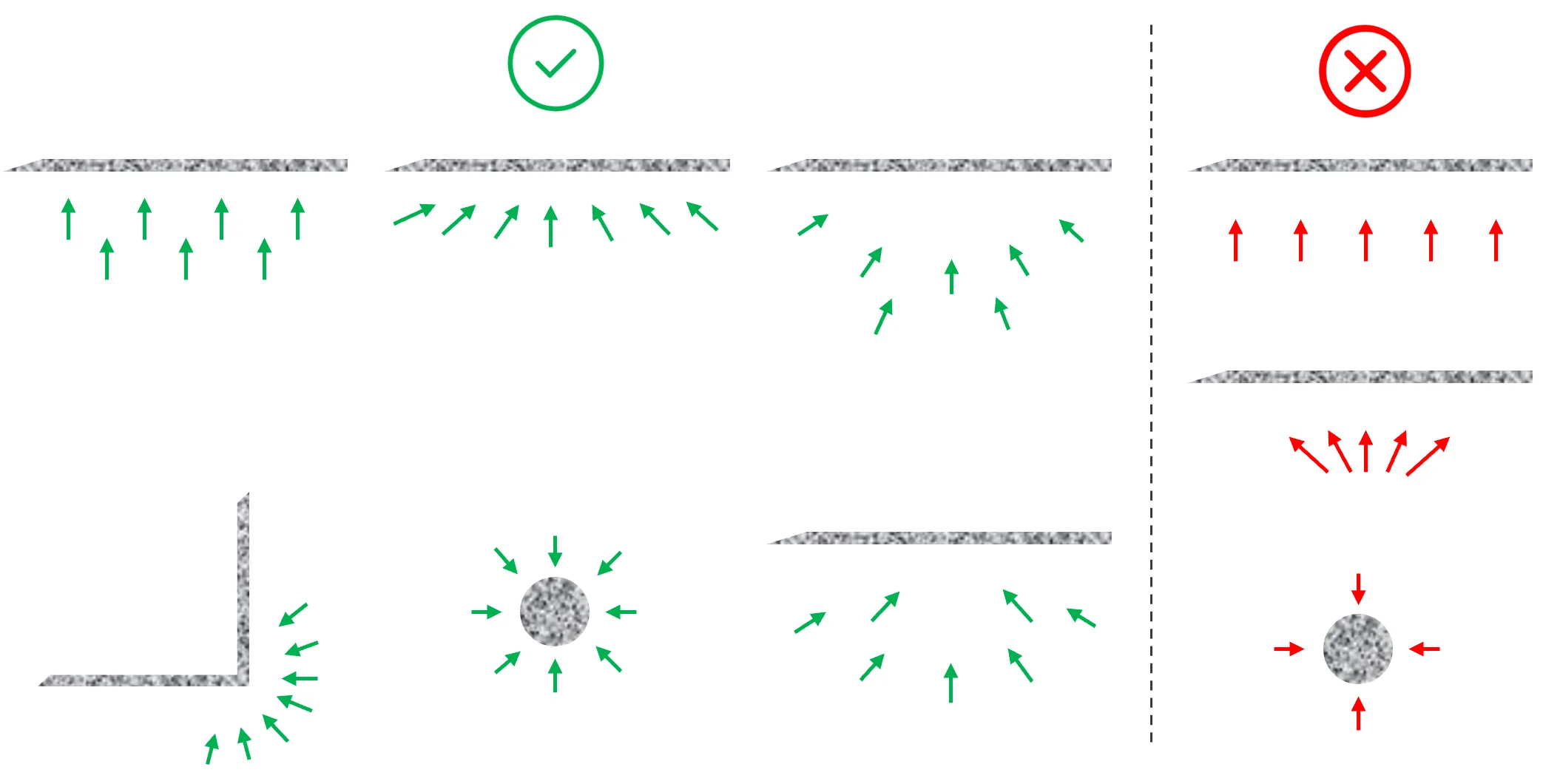
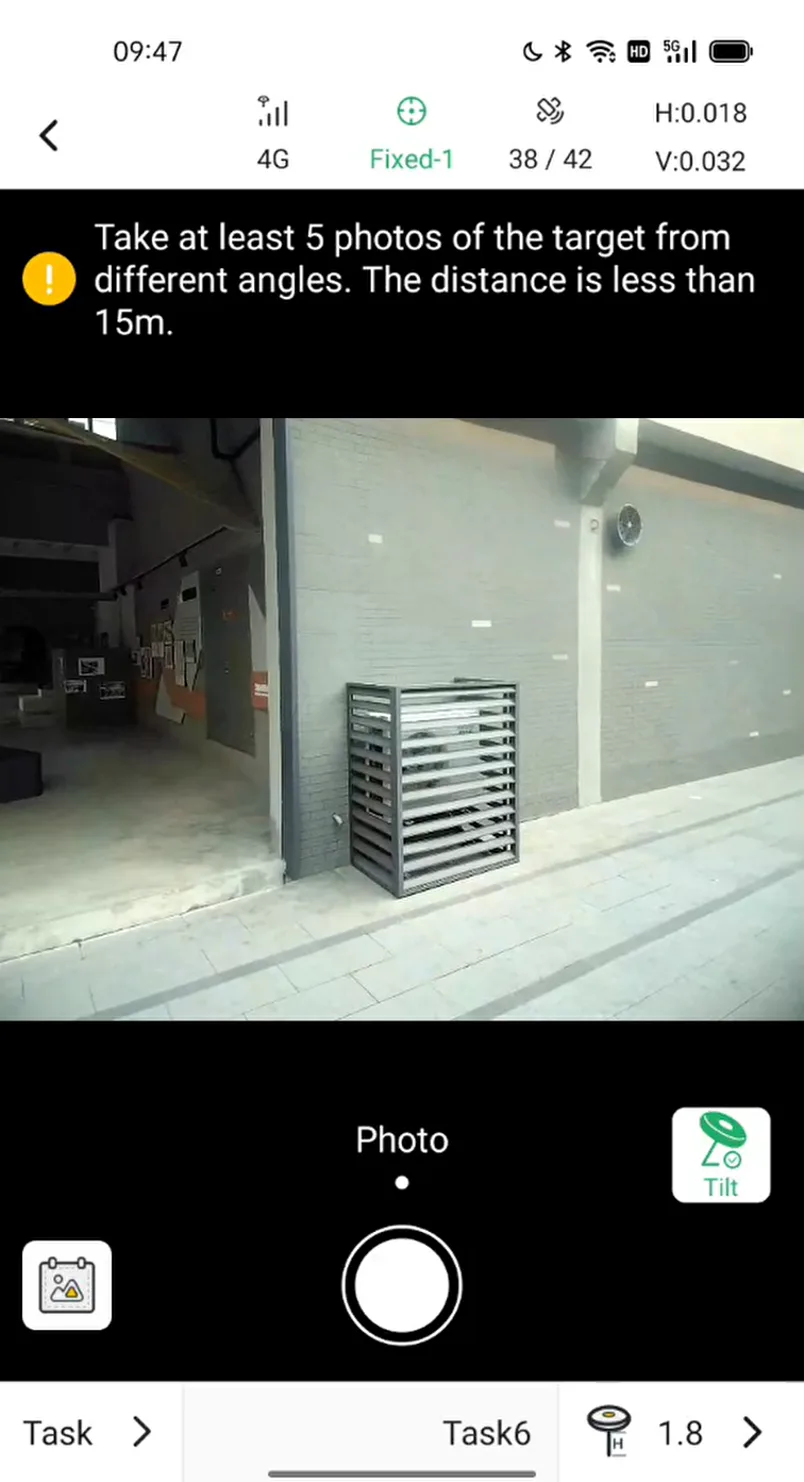
Select at least 5 suitable locations to take photos of the target area from different angles. If there is an abnormal communication between the receiver and the controller during the taking process, the user will be prompted to take a new photo.
The success rate and accuracy of calculating mainly depend on the taking position, angle, and photo quality. The recommended angles are as follows, and it is necessary to ensure sufficient overlap between adjacent photos.
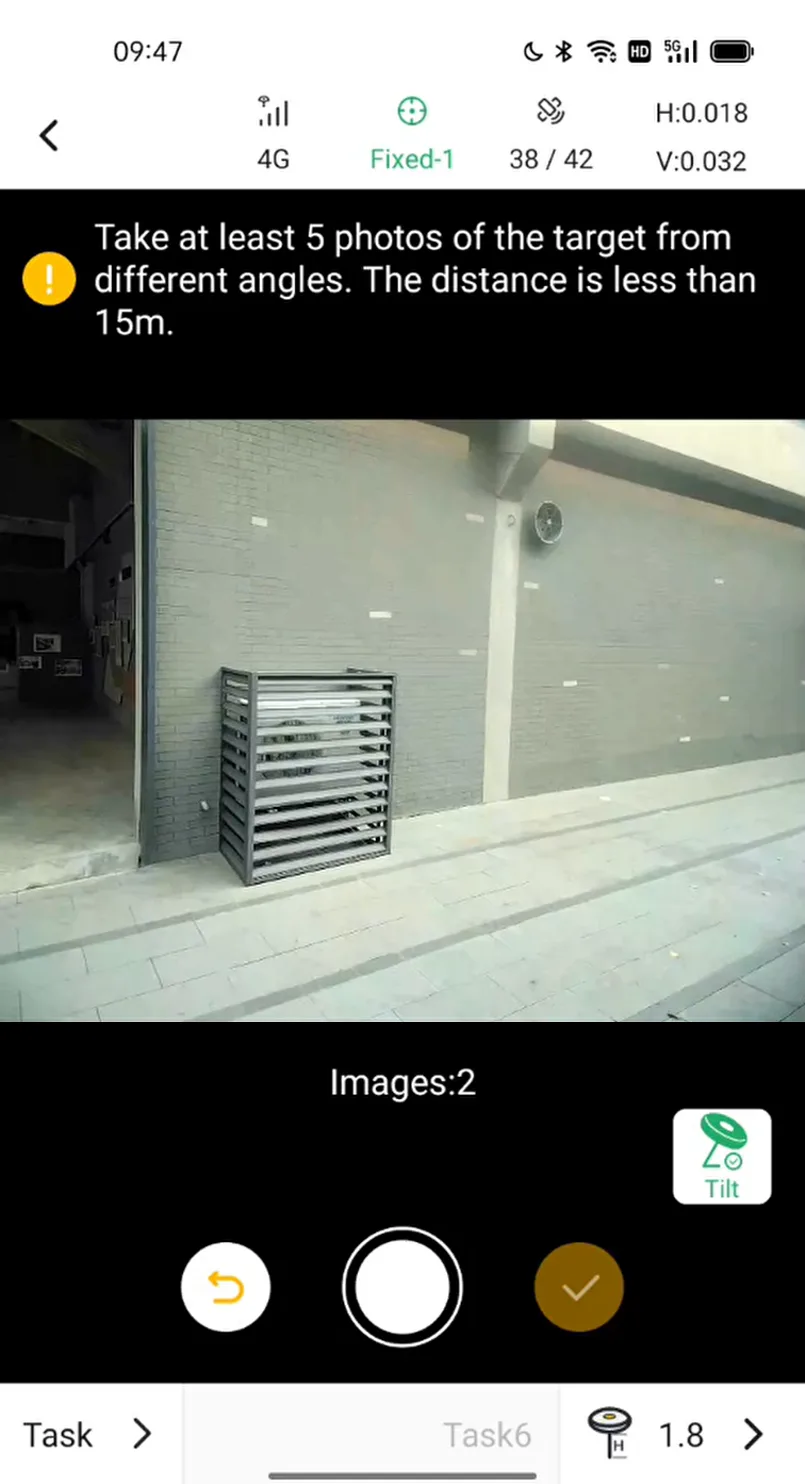
When the number of images reaches 5, the calculating button in the lower right corner is available.
 |  |  |
7.13.3 Start calculating
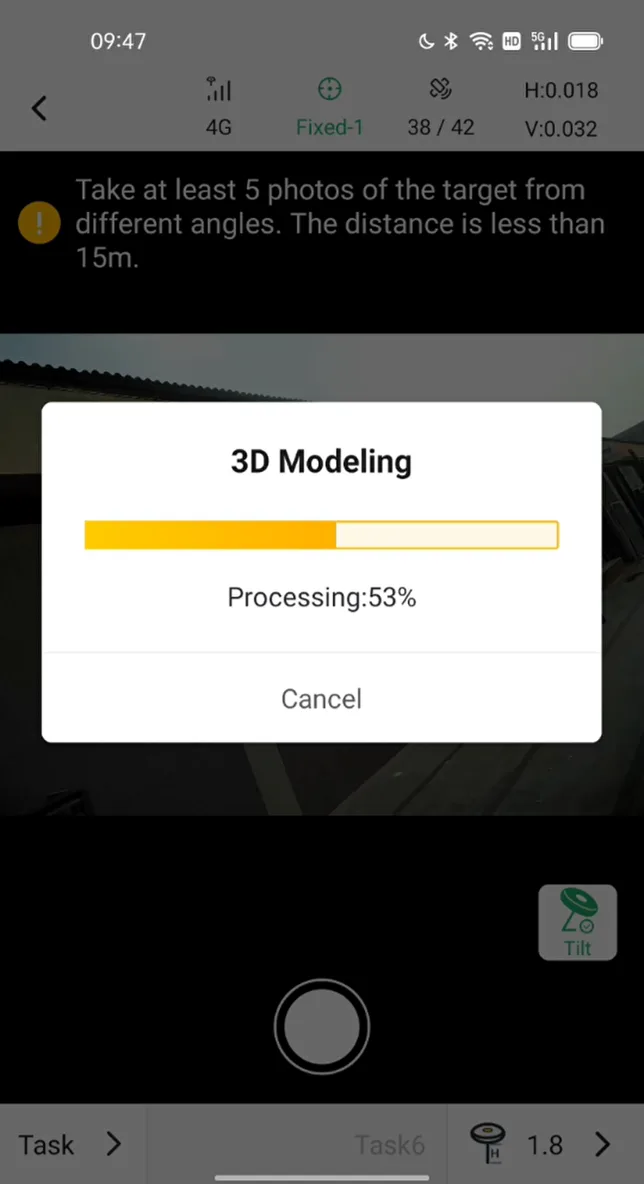
The speed and accuracy of calculating are related to many factors such as the number of photos, photo quality, GNSS measurement accuracy, etc. Generally, the local calculating time for 5 photos does not exceed 1 minute. If you click [Cancel] before the calculation is completed, the task will be stored in the [Images] and can be re-calculated later.
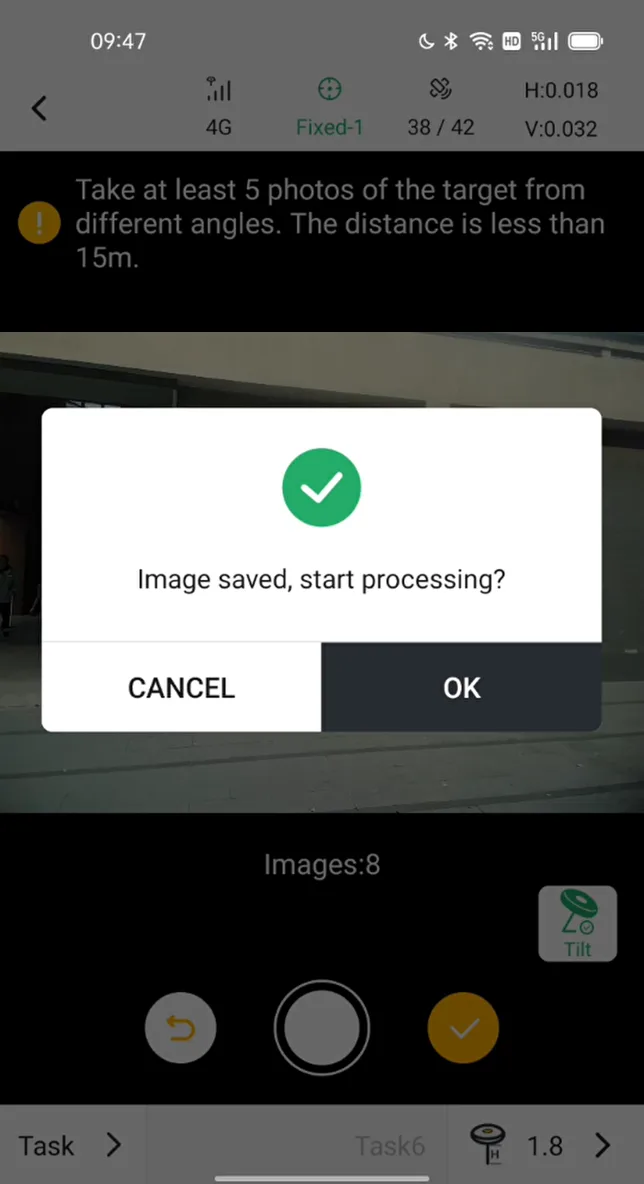
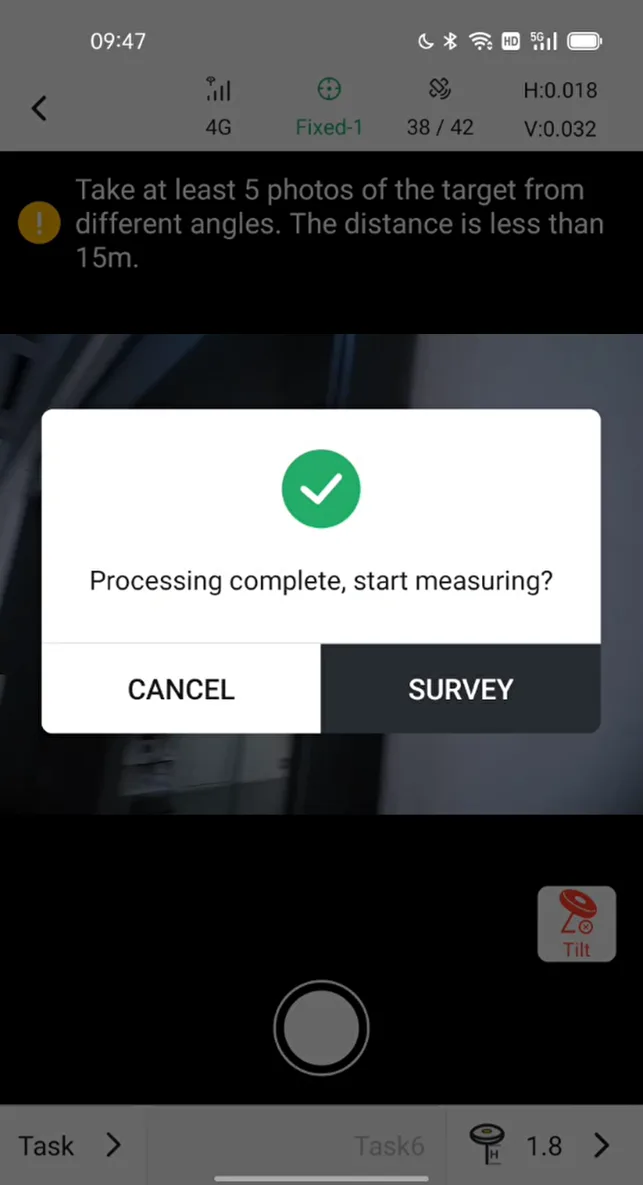
After completing taking photos, it will prompt whether to start the calculation. After clicking on the calculation, it will automatically select cloud or local calculation based on whether the controller has network. After the calculation is completed, it will prompt whether to start point measurement.
 |  |  |
7.13.4 Select point
After the calculation is successful, click the bottom button to start point measurement immediately. As follows:
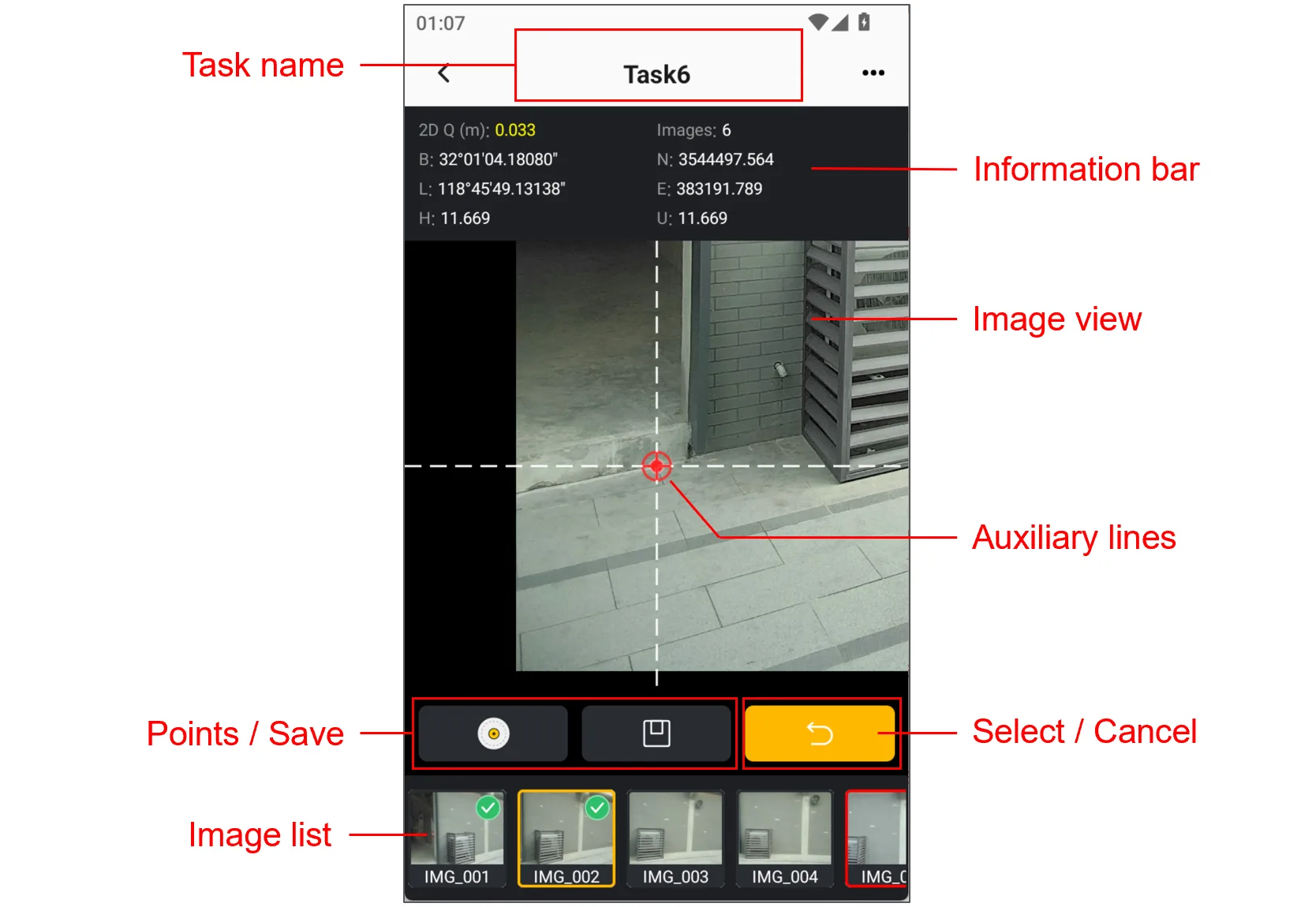
| Name | Description |
| Task name | Display the task name, click the icon in the upper right corner to modify the task name; |
| Information bar | 1. 2D Q: Display the 2D quality of the selected point; 2. Images: Display the number of photos used to calculate; 3. Coordinates: Display the BLH and NEU coordinates of the point. |
| Image view | Support zooming and panning, double-click to zoom in. |
| Operation button | 1. Points: Click to jump to the point library and browse the measured points. 2. Save: When the coordinate of the selected point appears, the button can be used. After clicking, the pop-up window confirms the name, code and coordinate, among which the coordinate cannot be modified; 3. Select/Cancel: After selecting the position of the guide line, click the Select button to complete the selection, and click again to cancel the selected point. |
| Image list | Swipe left and right to browse photos taken by the receiver. 1. Yellow border: Click to select, and the photo will be displayed in the main view; 2. Green corner mark: indicates that a point has been selected; 3. Red border: Long press thumbnail to appear, indicating that the photo is disabled from participating in the calculation. |
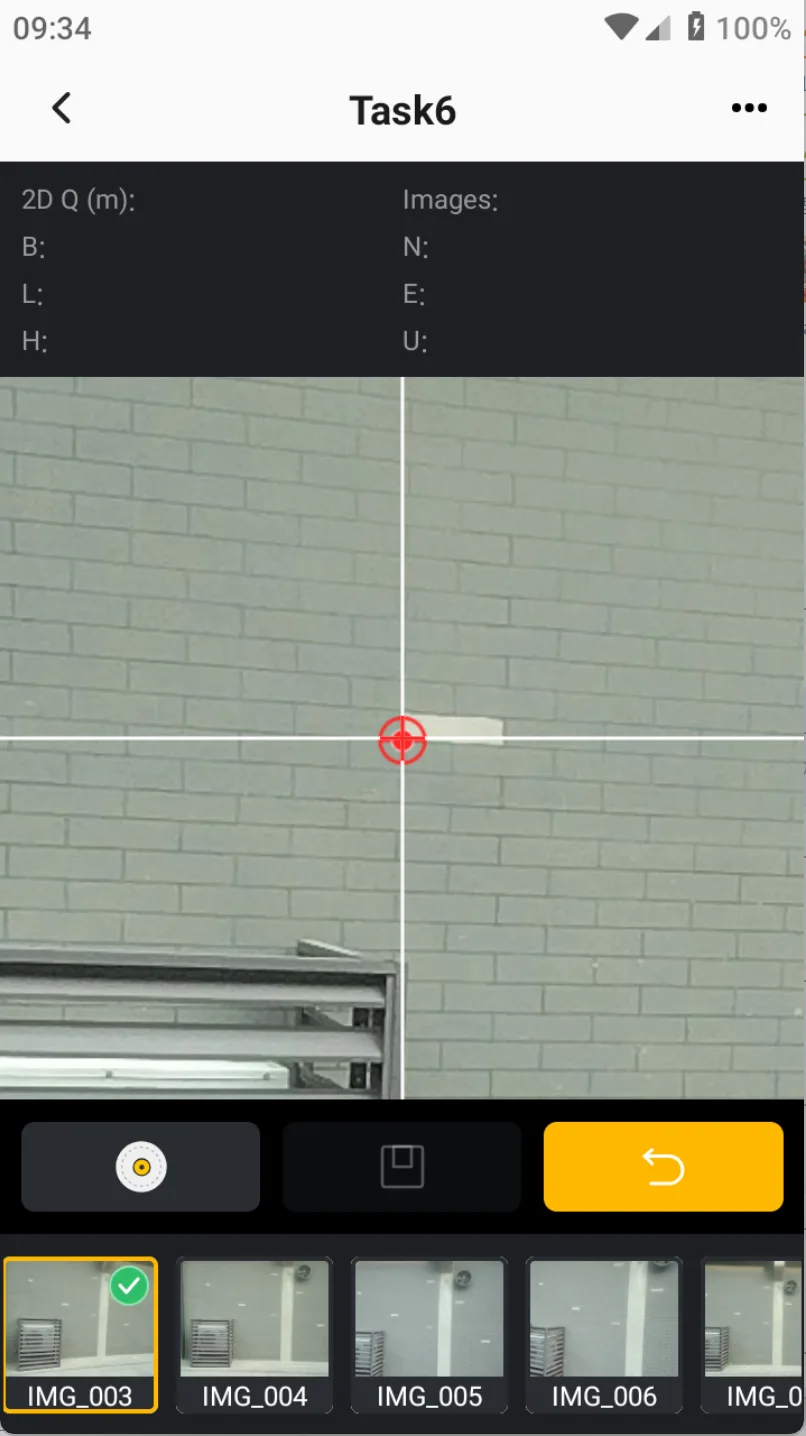 | 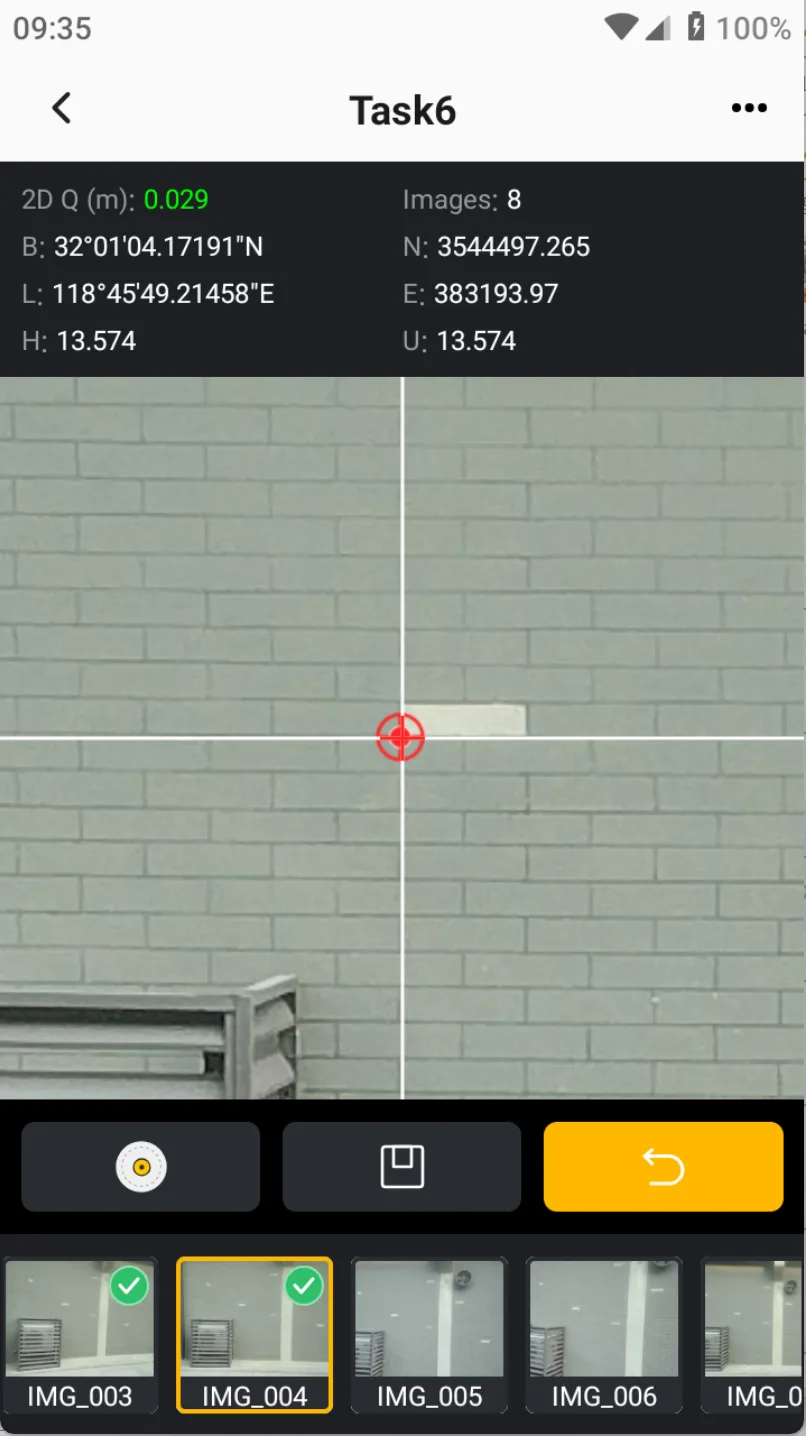 | 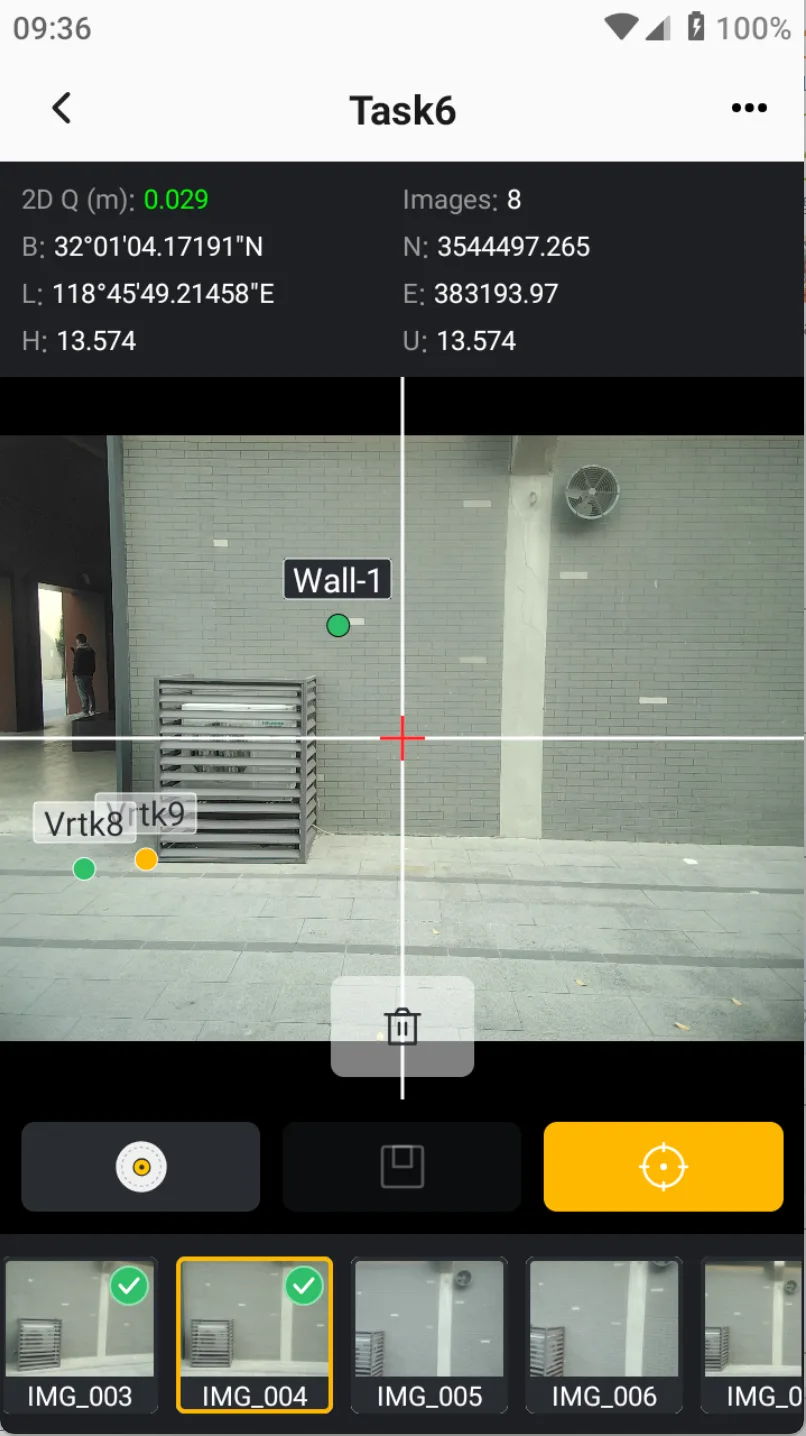 |
After saving the point, you can see the saved point on all photos. Select the point, you can also view the relevant information in the information bar, and click the delete button at the middle and bottom of the photo to quickly delete the point.
Note: 2D quality is the reference accuracy after point selection calculation, which may not be consistent with the actual deviation. Different accuracy corresponds to different point selection colors, including: green (2DQ ≤ 0.03), yellow (0.03 < 2DQ ≤ 0.05), red (2DQ > 0.05).
7.13.5 V100F Photo Measurement
7.13.5.1 Overview
The V100F receiver supports photo measurement. By combining images with 3D point clouds, it enables non-contact measurement of target points. After SLAM initialization is completed, users can use the V100F front-facing camera to capture the target, select the point to be measured in the image, and the system calculates the target point coordinates using the point cloud data from the corresponding area. There is no need to place the survey pole directly on the target point.
V100F Photo Measurement is suitable for building facades, opposite sides of ditches, structural components beneath bridges, slopes, and other locations that are difficult to access or unsuitable for pole-based measurement. Users can capture images from a safe position with a clear line of sight to the target and obtain the required target point coordinates, reducing the need to approach hazardous or restricted areas. The target being measured should remain stationary and clearly visible.
7.13.5.2 Preparation
| Check Item | Description |
| Device Connection | Ensure that Trion Survey is connected to the V100F via Wi-Fi and that the connection remains stable. |
| Project Settings | Check that the coordinate system and antenna height settings are correct. |
| Device Status | Check the battery level and available storage space of both the receiver and data collector to ensure the measurement task can be completed. |
| Camera and LiDAR | Ensure that the front-facing camera lens and LiDAR window are clean and are not blocked by hands, clothing, or other objects. |
| Initialization Conditions | Select an area with good GNSS signal reception and clearly identifiable surrounding features, and prepare to perform SLAM initialization. |
7.13.5.3 Procedure
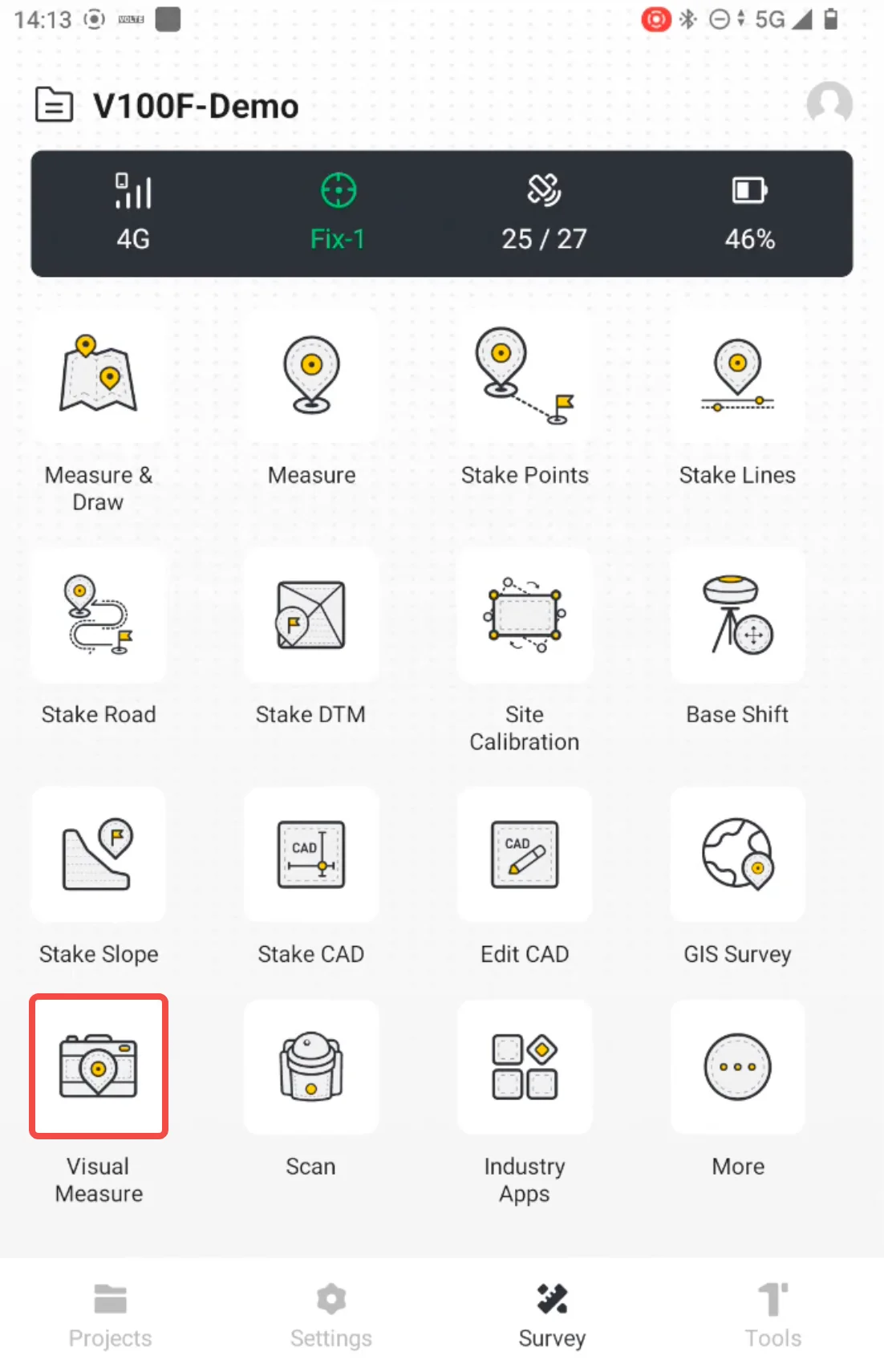
Tap Visual Measure. The app checks whether the current positioning status is Fix, and then starts SLAM initialization. The initialization process for Photo Measurement is the same as that for SureFix Measurement. For details, refer to Section 7.2.14.3.
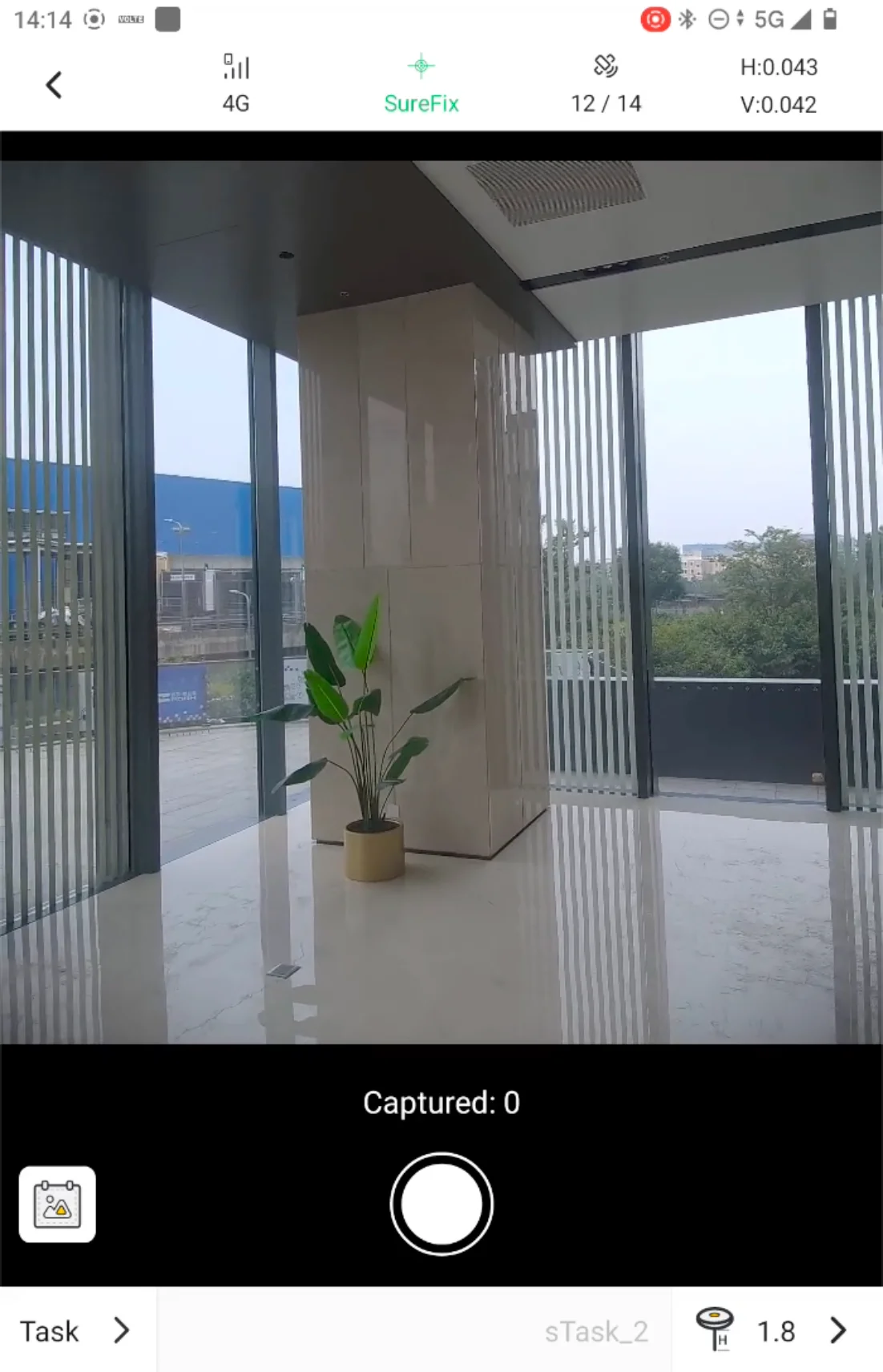
After SLAM initialization is completed, aim the receiver's front-facing camera at the target. Adjust the shooting position and angle so that the area to be measured is clearly visible in the image. Hold the device steady briefly, then tap the shutter button to capture the image. Avoid moving or shaking the device at the moment the photo is taken.
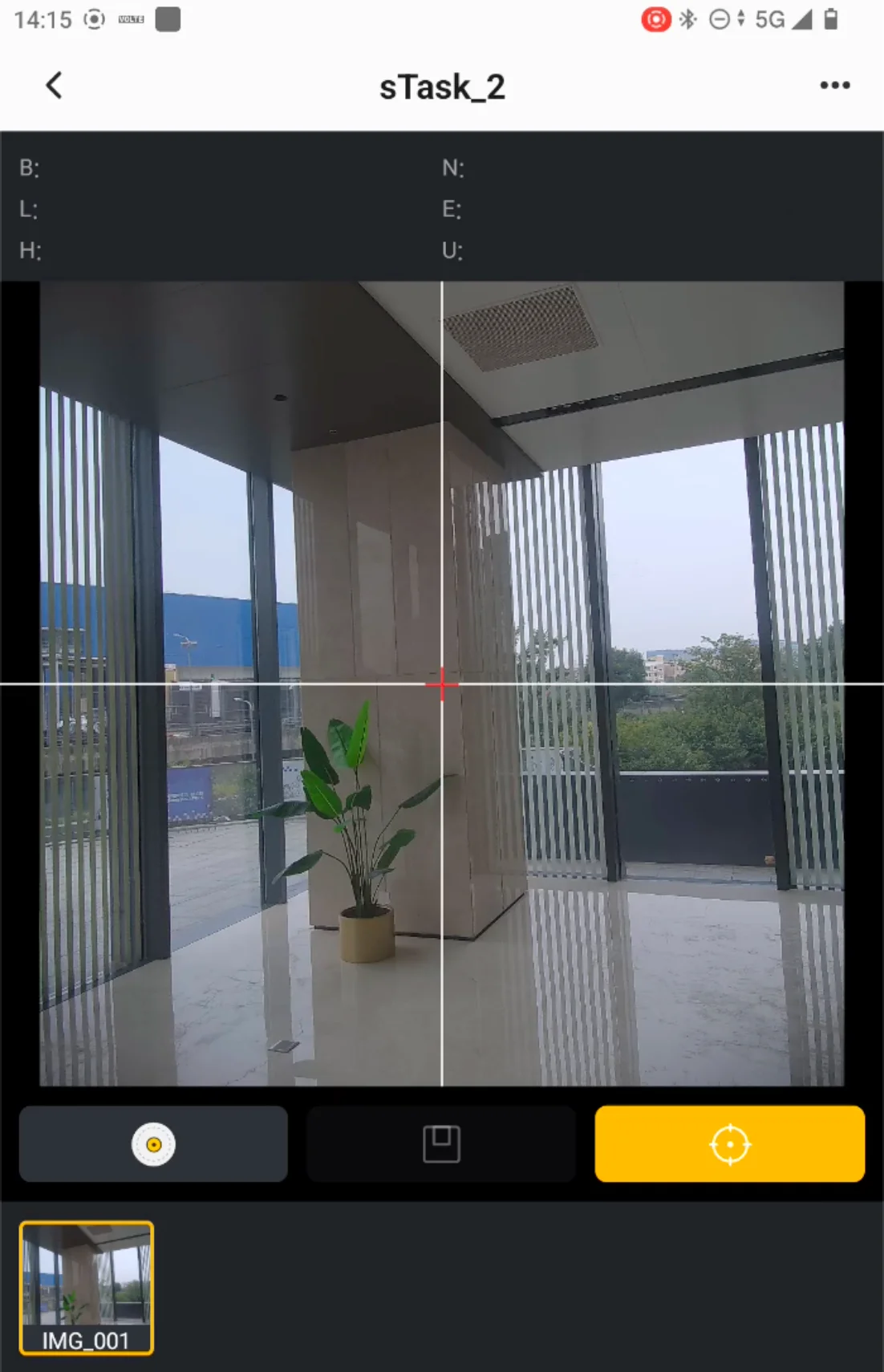
After the image is captured, the app directly enters the point selection page. You can also return and take another photo. Note that each Photo Measurement task contains only one photo.
 |  |  |
- Do not keep the camera pointed at the target and remain stationary for an extended period under the assumption that this will provide sufficient point cloud coverage of the target area.
- Before taking the photo, move around the target area and scan it for several seconds where appropriate, then capture the image. This helps provide more complete point cloud coverage of the target area.