
5.11 Import
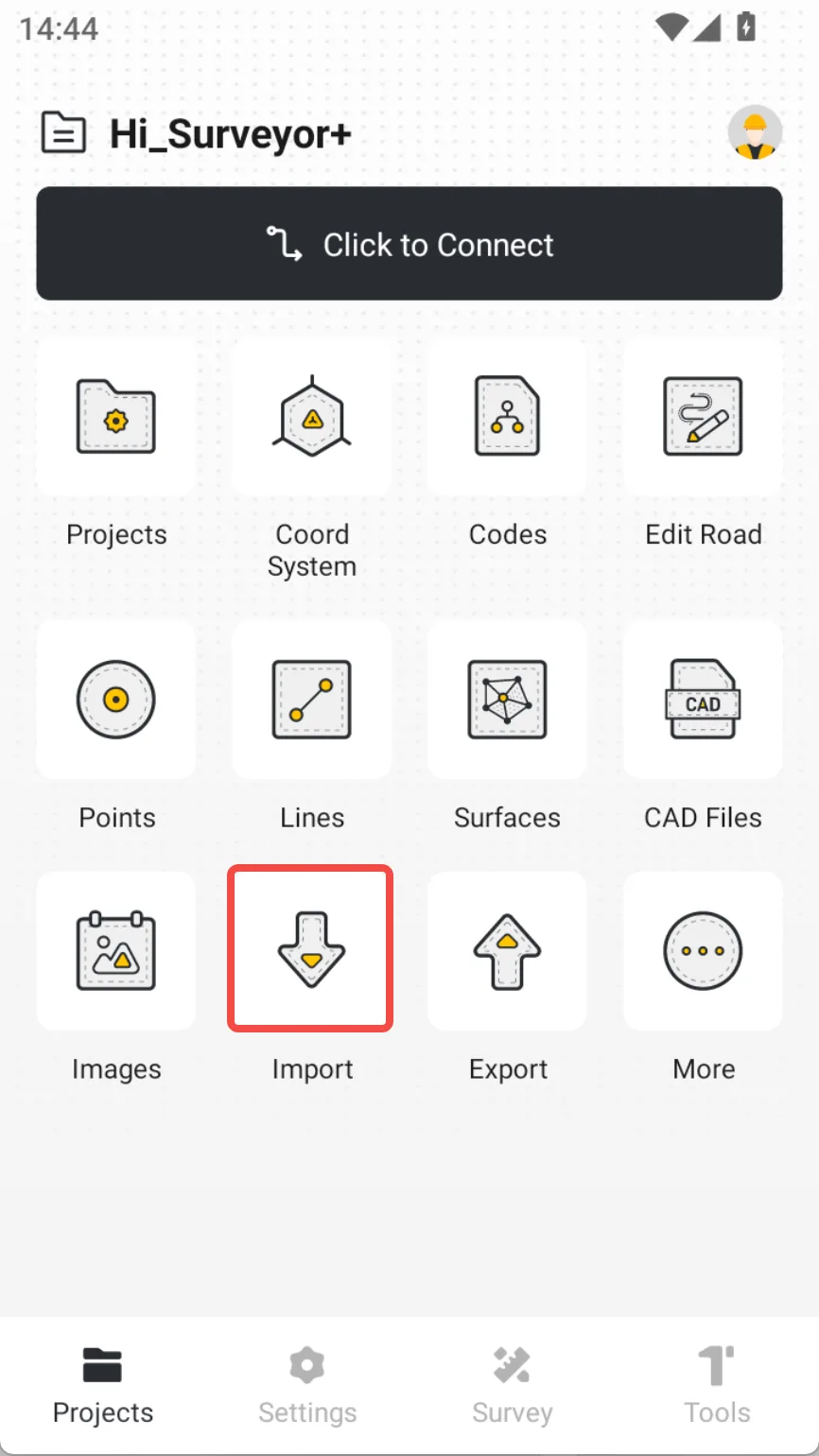
[Import] supports users to import external data into Trion Survey projects, realizing interaction with other measurement software and data sources. Click [Project] → [Import] to open the data import panel.
 | 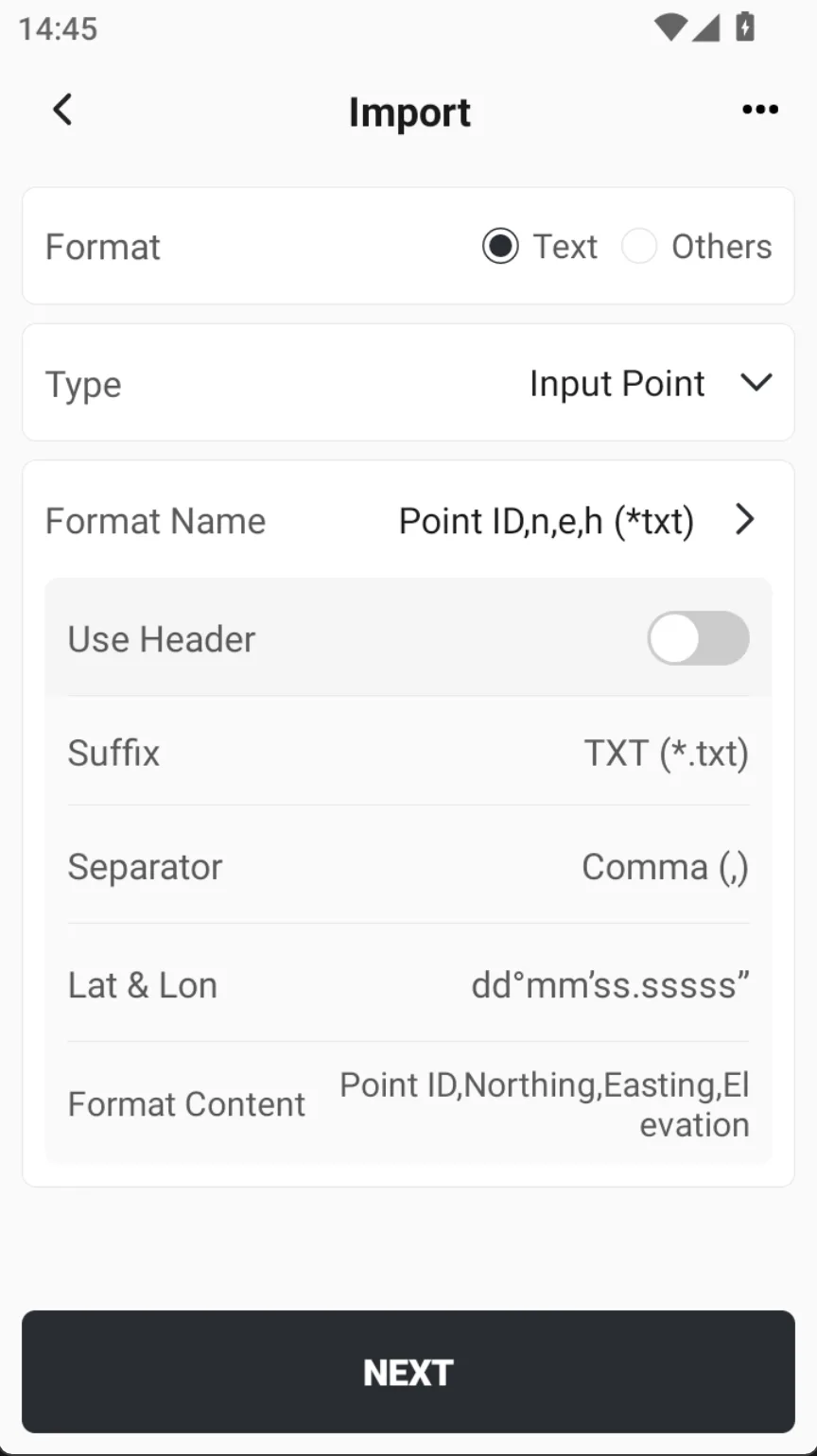 |  |
| Name | Description |
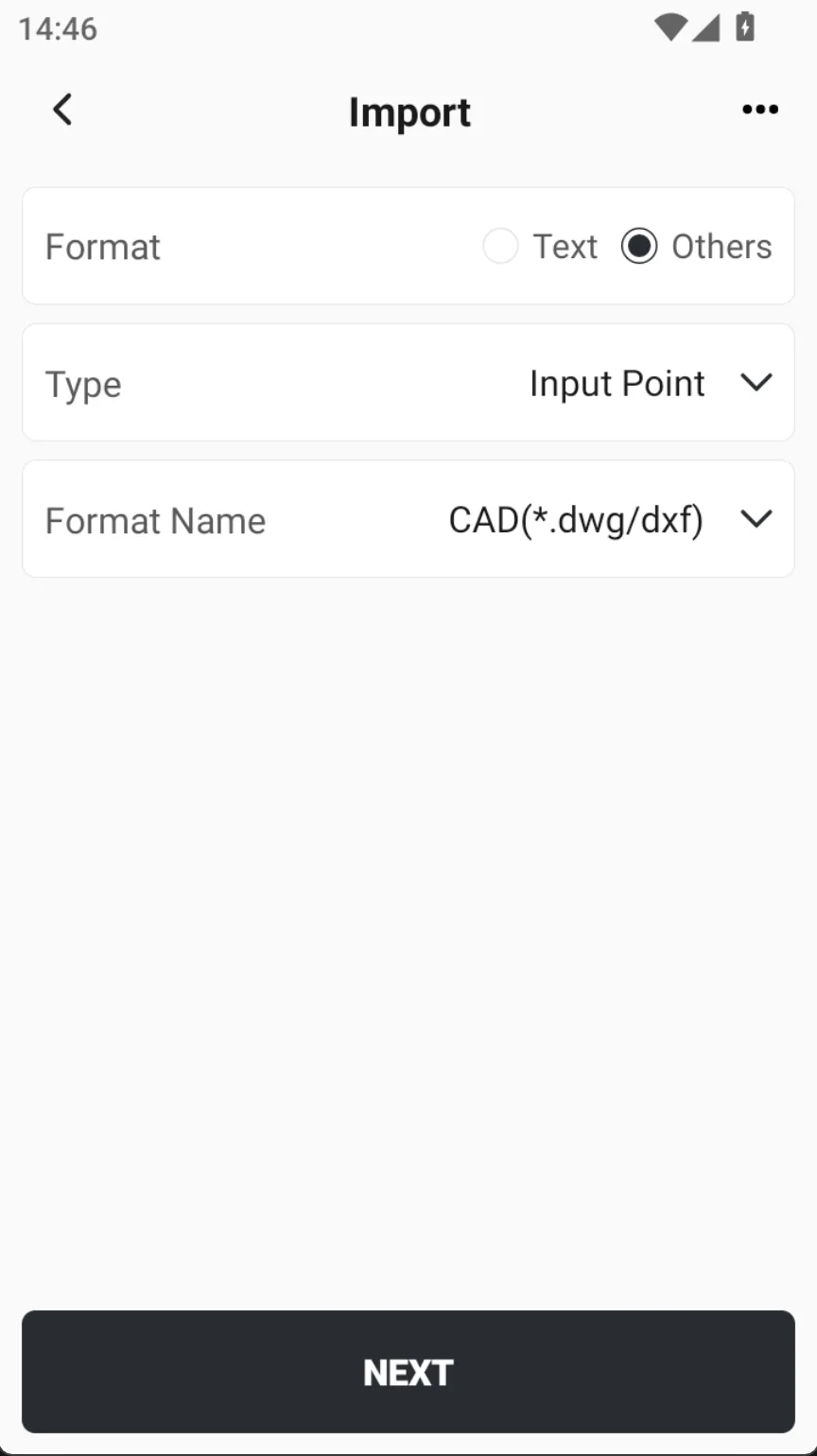
| Format | 1. Text format: Custom fields, editable format; 2. Other formats: industry standard formats, which cannot be edited. |
| Type | What type of point is assigned to the imported point. Optional input point, stake point and control point. |
| Format name | Select the format of the imported points, you can choose a predefined format or create a new one. |
| Format content | Display content details in text format. |
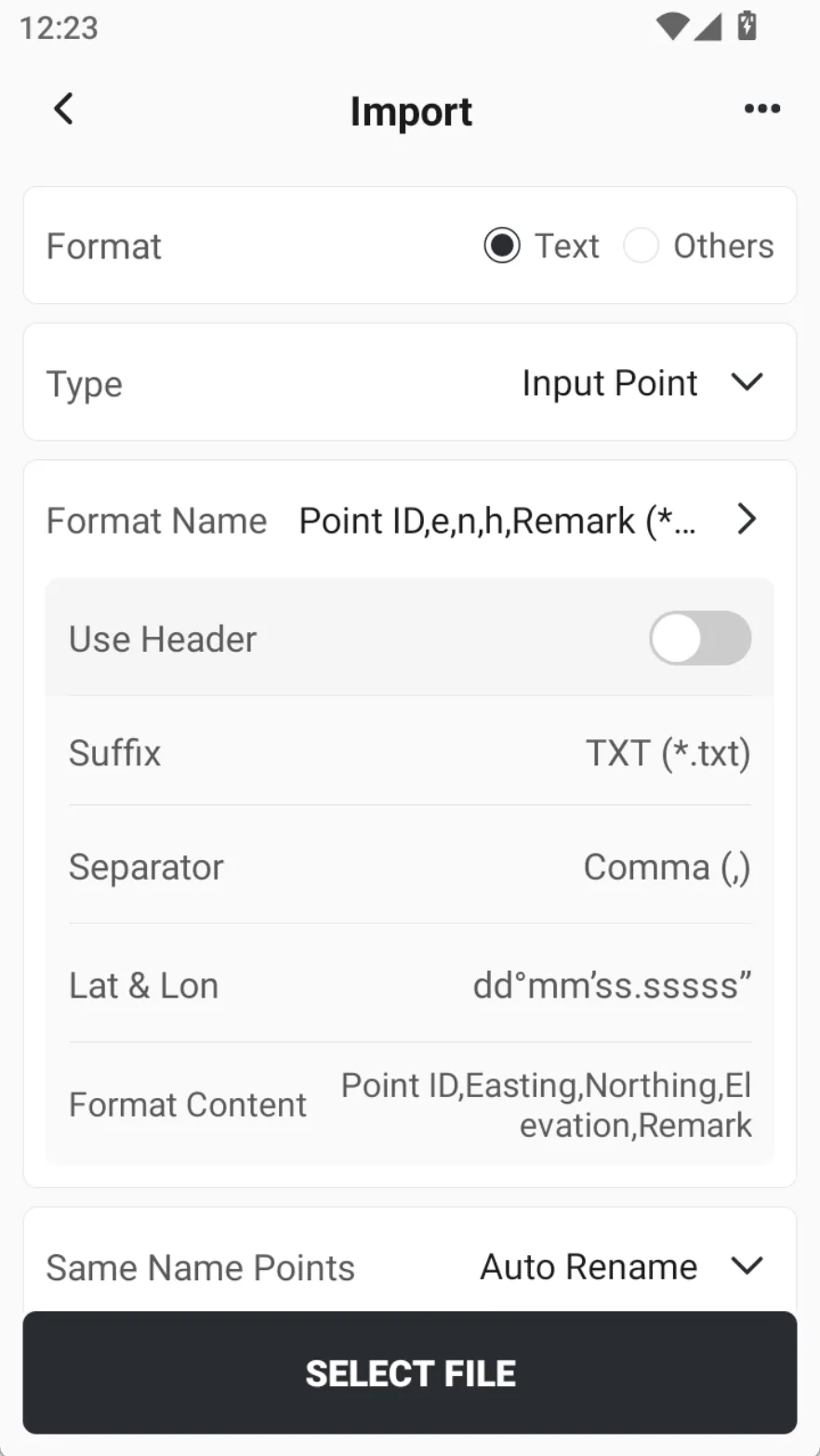
| Same Name Point | default Auto Rename, optional: Keep Same Name Point or Overwrite Same Name Point. |
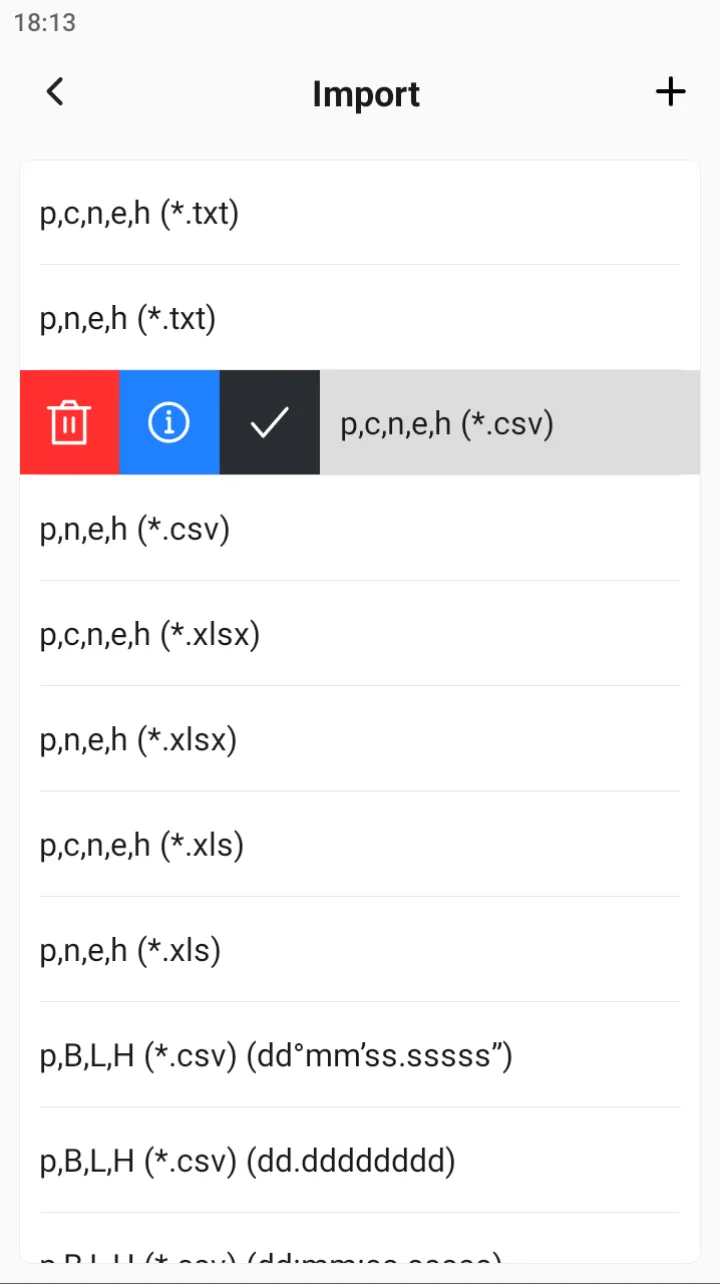
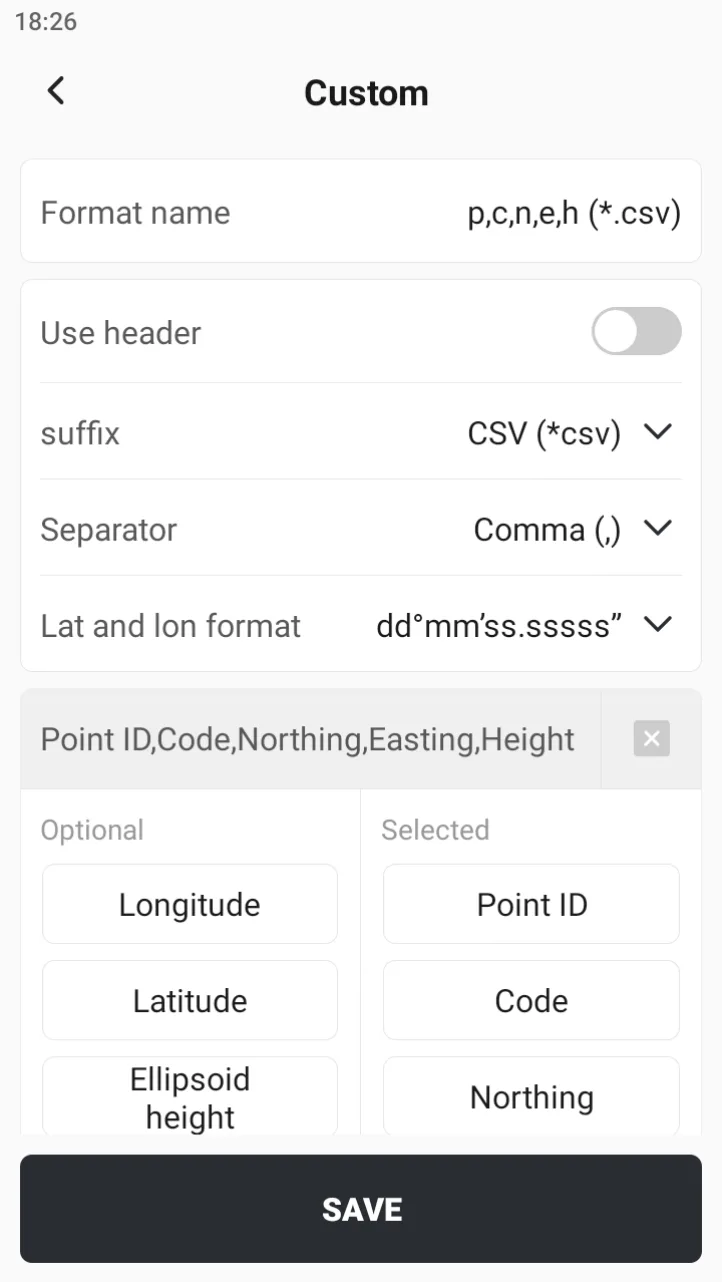
Select [Text Format], click [Format Name], and open the format management page. The App predefines some formats with suffixes including * .txt, * .csv, * .xlsx, * .xls, etc. Click on a preset format to delete, view details, or apply directly. Click the [Details] button to enter the import interface, customize or modify the data field mapping relationship.
 |  |  |
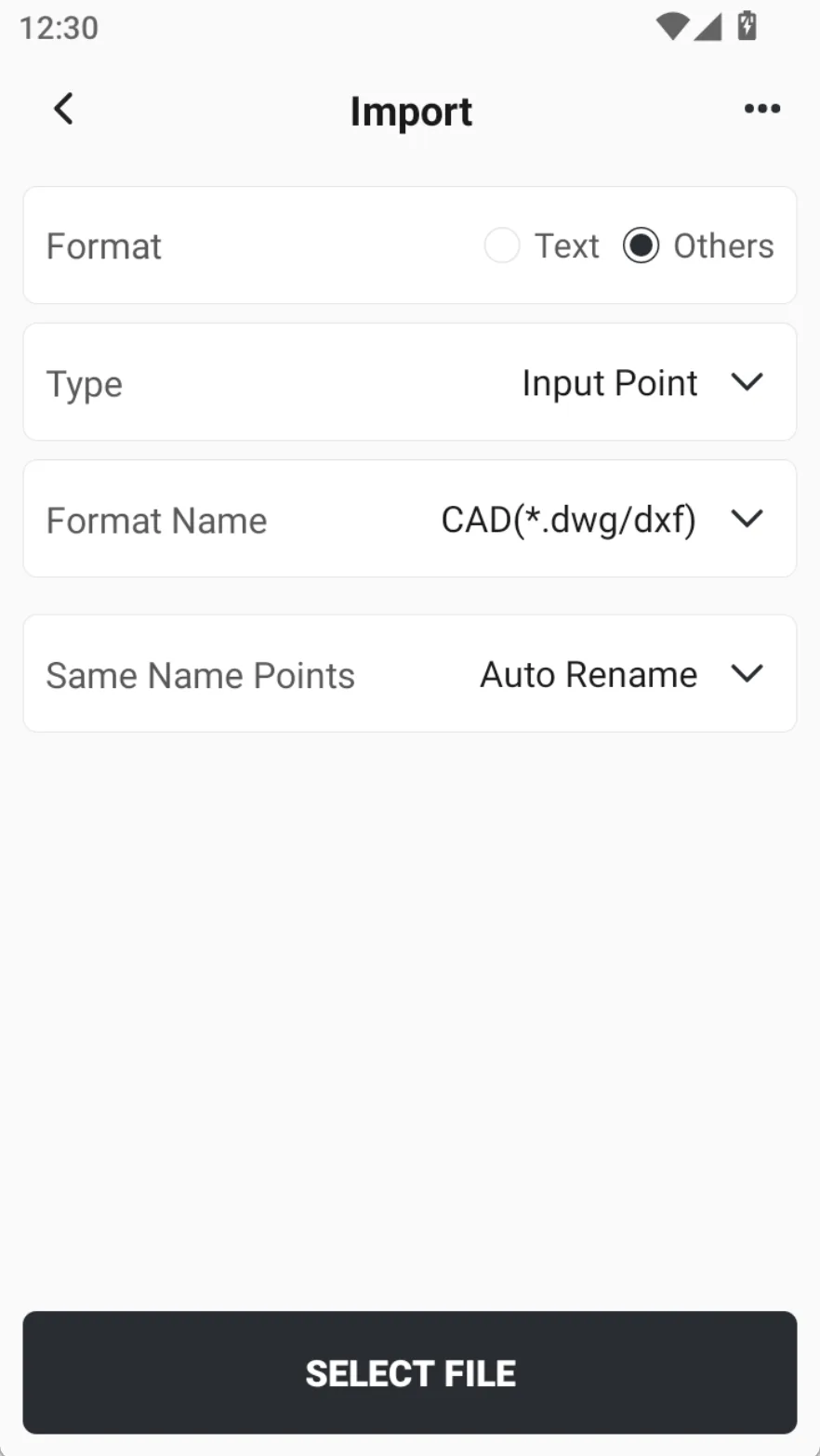
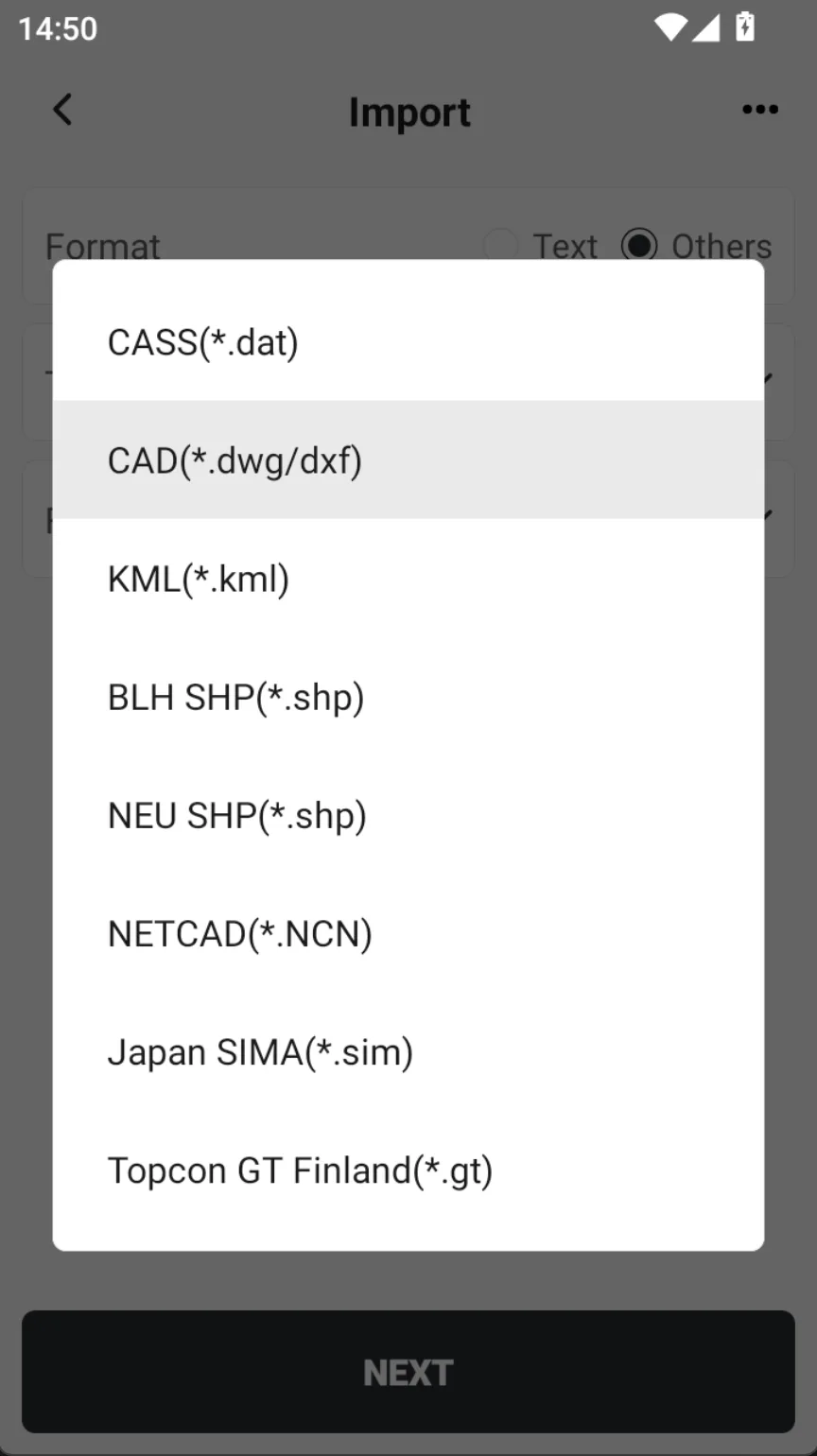
Select [Other Format], click [Format Name], and directly select the corresponding format from the list.
 |  |
When selecting the file path, you can also click the cloud icon in the upper right corner, select the file from [My Cloud Drive] or enter the sharing code to get the file.
Users can also choose to import data files from local or inserted USB flash drives. For local import, you can choose the local folder path. If the USB flash drive is not recognized after insertion into the controller, please try to enable the developer options (see Chapter 5.11 for details on how to enable it).