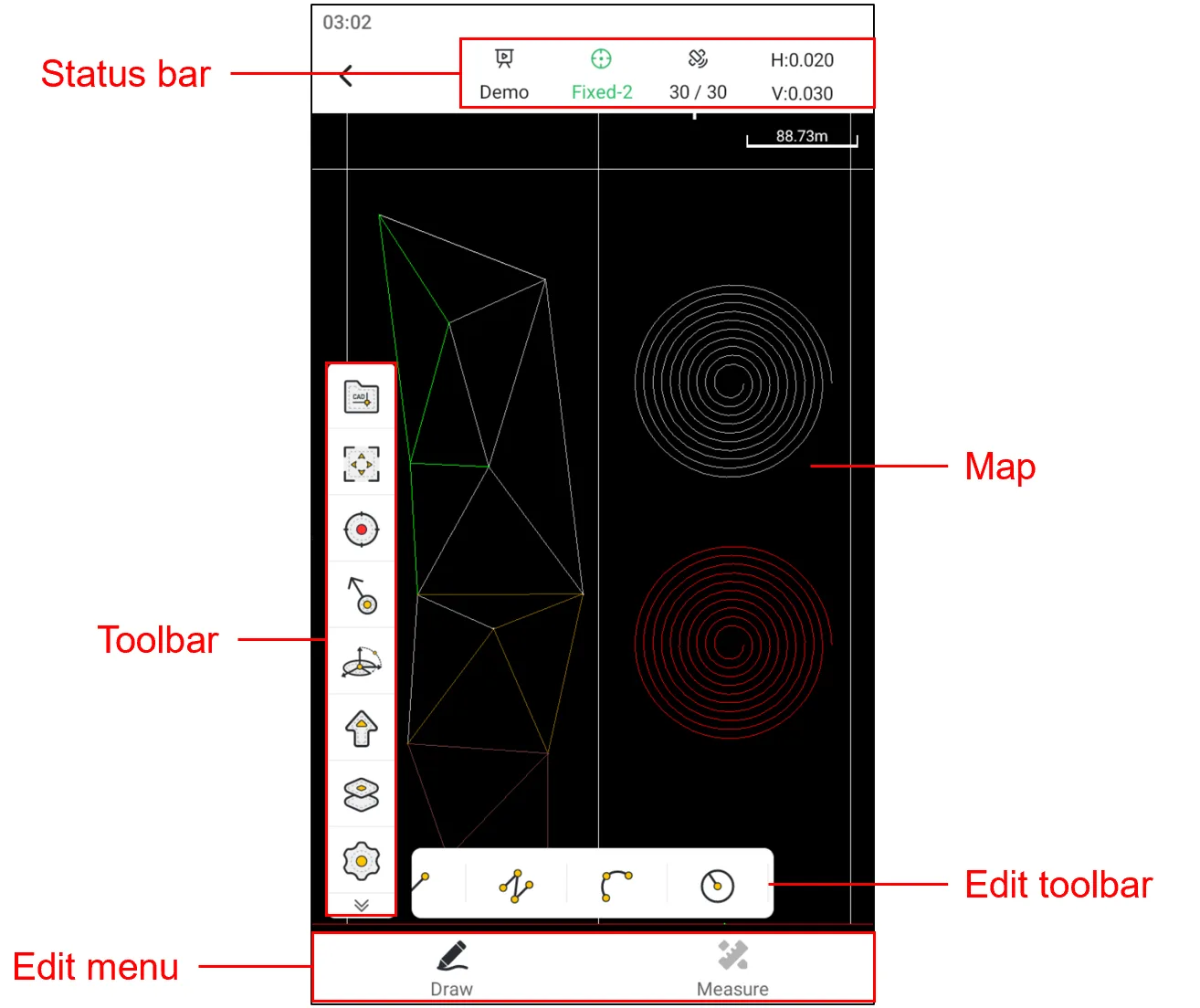
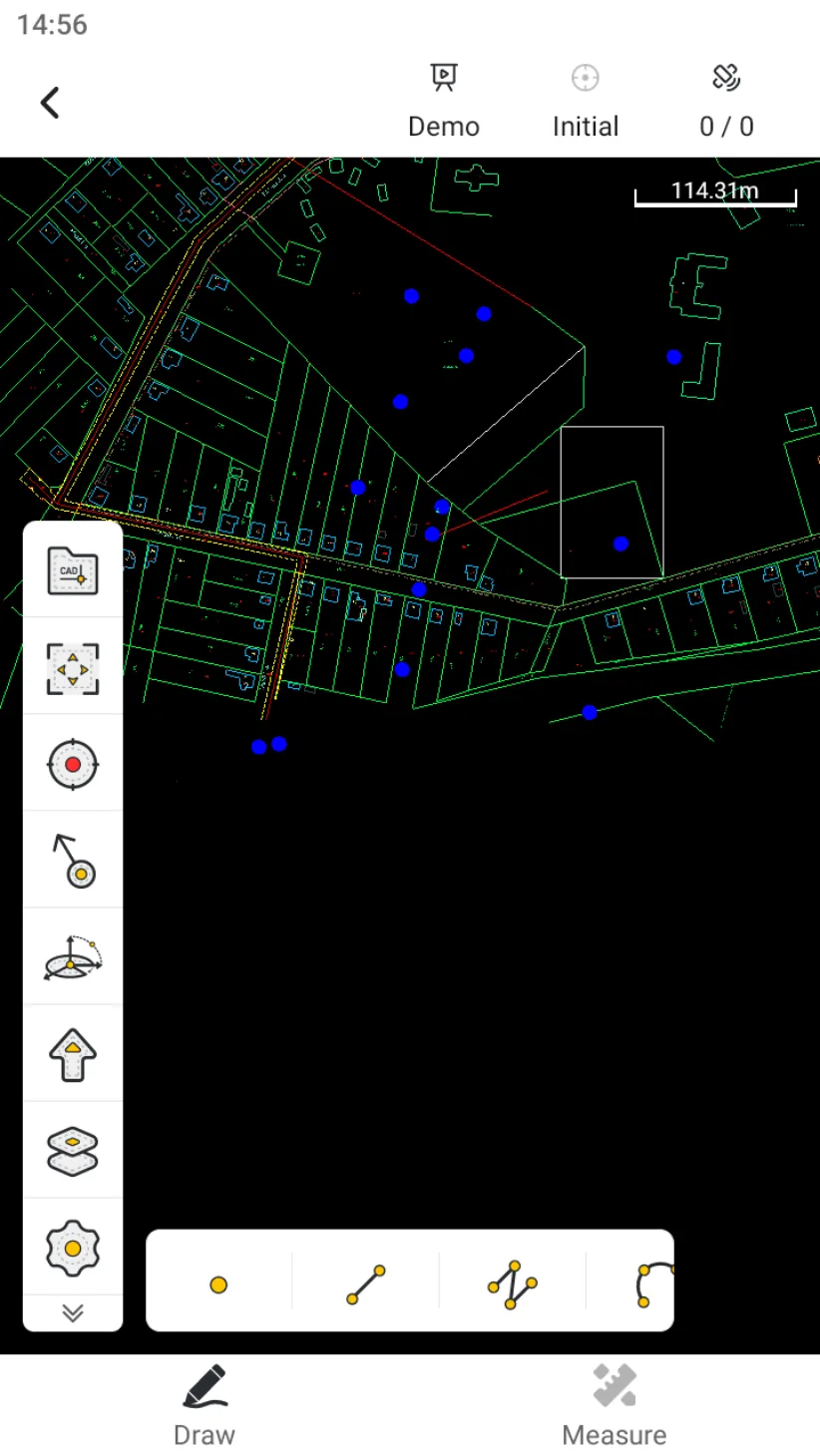
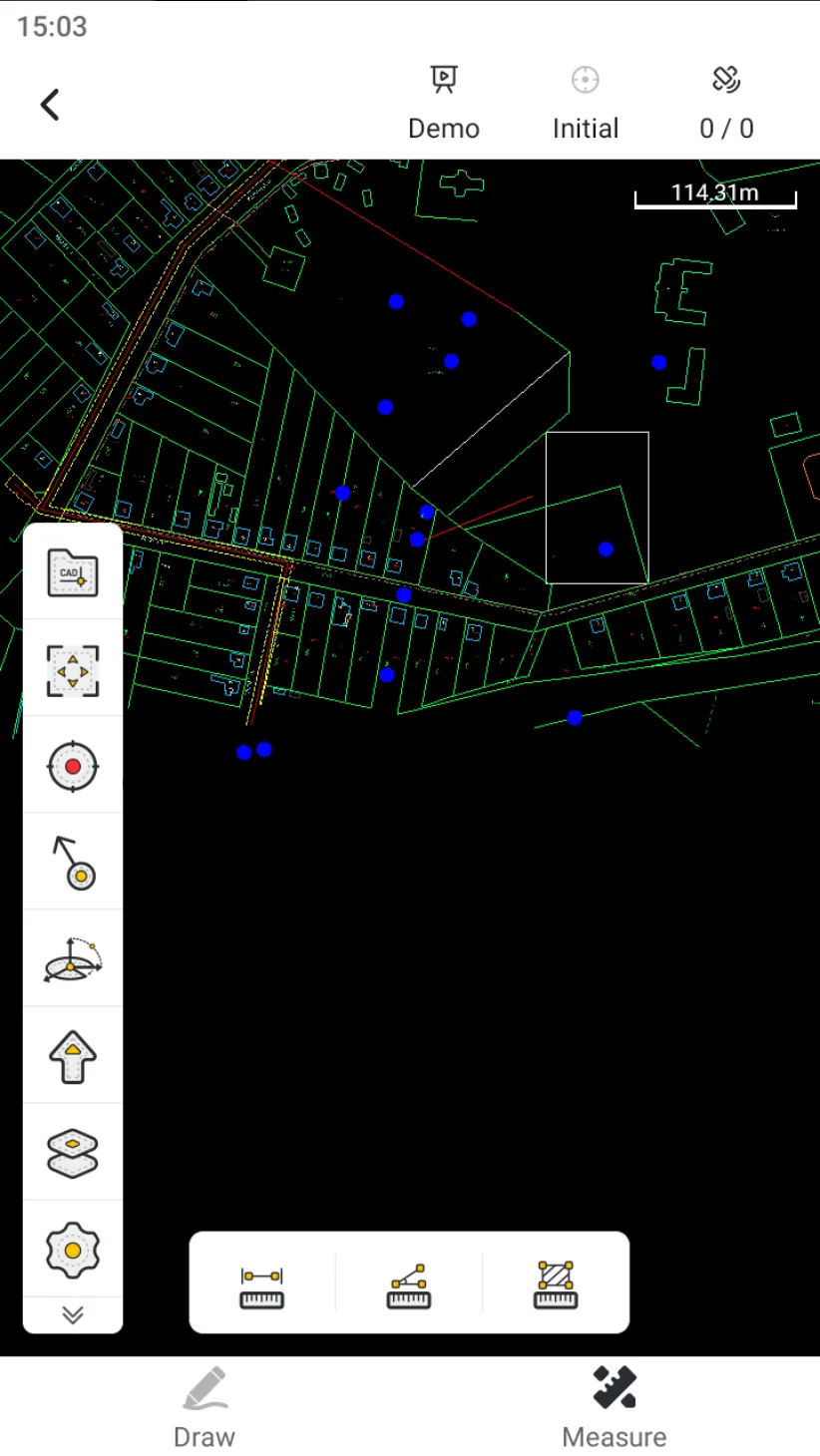
Trion Survey supports simple editing operations on the CAD file.
7.11.1 Edit CAD interface
7.11.2 Edit CAD toolbar
Icon
Name
Description
Open CAD
Click to load CAD files from the CAD file library.
Map
Click to select street map and satellite map; map mode is off by default.
Full screen
Click the rear view to zoom in and show all points.
Find CAD
Click to display the loaded CAD file.
Measure
Draw graphics by collecting coordinates.
Capture
Precise selection of points.
COGO
COGO tool shortcut entrance, can configure display/hide and sort in display settings.
Export
Export the CAD file
Layer
Click to open the layer management page, where you can load vector layers on the default map.
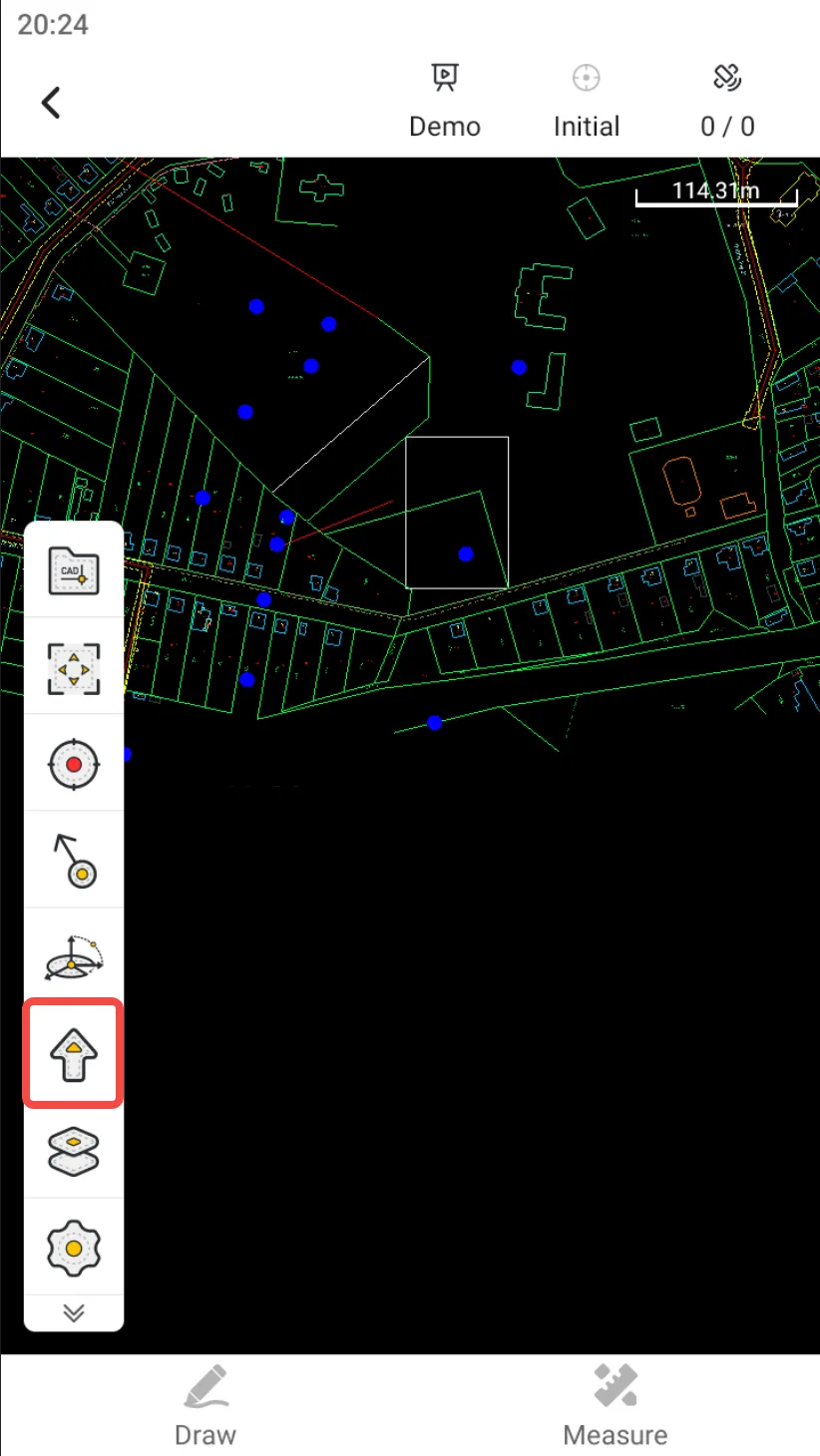
Point elevation
Click to show/hide the elevation of CAD drawing
Settings
Measurement settings entrance, see Chapter 6.4.4 for details.
7.11.3 View
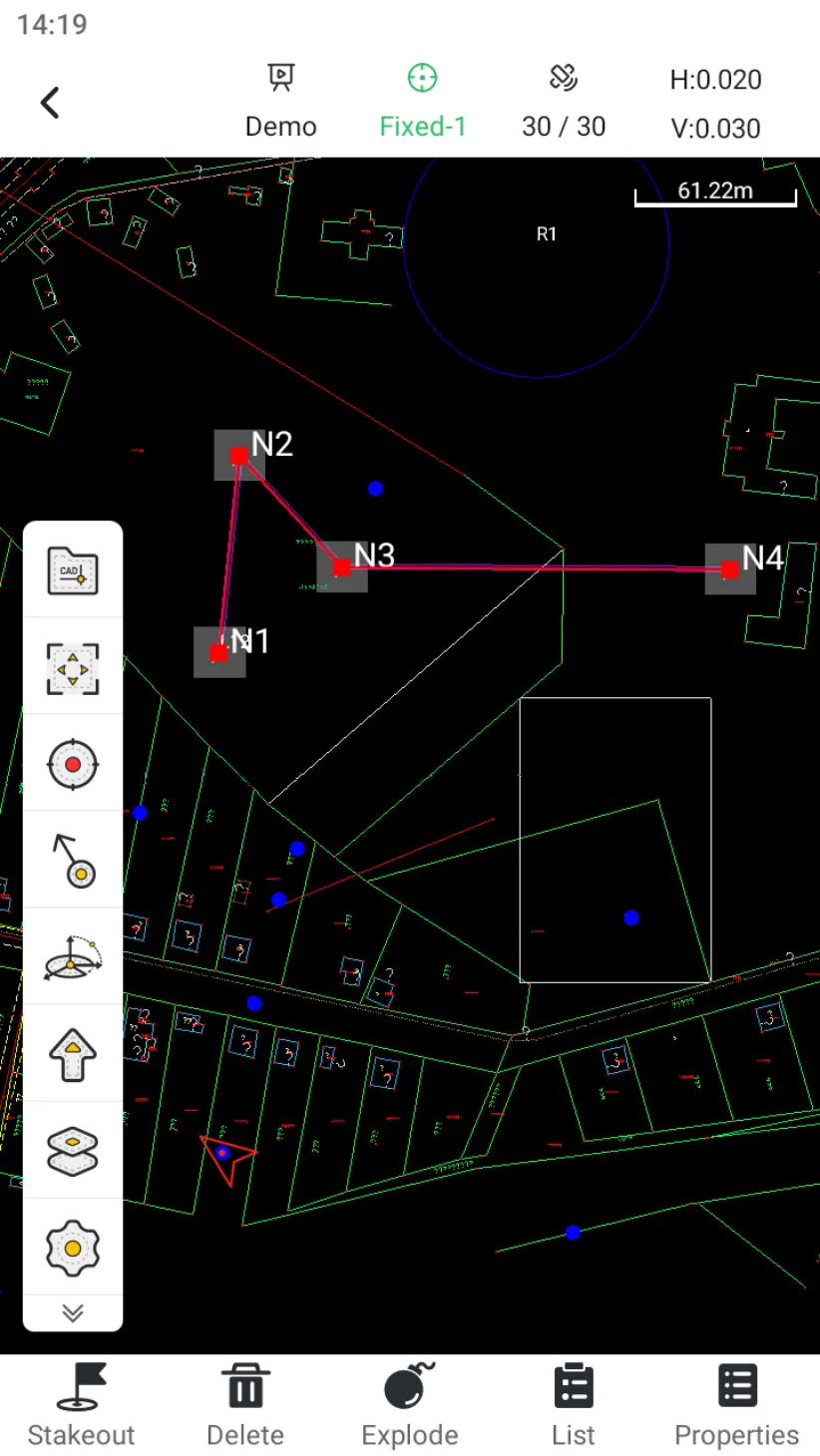
Click on a CAD element to view its relevant information. The selected target type will display different information. Select a target Afterwards, the description of the bottom menu is as follows:
Icon
Name
Description
Stake
Jump to Stack CAD and directly execute point/line stakeout.
Delete
Delete the selected target.
Blast
Displayed and available when a polyline or block reference is selected.
List
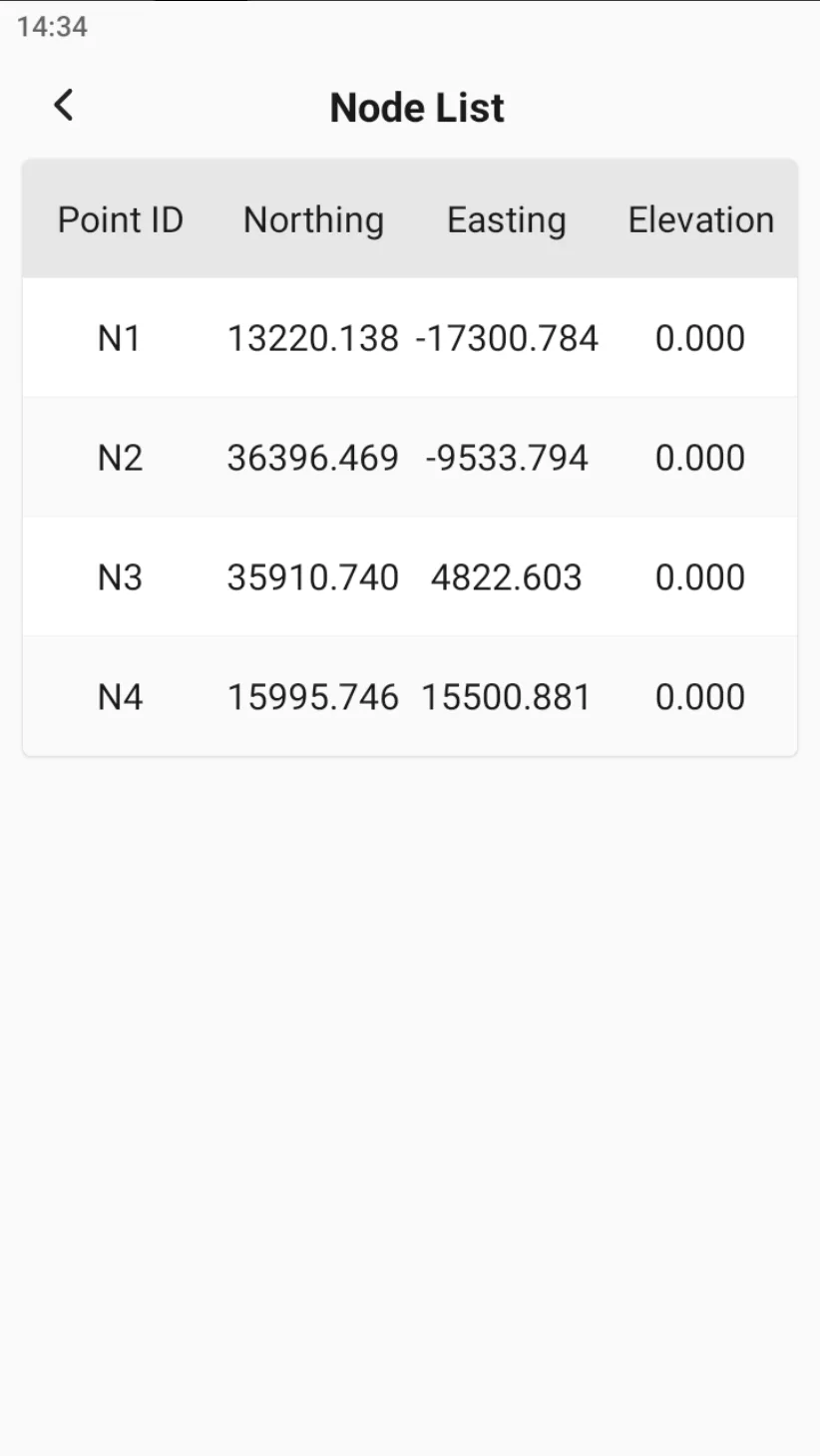
Display a list of nodes when selecting a line. Click on a node to save it to the point library. Click on the upper right corner to select Batch Save.
Property
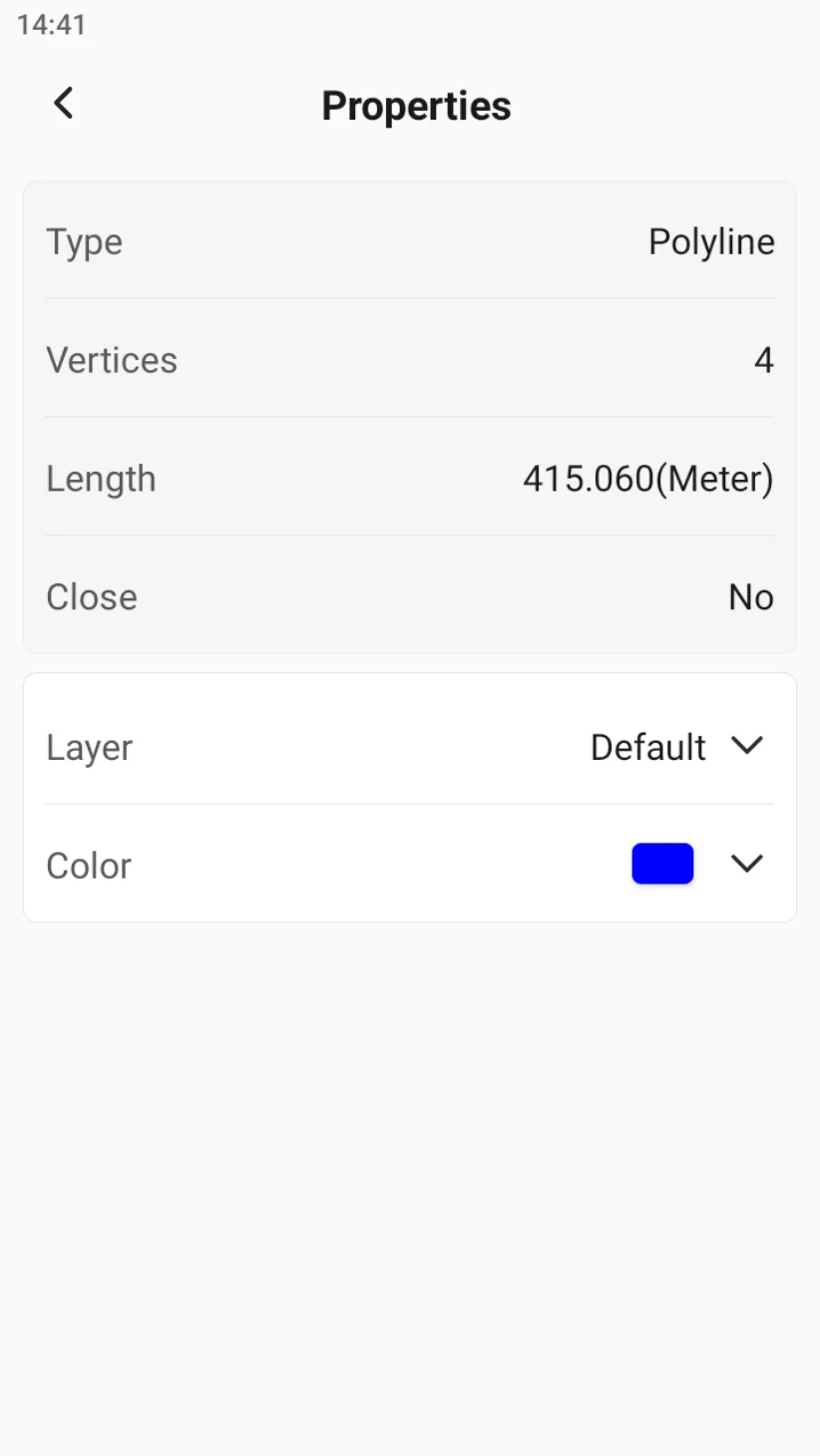
View the properties of the target. The properties of points, lines, arcs, circles, etc. are all different. The layer and color can be modified.
7.11.4 Draw
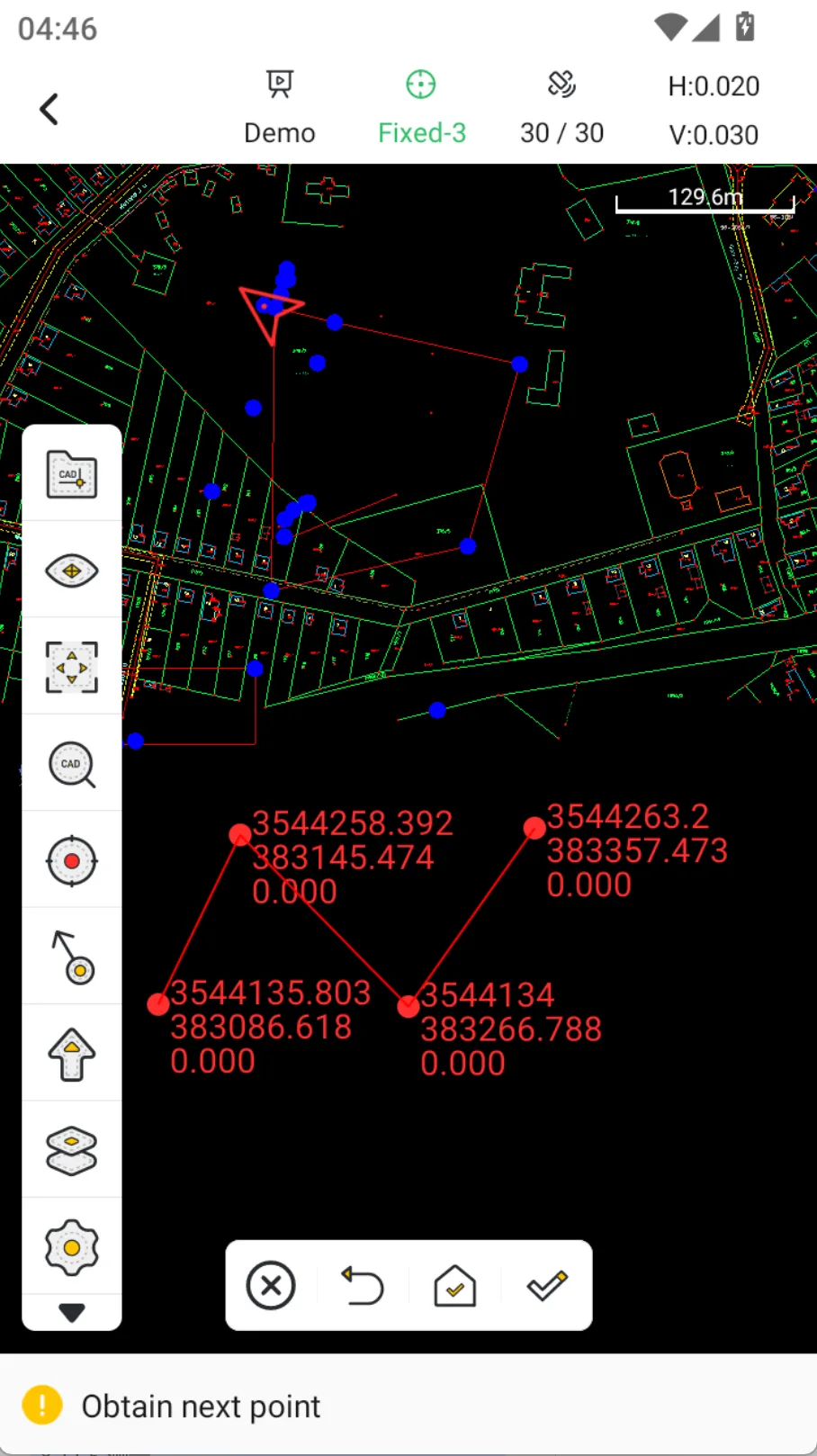
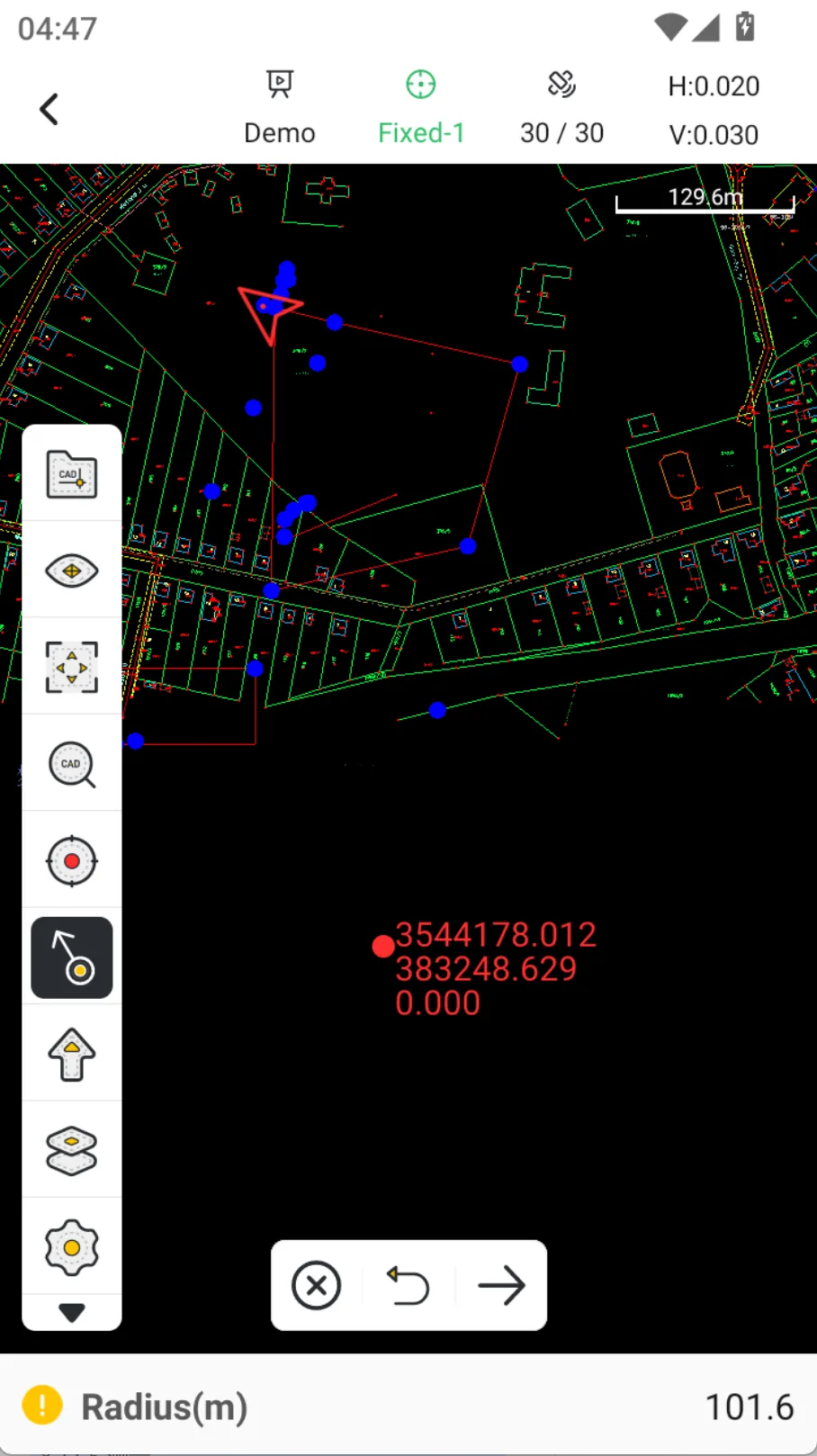
Edit CAD can draw common point and line graphics, including: point, line, polyline, three-point arc, one-point circle and three-point circle. When drawing, you can select existing points from the drawing by using the capture button, and you can also open the button through the toolbar [Measure] to use the collected coordinates as nodes.
7.11.5 Measure
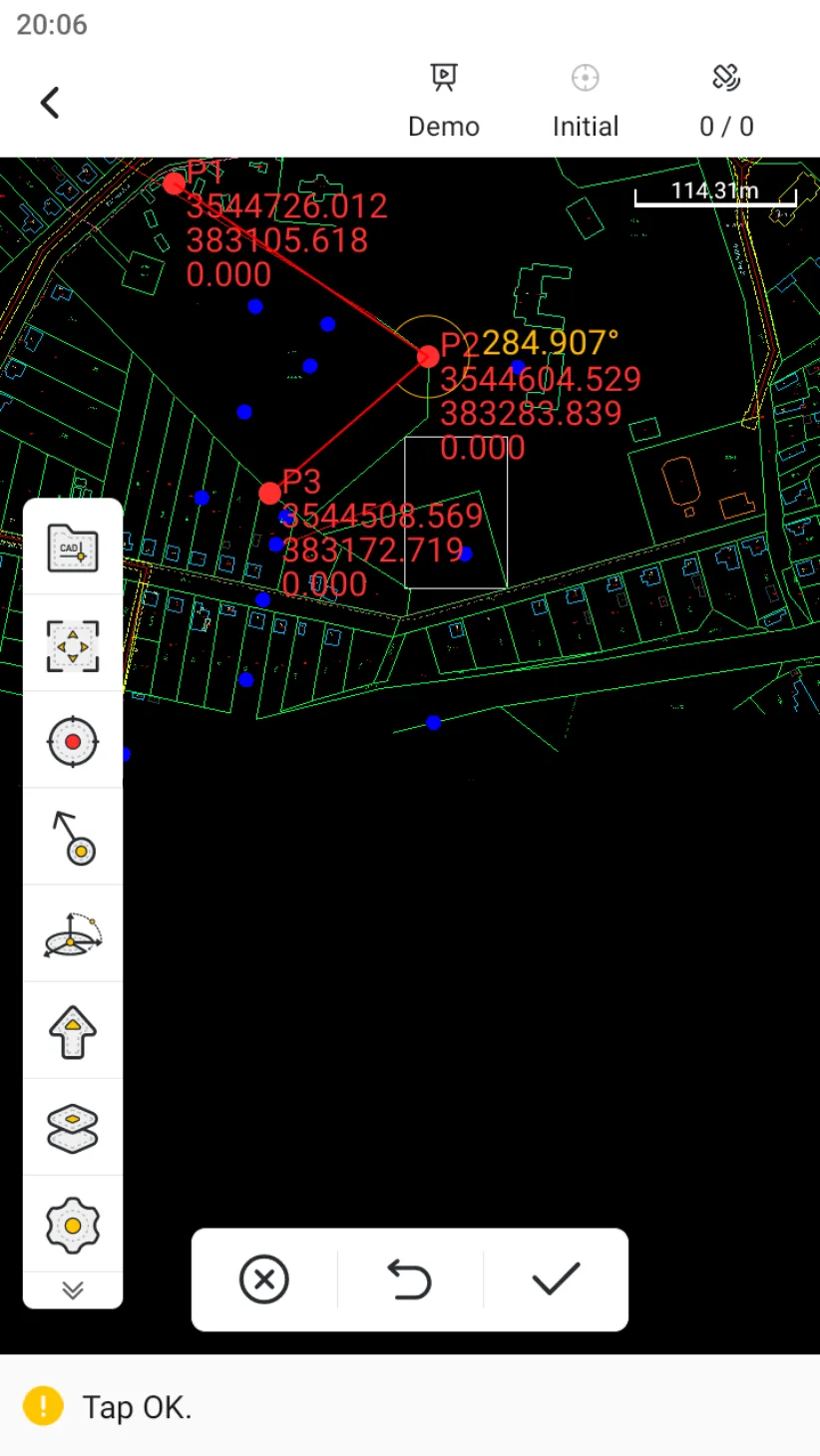
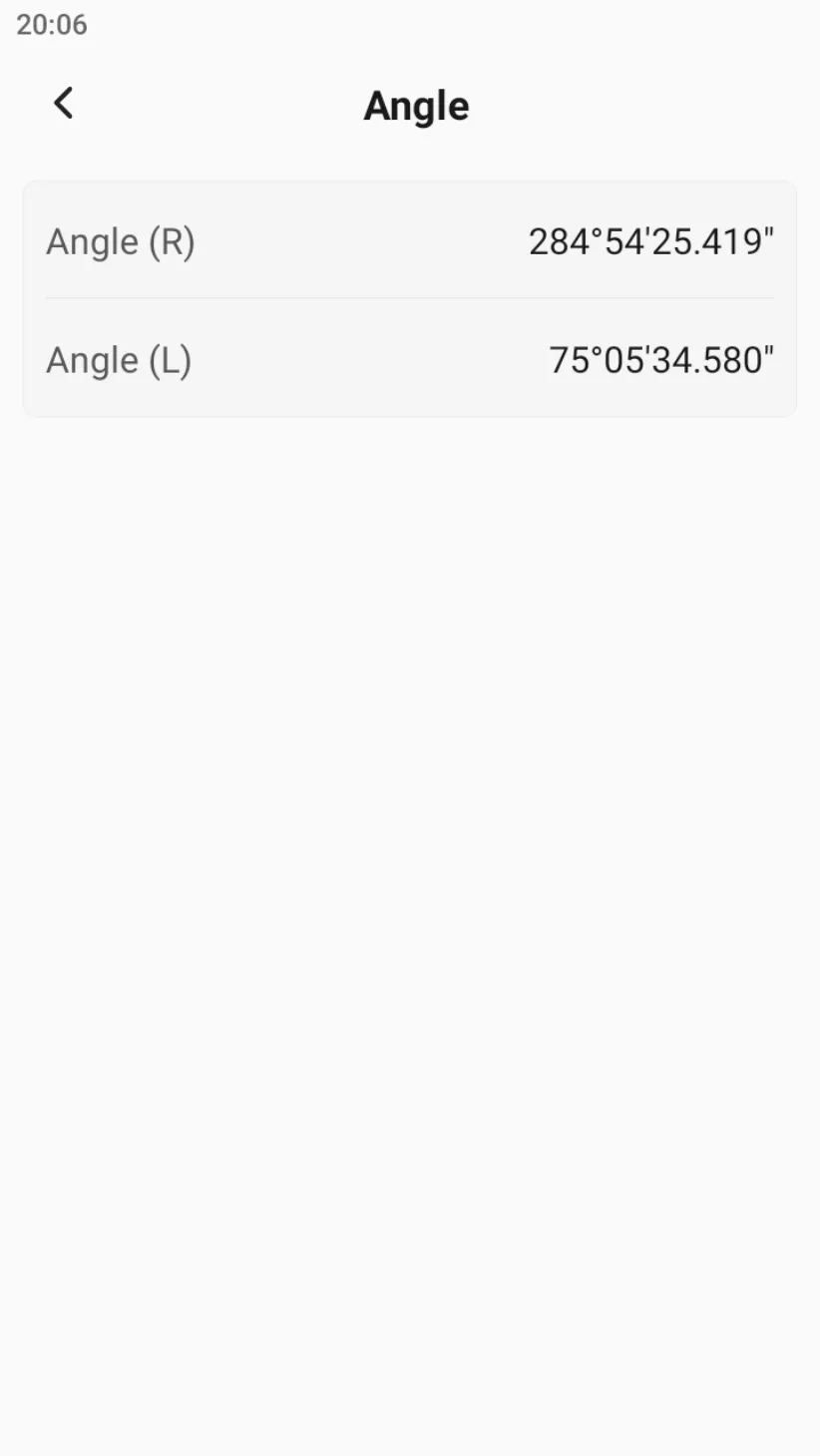
Edit CAD supports measuring on the drawing: two-point distance, three-point angle, and multi-point area. Among them, the angle measurement results show the left and right corners, and the area measurement results show the perimeter and area.
7.11.6 Export
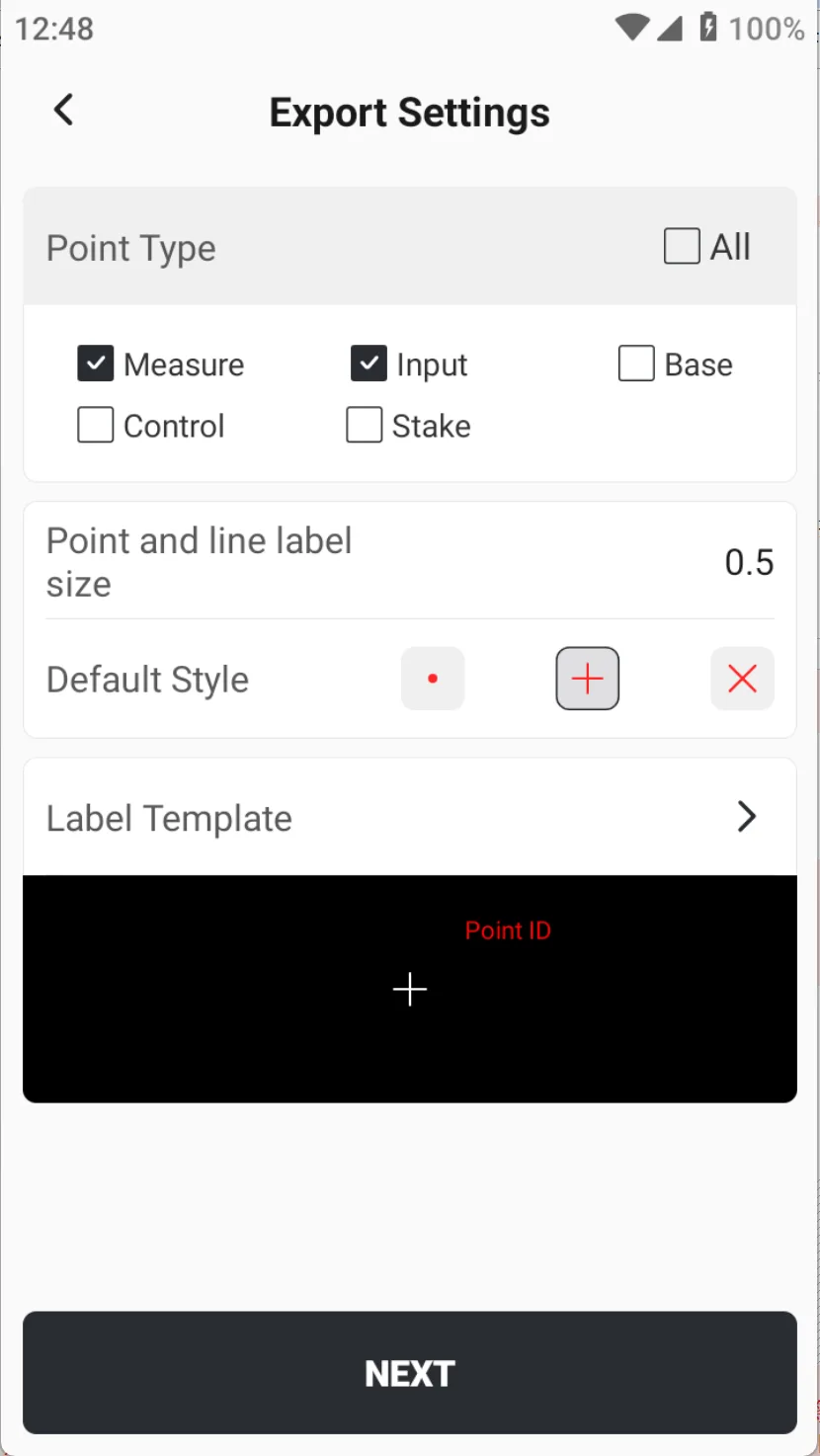
After editing the CAD drawing, it can be exported to the local or cloud. Click the Export button on the toolbar to open the export settings page.
Name
Description
Point Type
The exported content includes points from the point library, which can be exported by point type.
Point and line label size
Sets the absolute size of the exported point and line target labels.
Default style
The style of the optional exported points can also be modified in the PC software later.
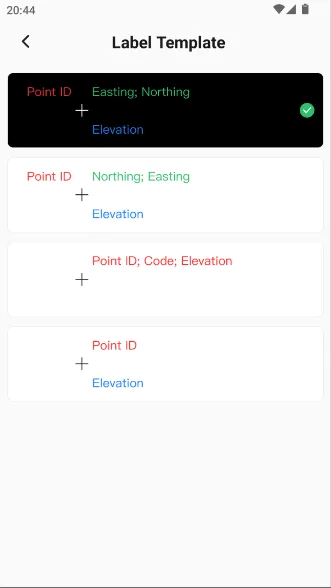
Label template
Optionally export point ID, code, coordinates, and elevation in a defined format.