
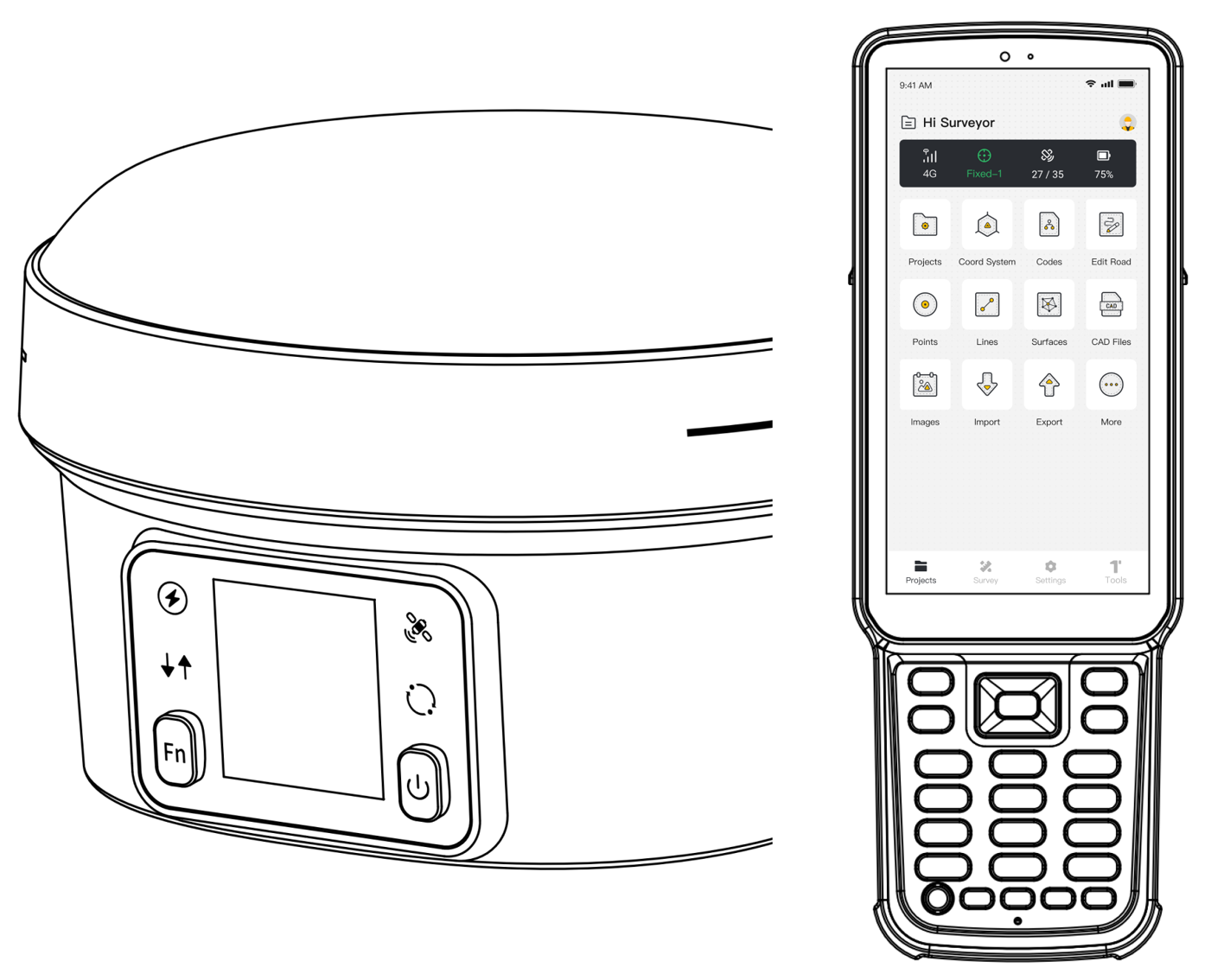
Contents
| Phase | Chapters | Description |
| Preparation | 1–5 | App layout, connection, project, coordinate system, rover gets fix |
Measure | 6–7 | Measure points, Measure & Draw |
Stake | 8–10 | Stake points, lines, and CAD |
Deliver | 11–14 | Import, export, field checks, troubleshooting |
Before saving any point, confirm the active project, coordinate system, receiver connection, FIX solution, and antenna height.
1 Get to Know Trion Survey
Trion Survey is a professional field surveying application designed for surveying and mapping, engineering construction, and GIS data collection. When used with GNSS/RTK receivers, it supports project and coordinate system management, receiver connection, point and line measurement, field drafting, point, line, and CAD stakeout, as well as data import and export. It also provides practical tools for area and volume calculation, coordinate transformation, and COGO operations. By integrating receiver configuration, data collection, field stakeout, and result export into a single platform, Trion Survey helps users complete a wide range of high-precision field tasks more efficiently.
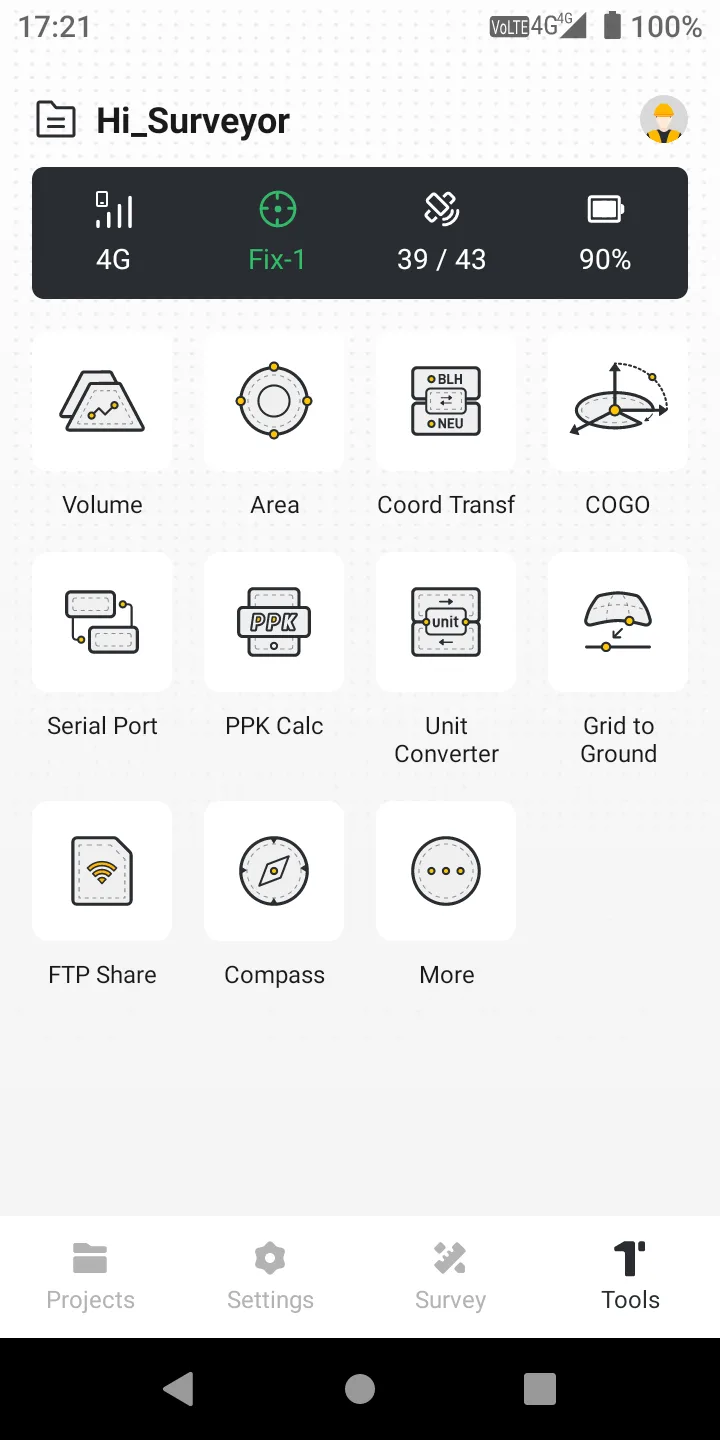
| Menu | Description |
| Projects | create/switch projects; manage coordinate systems, points, lines, CAD, import, and export. |
| Settings | connect the receiver and configure rover/base, general settings, and device information. |
| Survey | Measure, Measure & Draw, and point/line/road/DTM/CAD stakeout and site calibration. |
| Tools | area, volume, coordinate transformation, COGO, serial port, PPK, and other utilities. |
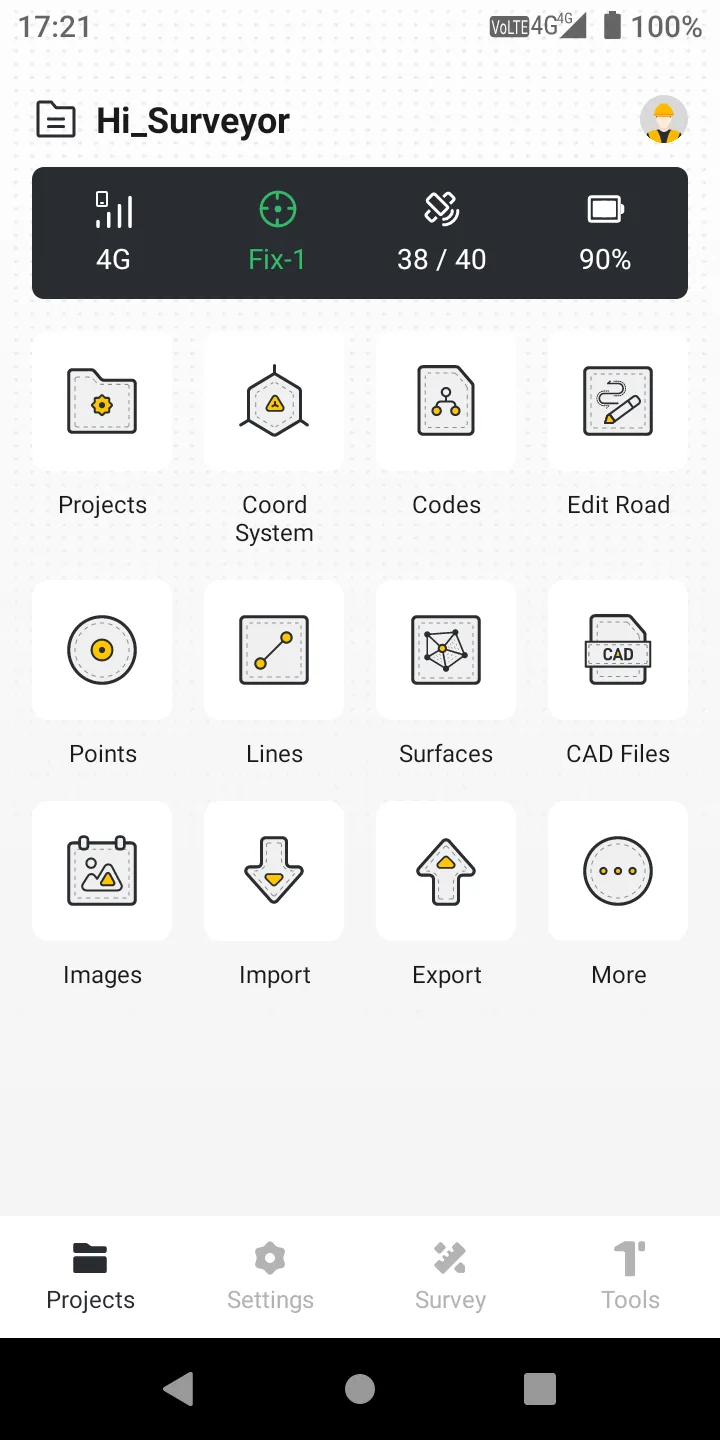 | 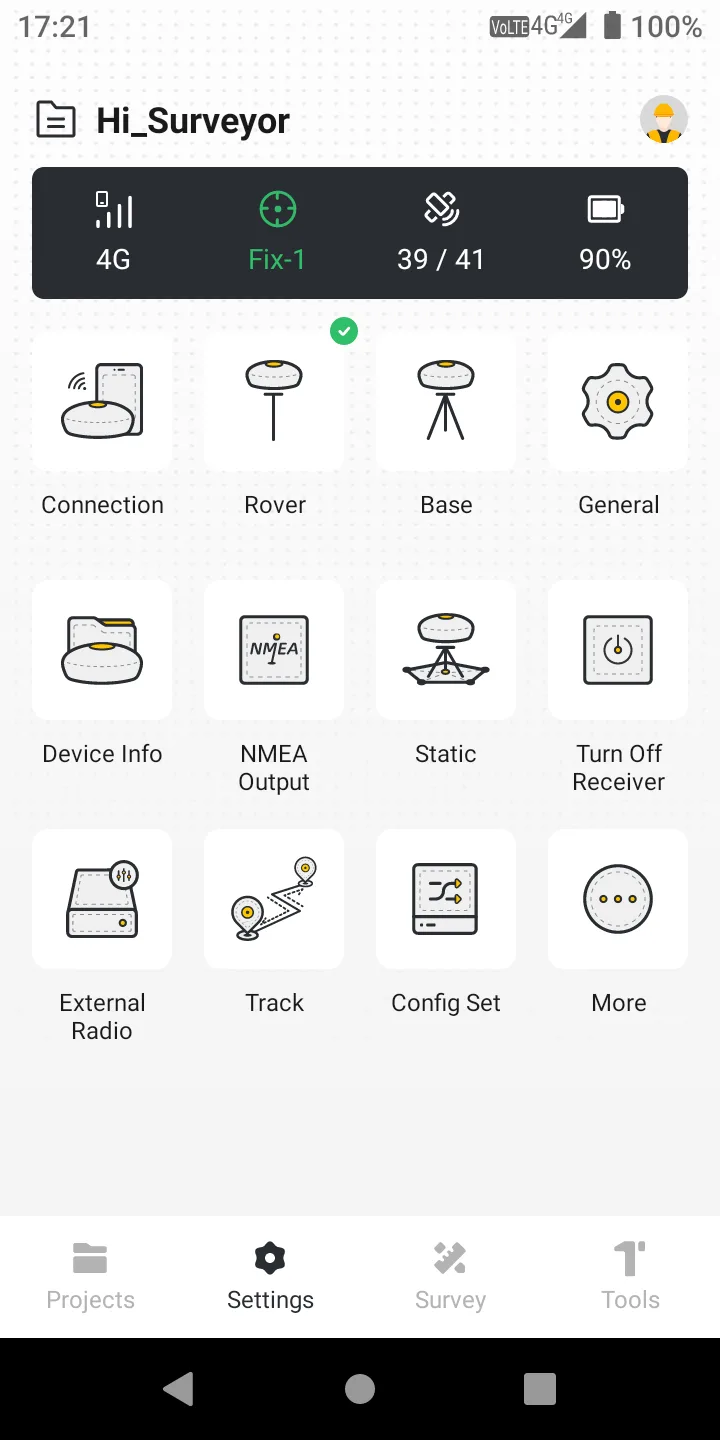 | 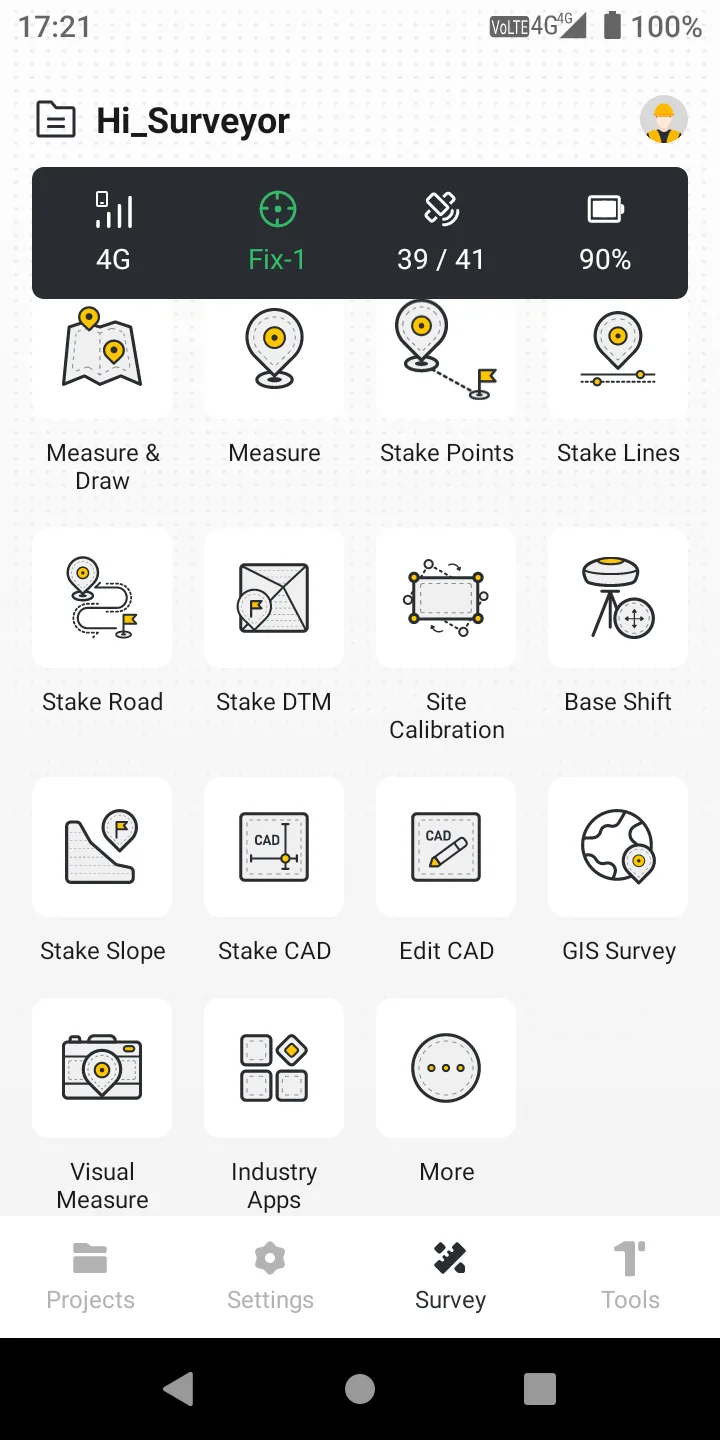 |  |
FOUR CHECKS BEFORE WORK Correct project, receiver connected, solution FIXED, and Antenna Height correct.
2 Connect a GNSS Receiver
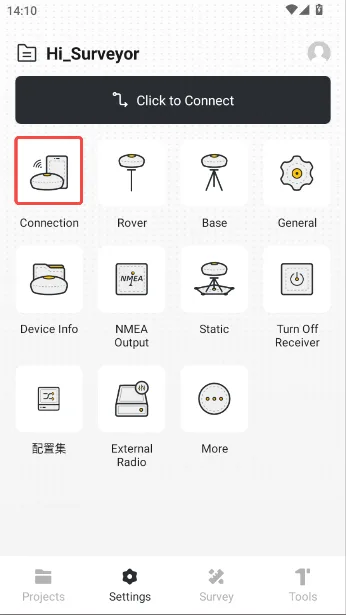
PATH: Settings > Connection
Establish stable communication between the controller and the intended RTK receiver.
- Power on the receiver; set Device Type to RTK in Connection.
- Choose Bluetooth or Wi-Fi and refresh the device list.
- Identify the receiver by the last five digits of its SN, select it, and tap CONNECT. Follow the Android pairing prompt for first-time Bluetooth; the default Wi-Fi password is 12345678.
- After the app returns home, confirm that receiver SN, satellites, battery, and position values keep updating.
 | 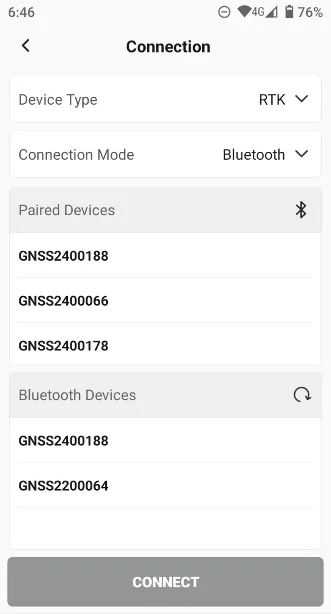 | 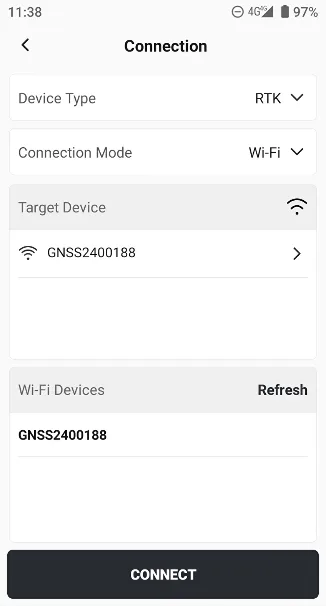 | |
Check receiver power and communication mode, then Refresh. If needed, restart the receiver or remove the old Android Bluetooth/Wi-Fi pairing and reconnect.
3 Create a Project
PATH: Projects > Projects > NEW
Create a separate data container for the job so records are not mixed with another project.
- Enter a clear name, such as Project_Date.
- Select the project Coord System; add a Code Template and External Data only if needed.
- To reuse an existing setup, enable Copy Project and select the source project.
- Tap SAVE, return to the project list, and confirm that the new project is current.
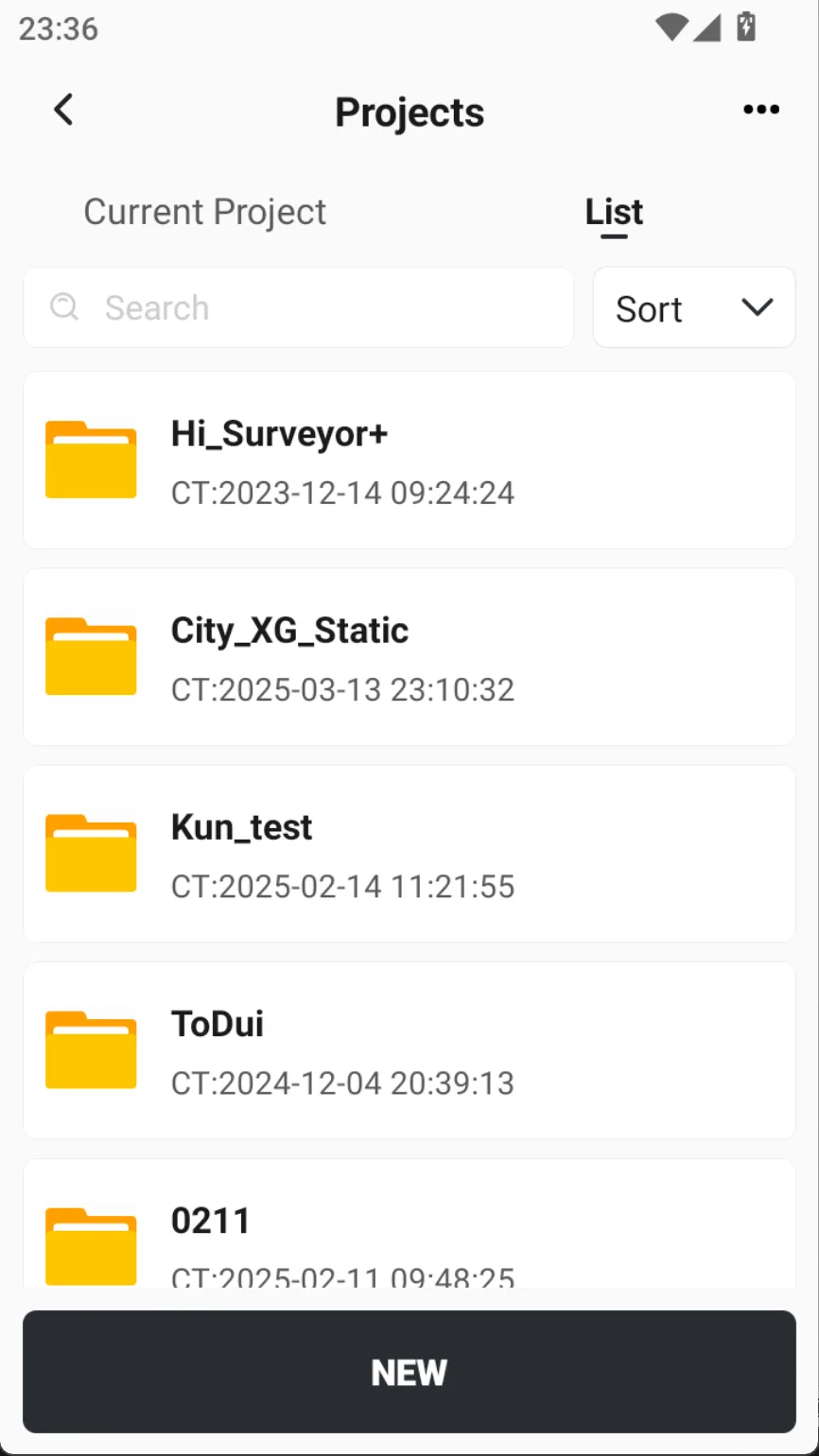 | 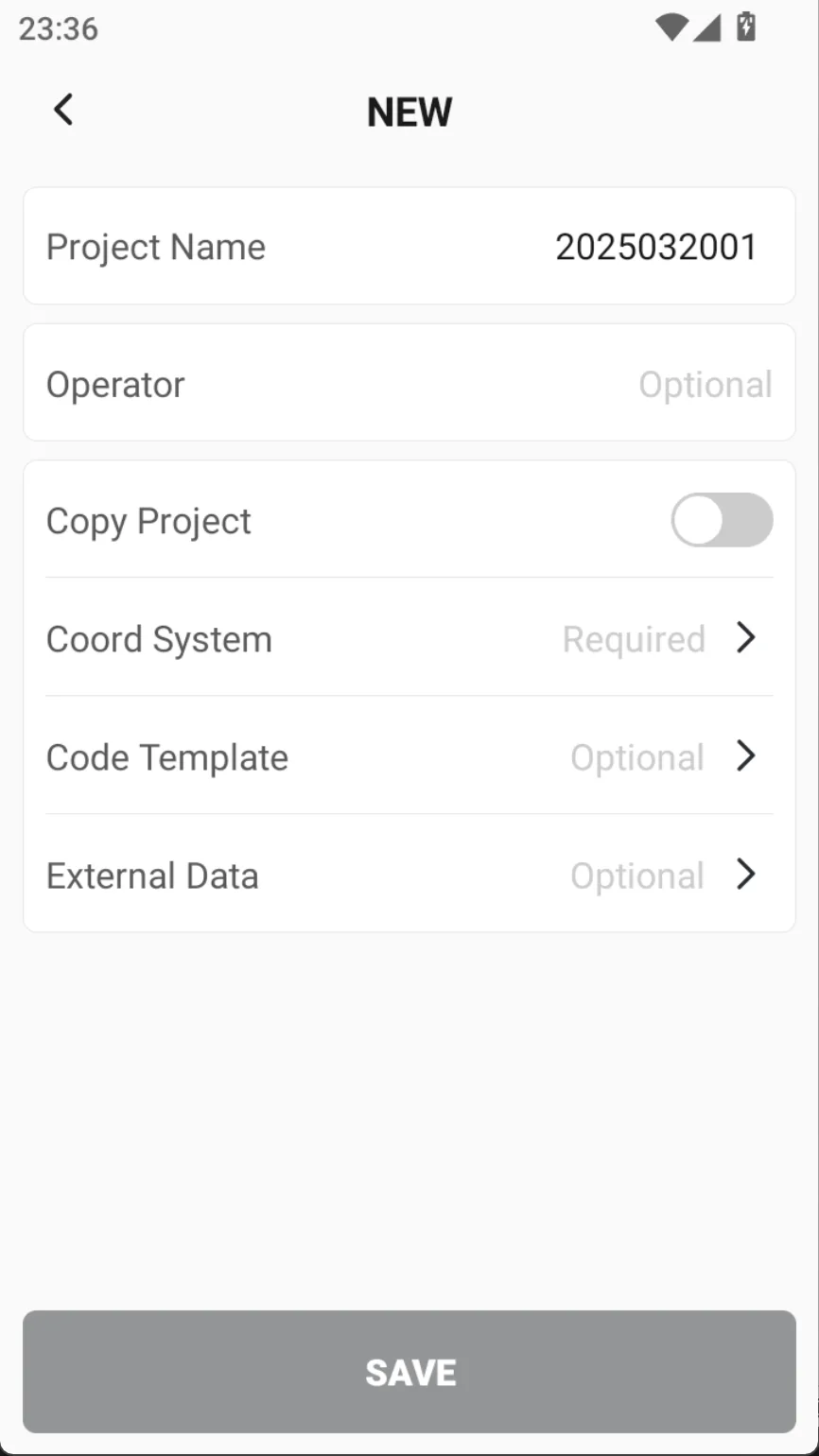 | 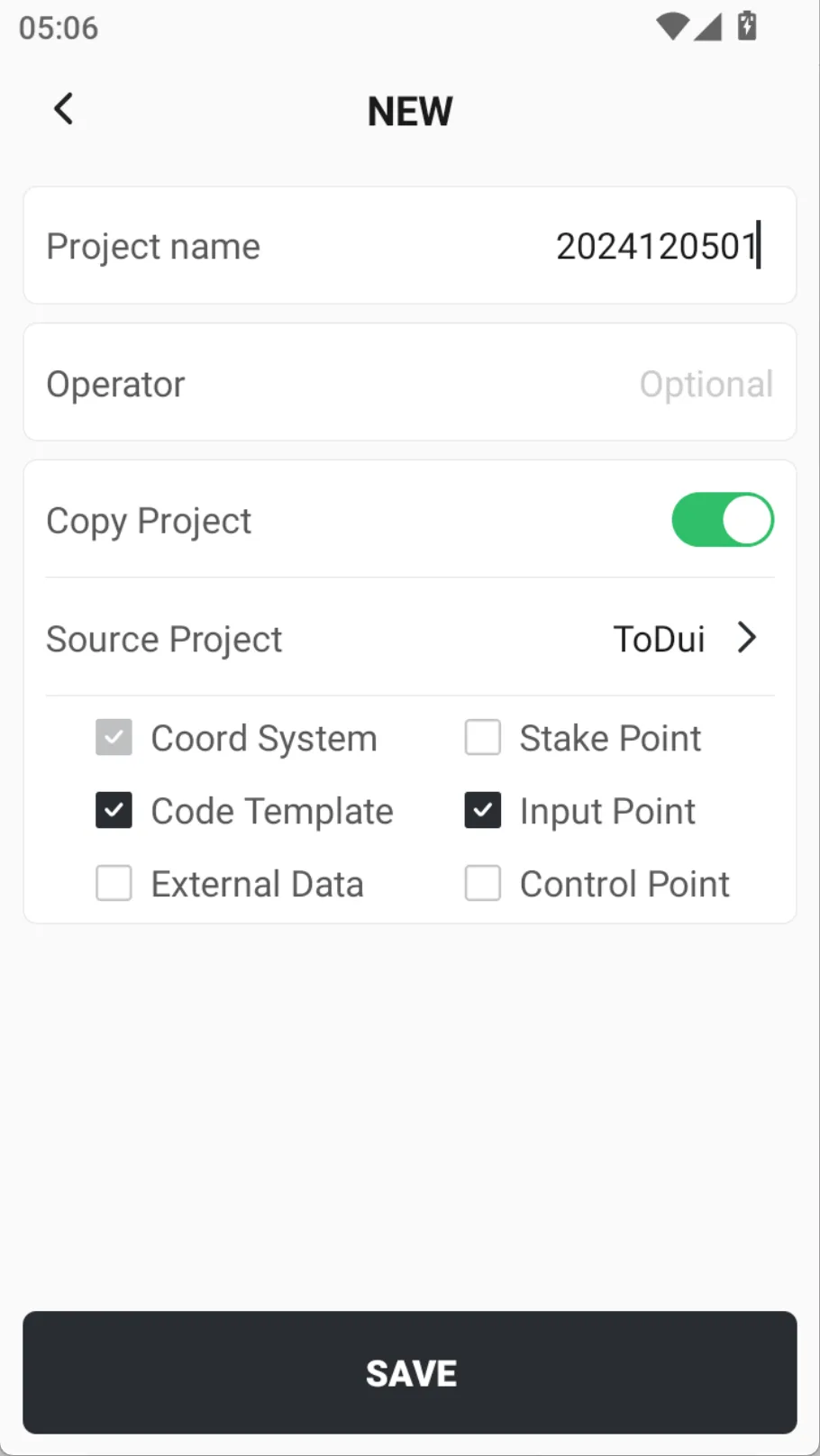 | |
DONE WHEN The correct project name appears at the top of Home. Points, lines, CAD, and exports will be stored under this project.
4 Set the Coordinate System
PATH: Projects > Coord System
Use one spatial reference for field observations, design data, stakeout, and exports.
- Prefer Predefined and search by region, name, or EPSG code; Trion Survey includes more than 6,000 predefined systems.
- Open Details and verify the ellipsoid, projection, central meridian, coordinate units, and vertical datum.
- Use a Custom system only with approved parameters; load transformation, geoid, or grid models when required.
- Apply the system, then remeasure a known point and verify horizontal and vertical differences.
- Site Calibration and Base Shift are both common tools for coordinate system setup.
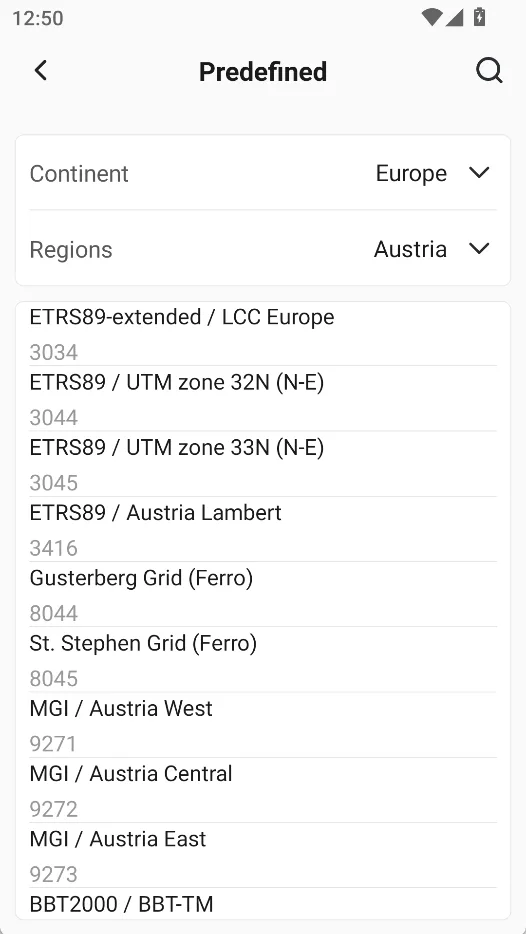 | 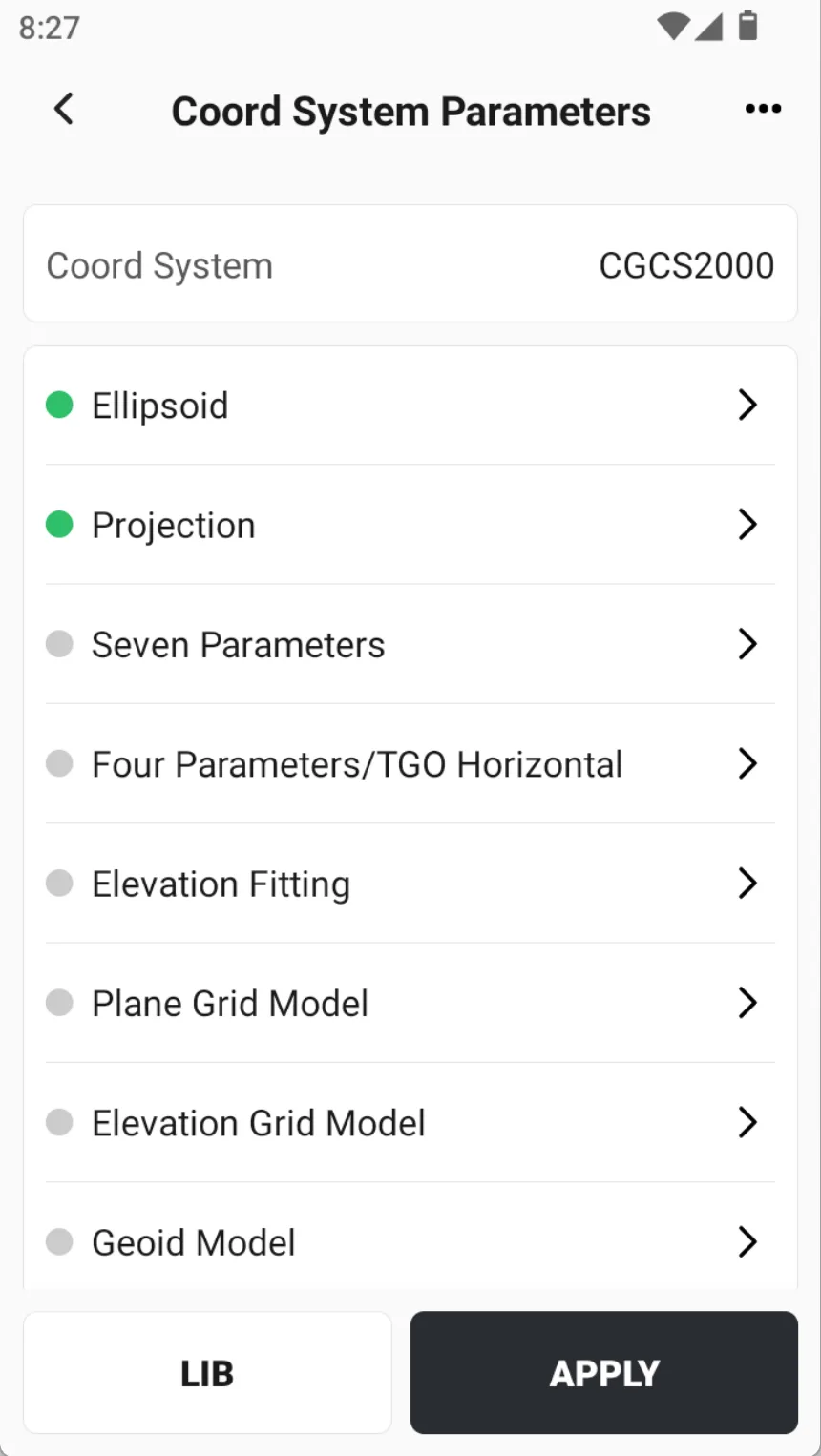 | 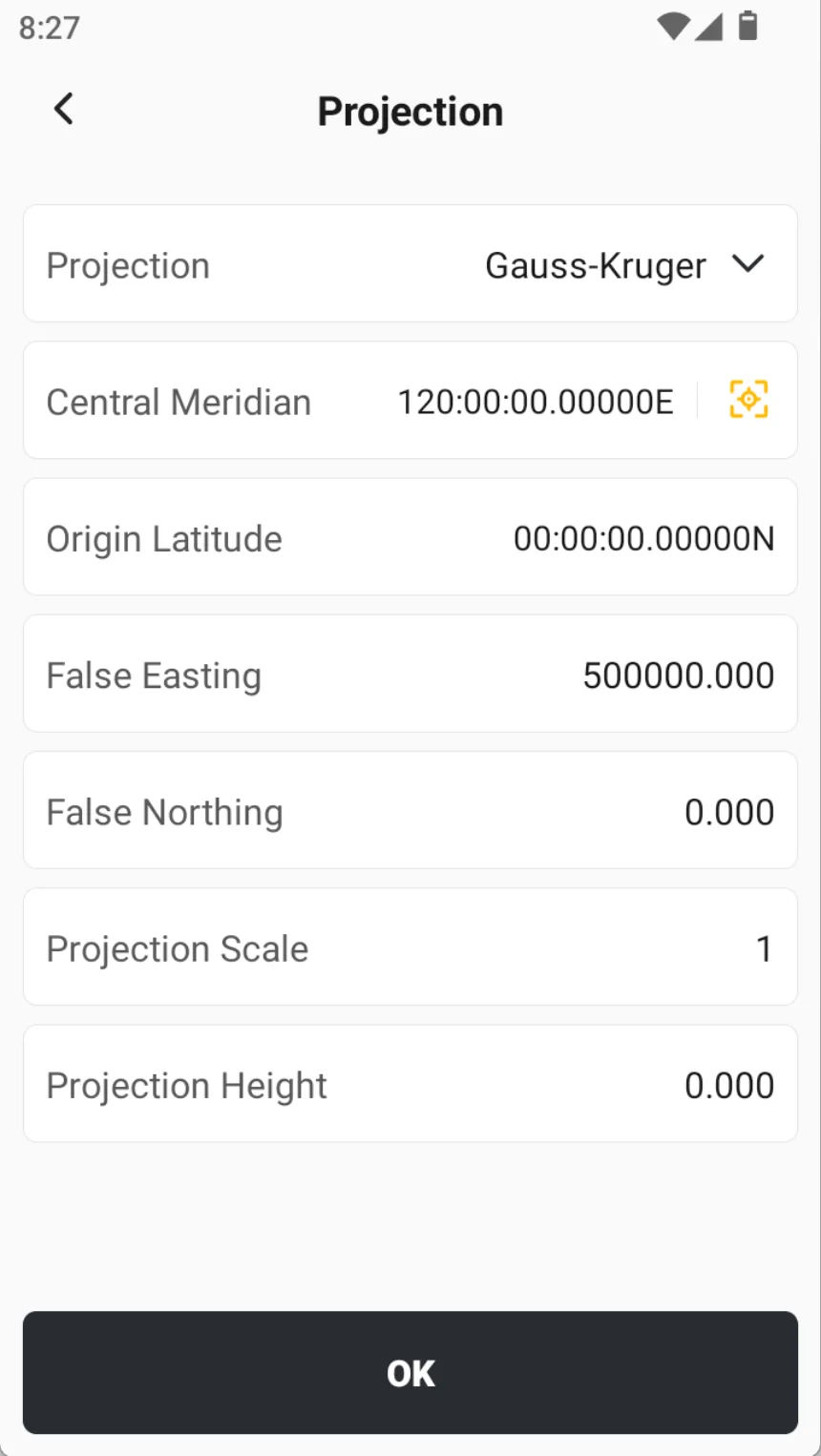 | 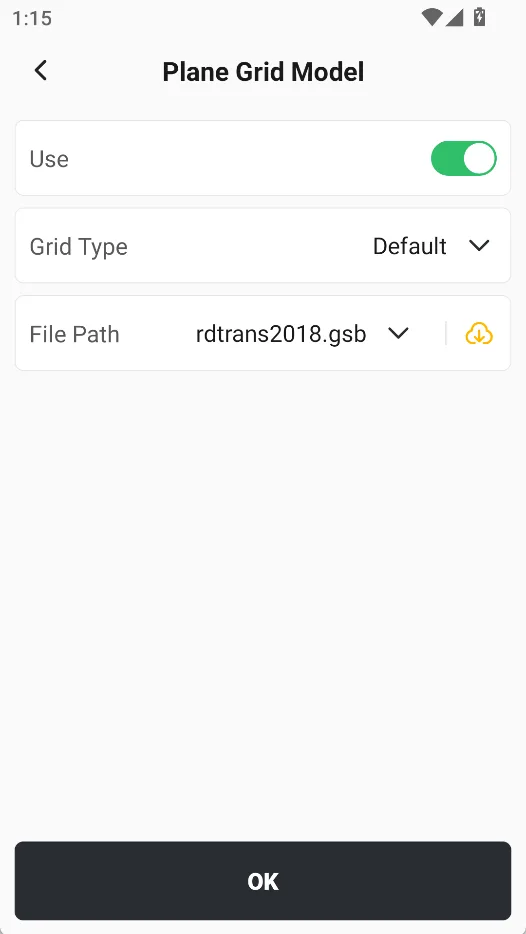 |
A wrong coordinate system, central meridian, transformation, or model shifts every result. Stop and confirm any uncertain parameter.
5 Configure the Rover
PATH: Settings > Rover > NEW
Assuming the base station is already set up, select the correction source and keep correction data flowing to the rover.
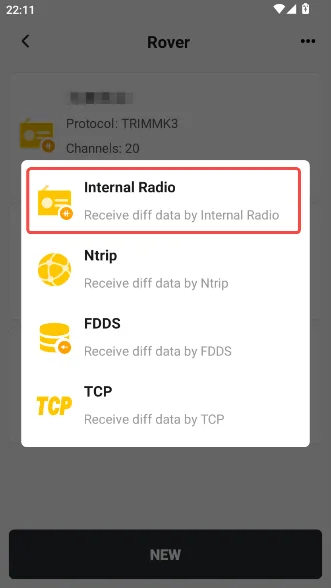
- Choose a method—commonly Ntrip, Internal Radio, or FDDS.
- Ntrip: enter Network, IP, Port, Source Node, Username, and Password, then tap APPLY.
- Internal Radio: match protocol, baud rate, channel/frequency to the base and attach the correct-band whip antenna.
- FDDS: enter the six-digit base code and apply; return Home and wait for FIX.
 | 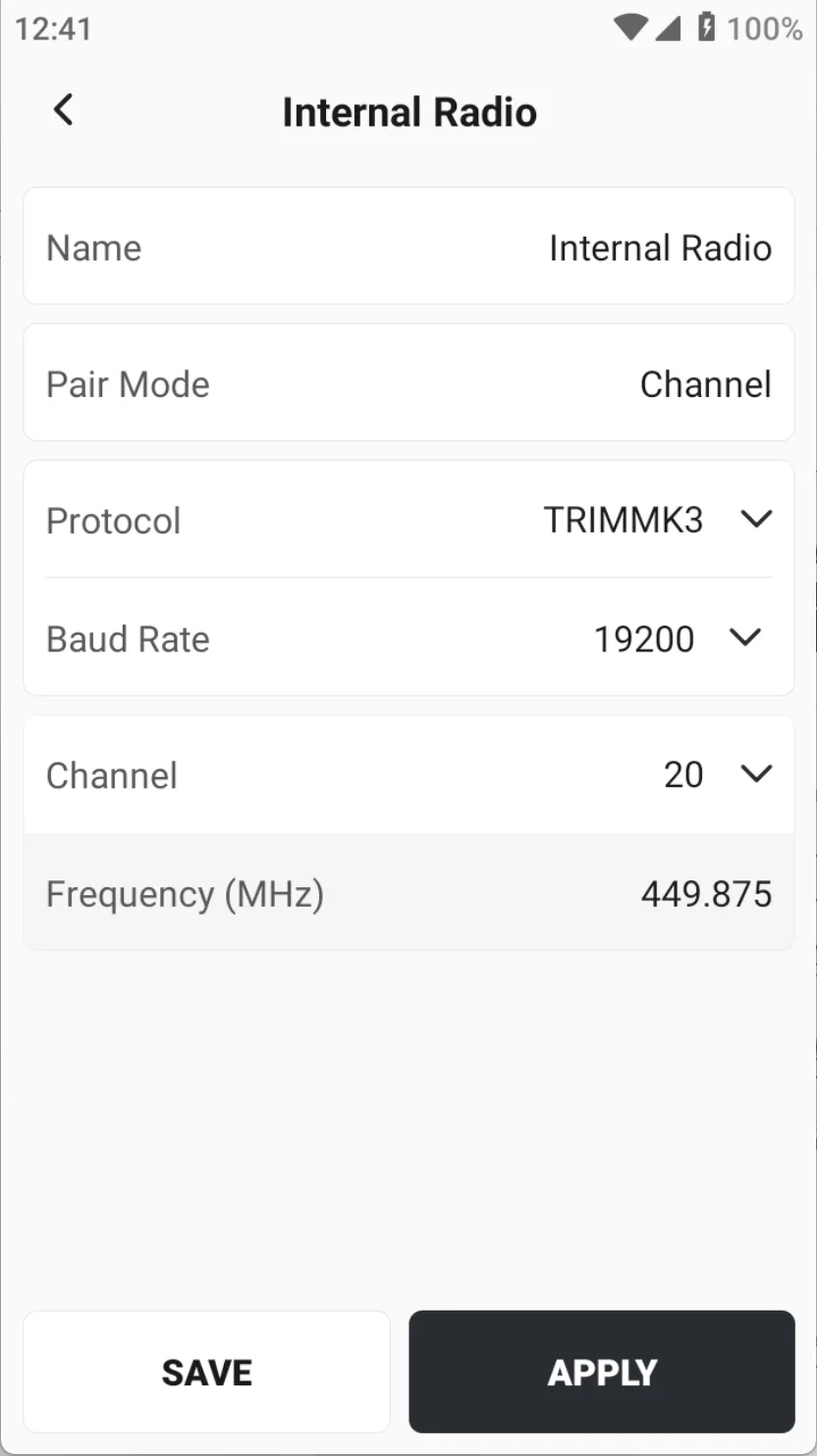 | 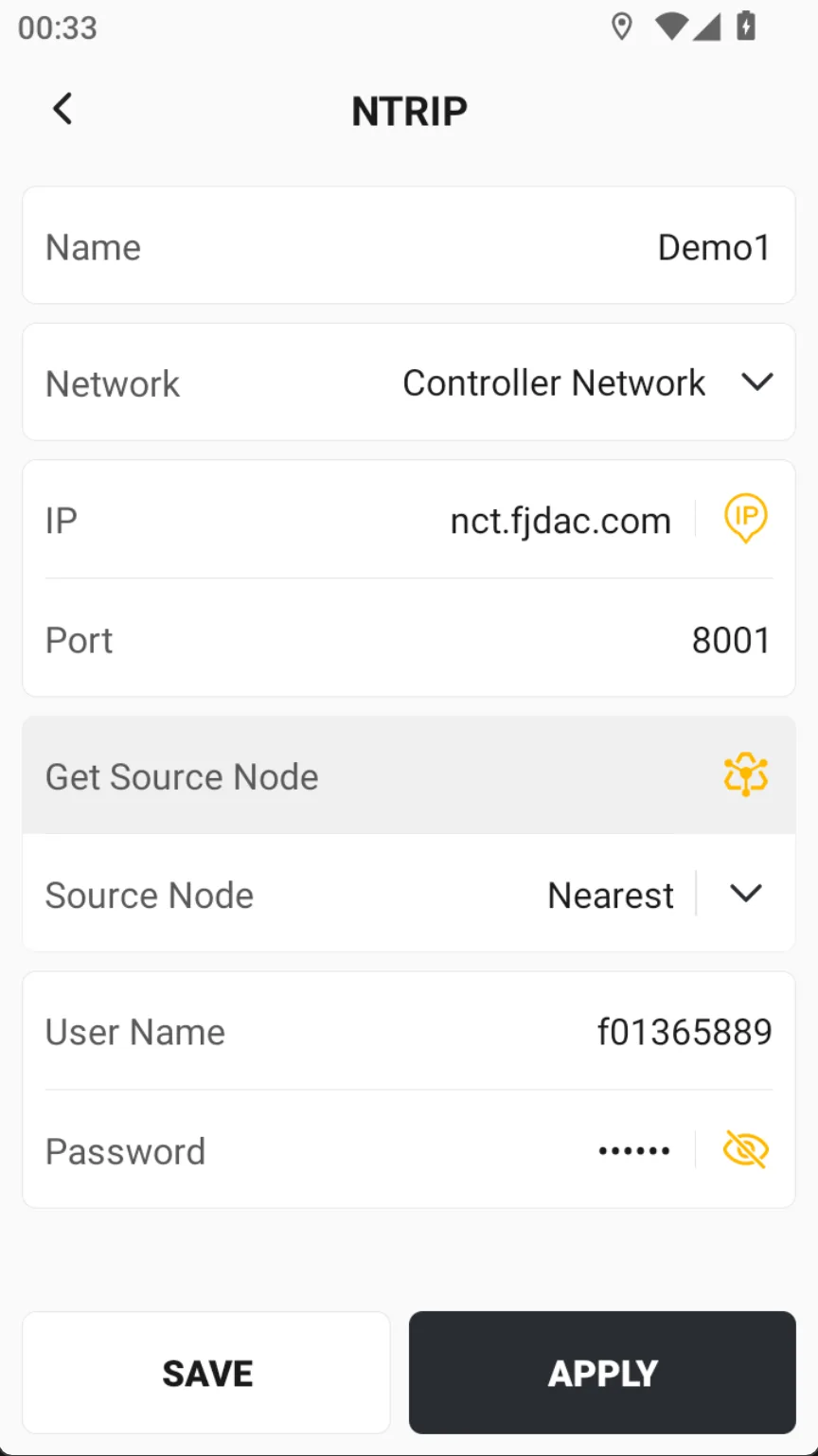 | 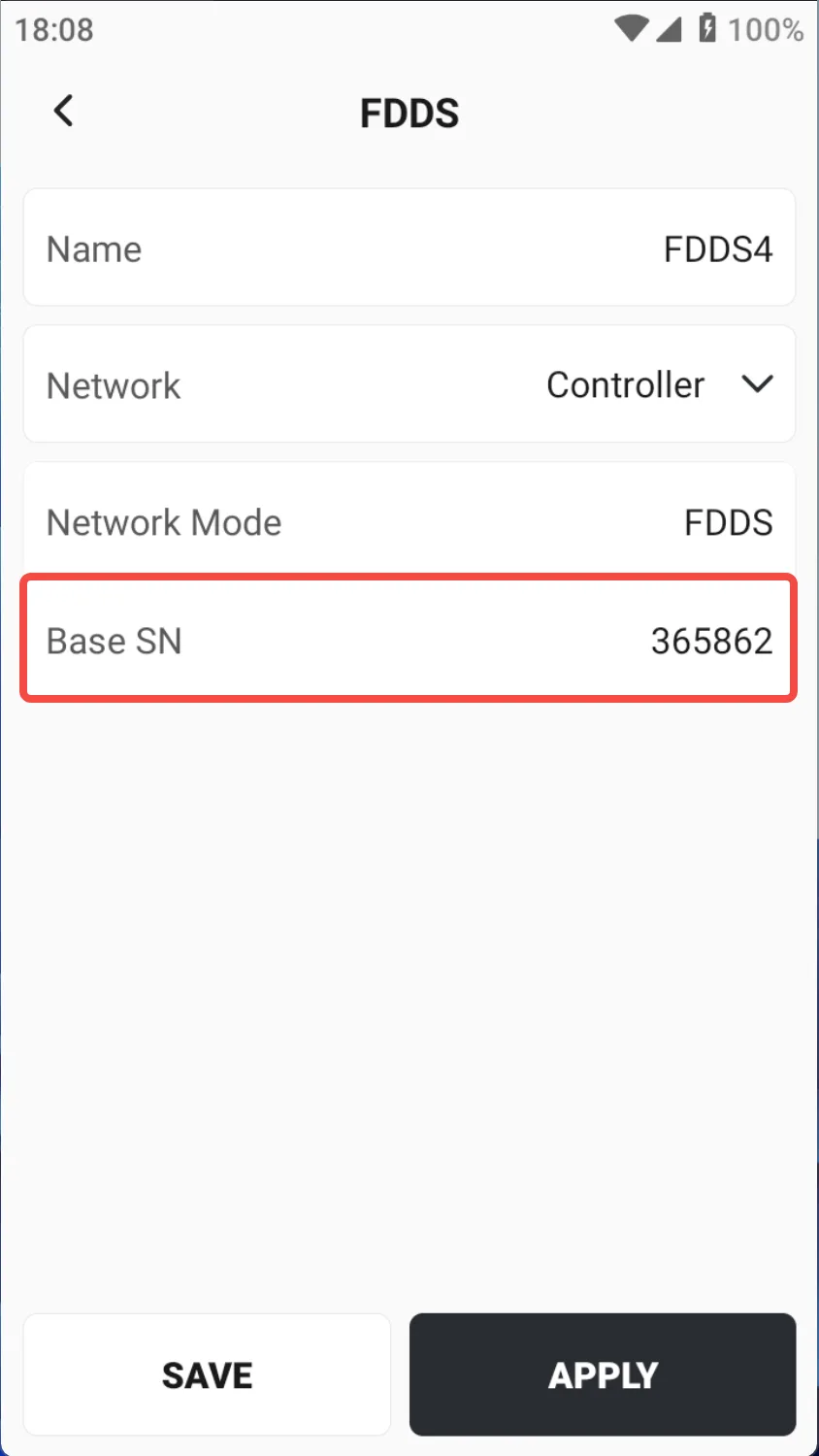 |
Give common setups clear names, but recheck the Source Node, account, and radio values every time—do not trust the name alone.
Once the rover is configured, before saving any points, make sure the positioning status meets the project's quality requirements.
| Check | Ready to work | If abnormal |
Solution | Shows FIX | Move to open sky and allow reconvergence; do not collect a batch in FLOAT. |
Corrections | Diff Age updates and stays stable | Check internet, Source Node, account, or base/radio matching. |
Quality | HRMS, VRMS, and PDOP are within job limits; no red over-limit bar | Wait for better satellites; reduce obstruction and multipath. |
Receiver | Satellites, battery, and communication remain stable | Check antenna, connection, power, and receiver work mode. |
Field check | Known-point horizontal and vertical differences pass | Recheck project, Coord System, Antenna Height, base, and models. |
6 Measure Points
PATH: Survey > Measure
Collect and save an individual coordinate while the solution is FIX.
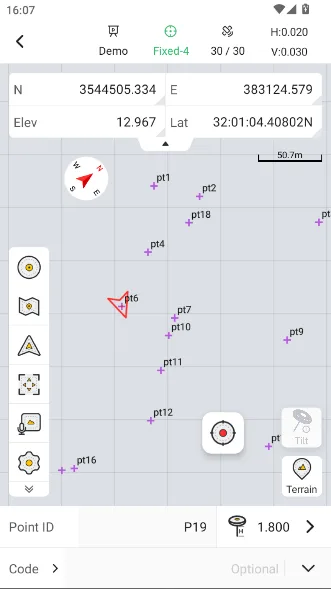
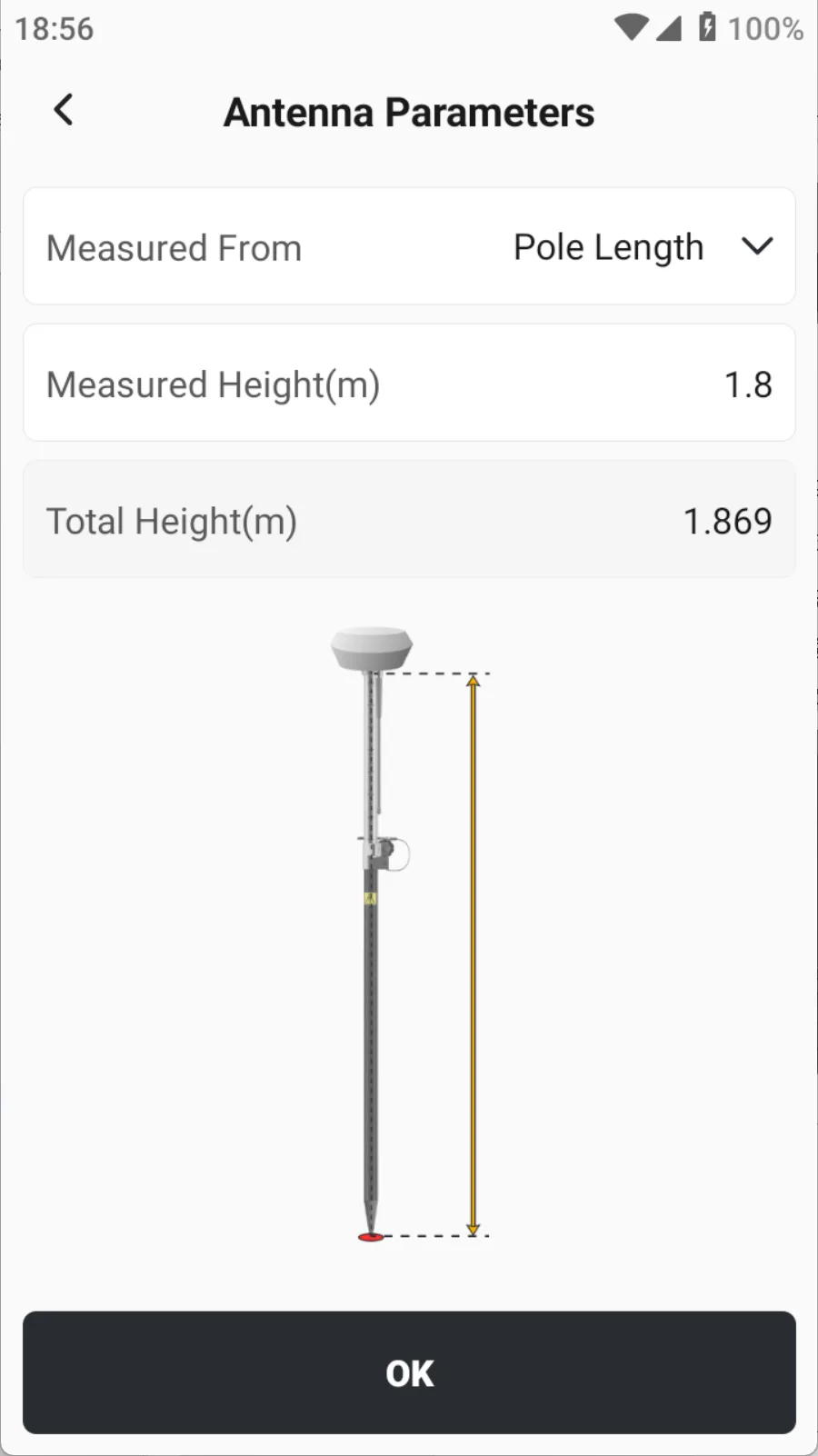
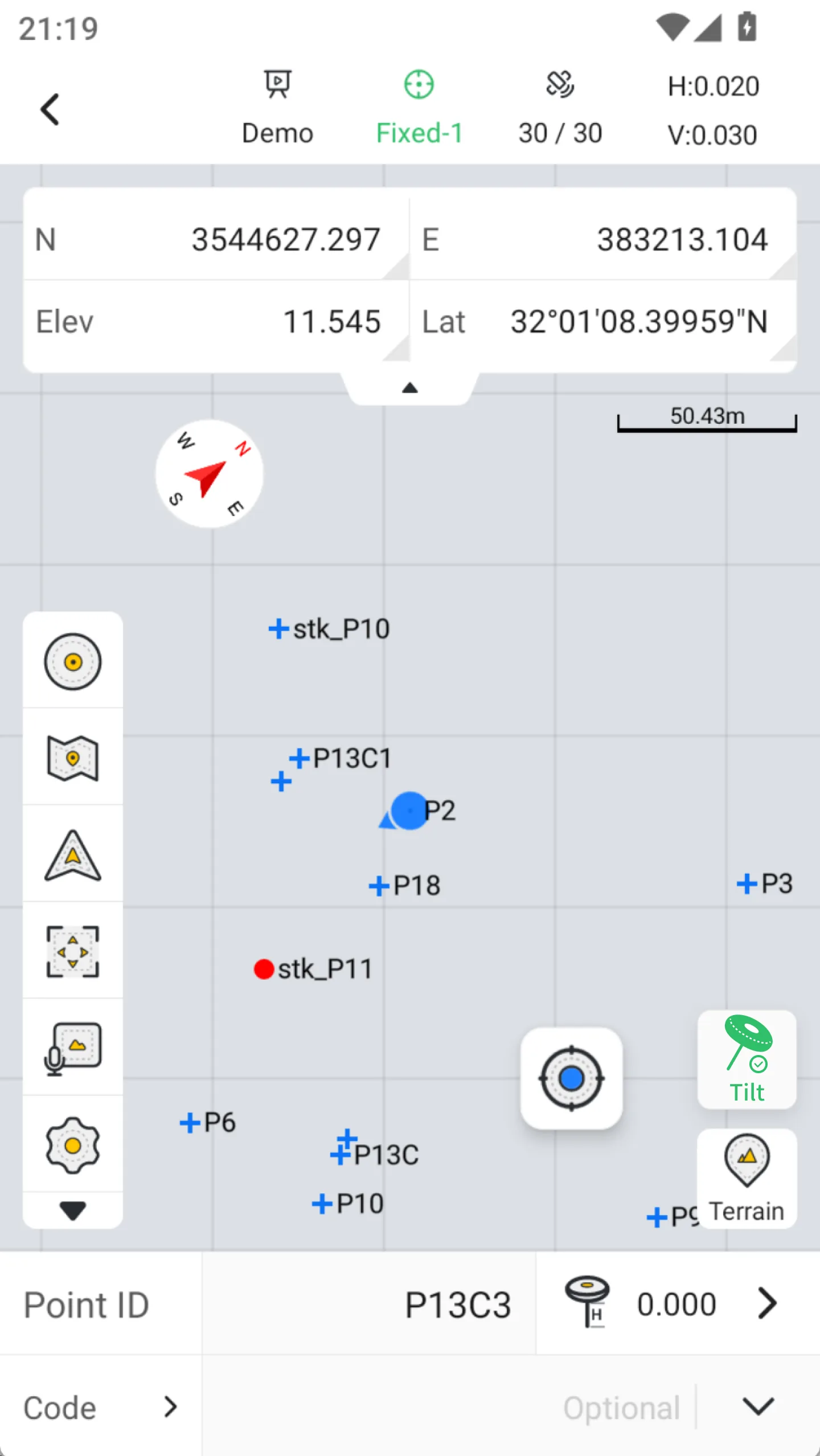
- Enter Point ID, choose the correct antenna type, enter Antenna Height, and select a Code if required.
- Place the pole tip precisely on the point, center the bubble, and keep the pole steady.
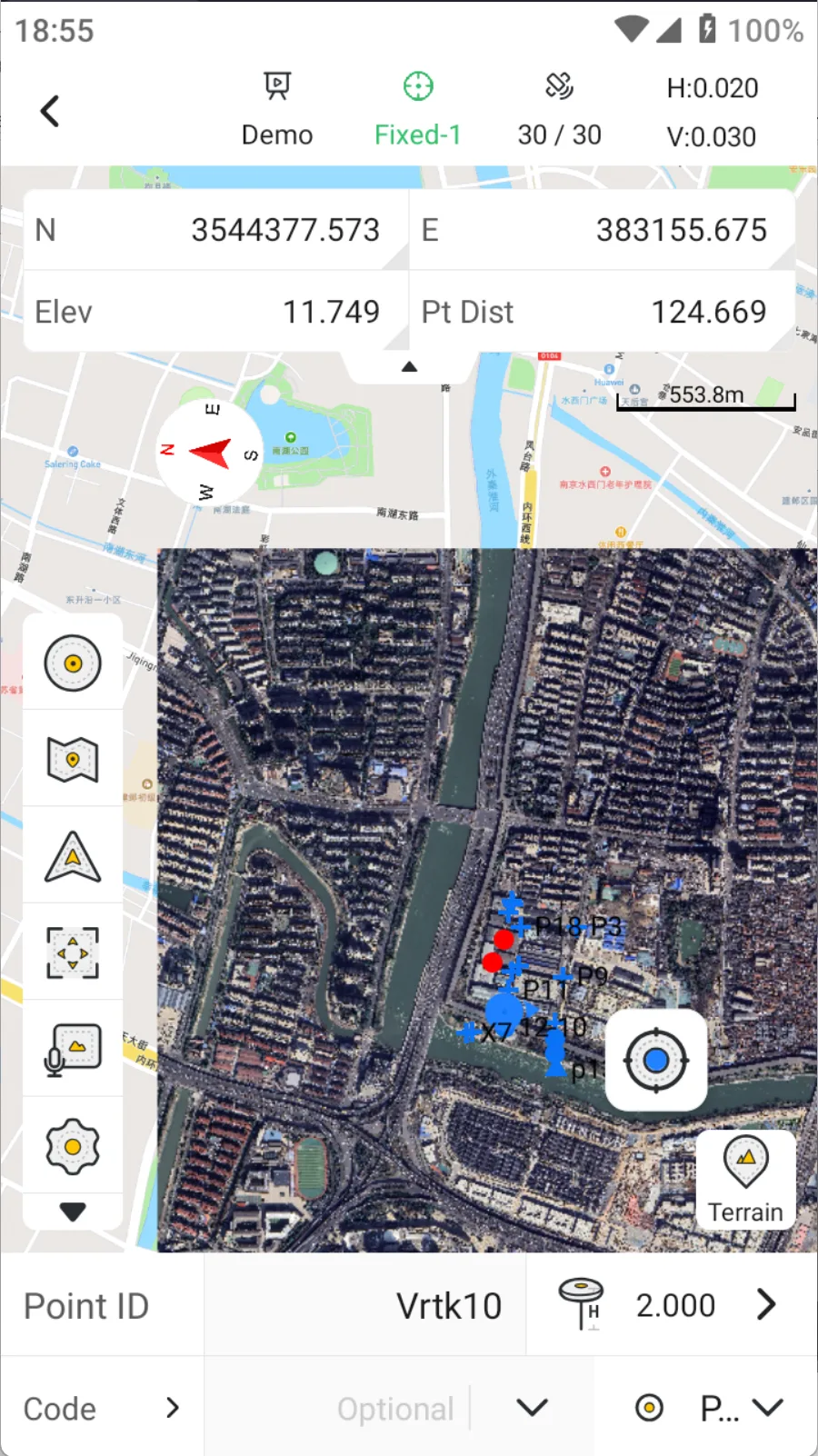
- Confirm FIX and acceptable HRMS/VRMS, then tap Measure. Investigate an over-limit warning before accepting it.
- Open Points and spot-check Point ID, Northing, Easting, Elevation, and point type. Remeasure a known point first.
 |  |  |  |
- Tilt measurement. IMU tilt measurement can be enabled. On first use, follow the prompts to calibrate by shaking the pole at least 6 times. It works best within 30°, and it is recommended not to exceed 60°. For high-precision control points, centered measurement is preferred.
- PPK collection. Enable PPK collection from the measurement parameter settings.
- Quick codes. Once enabled, the quick code panel will be displayed. After adding codes, simply tap a code to quickly collect data.
- Continuous point measurement. Supports automatic collection by time, distance, and elevation difference.
- Control point measurement. Set stricter tolerances and collect more data to obtain higher-precision point coordinates.
- Laser measurement. Laser measurement can be performed using the V10L receiver or V4e Pro.
7 Measure & Draw
PATH: Survey > Measure & Draw
Collect points while building line or polygon geometry in the field.
- Select a point, line, or polygon Code; tap the line-type tool and choose one of the ten geometry types.
- Measure nodes in sequence as prompted; a dashed preview connects the current position to the last node.
- Use Back to remove a wrong node. A polyline can finish with at least two nodes and can close with at least three.
- Tap Finish; the geometry is named and saved to the graphics library. Check its shape, Code, and attributes.
- When required, export graphics to SHP and choose whether to merge or keep individual features.
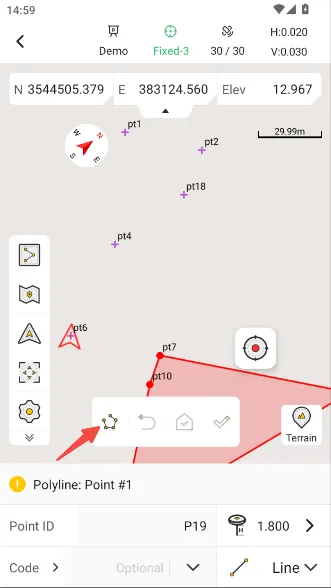 | 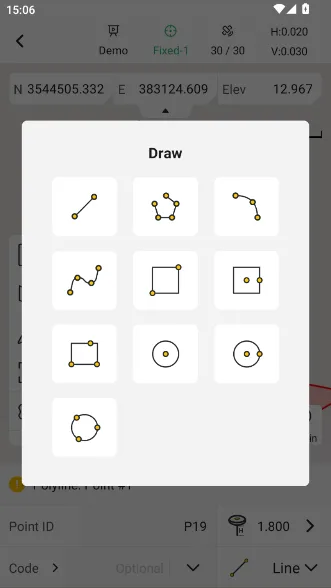 | 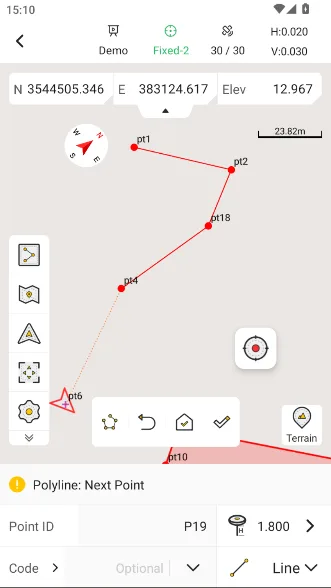 | 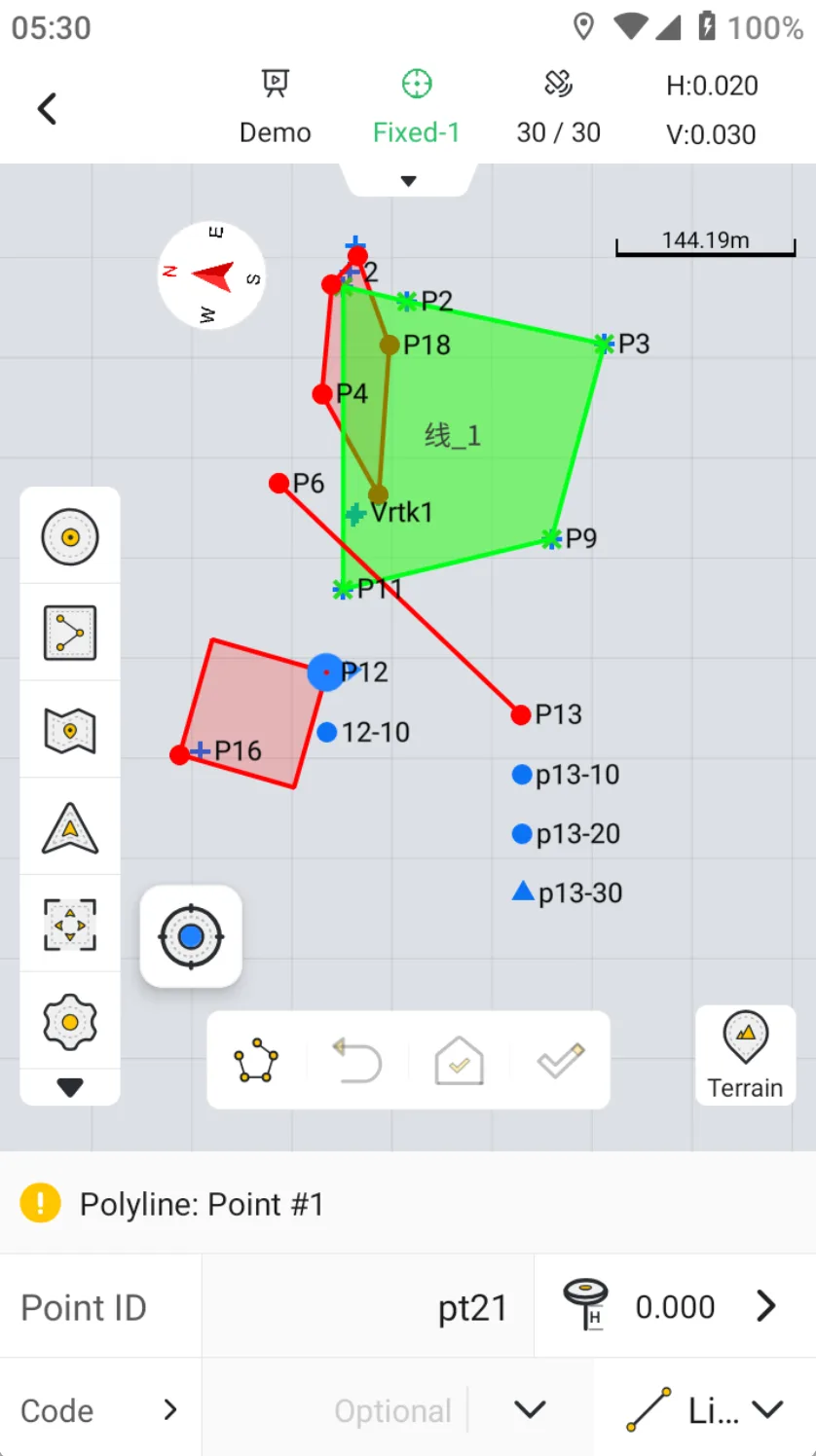 |
Measure & Draw is very powerful. Combined with Quick Codes, it can collect multiple lines at the same time.
8 Stake Points
PATH: Survey > Stake Points
Navigate from a design coordinate to its field location and save the as-staked point.
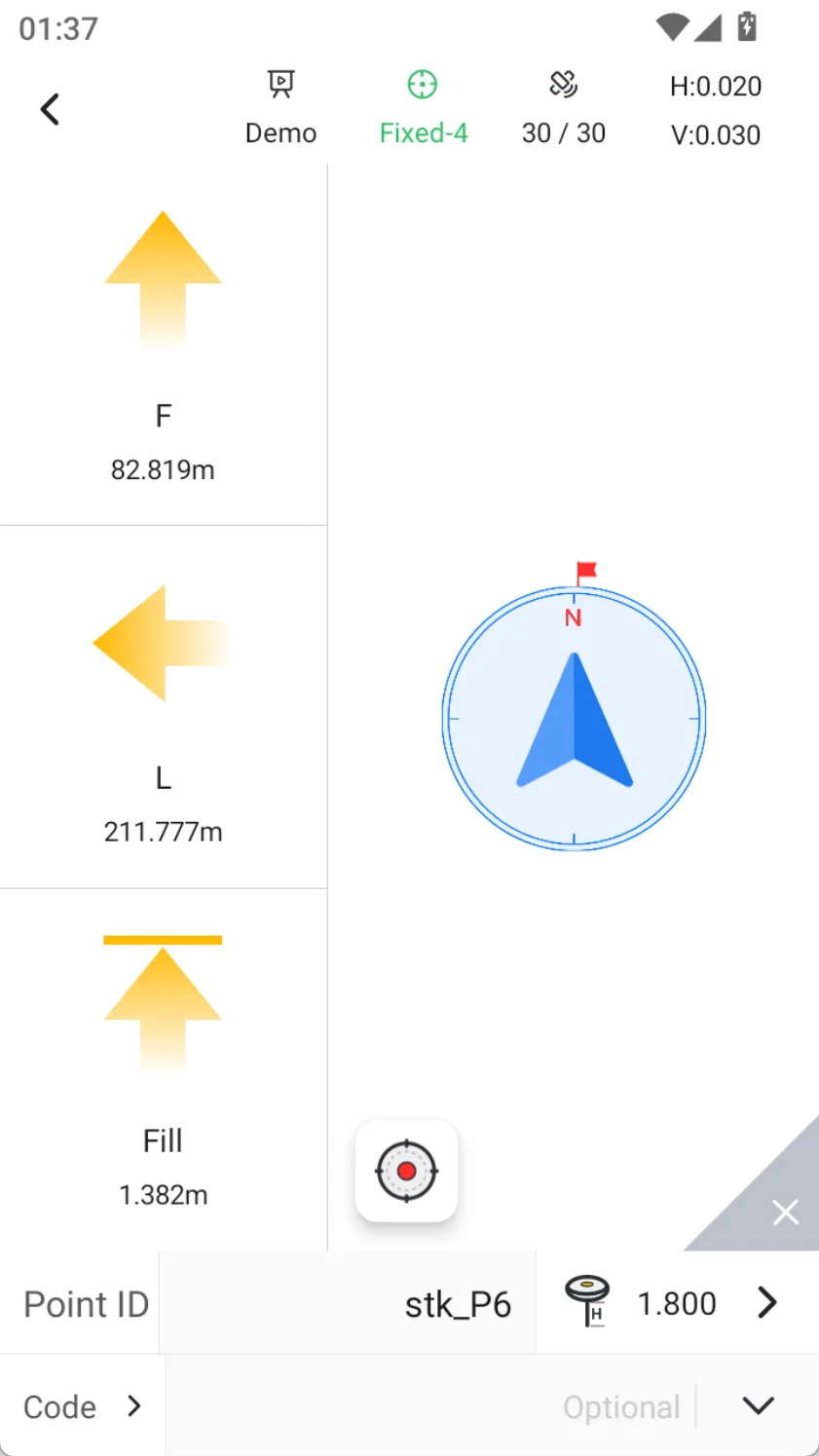
- Select one or more stake points. A red flag marks the target; use Previous, Nearest, and Next for multiple targets.
- Follow relative or cardinal guidance. The bullseye appears at 1 m or less.
- Recheck Antenna Height and elevation mode. If the target has only plane coordinates, use real-time elevation when appropriate.
- Under FIX, center precisely; when the job tolerance is met, tap Measure to save the as-staked position.
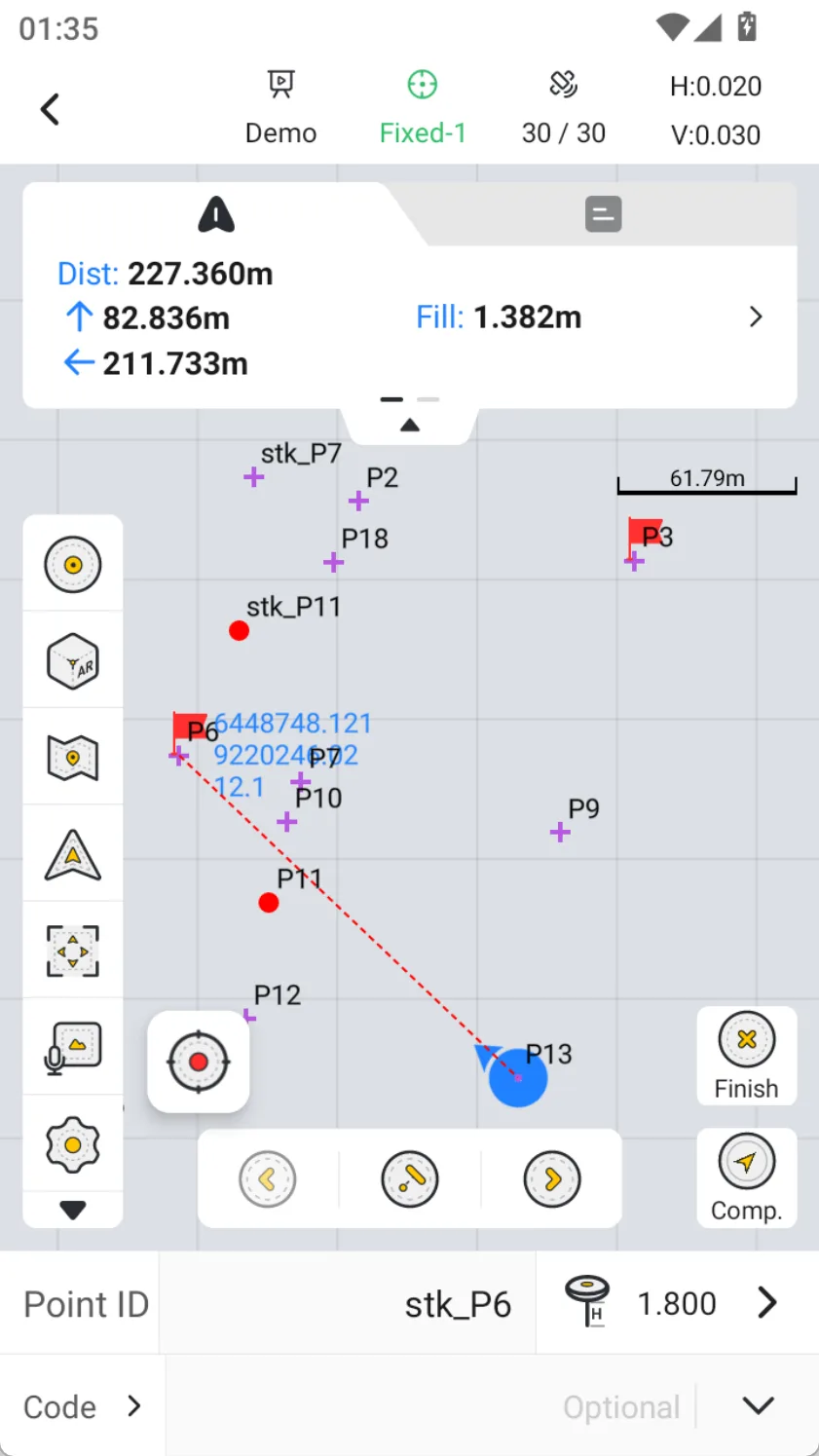 |  |  |  |
- Beep and vibration speed up as you approach; an arrival sound occurs at 0.05 m or less. Acceptance still depends on the job tolerance.
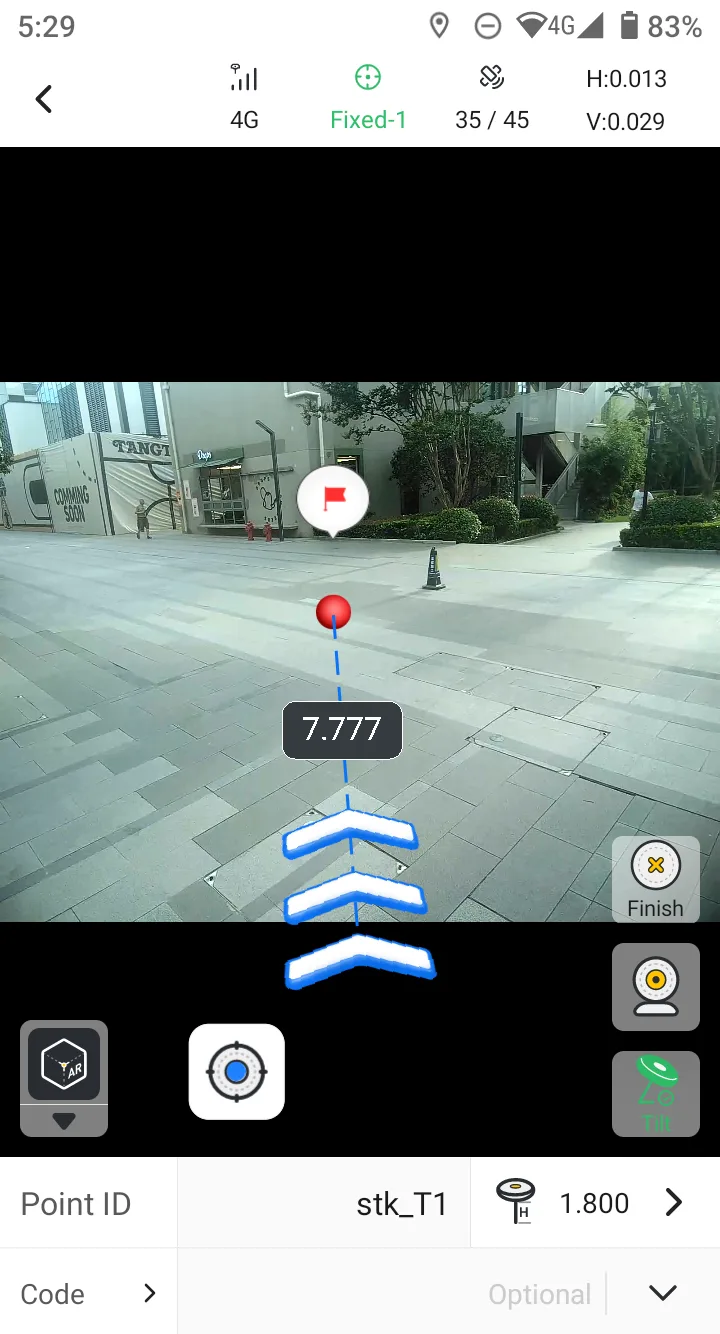
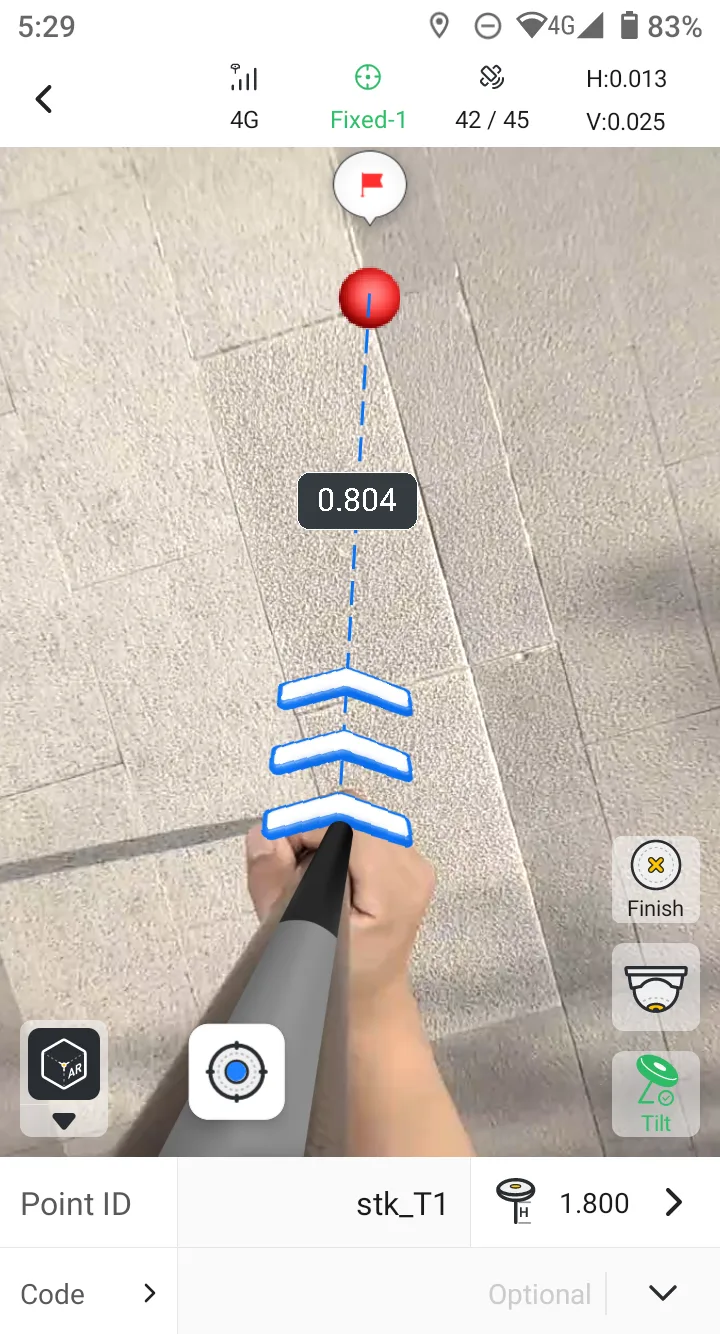
- The V10 series receivers support AR stakeout. With the front-facing and downward-facing cameras, you can quickly locate the stakeout target.
9 Stake Lines
PATH: Survey > Stake Lines
Stake stations along a design line, find the nearest line position, or stake key nodes.
- Select a line from Lines or create a straight line/polyline in the field.
- Choose Station, Line, or Node mode: regular chainage points, nearest position to line, or key nodes.
- For stations, set Start Chainage, Interval, left/right Offset, Target Chainage, and Include Nodes as required.
- Use chainage and lateral offsets in the navigation panel; save under FIXED when the tolerance is met, then move to the next target.
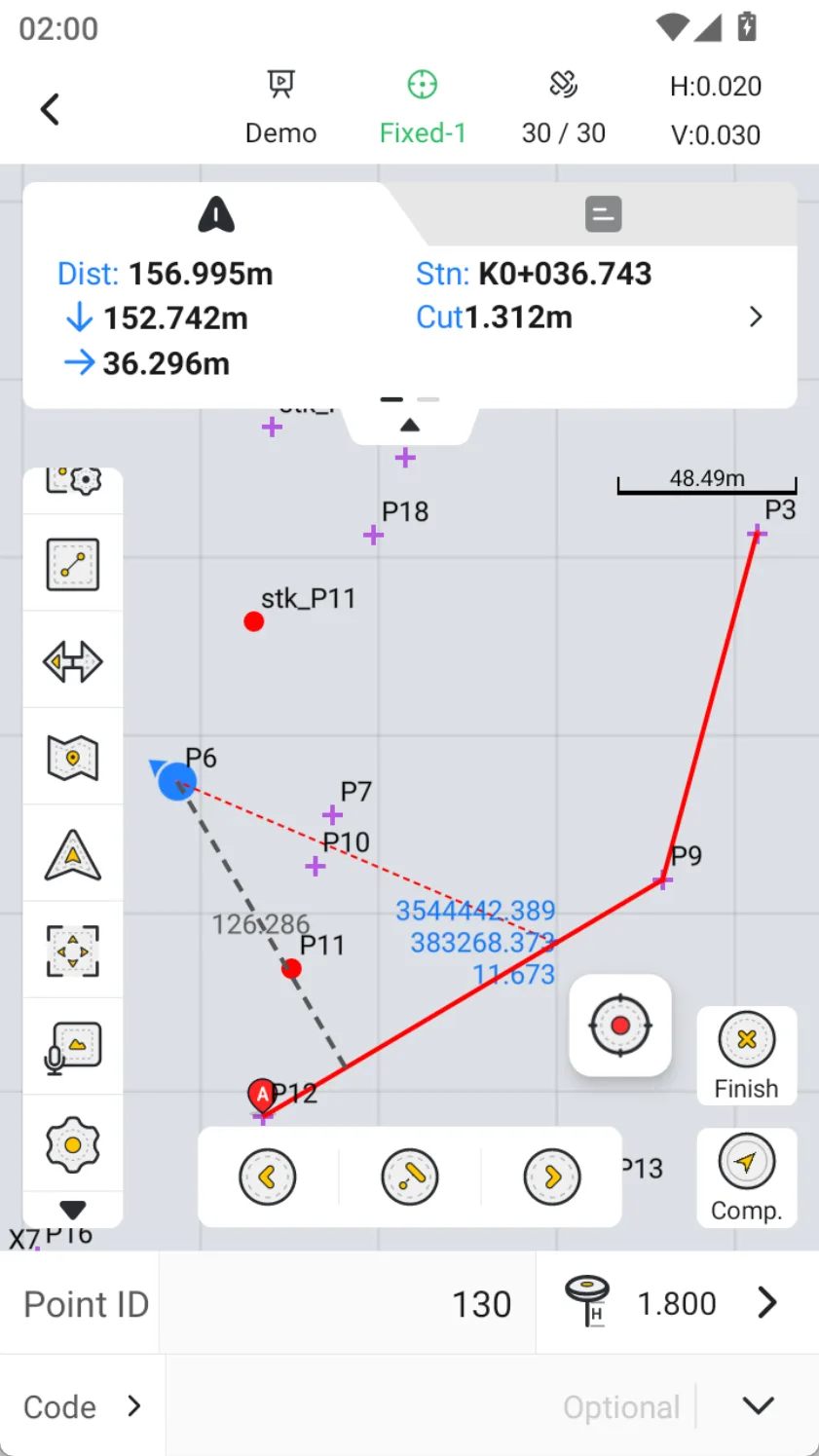 | 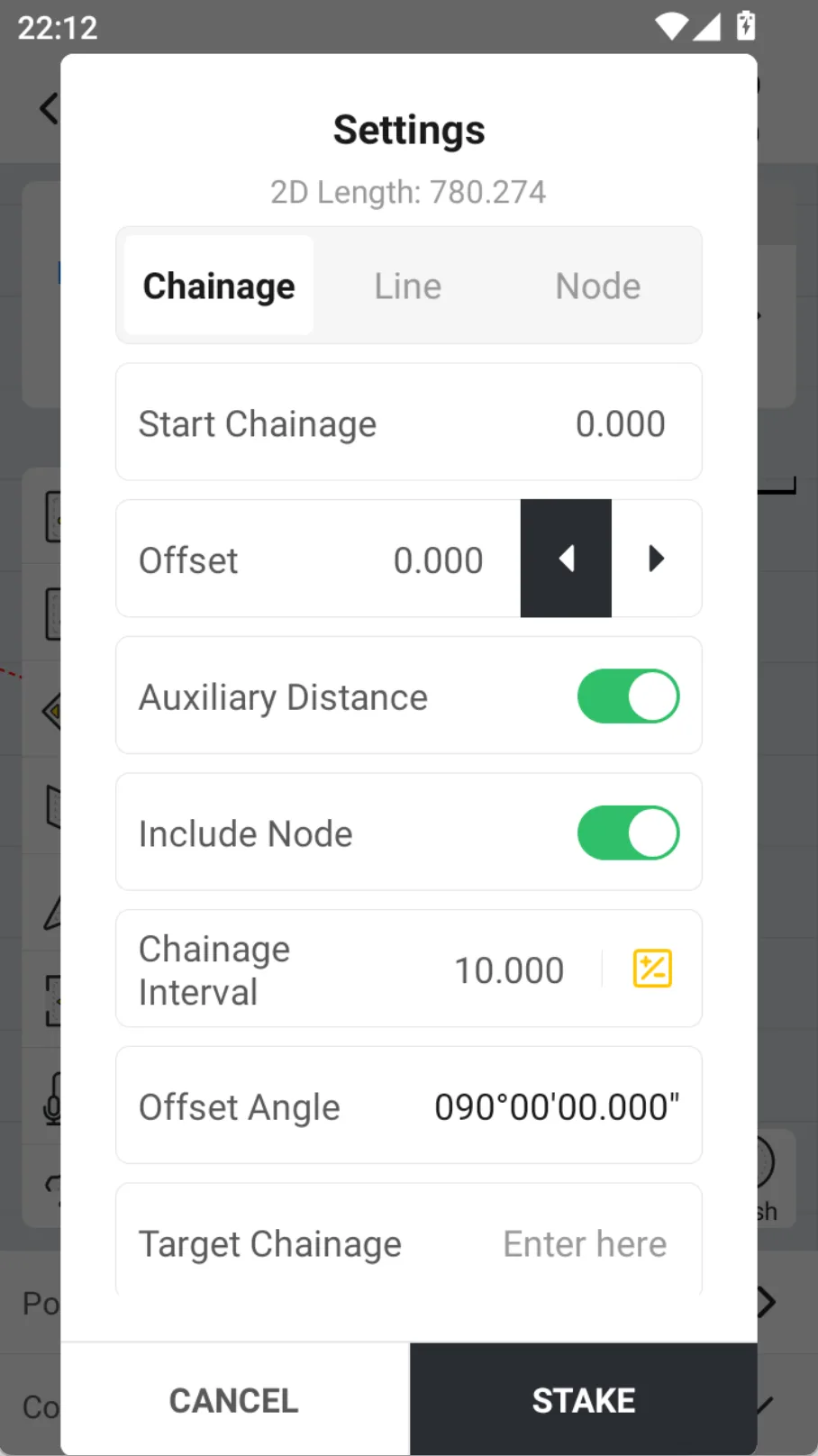 | 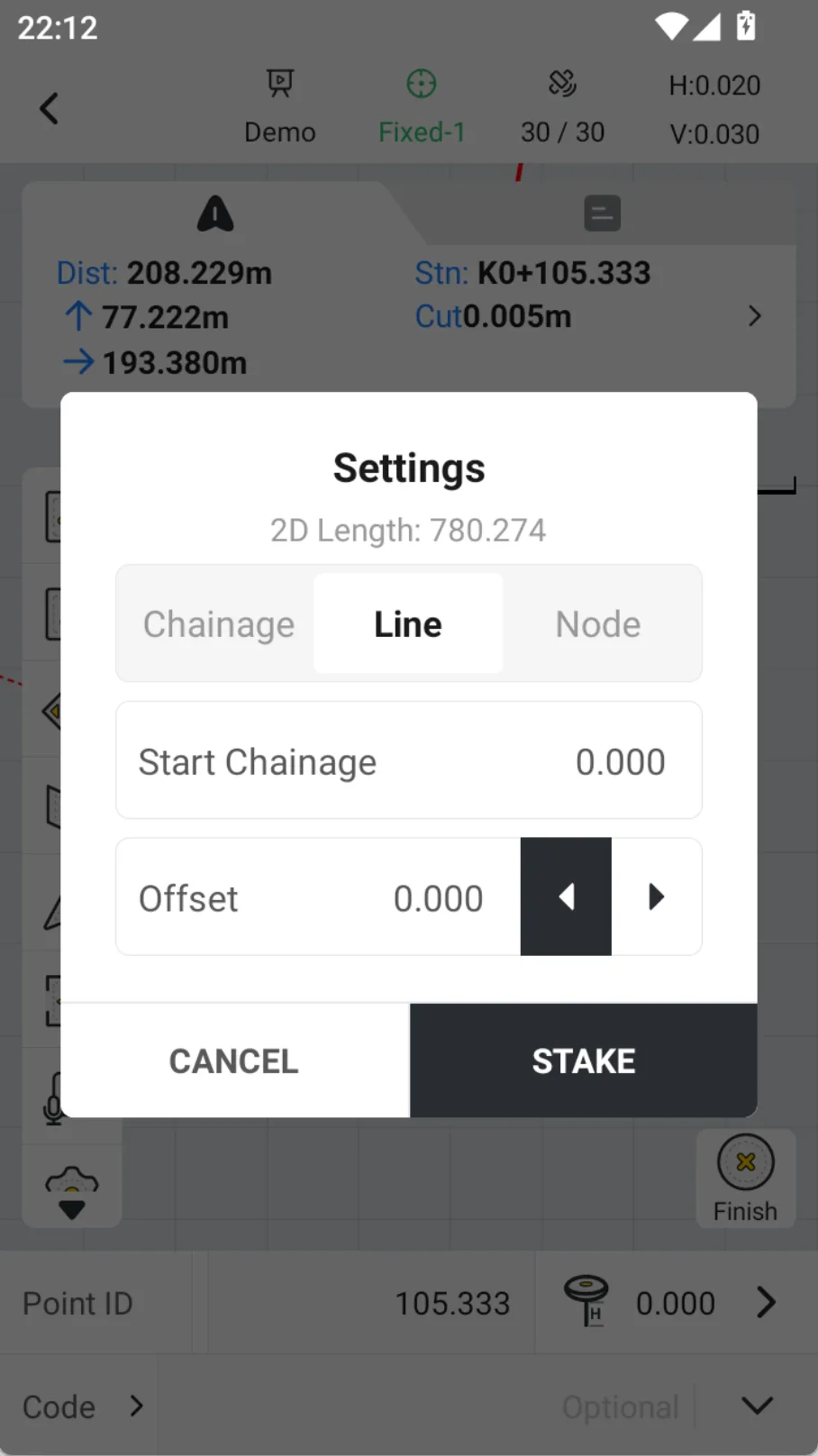 | 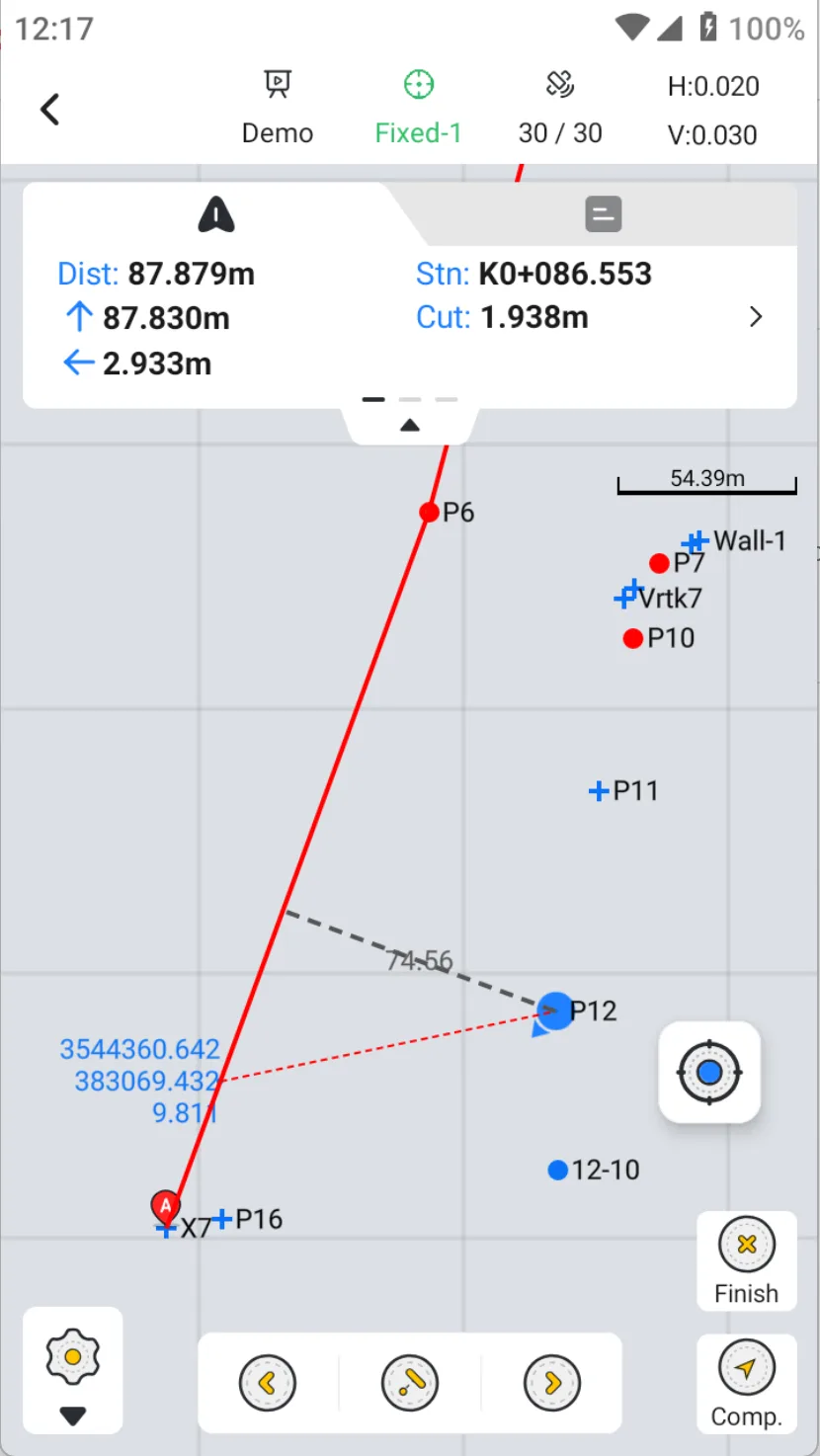 |
A polyline stakes its nodes; a straight line can stake start, midpoint, and end. Confirm left/right offset against the forward line direction.
10 Stake CAD
PATH: Survey > Stake CAD
Load a DWG/DXF design, select targets from the drawing, and stake them directly.
- In CAD Files, tap Import and add the DWG/DXF from the controller to the current project.
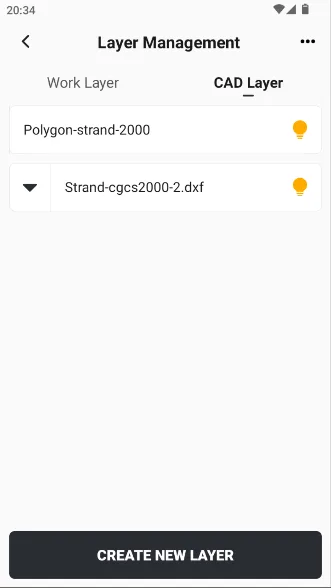
- Open the drawing and verify location, units, Coord System, and layers; hide irrelevant layers for smoother operation.
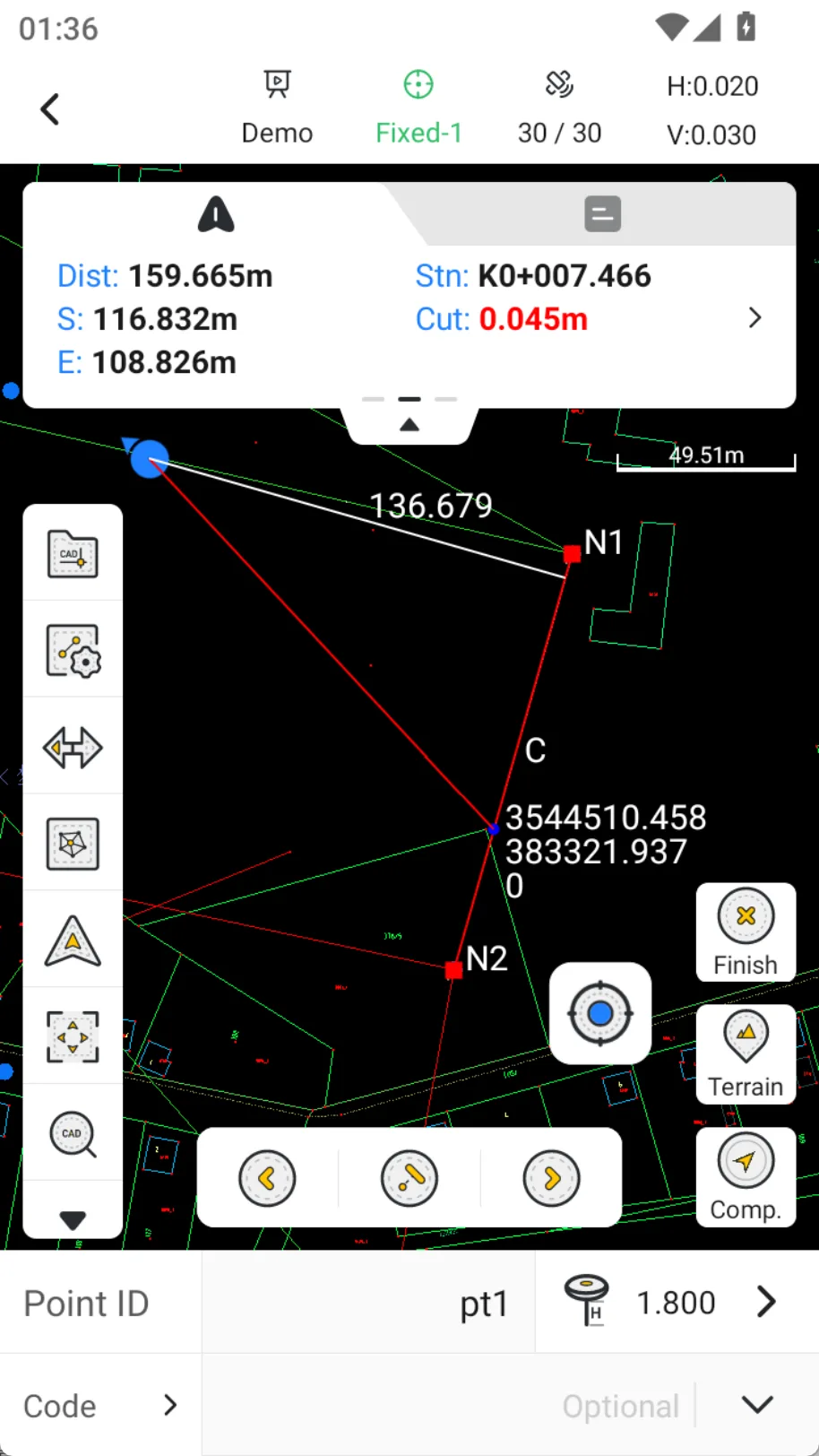
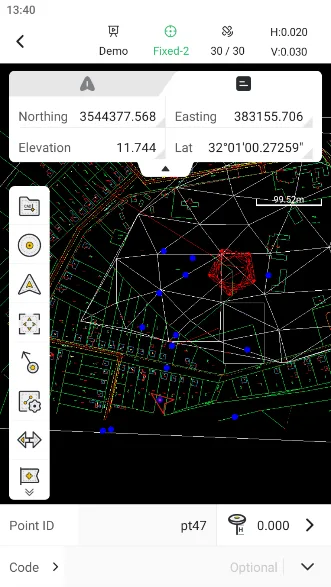
- Open Stake CAD and snap to a point, line, or node. A line target supports Station, Line, and Node modes.
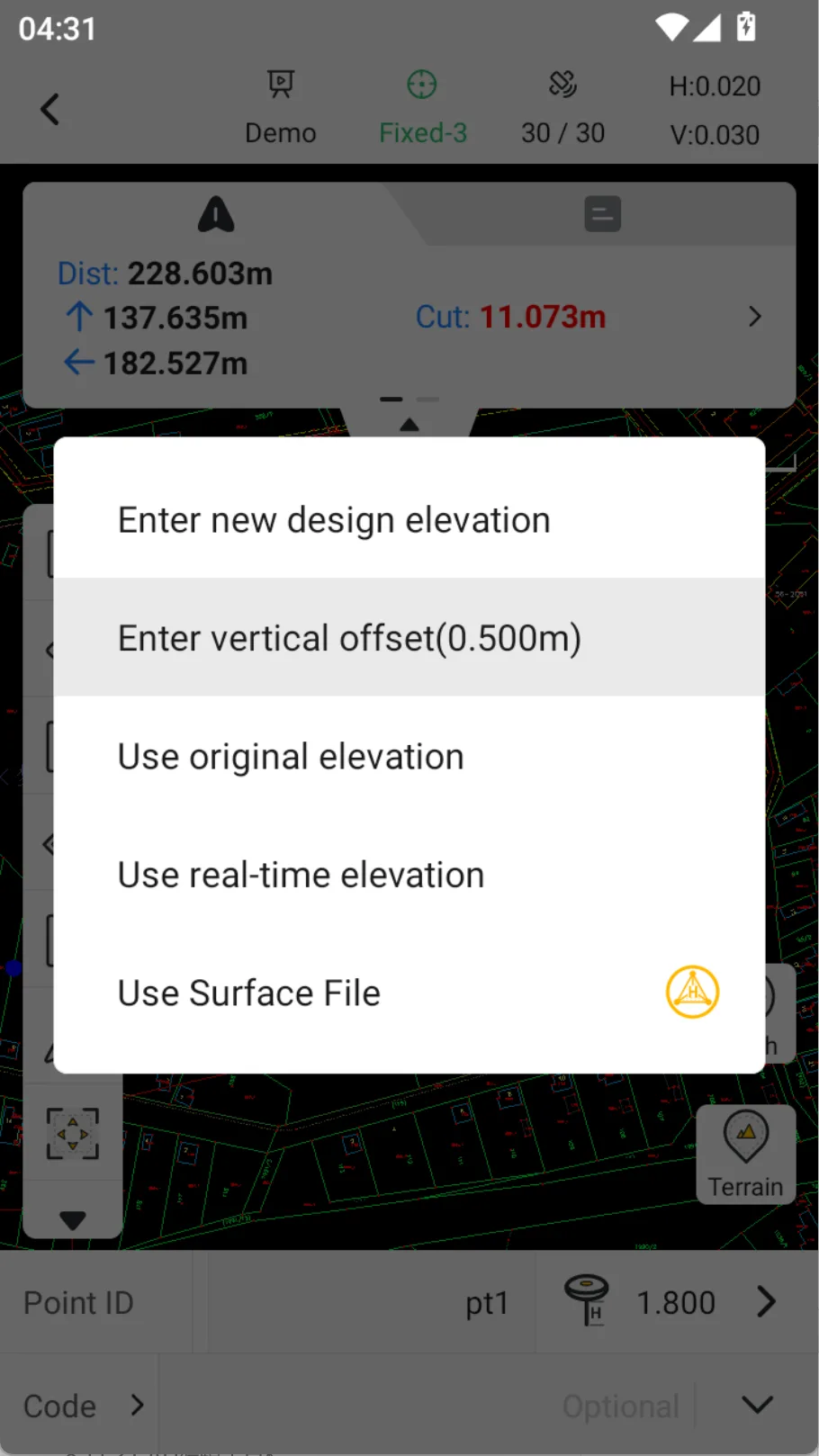
- Set target elevation and any station/offset values, navigate to the target, and finalize under FIXED.
- Save the as-staked point and review both target and measured data in the layer/point library.
 |  |  |  |
Keep each CAD file near or below 20 MB. Overly large or complex files may fail to parse; remove irrelevant layers, hatches, and external references first.
11 Import Data
PATH: Projects > Import
Bring external points or industry data into the current project safely.
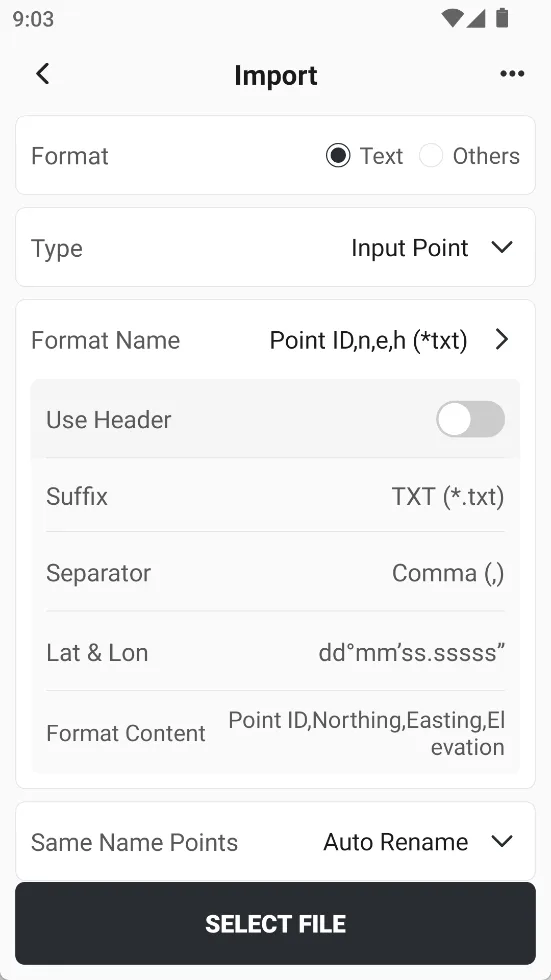
- Choose Text Format or Other Format. Text formats include CSV, TXT, DAT, XLS, and XLSX and support editable field mapping.
- Select or create a format; confirm delimiter and mappings for Point ID, Northing, Easting, Elevation, and Code.
- Set points intended for stakeout as Stake Points and choose the duplicate-name rule carefully.
- Select a file from local storage, USB, My Cloud Drive, or a sharing code and run the import.
- Verify record count, Point IDs, coordinate magnitude/range, and map location after import.
 | 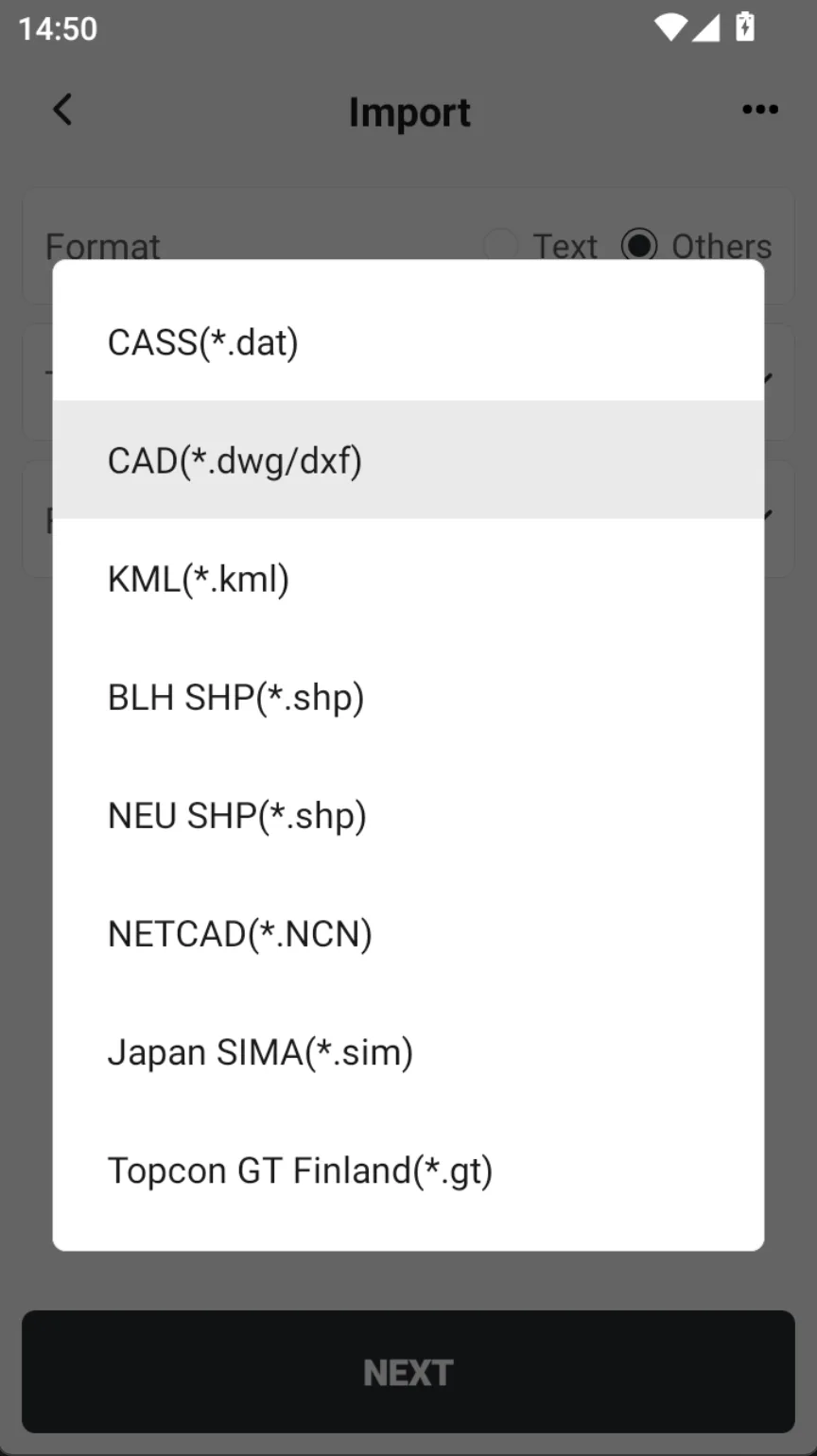 | 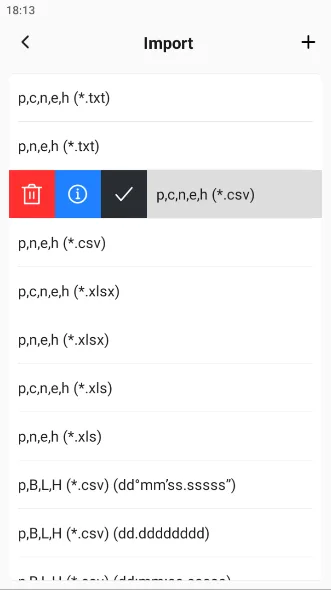 | 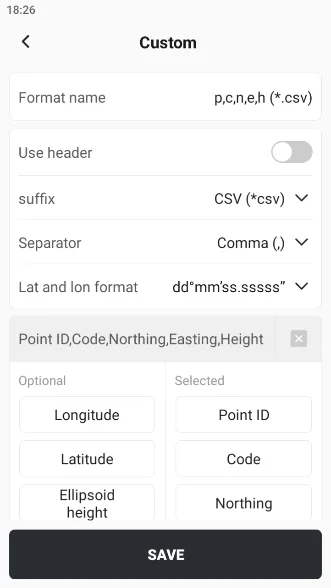 |
For a new third-party format, import 3–5 points first, verify fields and coordinates, then import the full file.
12 Export Data
PATH: Projects > Export
Output the required coordinate file and verify it before leaving the site.
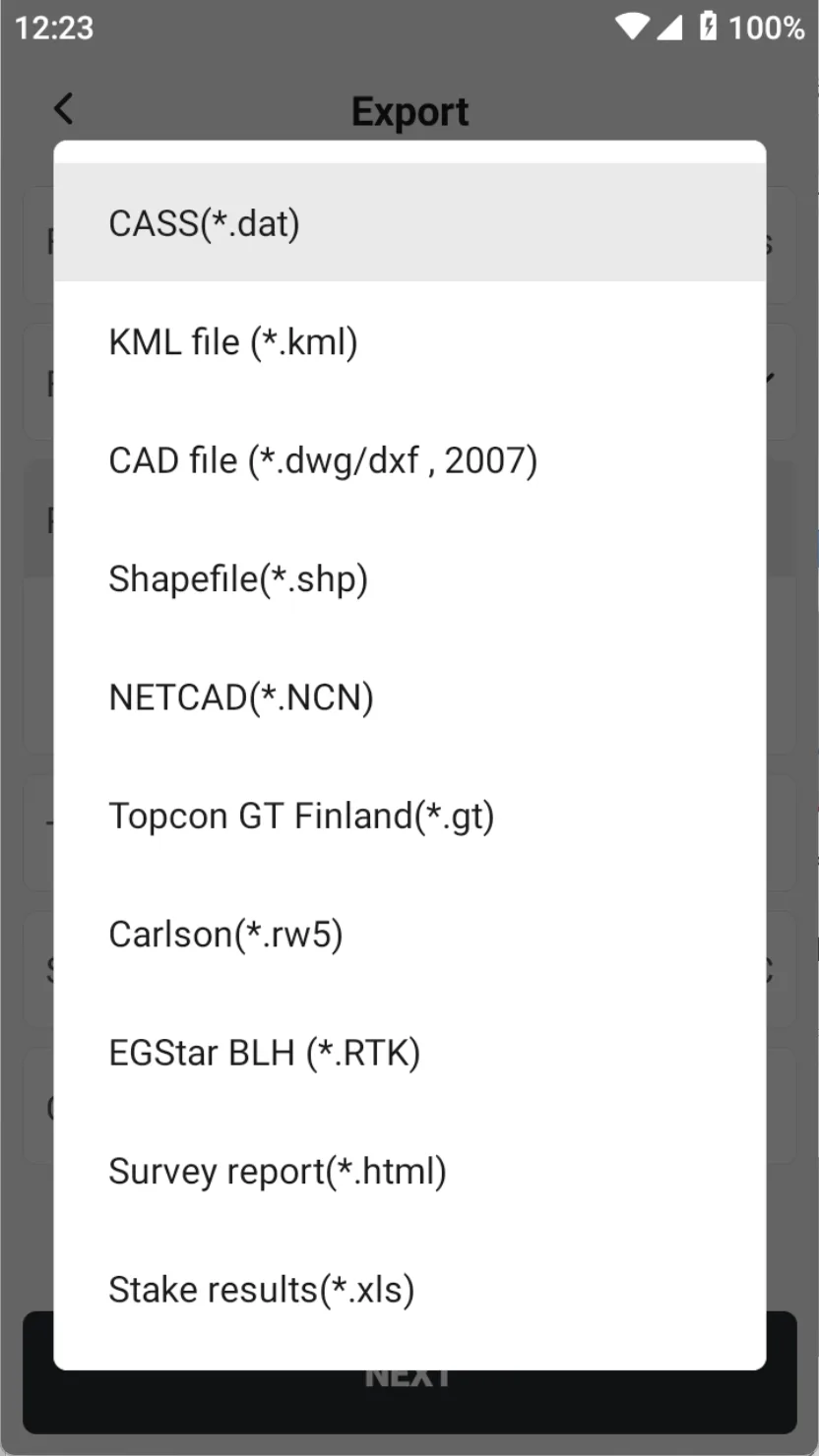
- Select a Text Format or standard format, then set point type, time range, Code filter, and sort order.
- Confirm field order, units, decimals, file name, and local/USB/cloud destination.
- Run Export. For collaboration, upload to My Cloud Drive or create a sharing code.
- Reopen the file and verify point count, header, first/last records, and two or three sample coordinates.
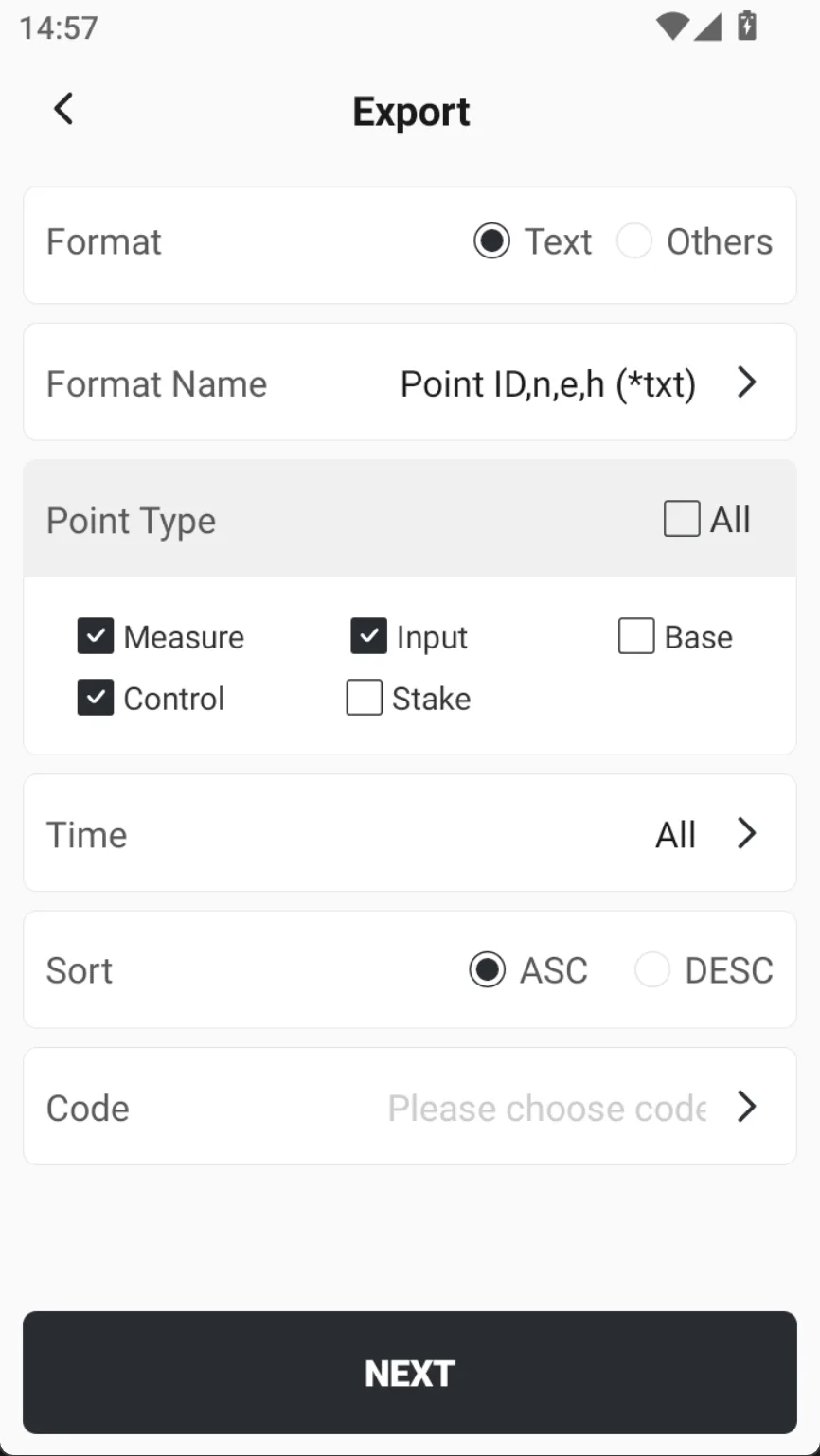 |  |
Always reopen the deliverable. If USB is not detected, check storage permission or the controller's USB debugging guidance.
13 Pre-completion Checks
Find and correct field problems before leaving the site.
| Title | Description |
| Data completeness |
|
| Quality and datum |
|
| Delivery and backup |
|
Do not deliver if coordinates show a systematic shift, elevation is clearly wrong, the base changed, FIXED dropped repeatedly, or the known-point check failed.
14 Quick Troubleshooting
Start with Check first; if the issue remains, continue with Next action.
| Symptom | Check first | Next action |
Receiver not found | Power, Bluetooth/Wi-Fi mode, Refresh, last five SN digits | Restart receiver; remove old Android pairing and reconnect |
No FIX | Correction source/account, network/radio values, Diff Age | Move to open sky; check base distance and antennas |
Systematic coordinate shift | Active project, Coord System, central meridian, base | Remeasure known point; verify transformations/grids |
Elevation clearly wrong | Antenna type/height, vertical datum, elevation mode | Verify geoid or vertical-fit model |
Wrong stake direction/distance | Target, coordinate order, offset side, map mode | Run known-point check; confirm base did not change |
CAD blank or slow | Coordinates/units, layer extent, file size | Remove layers/hatches/xrefs; keep file near 20 MB or less |
Import/export fails | Format, field mapping, permission, path, USB | Test a small file; check USB debugging or use local/cloud |
Record the software version, receiver model/SN, project name, on-site screenshots, screen recording, and upload logs, then contact your dealer or technical support.