
5.10 Scan Tasks
5.10.1 Overview
Scan Tasks is used for quick on-site viewing and analysis of scanned point clouds. After the V100F completes a scan, a copy of the real-time point cloud is automatically saved to Scan Tasks. Users can also download point clouds from the receiver or import local LAS point cloud files. After opening a task, users can browse, crop, measure, and perform volume calculations on the point cloud.
The key value of Scan Tasks is quick on-site analysis. After scanning, users can immediately inspect the point cloud, perform basic geometric measurements, and convert a selected point cloud area into surface data for volume calculation, without first leaving the site for complex office processing.
After completing a scan with the V100F, the following on-site workflow is recommended.
| No. | Stage | Operation | Purpose |
| 1 | Scan completed | Open Scan Tasks and confirm that the task has been generated automatically. If not, try downloading it from the receiver files. | Avoid discovering after leaving the site that the point cloud was not saved or that the task is abnormal. |
| 2 | Quick inspection | Check coverage, occluded areas, and key targets. Switch between RGB, Elevation, and other display modes if necessary. | Quickly confirm whether the data meets the current job requirements. |
| 3 | Local processing | Crop the point cloud only when necessary, while retaining the areas required for subsequent analysis. | Reduce interference from irrelevant point cloud data. |
| 4 | On-site verification | Use Point, Distance, Area, Height, and Angle measurement tools to verify key dimensions. | Identify obvious omissions or abnormalities immediately on site. |
| 5 | Volume task | Draw boundary → extract point cloud → generate surface → enter Volume Calculation. | Quickly convert scanned point clouds into usable engineering data. |
5.10.2 Scan Task List
On the project home page, open Scan Tasks. Point cloud data in the current project is managed as task cards. Scan Tasks supports three methods for adding point clouds. Regardless of the source, the point cloud can be opened in the point cloud viewer after loading, where cropping, measurement, and volume calculation functions are available.
| Source | Method | Applicable Scenario |
| Automatically imported after scanning | After a scan is completed, the system automatically saves the real-time point cloud to Scan Tasks. If saving takes too long, the process can be canceled at any time. | Immediately check data completeness, perform on-site measurements, or conduct volume analysis after scanning. |
| Download from receiver | Tap the file icon in the upper-right corner of the Scan Task list, access the receiver files, and select the point cloud to download. | Use when the task does not appear in the list or when the point cloud needs to be retrieved from the receiver again. |
| Import local LAS | Tap the Import button at the bottom of the list and select a local LAS point cloud file. | View external point clouds, historical point clouds, or LAS files that have already been copied to the data collector. |
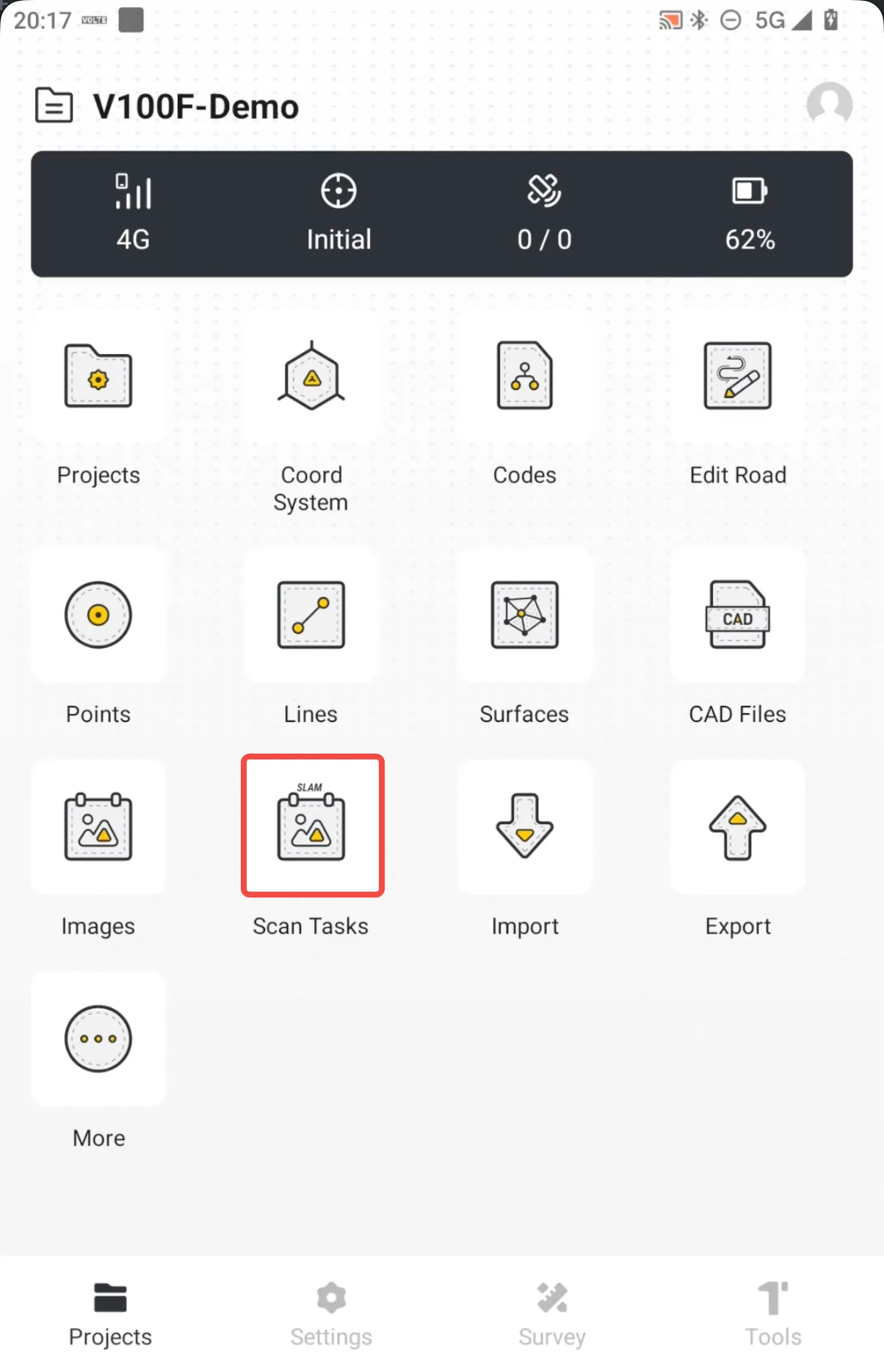 | 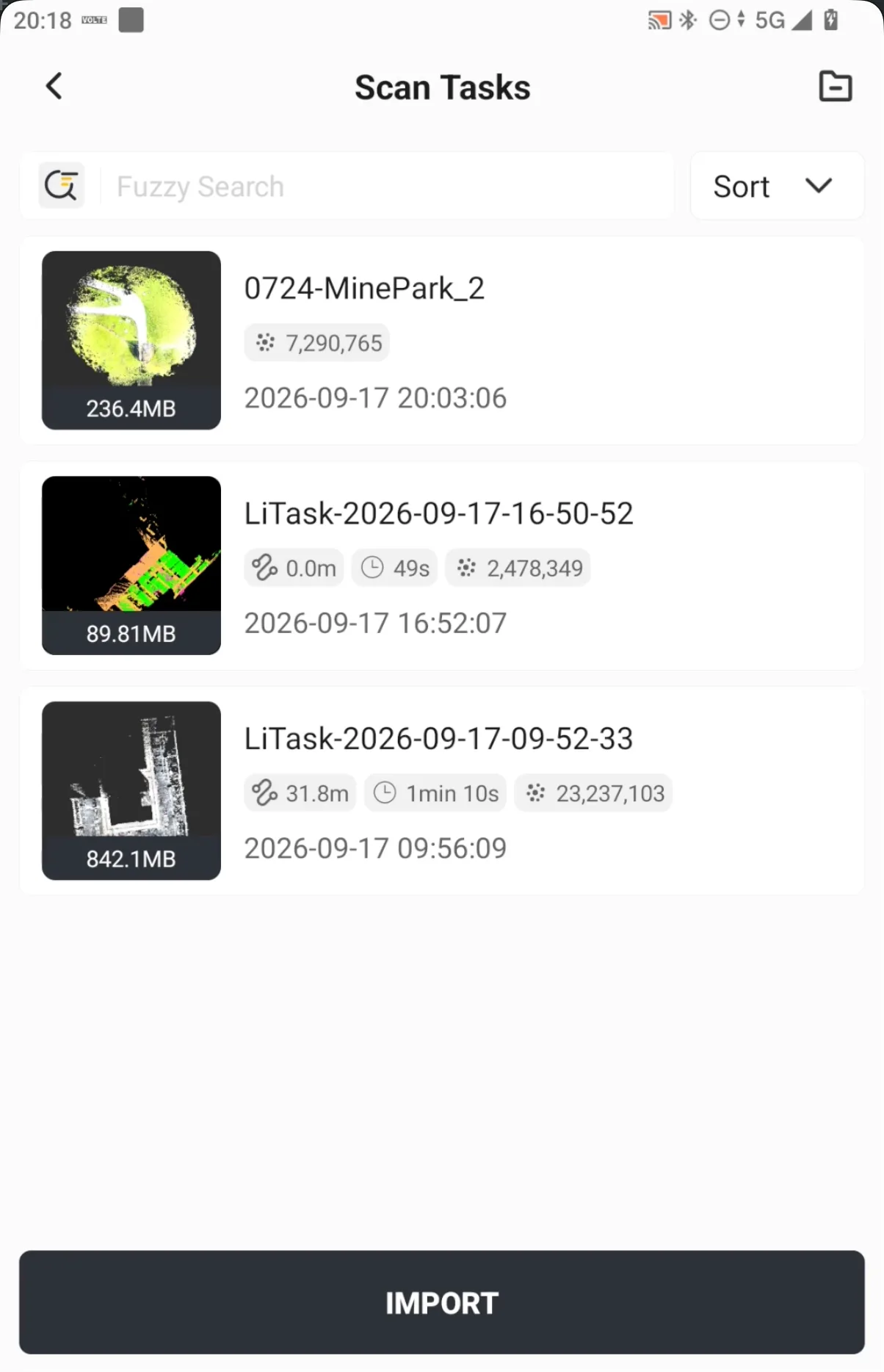 | 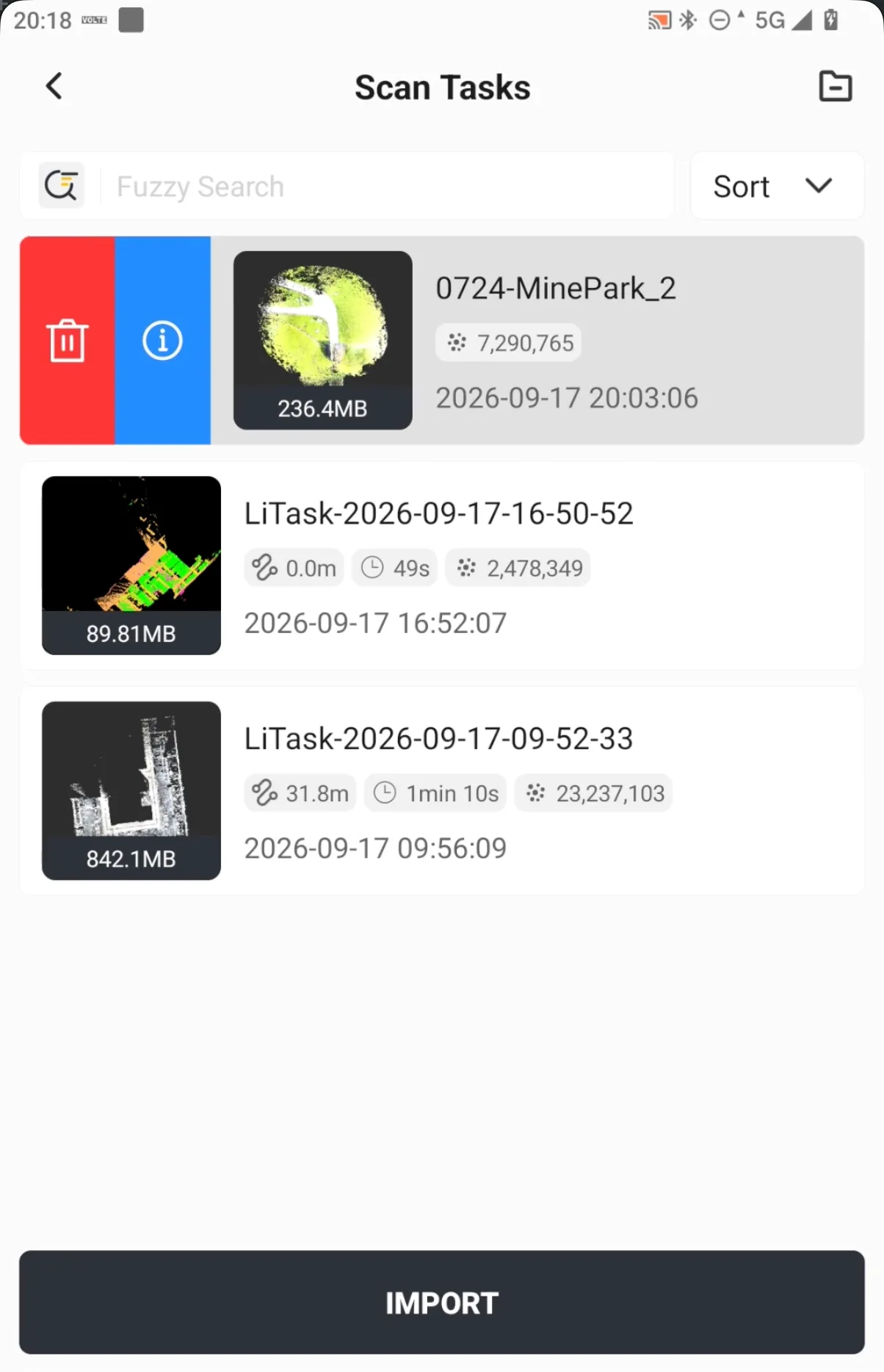 |
- Information displayed on a task card includes the point cloud thumbnail, point cloud file size, point cloud name, trajectory length, scan duration, number of points, and point cloud creation time. If the task was imported locally using the button at the bottom of the list, the trajectory length and scan duration are not displayed.
- If the point cloud is cropped, the thumbnail and file size are updated accordingly.
- The coordinates of point clouds saved automatically or downloaded from the receiver are consistent with the project coordinate system. The coordinates of a locally imported LAS file are determined by the file itself.
5.10.3 View
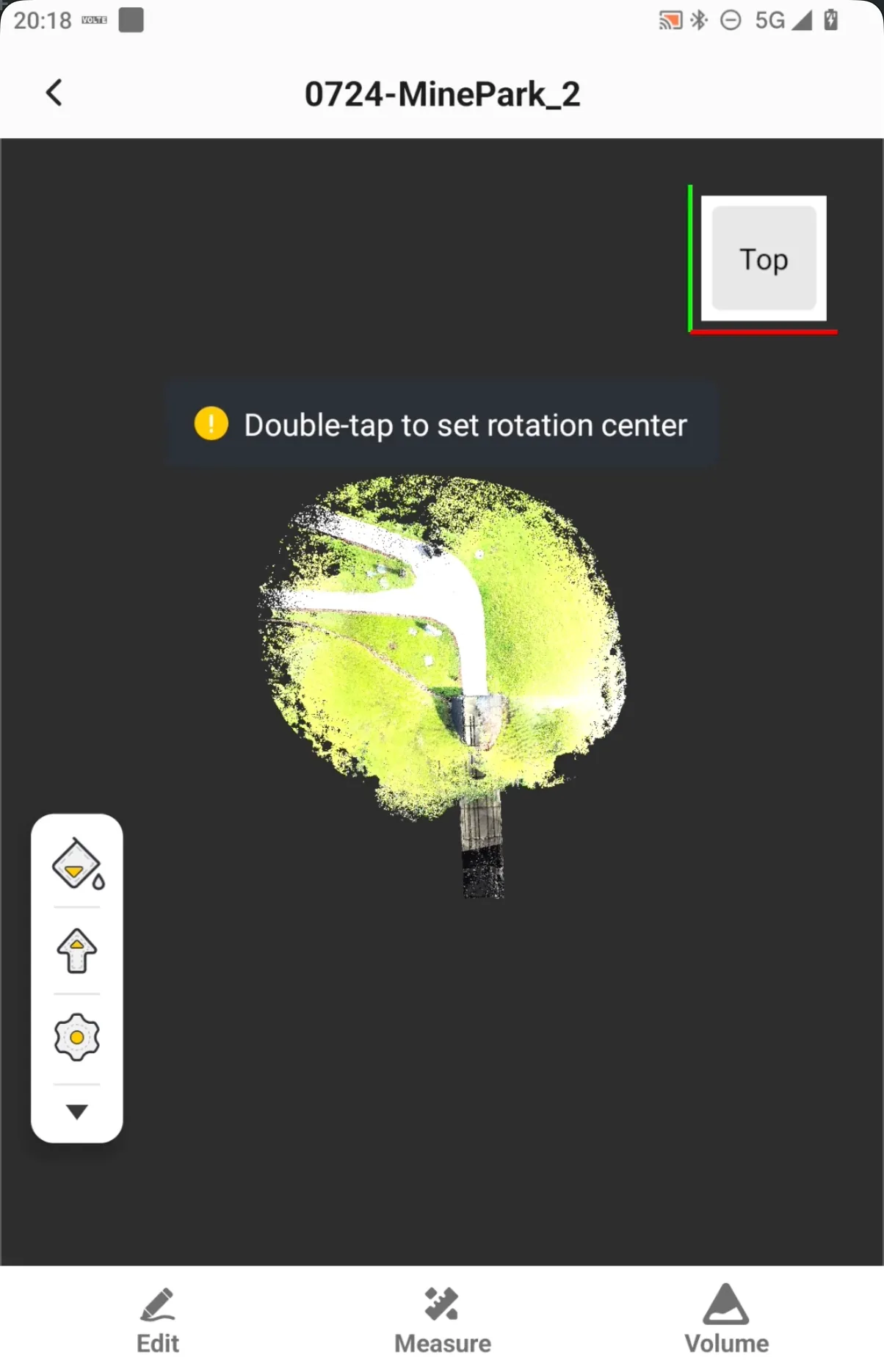
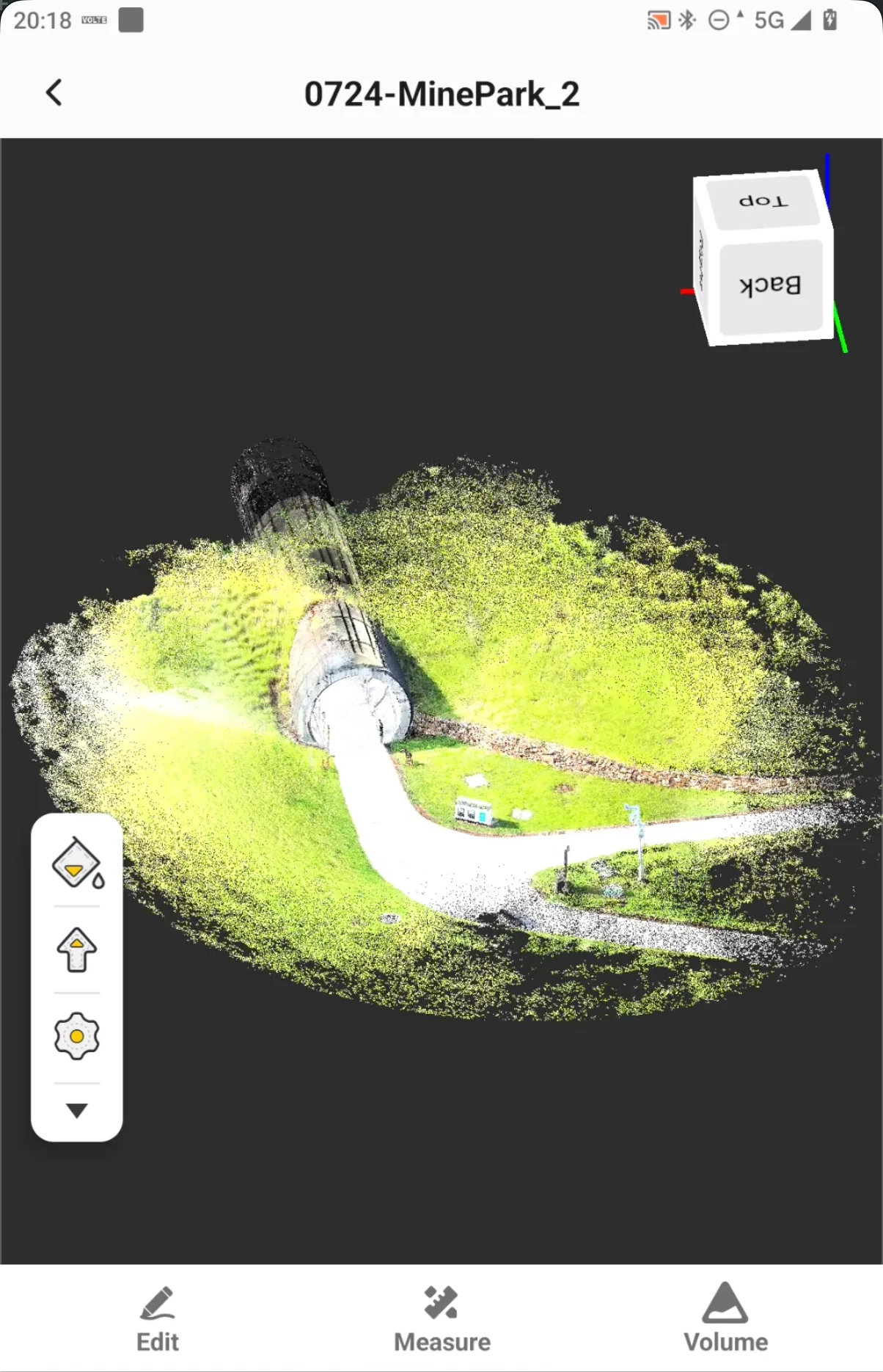
Tap a Scan Task card and select the blue Details button to open the point cloud viewer. The purpose of point cloud viewing is to quickly check coverage, detail completeness, and areas of interest on site, and to adjust the view angle as needed for subsequent cropping, measurement, or volume calculation.
- Use gestures to adjust the point cloud view and zoom level and inspect the point cloud structure from different directions. Drag with one finger to rotate, drag with two fingers to pan, and pinch with two fingers to zoom.
- The view cube in the upper-right corner helps identify the current viewing direction and allows quick switching to standard views such as Top, Back, and Right.
- Double-tap the point cloud to set the rotation center. When inspecting a specific local target, first set the target as the rotation center and then adjust the view.
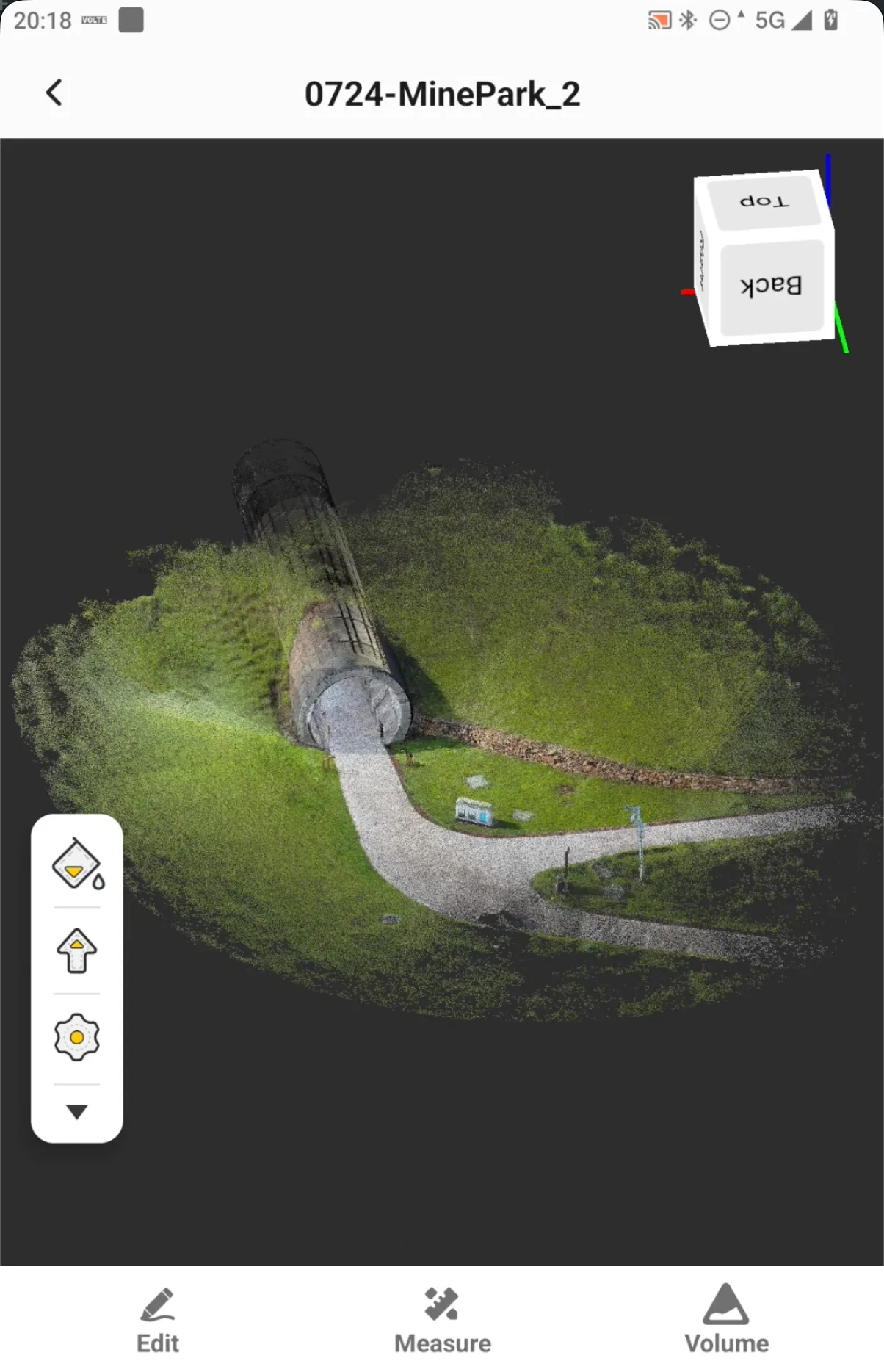
- The toolbar on the left provides access to point cloud color and display settings. The bottom toolbar provides three types of on-site analysis functions: Edit, Measure, and Volume.
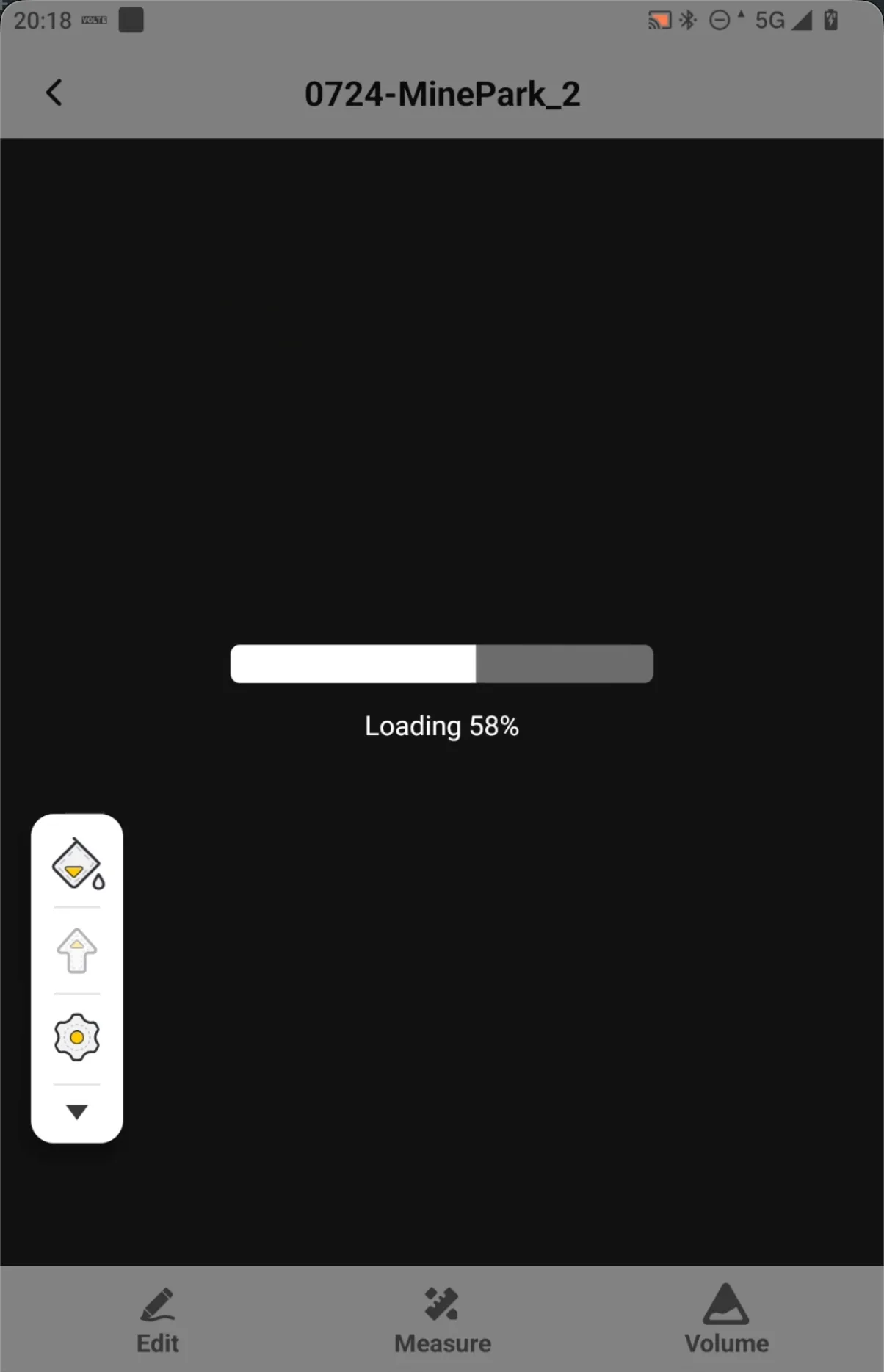 |  |  |
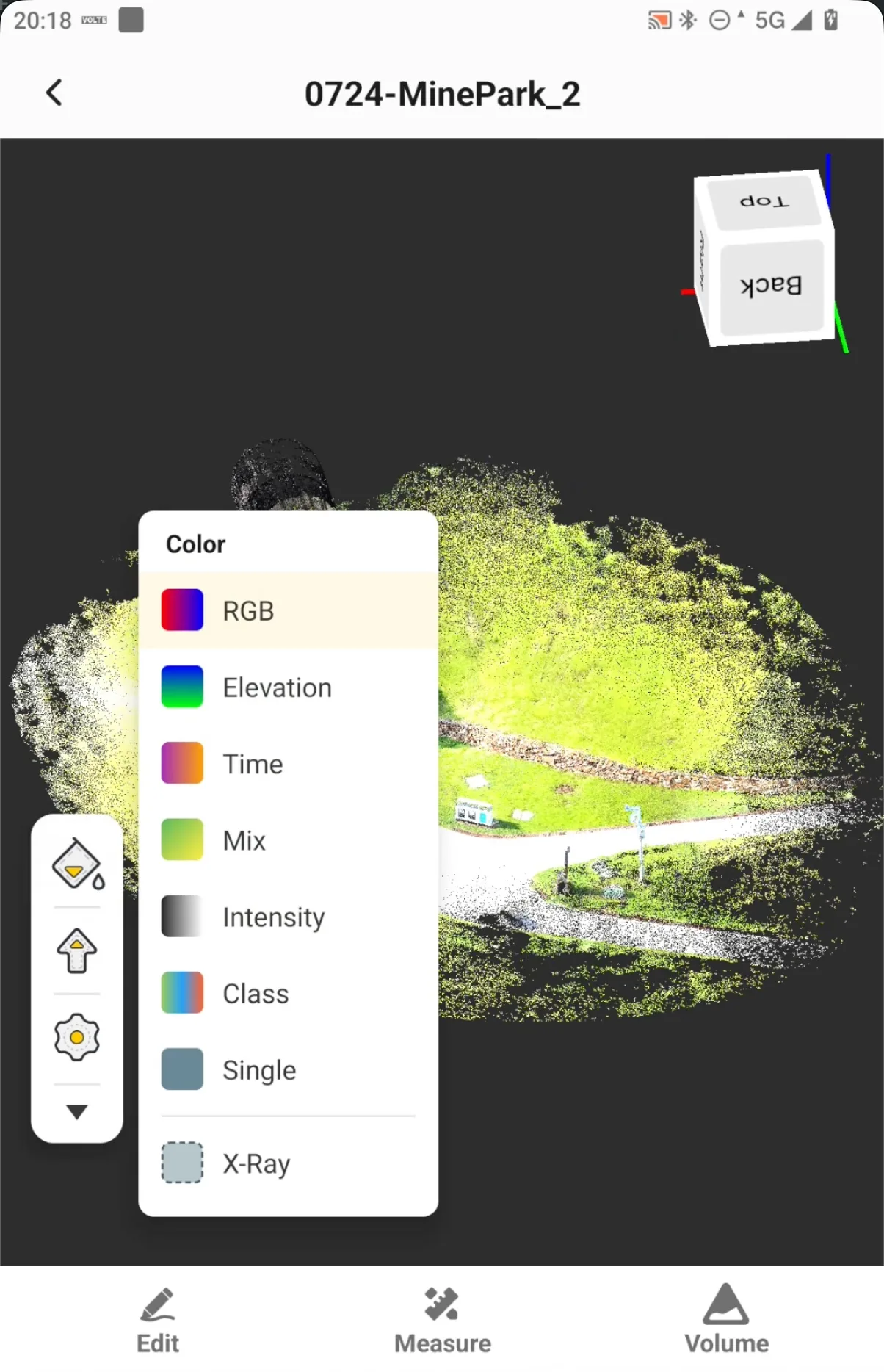
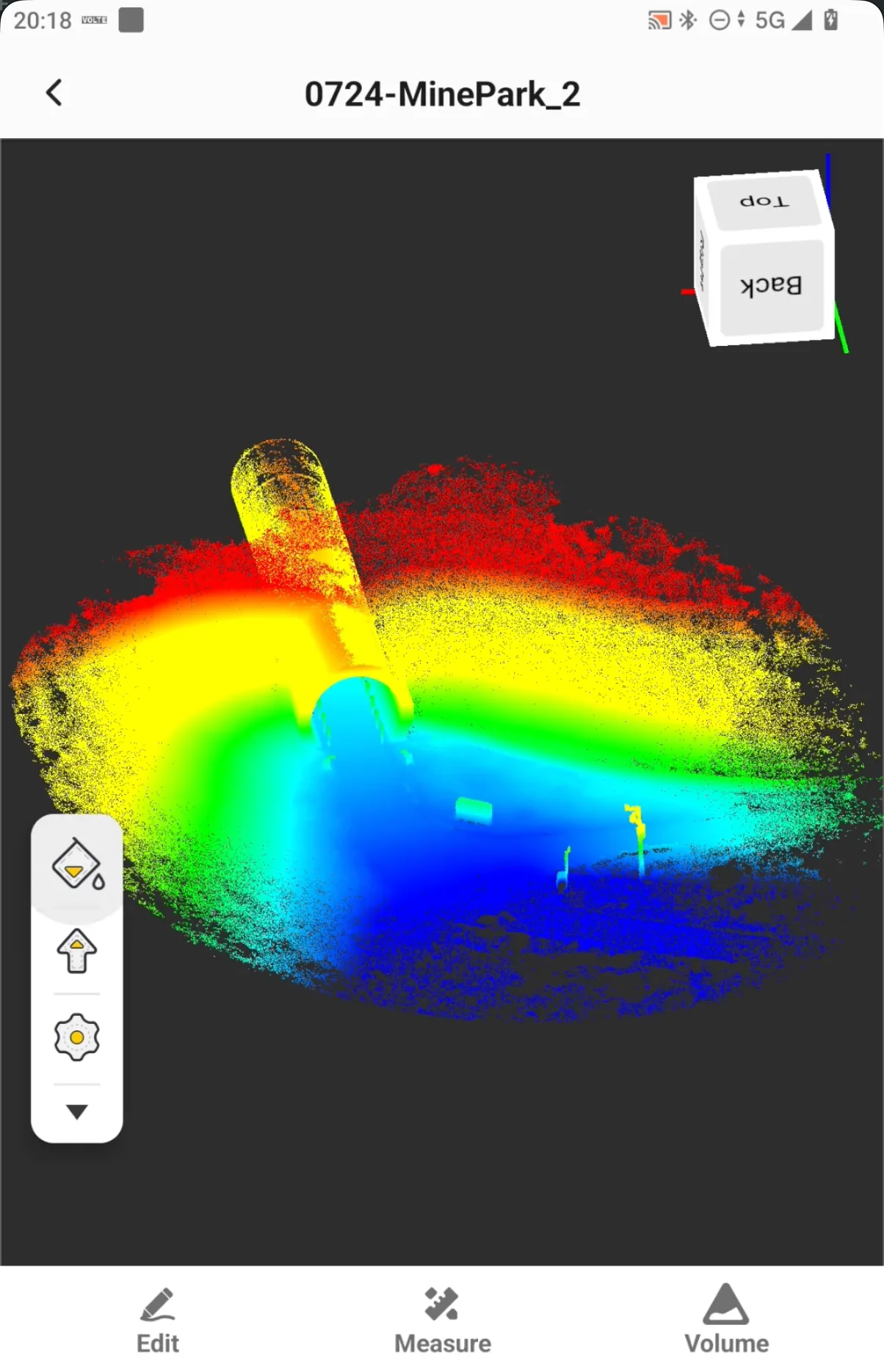
Tap the color option on the left toolbar to switch the point cloud color mode. Available modes include RGB, Elevation, Time, Mix, Intensity, Class, Single, and X-Ray. Different modes are suitable for different types of quick inspection.
| Mode | Description |
| RGB | Displays true colors of the scene, making it easy to visually identify roads, vegetation, structures, and other objects. |
| Elevation | Colors points by elevation to quickly identify terrain undulations and height variations. |
| Time | Colors points by acquisition time to show the temporal distribution of the point cloud during scanning. |
| Mix | Mixed display mode for viewing multiple types of visual information together. |
| Intensity | Displays points according to laser intensity to help identify differences in surface reflectivity. |
| Class | Displays points according to point cloud classification attributes. The actual result depends on whether the point cloud contains classification information. |
| Single | Displays the point cloud in a single color to make geometric outlines easier to distinguish. |
| X-Ray | Uses a transparent-style display to help inspect occluded areas or internal point cloud relationships. |
 |  |  |
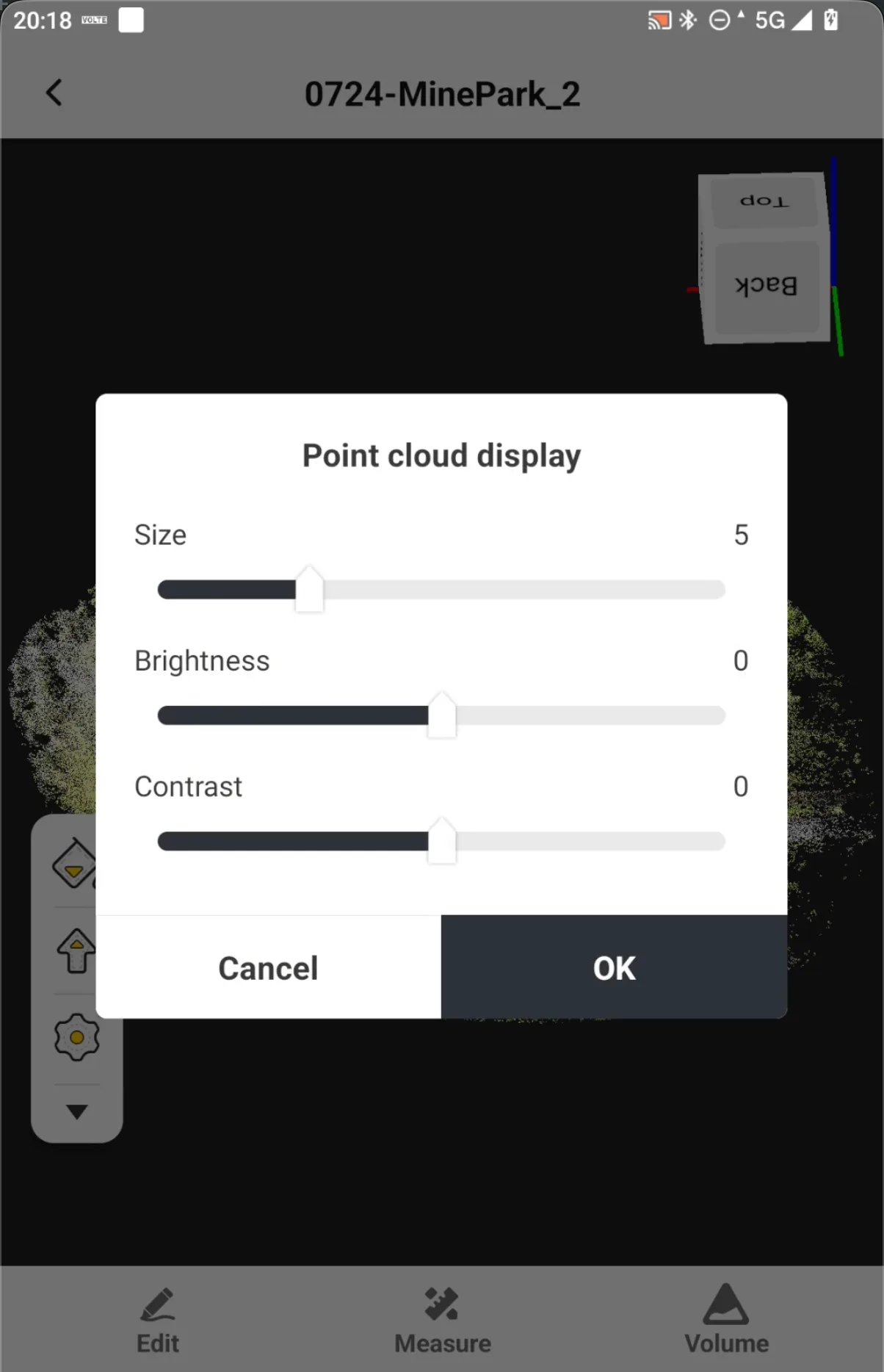
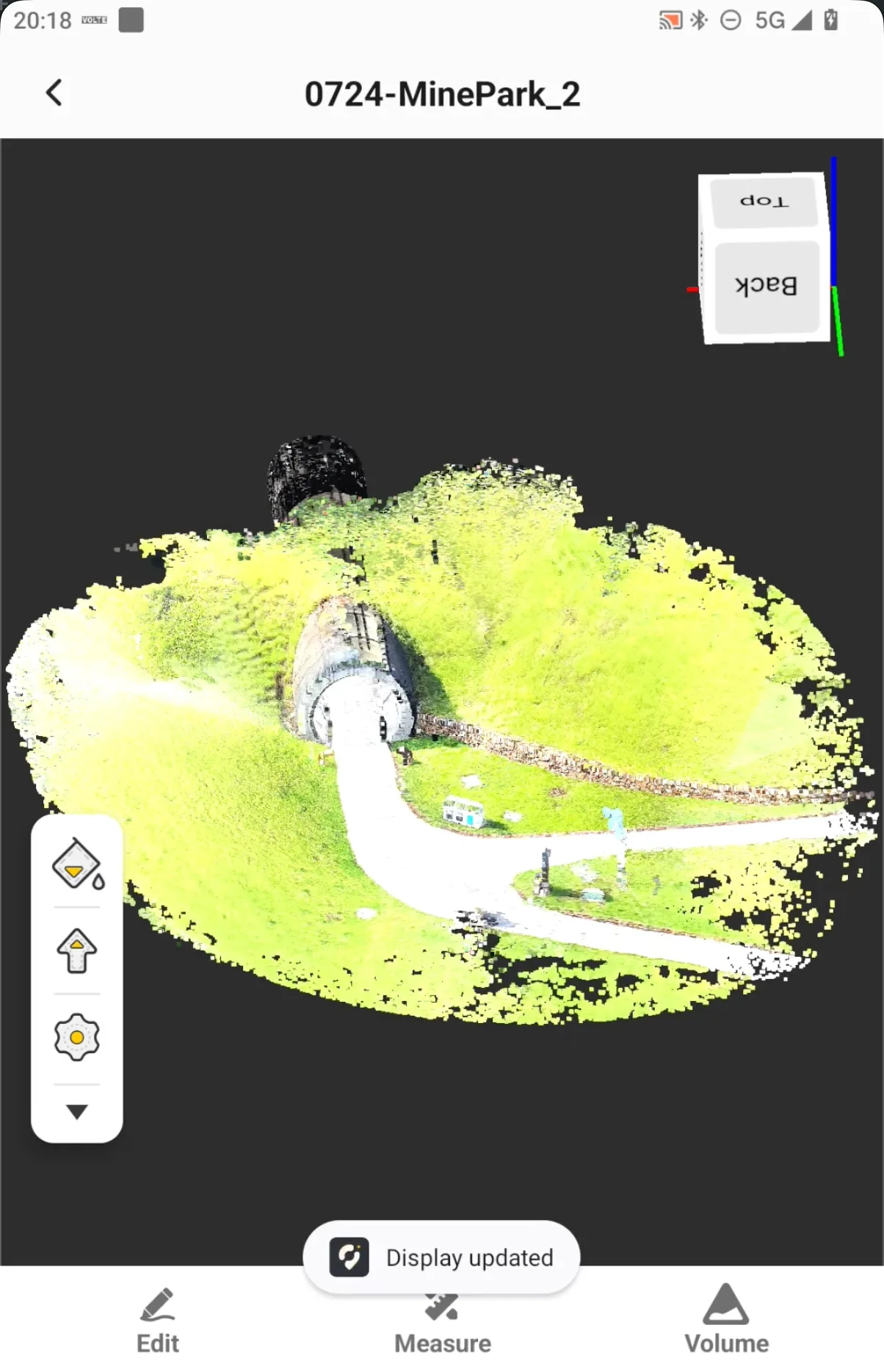
Tap the Settings button to open the point cloud display settings. You can adjust the displayed point size, brightness, and contrast. If the point cloud appears too dense or too bright, or if local details are difficult to distinguish, adjust these parameters as needed. These settings only affect the display and do not change the actual point cloud coordinates.
 |  |
5.10.4 Crop
Cropping is used to retain the point cloud area required for on-site analysis or remove point cloud data that is not currently needed. Before drawing a cropping area, adjust the view so that the target boundary can be clearly identified.
To crop a point cloud:
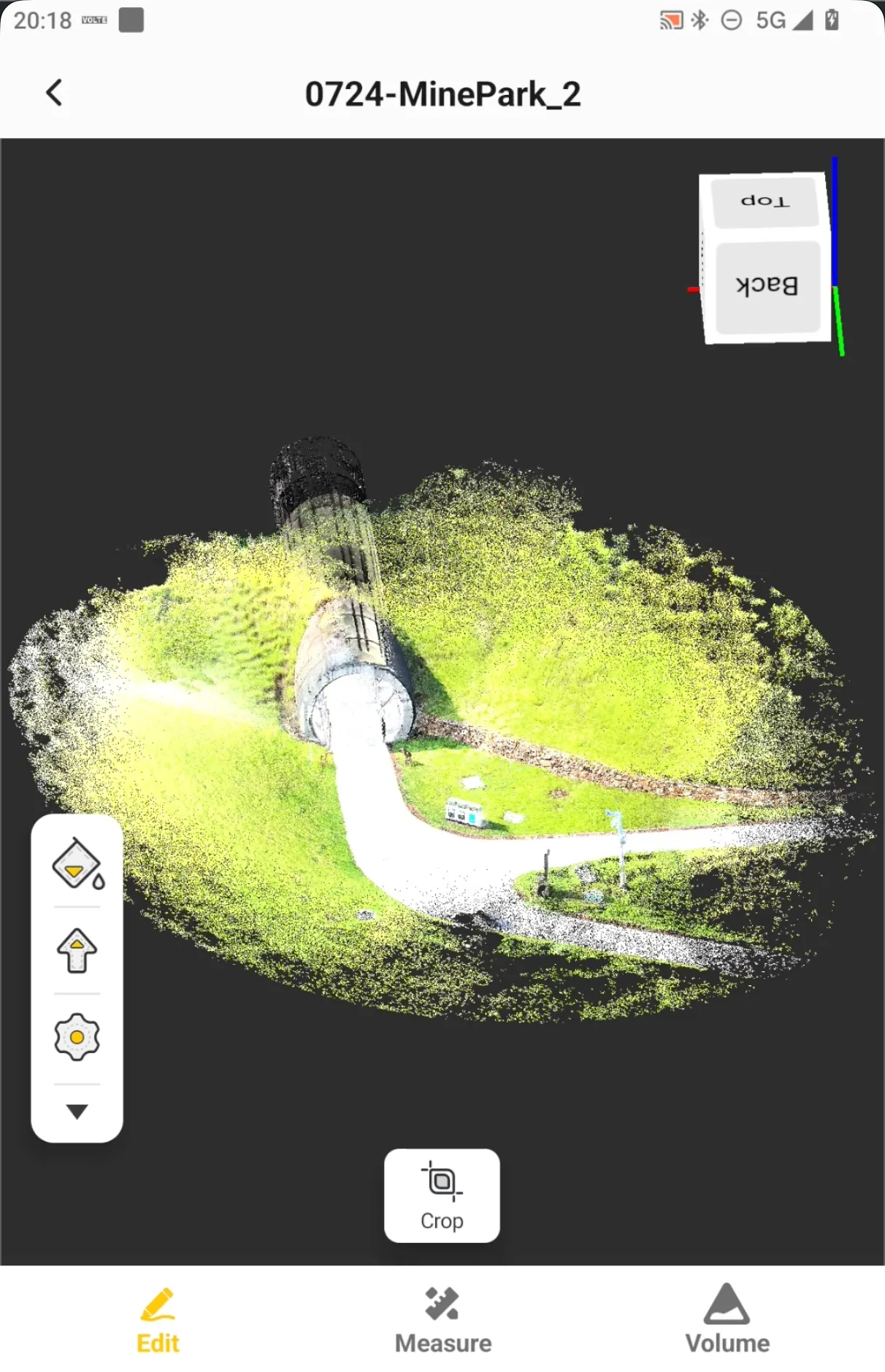
- Tap Edit at the bottom of the point cloud screen to enter editing mode.
- Select Crop and draw the cropping area in the point cloud as instructed on the screen.
- After completing the boundary, select Keep Inside or Keep Outside.
- After confirming that the cropping area is correct, tap Done to save the cropped result.
 | 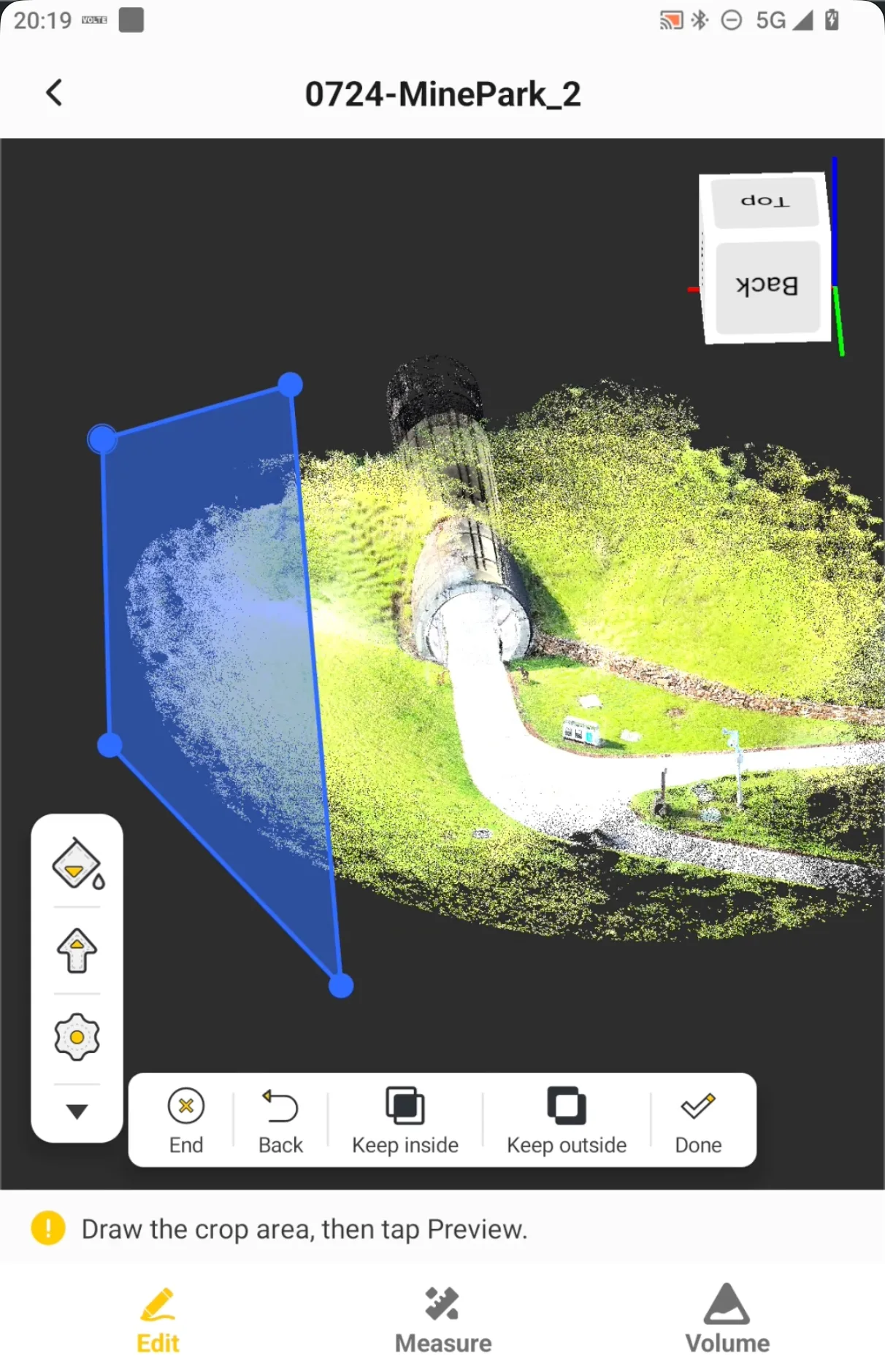 | 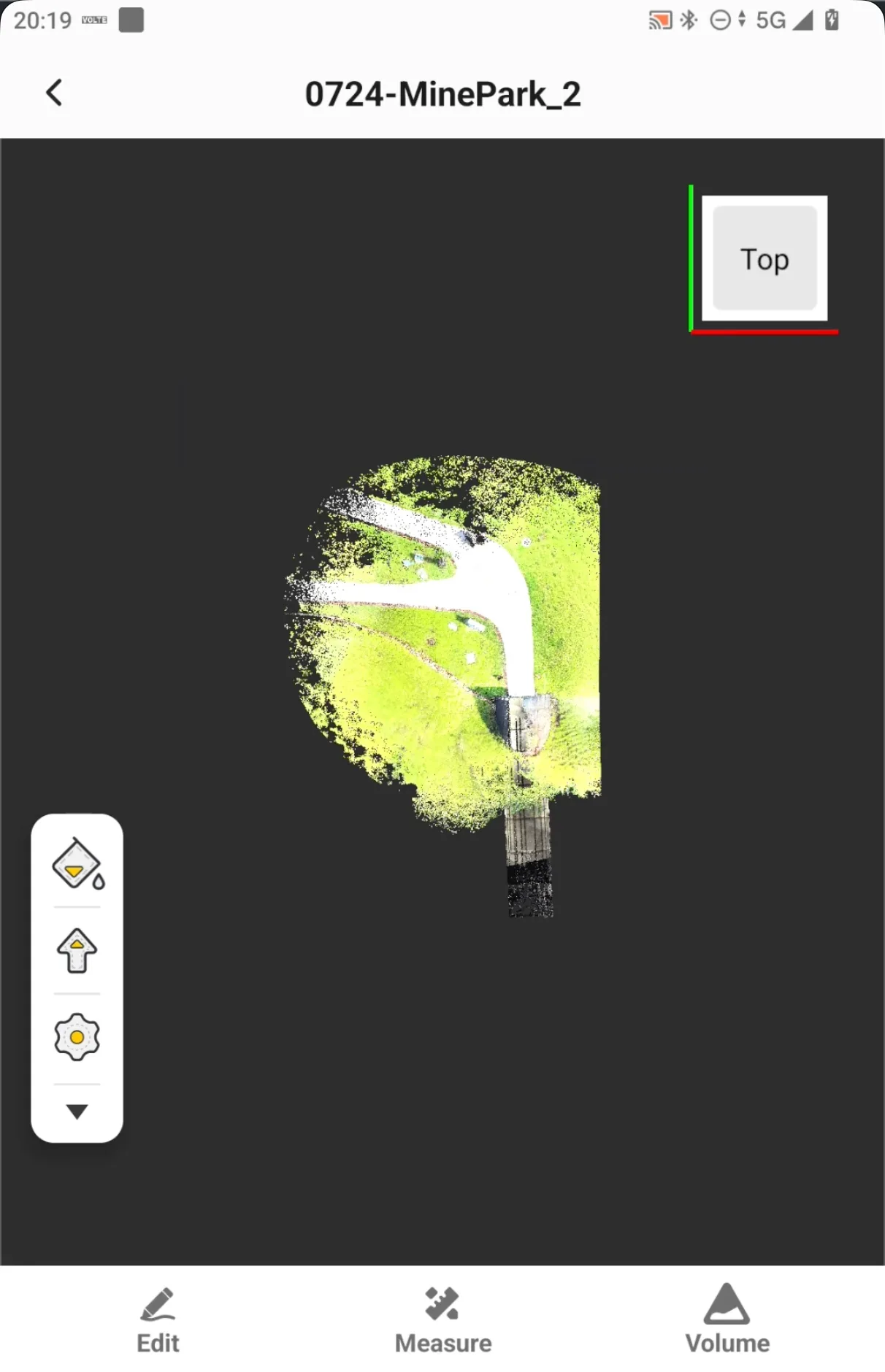 |
- Before cropping, rotate the point cloud to a view where the target boundary is clearly visible. Leave a small margin around the target area where possible to avoid accidentally removing edge points required for subsequent measurements.
- After cropping, the thumbnail, file size, and point count displayed on the task card are updated accordingly.
5.10.5 Measure
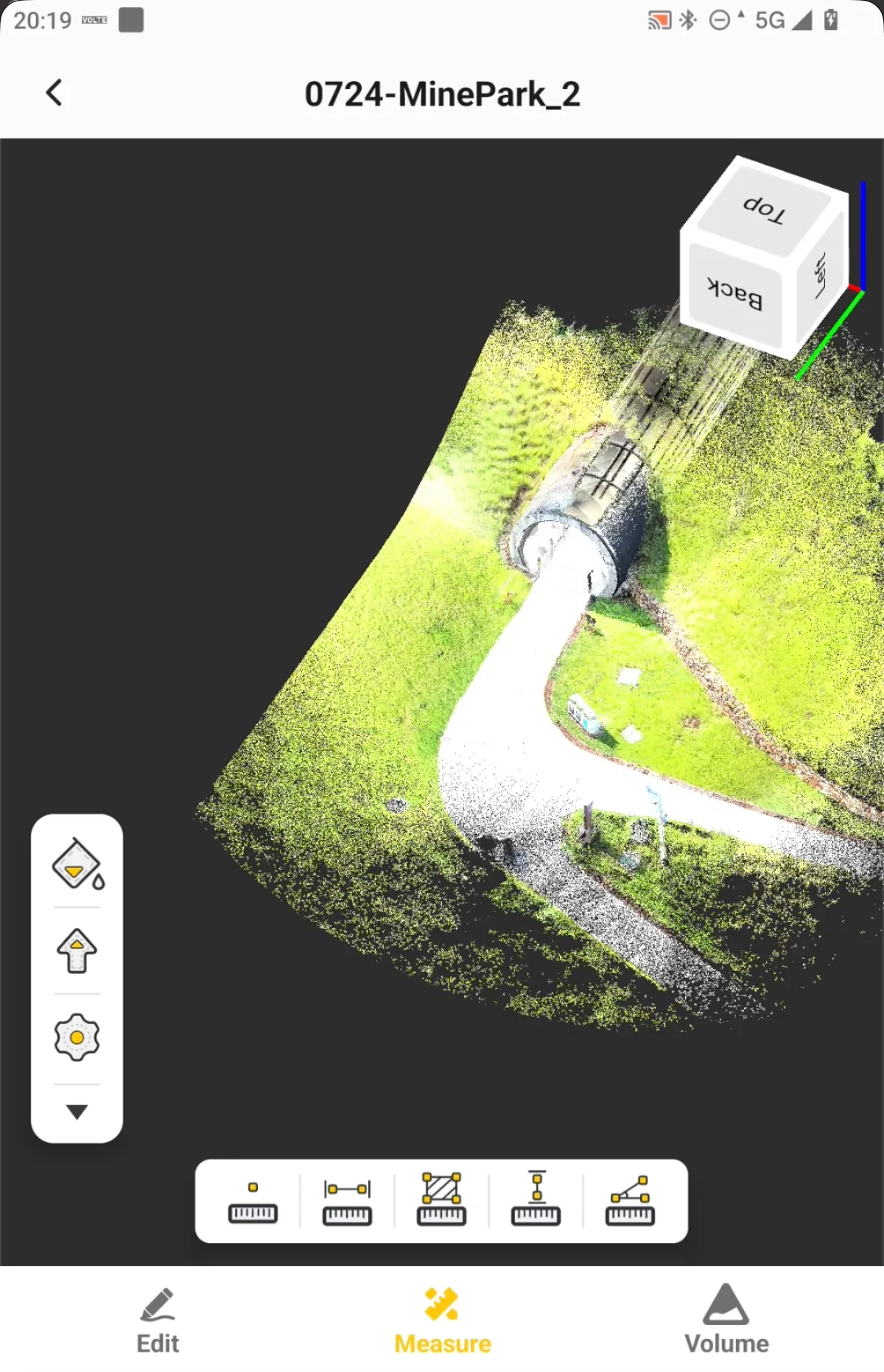
Tap Measure at the bottom of the screen to open the measurement tools. Scan Tasks supports Point, Distance, Area, Height, and Angle measurements for quickly obtaining geometric information from the point cloud on site.
| Function | Operation | Result |
| Point | Move the indicator arrow to the target point and snap the arrow tip to the point cloud. Confirm and save the point. | Point name, code, and N/E/U coordinates. |
| Distance | Select the two endpoints of the distance in the point cloud as instructed on the screen. | Distance between the two points. |
| Area | Select points along the boundary of the target area to form a closed polygon. | Polygon area, displayed in m². |
| Height | Select the points related to the target height as instructed on the screen. | Height difference of the target. |
| Angle | Select three points that define the angle as instructed on the screen. | Angle result. |
5.10.5.1 Measure a point
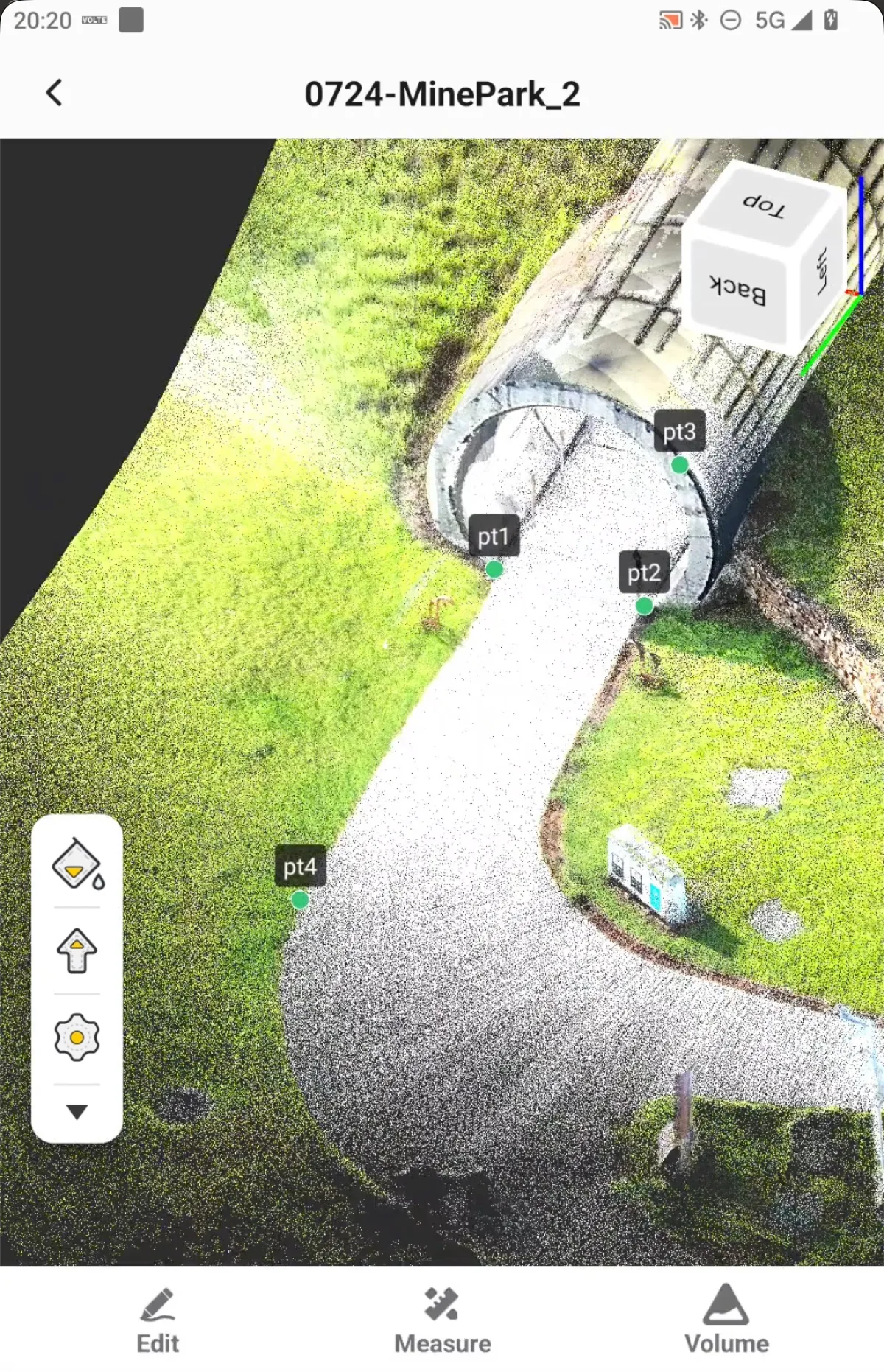
- Tap Measure on the bottom menu and select the first icon, Point.
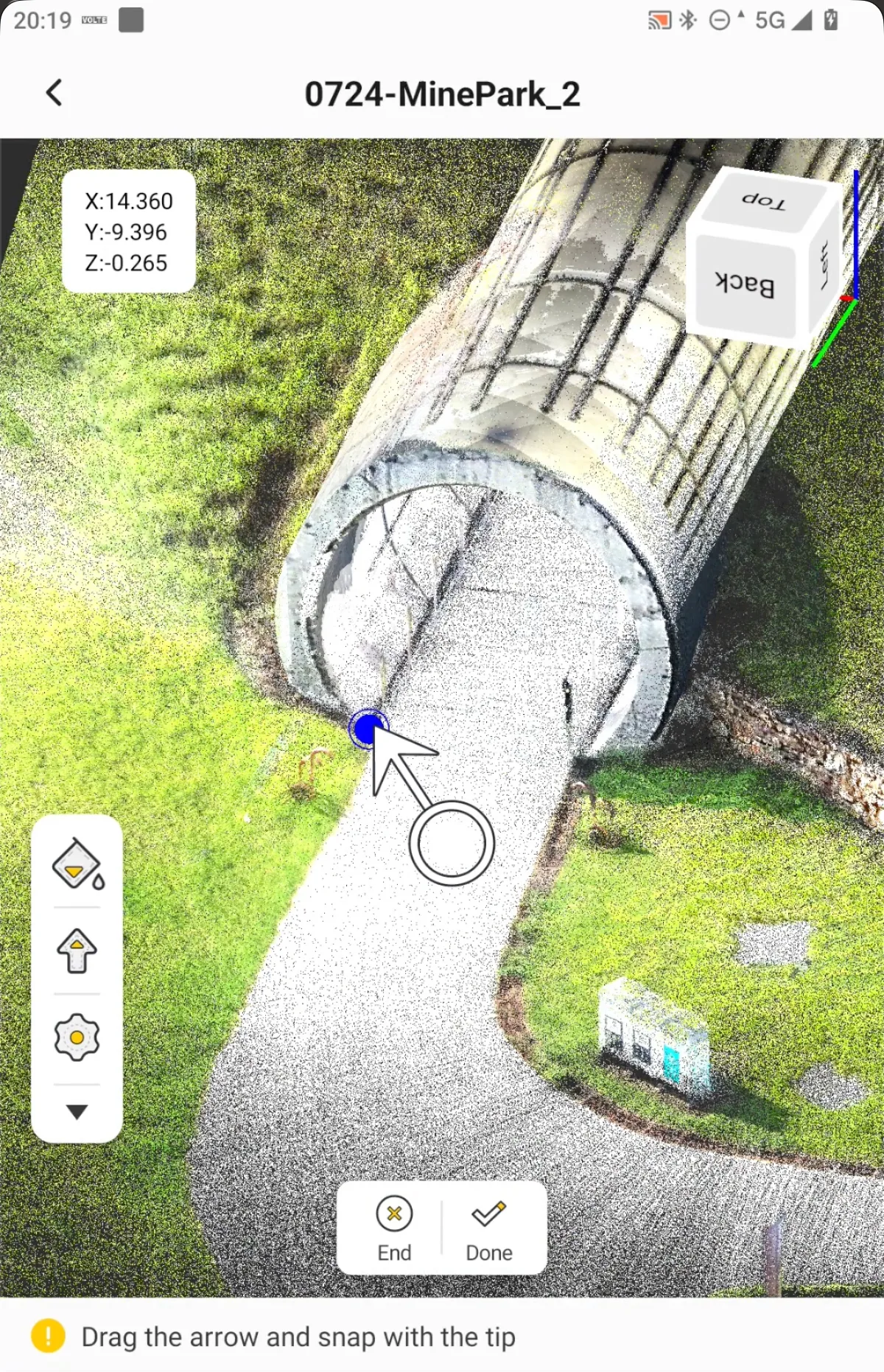
- Move the indicator arrow on the screen so that the arrow tip aligns with and snaps to the target point. The N/E/U coordinates of the target are displayed in real time in the upper-right corner.
- After confirming that the correct target point has been selected, tap Done on the bottom toolbar.
- In the Save Point dialog box, check or enter the point name and code, and review the point coordinates.
- Tap OK to save the point. Saved points are displayed in the point cloud with point-name labels for subsequent verification.
 |  |  |
Point measurement results depend on the coordinate system of the current point cloud. A scanned point cloud initialized with RTK can contain absolute coordinates. A relative-coordinate point cloud or locally imported point cloud is displayed according to its own coordinate system.
5.10.5.2 Measure Distance
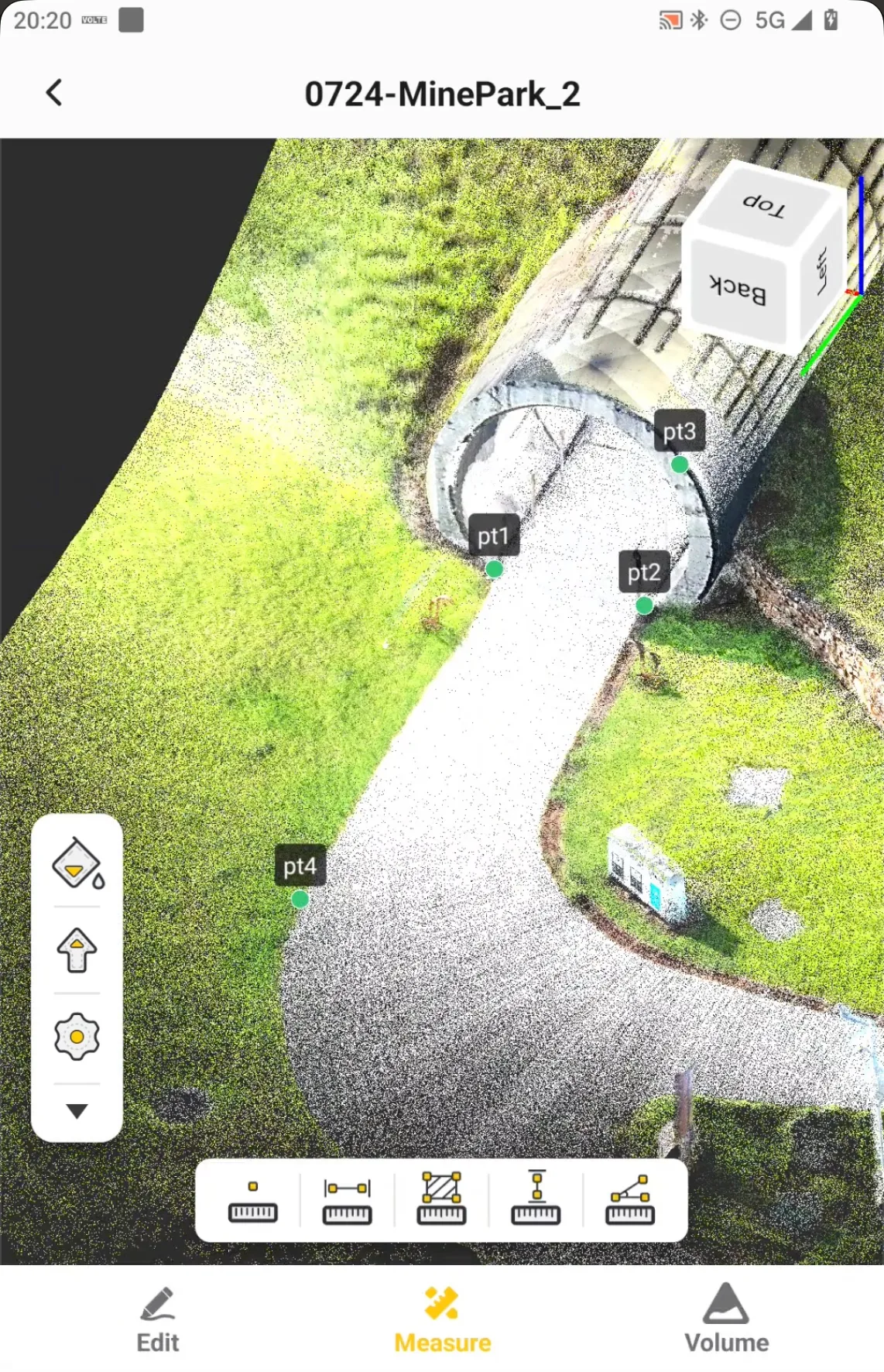
After selecting the Distance measurement function, select the two endpoints in the point cloud in sequence. After both points are selected, a line is displayed between the selected points together with the measured distance. This function is suitable for quickly checking road widths, component dimensions, opening widths, and similar dimensions.
 | 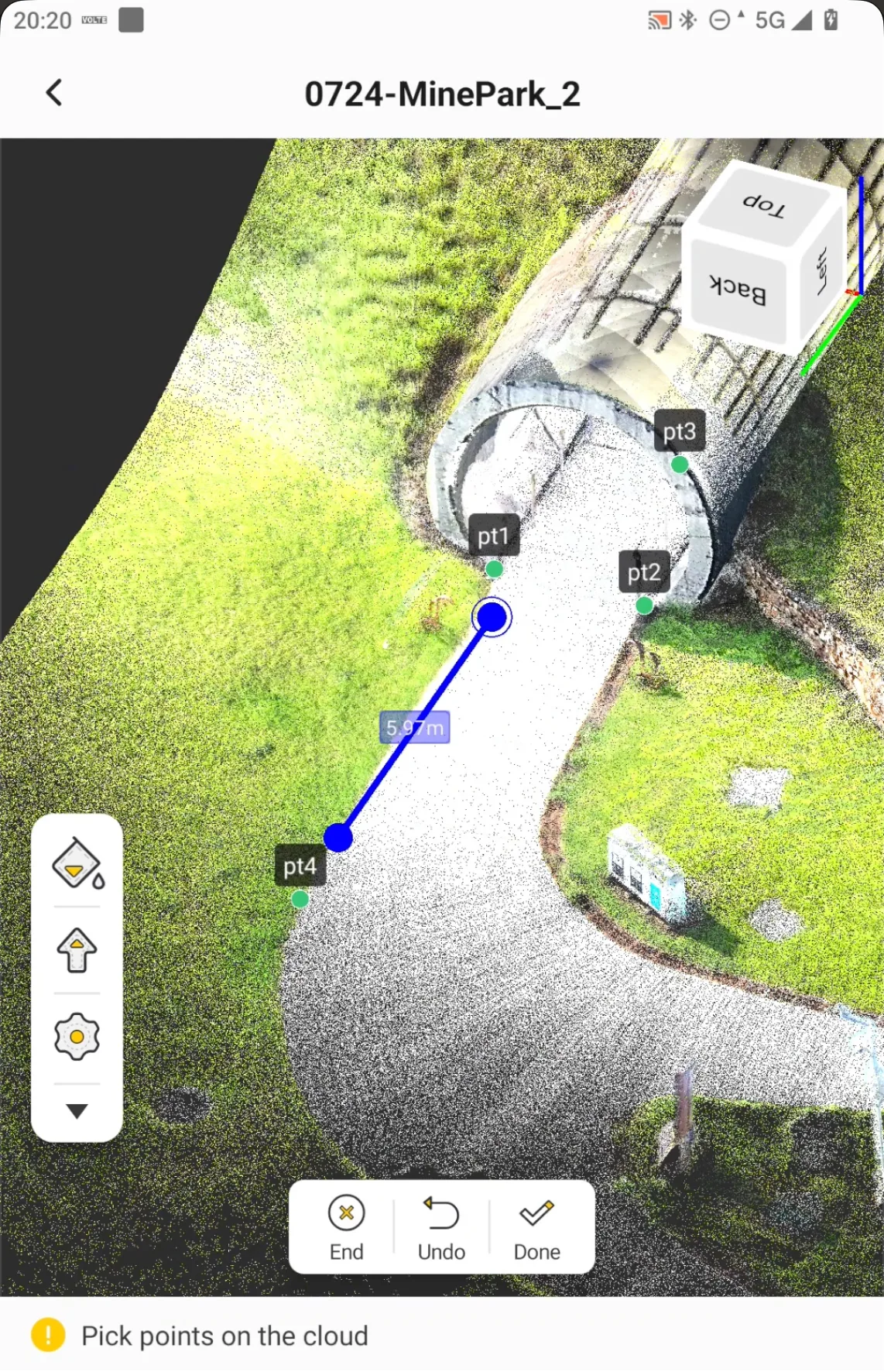 |
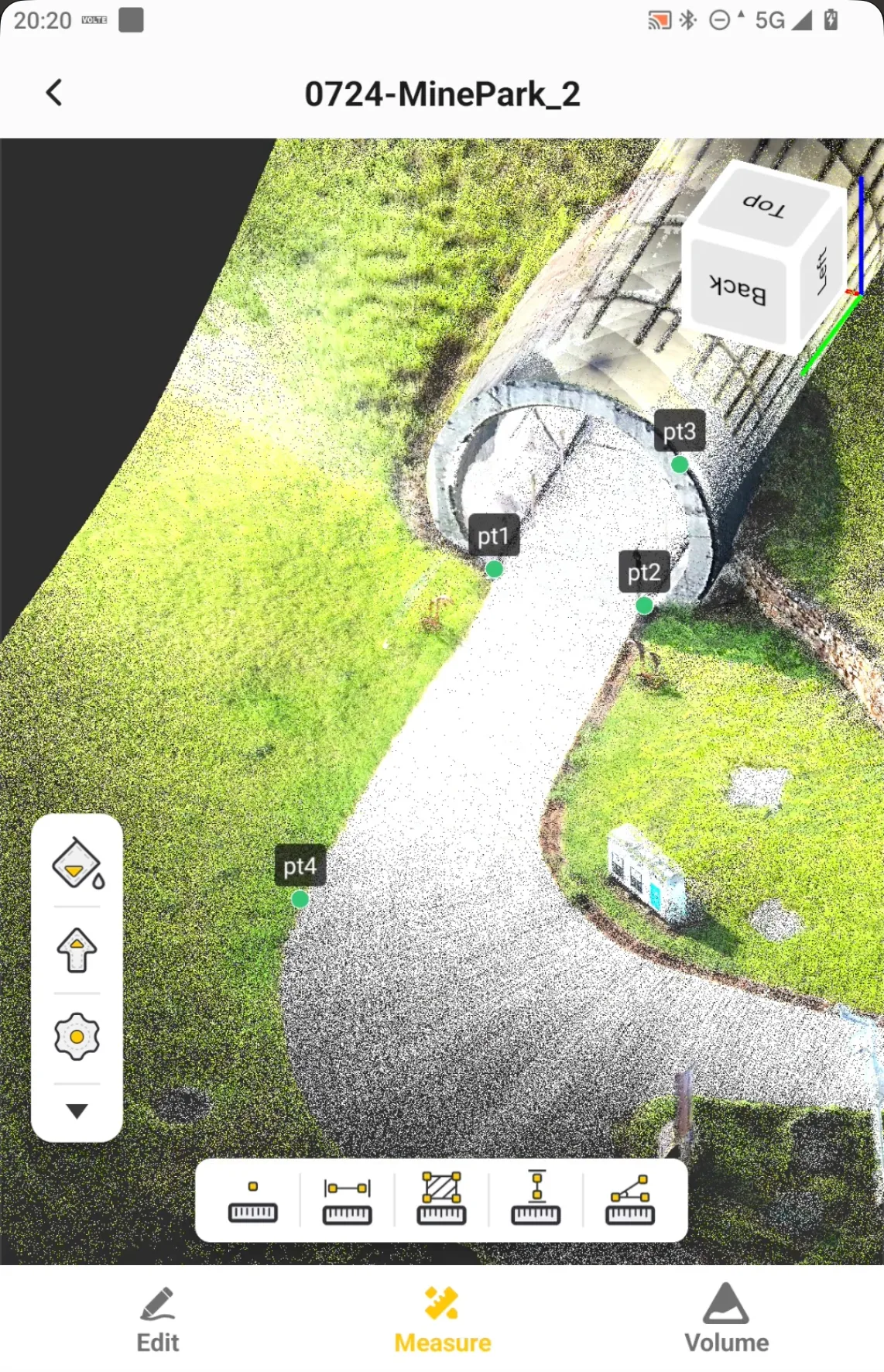
After the Distance measurement function is closed, the distance measurement information displayed on the point cloud is cleared.
5.10.5.3 Measure Area
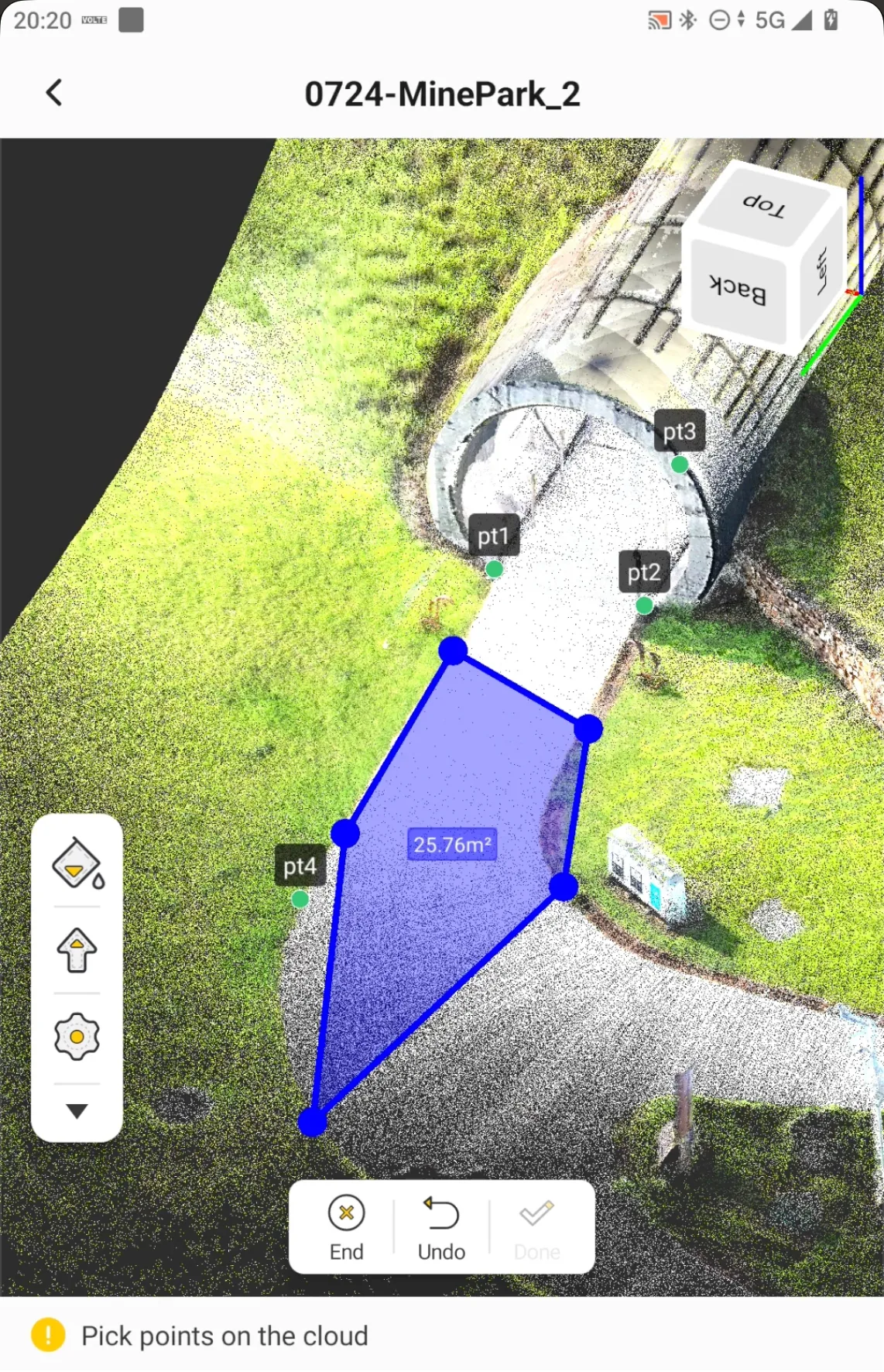
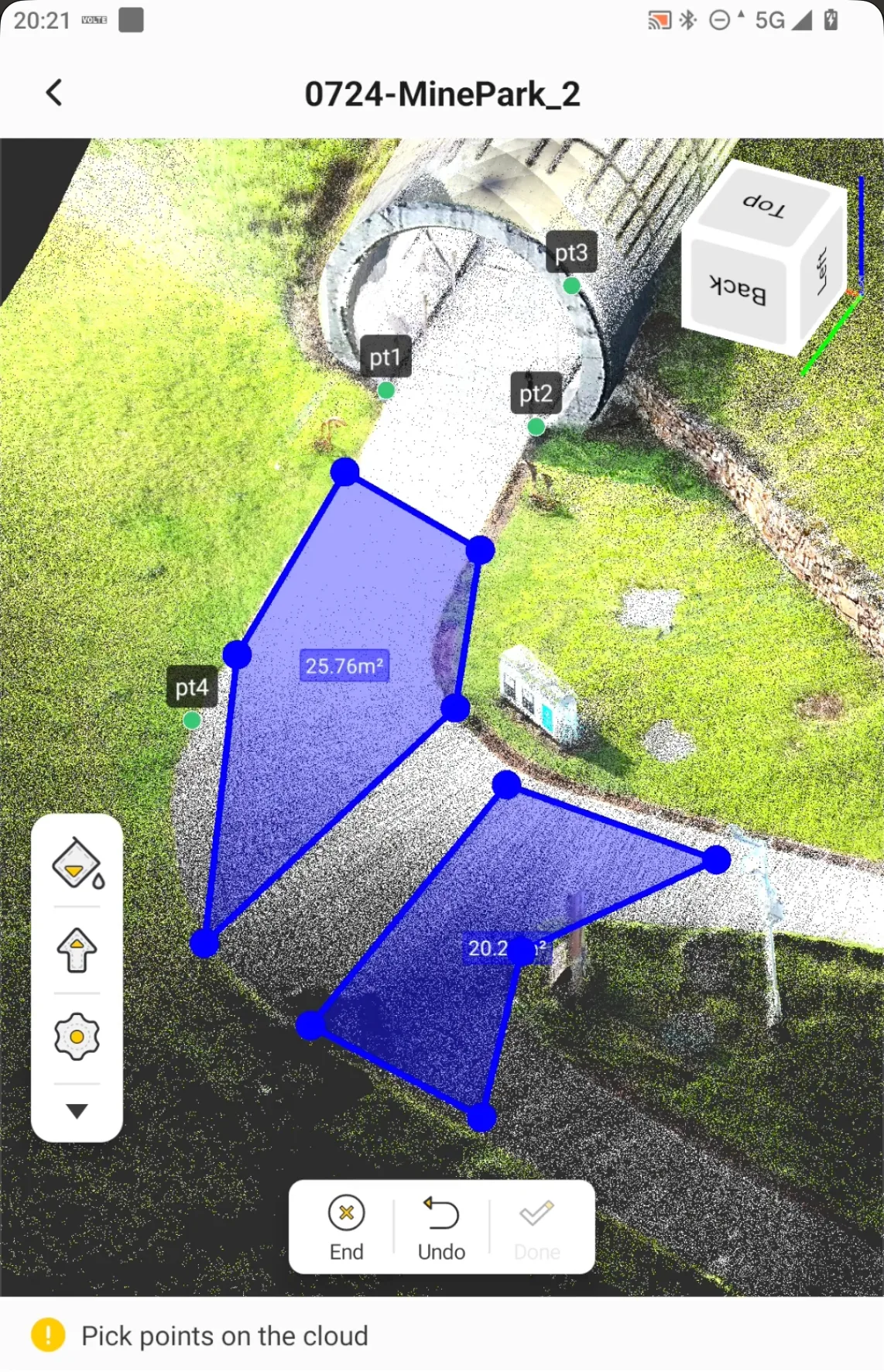
After selecting the Area measurement function, select points sequentially along the boundary of the target area. Once a polygon is formed, the calculated area is displayed inside the selected region. The number and positions of selected points should represent the actual shape of the target boundary as closely as possible.
 |  |  |
5.10.5.4 Measure Height
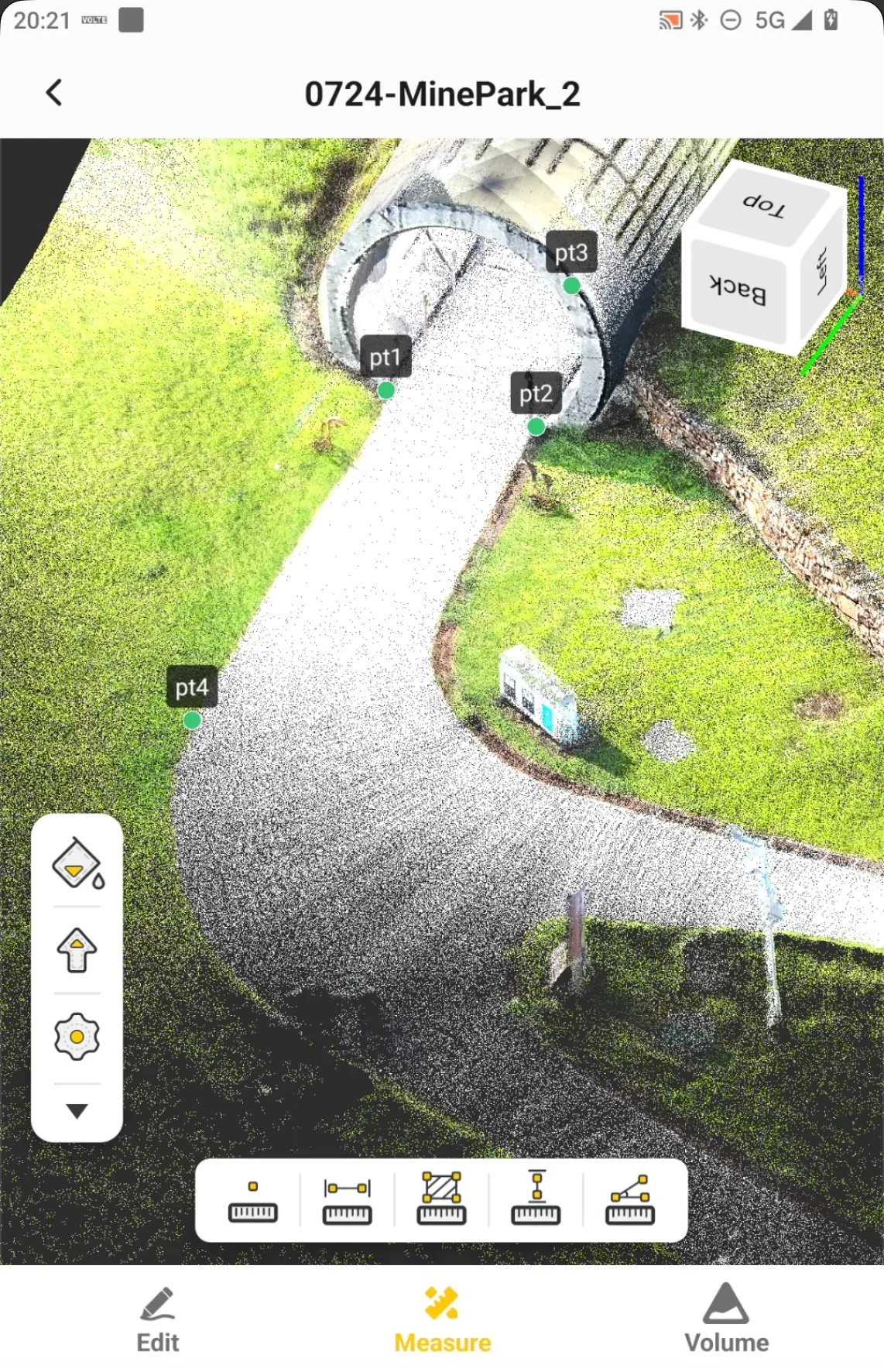
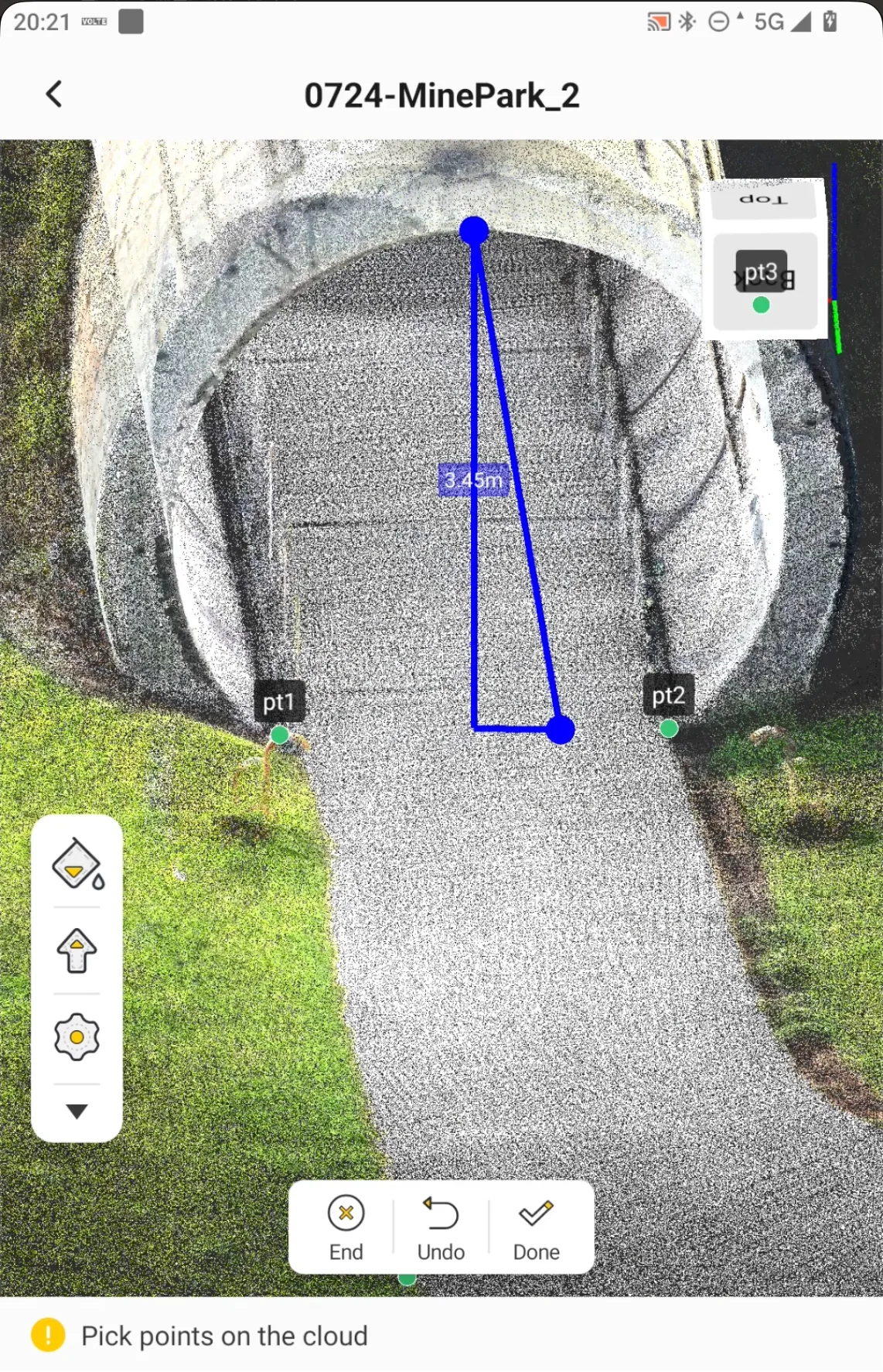
Height measurement is used to quickly check the height or height difference of a target on site. After entering the function, select the points related to the target height as instructed on the screen. The height result is displayed after the selection is completed. To reduce measurement error, select locations where the structural boundary is clear and the point cloud is continuous whenever possible.
 |  |
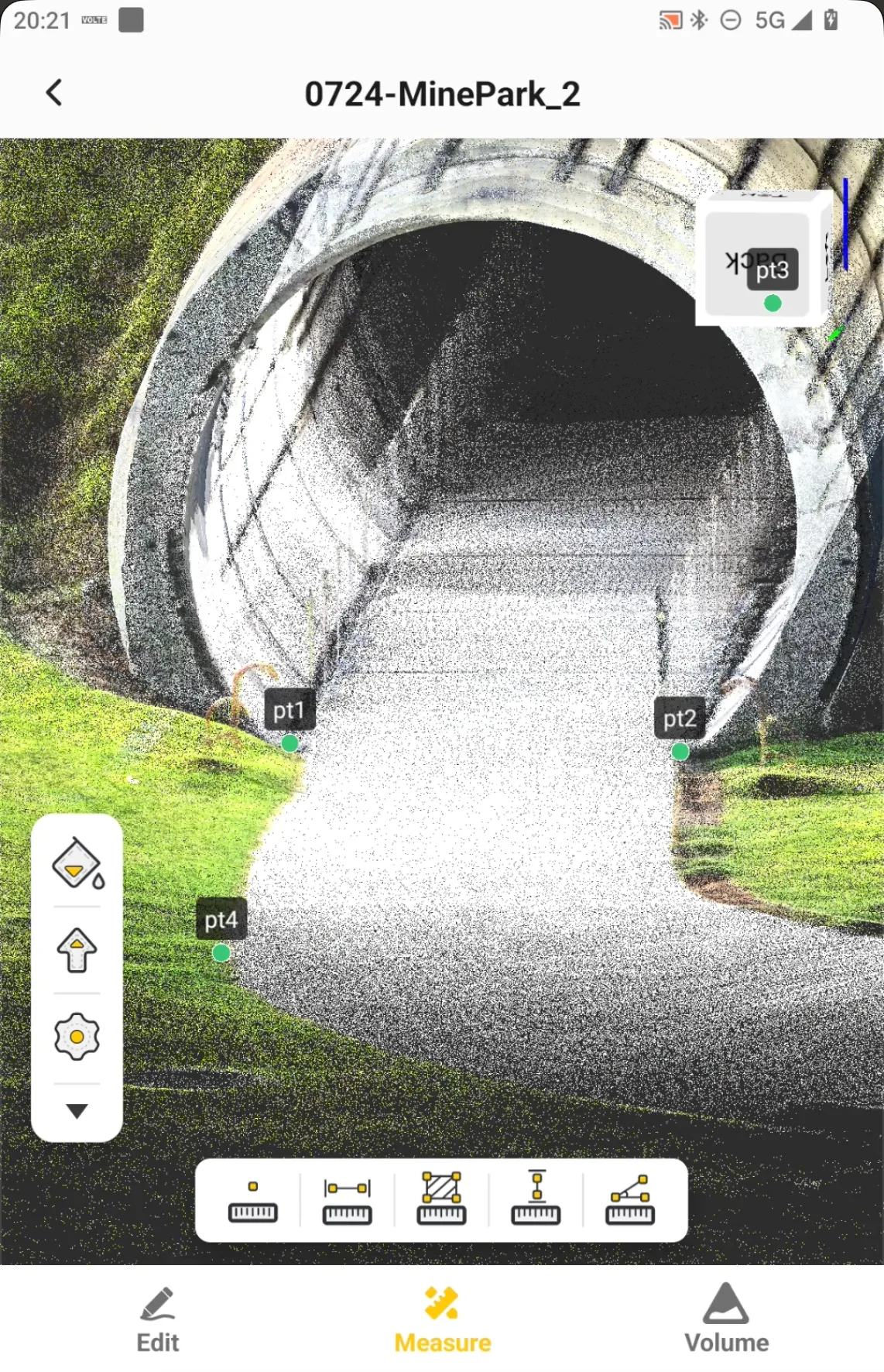
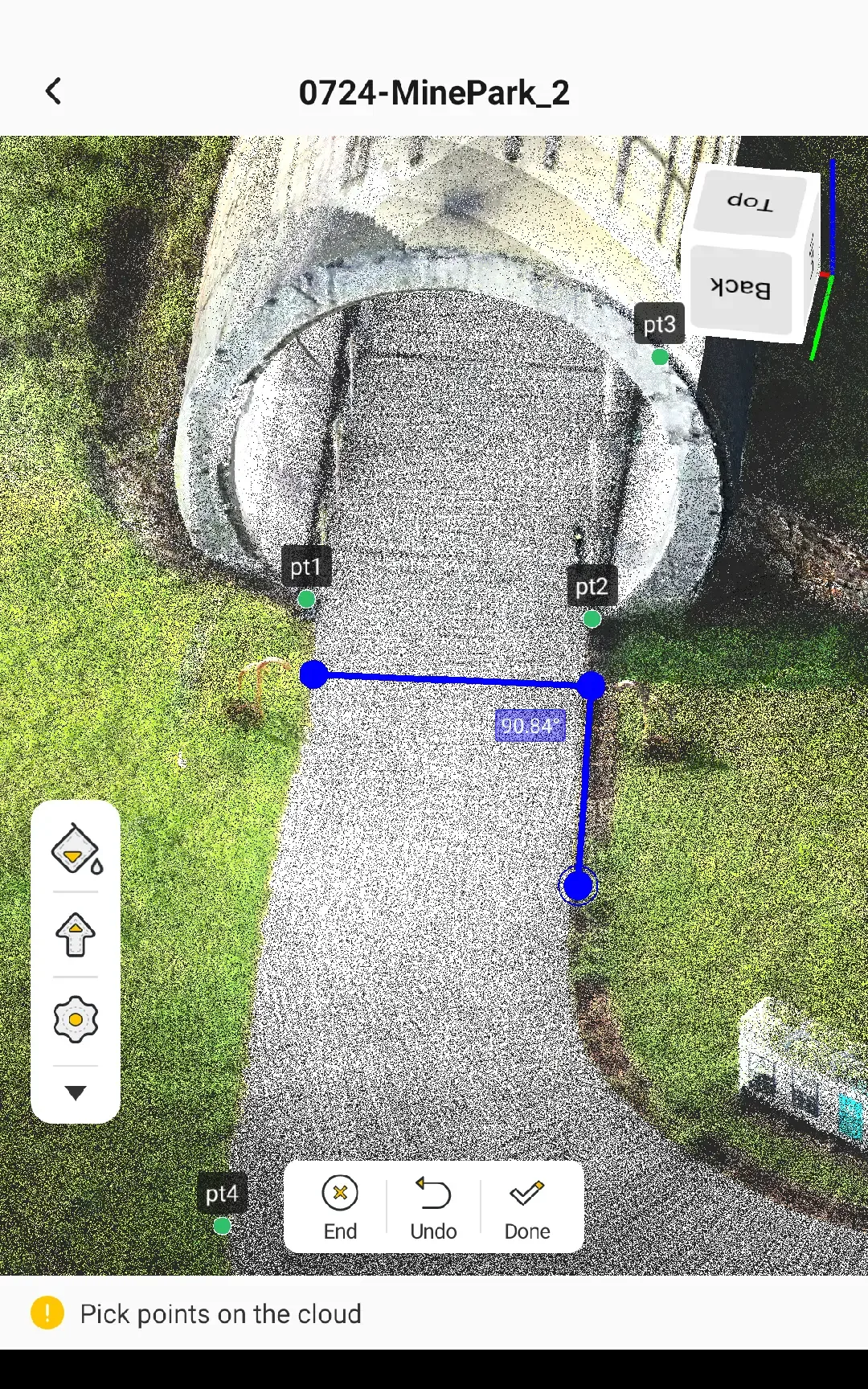
5.10.5.5 Measure Angle
Angle measurement is used to check the angle between two directions in the point cloud. After entering the function, select the points that define the target angle in sequence as instructed on the screen, and then read the angle result. For areas with unclear edges or sparse point clouds, first adjust the viewing angle and zoom level. Confirm the selected point locations before completing the measurement.
 |  |
Measurements in Scan Tasks are intended for quick on-site analysis and verification. The achievable measurement quality depends on the original point cloud quality, scanning distance, target surface, point density, coordinate system, and selected point locations.
5.10.6 Volume
The Volume function in Scan Tasks does not directly perform the final volume calculation on the point cloud. Instead, the required area is first extracted from the point cloud, and the extracted data is generated as surface data and saved to the Surface Library. The existing Volume Calculation function in Trion Survey is then used for the calculation.
| Step | Description |
| 1 | Draw the volume calculation boundary. |
| 2 | Extract the point cloud inside the boundary. |
| 3 | Generate a surface file and save it to the Surface Library. |
| 4 | Open the existing Volume Calculation function. |
To extract the calculation area from the point cloud:
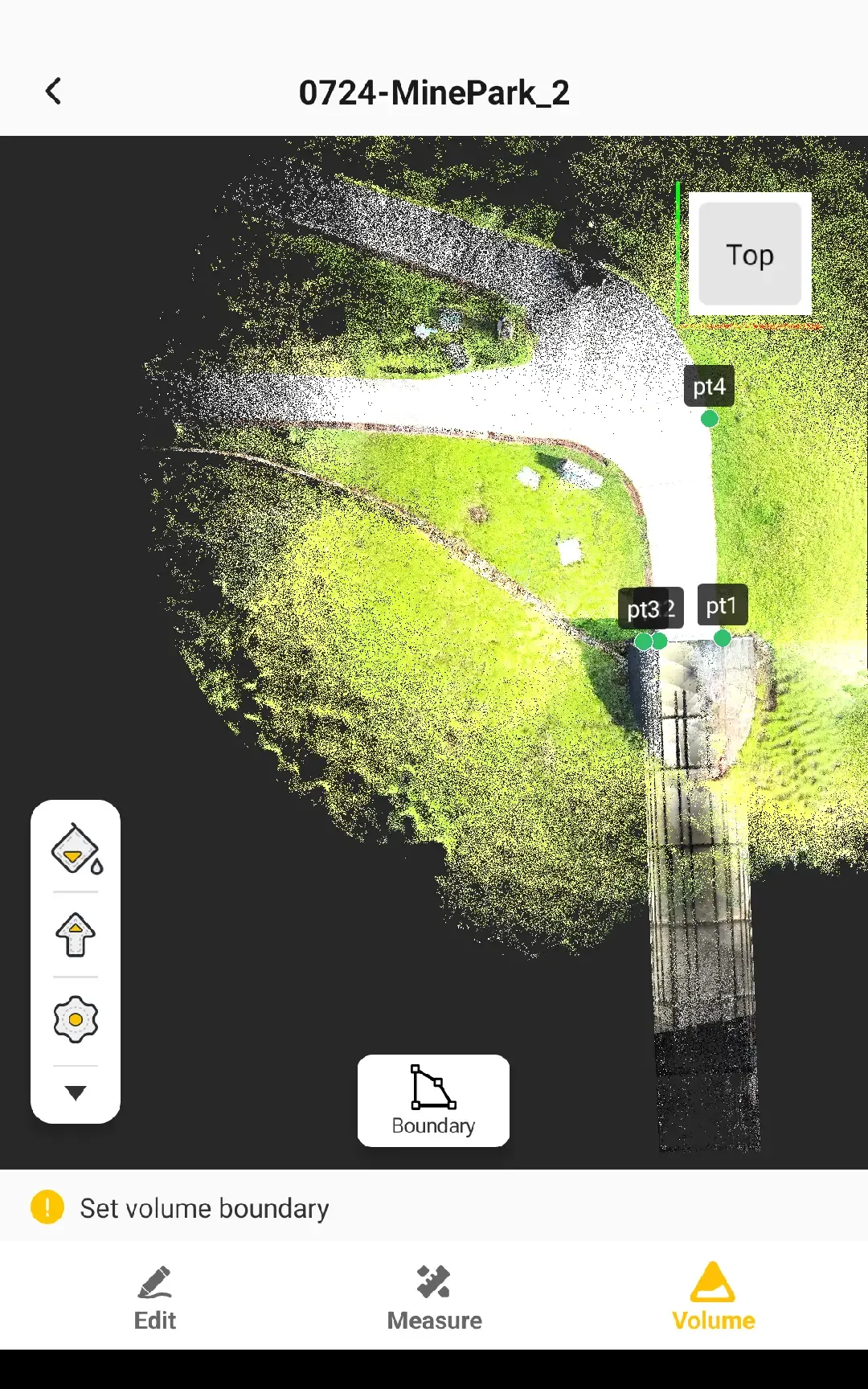
- Tap Volume at the bottom of the Scan Task point cloud screen.
- Rotate and zoom the point cloud until the boundary of the area to be calculated is clearly visible.
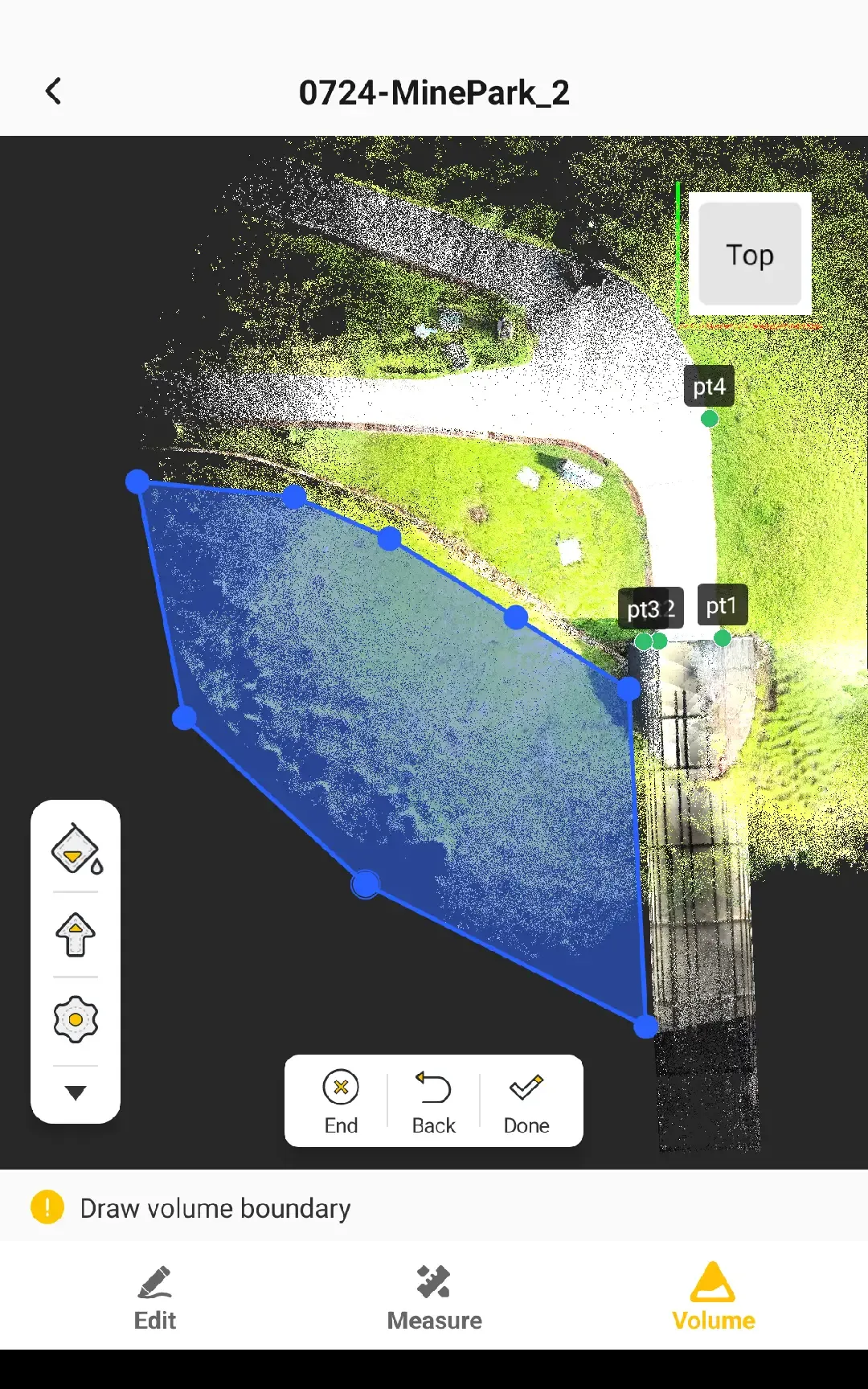
- Draw the volume calculation boundary as instructed on the screen, ensuring that all point cloud data required for the calculation is contained within the boundary.
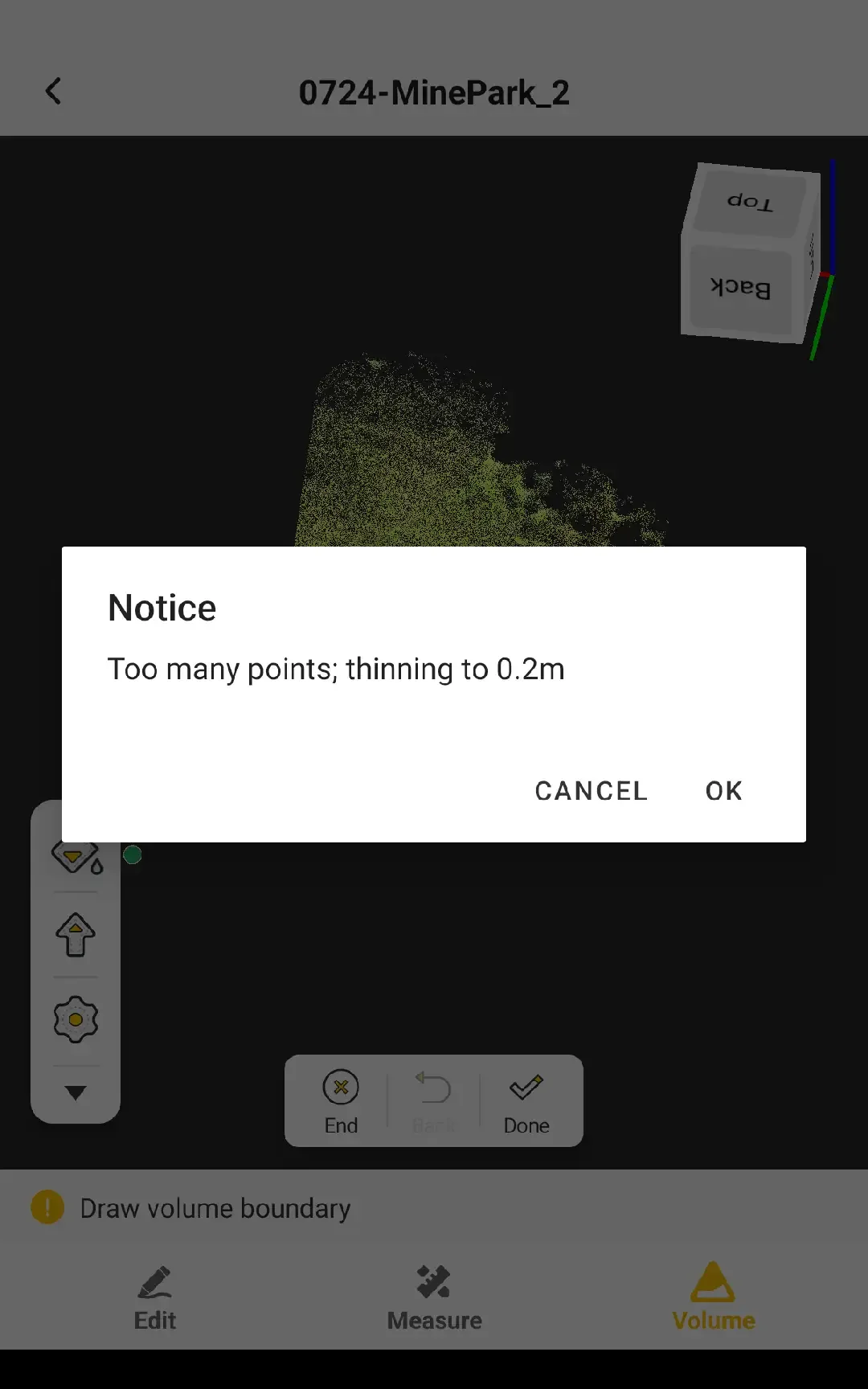
- After confirming the boundary, tap Done. The system extracts the corresponding area from the original point cloud.
- If the point density inside the boundary is high, the point cloud is automatically downsampled.
 |  |  |
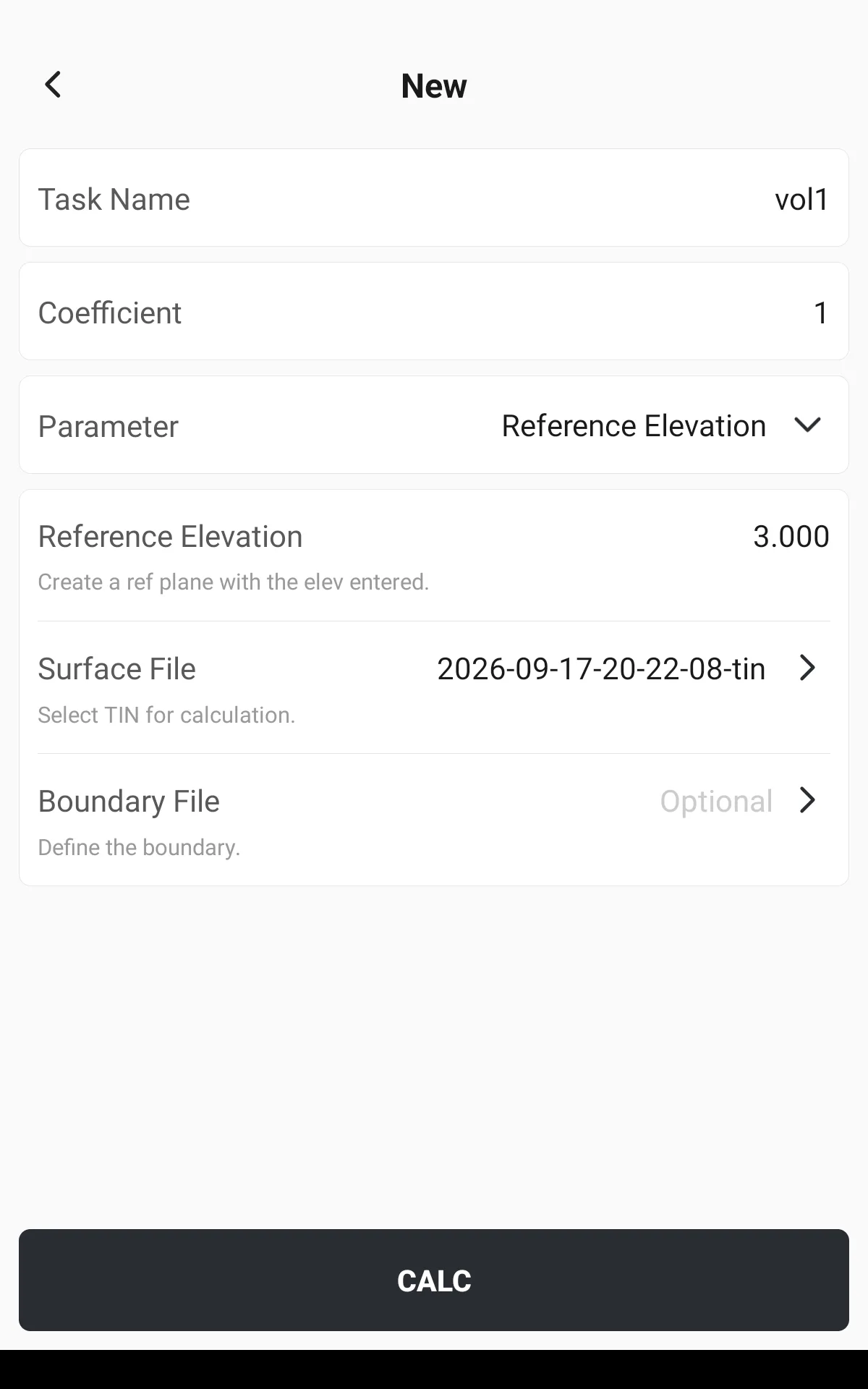
The app then automatically opens the New Task page of the Volume Calculation function and selects the surface file that was just generated. Configure the parameters according to the existing Volume Calculation workflow, tap Calculate, and then view the calculation results.
 | 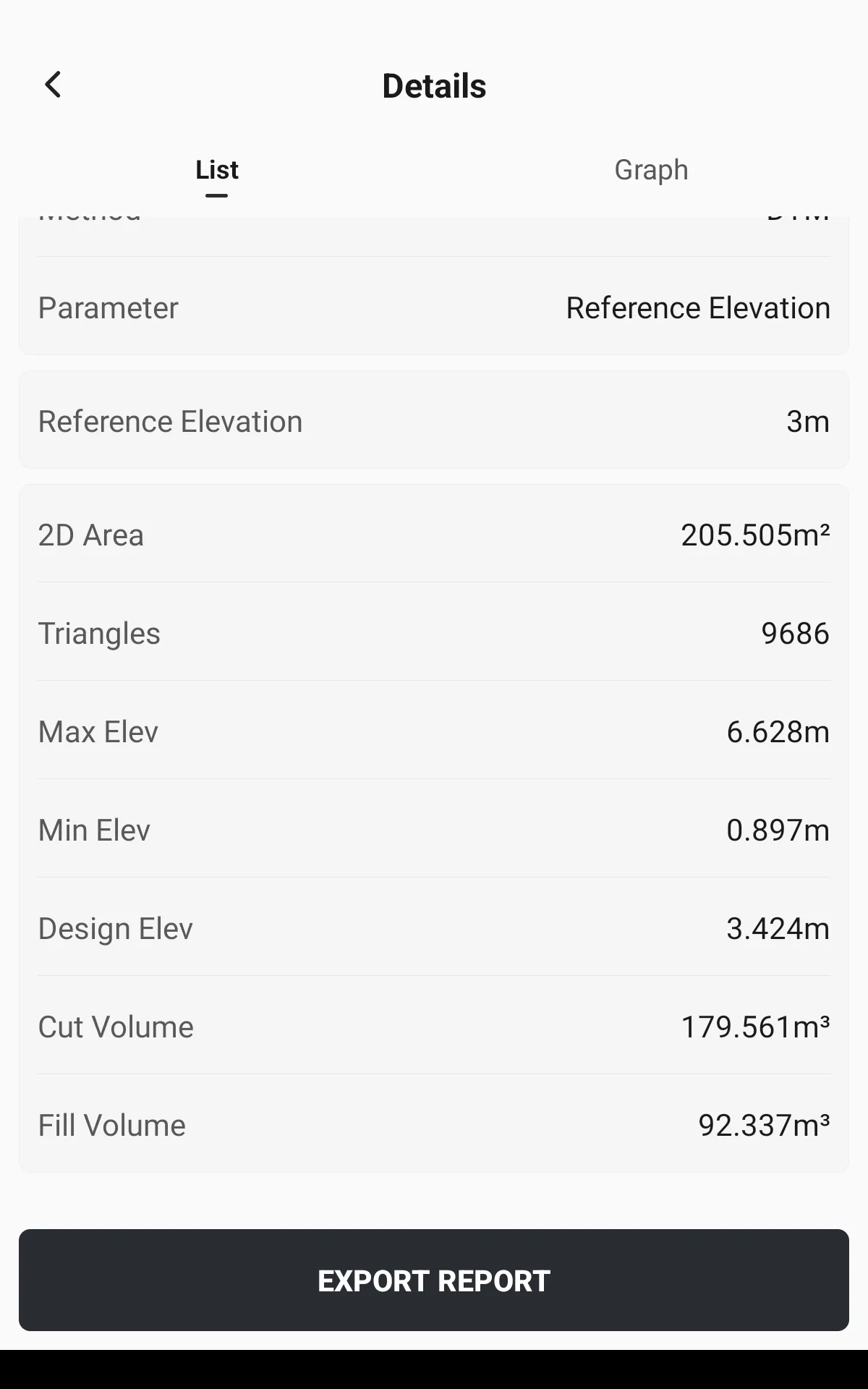 | 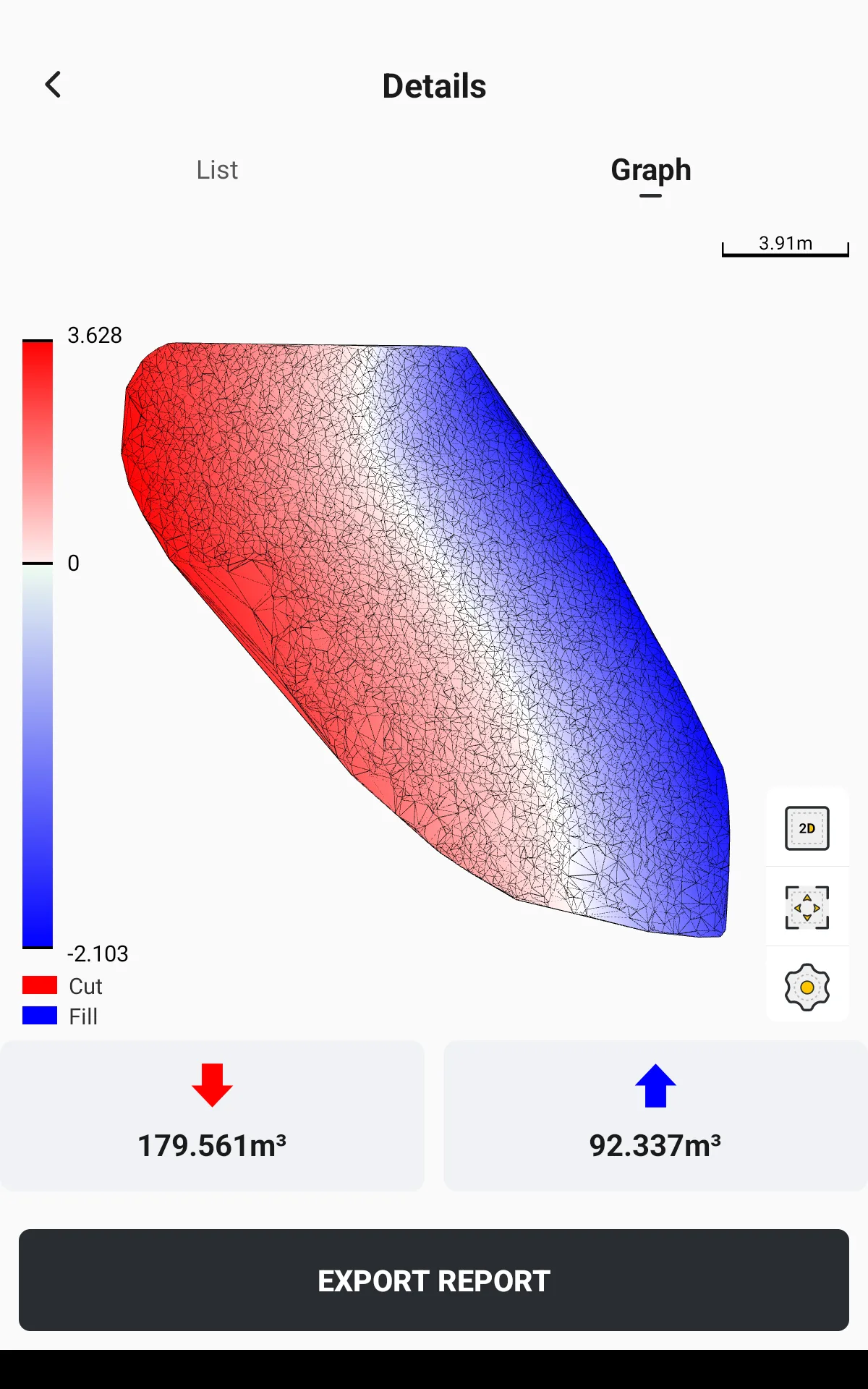 |
The results page provides an Export Report function. The exported report is in PDF format.