
8.6 PPK Calc
Differential positioning is divided into real-time differential and post-processing differential. When stable communication cannot be established on the surveying and mapping site, post-processing differential is often used as an effective measurement method. Trion Survey supports recording PPK data while RTK working, and can directly perform PPK calculation on the controller, and the calculation results can be stored in the project with one click.
8.6.1 Operation process
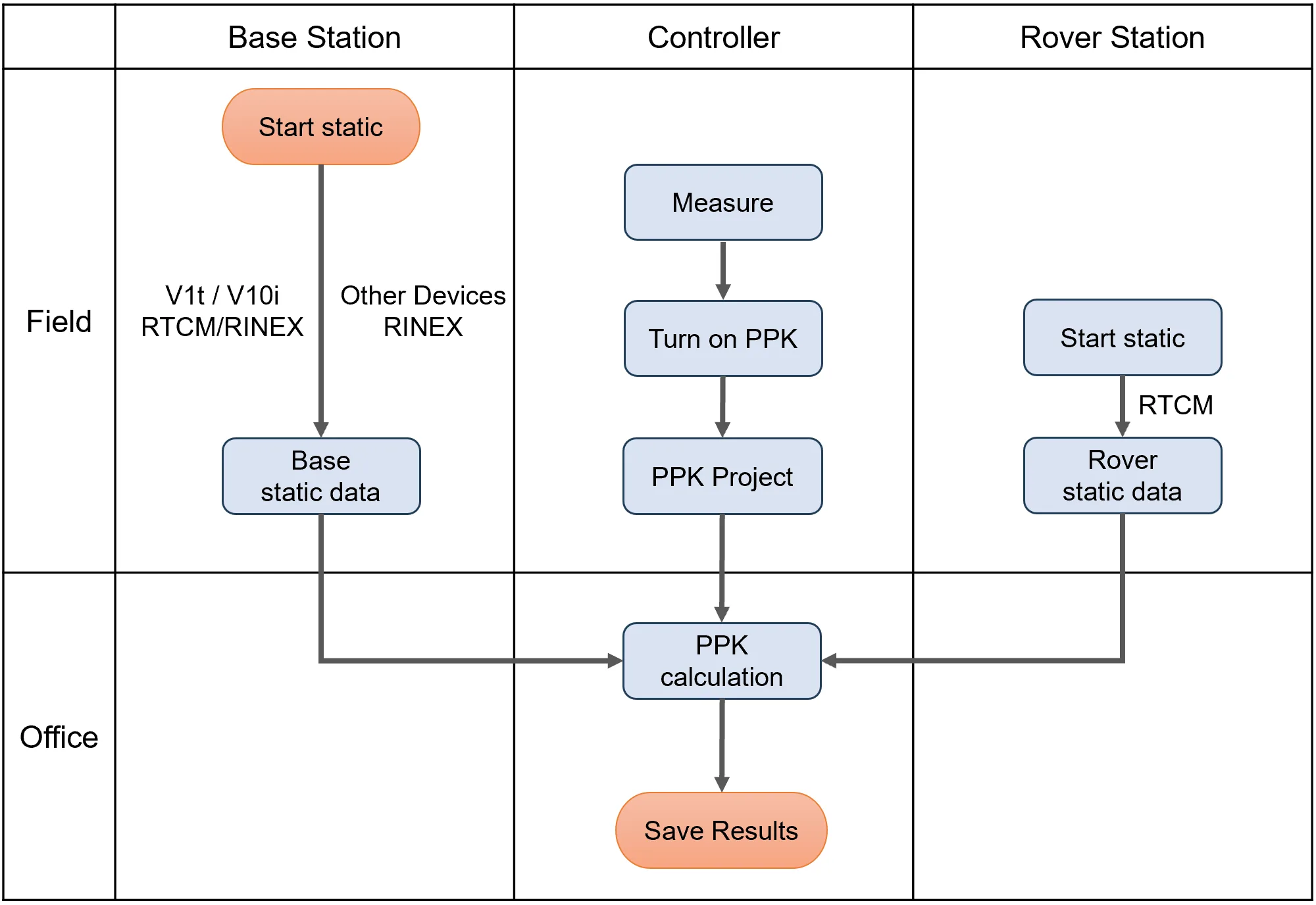
8.6.2 PPK measure
First, please confirm that both the Trion Survey version and the receiver version are the latest versions.
1) Create a new project
Create a project and define the correct coordinate system. Both PPK measure and PPK calculation are operated under this project.
2) Base configuration
This article takes the simultaneous operation of RTK + PPK as an example to introduce. If the current project only needs to collect PPK data, then the RTK base station can be omitted.
The base station needs to complete two configurations in sequence: RTK radio/network broadcast and static configuration. It should be noted that the radio/network is configured first, followed by static configuration. After the configuration is completed, the controller and receiver will be automatically disconnected.
a) RTK radio broadcast configuration
Please start with a known point so that the static file can store accurate base station coordinates. If the base uses automatic coordinate acquisition, after selecting the base station file, the base coordinates can be modified.
b) Static configuration
Main parameters: sampling interval 1Hz; recording time (minutes) needs to be longer to prevent the rover station from stopping before it finishes collecting, such as inputting 1440; file type rtcm.
3) Rover configuration
a) Receive base differential data
Configure the rover station to obtain a fixed solution.
b) Entre [Measure], turn on PPK function switch
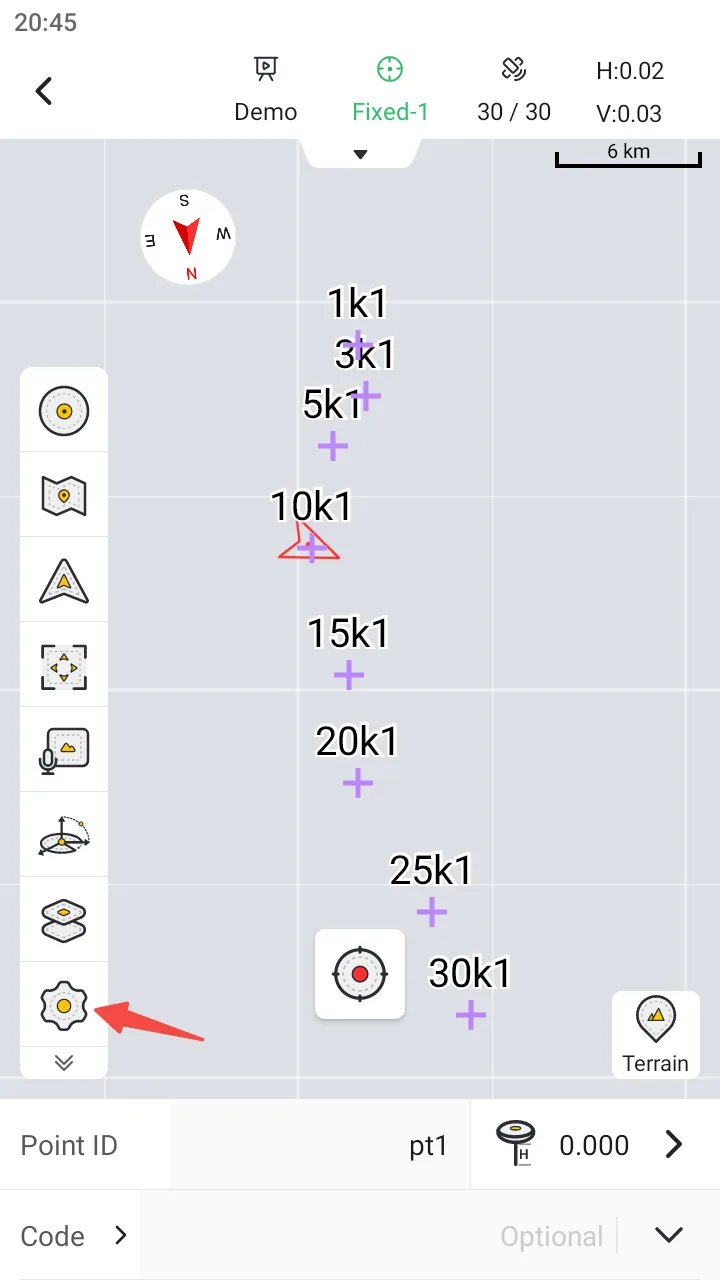
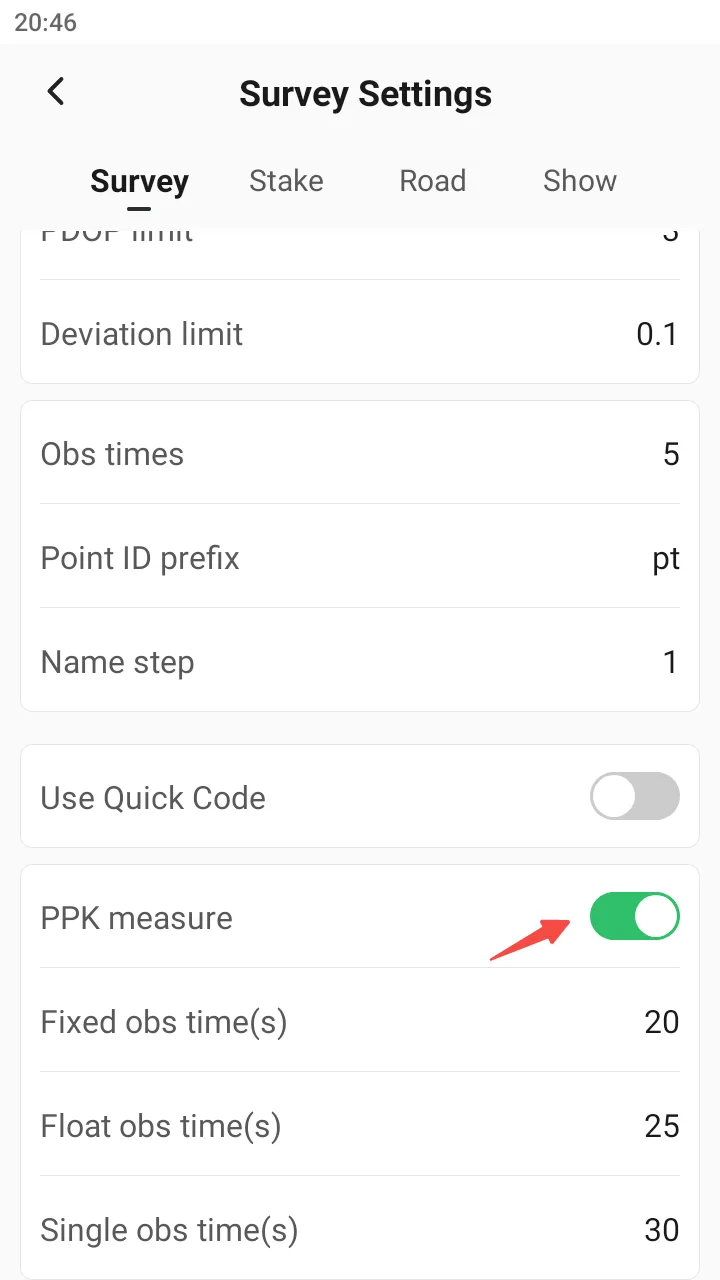
The PPK measure function is integrated into the Measure module. This function is turned off by default and needs to be manually turned on in the measurement settings. Click the settings button, turn on the [PPK measure] function switch at the bottom of the measurement settings, and you can set the default PPK measure time under different solution states. After setting, simply click the back button in the upper left corner.
 |  |
4) Measure operation
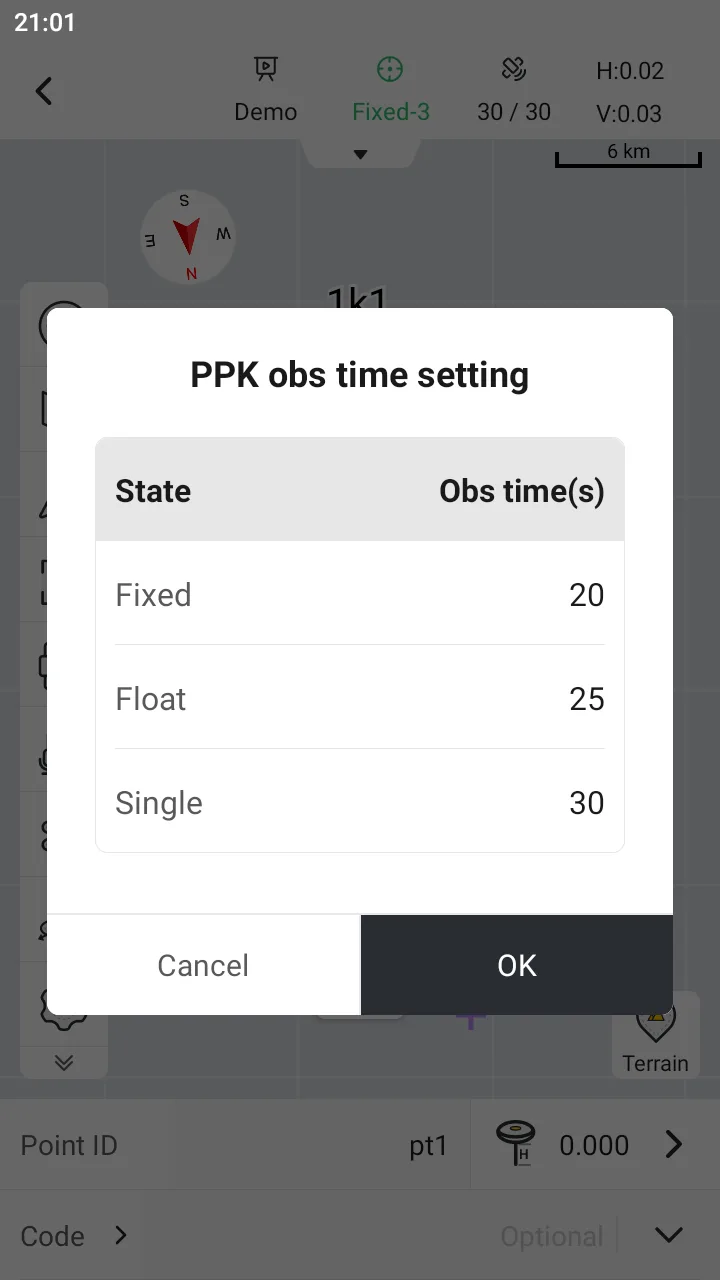
After the PPK measure function switch is turned on, a PPK button will appear in the map toolbar. Click the button to confirm the observation time of different solution states again. By default, it takes 20 seconds to collect fixed solutions, 25 seconds to collect float solutions, and 30 seconds to collect single solutions. In order to ensure the calculation effect of PPK post-processing, it is recommended to use default parameters or more. That is, when point measurement, static data corresponding to the collection time will be synchronously recorded for PPK calculation. Click [OK] to start PPK collection.
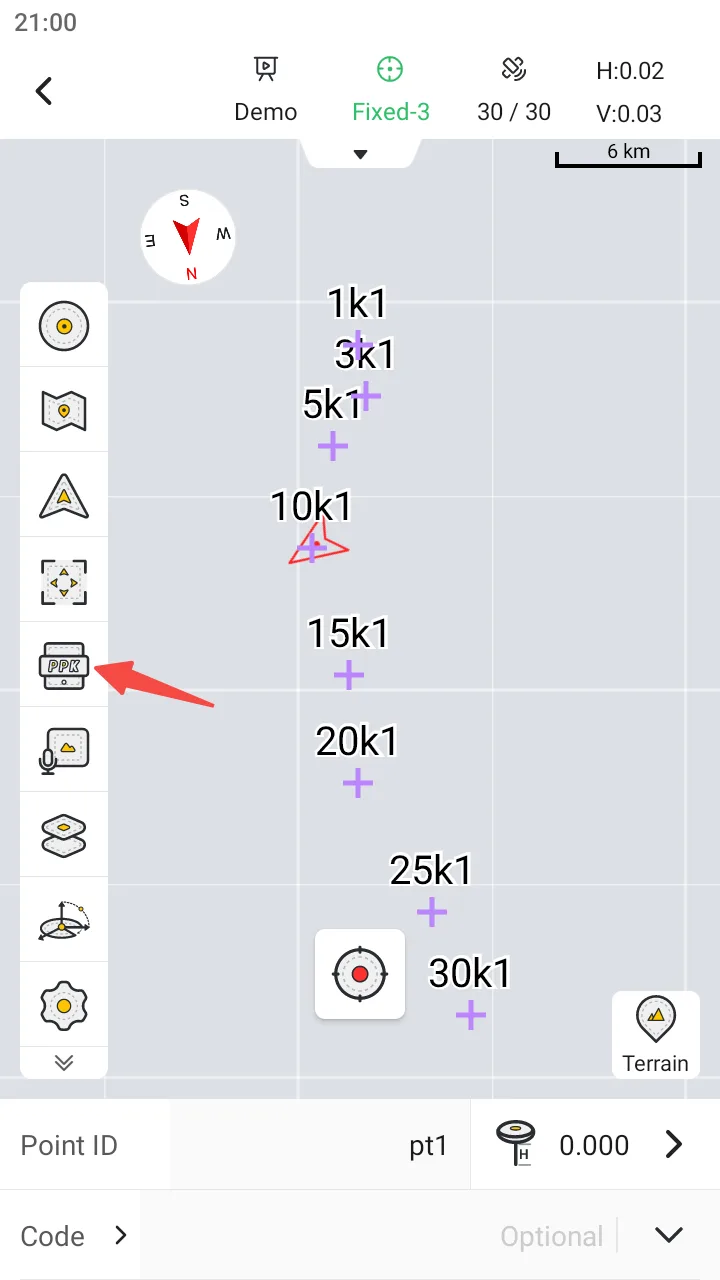 |  | 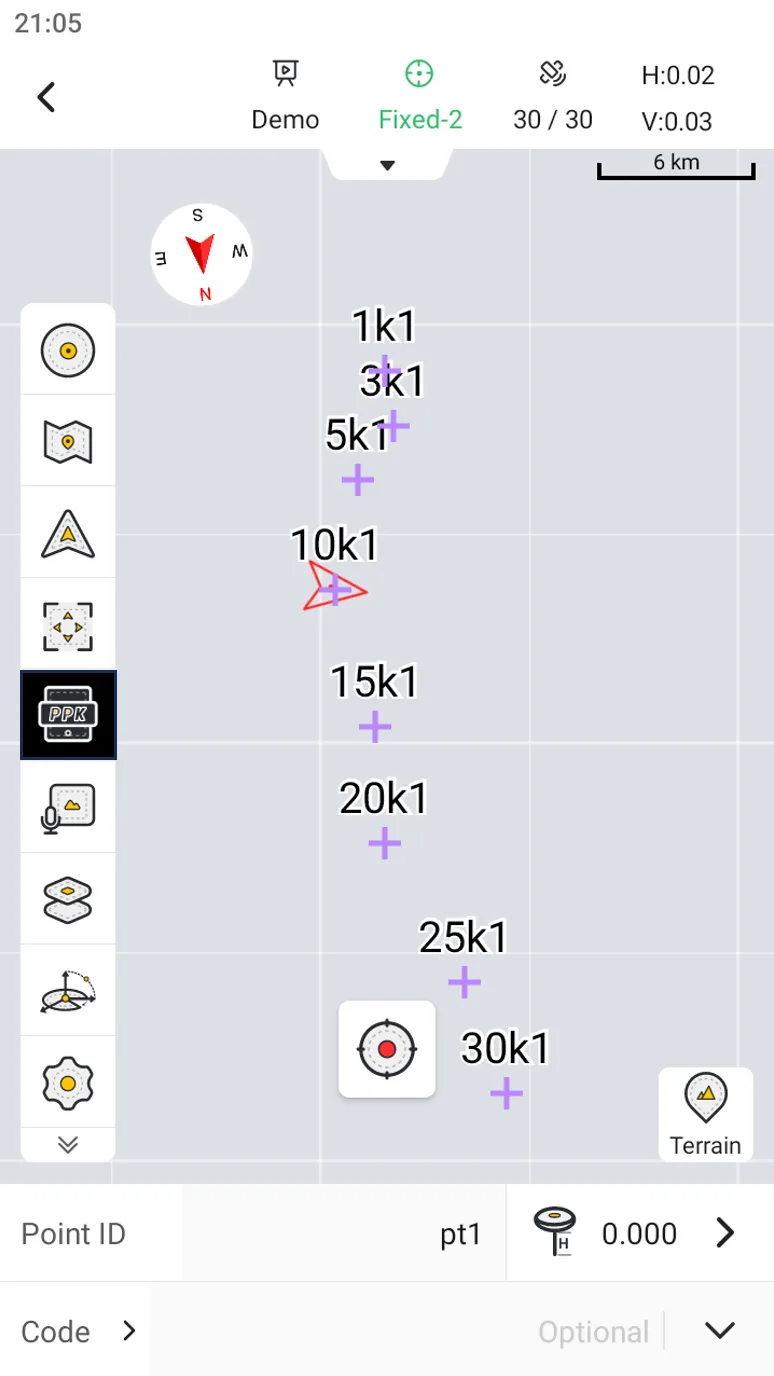 |
The PPK button on the toolbar will remain active, indicating that the PPK data is being recorded. At this time, users do not need to pay attention to the PPK information, just like normal RTK Data Acquisition. During the operation, please keep the PPK button active. If you need to change the area to continue the operation or need to interrupt for a long time, you can turn off the PPK button first. Click start again when you work next time. Each time you click PPK to close, a rtcm file will be created in the receiver.
It should be noted that the APP has some restrictions on RTK results by default. If not closed or modified, it will frequently prompt that the result exceeds the limit when collecting in the float/single solution state. Users can adjust according to the actual situation.
8.6.3 PPK calculation
1) Data preparation
Copy both the static data of the base station and the PPK collected data to the specified directory of the controller. When copying, you can use the controller OTG function to directly connect the receiver, and then access the receiver's memory for copying. Alternatively, copy the file to the computer first and then to the controller directory.
| Name | Description |
| Base data | 1. When the base station is FJD RTK device, the copied file format is rtcm or rinex. 2. When the base station is a third-party receiver, the copied file format is rinex. The coordinates and antenna height in the header of the file should be accurate, or you can reset them when configuring; 3. The base station data can be multiple. |
| Rover data | 1. Stored in the receiver, please choose the correct RTCM file according to the observation time and file name; 2. The rover station PPK file can be multiple. |
| Controller directory | 1. Copy the base data to: .../Fjdynamics/TrionSurvey/Projects/ {Project Name}/PPK/PPK_base 2. Copy the rover data to: .../Fjdynamics/ TrionSurvey/Projects/ {Project Name}/PPK/PPK_rover |
2) PPK calculation
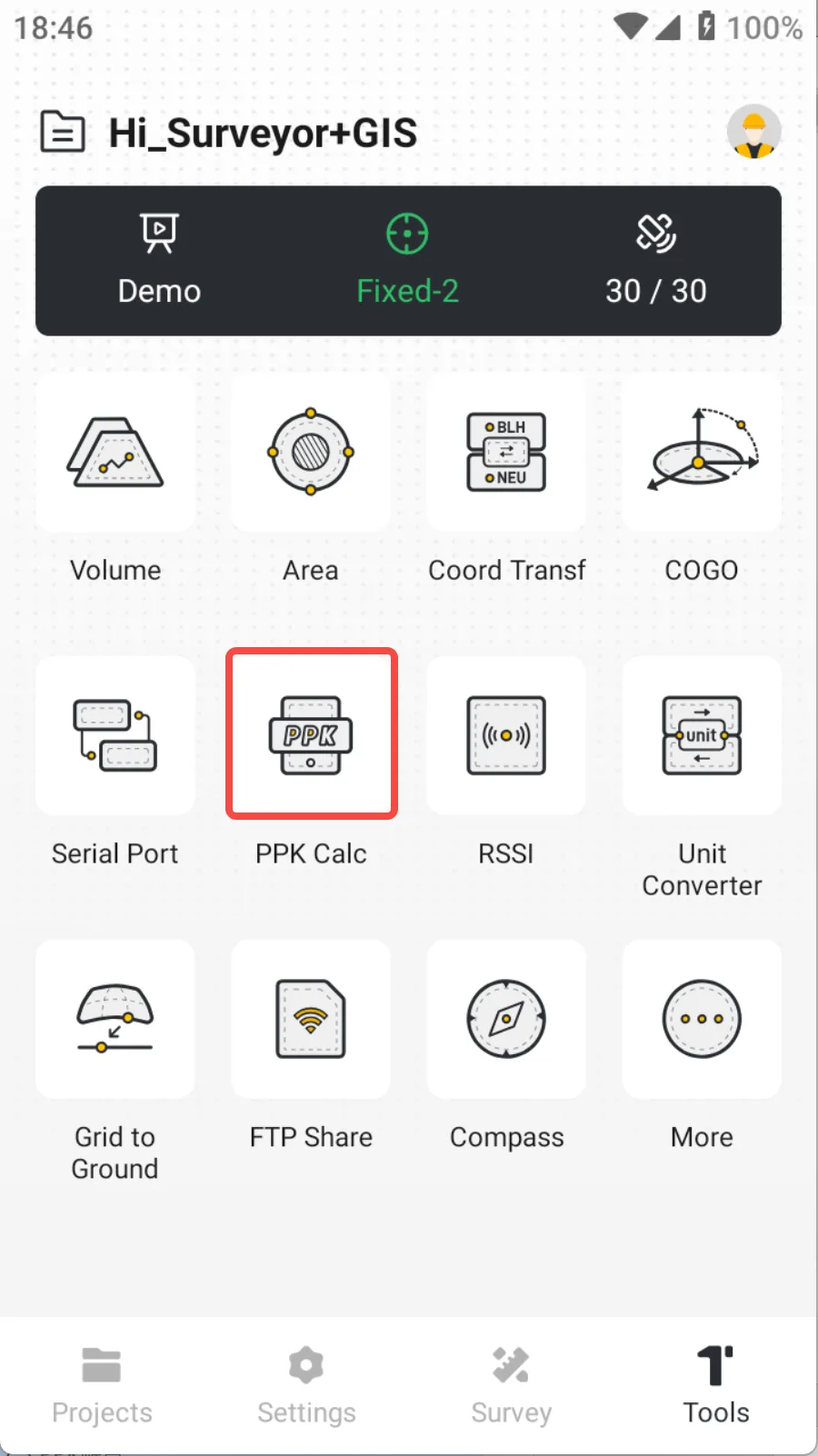
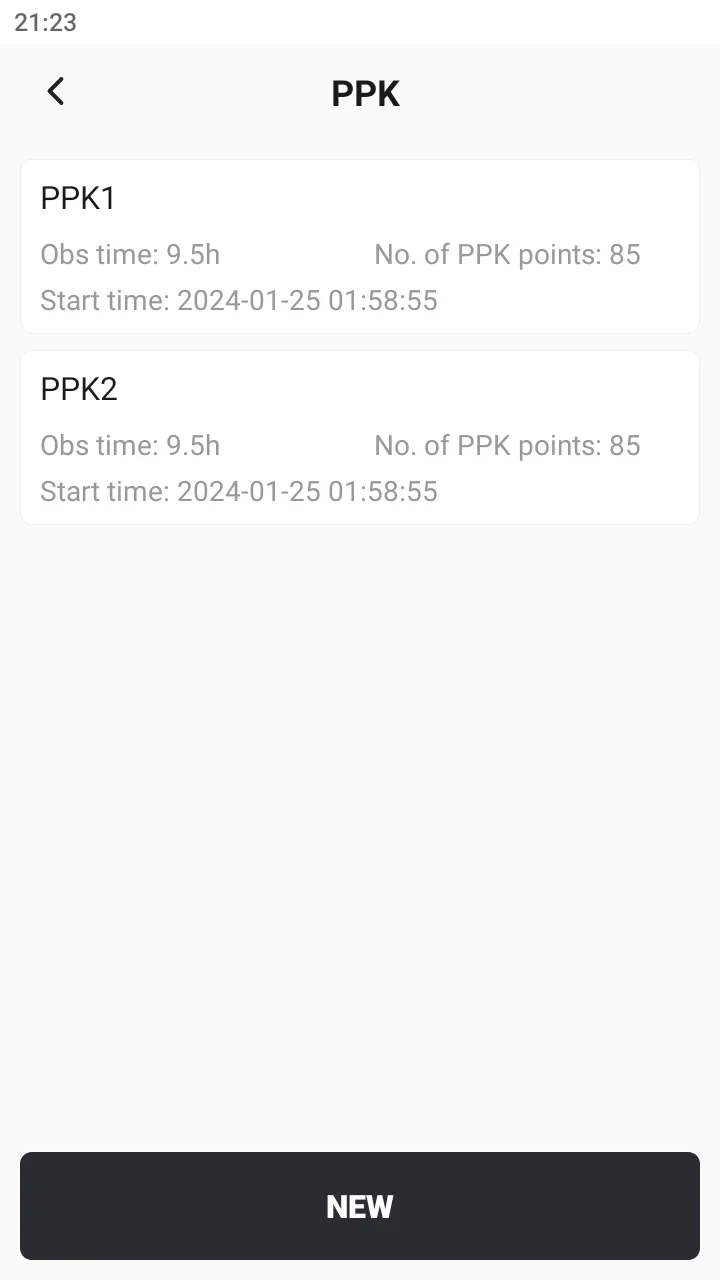
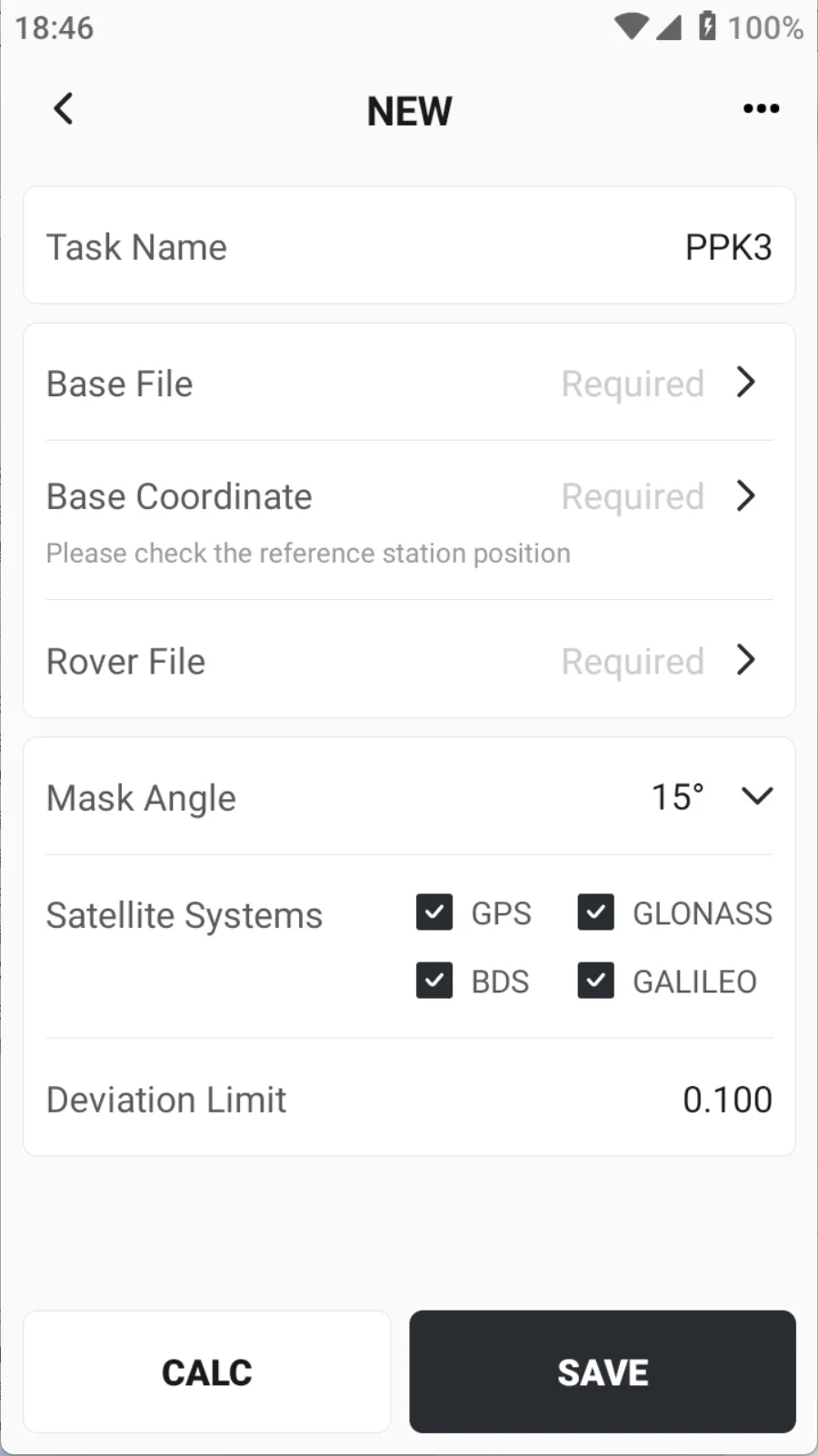
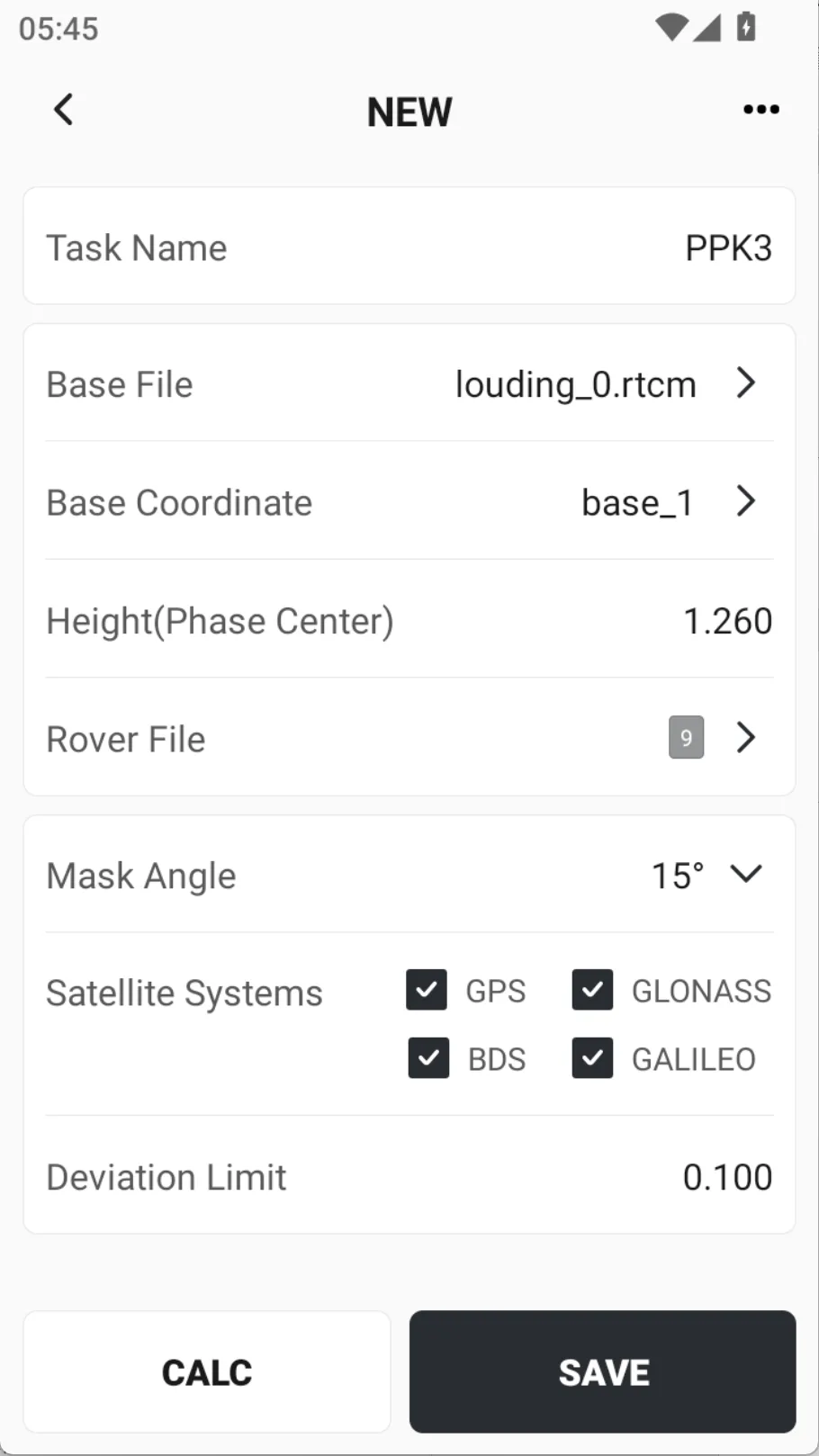
PPK calculation does not require post-processing software; it can be solved directly on the controller. After completing the data copy, go to [Tools] → [PPK Calc], click the [NEW] button at the bottom, and set it as follows:
| Name | Description |
| Task Name | Required field |
| Base File | Required, can select one or more files |
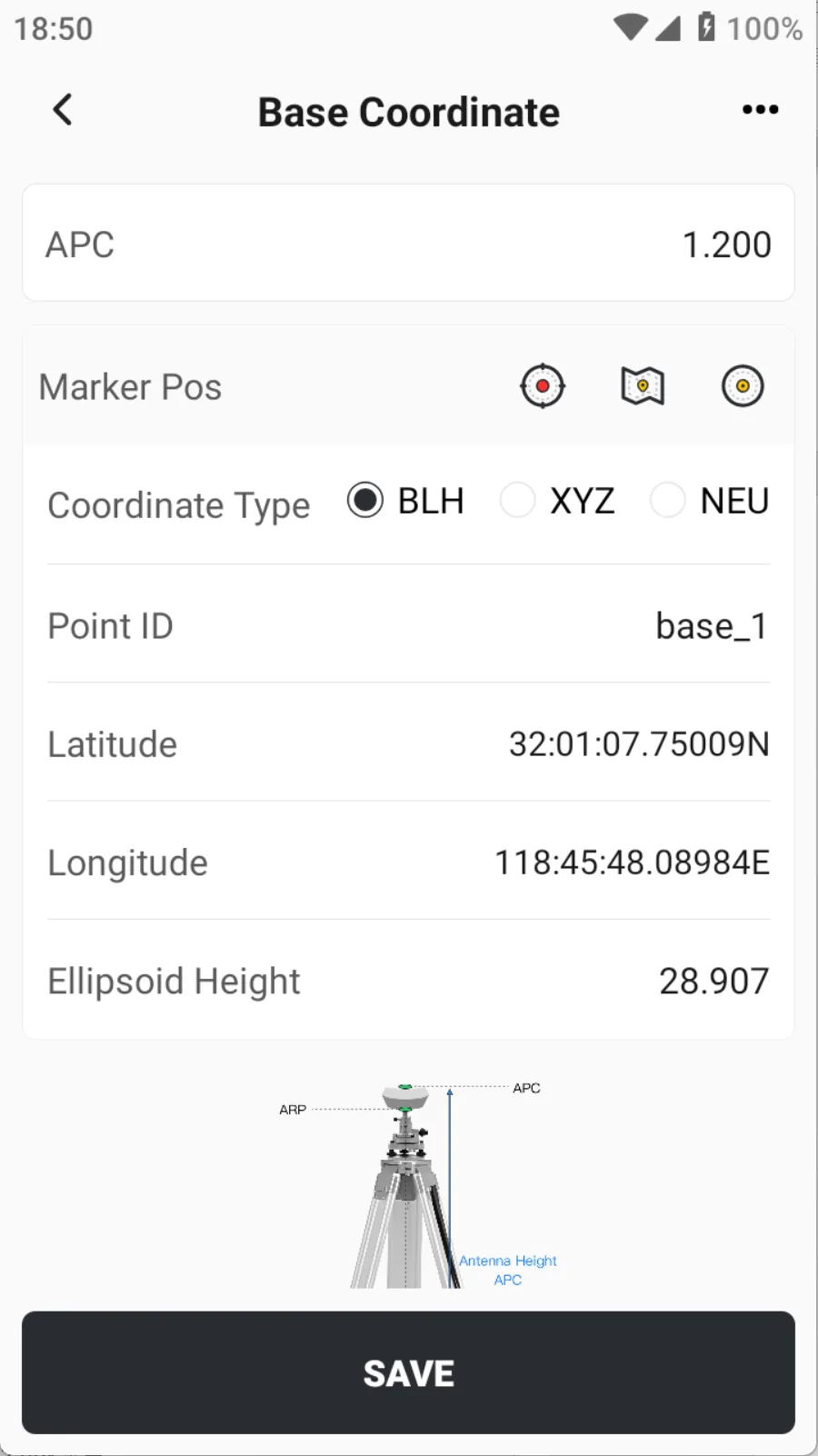
| Base Coordinates | Optional modify the coordinates of the base |
| Rover File | Required, can select one or more files |
| Mask Angle | Required, default 15 ° |
| Satellite systems | Default all satellite systems |
| Deviation Limit | Default 0.1 m, control the reliability of the results |
 |  |  |
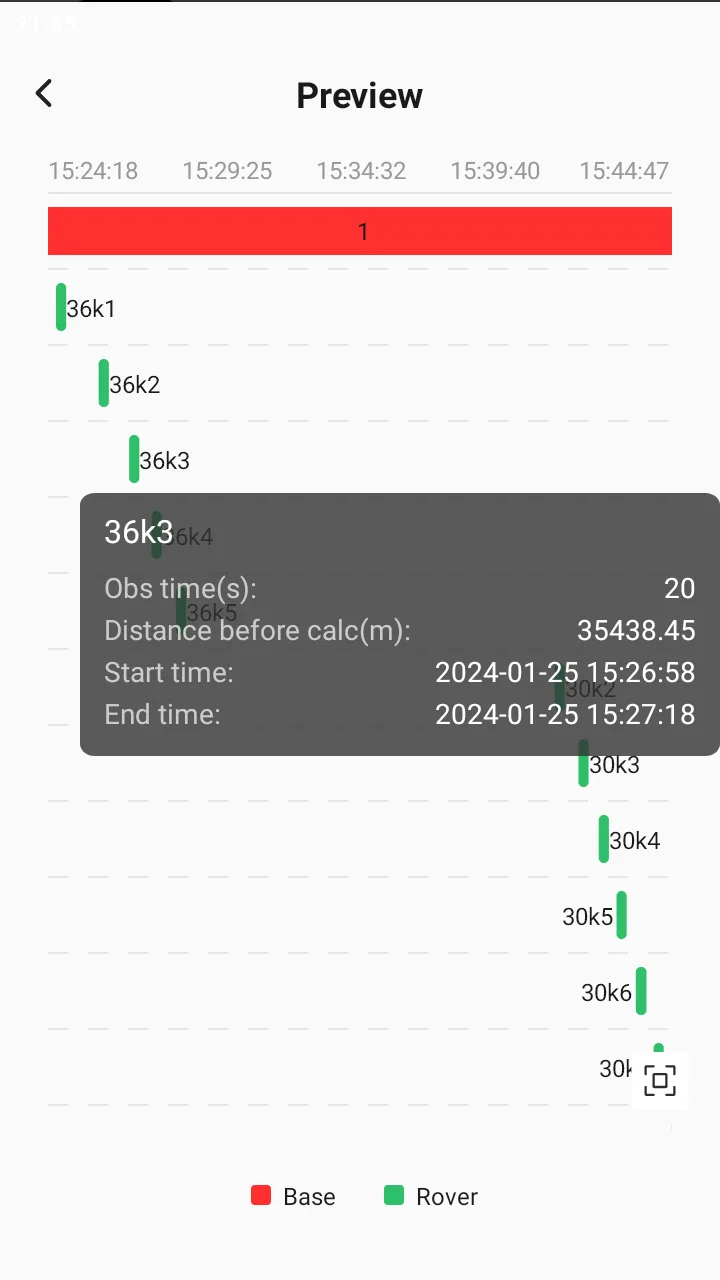
After selecting the data of the base station and the rover station, you can click on the upper right corner [...] → [Preview] to view the relative relationship between the observation time of the base station and the rover station. The view can be zoomed, scrolled, and dragged back and forth.
 |  |  |
Click the [CALC] button at the bottom, and the APP starts to calculate PPK data. Users can see the calculation process, including data preparation, measurement time matching, and PPK calculation.
After the calculation is completed, the calculation results will be displayed on the page, including: the number of PPK measurement points (qualified /total), calculation time, fixed rate (the proportion of fixed solutions for all epochs), qualified rate (the proportion of qualified solutions for all fixed epochs, which needs to meet the deviation limit), and pie chart (showing the number and proportion of various calculation states). Click [Save] to select whether points with different solution states are stored. Add the suffix ppk to the point name to distinguish it from the points measured by RTK.
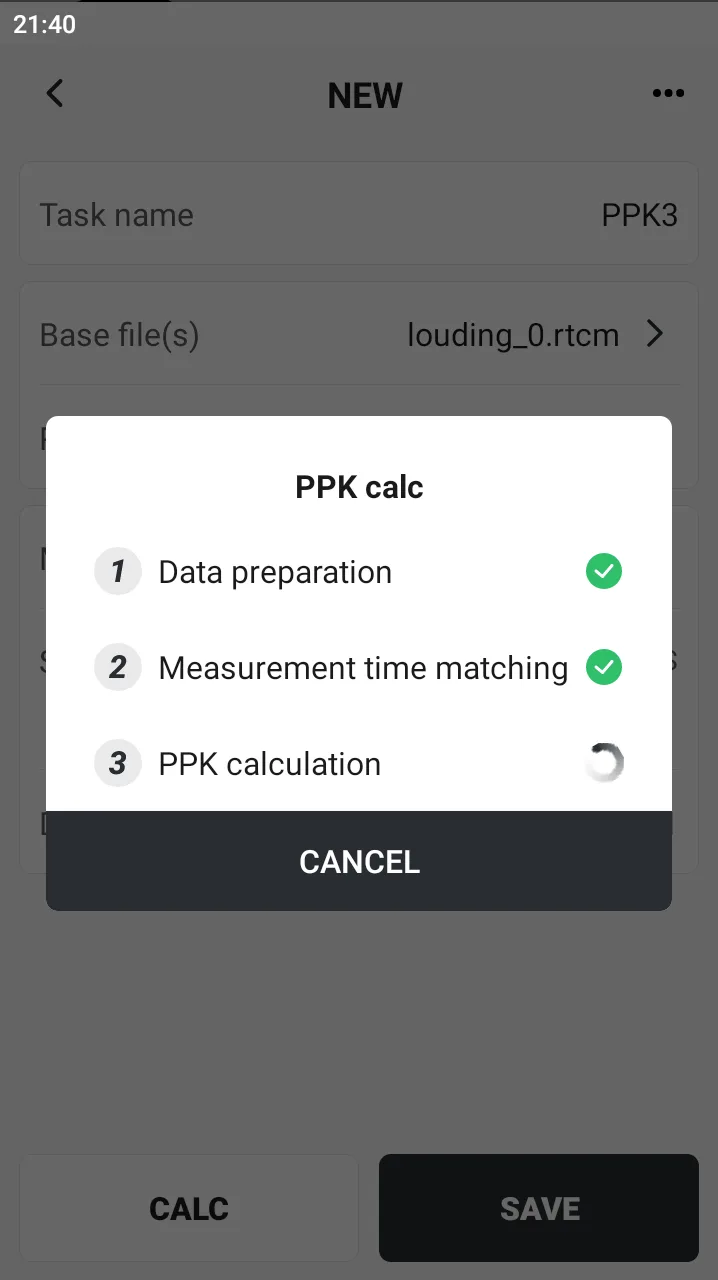 | 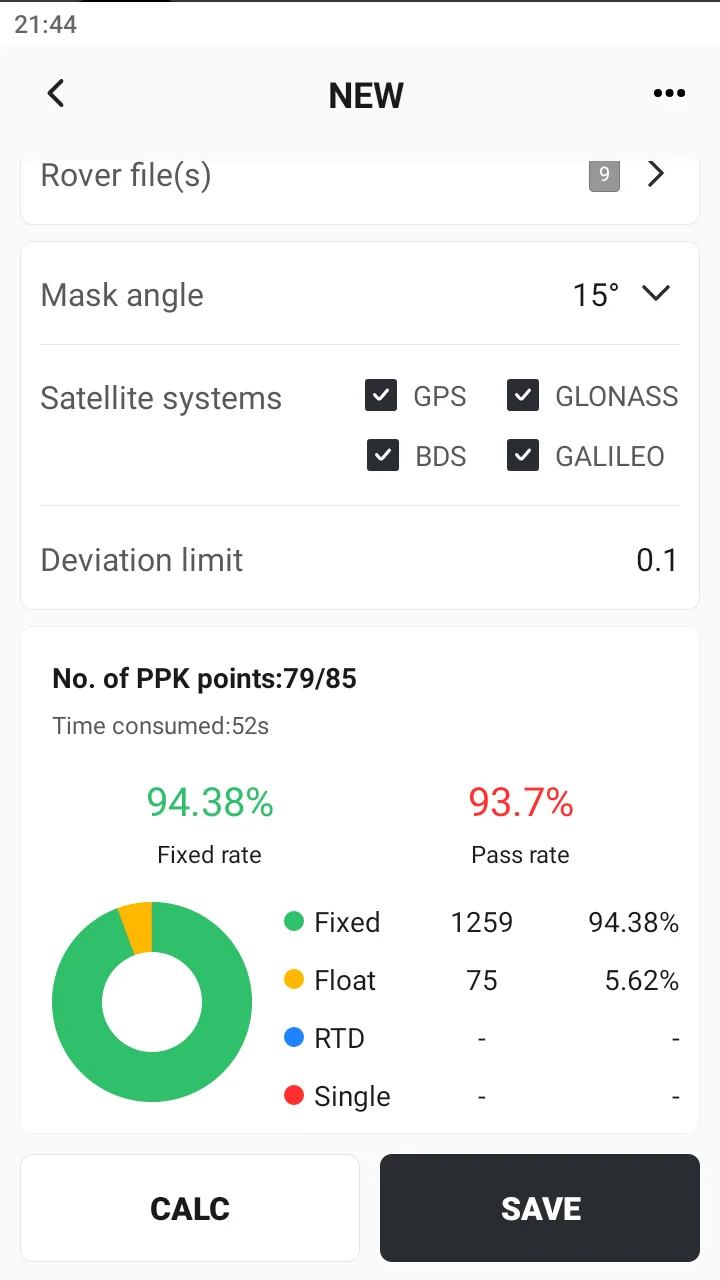 | 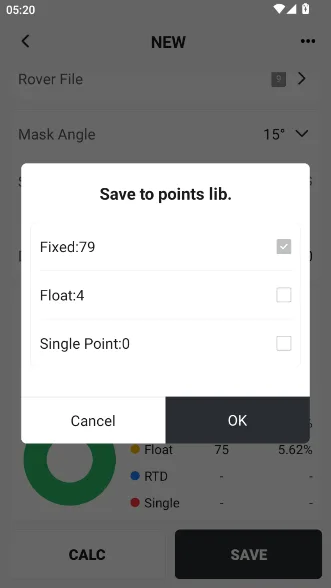 |
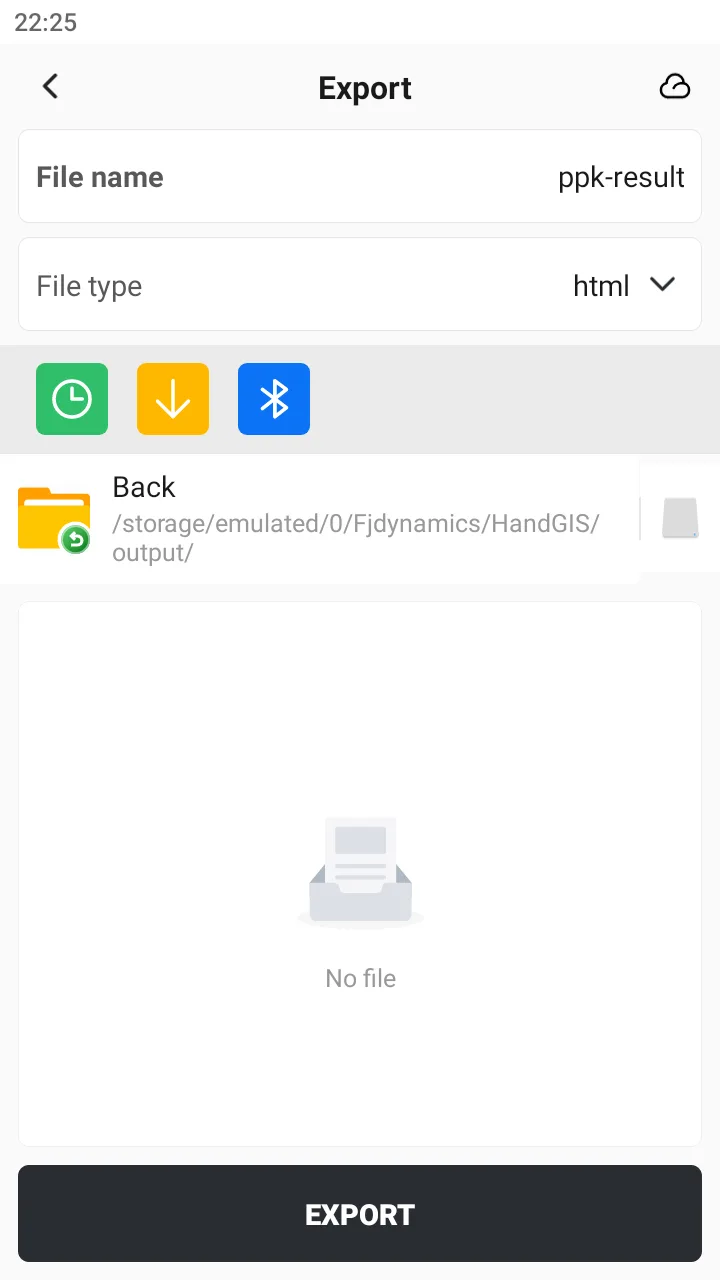
Click on the top right corner [...] → [Export] to export the PPK calculation report, with the file extension * .html.
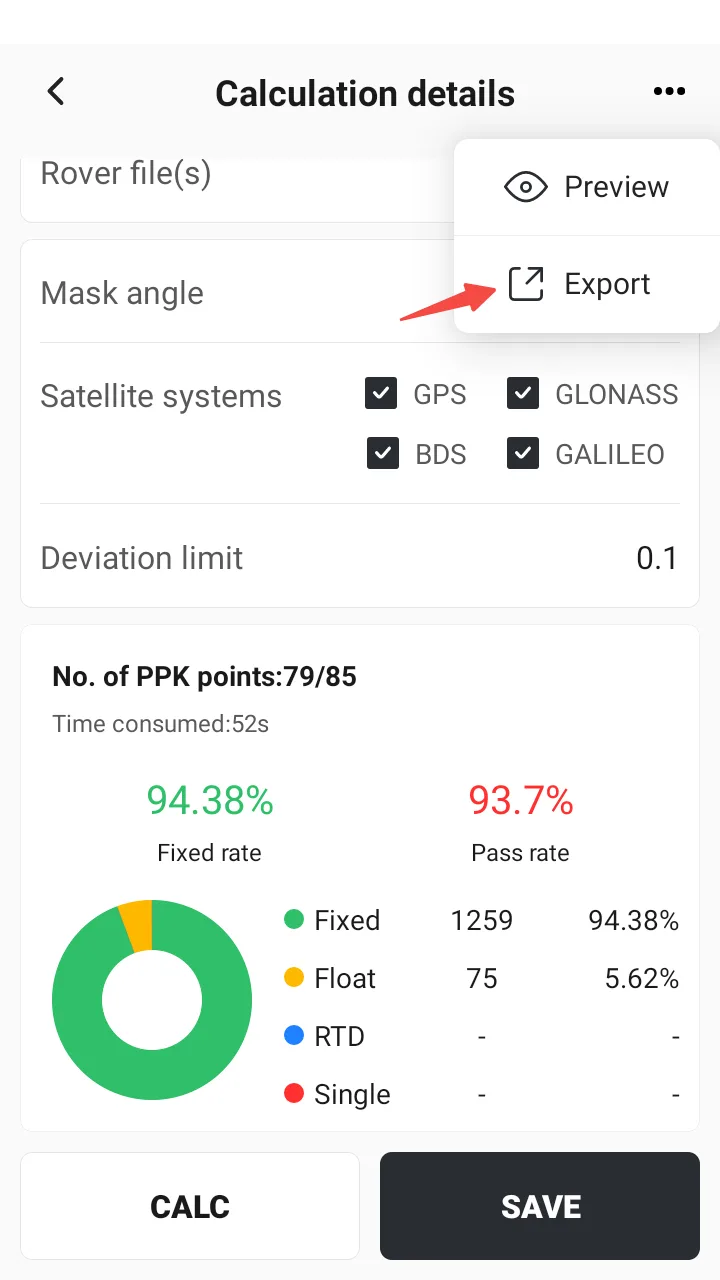 |  |
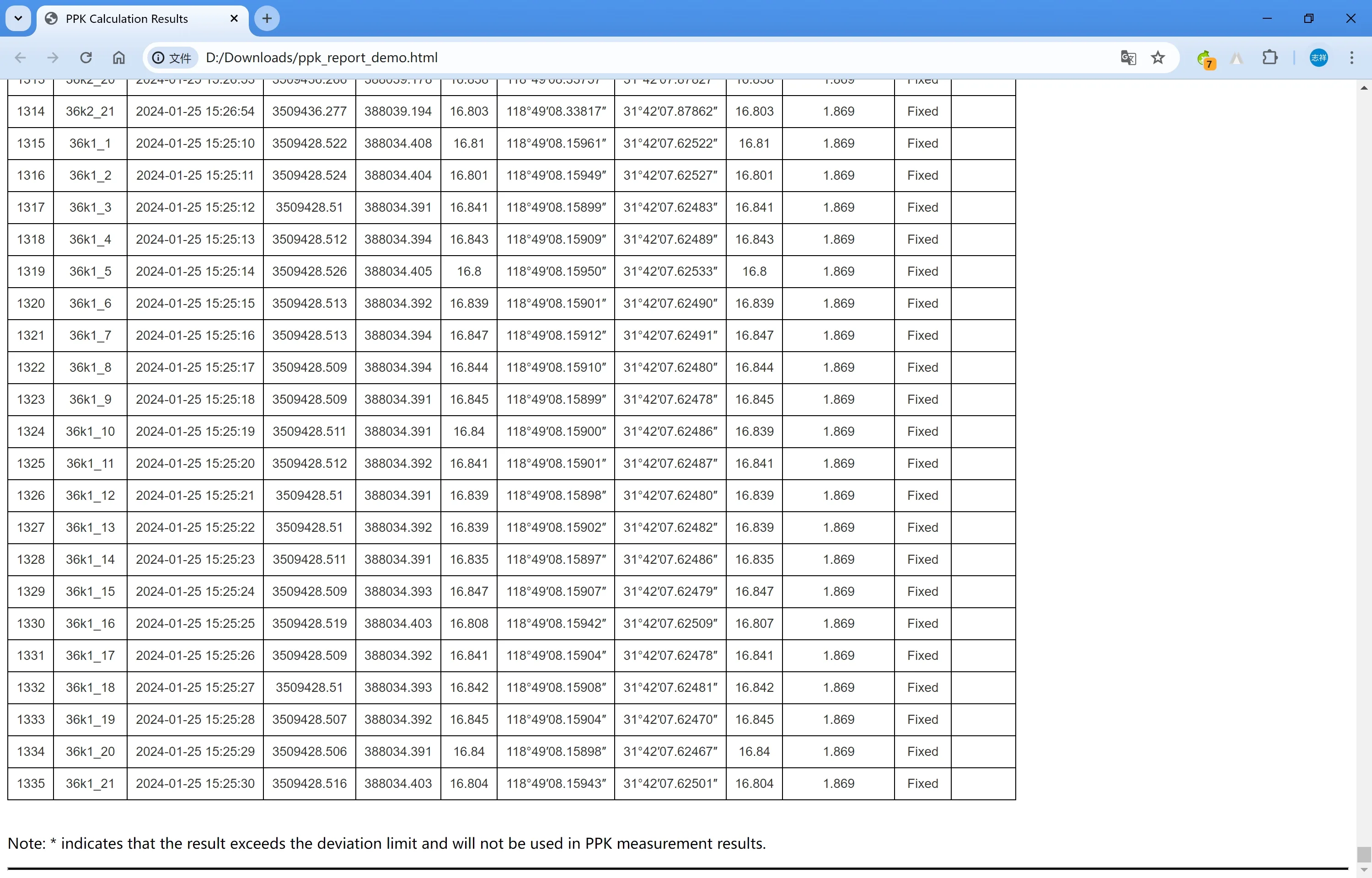
The PPK calculation report consists of the following parts: project information, coordinate system, PPK calculation results, and PPK measurement details. The PPK measurement details record the results of each epoch calculation in detail.
Note:
- You can modify the calculation configuration and recalculate.
- The calculation time depends on the performance of the end point, the number of epochs of a single measurement point, the total number of measurement points, the length of the base line, signal quality and other factors. Please be patient during the calculation process.
- The recalculated result overwrites the original PPK result when you click Save to Points again.
- Before calculating, please carefully check the base station coordinates, especially the height of the APC (antenna phase center).
- GNSS Studio already supports PPK calculation, please refer to GNSS Studio help document for details.