
8 Tools
8.1 Volume
Earthwork calculation is an important step in engineering construction. During the engineering design stage, the amount of earthwork must be budgeted, which directly affects the cost estimate and scheme selection of the project. Trion Survey supports TIN method to calculate earthwork, and can set four parameters: reference elevation, reference point, reference slope, and two phases of earthwork.
8.1.1 Glossary
| Name | Explanation |
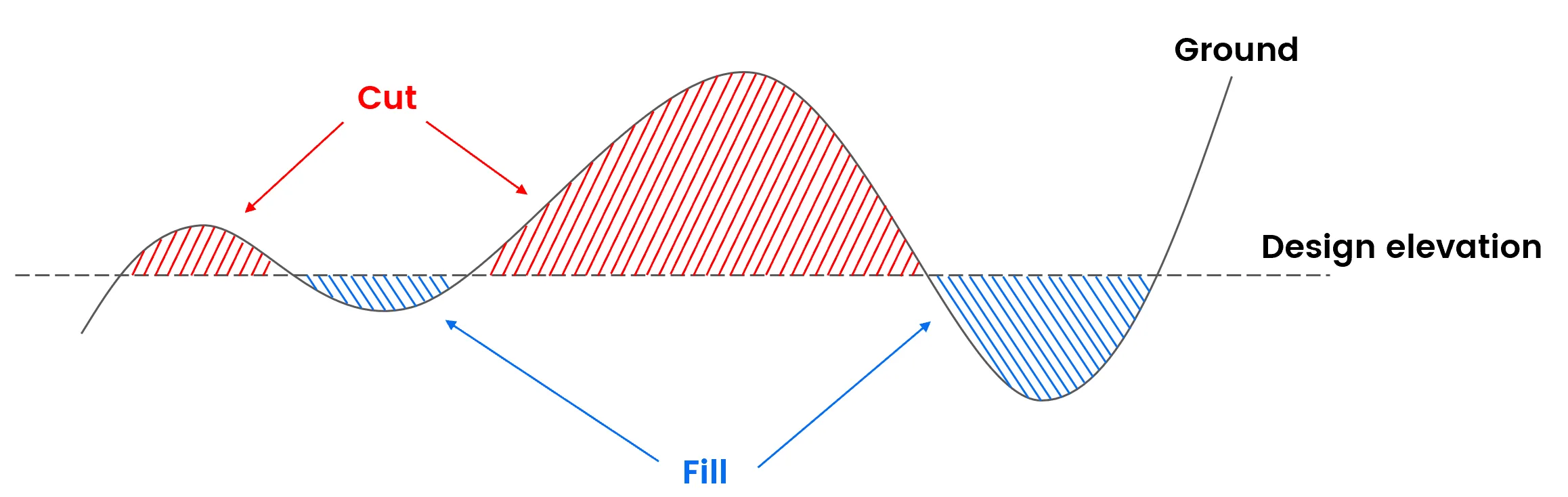
| Cut / Fill | Cut: When the surface of the roadbed is lower than the original ground, part of the soil and rock volume is excavated from the original ground to the surface of the roadbed. Fill: The volume of soil and rock filled from the original ground to the surface of the roadbed when the surface of the roadbed is higher than the original ground.
|
| Site leveling | By digging high and filling low, the original ground is transformed into a site plane that meets people's production and living needs. The design elevation of the site must be determined as the basis for calculating the amount of excavation and filling earthwork, balancing earthwork allocation, selecting construction machinery, and formulating construction plans. |
| Design elevation | The reference elevation for Cut is equal to Fill. The design elevation is the basis for calculating site leveling and earthwork volume, as well as for overall planning and vertical design. Reasonably determining the site design elevation is of great significance for reducing earthwork volume, accelerating project progress, and reducing project cost. |
| Sparsity coefficient | Set parameters for earthwork calculation, range: 0 < x ≤ 100, related to the compaction and looseness of the measurement target, and adjust the excavation and filling results proportionally. |
| TIN method | One of the earthwork calculation methods is to use the DTM model to calculate the earthwork volume based on the ground point coordinates (X, Y, Z) measured on site and the design elevation. By generating a triangular network, the earthwork volume of each triangular pyramid is calculated. Finally, the earthwork volume of filling and excavation within the specified range is accumulated, and the boundary line of filling and excavation is drawn. |
| Grid method | One of the methods of earthwork calculation, is to draw some small squares at a certain distance within the calculation range (establish an elevation triangle network based on the terrain elevation points, and then interpolate to calculate the elevation of grid corner points and boundary points). First, calculate the amount of soil filled and excavated in each square, and then accumulate and sum to obtain the total amount of earthwork measurement and calculation method. |
| Flat area | 2D projection area of the surface file. |
8.1.2 Add a task
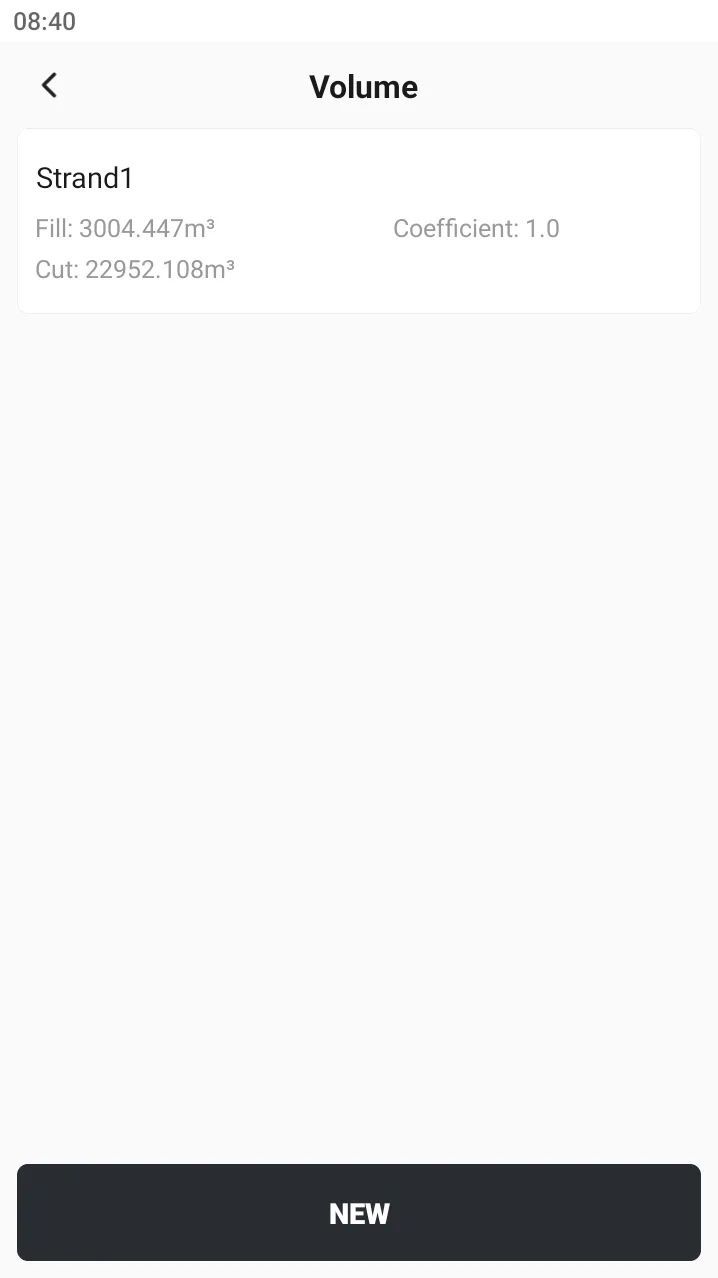
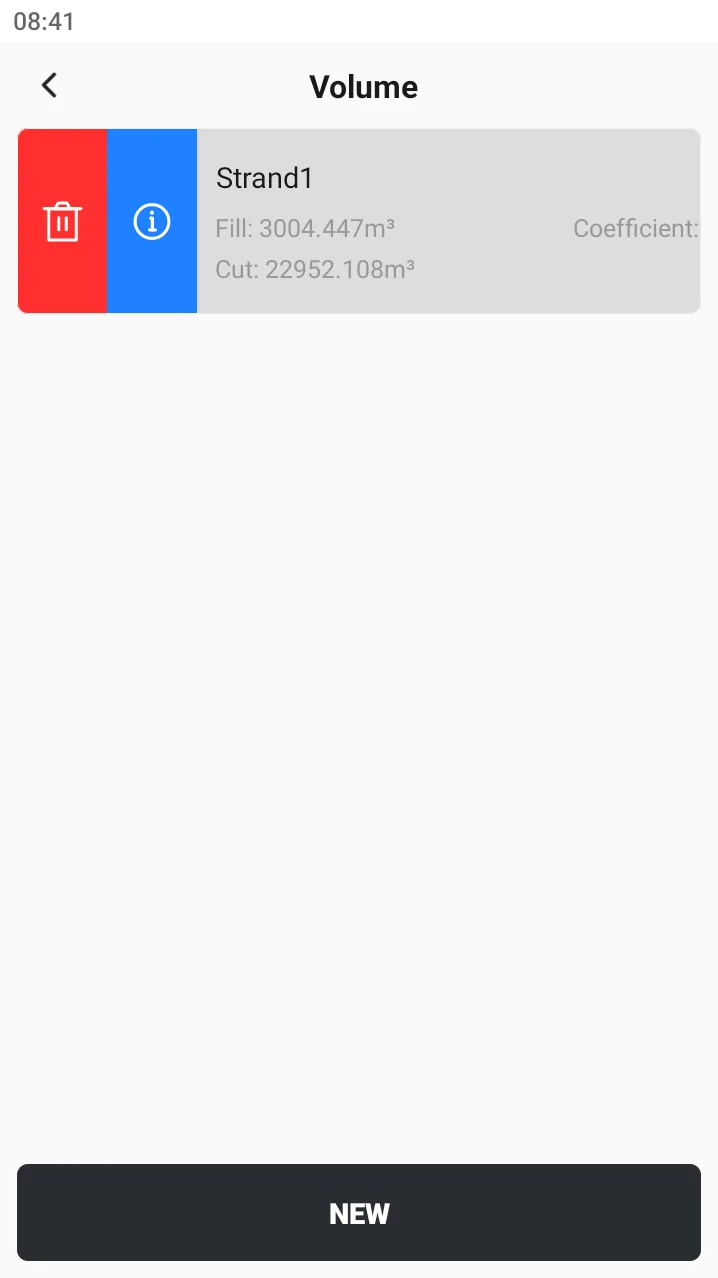
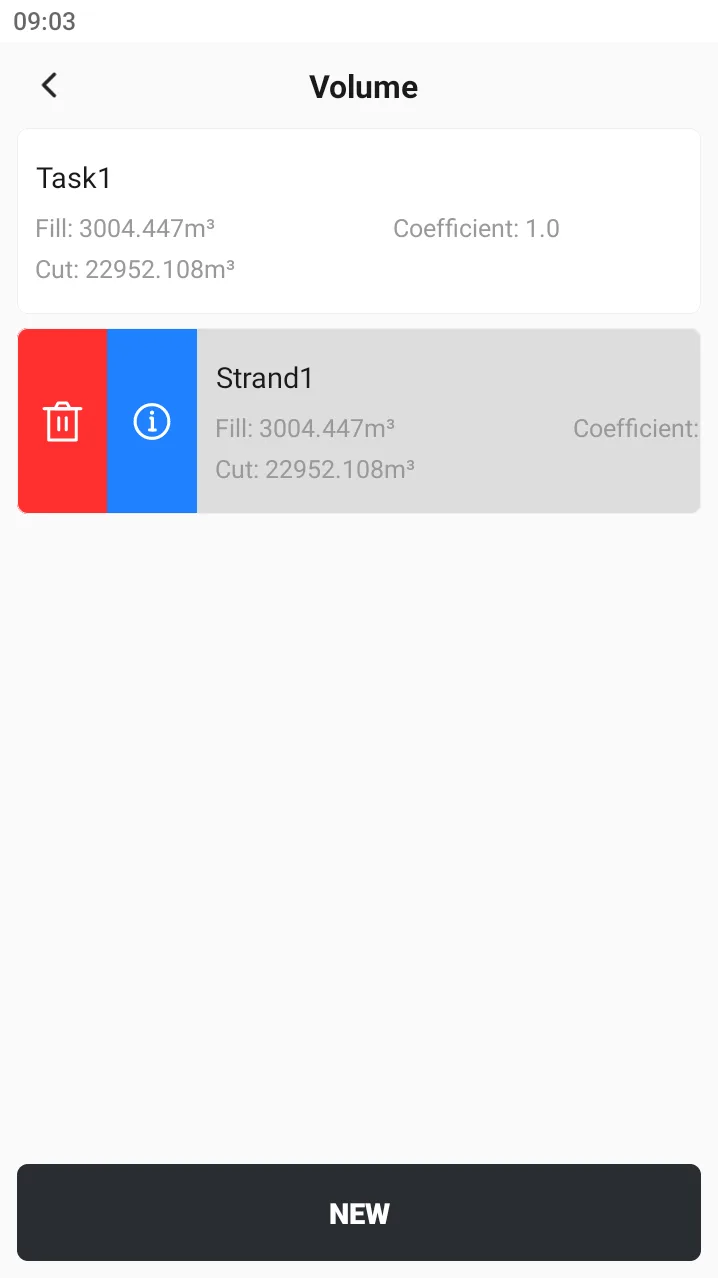
Click [Tools] → [Volume] from the main page to enter the earthwork calculation task list. In the task list, each task card displays: Fill value, Cut value and sparsity coefficient. Select a task to delete or click Details to view more information.
 |  |
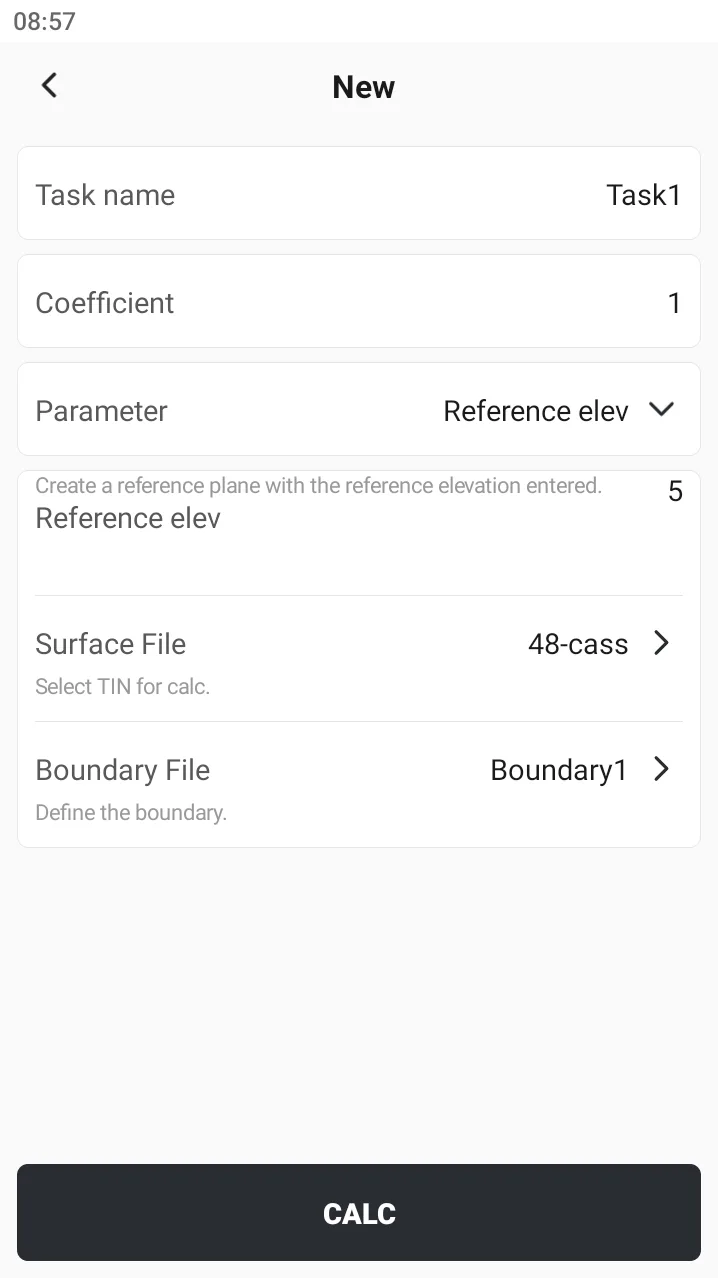
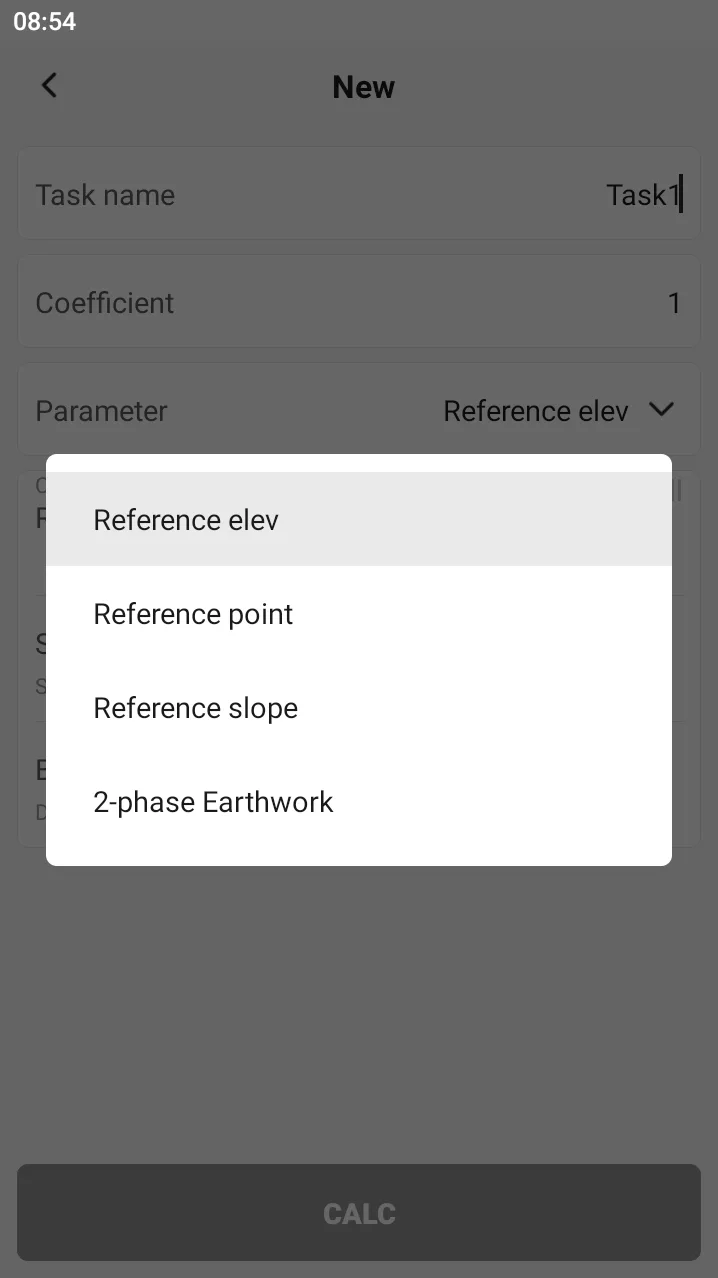
Click the button [New], open the new task page, enter the parameters listed, and click [CALC] to get the earthwork calculation results.
| Name | Description |
| Task Name | Enter the name of the earthwork calculation task. |
| Coefficient | The soil quality is different, and the compaction or expansion of the earthwork is reflected by this coefficient. |
| Parameter | Different parameters will display different text boxes. 1 Reference Elevation: Build a reference plane based on the input reference elevation. 2 Reference Point: Build a reference plane based on the selected reference point elevation. 3 Reference Slope: Use three points as the reference plane. 4 2-phase Earthwork: Calculate the difference by selecting the surface triangle mesh before and after construction. |
| Surface File | When selecting the reference elevation, reference point, and reference slope, it usually appears as the surface triangulation mesh measured on site. Click to jump to the surface library for creation or selection. |
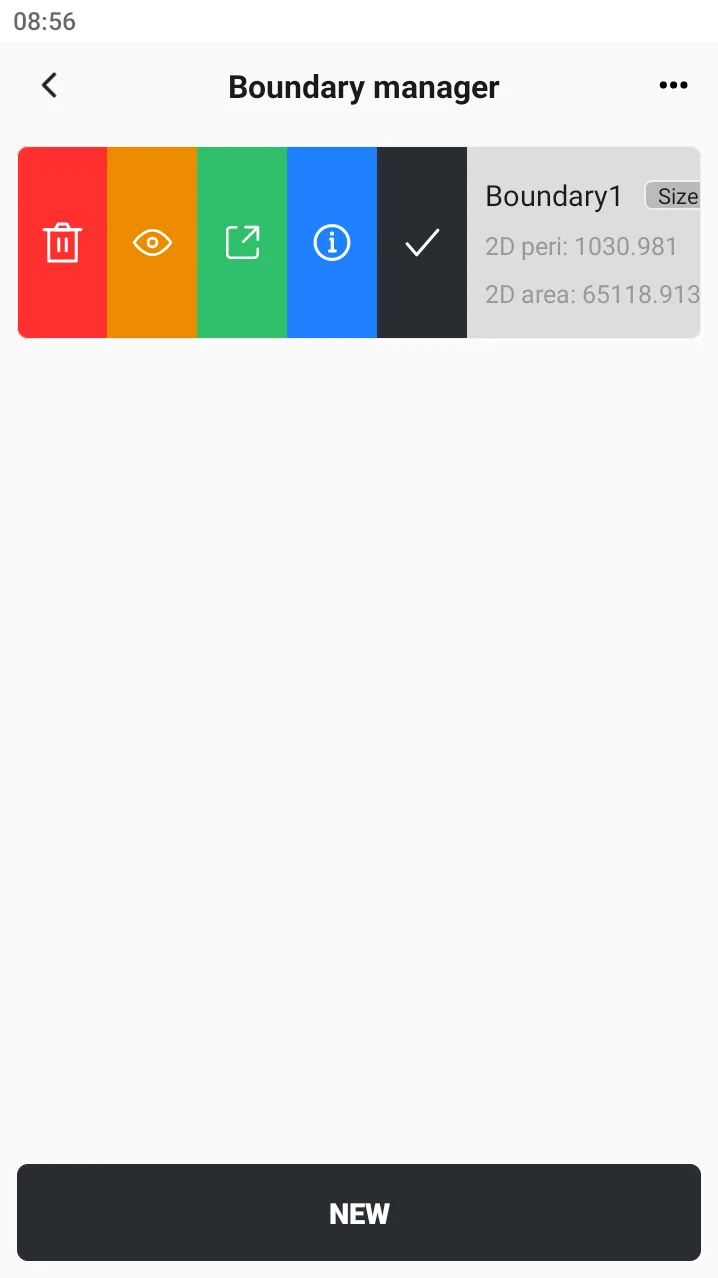
| Boundary File | Calculate the earthwork within the boundary, and calculate the earthwork in the public area if there is no boundary file. Click to enter the boundary management page to create or select. |
 |  |  |
After inputting the necessary information, click the button [CALC] at the bottom. If the set parameters and surface file are correct, there will be a Toast Notification "Calculation Successful" and jump to the task list.
8.1.3 View details
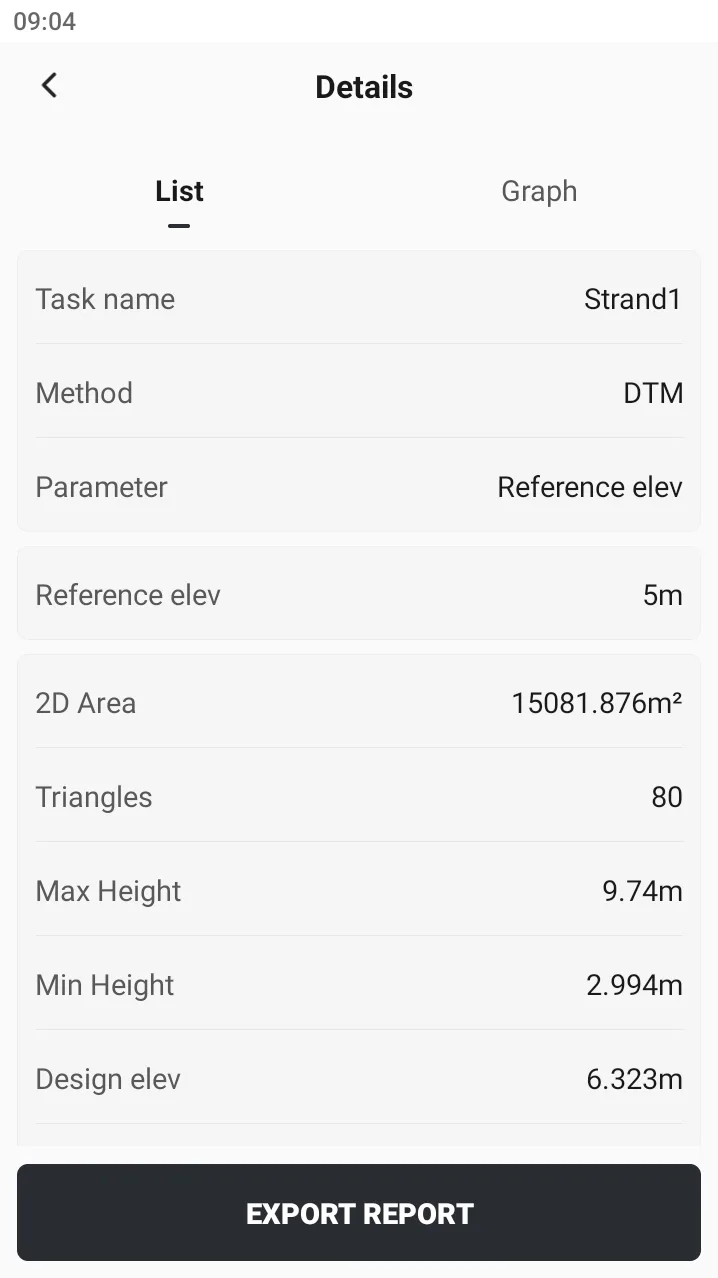
Click the task card and select Detail button from the side slide menu to browse the task details.
 |  |  |
| Name | Description |
| Task name | Display task name |
| Method | Using the TIN method |
| Parameter | Display the parameter selected for calculation |
| Reference elev. | Display the calculation parameter |
| 2D area | Earthwork calculates the 2D area of the actual area, and if there is a boundary, it is the 2D area of the overlapping area |
| Triangles | Count the number of constructed triangles |
| Max elevation | Maximum elevation in display area |
| Min elevation | Minimum elevation in display area |
| Design elev. | Display the elevation value when Cut = Fill, which has reference significance for engineering design |
| Fill Volume | The volume of space calculated below the reference elevation |
| Cut Volume | The volume of space calculated above the reference elevation |
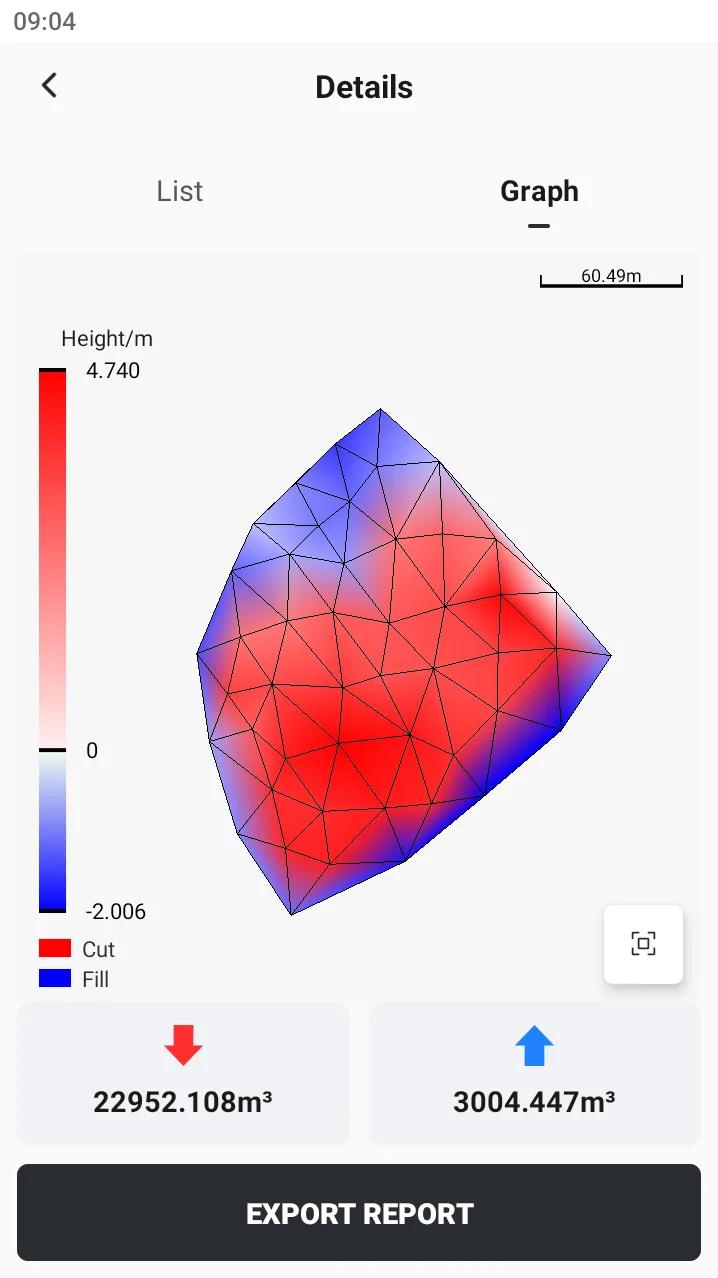
Click [Graph] to display the earthwork calculation results in the form of a color spectrum, reflecting the amount of Cut and Fill through different color differences, giving users an intuitive feeling.
- ● Red is the Cut area, the darker the color, the higher the elevation value;
- ● Blue is the Fill area, the darker the color, the lower the elevation value;
- Color ribbon: 0 means elevation = design elevation, no need to fill/dig.
After the calculation is completed, click [Export Report] button at the bottom to export the calculated graphic and text results as * .pdf or * .html files. The content includes:
- Task information
- Surface information
- Boundary information
- Cut area
- Fill area
- Graphic