
5.12 Export
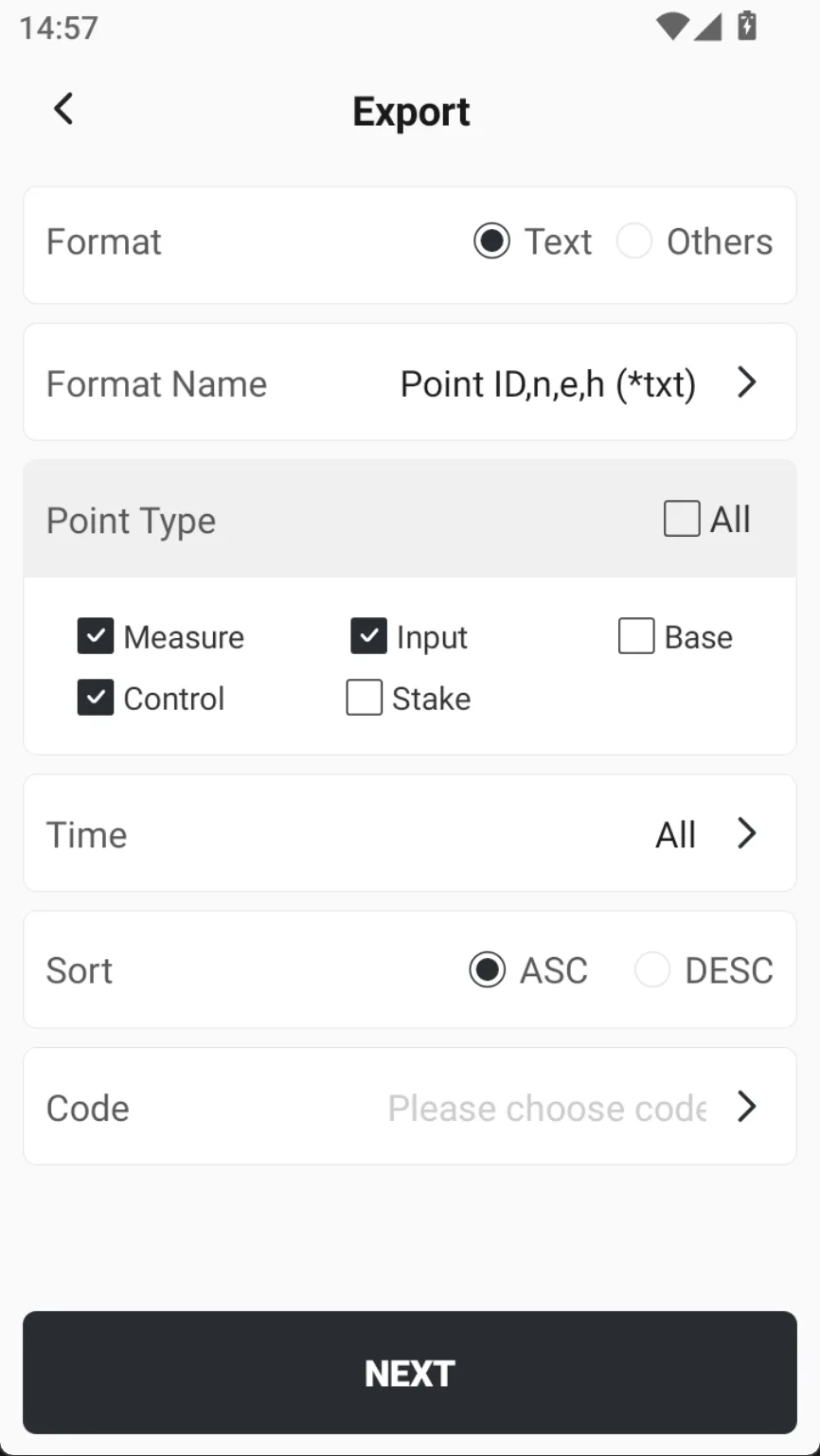
The export function is used to convert and save project data (especially point coordinate data) into various standard formats. It supports exporting two types of coordinate types: plane coordinates and latitude & longitude. Click [Project] → [Export] to enter the data export interface to customize the export format, file name, and storage path. The exported data can be stored to local storage, uploaded to the cloud or created a sharing code for external delivery.
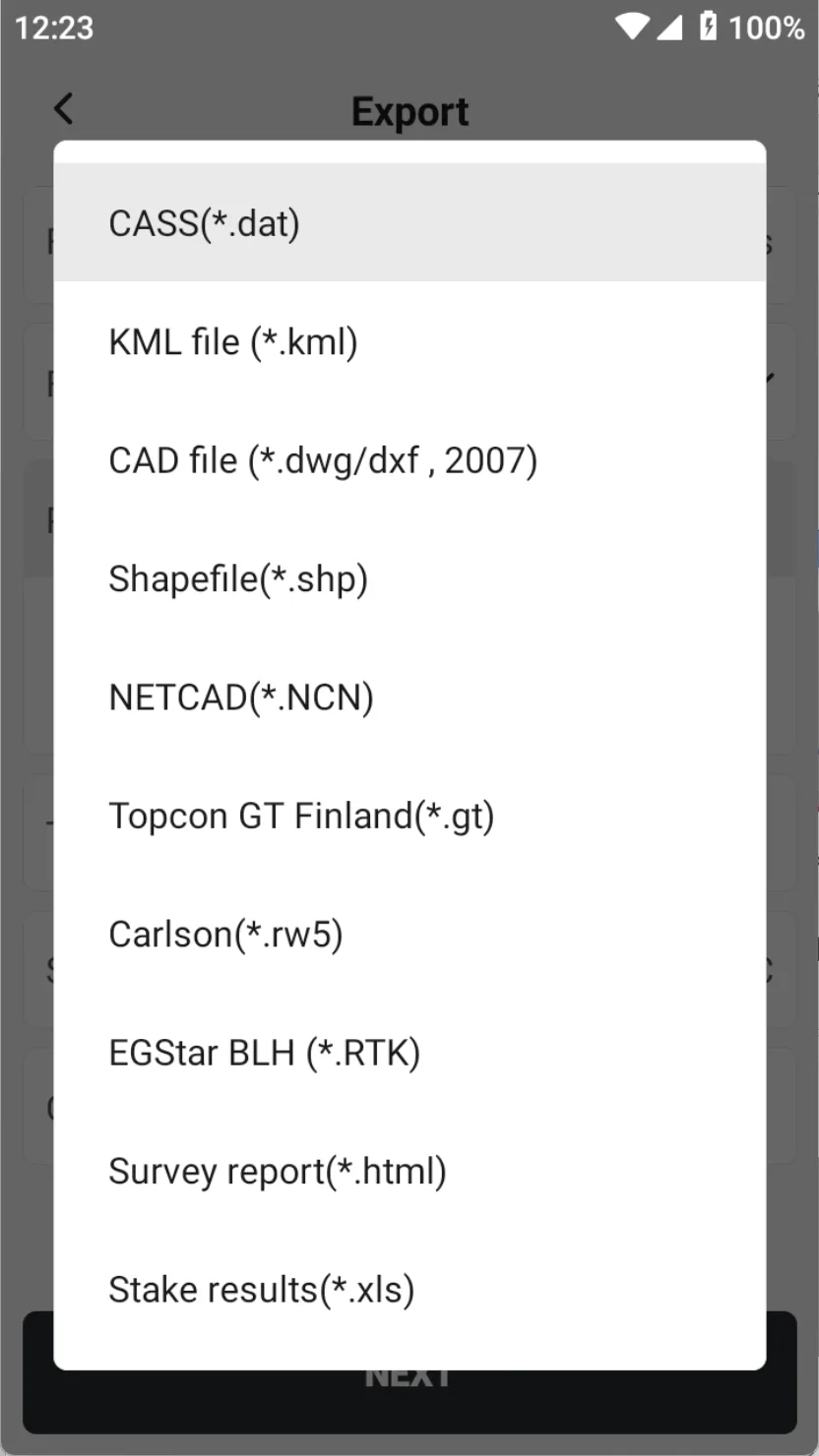
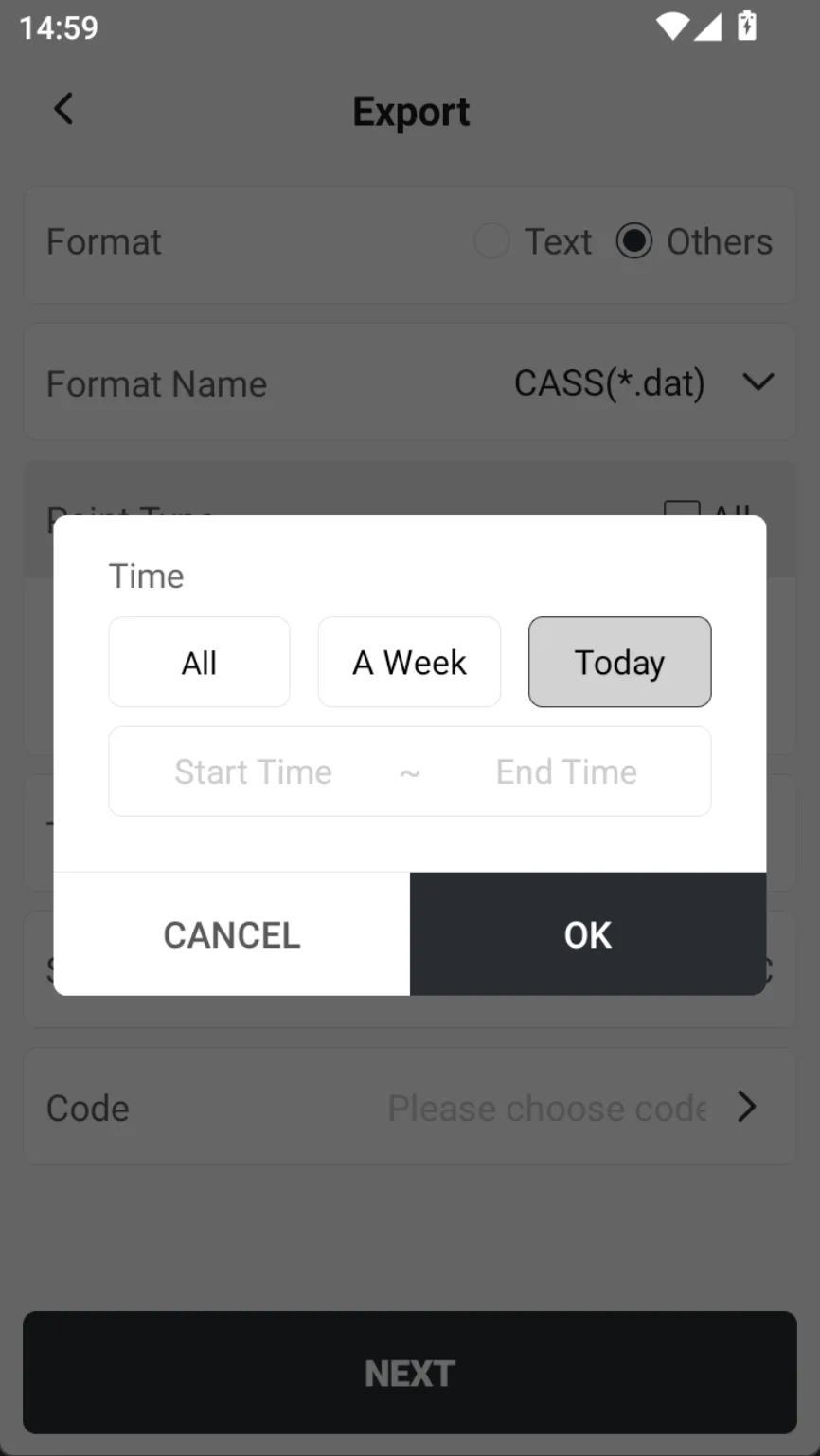
The export format options are the same as the import function, including two categories: text format (custom fields) and other format (standard fields). The export operation provides additional data filtering and sorting parameters, and users can flexibly control the scope and arrangement order of the exported dataset according to their needs.
 |  |  |
Note:
1. The RTK standard controller can recognize the mobile USB flash drive, insert the USB flash drive, and grant the corresponding access permission according to the prompt. The APP data can be directly exported to the mobile USB flash drive;
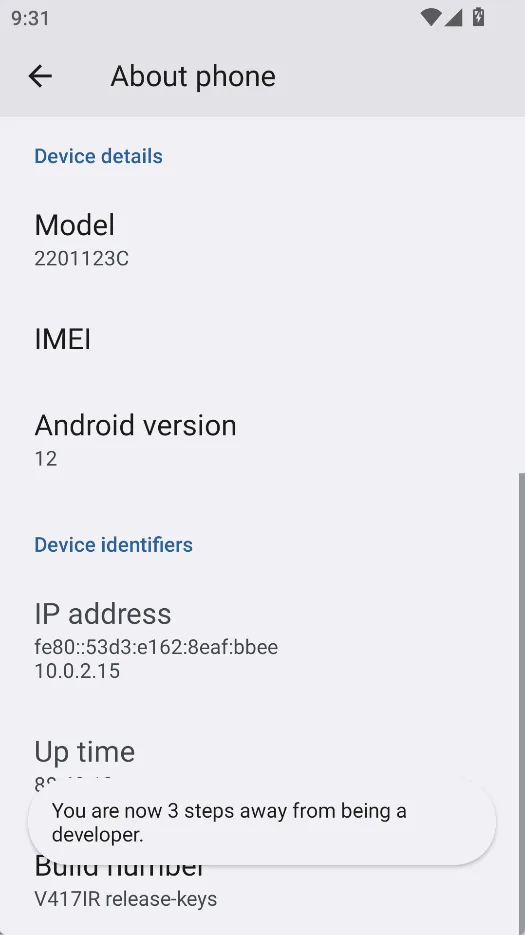
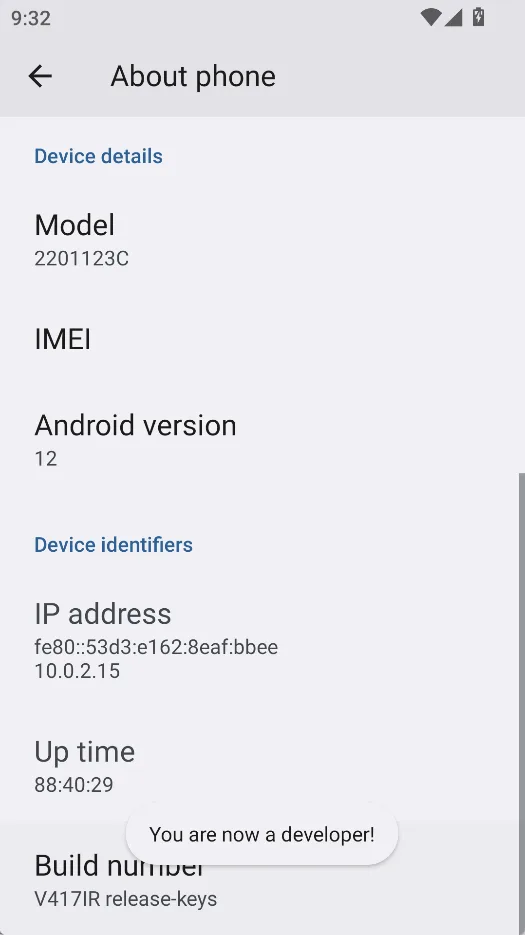
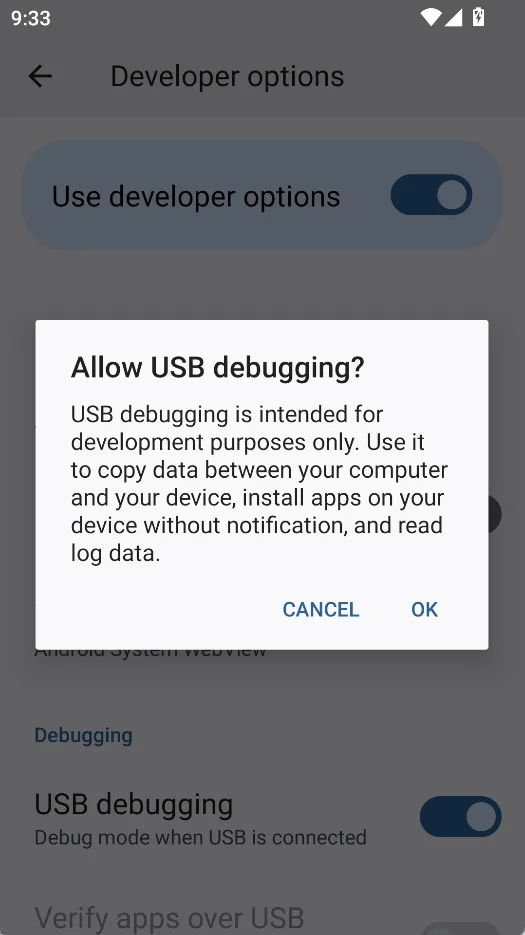
2. If the controller does not recognize the USB drive, please try to enable the USB debugging mode. Users can open it, [Settings] - > [About phone], click 5 times in a row, [Build number], and open the developer options (taking the Android version 11 of the E600 controller as an example, there are differences in the position of different controller and Android version numbers). Then enter [Settings] - > [System] - > [Developer Options] interface, open the USB debugging function, and export the APP data file to the mobile USB drive.
3. Some formats will only be displayed after the corresponding language is set in the APP.
 |  |  |