
5 Projects
5.1 Projects
5.1.1 New
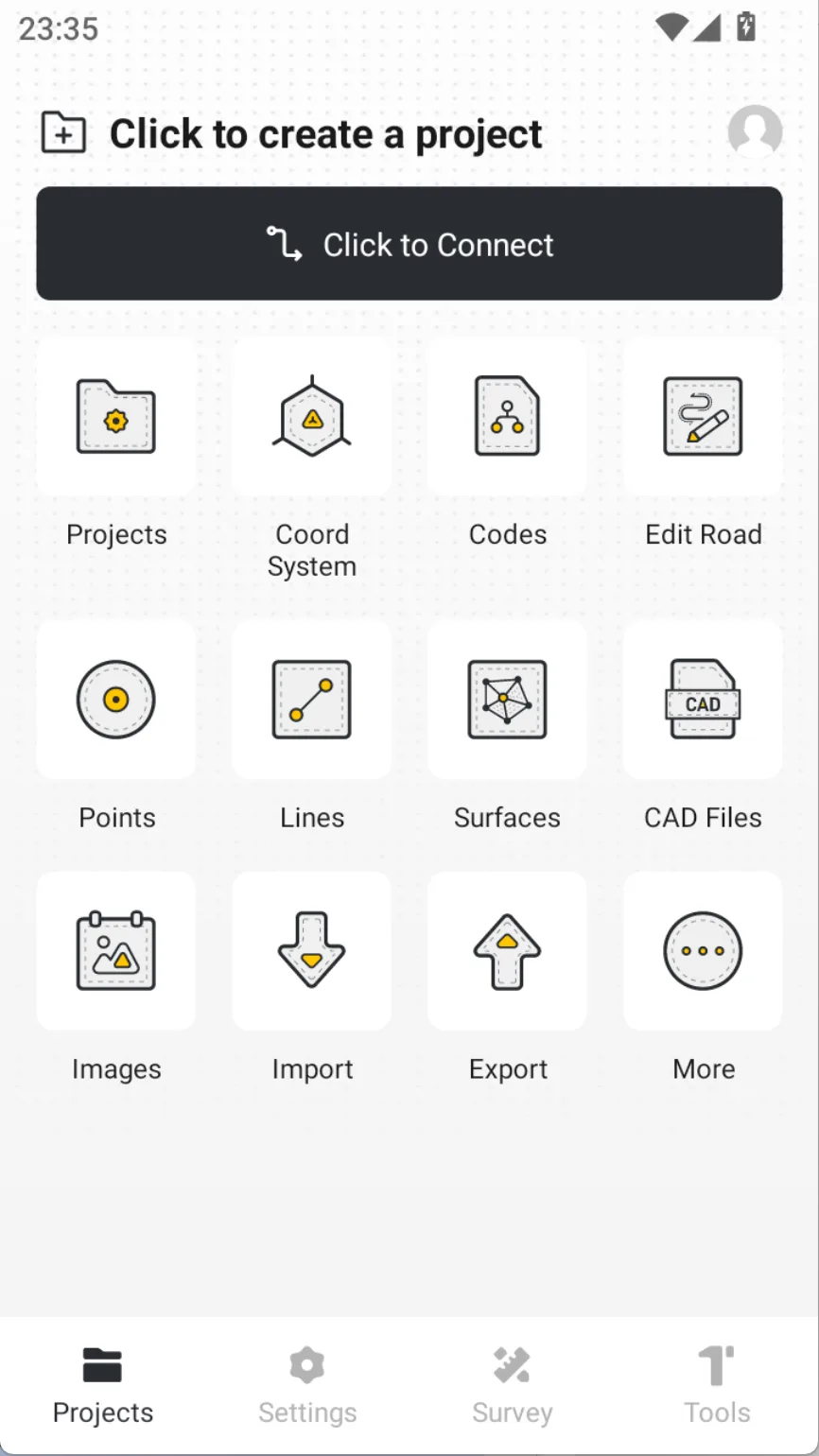
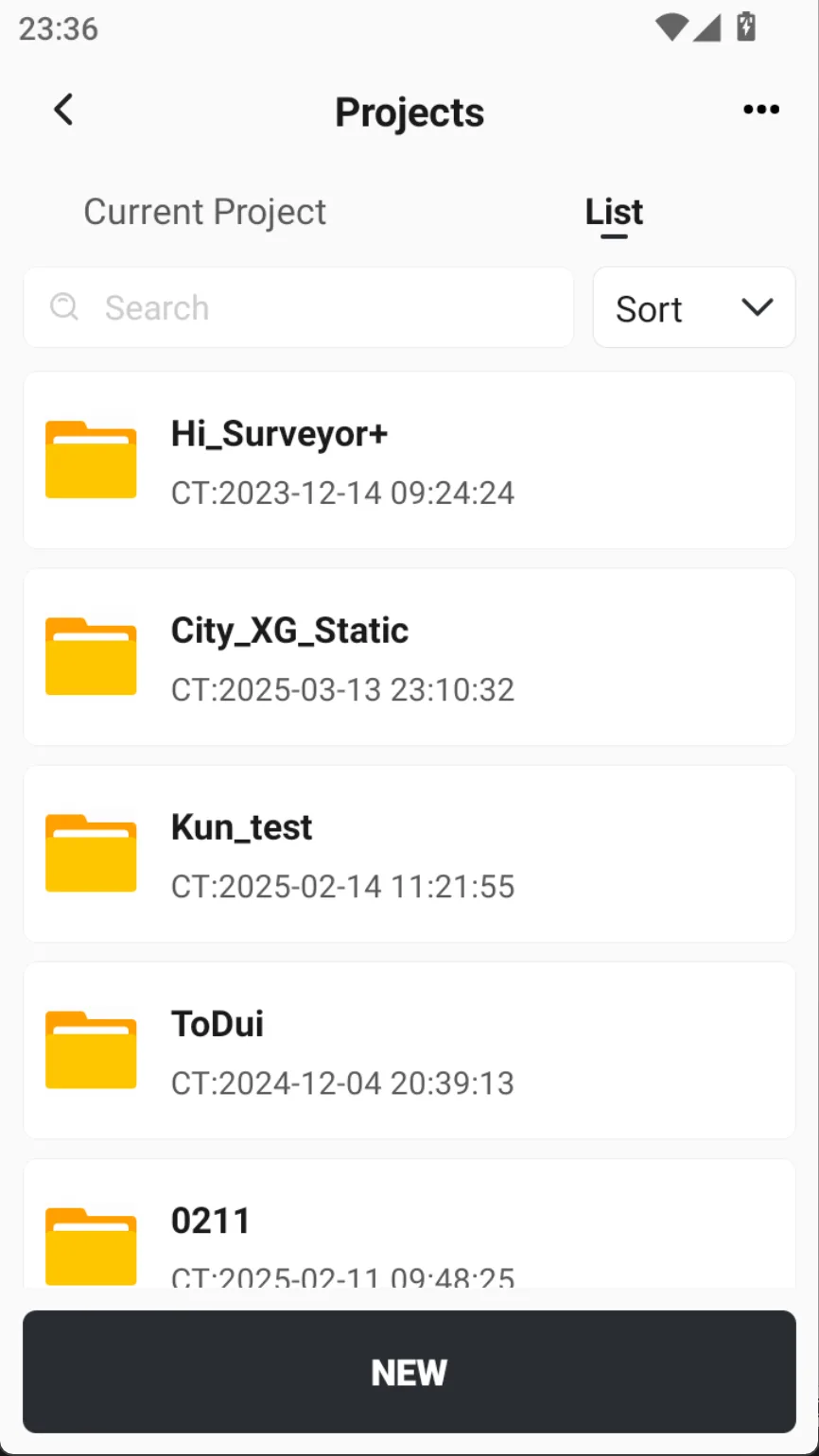
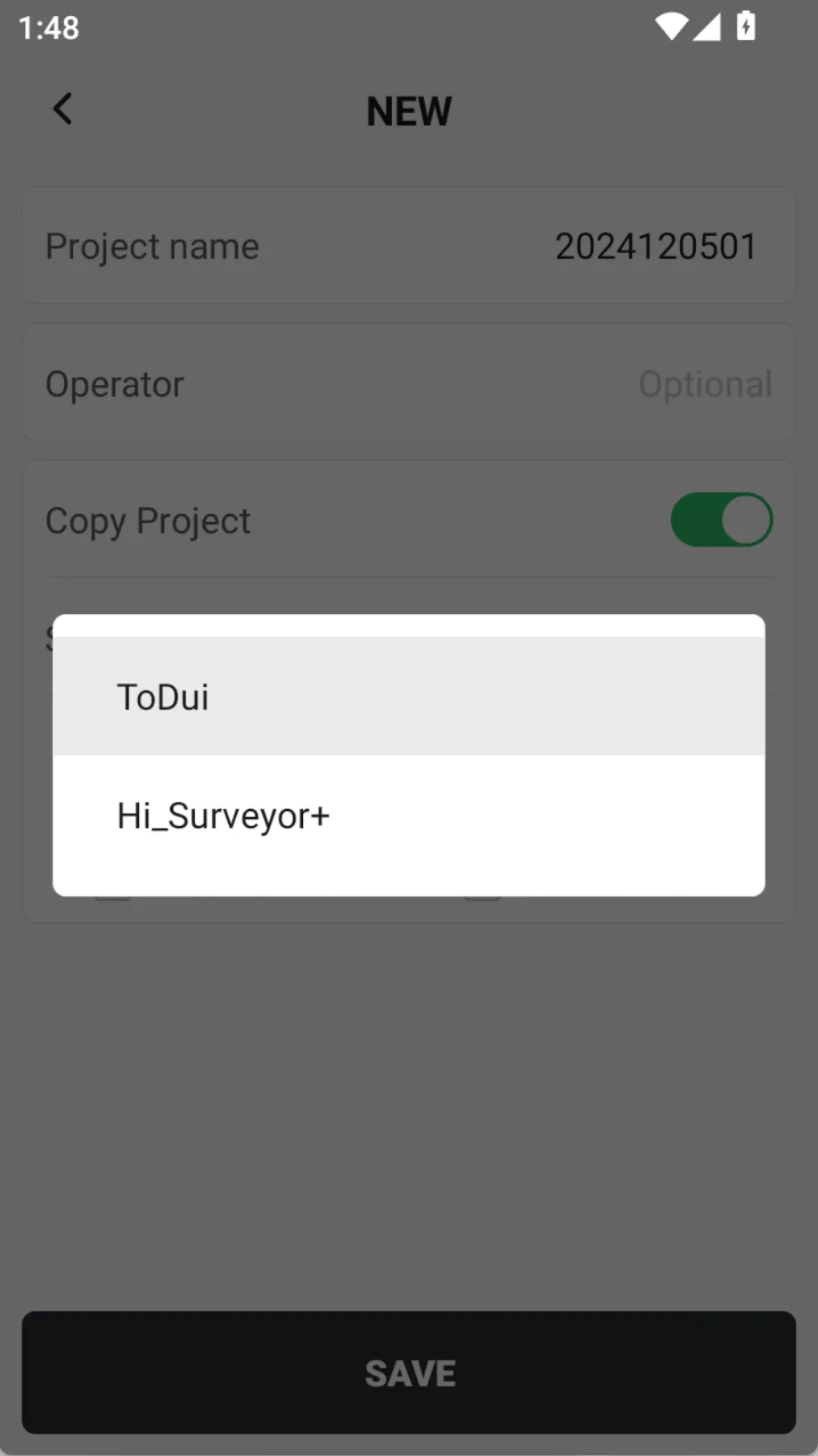
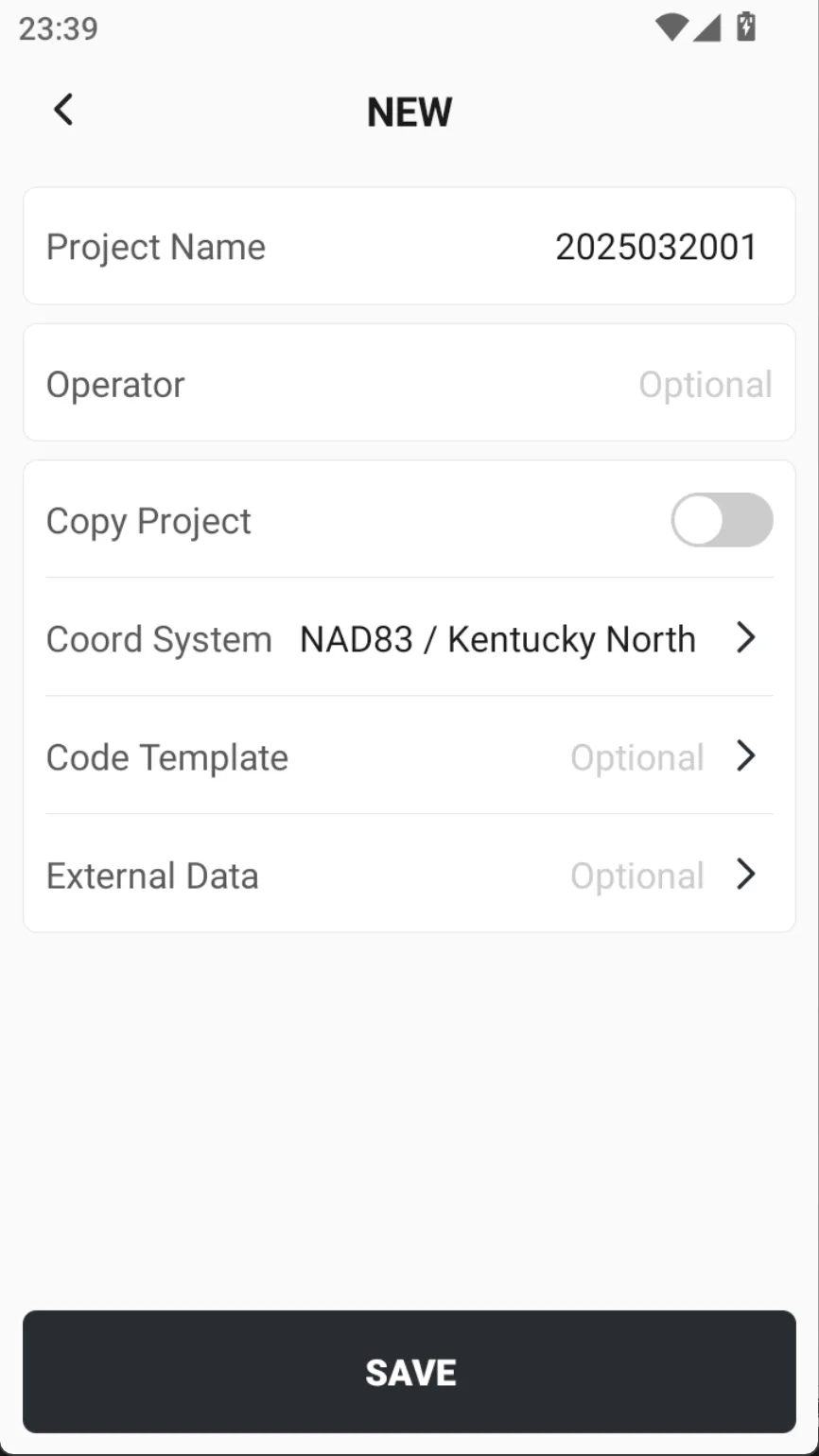
Before using a RTK job, you must create a new project to manage the data. Open Trion Survey, select [Projects] → [Projects], click the bottom button [NEW], enter the project name, usually named after a date or other name.
 |  | 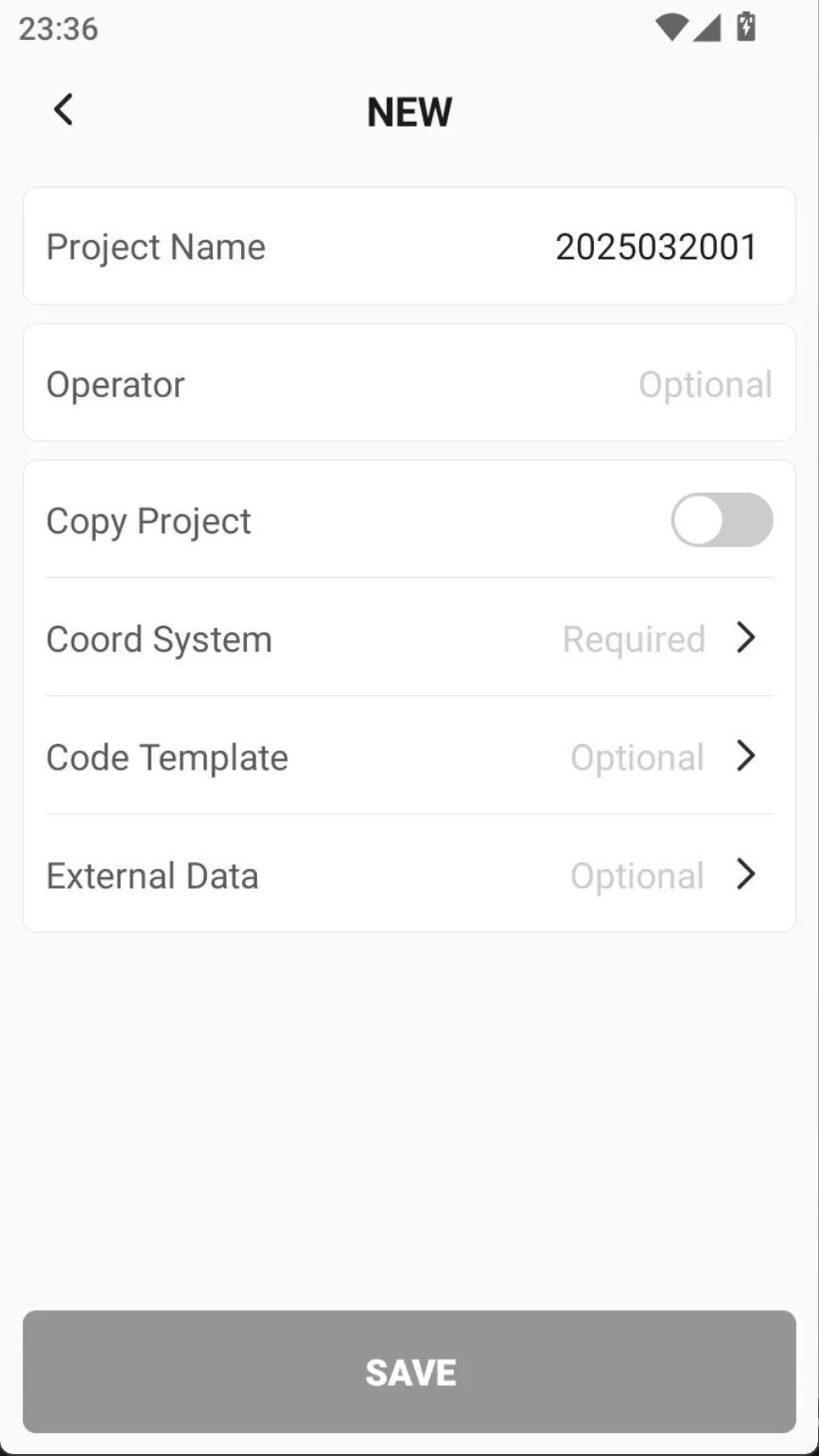 |
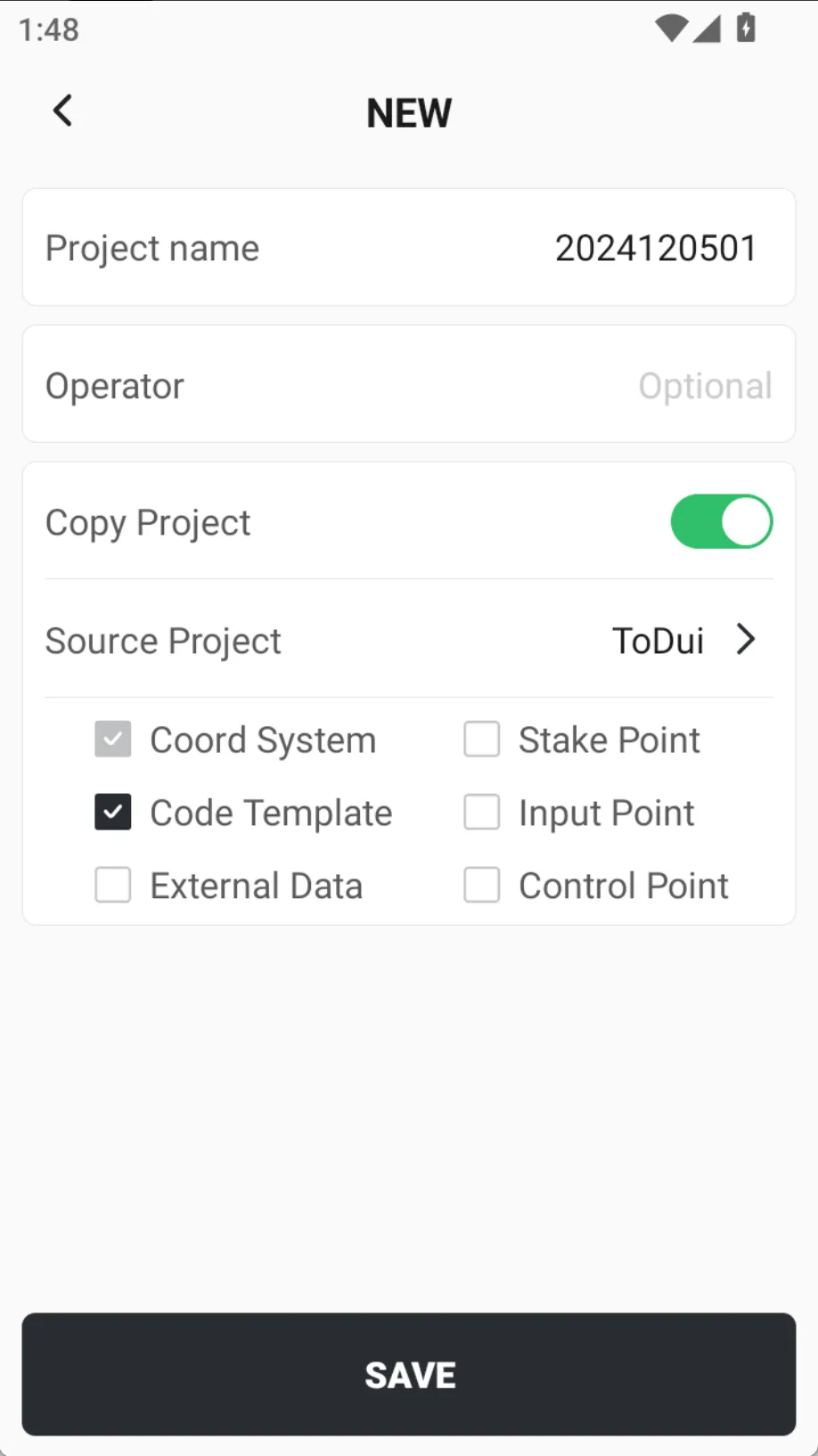
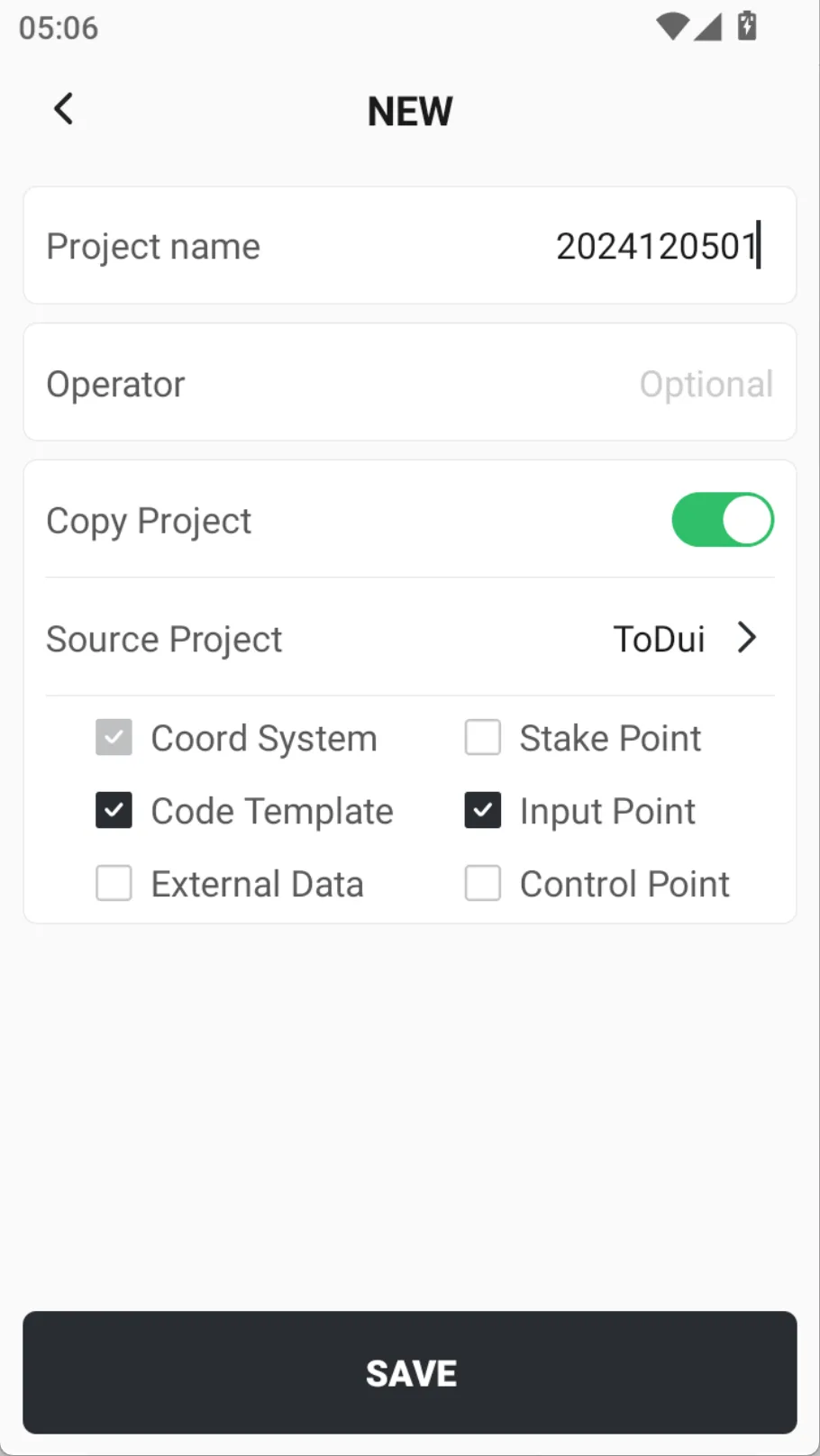
By default, [Copy Project] is turned off, and you can manually select Coord System, Code Template, and External Data. When clicking to open it, you can directly copy data based on the existing projects.
| Name | Description |
| Source Project | After clicking, a pop-up window displays a list of items, select the item you want to copy. |
| Coord System | Required, cannot be cancelled. |
| Code Template | Checked by default, copy the code template to the new project. |
| External Data | Not checked by default. |
| Stake Point | Not checked by default. |
| Input Point | Not checked by default. |
| Control Point | Not checked by default. |
 |  |  |
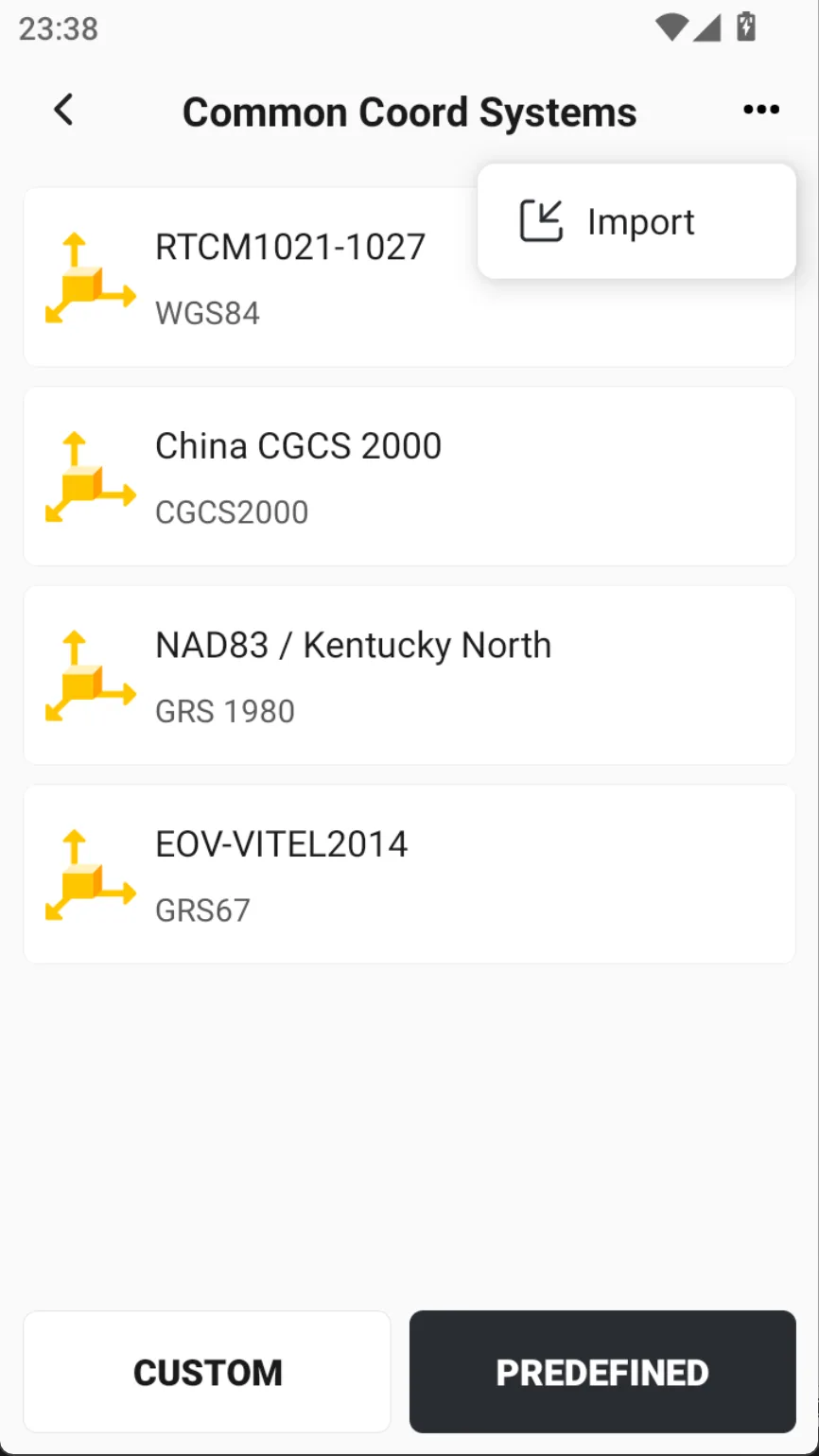
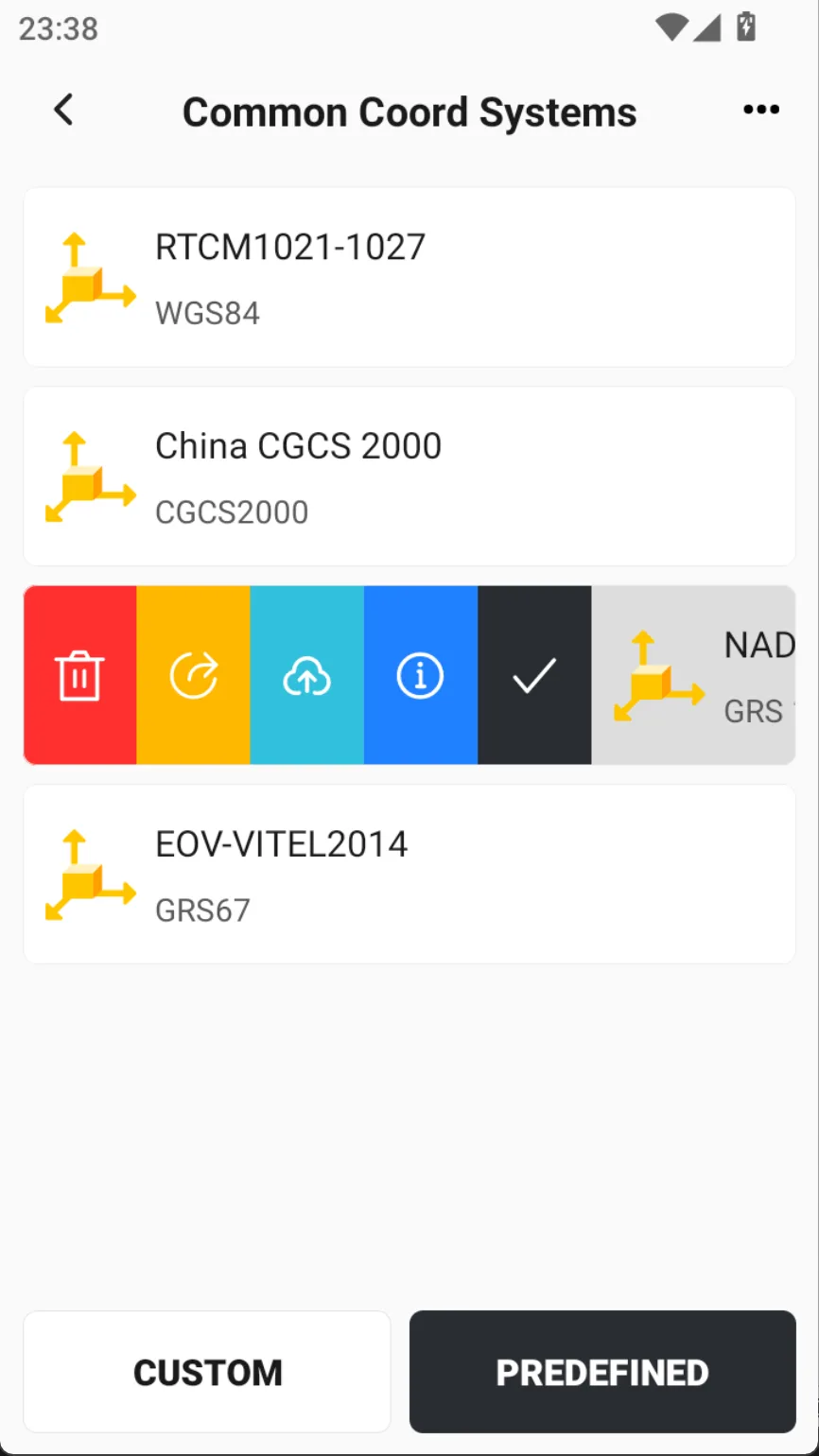
Select [Coord System] and select the required coordinate system for the project. You can select […] in the upper right corner and add the required coordinate system to [Common Coord Systems] through [Custom], [Predefined] or [Import]. After adding, click the corresponding coordinate system and click [✓] in the sidebar.
 |  |  |
[Code Template] is optional, click and select from the code template library.
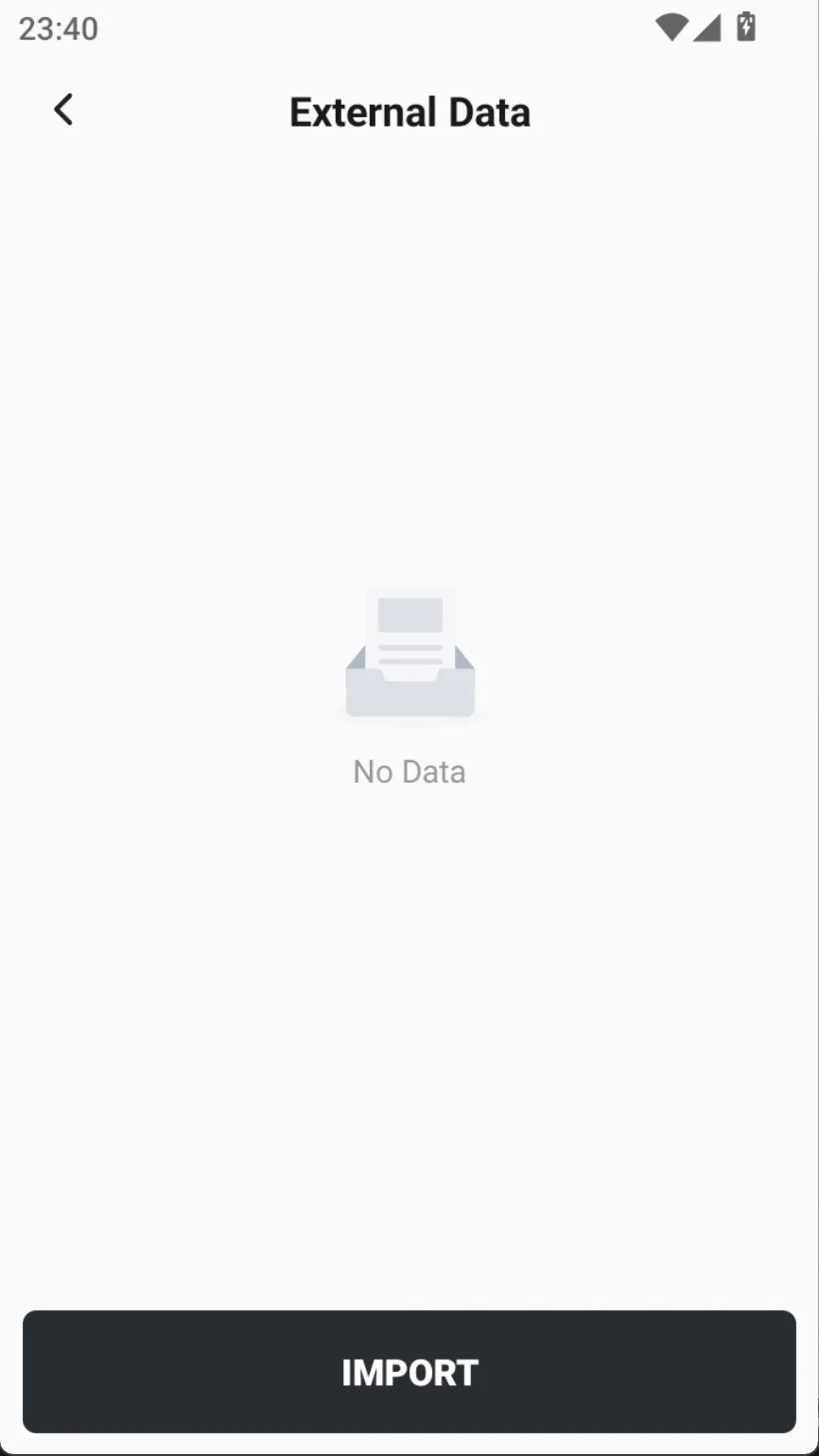
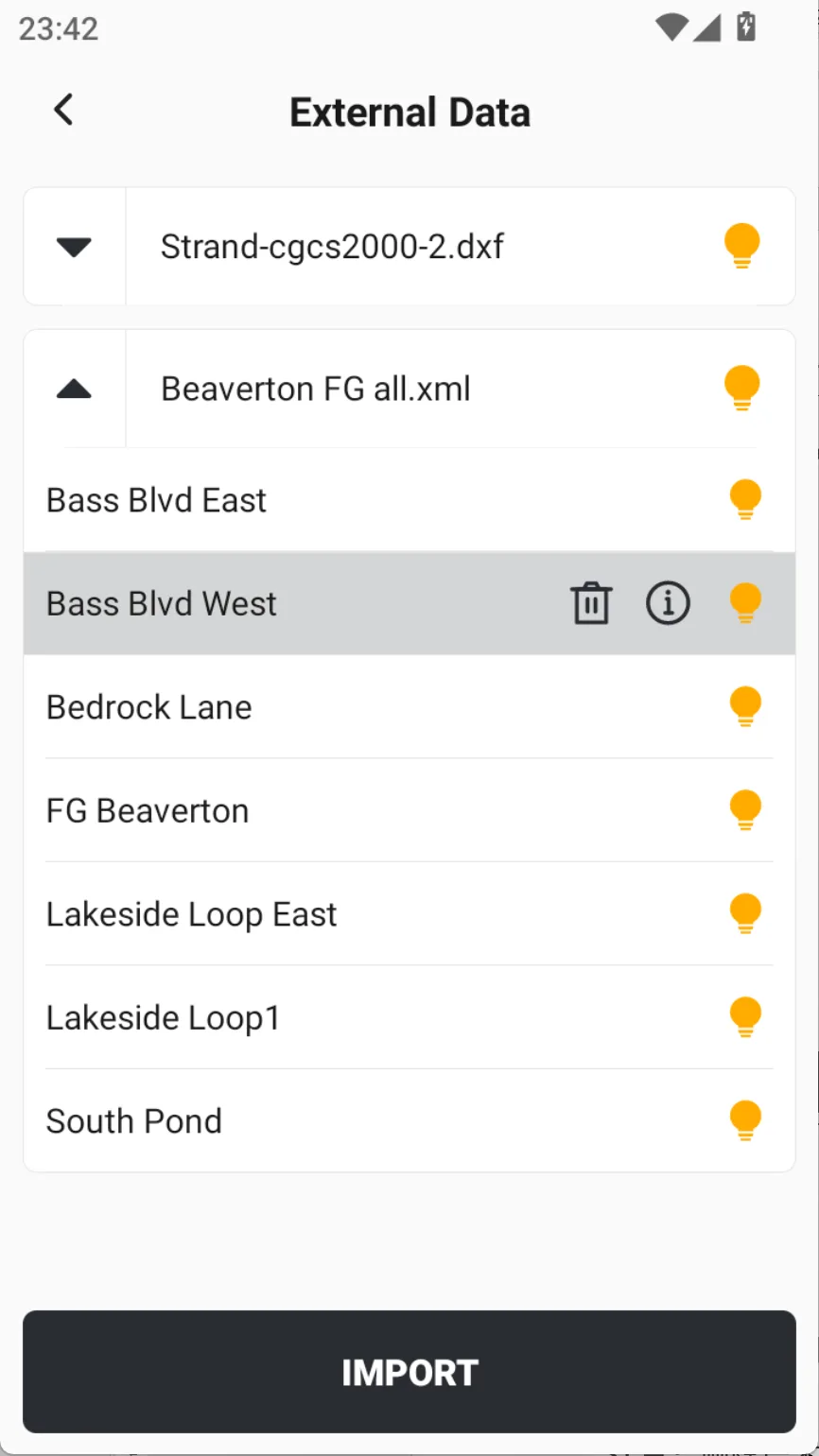
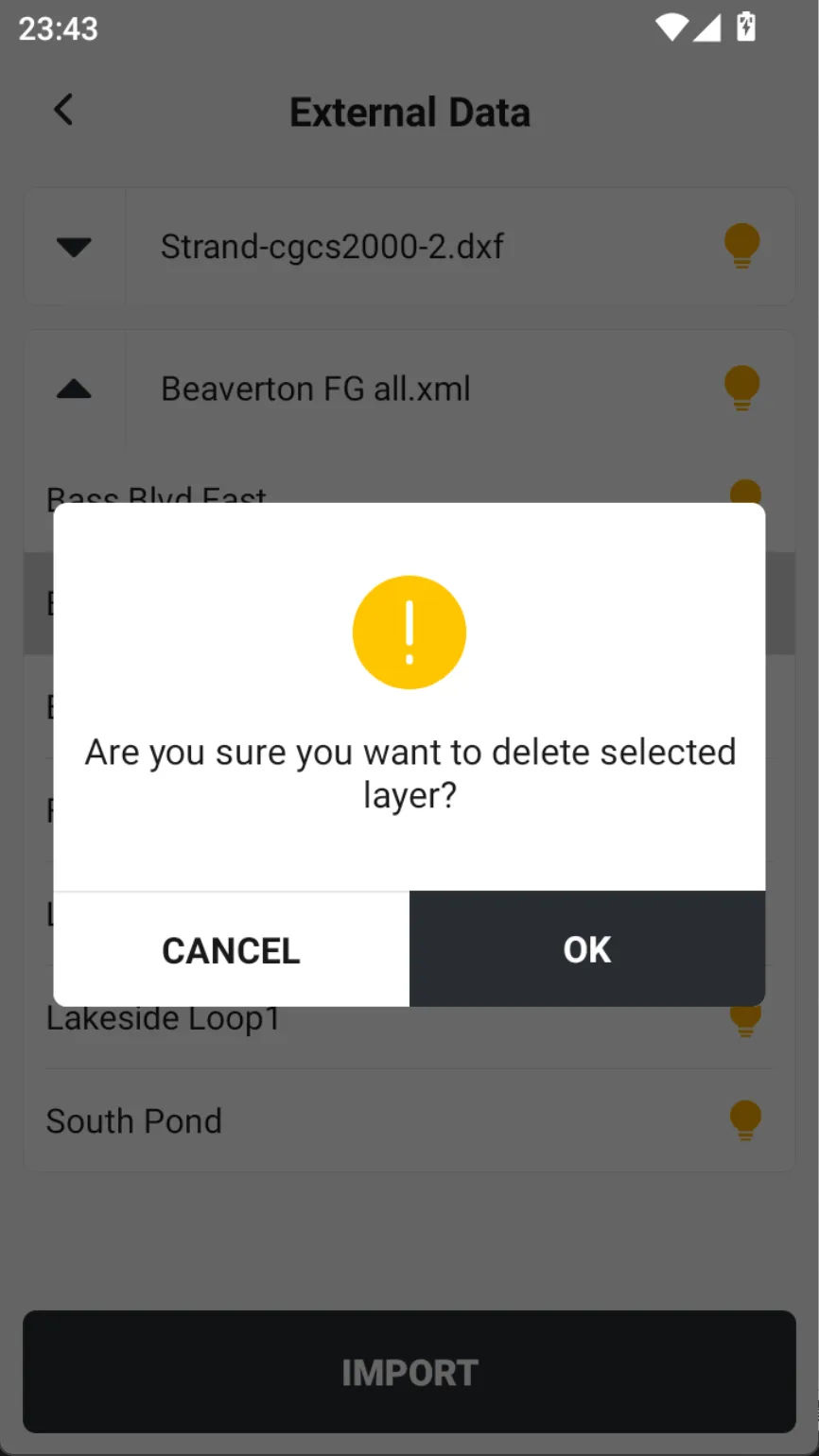
[External Data] is optional and supports adding base maps to measurement maps. Currently, the following formats are supported: * .dxf, * .dwg, * .shp, * .xml, and * .kml. Selecting a layer allows you to choose to show/hide, delete, or edit.
Note: To ensure the smoothness of map operation, it is recommended to add a file size of no more than 10 MB.
 |  |  |
After all settings are set up, click [SAVE] to complete the project creation.
5.1.2 Delete
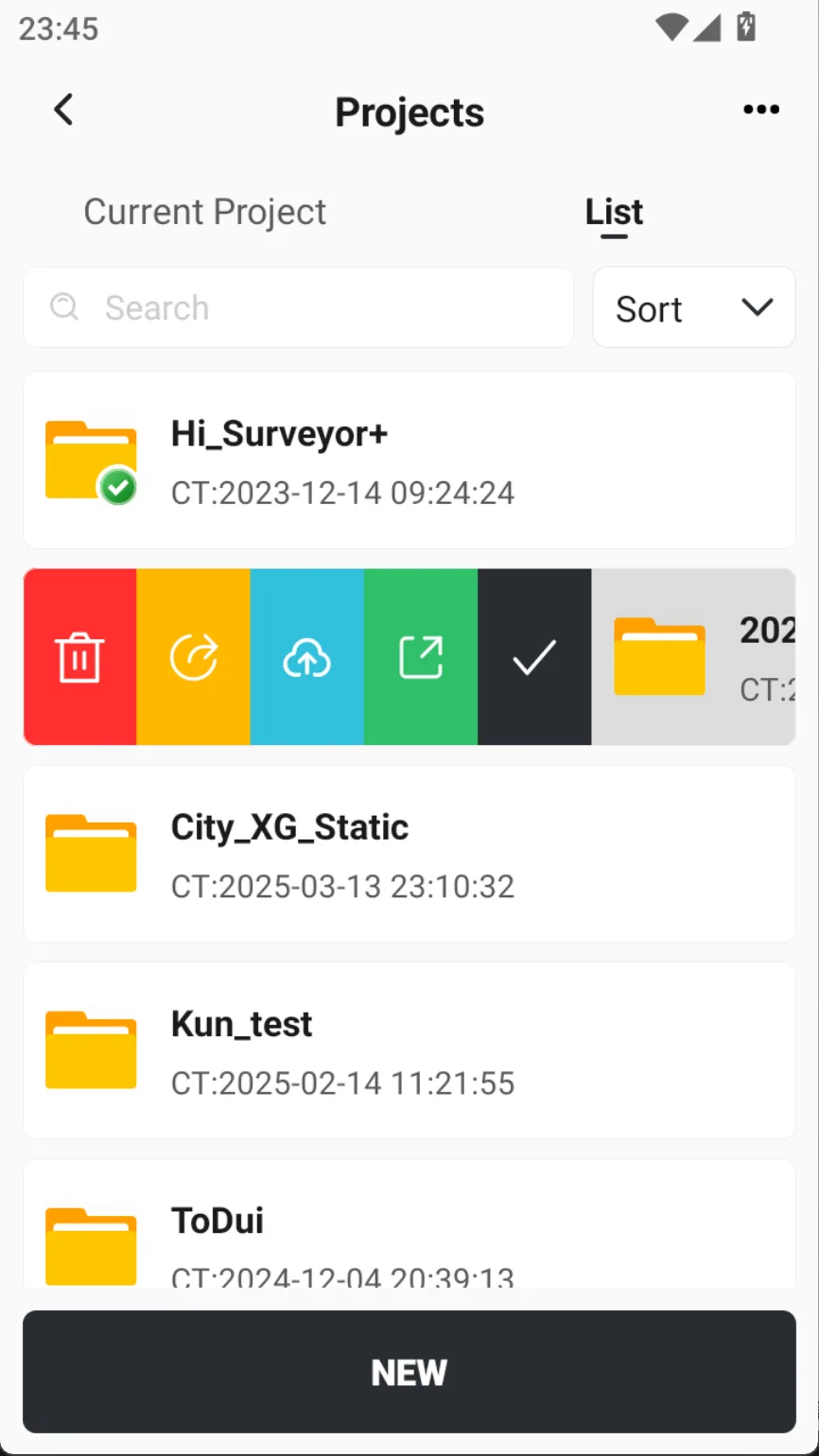
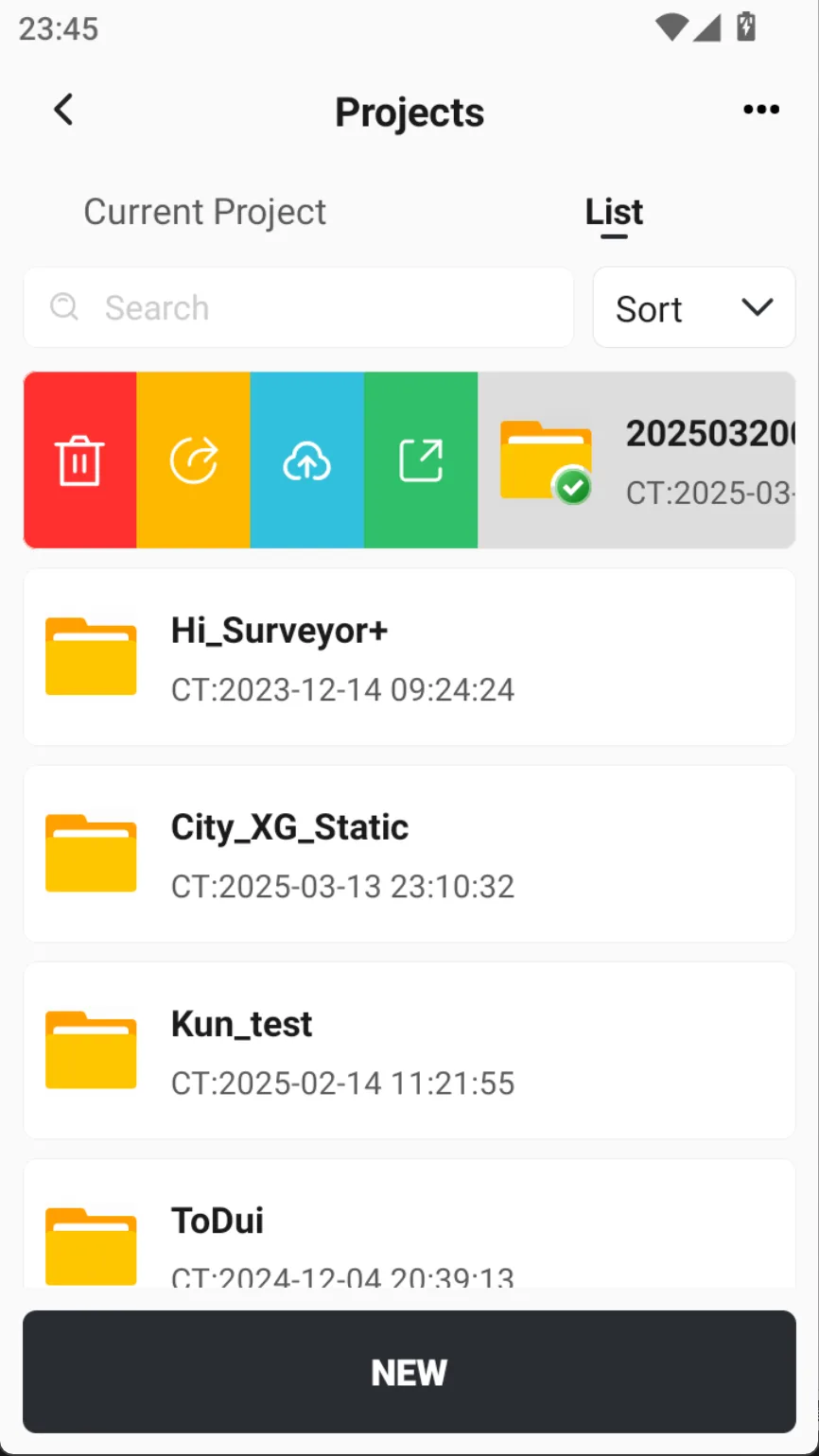
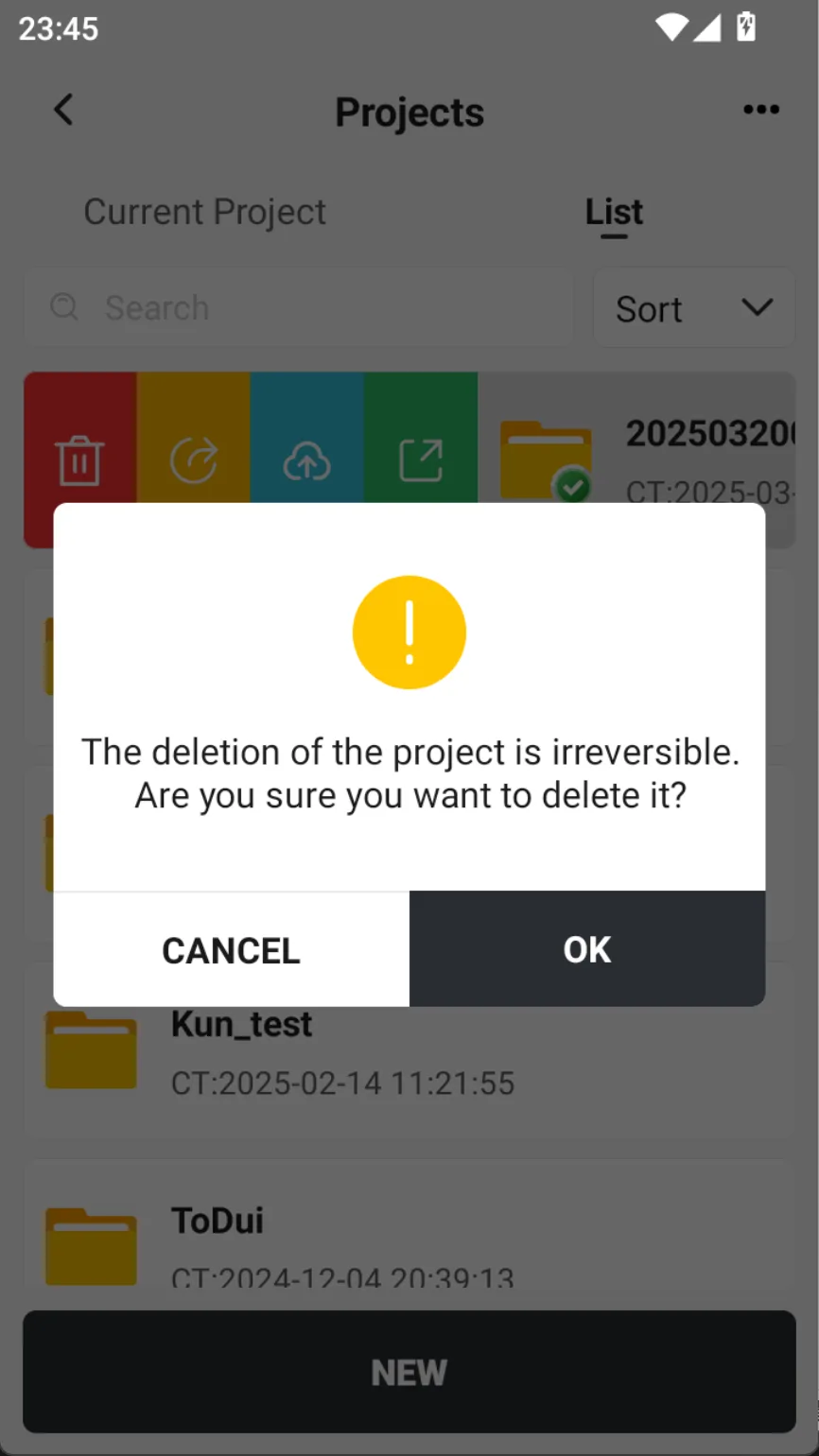
Click on [History Projects], click on a project (open or unopened) in the project list, side-swipe buttons will be displayed, click the red delete icon, and a deletion confirmation dialog box will pop up. Click [OK] to delete the project file; select [Cancel] to cancel the box.
Note: It cannot be restored after deletion, please operate with caution.
 |  |  |
5.1.3 Open
If you need to continue a previous project, you can open it. Select the project and click [✓]. When you need to open another project, also select the project you want to open in the [List] interface and click [✓].
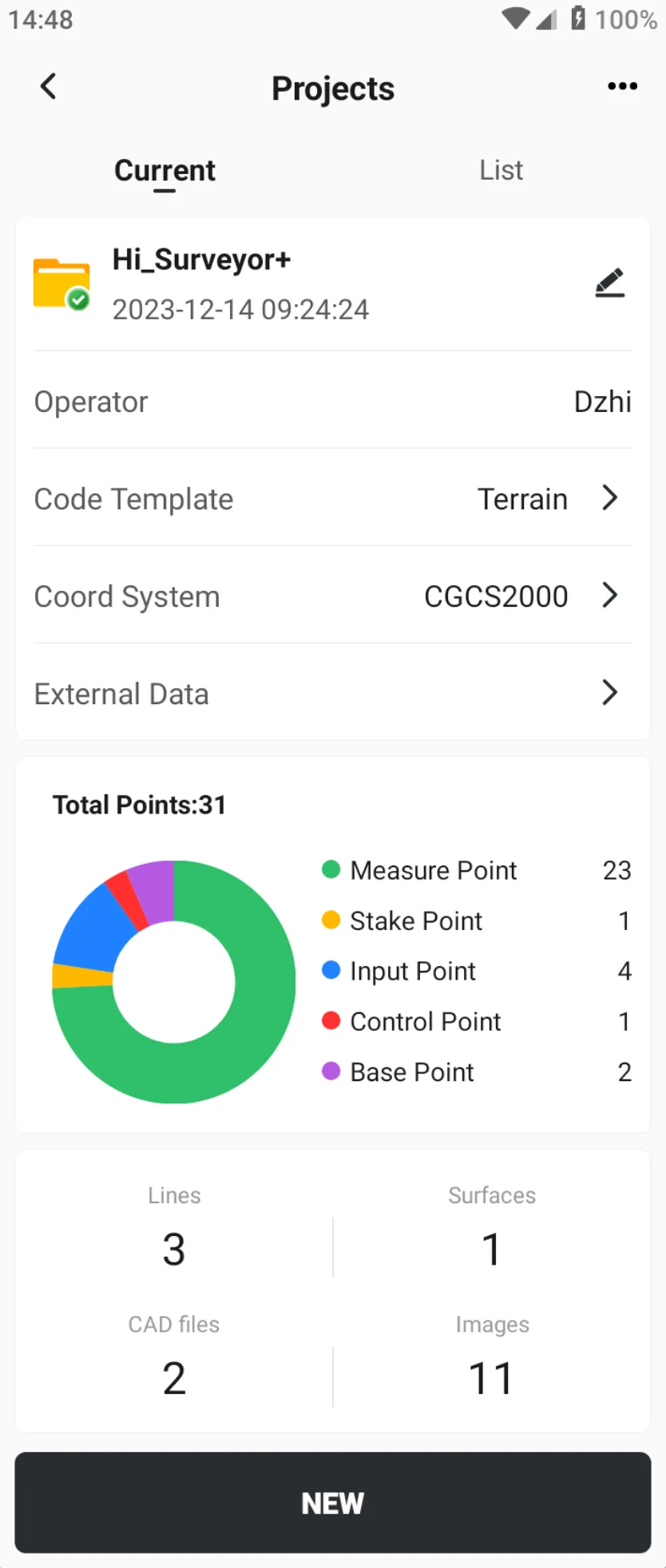
[Current] Displays information about the selected project, including statistics on the number of points, lines, surfaces, CAD files, and image tasks.
Click the Edit button behind the project name to modify it, and be careful not to duplicate the existing project name.
📌 Note: Trion Survey will automatically perform a series of coordinate system related operations during project switching to ensure that subsequent measurement data is consistent with the project coordinate definition. When the user selects or changes the project, the system will automatically load the corresponding coordinate system parameters (ellipsoid, projection parameters, transformation parameters, etc.) of the project, restore the code settings of the project, and verify the rationality of the central meridian.
|  |
5.1.4 Upload and download
Project files can be uploaded to My Cloud Drive and downloaded locally from it, and the project can also be shared with other Trion Survey users. For details, please see Chapter 5.
5.1.5 Export
Click on the project in the [List], then click on the [Export] icon to export the project to local. Supported file extensions include fpj and jxl.