
7.14 Scan
7.14.1 Feature Introduction
The V100F supports mobile 3D scanning using LiDAR, continuously capturing spatial information about the surrounding environment while the user walks, and generating 3D point cloud data in combination with SLAM positioning and mapping capabilities. Without the need for point-by-point measurement, users can quickly obtain the overall 3D shape of buildings, roads, tunnels, indoor spaces, slopes, and other complex scenes, providing foundational data for subsequent measurement, modeling, cross-section analysis, earthwork calculation, and on-site verification.
During scanning, you can choose whether to use GNSS based on the task requirements. When GNSS is enabled, the device can combine GNSS positioning information with the scan data, so that the generated point cloud is directly established in the current project coordinate system, making it easy to use alongside control points, design data, and other survey results. When GNSS is disabled, scanning can still be performed independently to generate point clouds in a local coordinate system, which is suitable for indoor, underground, or other environments where a reliable GNSS signal cannot be obtained.
By combining the high-precision positioning capability of traditional RTK with the rapid spatial acquisition capability of laser scanning, the V100F can reduce the workload of point-by-point measurement in complex areas, improve data collection efficiency in large-scale and complex environments, and fully preserve the on-site 3D spatial information for subsequent inspection, measurement, and reuse of results.
7.14.2 Preparation
| Item | Requirement |
| Device connection | Connect Trion Survey to the V100F via Wi-Fi and confirm the device status is normal. Do not actively disconnect the Wi-Fi during scanning. |
| Project and coordinate system | When GNSS scanning is enabled, confirm that the current project and coordinate system are configured correctly. If the results need to be compared with control points, RTK, or total station results, ensure the same coordinate datum is used. |
| GNSS status | When GNSS is enabled, start initialization in an open area after the positioning quality meets the work requirements. |
| Battery and storage | Before scanning, confirm that the V100F and the handheld have sufficient battery power and reserve enough storage space. For very large areas, plan segmentation in advance. |
| Lens and scanning window | Confirm that the LiDAR window and camera lenses are unobstructed and free of obvious stains. This is especially important when real-time coloring is enabled, to keep the camera view clean. |
| Route planning | Determine the starting point, main passages, corners, loop closure positions, and segment overlap areas in advance to avoid frequent stops and last-minute route changes during scanning. |
7.14.3 Steps
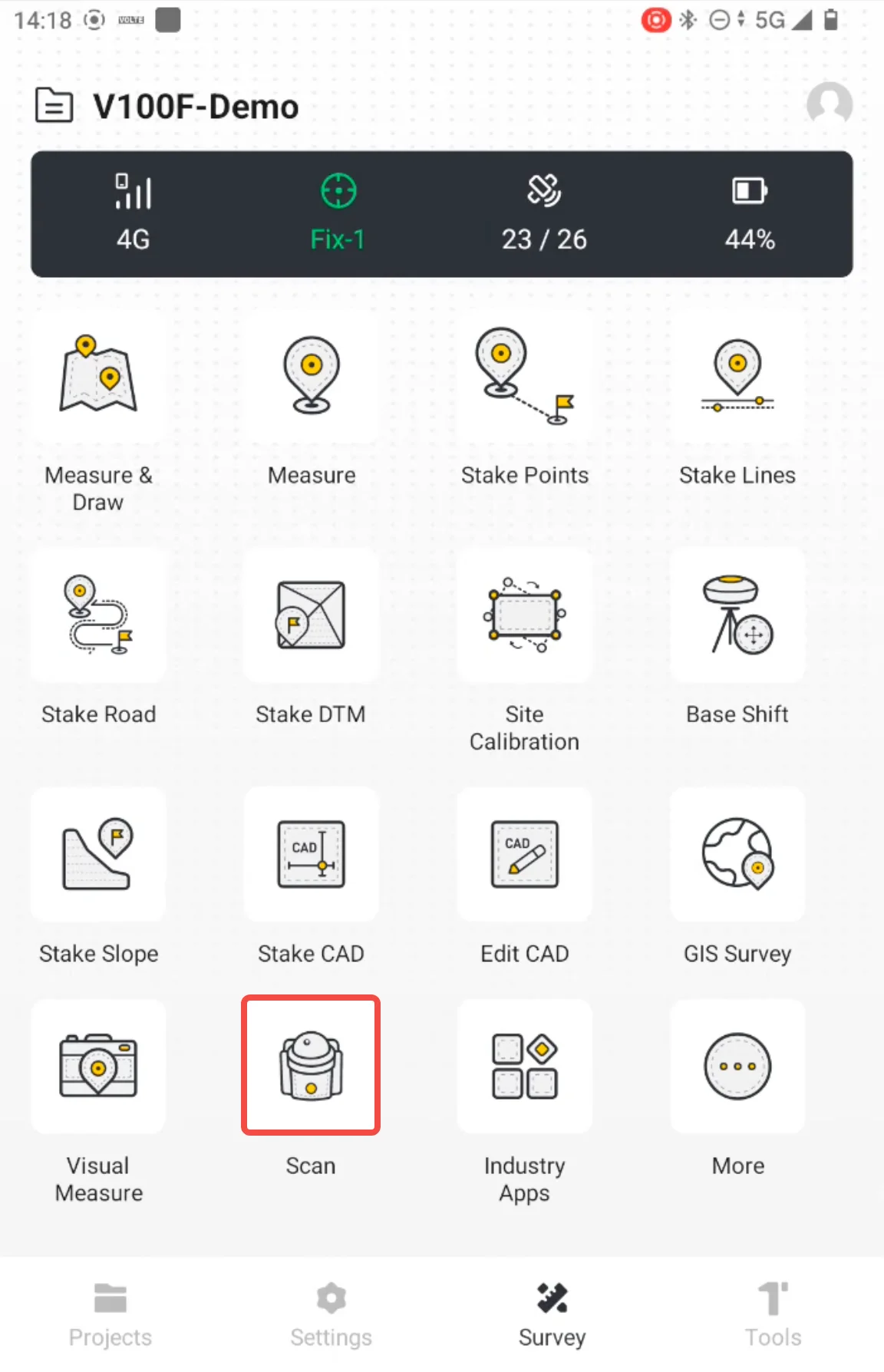
1. Enter Scan and Select a Scanning Mode
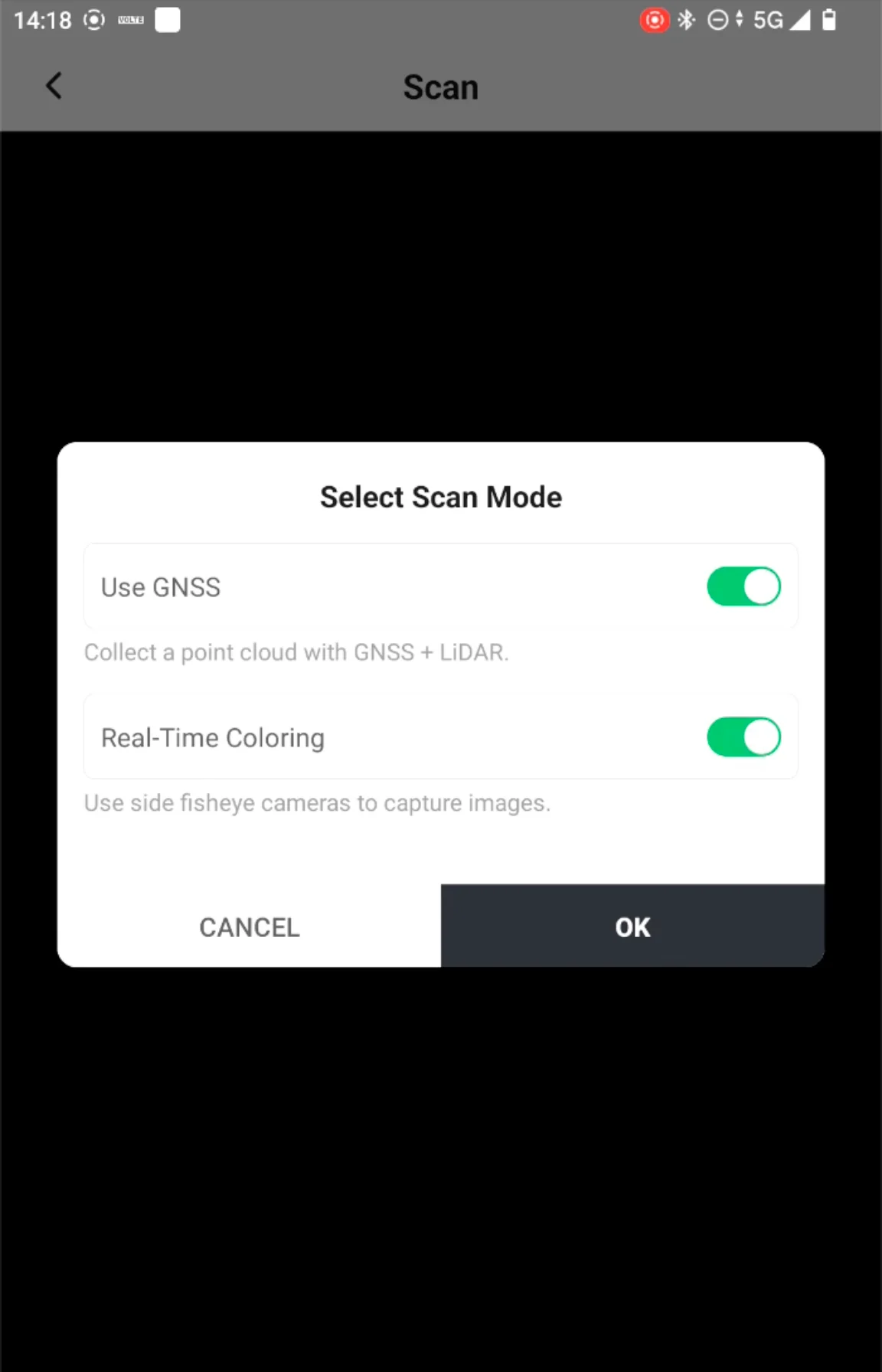
On the Trion Survey home page, go to the "Survey" page and tap "Scan." The system opens the scanning page and displays the scanning mode settings. Select the correct scanning mode and tap OK.
| Item | Enabled | Disabled |
| GNSS | GNSS + LiDAR; results carry absolute coordinate information; suitable for outdoor engineering surveys and projects that need to be unified with control points/design coordinates. | LiDAR only; results use a local coordinate system; suitable for indoor scanning, local mapping, or scenarios that do not require absolute coordinates. |
| Real-time coloring | Uses the fisheye cameras on both sides to capture images synchronously; the point cloud carries RGB information. | No coloring images are captured; the point cloud has no RGB information. |
| Mount | Default pole | Optional handle battery |
 |  |  |
If the project requires absolute coordinate output, it is recommended to complete initialization in an area with good GNSS signal and a confirmed project coordinate system before entering obstructed areas to scan.
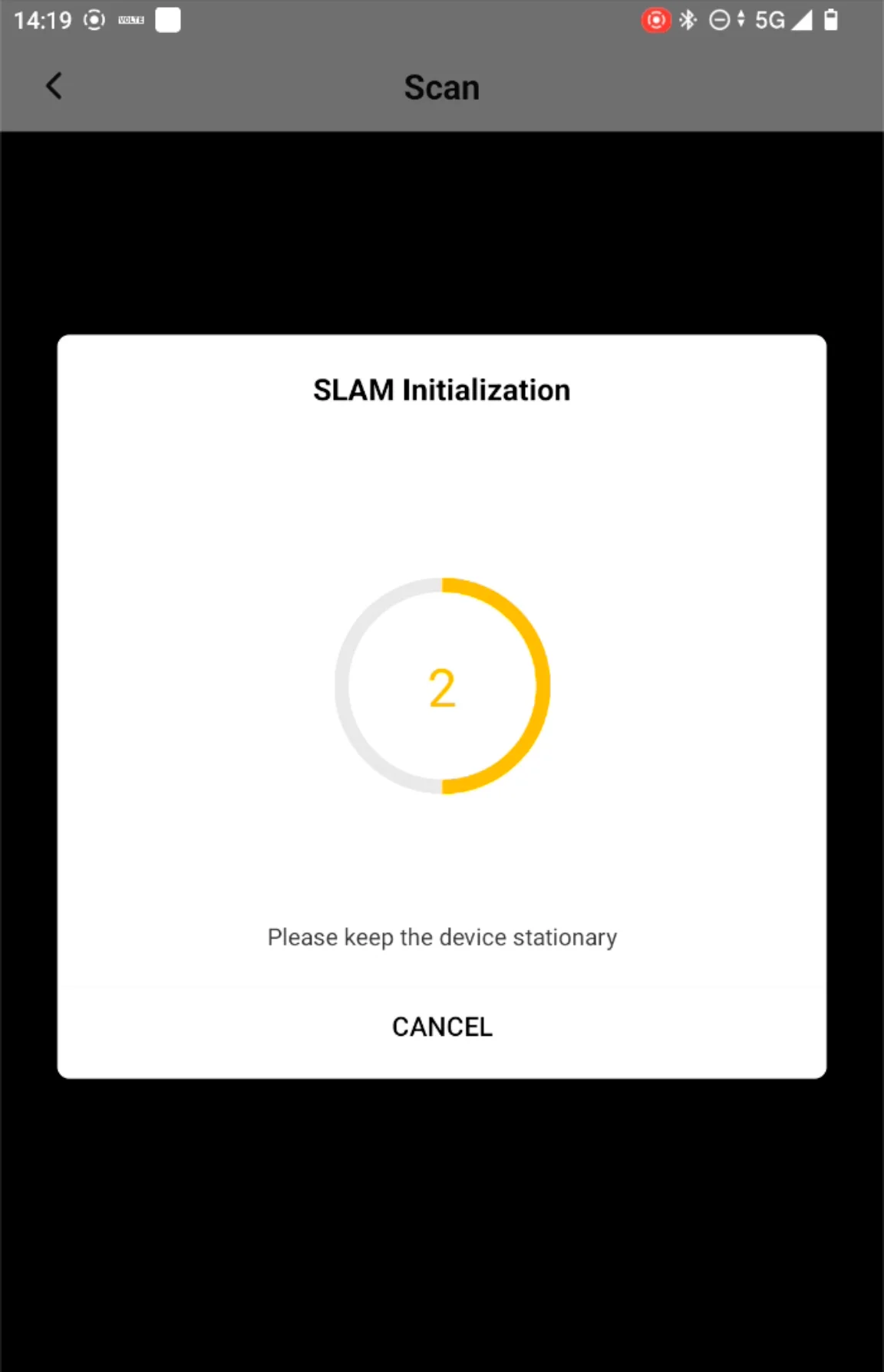
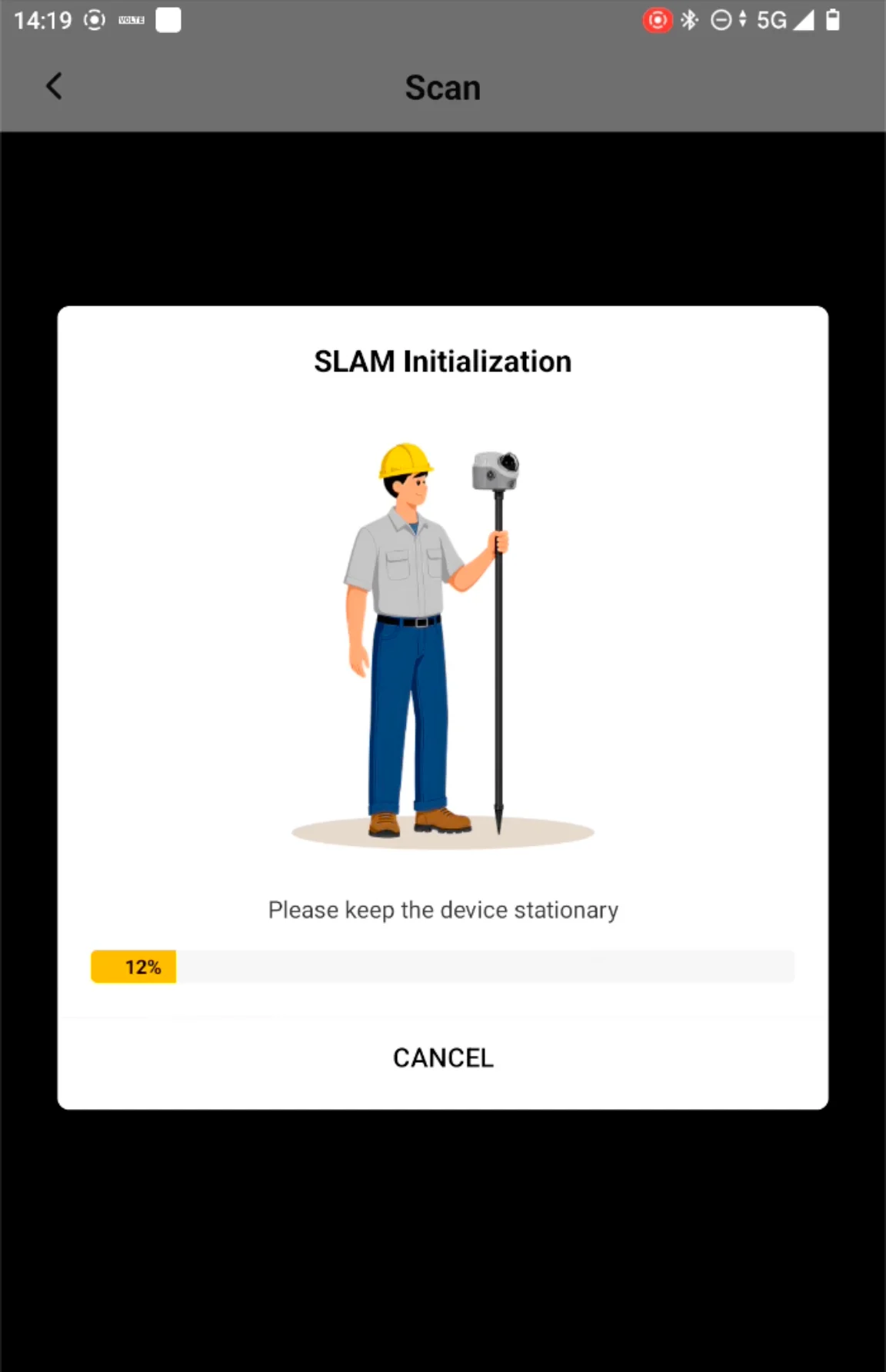
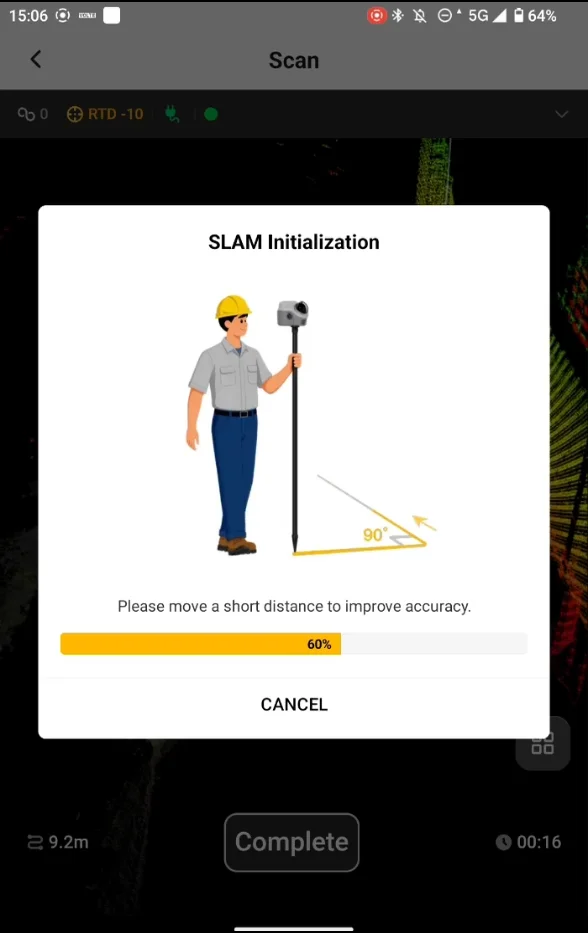
2. Initialization Process
If GNSS is enabled, first keep the device stationary as prompted, then move smoothly over a short distance until initialization is complete. If GNSS is disabled, simply keep the device stationary as prompted to complete local initialization.
 |  |  |
3. Start Scanning
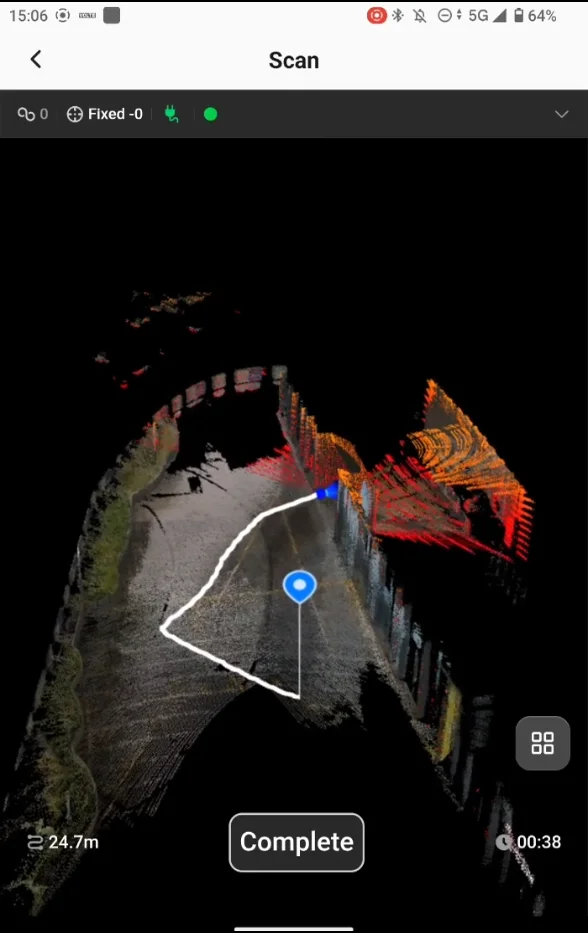
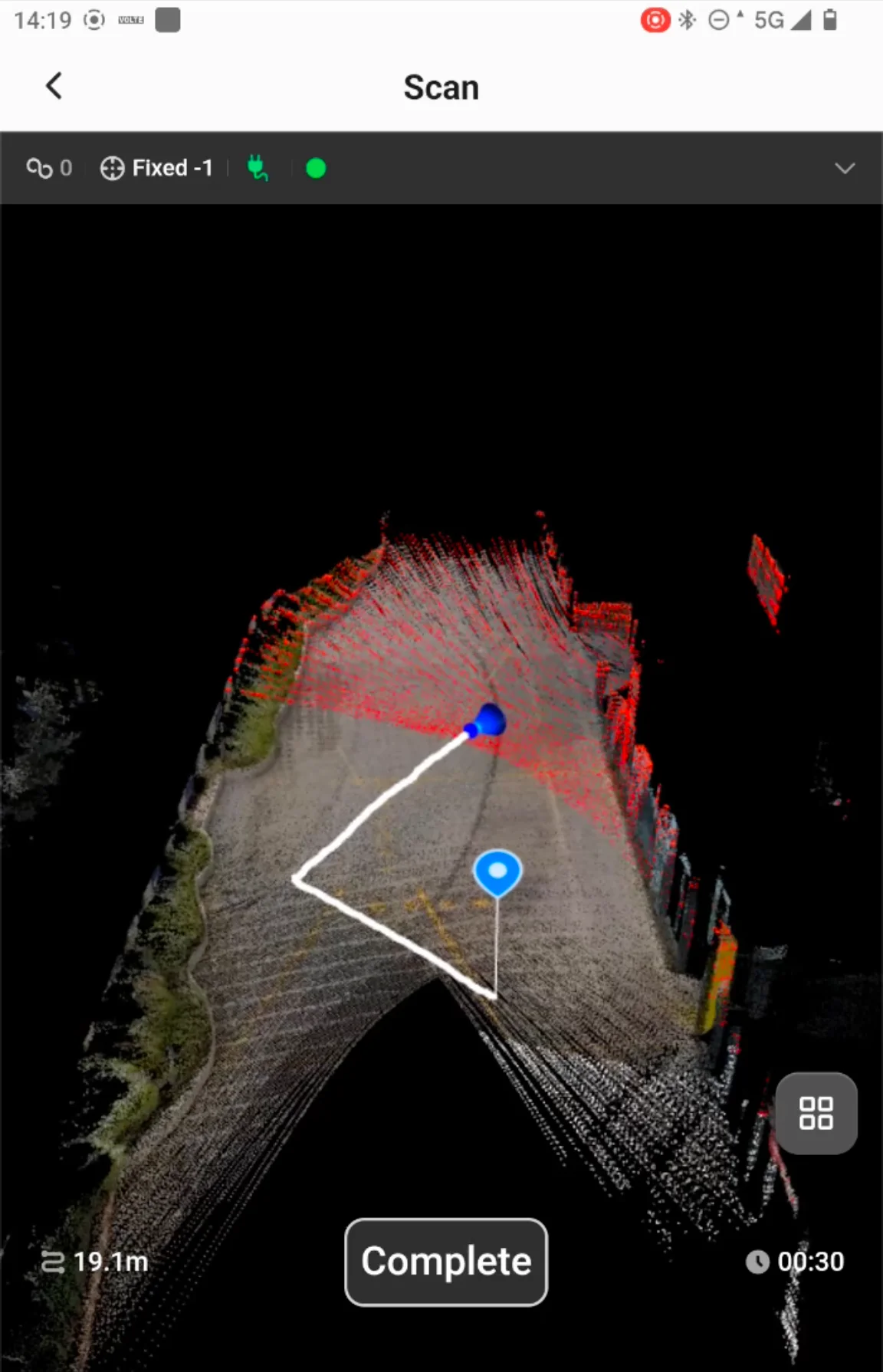
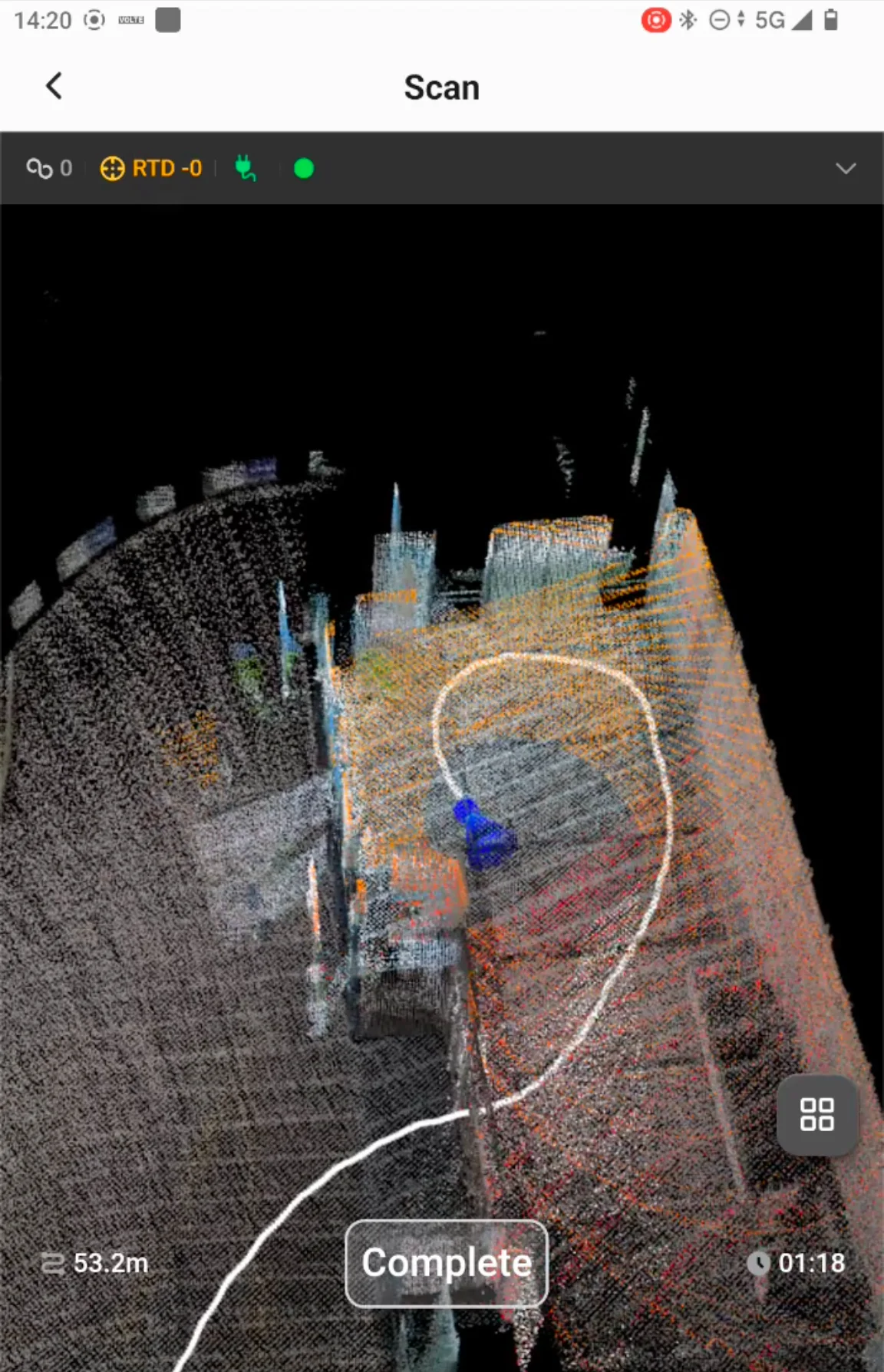
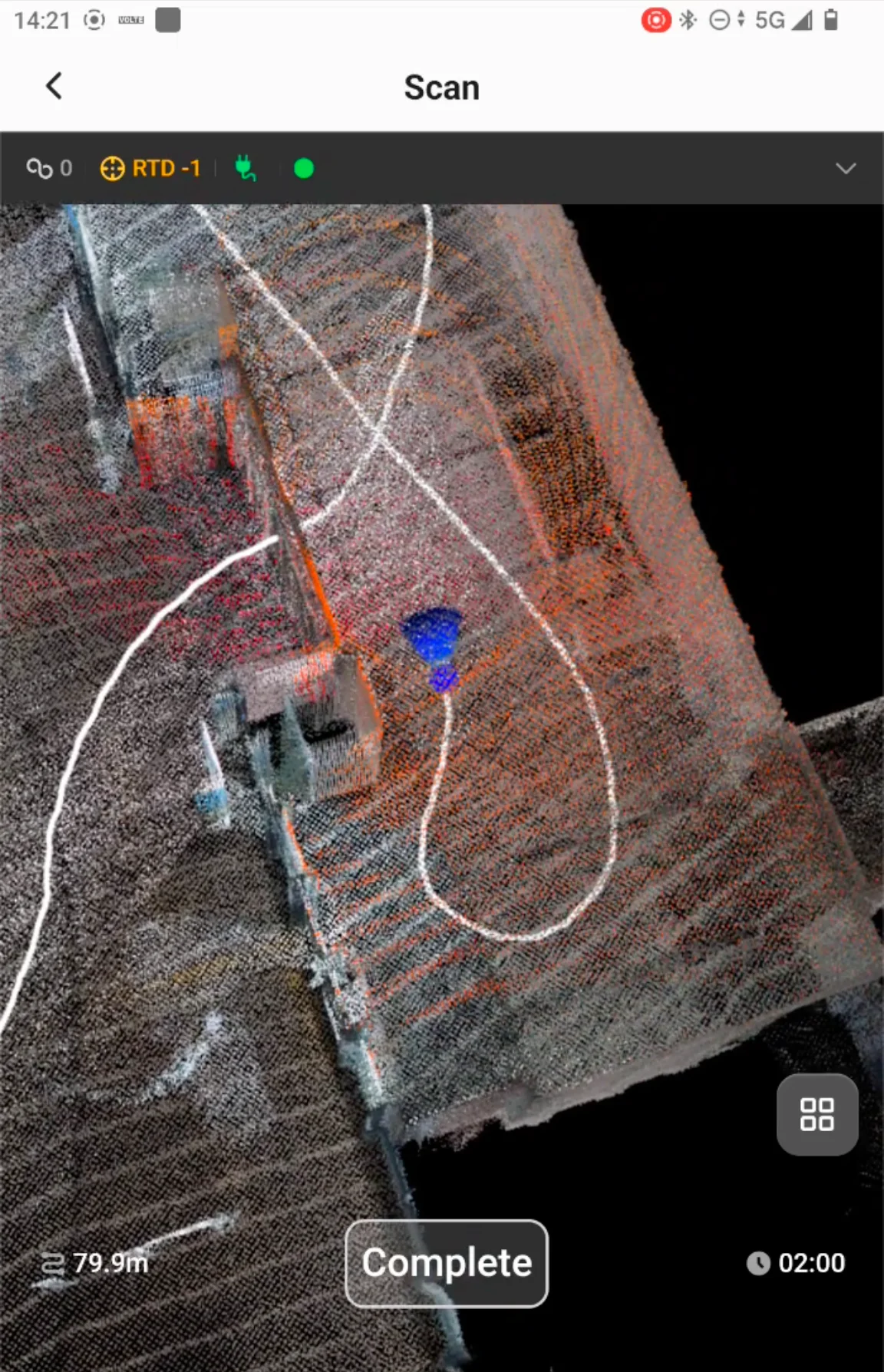
After initialization is complete, the real-time scanning interface opens. The interface displays the real-time point cloud, scanning trajectory, current scanning distance/duration, and other information. Walk at a constant, steady pace along the planned route, avoiding sudden acceleration, sharp turns, shaking, and frequent rotation.
 |  |  |
4. End Scanning
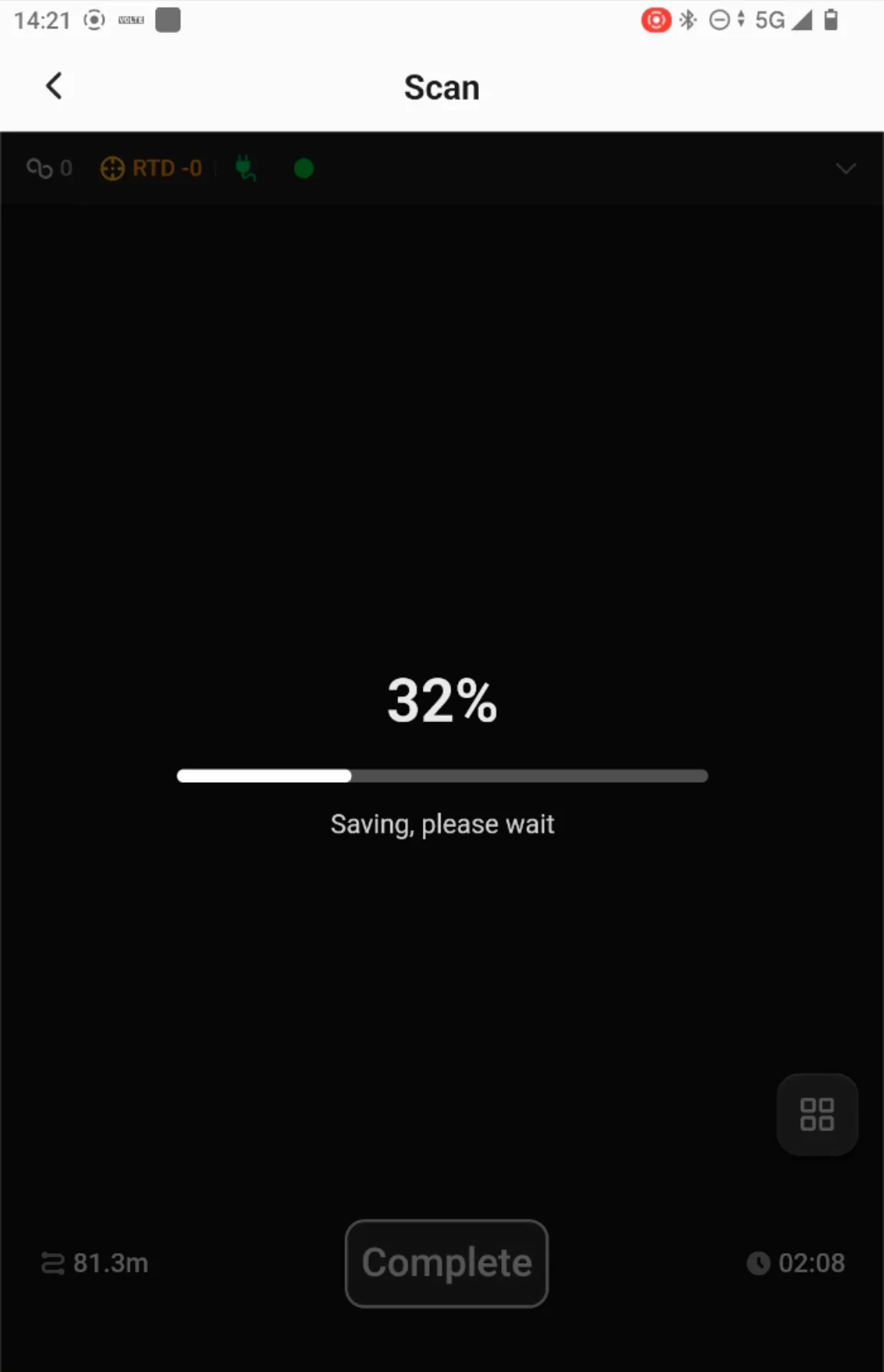
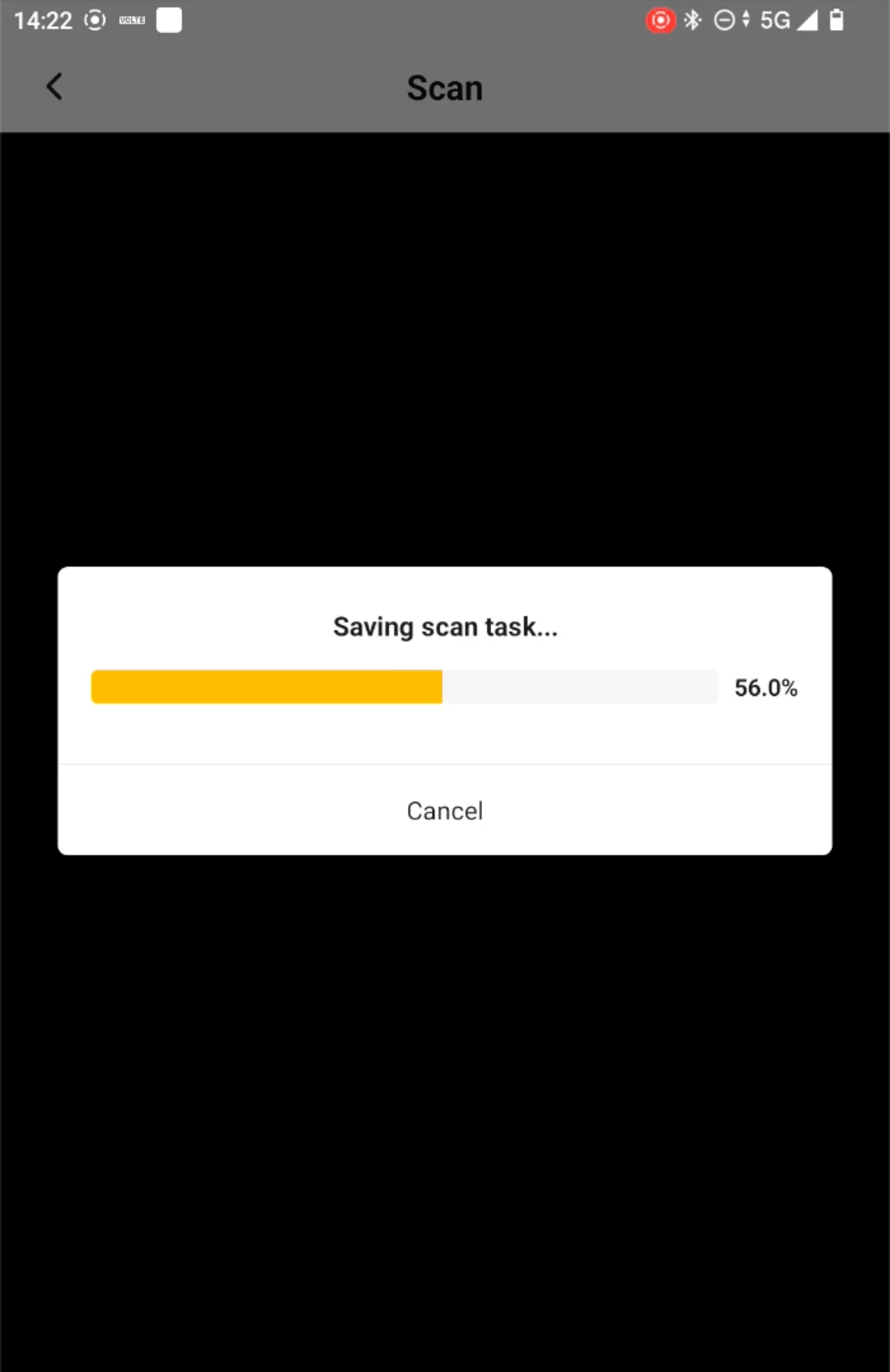
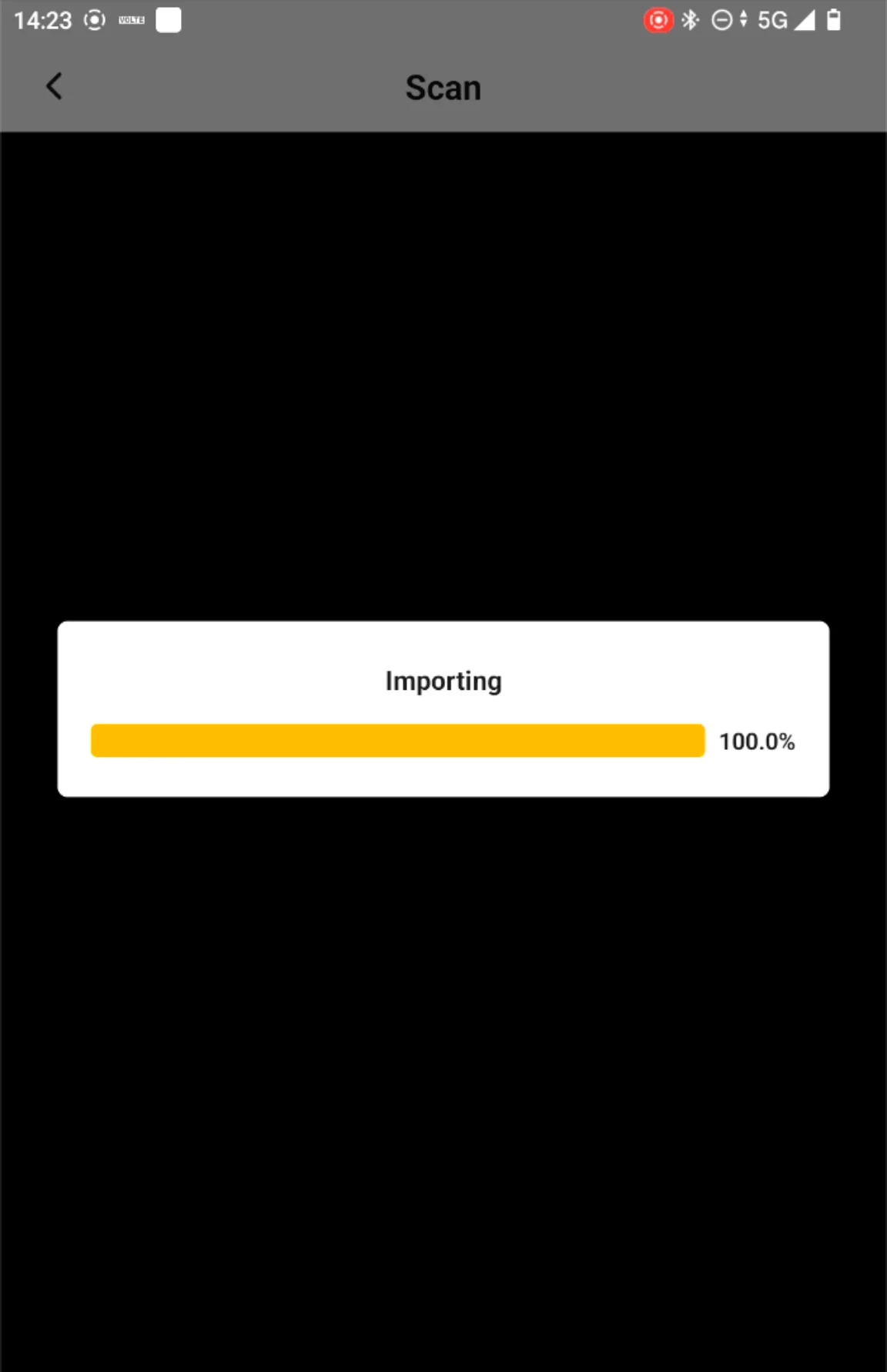
When scanning is complete, tap "Complete." The system first saves the raw scan data, then saves the real-time point cloud to "Scan Tasks." Keep the device connected during saving — do not exit the app, disconnect Wi-Fi, or turn off the V100F. When saving a scan task, you can tap Cancel first and later download it from the receiver files into the scan task list.
 |  |  |
7.14.4 Operation Requirements
| Item | Requirements |
| Walking speed and posture | Maintain a steady speed of about 1 m/s and walk evenly and smoothly. Avoid sudden acceleration, sudden stops, rapid turns, continuous shaking, and frequent rotation in place. |
| Device obstruction | When holding a phone/handheld, do not extend it in front of the V100F and block the camera or LiDAR view. If someone is following the scan, they should follow behind the device and not walk in front of it for extended periods or stay close to its sides. |
| Single scan duration | For handheld continuous scanning, it is generally recommended to keep a single scan within 20 minutes. Use segmented scanning for very large areas and ensure sufficient overlap between adjacent segments. |
| Ordinary indoor/large flat floors | The route should pass through rooms, doorways, and central areas rather than only circling along walls. Observing the same area from multiple directions increases geometric constraints. |
| Construction sites/complex spaces | Try to follow the actual work route through narrow passages, obstructed areas, and turning points. Slow down appropriately at corners and avoid sudden changes in heading. |
| No-GNSS scan loop closure | Without RTK/GNSS constraints, try to form one effective loop closure within about 7 minutes, and arrange multiple loop closures throughout the scan to limit SLAM cumulative drift. |
| Long corridors/tunnels | When only a return along the same path is possible, it is not recommended to repeatedly travel the exact same trajectory for loop closure, as this may cause the point cloud to become thicker, layered, or ghosted locally. Try to use visible lateral structures, junctions, or local features to provide constraints. |
| Dynamic targets | Avoid dynamic interference such as moving people, vehicles, and frequently opening/closing doors as much as possible. If it cannot be fully avoided, keep following the normal route and continue scanning. Do not follow dynamic targets or frequently change trajectory to avoid them. |
| Weak-feature areas | In feature-poor environments such as long corridors, stairs, and tunnels, try to walk in the middle of the passage and move slightly slower than in feature-rich scenes. Slow down through corners and stair landings so that the current position obtains more stable features. |
For segmented scanning of very large areas, it is recommended that adjacent segments overlap by more than 20%, and that the overlap area be chosen at a location with stable structure and clear features to facilitate subsequent stitching and inspection.
7.14.5 Inspection
| Item | Description |
| Completeness check | - Confirm that the scan task ended normally and that the raw scan data, trajectory, and scan task have been saved successfully. - If the project uses control points or GNSS absolute coordinates, retain the control point coordinates, project coordinate system, and device configuration records. - For segmented scanning projects, check whether adjacent segment overlap areas reach more than 20% and whether key structures are fully covered. |
| Point cloud quality check | Check the real-time point cloud and trajectory in the scan task or in the post-processing Model software. If time mode is supported, switch to time mode to check whether the trajectory and point cloud show obvious layering, jumps, or misalignment. Then use cross-section analysis to check point cloud thickness, wall curvature, stair elevation continuity, and drift/misalignment at loop closures. Doorways, corners, glass/highly reflective surfaces, repetitive column grids, and areas near dynamic targets are key inspection areas. |
| Accuracy verification and records | When accuracy verification is required, unify the scan results with on-site control points, RTK, or total station coordinates in the same coordinate system before comparison. It is recommended to record the scanning mode, route, duration, environmental changes, abnormal phenomena, and whether control point optimization was enabled for subsequent review and algorithm tuning. |
7.14.6 Notes
| Phenomenon | Suggested Action |
| GNSS enabled but positioning quality unstable | Do not rush to start absolute coordinate scanning. First return to an open area to improve GNSS status and re-complete initialization. If absolute coordinates are not required for this task, switch to the GNSS-disabled local scanning mode. |
| Initialization cannot be completed for a long time | Keep the device stable and avoid continuous hand shaking. When GNSS is enabled, complete the short, smooth movement as prompted, and try again at a location with better features and satellite conditions. |
| Point cloud thickens or misaligns at corners | Reduce turning speed and do not rotate quickly in place. Maintain continuous, smooth motion before and after corners so that the LiDAR continuously observes repeatable structural features. |
| Dynamic people/vehicles enter the scanning area | Continue to maintain a stable route and complete the scan. Avoid following dynamic targets or frequently detouring. Afterwards, focus on checking point cloud quality near dynamic targets. |
| Saving/importing takes a long time | Keep the V100F connected to Trion Survey and wait for the progress to complete. Do not force-quit the app, disconnect Wi-Fi, or turn off the device. Alternatively, tap Cancel and choose to import from the receiver later. |
| Real-time point cloud not imported after scanning ends | Go to "Scan Tasks" and import manually according to the instructions in the Scan Tasks section. |
Scanning quality depends not only on device accuracy but also on route, speed, loop closure, environmental features, and dynamic interference. For weak-feature areas or long-distance scans without GNSS, priority should be given to ensuring trajectory stability.