
7 Survey
7.1 Measure & Draw
RTK field work is gradually transitioning from simple point measurement work to measurement with graphics and attributes. Field work can draw line segments and graphics based on the collected points, add attribute information and save some time when processing data in the field.
Common extended functional modules include surveying and mapping (also known as surveying & mapping) and GIS acquisition.
| Name | Description |
| Measure & Draw | Draw line segments, closed graphics, etc. by measuring points. Common post-processing drawing tools include AutoCAD, CASS, EPS, etc. |
| GIS Survey | Based on point, line, and surface elements, pre-defined attribute fields are used to input information in real-time during the collection process, and finally exported in shape format. Common post-processing GIS drawing tools include ArcGIS, SuperMap, QGIS, etc. |
Note: GIS Survey function can be found in Chapter 7.12.
7.1.1 Draw
Click on [Survey] → [Measure & Draw] to enter the main function page. The page preview and introduction are as follows.
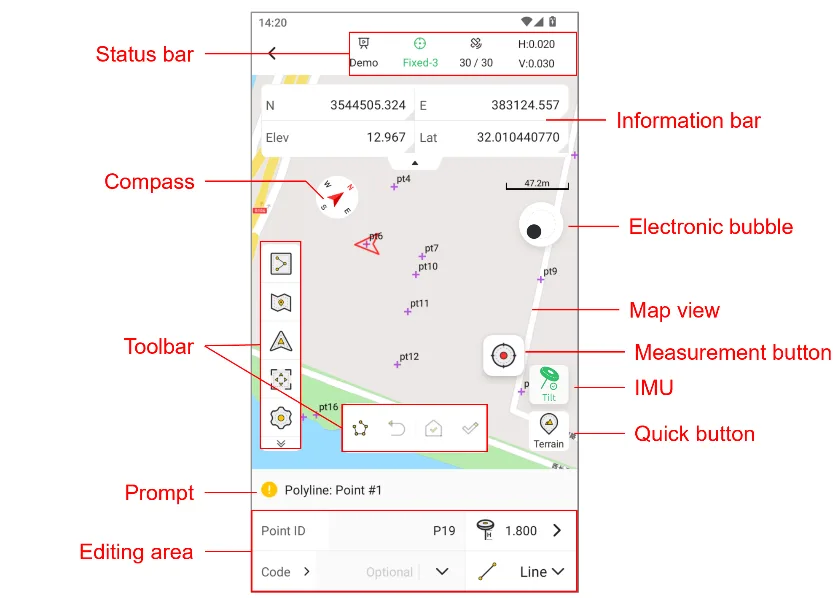
| Name | Description |
| Status bar | Display communication, solution status, No. of satellites, and RMS values |
| Information bar | 1. Display real-time point information, including latitude, longitude, ellipsoidal height, northing, easting, elevation, HRMS, and VRMS. 2. Click the information bar box to switch the display. 3. When HRMS or VRMS exceeds the limit, the information box is highlighted in red. |
| Compass | Read the Compass information of the current handbook. |
| Toolbar | Display commonly used tools for operating this function, including the map toolbar and the drawing toolbar. |
| Prompt | Show prompt for drawing |
| E-Bubble | 1. It can be used after starting IMU tilt measurement. It is turned off by default and can be enabled in Survey settings. 2. When the tilt angle is ≥30 °, the color of the bubble turns black. |
| Measurement button | After reaching the target location, click the button to record the point coordinates, and long press the icon to drag it. |
| IMU icon | 1. 2. 3. |
| Shortcut button | Quickly switch between measurement modes: Terrain, Quick and Auto. |
| Editing area | 1. Point ID: Click to enter, the default measurement point name is the corresponding stakeout point name with the prefix "stk_", or you can add a suffix in the settings; 2. Antenna height: Click to enter the antenna type selection and input page. 3. Code: Can be manually entered. When there is a user-entered code in the code library, you can directly click the drop-down button to select it. Click the code label on the left, or you can directly jump to the "Codes" for selection. 4. Code type: optional points and lines, quick classification of existing codes. When selecting a drawing operation, the code type automatically switches to line. |
 IMU is not enabled.
 IMU is turned on but not available, need to shake for calibration.
 IMU is enabled and available.
The toolbar provides a wealth of tools that bring many conveniences to actual measurement work.
| Icon | Name | Description |
 | Points | Click to open the point library. |
 | Graphics library | Open the graphics library to display a list of drawn graphics. |
 | Map | Click optional street or satellite map, the default is to turn off map mode |
| Default Centered Follow | Default: The map will not automatically zoom during measurement and stakeout, and manual operation is required. The interface will not update when the position changes. Centered: The current position and target point are always displayed in the interface. If you manually drag the map, wait a few seconds and it will automatically return to the centered mode. Follow: The map rotates as the stakeout direction changes, and the current position is always in the middle of the interface. |
 | Full screen | Click the rear view to zoom in and show all points. |
 | Media | Click to activate, and after completing the measurement, prompt to capture the Media information of the point. |
 | COGO | COGO tool shortcut entrance, can configure display/hide and sort in display settings. |
 | Settings | Survey settings entrance, see Chapter 6.4.4 for details. |
 | Line type | The default is polyline. Click to change the line type. |
 | Return | Undo the most recent line drawing, but keep the measured points. |
 | Closed | When the points of the polyline or the curve are ≥ 3, the close button is available. |
 | Complete | Click to complete the line type creation, and the line name will be named automatically. |

Click the Line type button on the bottom toolbar and select one of the types to enter the state of [Measure & Draw] at the same time. The parameters and optional operations of each shape are different. Please follow the prompts on the page to complete the drawing.
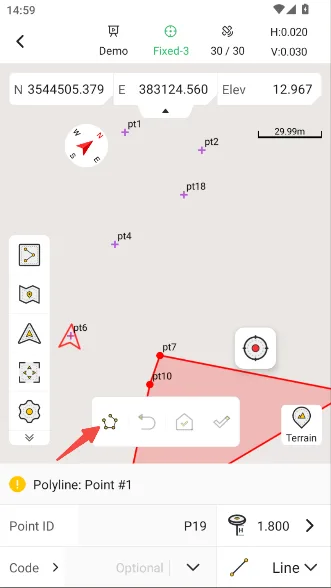 | 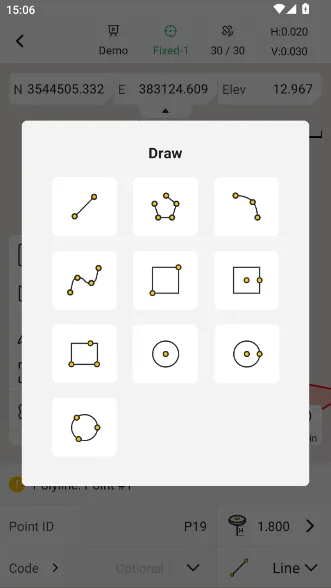 |
Current line types are introduced as follows:
| Icon | Name | Description |
 | 2-point straight line | Draw a straight line with two points, optional reverse |
 | Multipoint polyline | Draw polylines with multiple points, optional reverse and closed |
 | 3-point arc | Draw an arc with three points, optional reverse and closed |
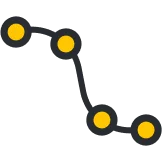 | Fitting curve | Draw a fitting curve with multiple points, optional reverse and closed |
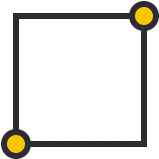 | 2-point square | Draw a square with two diagonal points |
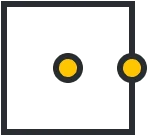 | Center point square | Draw a square by the center point and a midpoint on one side |
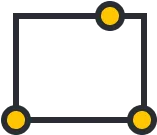 | 3-point rectangle | Draw a rectangle by two vertices of an edge and any point on the opposite edge |
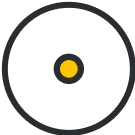 | 1-point circle | Draw a circle by center + radius |
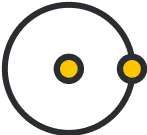 | 2-point circle | Draw a circle by its center and a point on it |
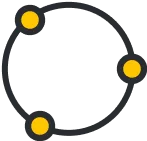 | 3-point circle | Draw a circle with three points |
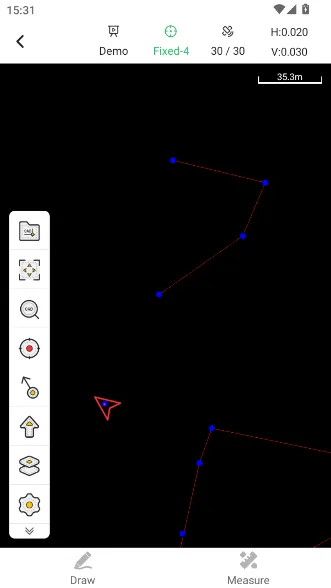
Taking drawing a multi-point line as an example, click on the multi-point line icon and measure the points in order according to the page prompts.
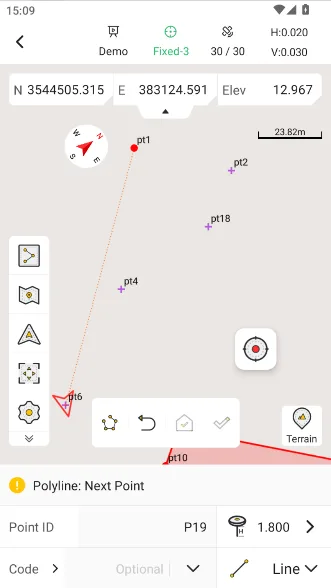 | 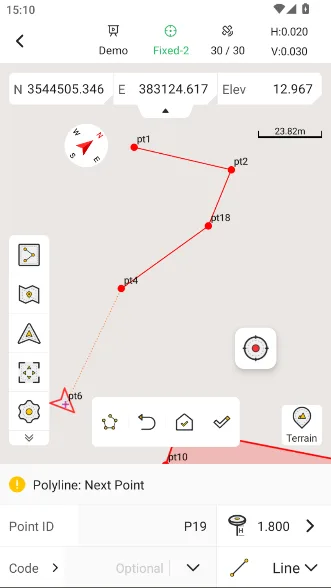 | 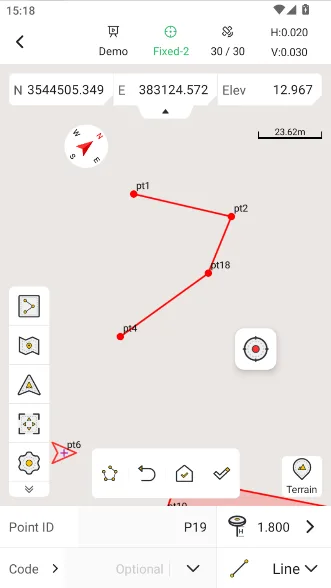 |
During the measurement process, the current position is connected to the previous node by a dotted line. Optional operations include: return, close, and complete. When the node of the polyline is ≥ 2, the complete button is available; when the node is ≥ 3, the close button is available. After clicking the close button, enter the line name to complete the drawing directly.
The system provides default dot, line, and surface styles that can be modified by defining codes.
7.1.2 View
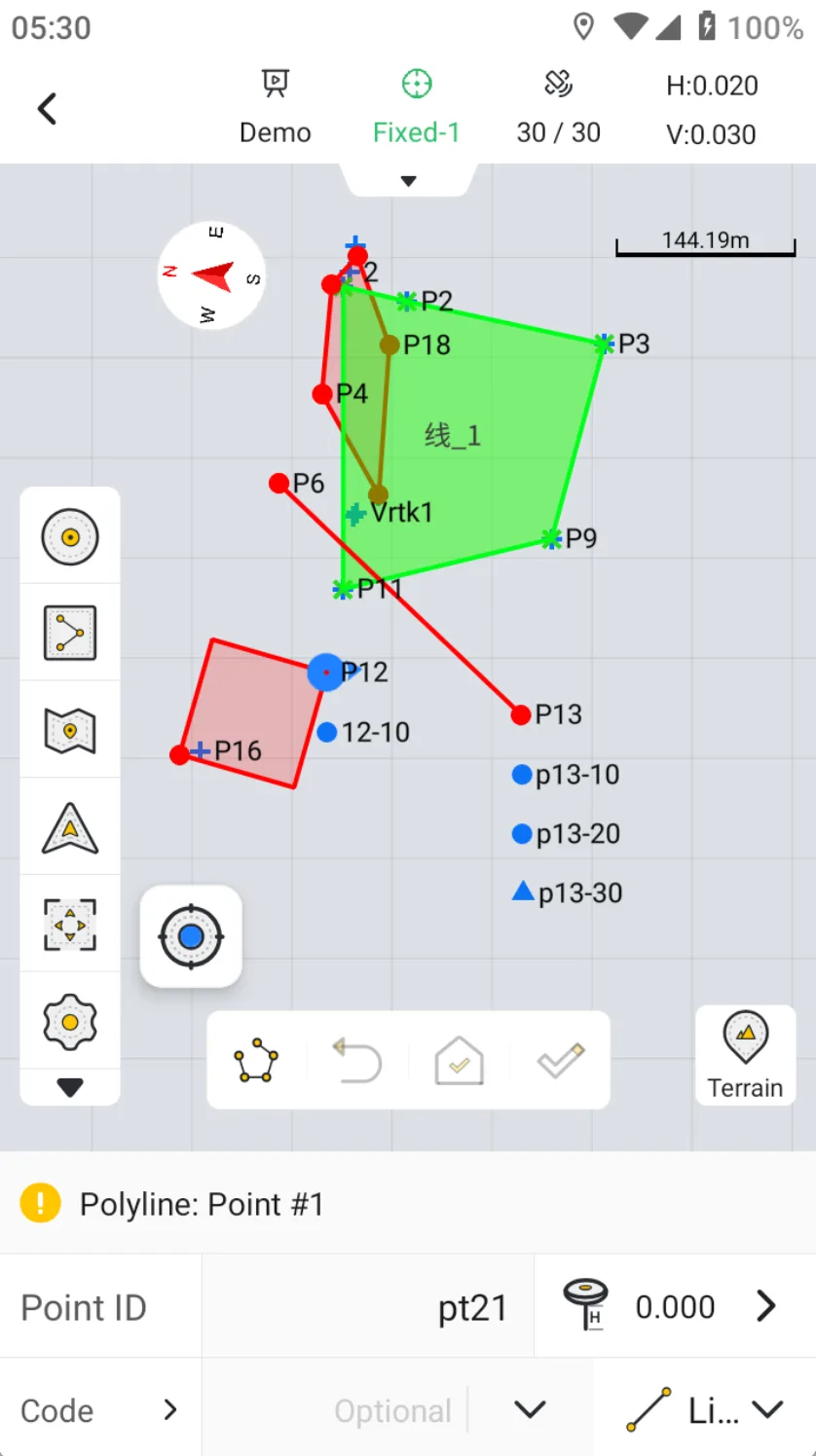
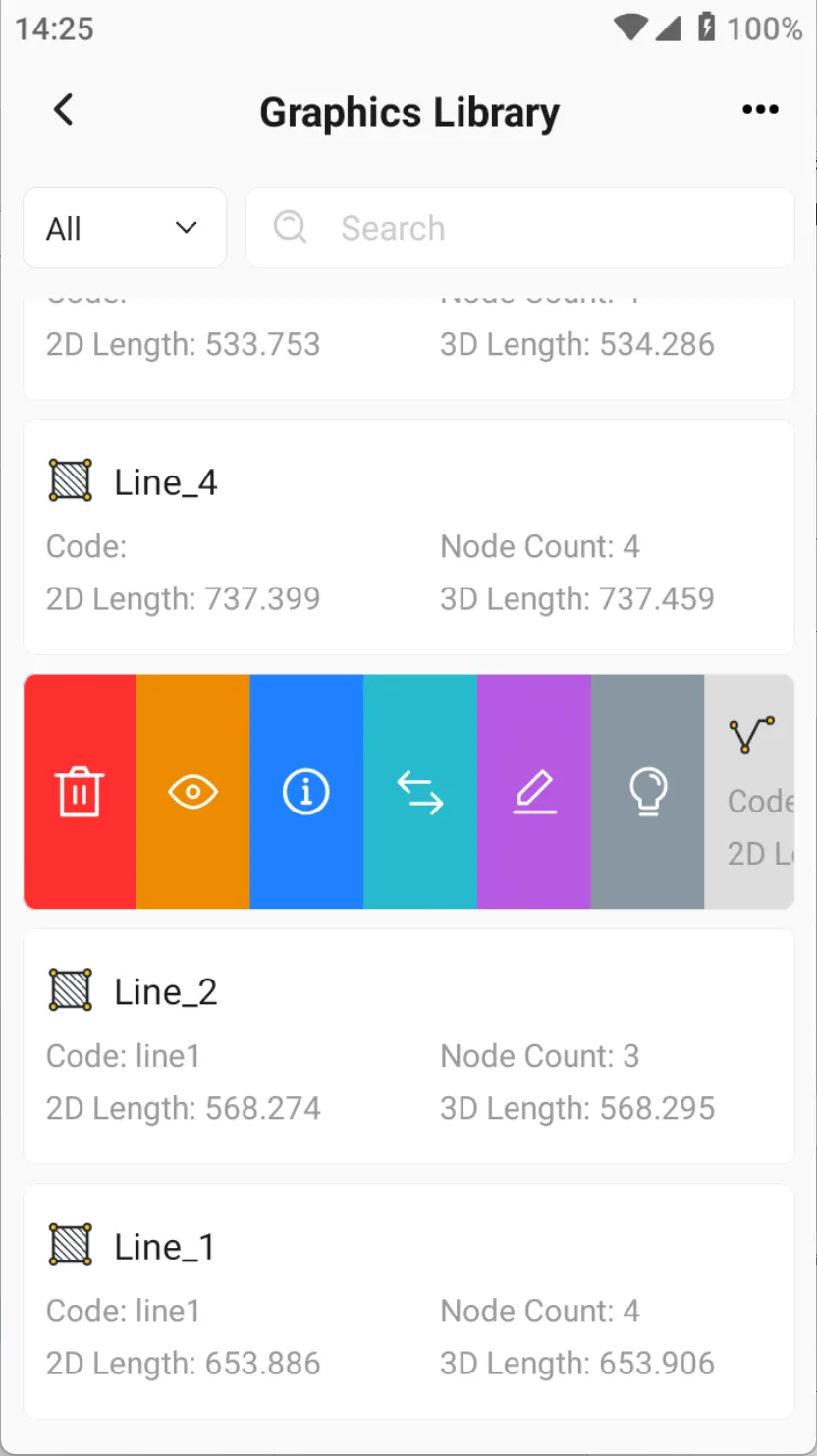
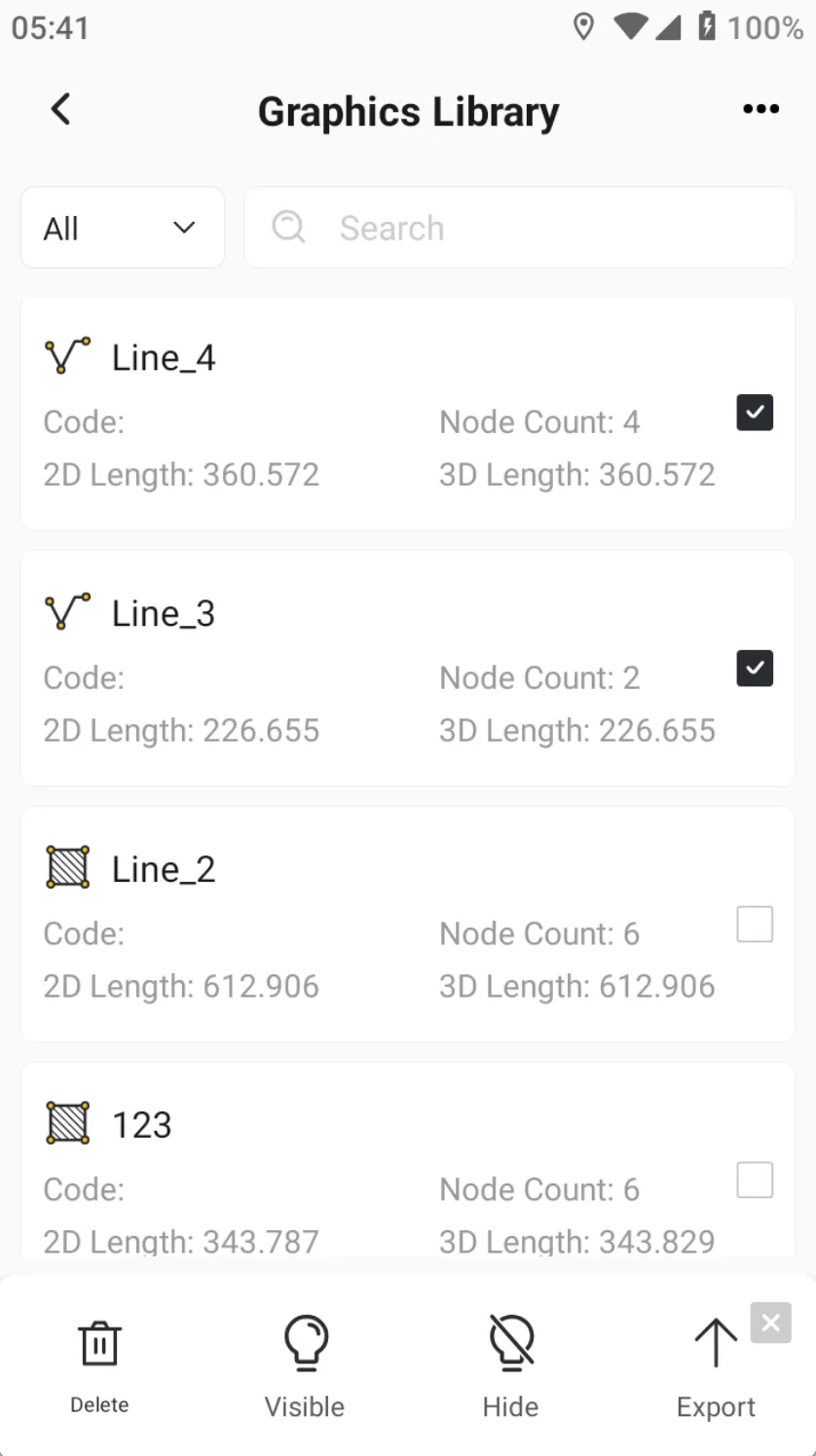
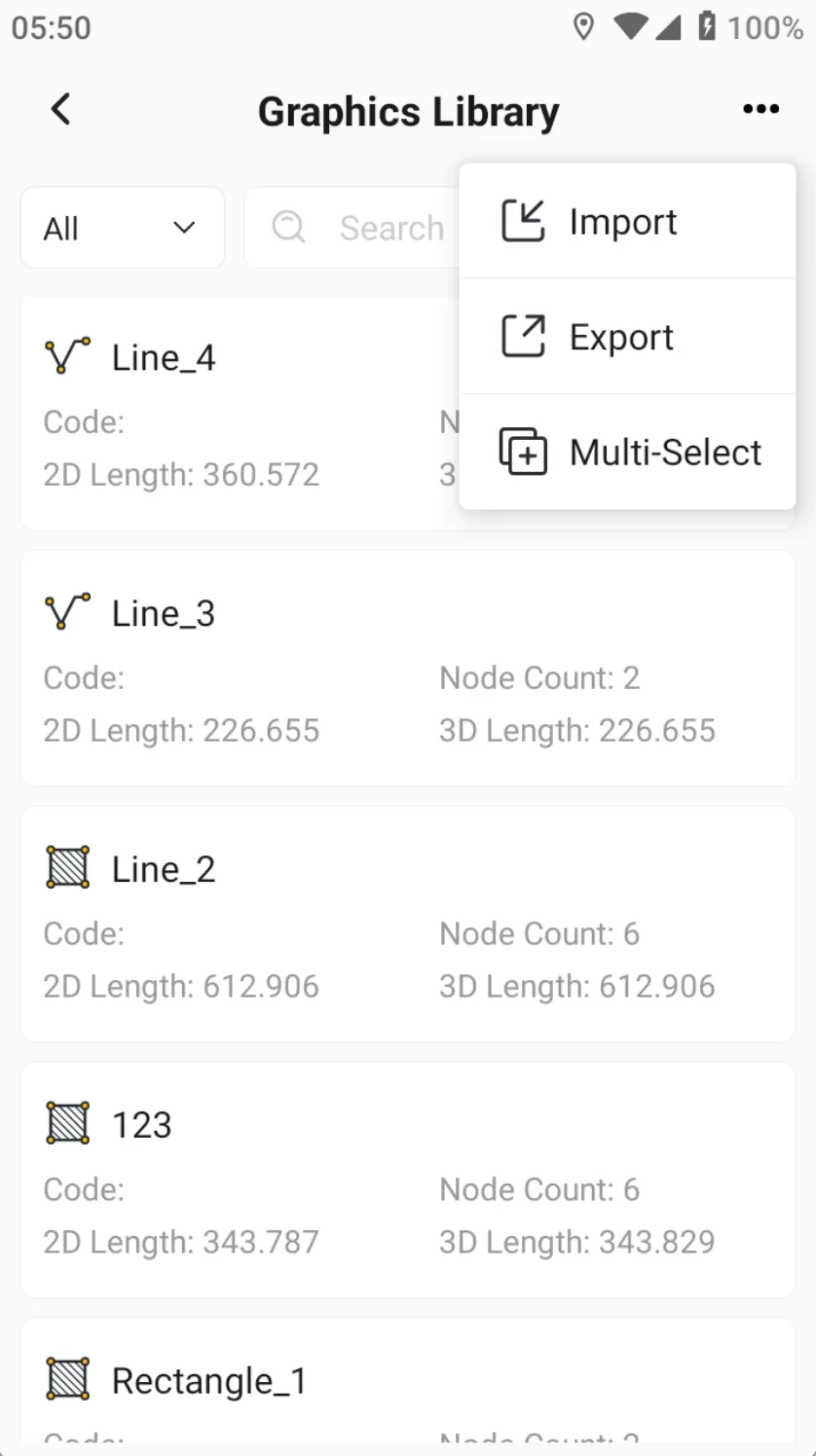
After completing the drawing of the figure, click the Graph Library icon on the toolbar to open the drawing list. Click to view optional operations. Different graphics correspond to different optional operations. Click [...] in the upper right corner to support multiple selection operations, including: delete, show, hide and export.
 |  |  |
7.1.3 Export
It can be exported through the graphics library or in Edit CAD, see Chapter 7.11 for details.
| Location | Operation | Description |
| Graphics library | Import | Import custom *.dne files |
| Export | Export custom *. dne or * .shp /*.shz/ *.kml/*.dxf/*.dwg/ ISOXML(*.zip) files | |
| Edit CAD | Export | Export * .dwg/* .dxf files |
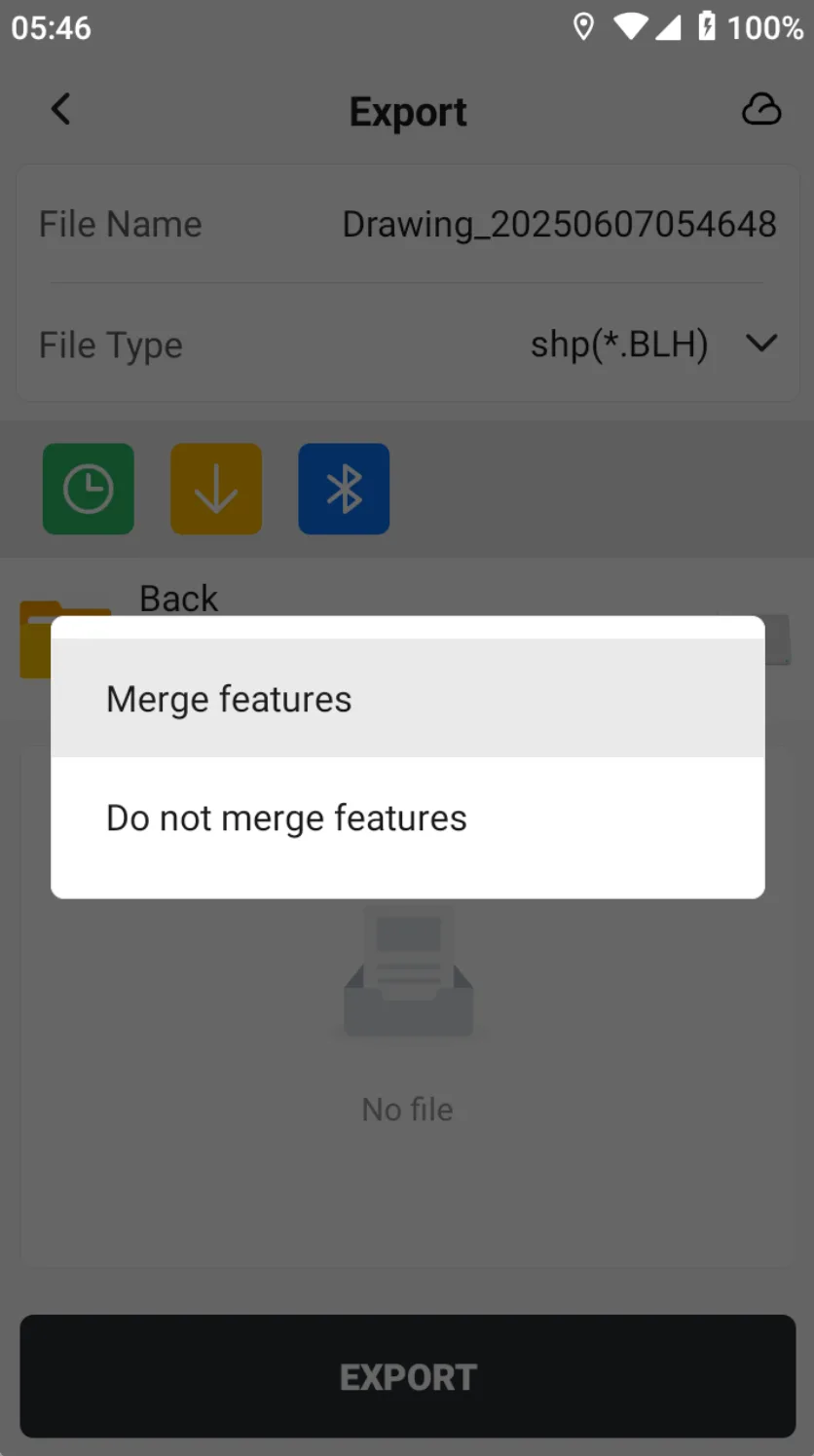
When exporting, choose to merge or not merge features.
1. [Merge features], then all the polyline features will be in one shp file, and all the polygon features will be in one shp file.
2. [Do not merge features], then each figure will generate a shp file.
 |  |  |