
2 Software Overview
2.1 Software introduction
Trion Survey is an Android platform measurement software launched by FJDynamics. It is combined with FJDynamics GNSS receiver to provide users with high-precision measurement results. Users can use this APP to control, query, or manage corresponding hardware products. This article takes FJDynamics V1 series and V10 series GNSS receiver as examples to introduce users' operations such as setting and switching working modes, data measurement, and using commonly used tools on the device after connecting to the APP.
2.2 Software features
- Feature-rich and meticulous
From project creation, coordinate system selection, coding management, to point measurement, point stakeout, CAD stakeout and editing, to rich and practical tool modules, we delve into the industry, refine settings, and approach user scenarios.
- Fresh interface, intuitive icons
Page interaction minimalist design, what you see is what you get, making it more convenient for field surveyors to use.
- Coordinate system
Powerful coordinate system function module, built-in EPSG predefined coordinate system, supports automatic download and correction of plane, elevation mesh model and geoid model, supports RTCM1021~ 1027 coordinate correction.
- External data and layer management
Support overlaying vector graphics on the map, including formats such as .shp, .xml, .sjw, .dxf, .dwg, .kml, .tif, etc. You can also modify layer names, layer colors, and layer display/hide.
- AR stakeout and image measurement
The software supports connecting to V10 series image RTK to achieve AR stakeout and image measurement tasks.
- COGO calculation
Support commonly used measurement and calculation functions, including: reverse calculation, point-line distance, eccentric point, deflection angle, intersection calculation, line segmentation, arc segmentation, triangle, rectangle, area divide, etc.
- TPM Cloud Service
TPM Cloud Service realizes the integration of internal and external measurement, including FJD Cloud and GNSS Studio post-processing web software. Users can upload, download and share files on the controller, and realize project data browsing, baseline calculation and network adjustment in the cloud.
- Online tutorials
The APP provides online tutorials. You can watch operation videos while connected to the internet, or share links to watch on other browsers.
2.3 Software installation
Trion Survey can be obtained in the following ways:
- The field controller that comes with RTK products has been pre-installed with Trion Survey software. After a new version is available, the controller will prompt for upgrade when it is connected to the Internet. Follow the upgrade wizard to operate.
- Download and install "Trion Survey" from the Google Play Store.
- Copy the * .apk installation file to your Android device and click Program to install it.
- After successful installation, the icon of Trion Survey will appear on the device desktop.

2.4 Interface introduction
When running the software for the first time after installation or update, the system will select the language used by the APP based on the Android device language. If there is no corresponding language, English will be selected by default. After clicking [OK], you need to grant the software file management and other permissions. It is recommended to allow such permissions, otherwise the APP may run incorrectly.
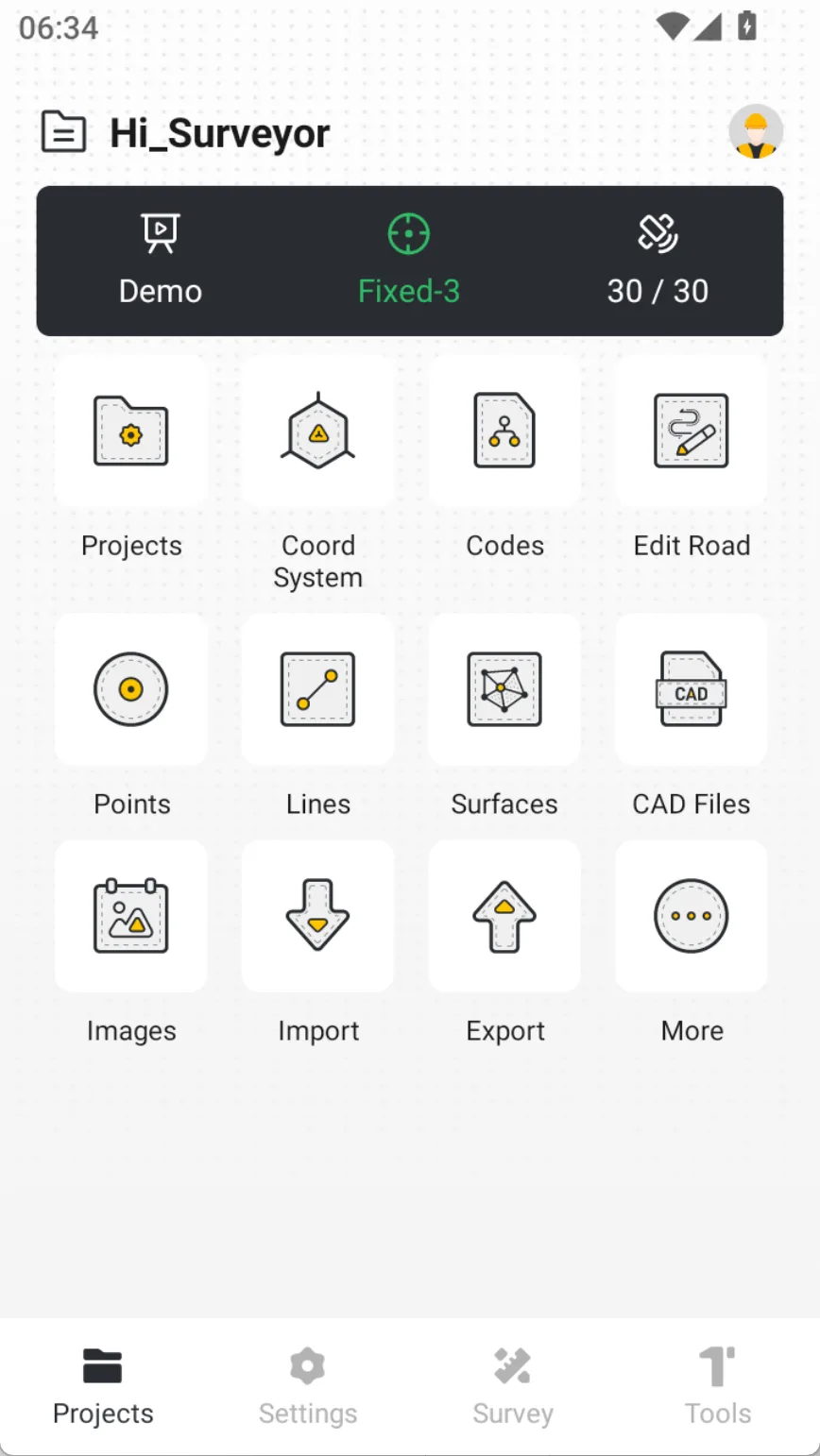
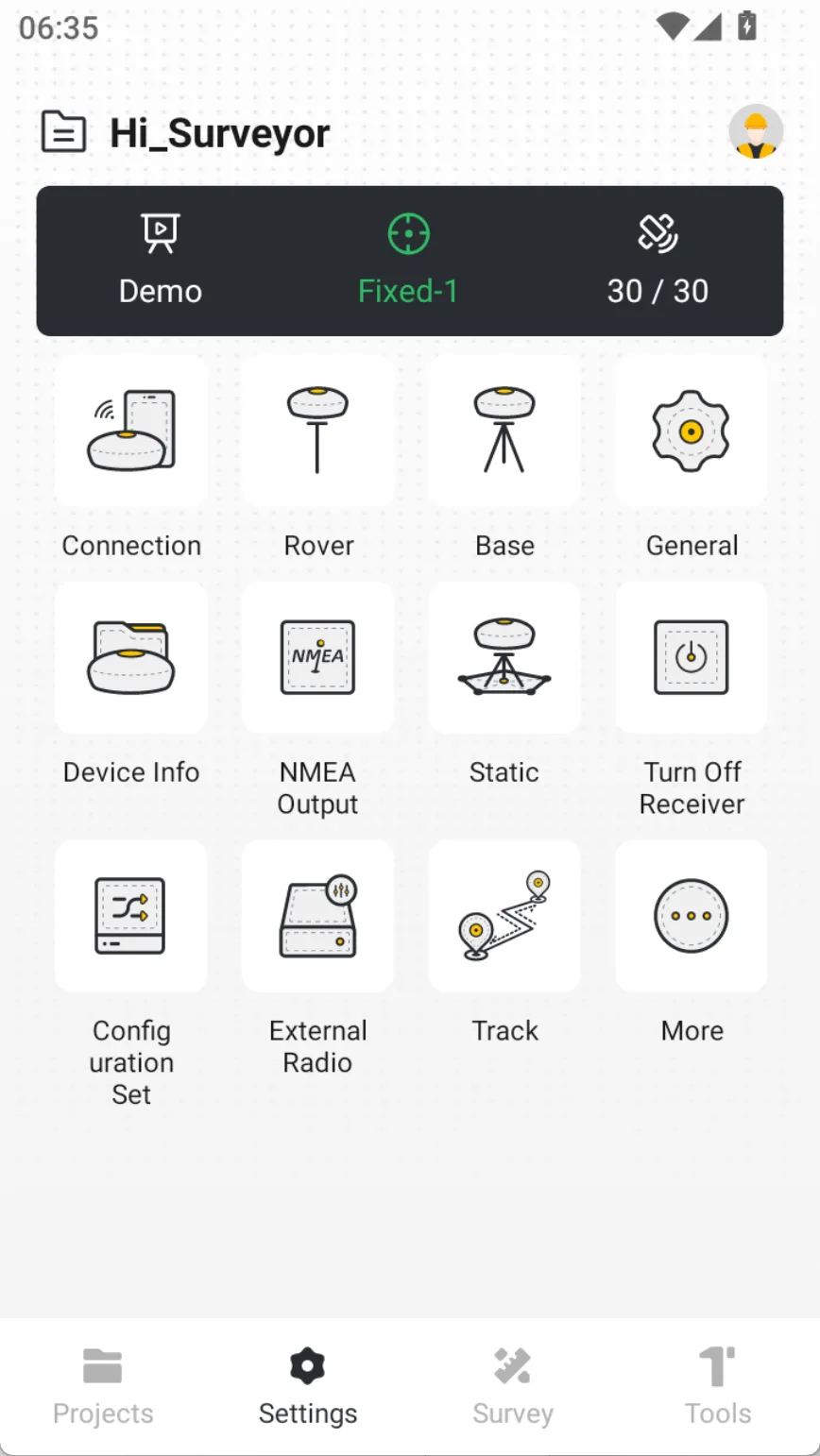
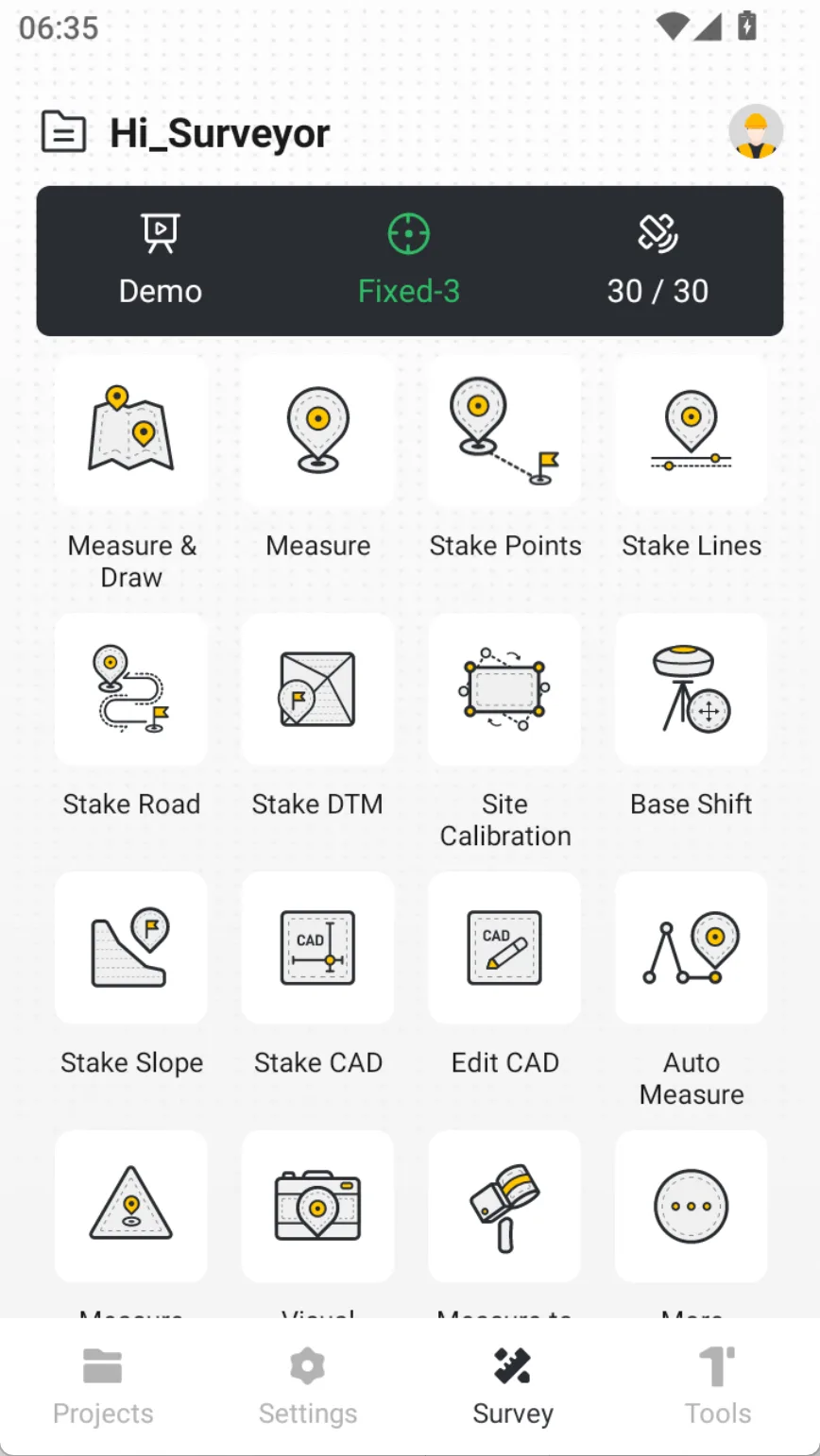
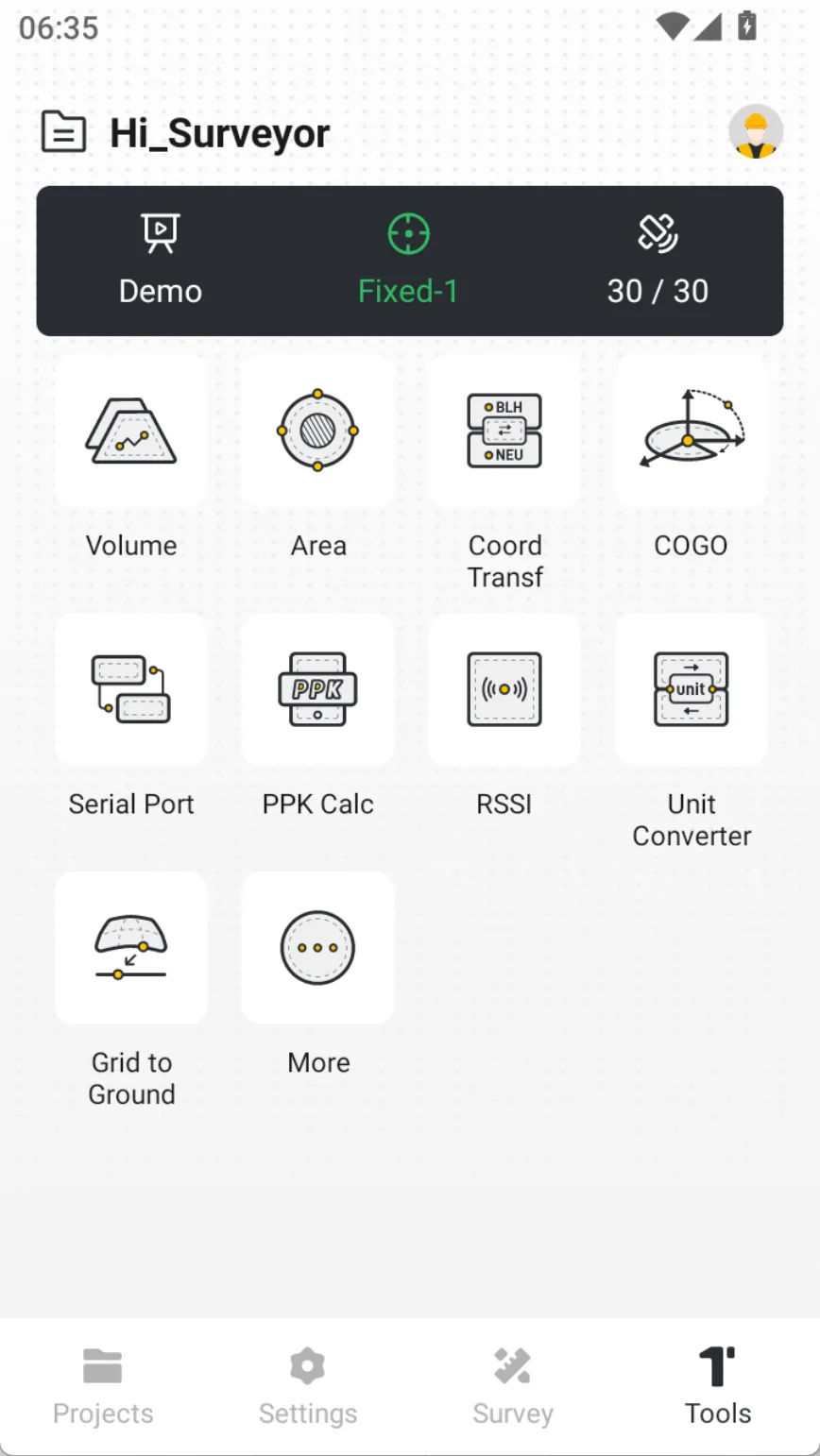
After selecting [ALLOW], the APP will automatically restore historical projects. When entering the main page, there are a total of four menus at the bottom with clear functional categories: Projects, Settings, Survey and Tools. The function categories are clear.
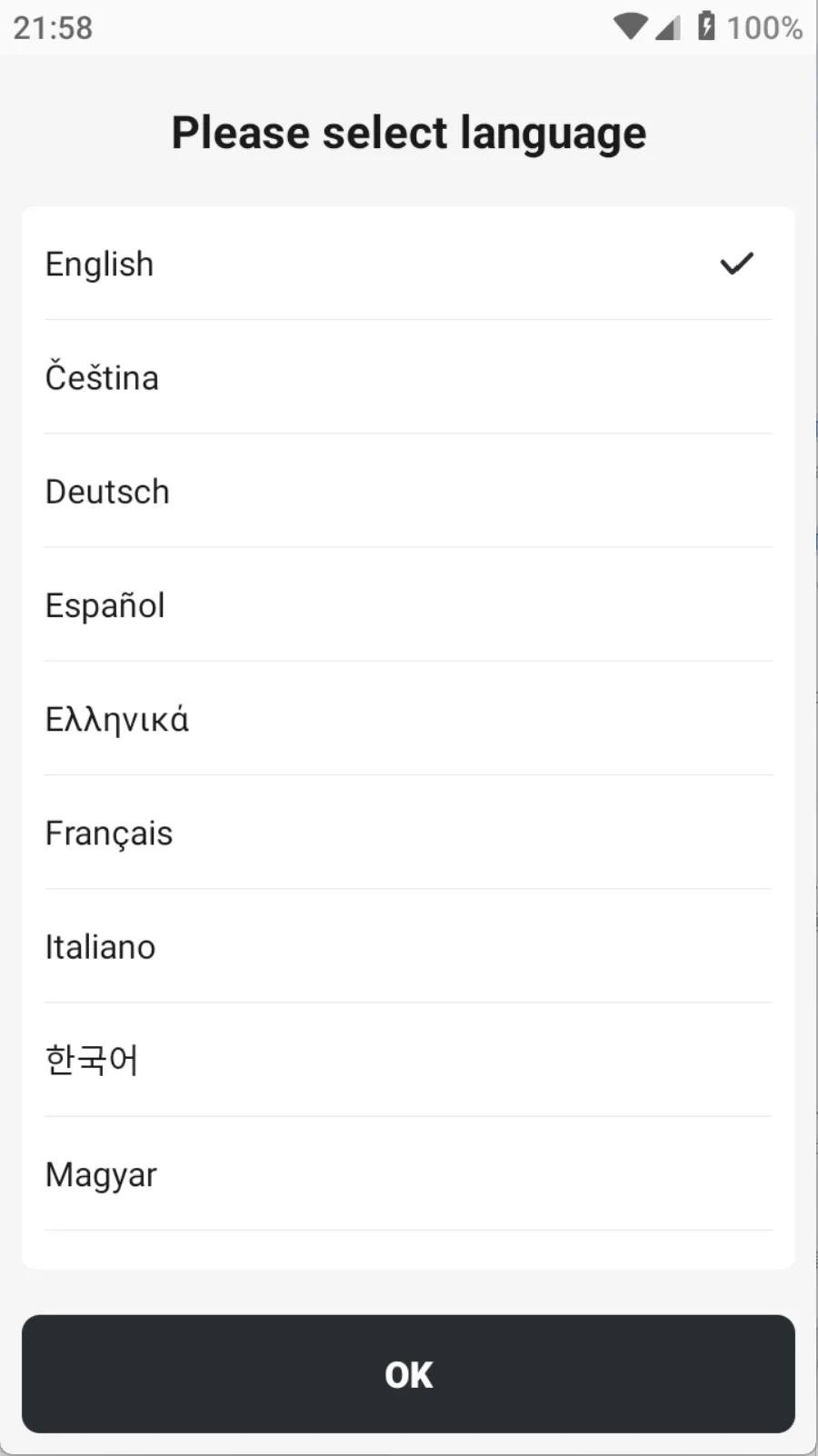 | 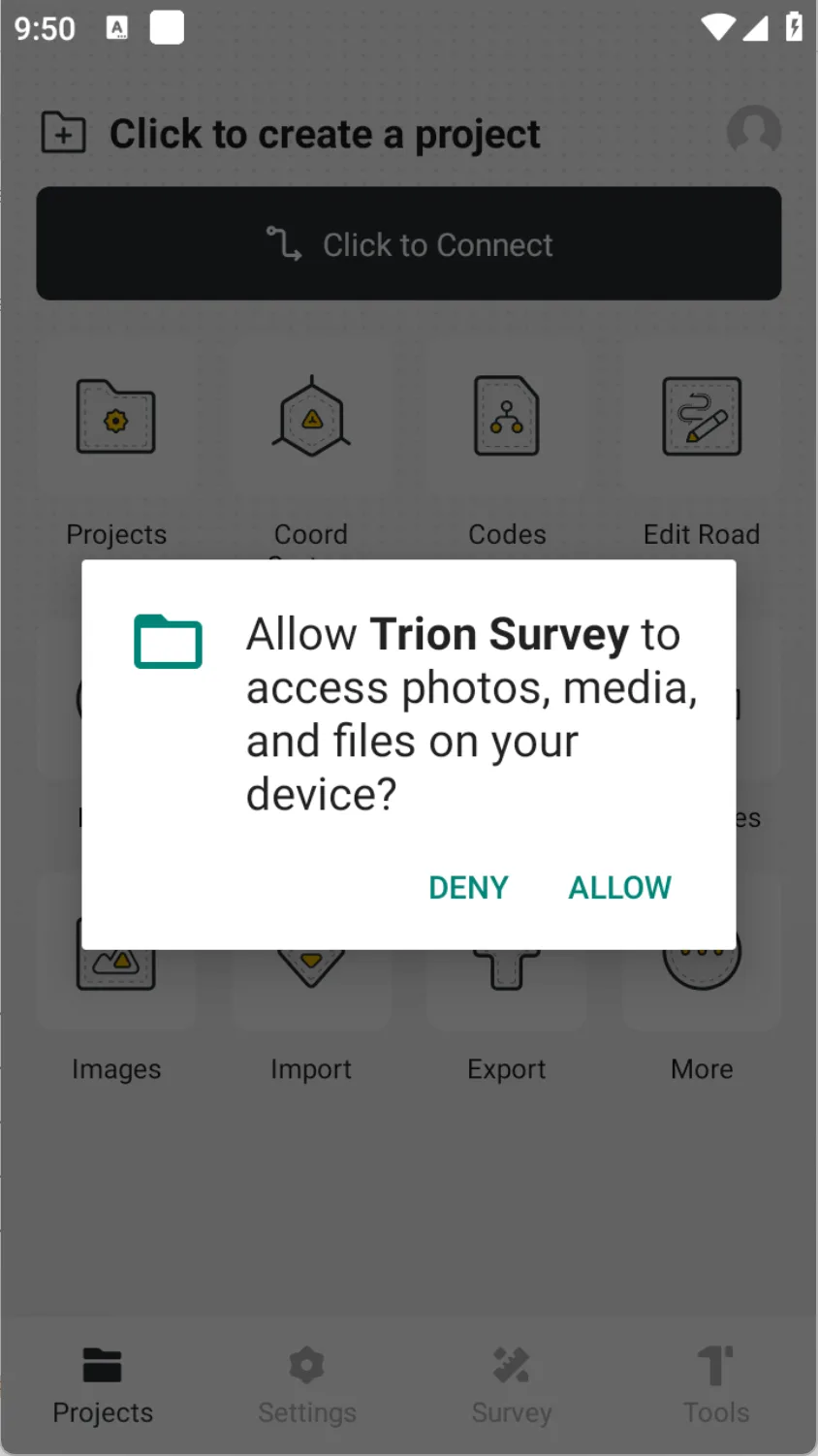 | 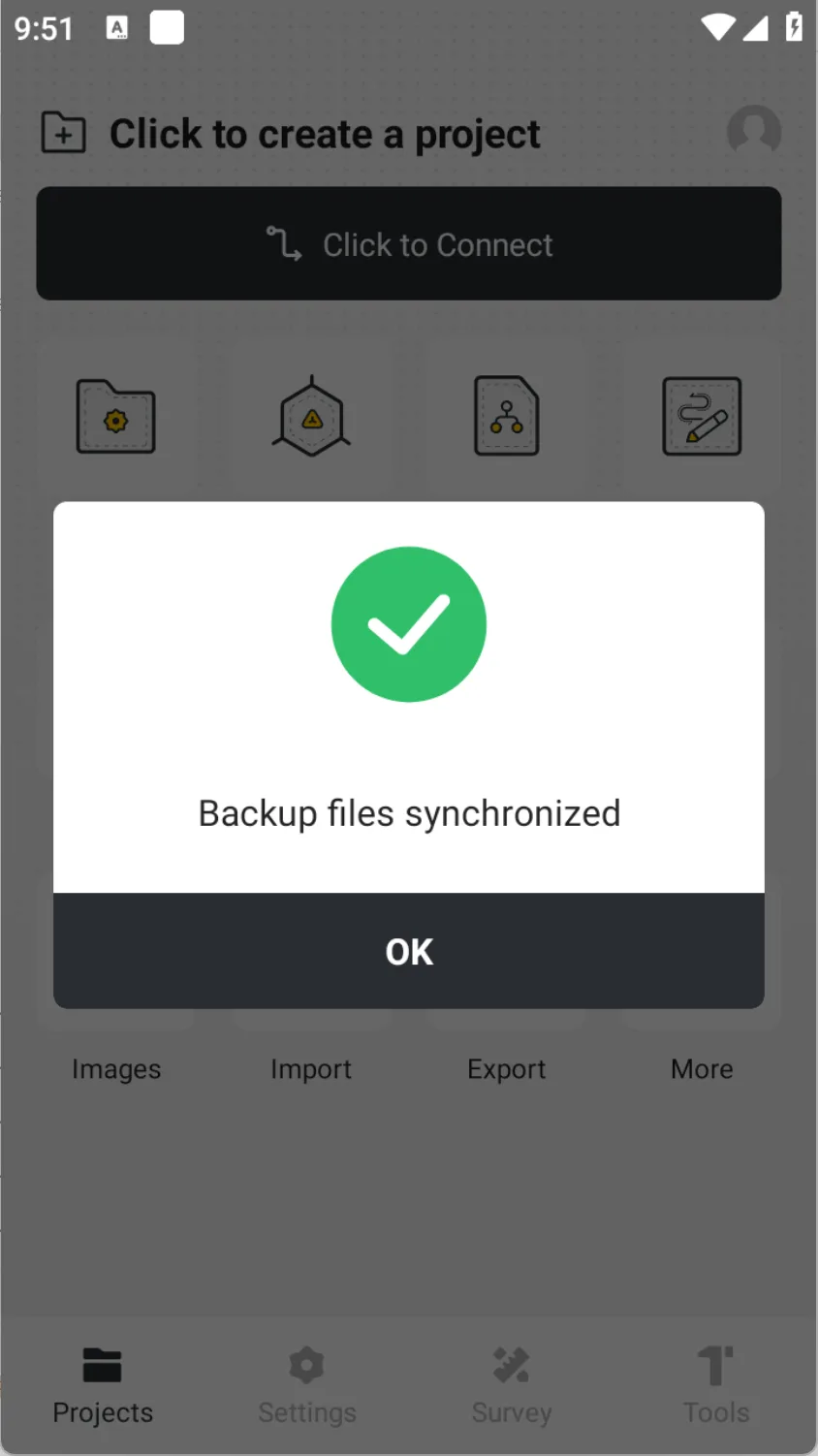 |
When the Trion Survey connection receiver is working properly, the main page area is divided as follows:
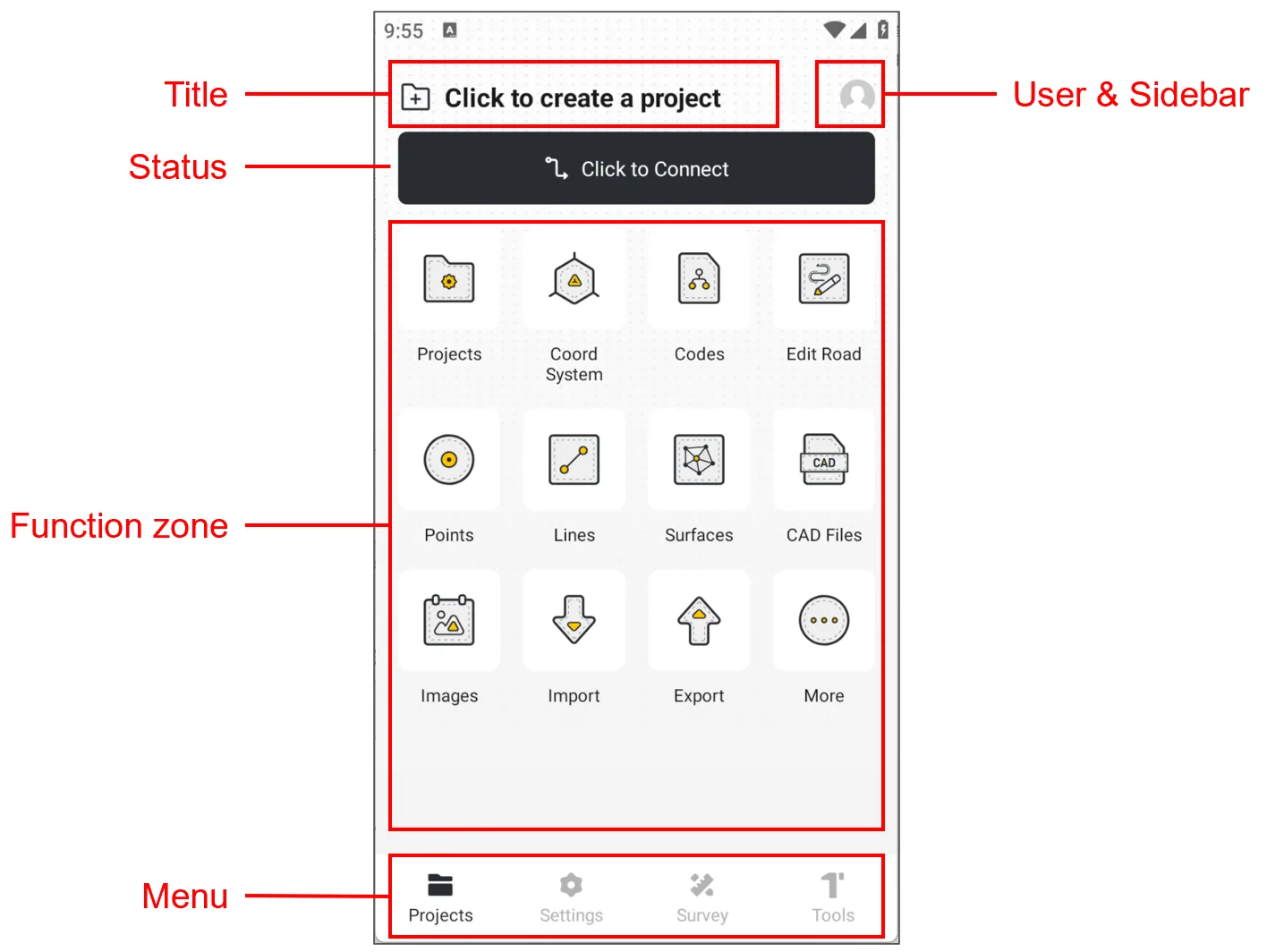
2.4.1 Title bar
Display the current project name. If there is no project, display [Click to create project].
2.4.2 Status bar
| Name | Icons and descriptions |
| Communication status |  |
| Positioning state |  |
| Star search status |  |
| Power status |  |
2.4.3 Function zone
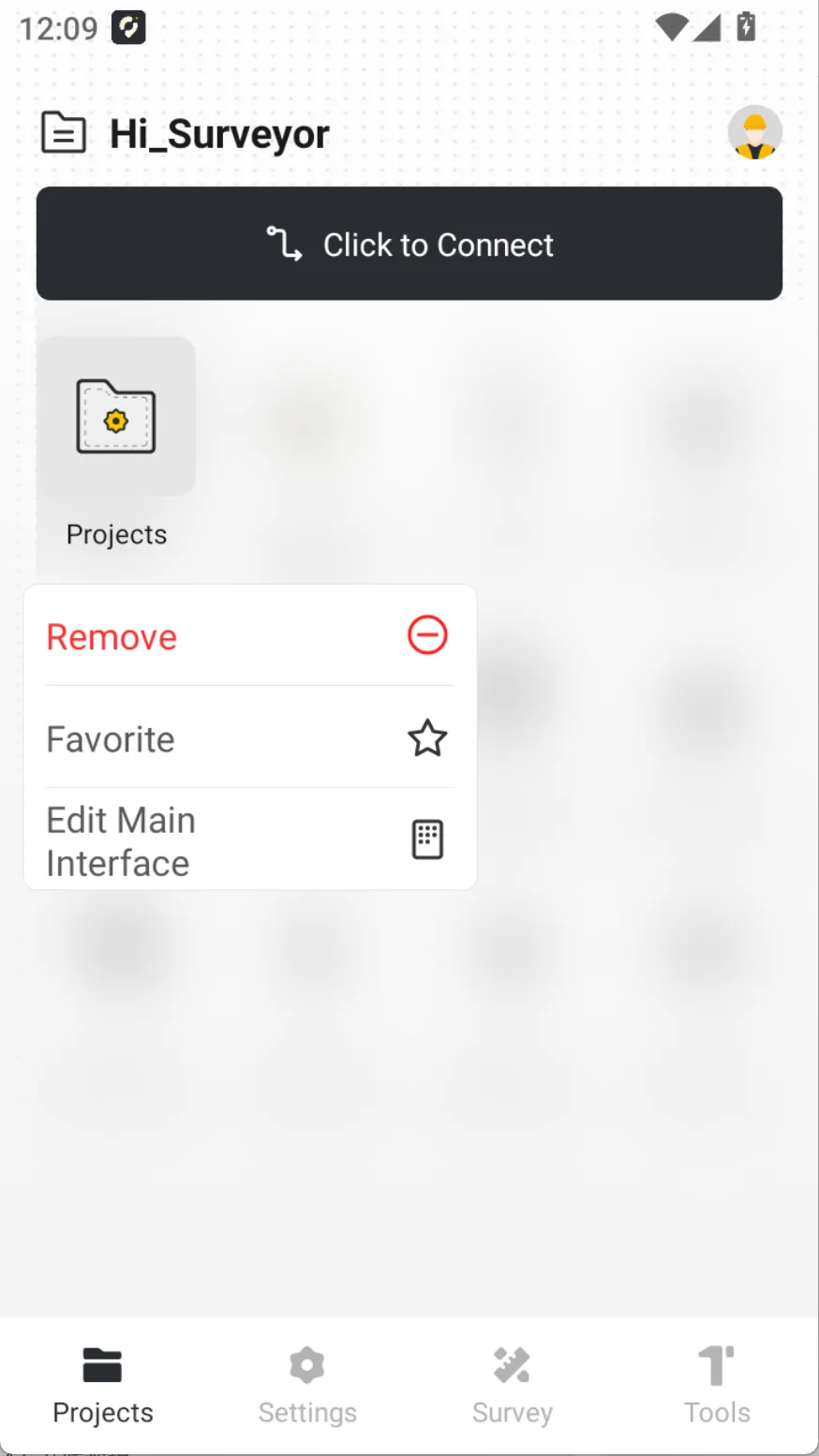
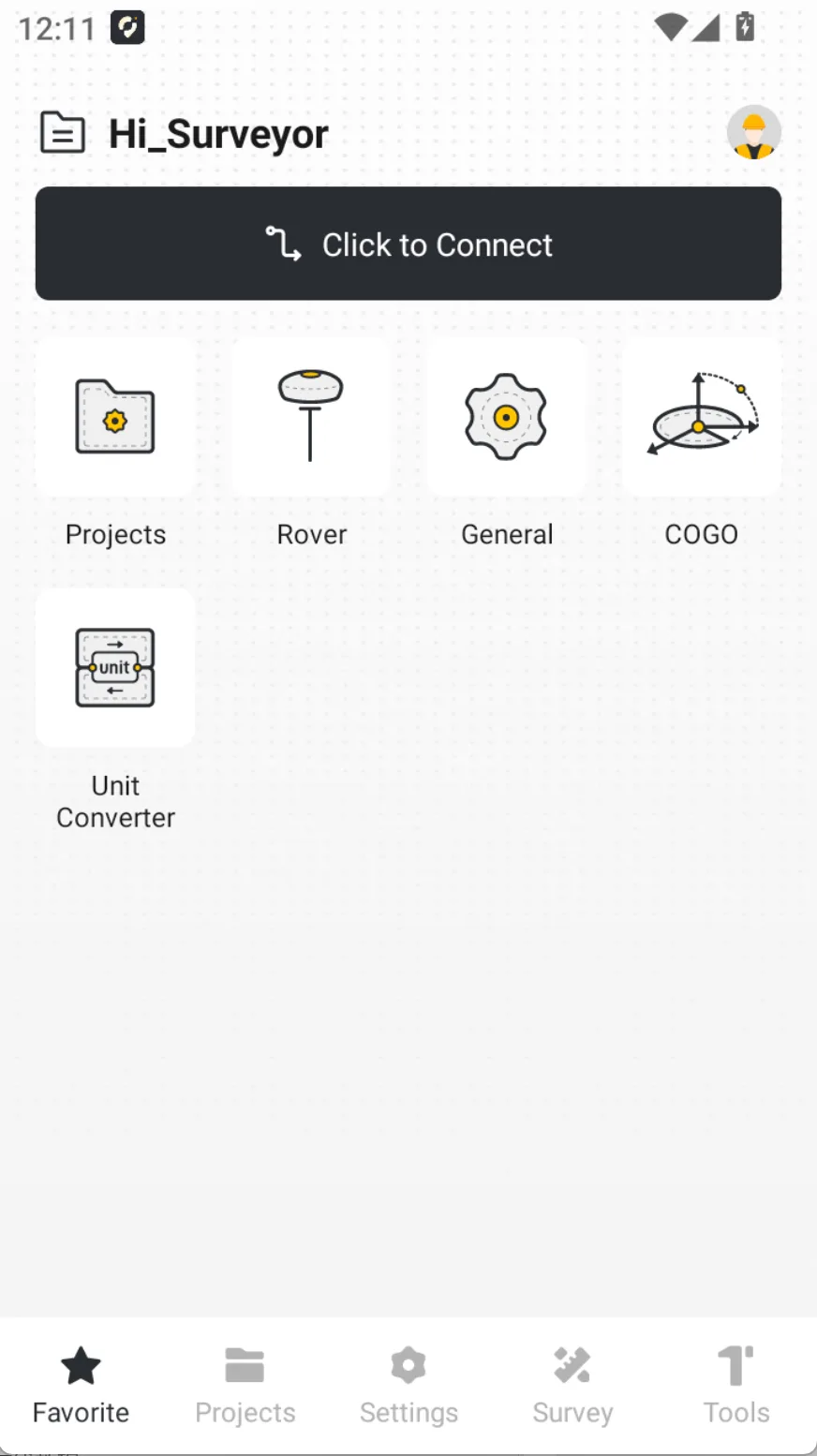
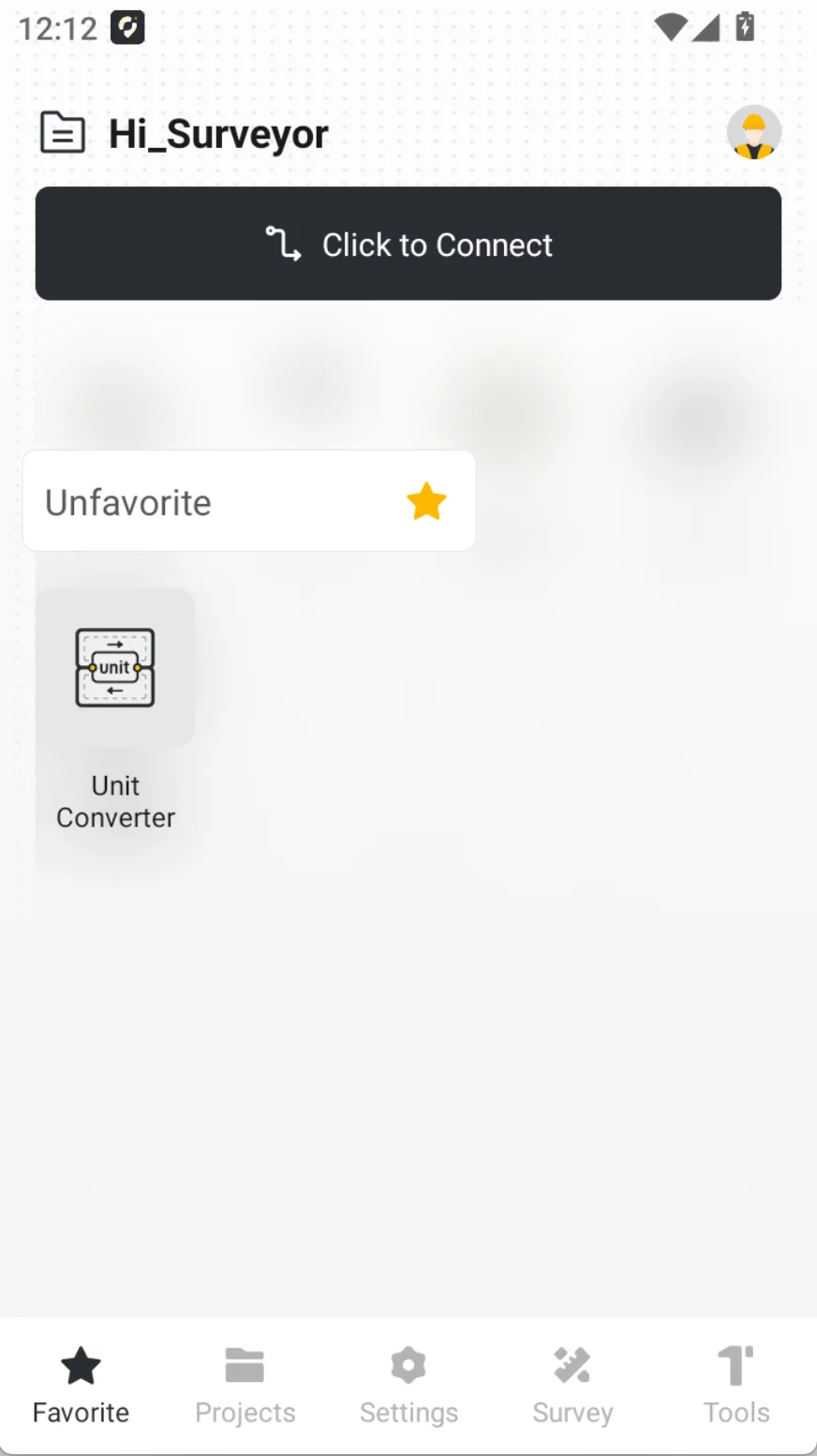
Display the functions that can be used under each menu module, long press the function icon, a pop-up window will appear, you can choose:
| Menu | Description |
| Remove | Move the function icon to [More]. |
| Favorite | Create a [Favorite] menu at the bottom and copy the function in. If there is no function in the [Favorite] menu, the menu will be automatically hidden. |
| Edit Main Interface | Supports removing all icons to [More], also supports sorting. |
 |  |  |
2.4.4 Menu bar
It includes four functional modules: [Projects], [Settings], [Survey], and [Tools]. Click on any module to switch to the corresponding page and display the corresponding function icon.
 |  |  |  |