
7.5 Stake Road
Click on the main page [Survey] → [Stake Road], open the main page, select the correct road file, and the road graph will be displayed on the main page map.
7.5.1 Stake Road interface
The navigation bar provides more stakeout information for reference.
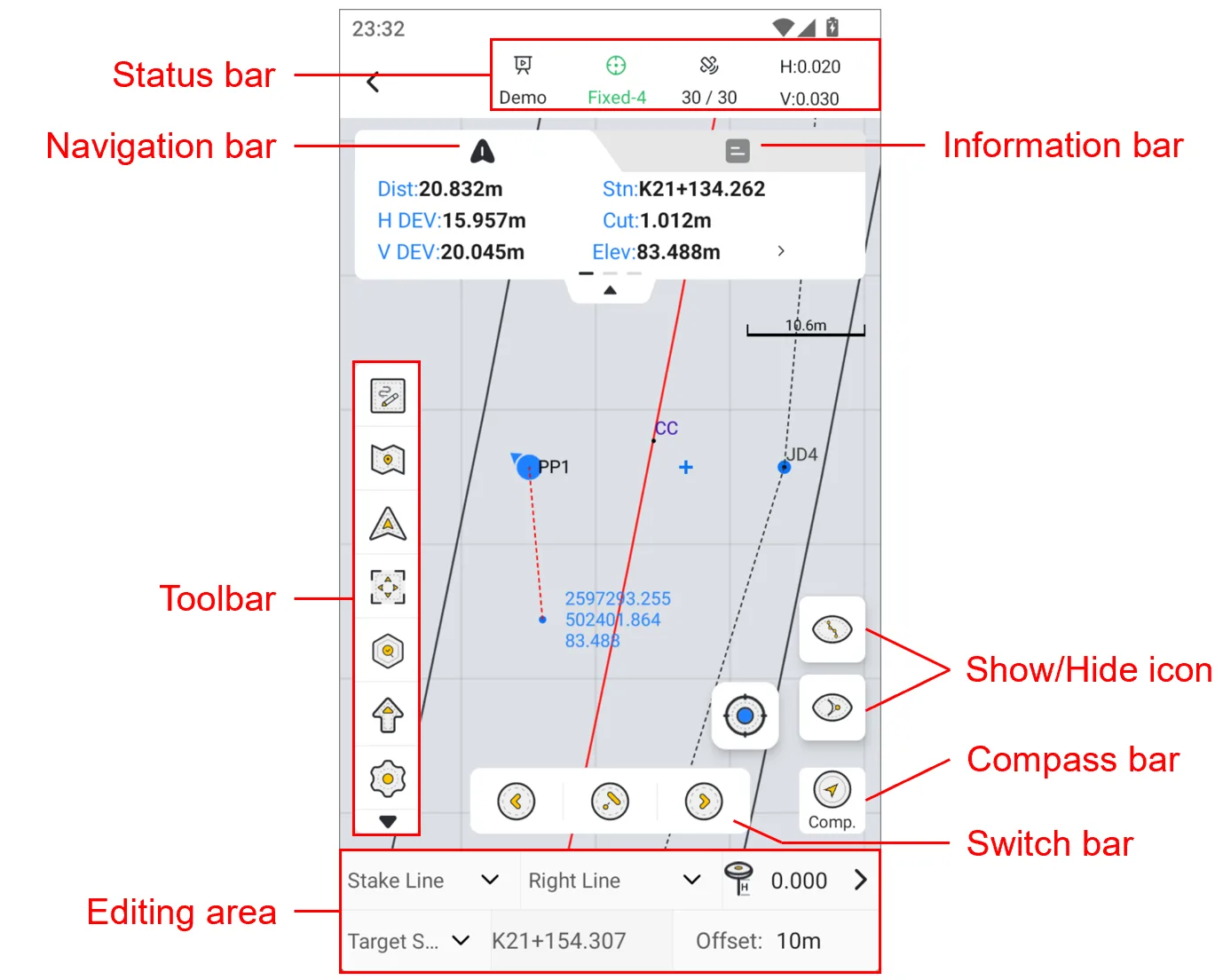
| Navigation bar | Description | |
| Dist | The plane distance from the current position to the target. | 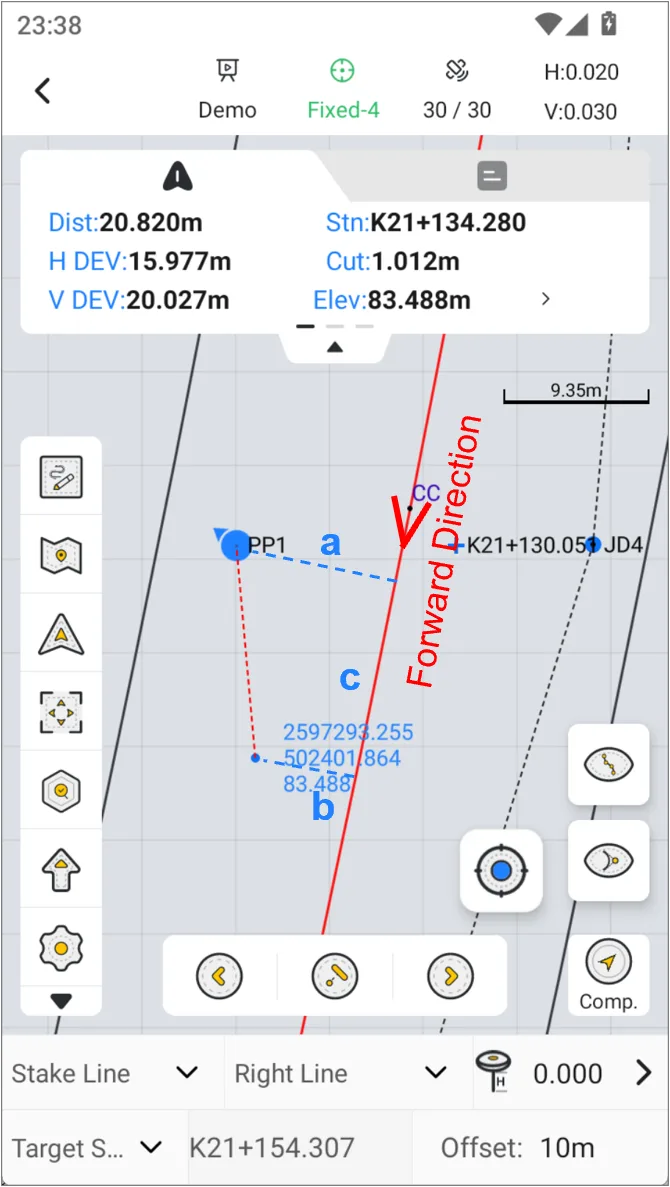 |
| Stn | The Chainage of the current position. | |
| H DEV (a) | The distance from the current position to the line, left negative and right positive. | |
| V DEV (c) | The delta chainage between the vertical point of current position to the line and the vertical point of the target to the line, positive before and negative after. | |
| Cut/Fill | If the current elevation is higher than the target, it is Cut, otherwise it is Fill. | |
| Elev | 1. Enter new design elevation: cover the elevation of the target station; 2. Enter vertical offset: add or subtract the vertical offset value from the design height of the target station to obtain the target elevation; 3. Use original elevation: Default value, use the original design elevation of the target station; 4. Use real-time elevation: Use the elevation of center rod 's bottom as the target elevation. | |
7.5.2 Stake Road toolbar
| Icon | Name | Description |
 | Points | Click to open the point library and view or modify the measured points. |
 | Edit Road | Click to open Edit Road, select a line to start the stakeout. |
 | Map | Click Optional Street or satellite map, the default is to turn off map mode. |
| Default Centered Follow | Default: The map will not automatically zoom during measurement and stakeout, and manual operation is required. The interface will not update when the position changes. Centered: The current position and target point are always displayed in the interface. If you manually drag the map, wait a few seconds and it will automatically return to the centered mode. Follow: The map rotates as the stakeout direction changes, and the current position is always in the middle of the interface. |
 | Full screen | Click Rear View to zoom in and display the entire line. |
 | Check | Provide forward and reverse calculation functions. |
 | Input | Manually add station, optionally input coordinates or chainage offset. |
 | Export | Support exporting road stakeout results. |
 | COGO | COGO tool shortcut entrance, can configure display/hide and sort in display settings. |
 | Layer | Click to open the layer management page, where you can load vector layers on the default map. |
 | Settings | Measurement settings entrance, see Chapter 6.4.4 for details. |

7.5.3 Stakeout task
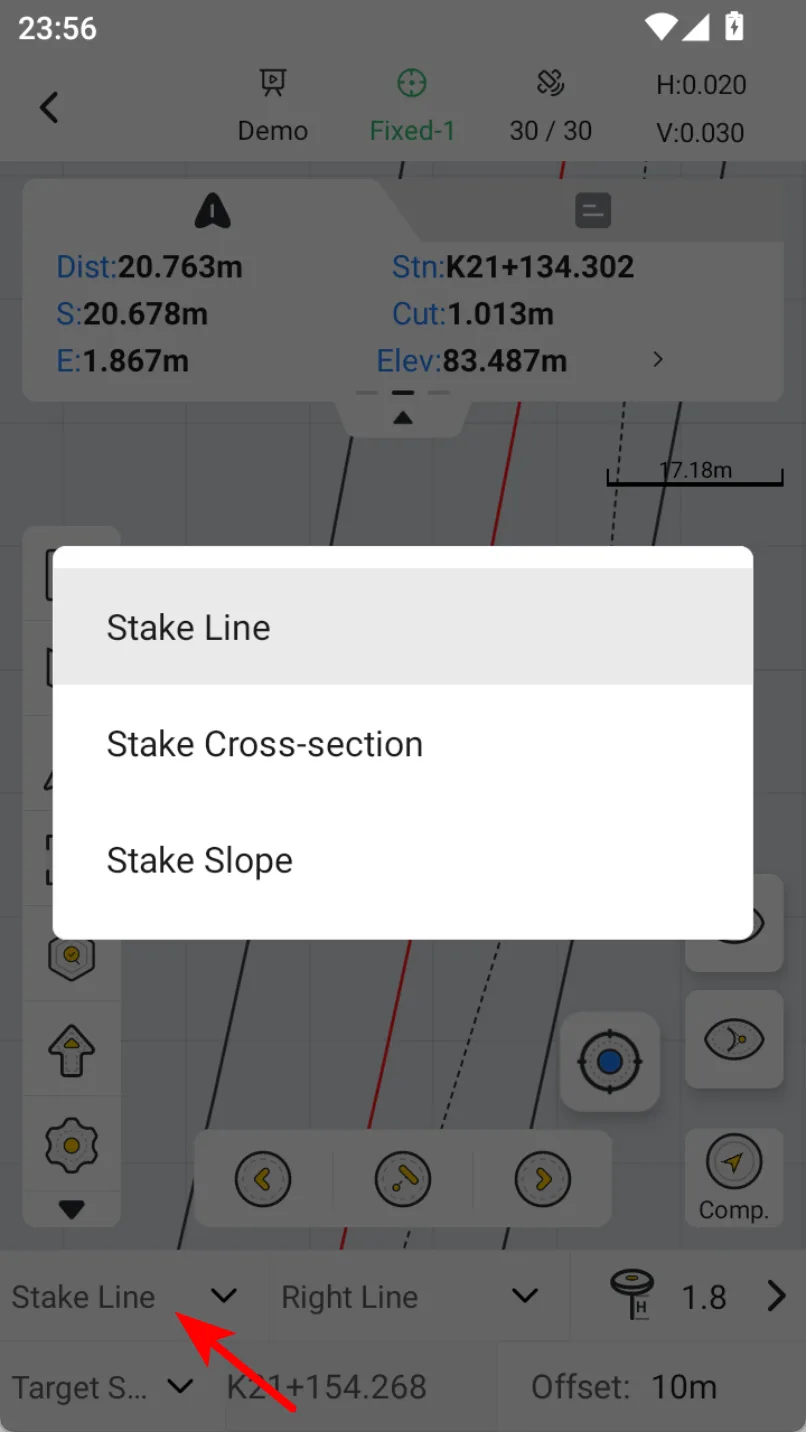
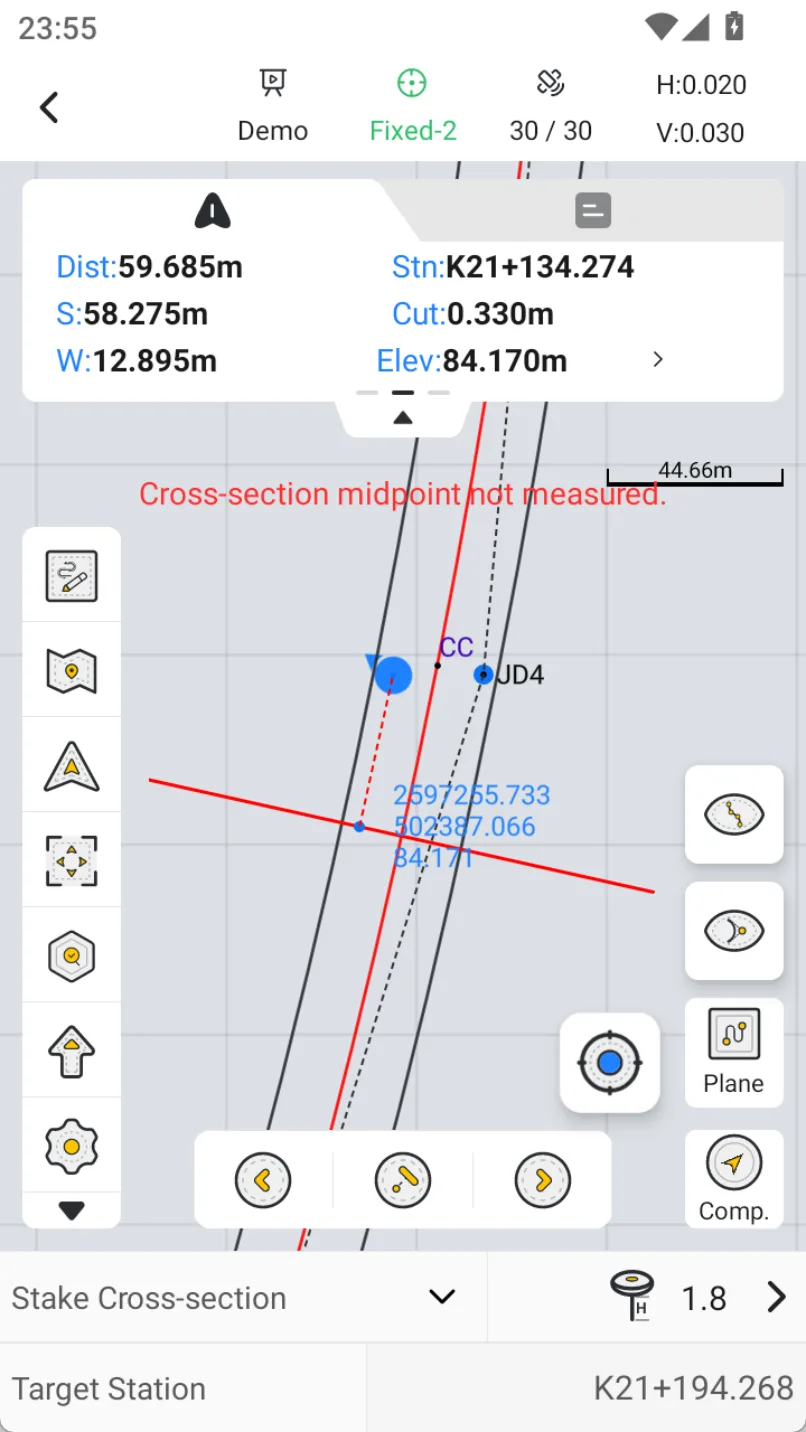
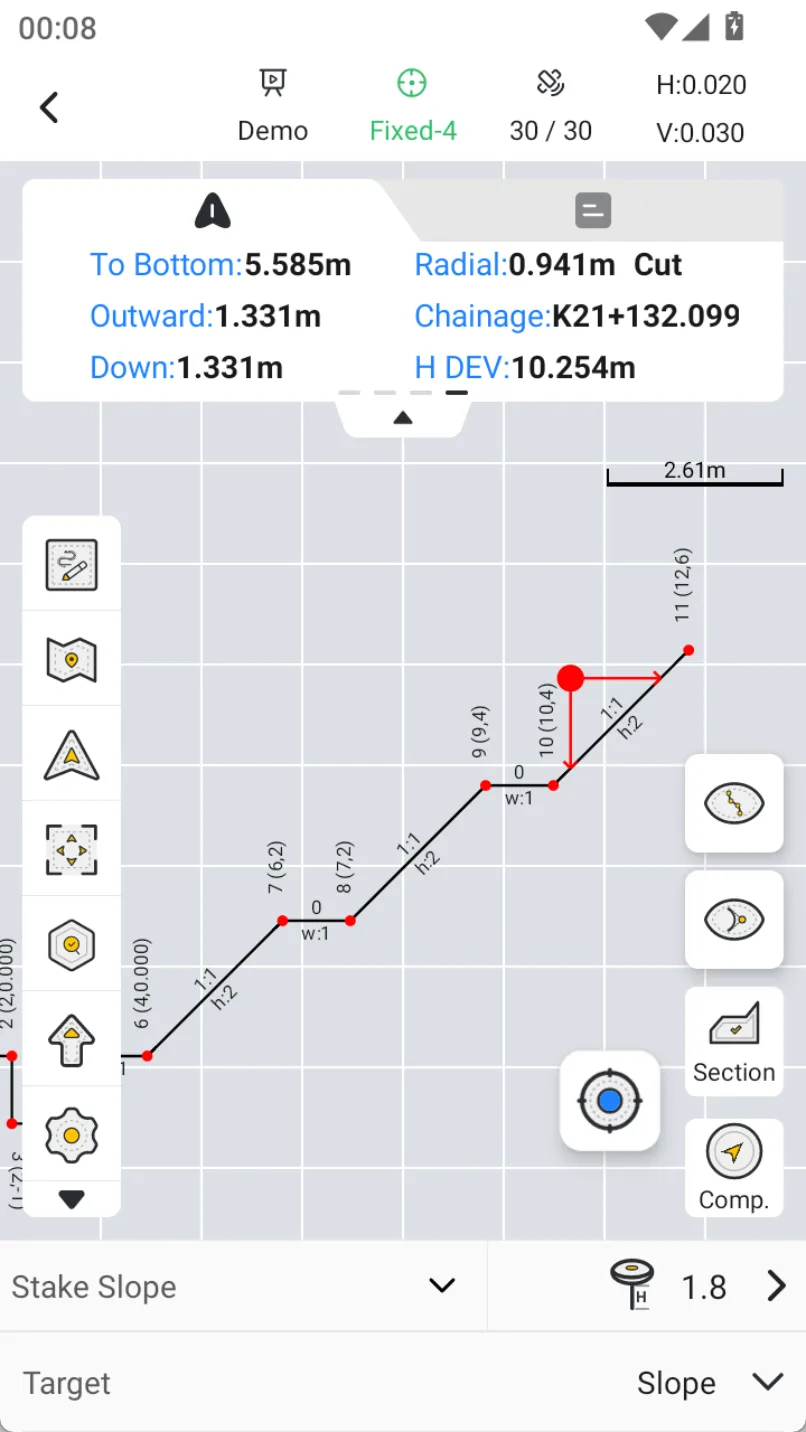
The task is selected in the bottom area, and the default is Stake line. Cross-section survey and Stake slope are optional. The Cross-section Survey and Stake Slope tasks need to add corresponding data to the road file first. For details, please refer to Chapter 5.4.3.
After selecting [Stake Line], you can also select the left or right line here, and input the offset with the forward direction as the reference. The left is negative and the right is positive. After confirmation, the map view will be updated.
The [Real-Time Station] always displays the nearest station from the current position to the line, and the [Target Station] can also be selected. When the [Target Station] is selected, a pop-up window will appear to enter the target station. Click [OK] to go directly to the target station. Station can be directly added or subtracted according to the station interval. The configuration is shown in Chapter 6.4.4.3.
Note:
When measuring in Stake Road, there is no need to enter the point ID. The target station is automatically used as the point ID. If the point ID needs to be modified, it can be manually modified in the point library.
 |  |  |
7.5.4 Result export
Export the CSV format file, the result information includes: Point ID, Target point info., Measured point info., the difference between them, and time. The screenshot reference is as follows:
