
7.3 Stake Points
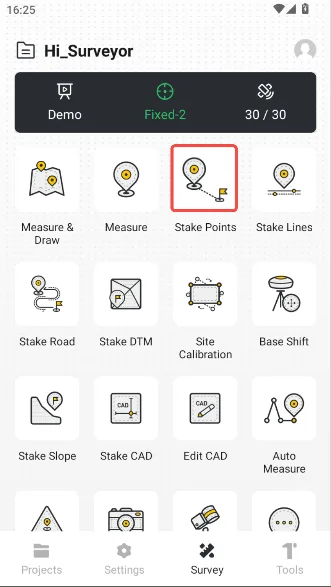
Stake Points is the process of finding the actual geographical location through coordinates. Click [Survey] → [Stake Points] on the main page, select the point to be staked, and enter the point stakeout interface.
 |  |  |
7.3.1 Stake Points interface
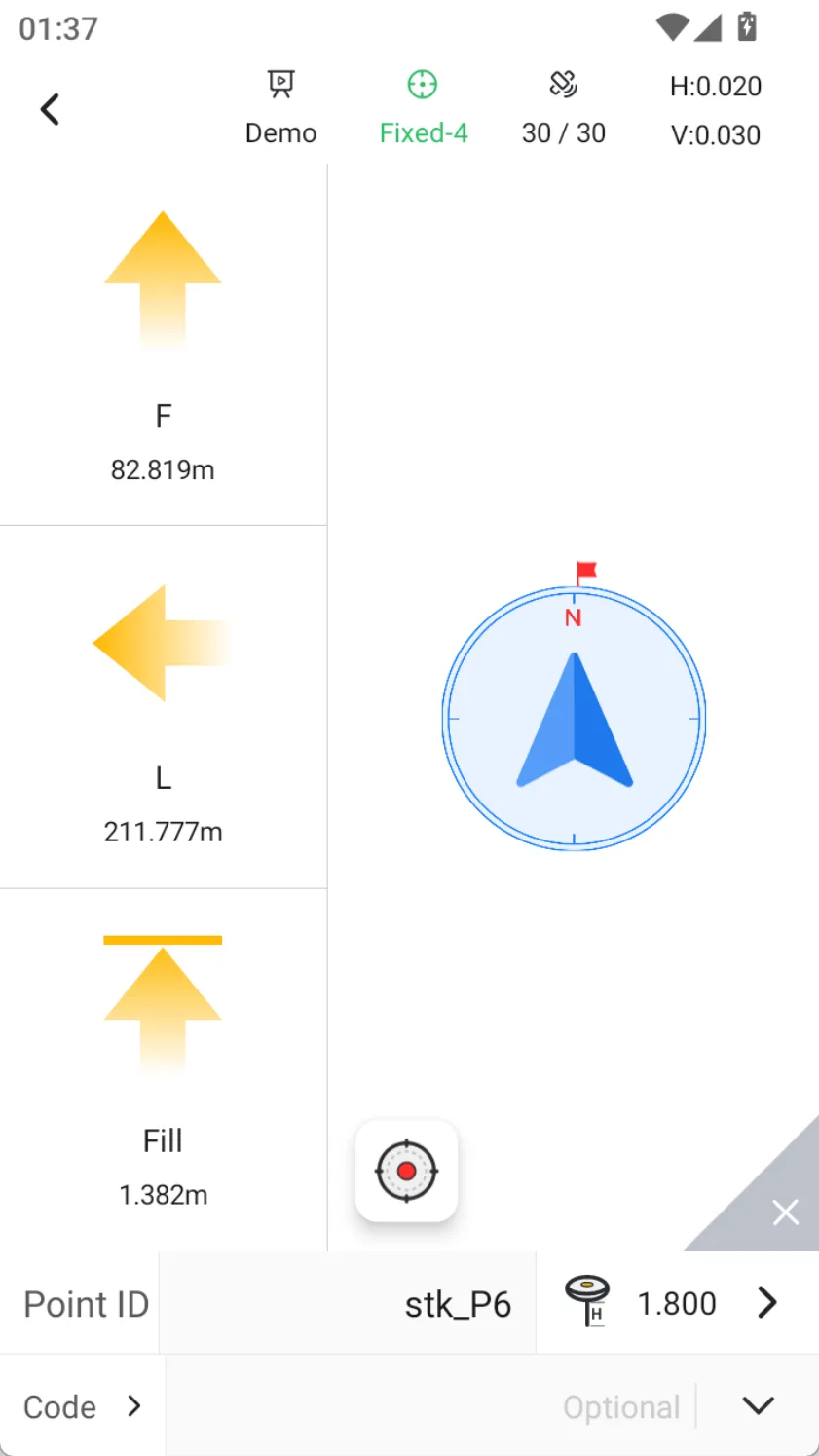
The interface has added a navigation panel, which displays the relative position (such as facing back or left) and absolute position (such as facing south or west) between the current receiver and the target in real time.
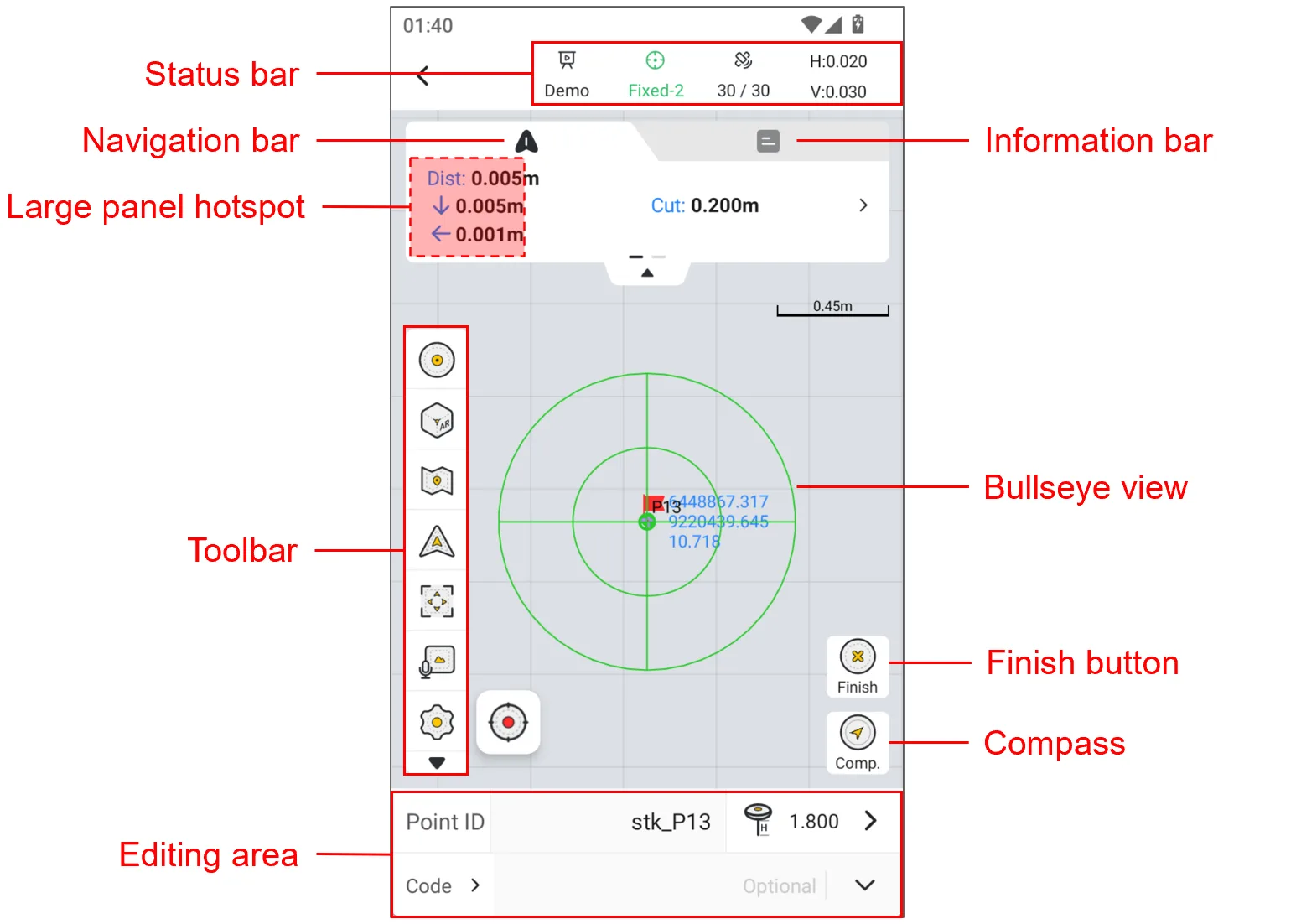
| Name | Description |
| Status bar | Display communication, solution status, No. of satellites and RMS values |
| Navigation bar | 1. After selecting the staked point, the real-time display shows the relative relationship between the current position and the target point, including the relative relationship (front, back, left, right) and the absolute relationship (east, south, west, north), and switches the display by sliding horizontally. 2. The point elevation can be modified to: [Enter new design elevation], [Enter vertical offset], [Use original elevation], and [Use real-time elevation]. See Chapter 7.10.4 for details. |
| Information bar | 1. Display real-time point information, including latitude, longitude, ellipsoidal height, northing, easting, elevation, HRMS, VRMS, etc. 2. Click the information bar box to switch the display. 3. When HRMS or VRMS exceeds the limit, the information box is highlighted in red. |
| Toolbar | Display the commonly used tools for operating this function, see Chapter 7.3.2 for details. |
| E-Bubble | 1. It can be used after starting IMU. It is turned off by default and can be enabled in measurement settings. 2. When the tilt angle is ≥30 °, the color of the bubble turns black. |
| Bullseye view | 1. When the stakeout distance is ≤1 meter, a bullseye view appears, with a total of two circles, the radius of the large circle is 1 meter, and the radius of the inner circle is 0.5 meters. 2. When the stakeout distance is ≤0.5 meters, the bullseye view is enlarged, with a total of two circles, the radius of the large circle is 0.5 meters, and the radius of the inner circle is 0.05 meters. |
| Measurement button | After reaching the target location, click the measurement button to record the coordinates. |
| IMU icon | 1. 2. 3. |
| Compass button | Show/Hide the semi-transparent compass to guide towards the target direction. |
| Editing area | 1. Point ID: Click to enter, the default measurement point name is the corresponding stake point name with the prefix "stk_", or you can add a suffix in the settings; 2. Antenna height: Click to enter the antenna type selection and input page. 3. Code: Can be manually entered. When there is a user-entered code in the codes, you can directly click the drop-down button to select it. Click the code label on the left, or you can directly jump to the "Codes" for selection. |
 IMU is not enabled.
 IMU is turned on but not available, need to shake for calibration.
 IMU is enabled and available.
7.3.2 Stake Points toolbar
| Icon | Name | Description | |
 | Input point | Stake according to the manually entered point coordinates. | |
 | Points | Click to open the points and select the stake point by single or multiple selection. | |
 | AR stakeout | Click to enter the AR stakeout page, present the position of the target point through the camera of the receiver, and find the target point according to the real navigation. | |
 | Map | Click on the optional street or satellite map, the default is to turn off the map mode. | |
| Default Centered Follow | Default: The map will not automatically zoom during measurement and stakeout, and manual operation is required. The interface will not update when the position changes. Centered: The current position and target point are always displayed in the interface. If you manually drag the map, wait a few seconds and it will automatically return to the centered mode. Follow: The map rotates as the stakeout direction changes, and the current position is always in the middle of the interface. | |
 | Full screen | Click the rear view to zoom in and show all points. | |
 | Laser | Laser measurement, see Chapter 7.2.13 for details. | |
 | Media | Add a Media information switch to obtain and save Media information after measurement is completed. | |
 | COGO | COGO tool shortcut entrance, can configure display/hide and sort in display settings. | |
 | Layer | Click to open the layer management page, where you can load vector layers on the default map. | |
 | Settings | Measurement settings entrance, see Chapter 7.4.4 for details. | |

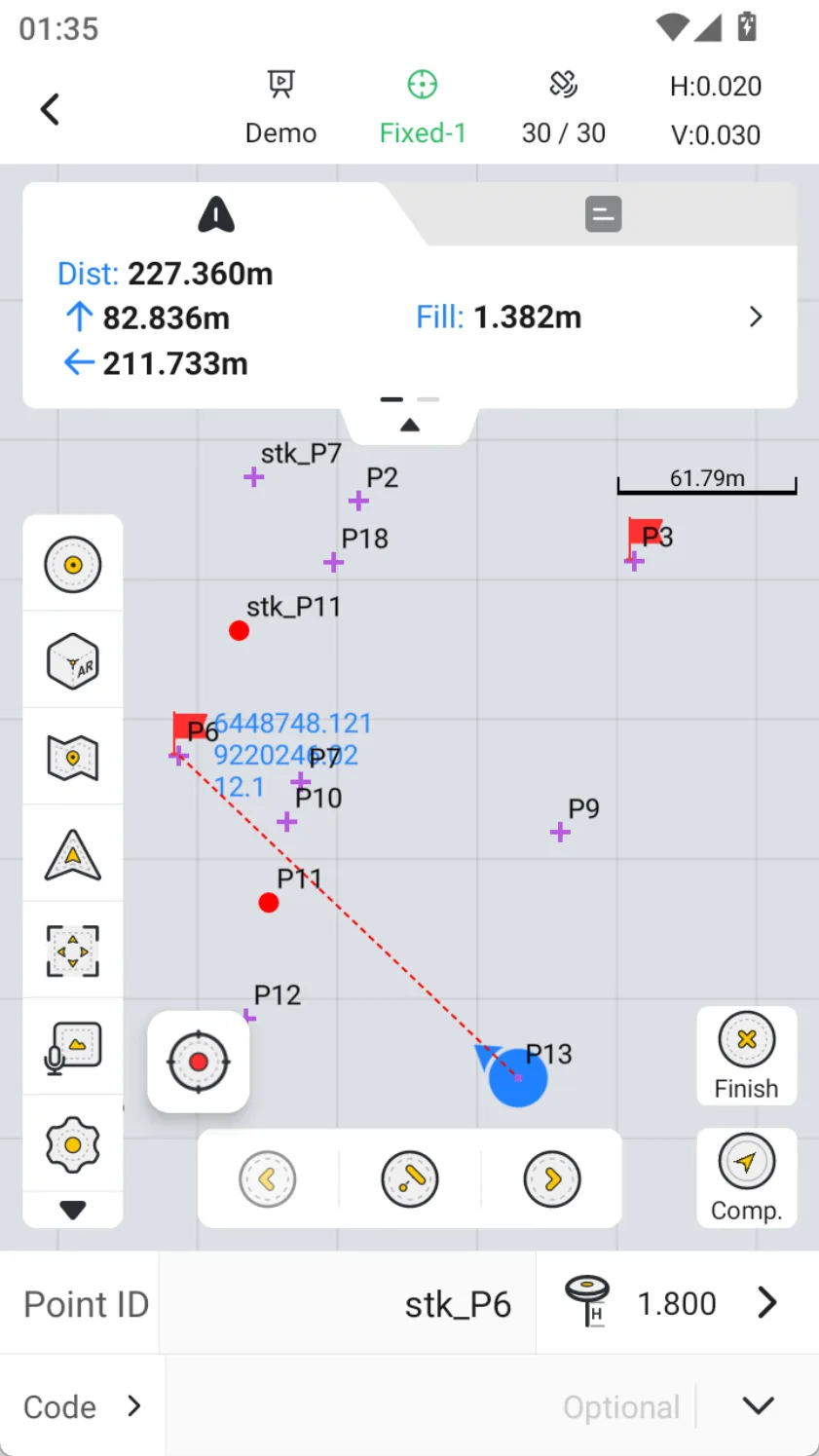
After entering the [Stake Points] and selecting the stake point from [Points], the target point will be marked with a red flag. The current position is connected to the target point with a dotted line. When the stakeout distance is ≤ 1 meter, the target point becomes a bullseye view, and the controller will emit a buzzing sound and vibrate. As the stakeout distance shortens, the buzzing sound will become faster and the vibration frequency will increase. When the distance is ≤ 0.05 meters, you will hear the correct sound reminder.
It should be noted that multiple selections are supported when selecting points. Three icons will appear at the bottom of the view: previous point, nearest point, and next point. You can switch between them conveniently by clicking or by pressing the left and right keys on the keyboard. If you want to cancel multiple selections, please click on the toolbar and click on the point library to operate.
7.3.3 AR stakeout
GNSS AR (Augmented Reality) stakeout, also known as visual stakeout, combines GNSS (Global Navigation Satellite System) and visual technology to perform stakeout operations, using visual technology to assist or enhance the accuracy and efficiency of stakeout.
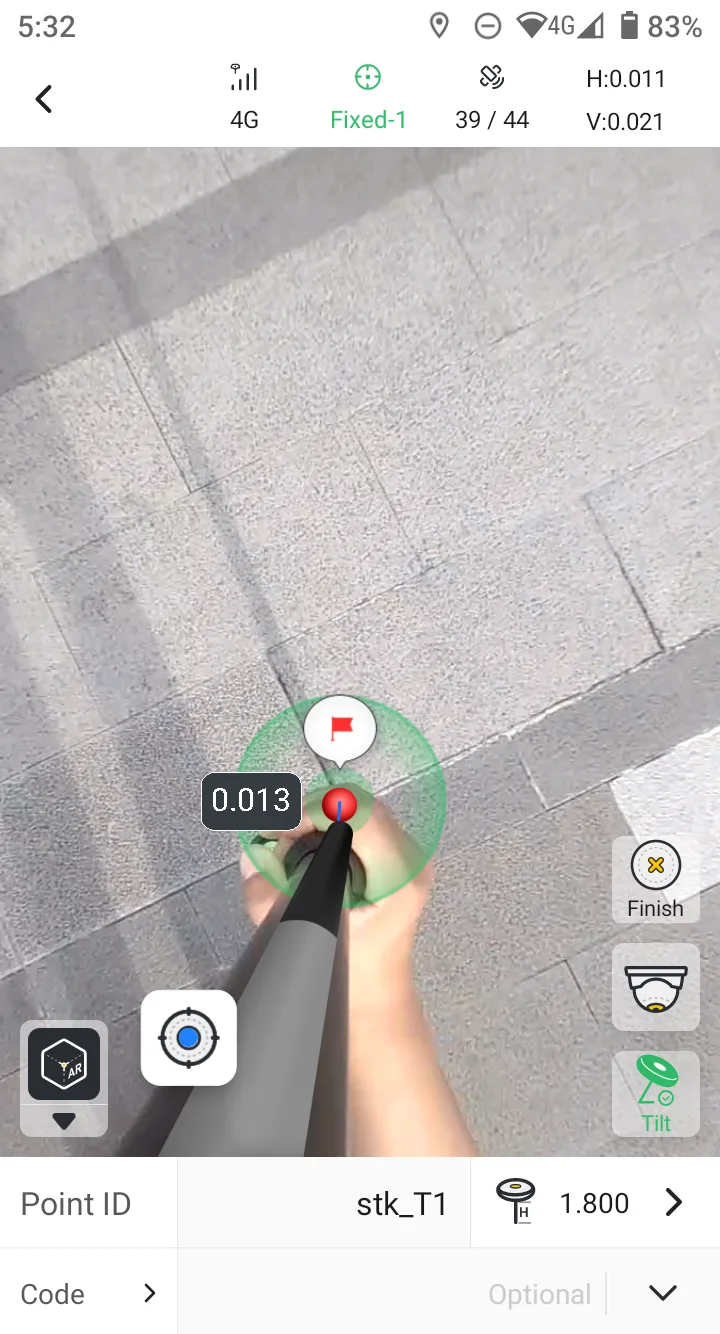
After entering [Stake Points], select the stake point, then click the [AR stakeout] icon on the left toolbar to enter the AR stakeout interface. Because the function uses inertial navigation data, if the IMU is not enabled or the IMU exceeds the limit, it will prompt to shake to calibrate the IMU. After completing the calibration, there will be a toast notification, and then you can see the image from the view.
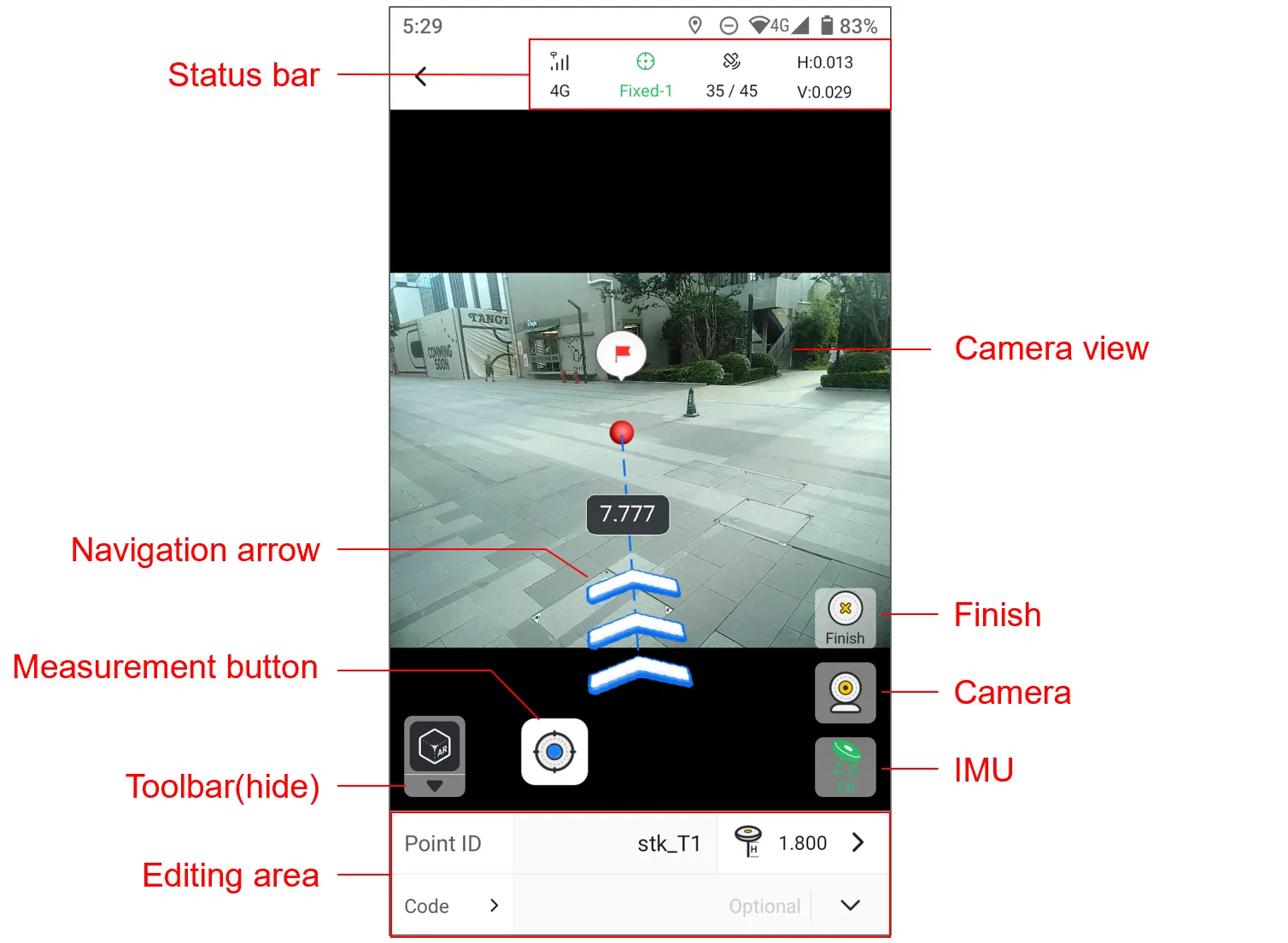
AR stakeout page post script:
| Name | Description |
| Camera view | Display images from a forward or downward camera. |
| Navigation arrow | 1. The red dot on the view indicates the target point, and the navigation arrow always points to the target, and the relative distance is displayed in real time; 2. When the target point is behind the camera, the navigation arrow starts from the middle of the view. |
| Cancel | Cancel AR stakeout and return to the normal stakeout page. |
| Camera | Manually switch between front-view camera and bottom-view camera, or configure automatic switching distance in settings. |
The software defaults to setting 5 meters as the threshold, that is, if the stakeout distance is greater than 5 meters, the front camera image will be displayed by default. When the stakeout distance is ≤ 5 meters, the bottom camera image will be displayed. Click the toolbar settings icon → [Stake] to modify the distance threshold.
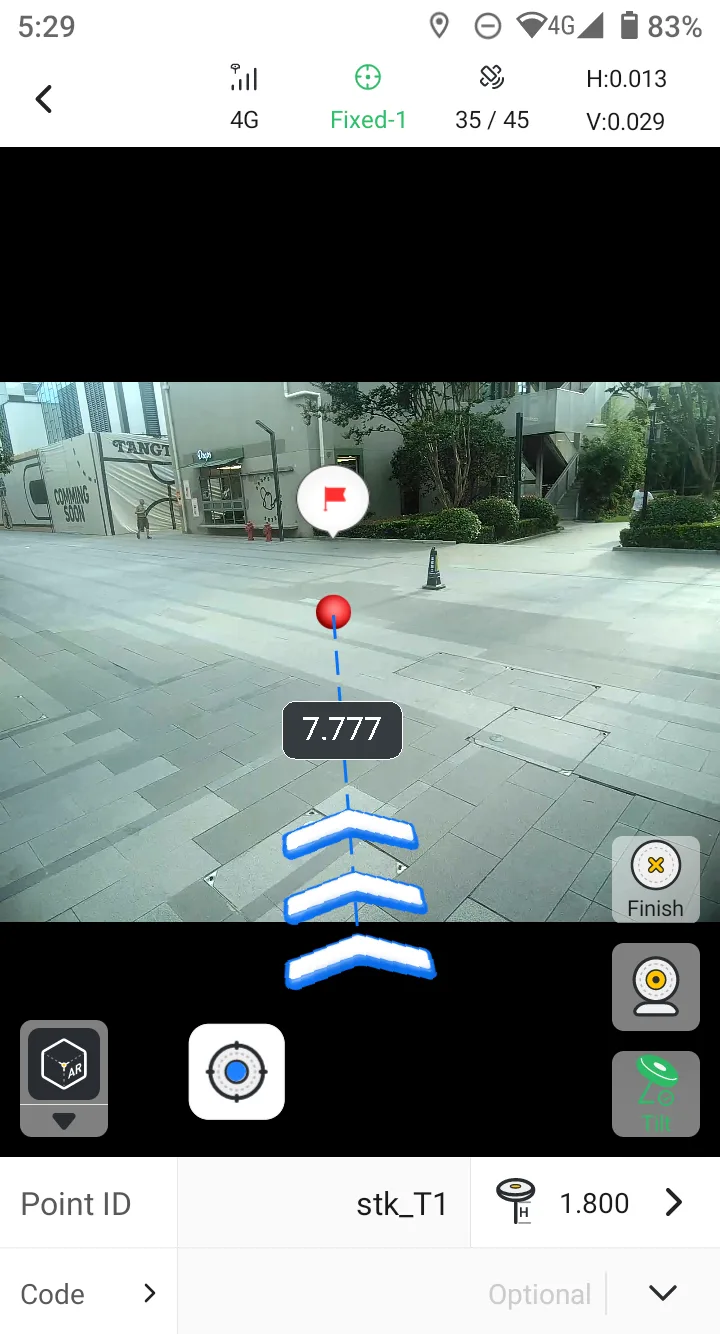 | 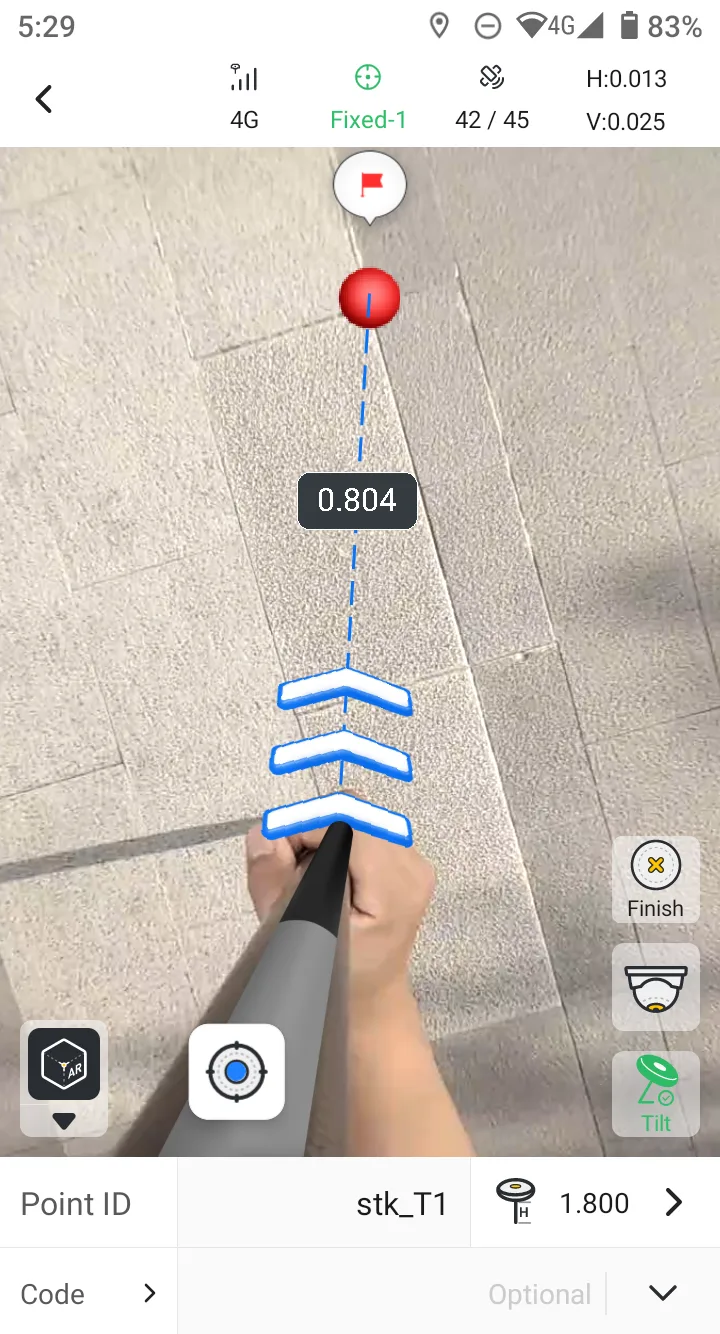 |  |
Other points to note:
- Only GNSS receivers with cameras support AR stakeout.
- The IMU module must be in an available state. If the IMU accuracy exceeds the limit midway, the user will be prompted to calibrate the IMU by shaking it.
- The position of the virtual centering rod is calibrated. If it is found to be inaccurate, please contact the dealer or technical support personnel.
- If the target only has plane coordinates, remember to modify the elevation mode to [Use real-time elevation].