7.12 GIS Survey
GIS Survey is an important tool used in RTK survey controller to achieve synchronous acquisition of spatial information and attribute information. While conducting high-precision positioning surveys, users can add attribute fields such as feature type, name, number, and remarks to each measurement point, achieving an organic combination of measurement data and business information.
The system supports custom field configuration, flexibly adapting to the needs of different industries and application scenarios, such as municipal inspections, power line inspections, cadastral surveys, etc. The collected data can be directly used for GIS system database construction, analysis, and display, greatly improving the efficiency and accuracy of Data Acquisition, providing strong support for later data management and decision-making.
7.12.1 Create Layers
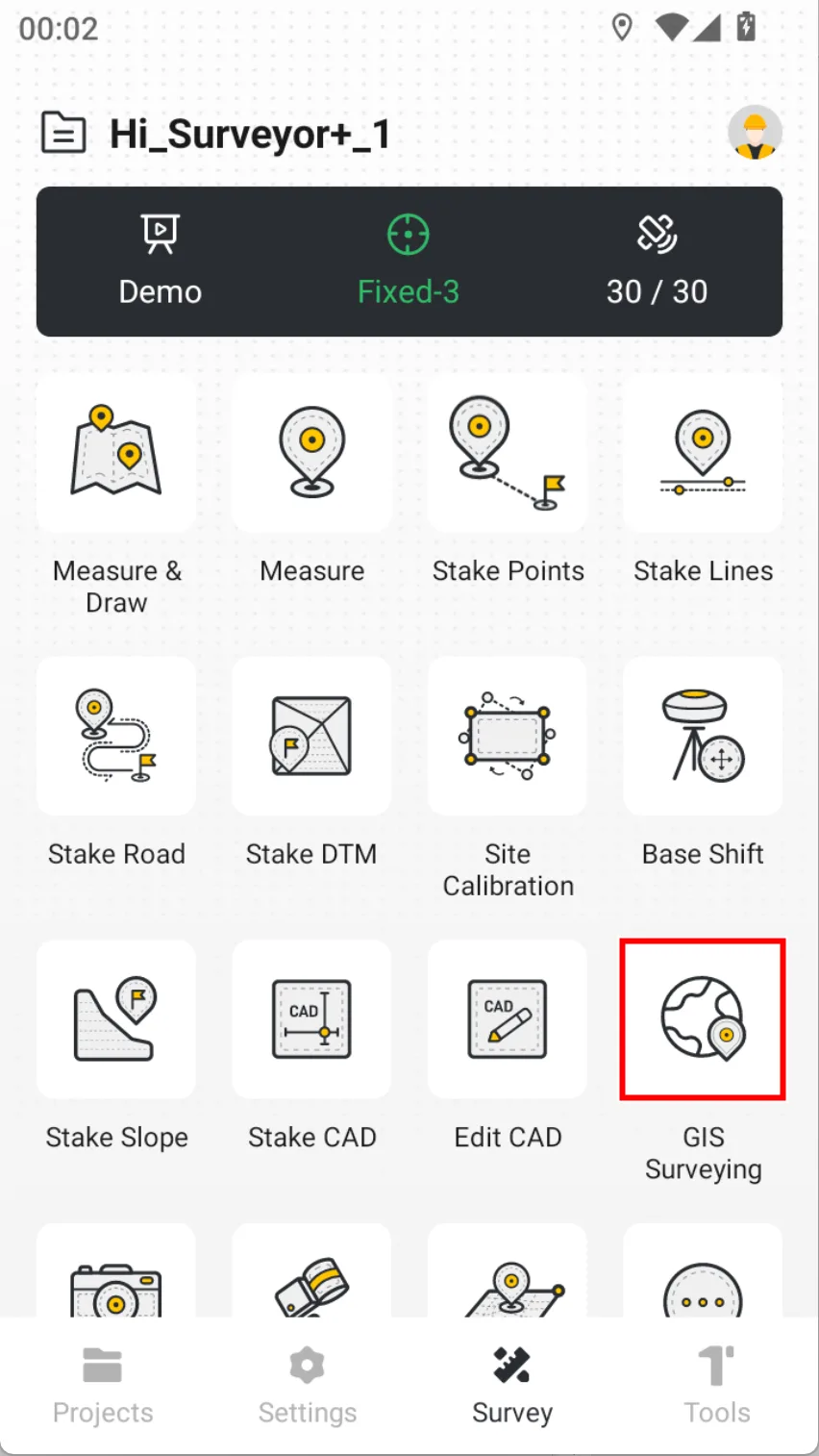
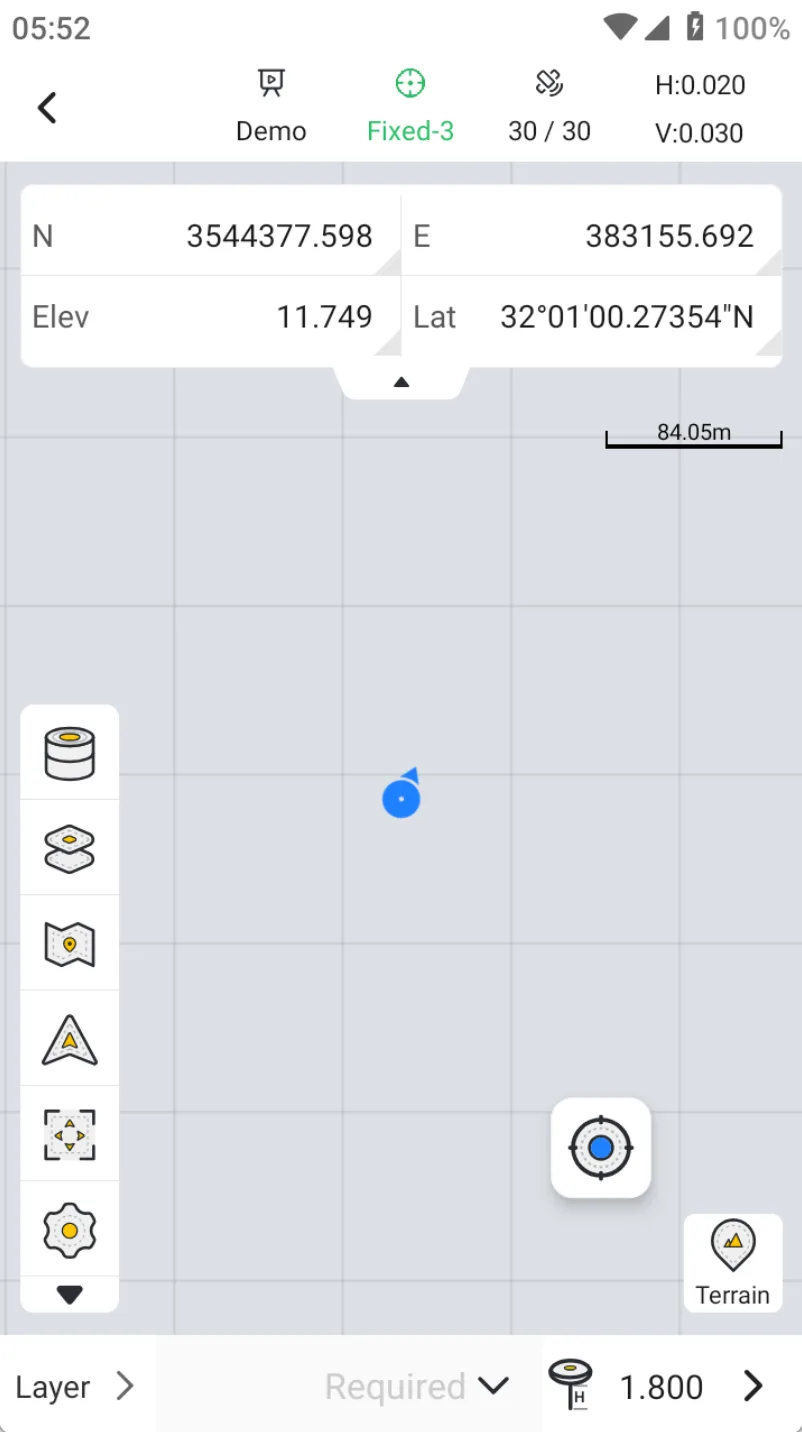
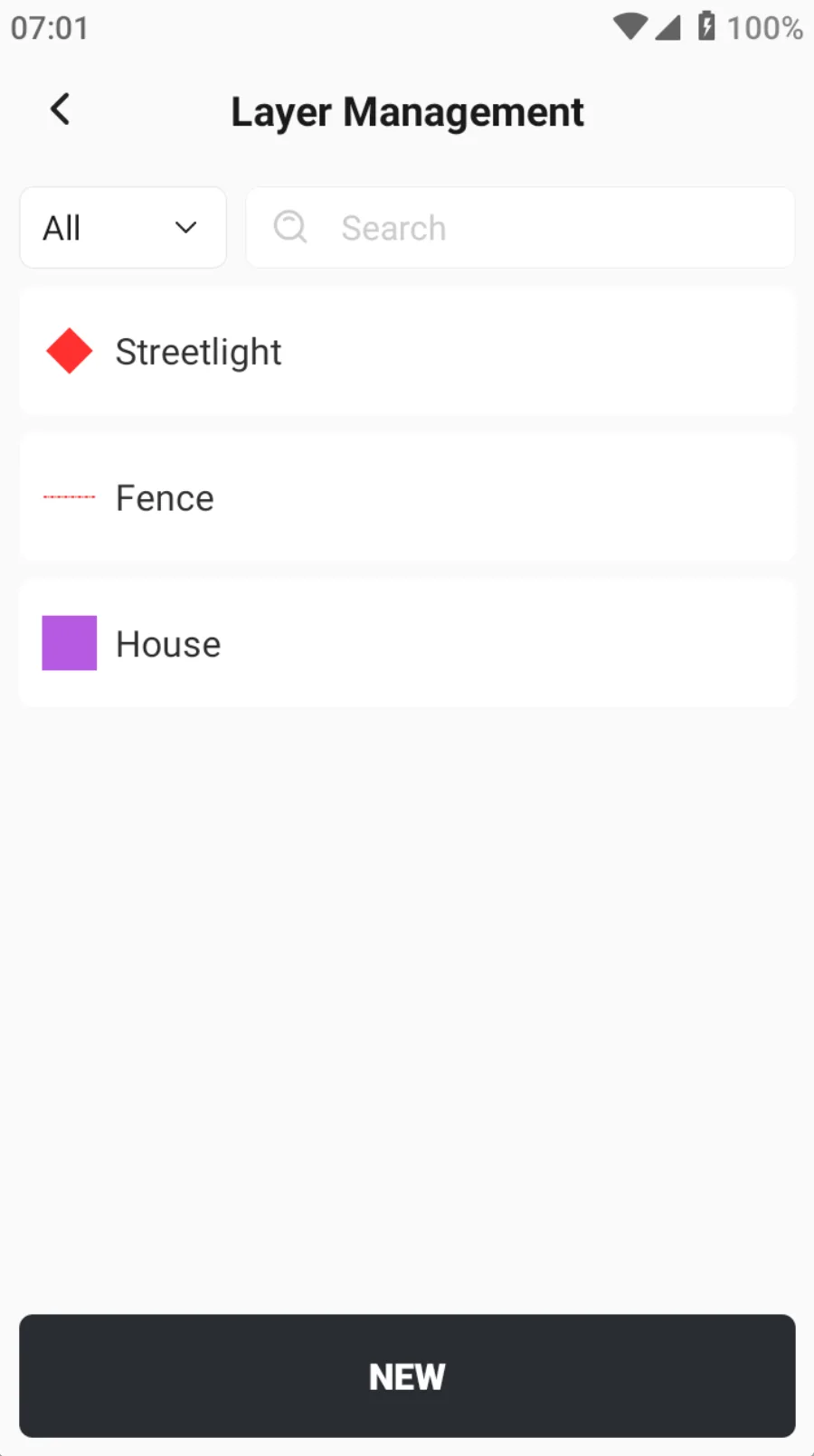
Before starting the collection, you need to create layers and define attributes. Click on the toolbar [Layer] icon or bottom [Layer] label to open the [Layer Management] page. Click the [NEW] button at the bottom to start creating layers.
| Name | Description |
| Type | Select layer type, optional: point, polyline, and polygon. |
| Name | Enter a layer name |
| Others | Different layer types display different options:
|
 |  |  |
7.12.2 Define attributes
Layer attributes are one of the core components of GIS Survey. Each layer corresponds to a type of geographic feature (such as house, road, pipeline, streetlight, etc.), and its attributes are used to record non-spatial information of each feature in the layer, namely "descriptive data".
Create/edit a layer, then click [Attributes] to enter the attribute list. Click the [NEW] button at the bottom to start creating attributes for the layer's features.
| Name | Description |
| Name | Enter the name of the property |
| Alias | optional field |
| Required | have to fill in this field or not |
| Type | Optional types include: integer, decimals, text, and date |
| Default value | Content filled in by default |
| Input method | Optional: Normal mode and menu selection |
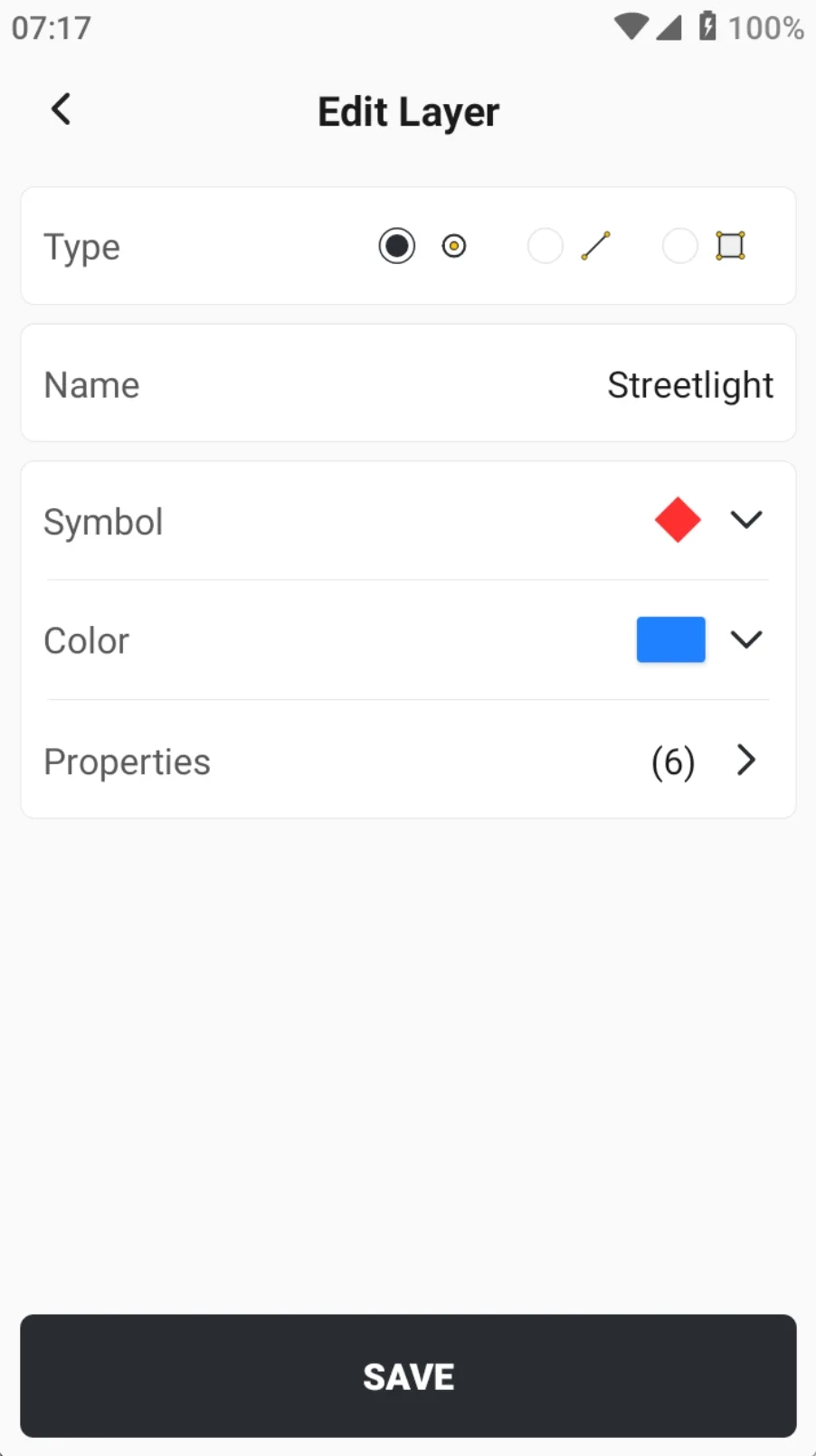 | 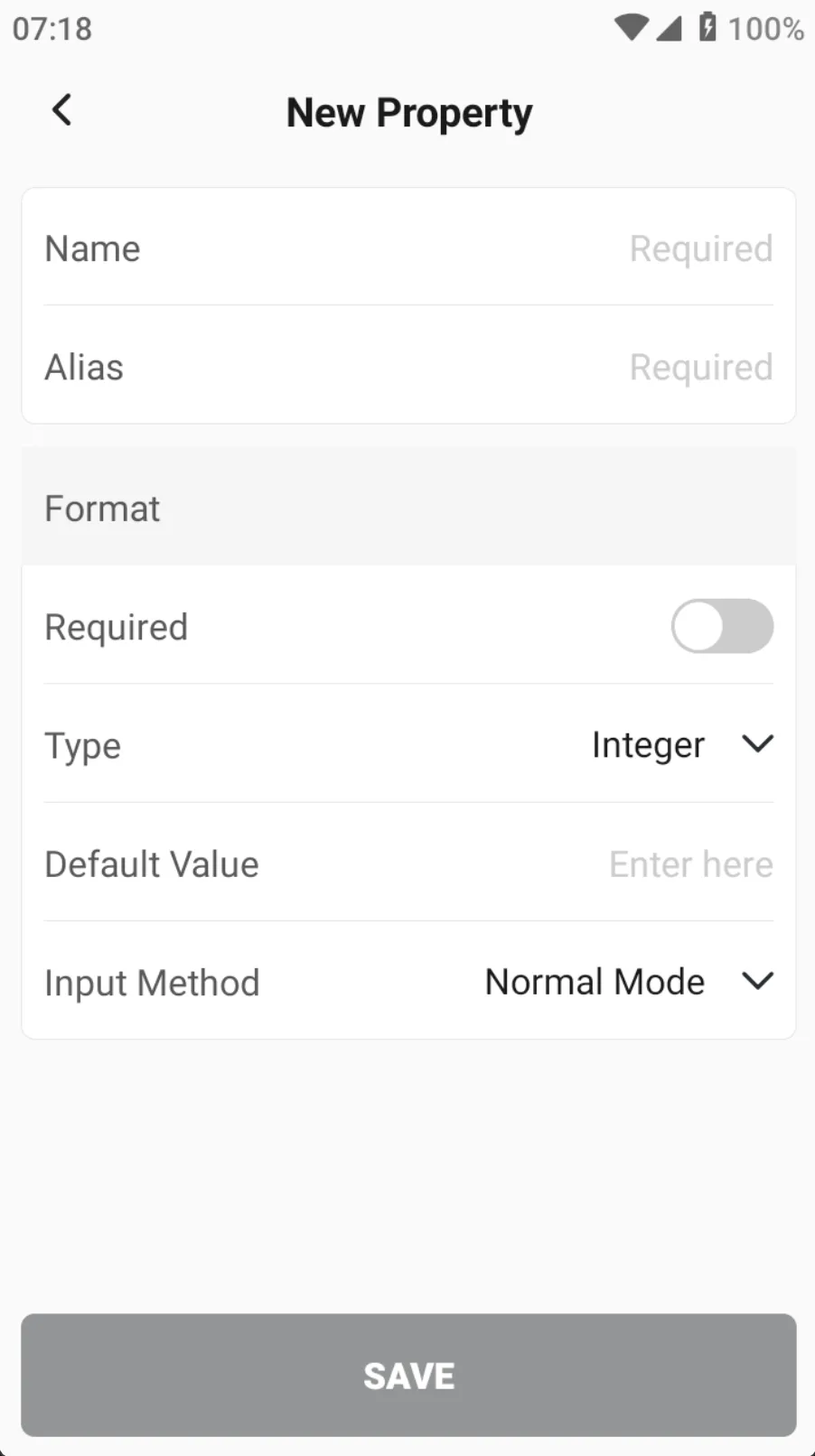 | 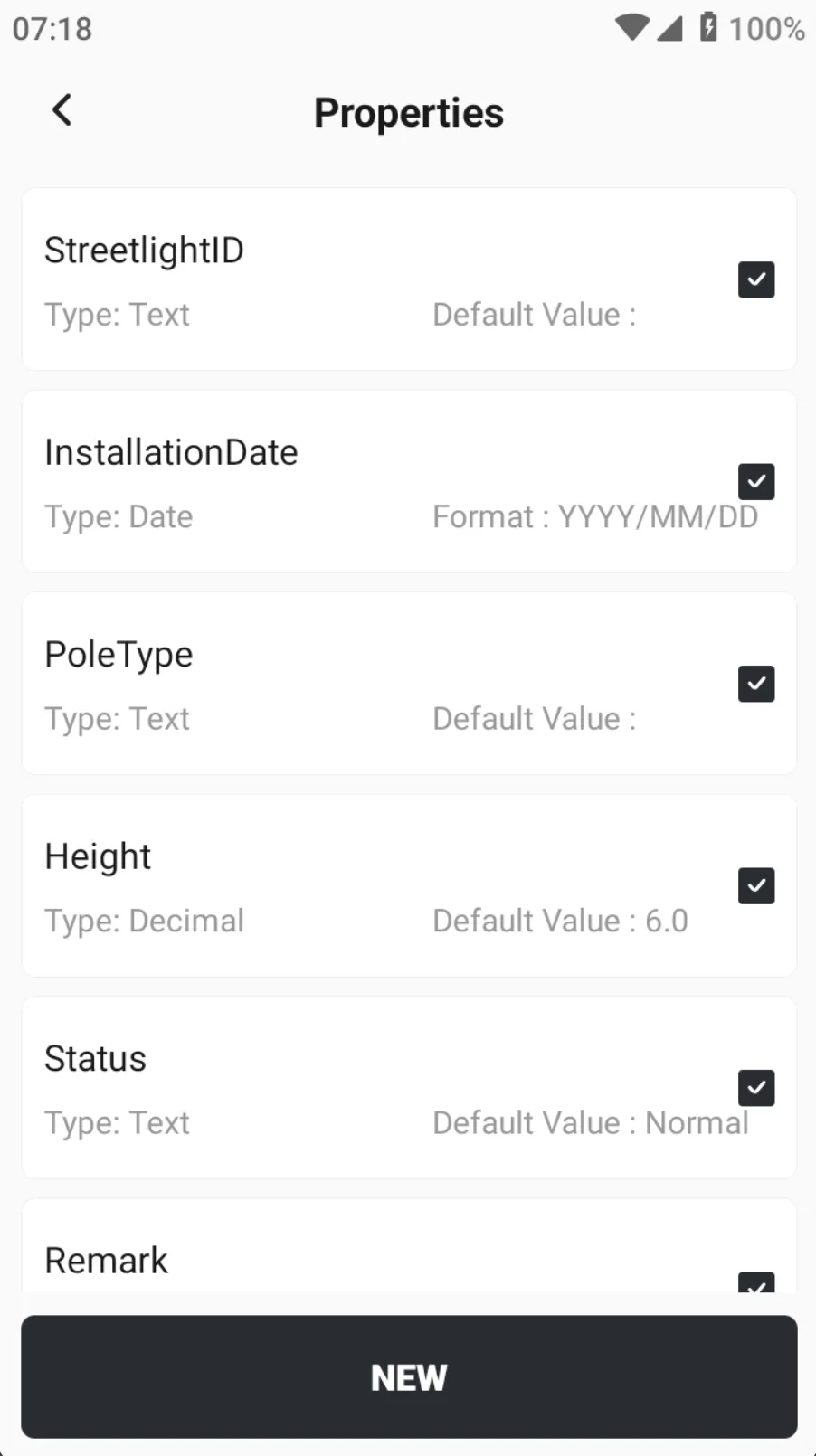 |
7.12.3 Data Survey
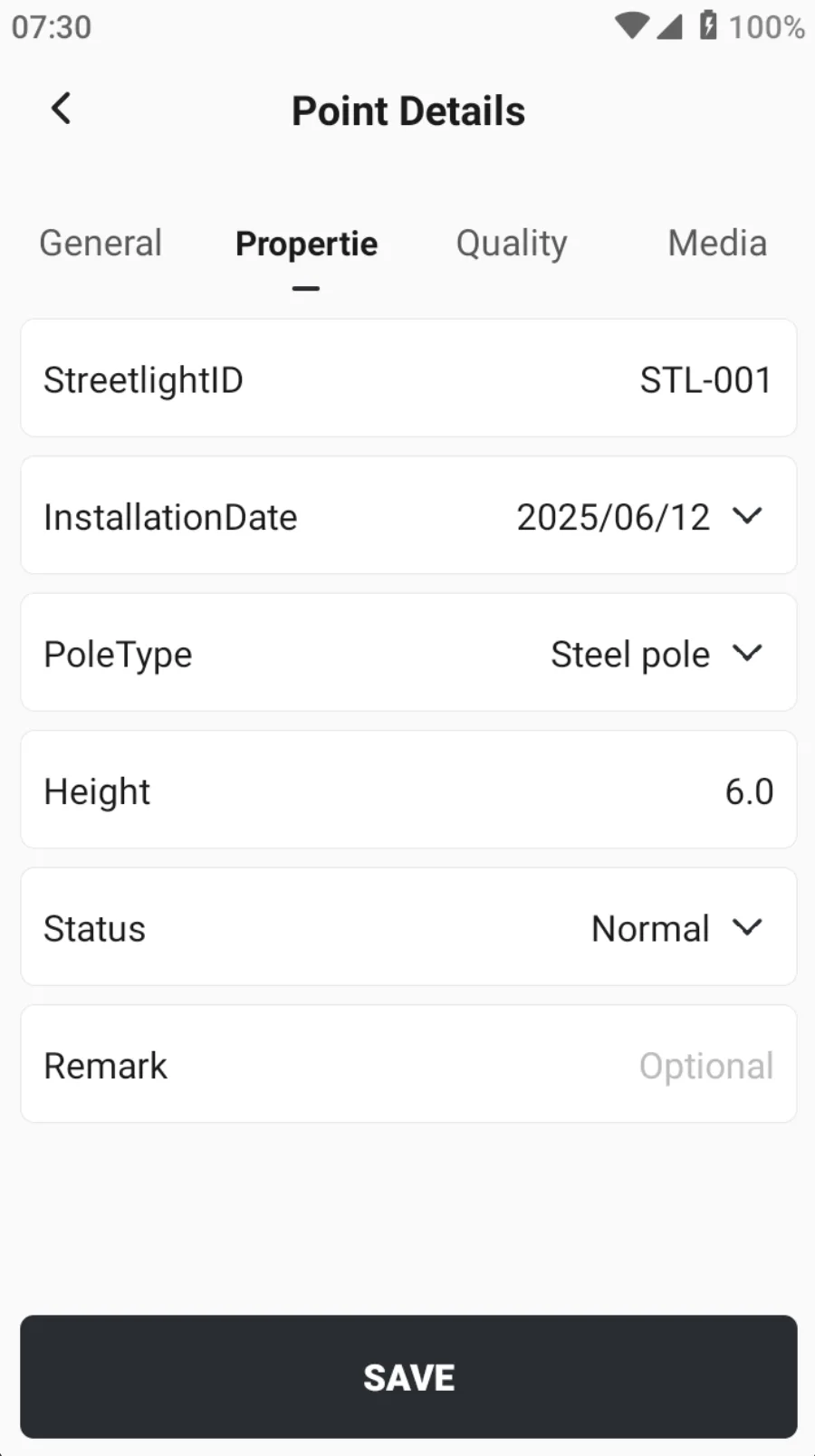
After defining the layers and attributes, you can start Data survey. Go back to the GIS Survey page, click the bottom layer drop-down arrow, select the target layer to be measured, and click Finish.
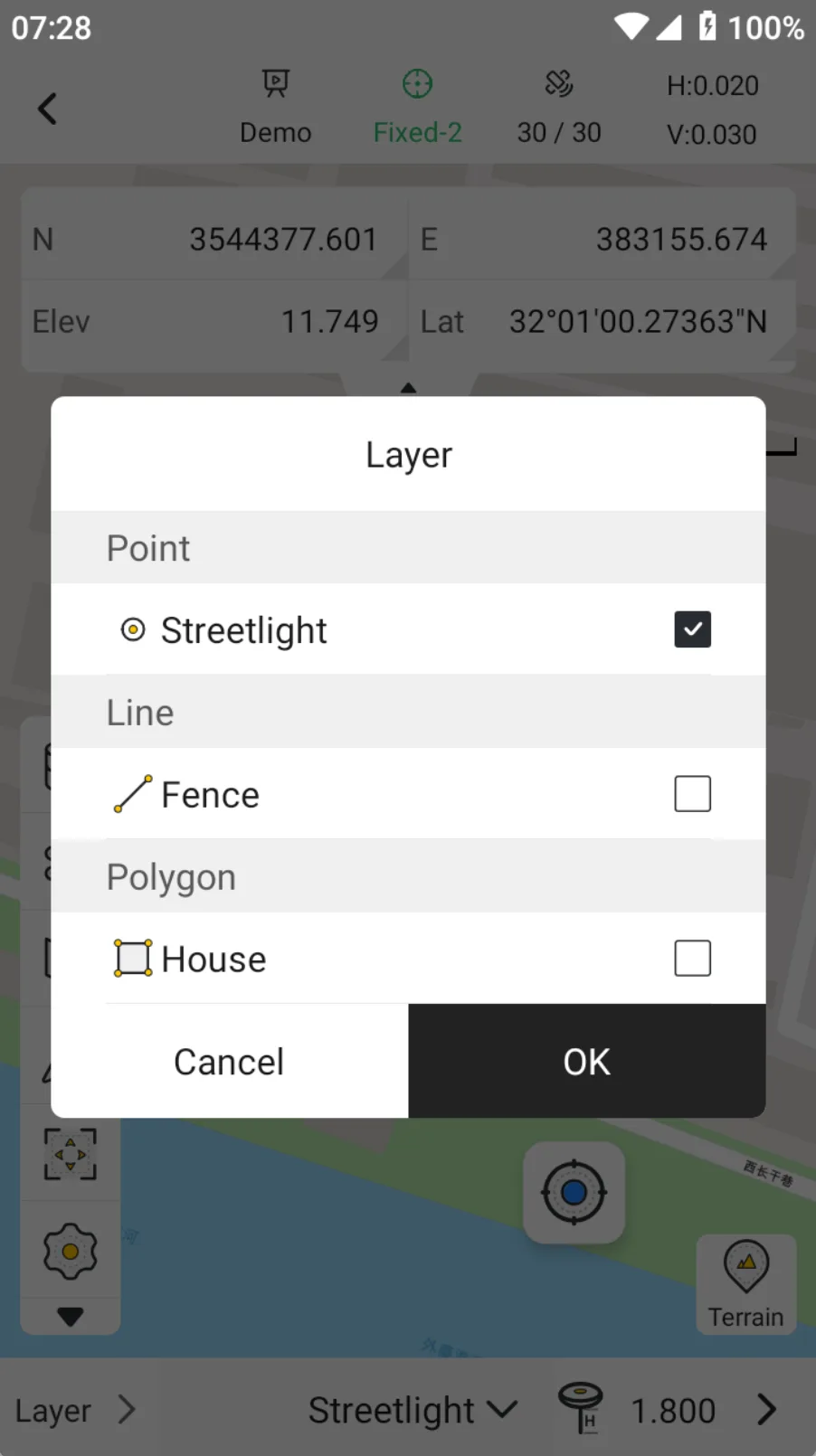 |  |
7.12.4 Result Export
After Data survey is completed, a series of spatial data results and attribute data results are usually exported for design, management, analysis, database construction, or delivery.
Click on the [Feature Library] on the toolbar to browse all the collected features. Use the drop-down button in the upper left corner to select and switch the displayed feature type. Different types of list items are different.
| Feature type | Display information |
| Point | Point ID, time, northing, easting, and elevation |
| Line | Line name, time, 2D length, 3D length |
| Polygon | Polygon name, time, 2D perimeter, 3D perimeter, 2D area, 3D area |
Click […] on the top right corner of the page, select Export, currently only supports exporting in shp format.