
7.2 Measure
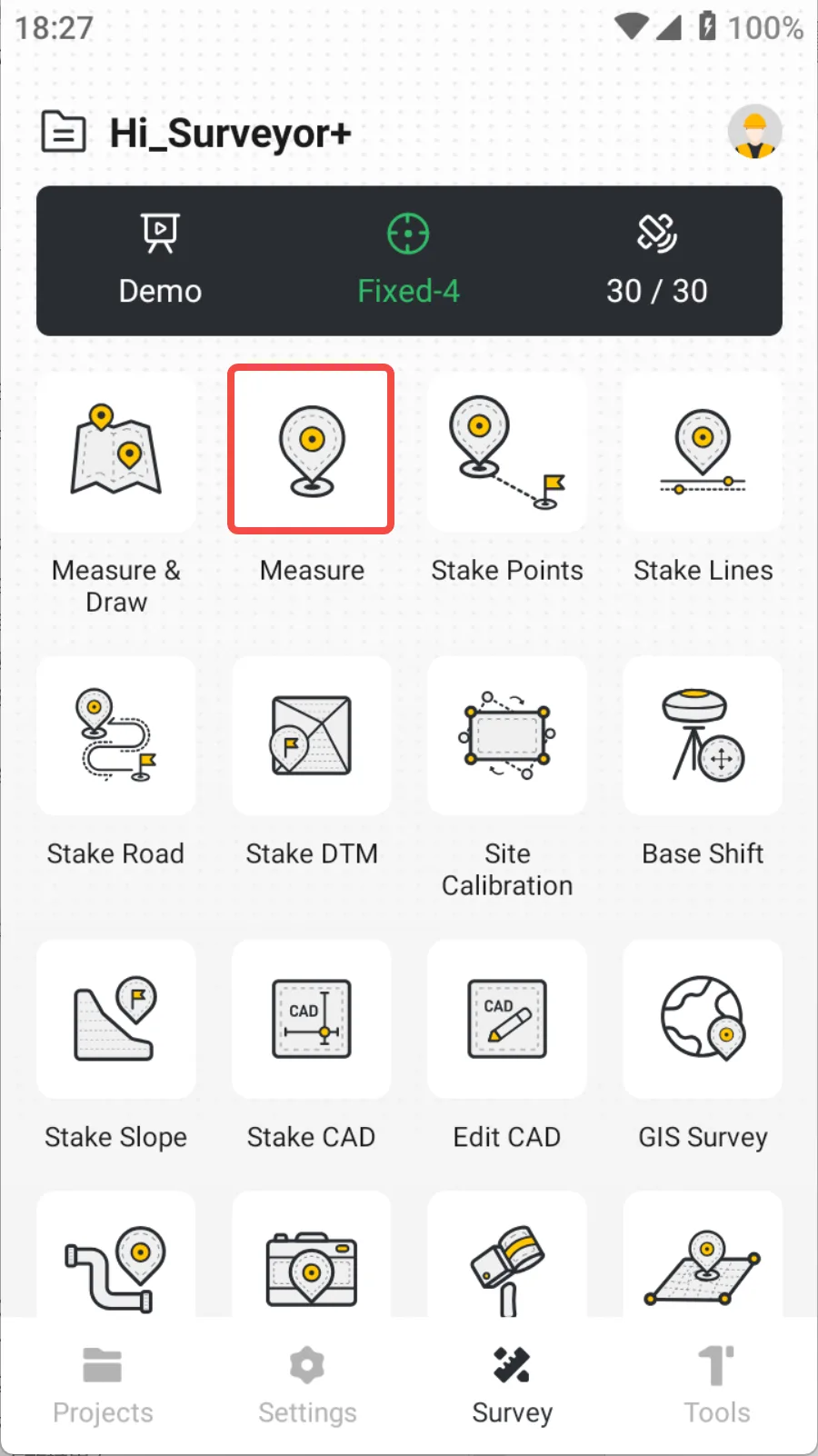
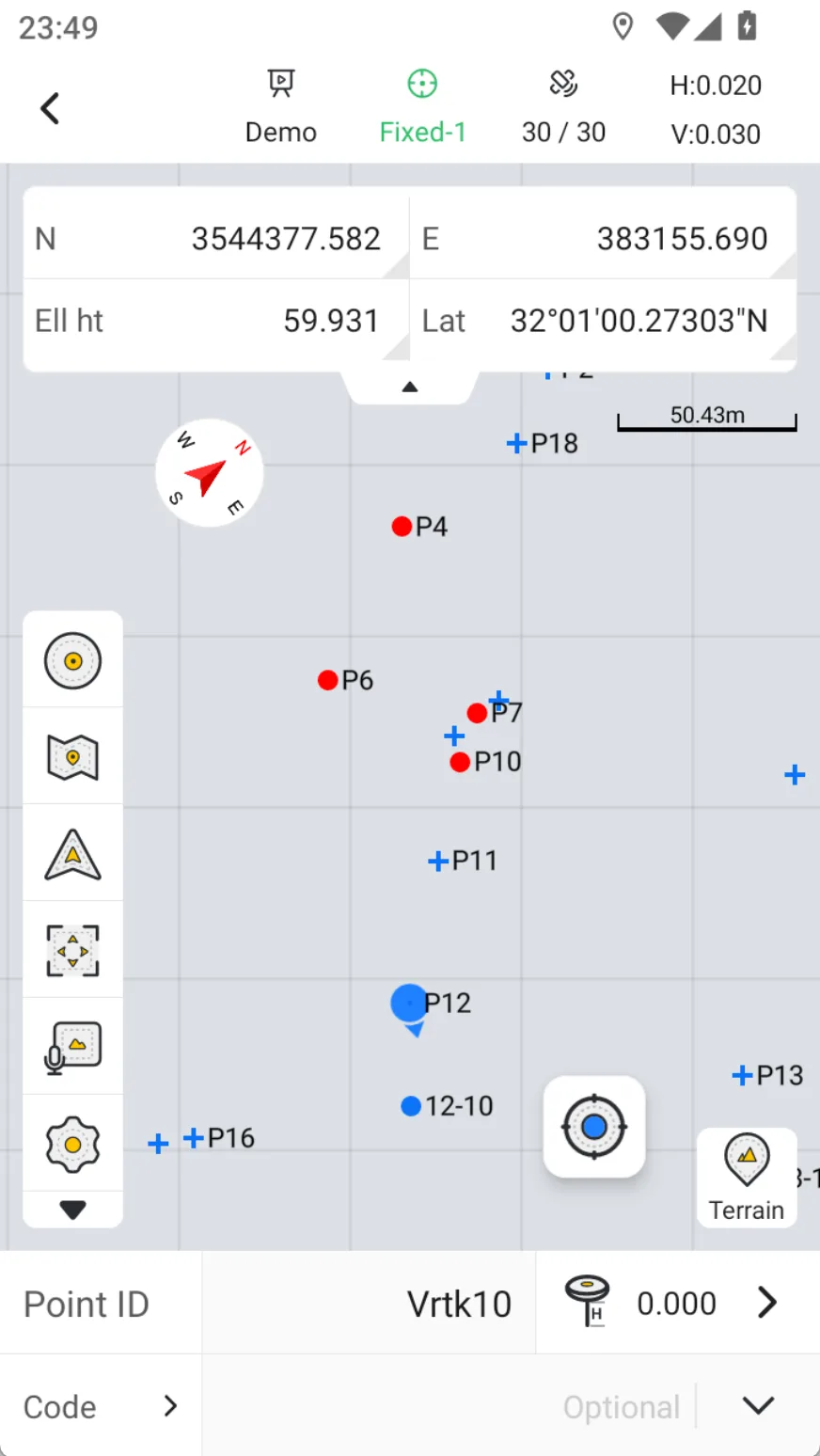
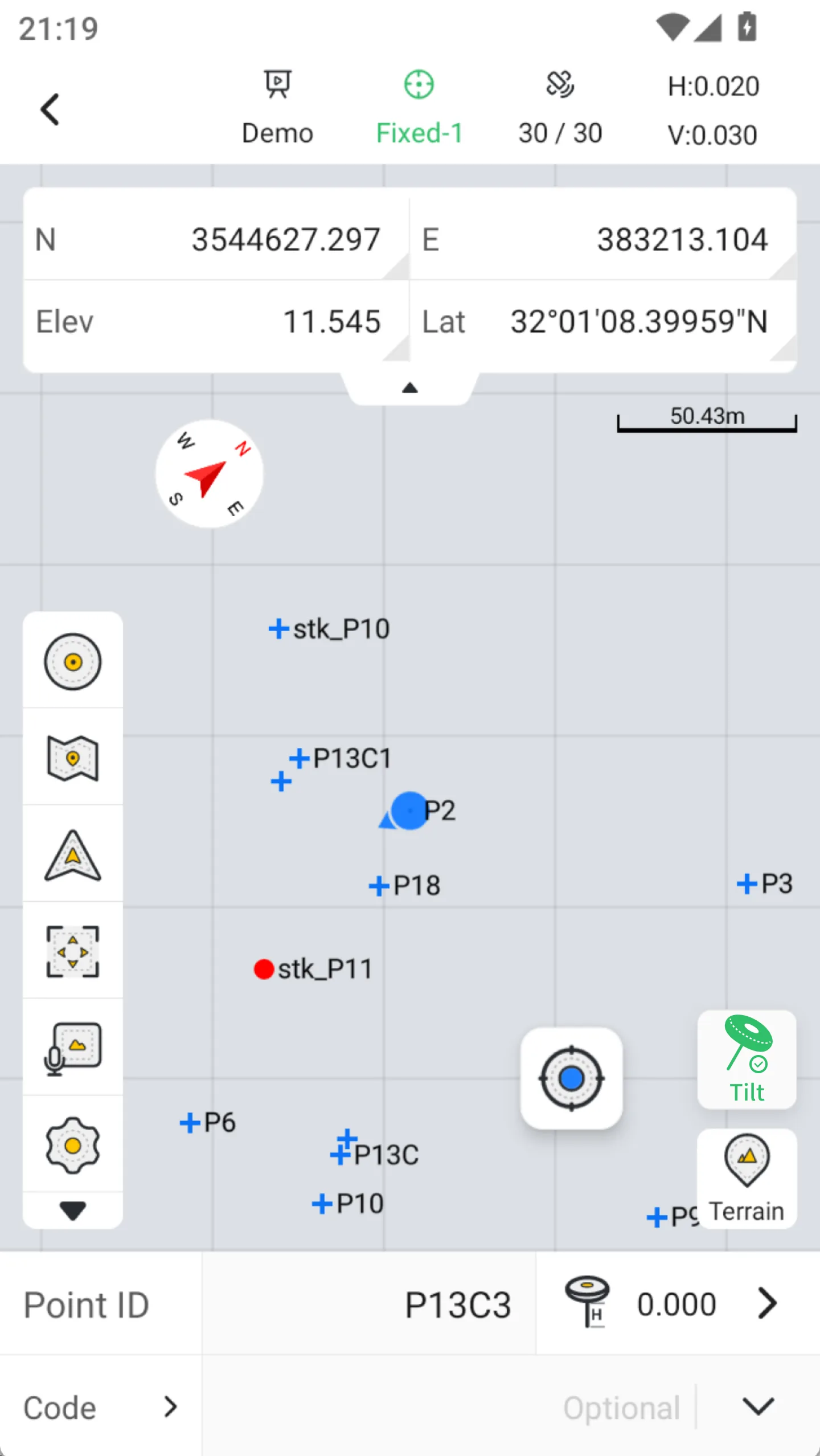
Measure is to obtain coordinates from a known position. Click [Survey] → [Measure] to open the main interface of point measurement.→
 |  |
7.2.1 Measure interface
| Name | Description |
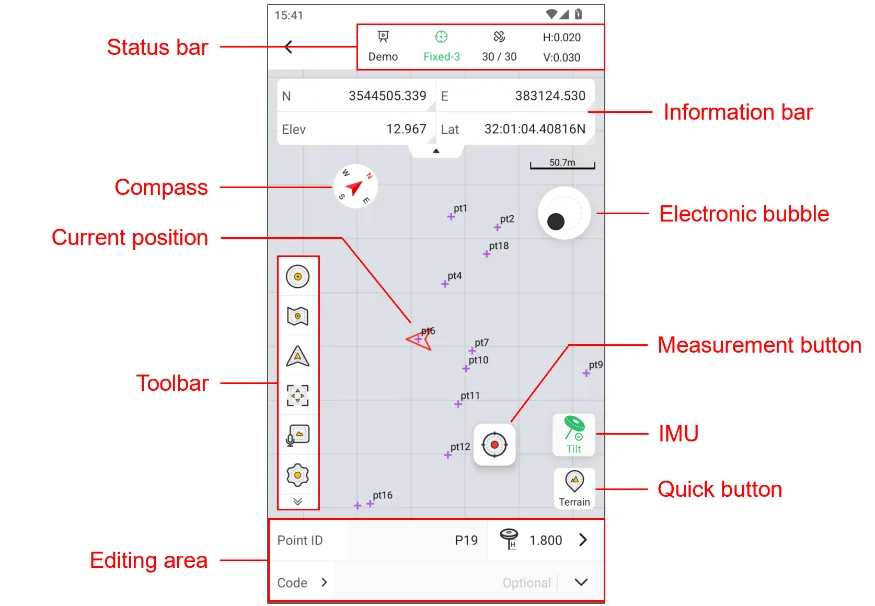
| Status bar | Display communication, solution status, No. of satellites, and RMS values |
| Information bar | 1. Display real-time point information, including latitude, longitude, ellipsoidal height, northing, easting, elevation, HRMS, VRMS, base station distance, etc. 2. Click the information bar box to switch the display. 3. When HRMS or VRMS exceeds the limit, the information box is highlighted in red. |
| Compass | Real-time display of direction information obtained from the handbook. |
| Toolbar | Display the commonly used tools for operating this function, see Chapter 7.2.2 for details. |
| E-Bubble | 1. It can be used after starting IMU tilt measurement. It is turned off by default and can be enabled in measurement settings. 2. When the tilt angle is ≥30 °, the color of the bubble turns black. |
| Current position | The triangular arrow indicates the current position, which can be modified in the settings. When the receiver moves, the arrow will always point in the direction of the receiver's progress. |
| Measurement button | After reaching the target location, click the measurement button to record the coordinates of the measurement point. |
| IMU icon | 1. 2. 3. |
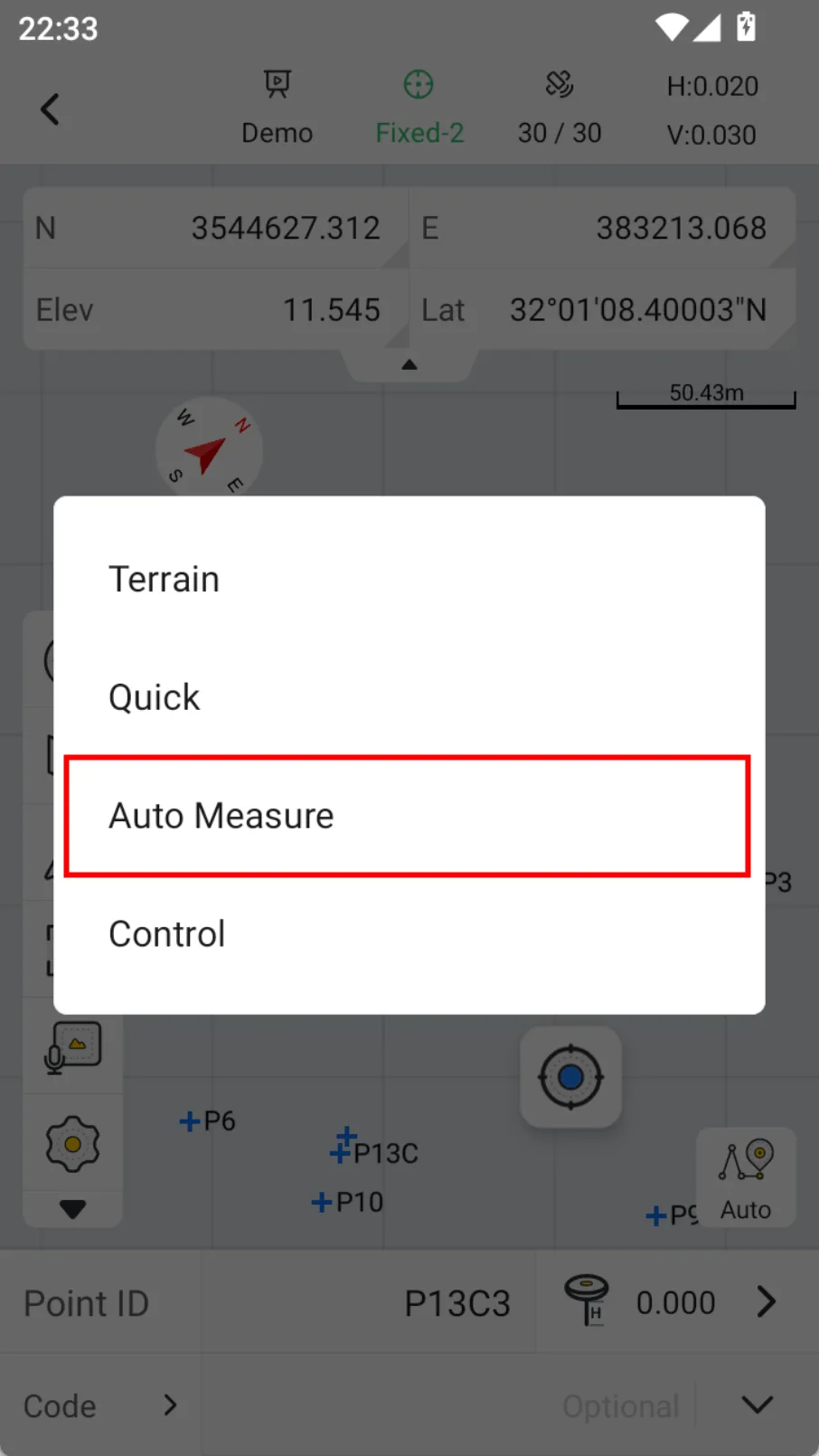
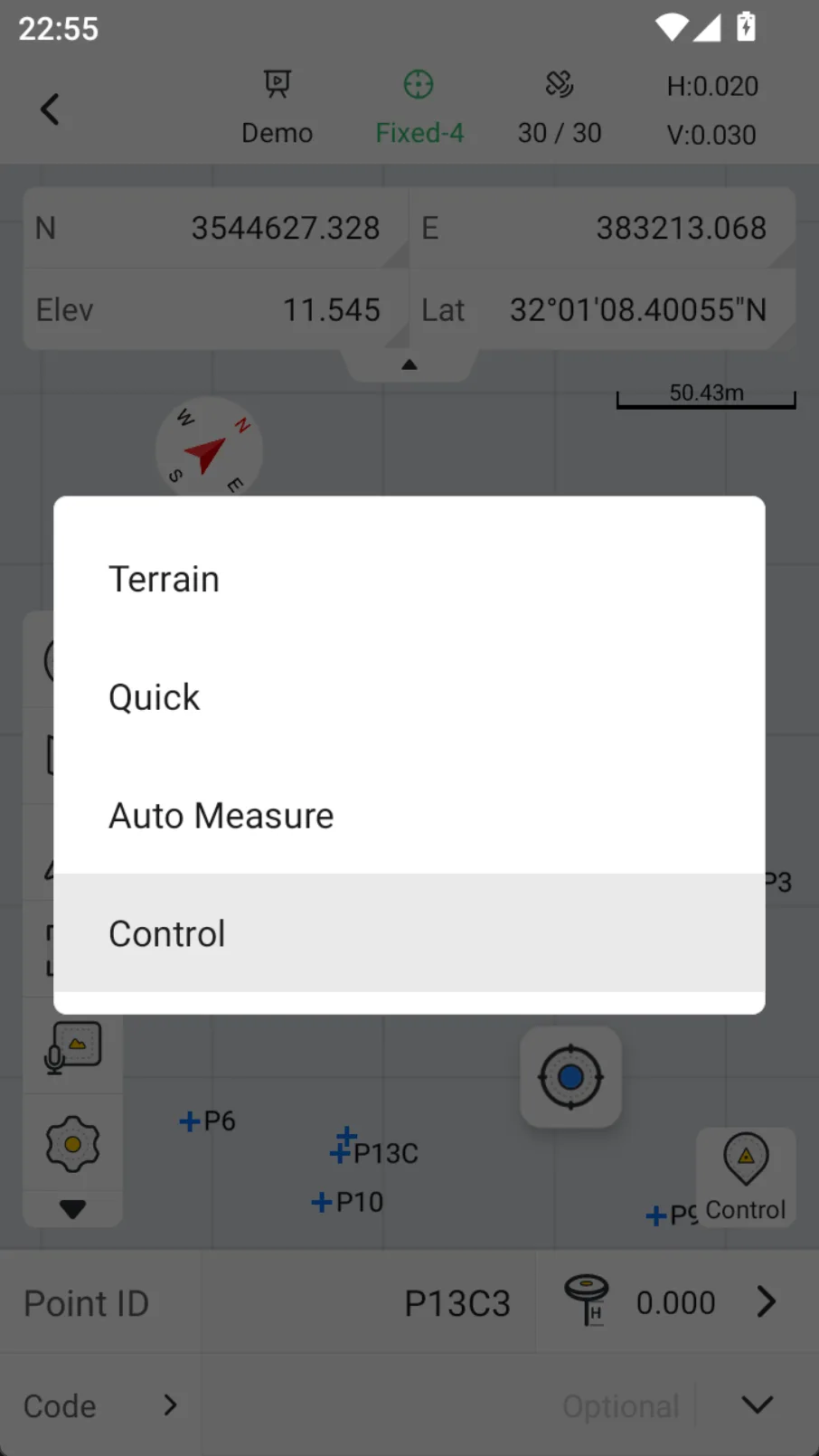
| Shortcut button | Quick switch button for measurement mode: 1. Terrain: Default measurement mode 2. Quick: Set the observation time to 1s 3. Auto Measure: auto measured according to time or distance intervals 4. Control: Switch to the control point for measurement |
| Editing area | 1. Point ID: Click to enter, the default measurement point name prefix can be customized. 2. Antenna height: Click to enter the antenna type selection and input page. 3. Code: Can be manually entered. When there is a user-entered code in the Codes, you can directly click the drop-down button to select it. Click the code label on the left, or you can directly jump to the [Codes] for selection. |
 IMU is not enabled.
 IMU is turned on but not available, need to shake for calibration.
 IMU is enabled and available.
7.2.2 Measure toolbar
| Icon | Name | Description |
 | Points | Click to open the point library, view the coordinates of the measured points, and optionally edit or delete the measured points by clicking on the measured points. |
 | Map | Click on the optional street or satellite map, the default is to turn off the map mode. |
| Default Centered Follow | Default: The map will not automatically zoom during measurement and stakeout, and manual operation is required. The interface will not update when the position changes. Centered: The current position and target point are always displayed in the interface. If you manually drag the map, wait a few seconds and it will automatically return to the centered mode. Follow: The map rotates as the stakeout direction changes, and the current position is always in the middle of the interface. |
 | Full screen | Click the rear view to zoom in and show all points. |
 | PPK | PPK acquisition switch, see Chapter 8.7.2 for details. |
 | Fast code | Quick encoding switch, see Chapter 7.2.7 for details. |
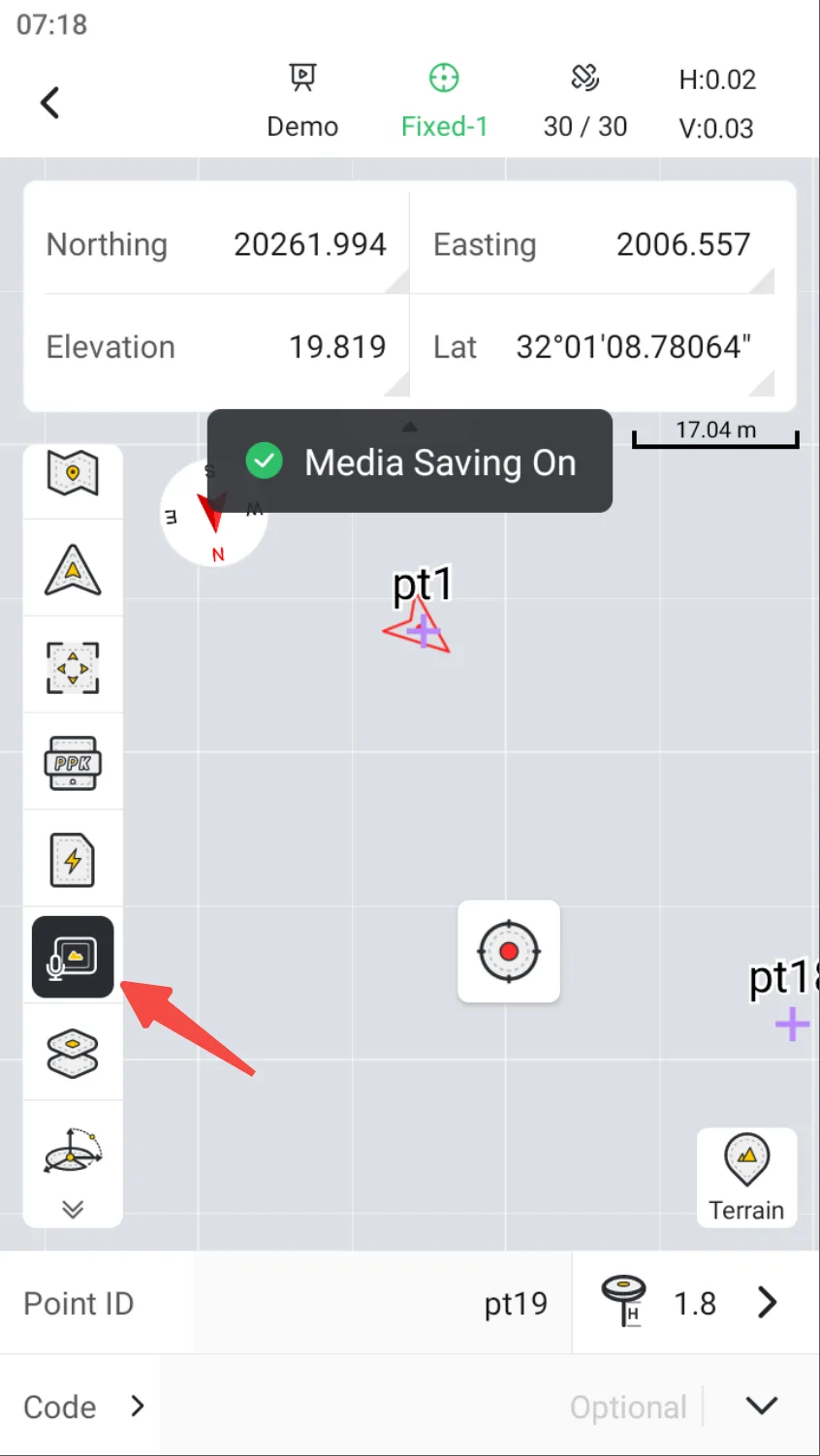
 | Media | Add a Media information switch to obtain and save Media information after measurement is completed. |
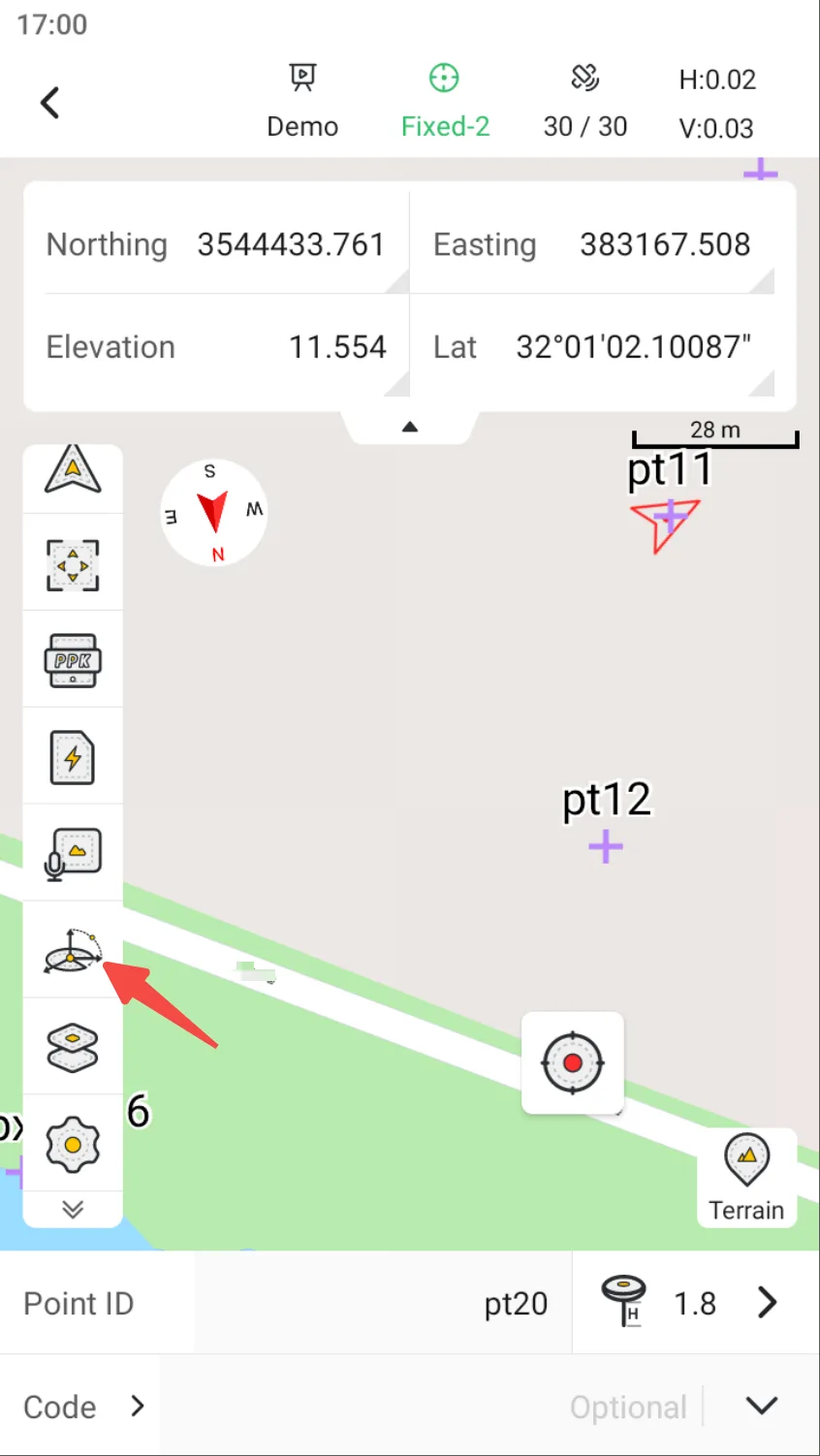
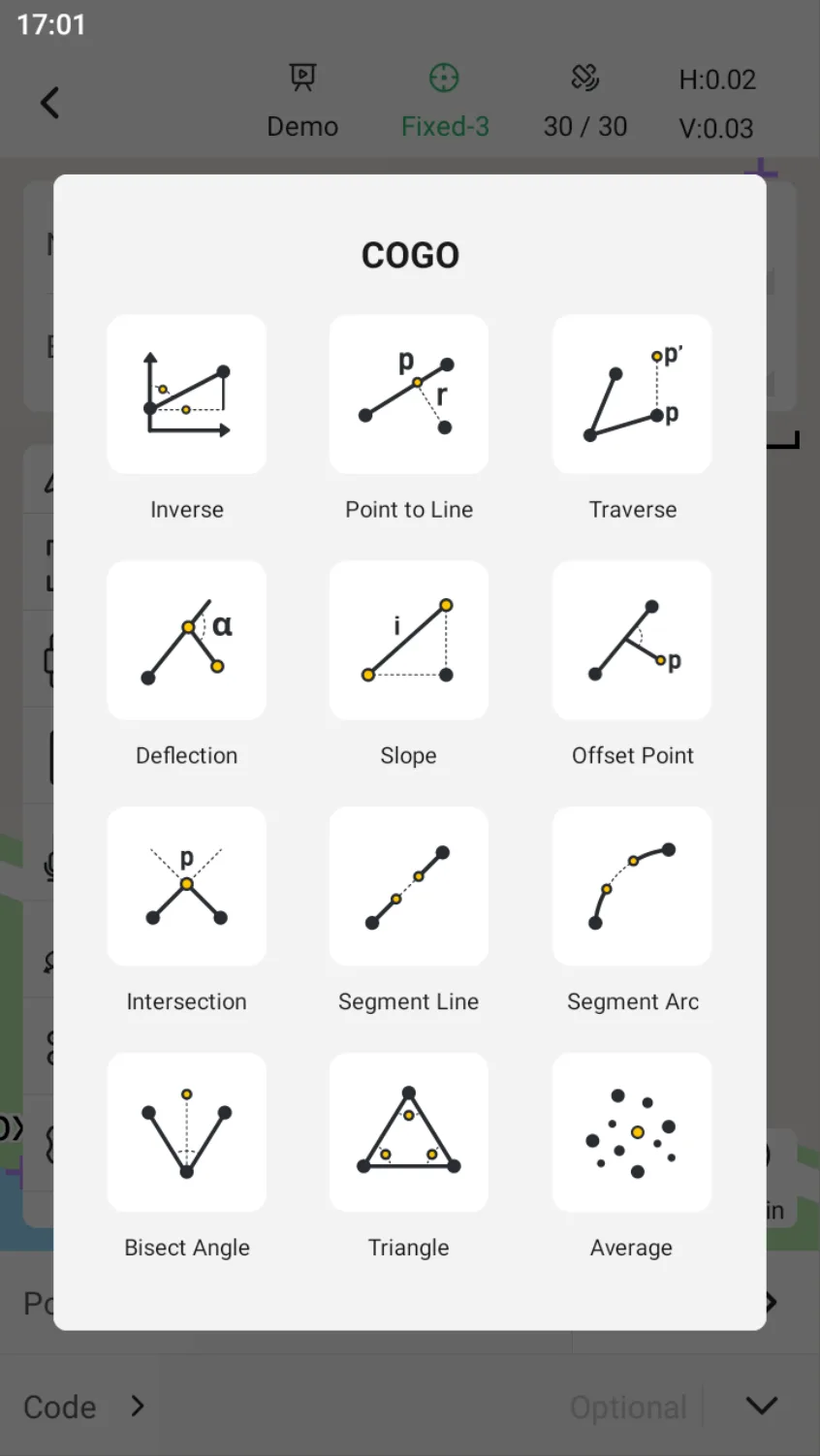
 | COGO | COGO tool shortcut entrance, can configure display/hide and sort in display settings. |
 | Layer | Click to open the Layer Management (External Data Management) page, where you can load vector layers on the map. |
 | Lock Screen | Lock the screen to prevent accidental touch, slide to unlock. |
 | Settings | Measurement settings entrance, see Chapter 6.4.4 for details. |
 | Area Calc | Area calculation, see Chapter 8.2 for details. |
 | Inverse | Inverse calculation, see Chapter 8.5.1 for details. |
 | Laser | Laser measurement, see Chapter 7.2.13 for details. |

7.2.3 Map Switch
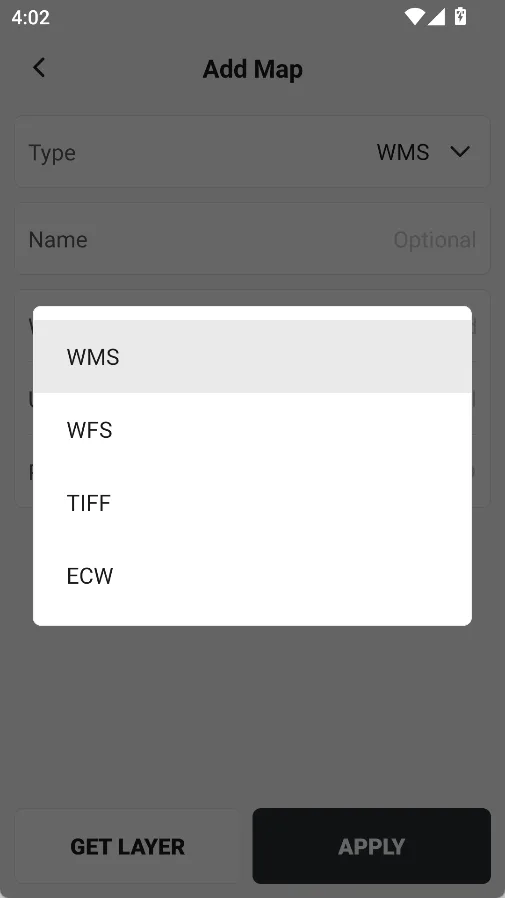
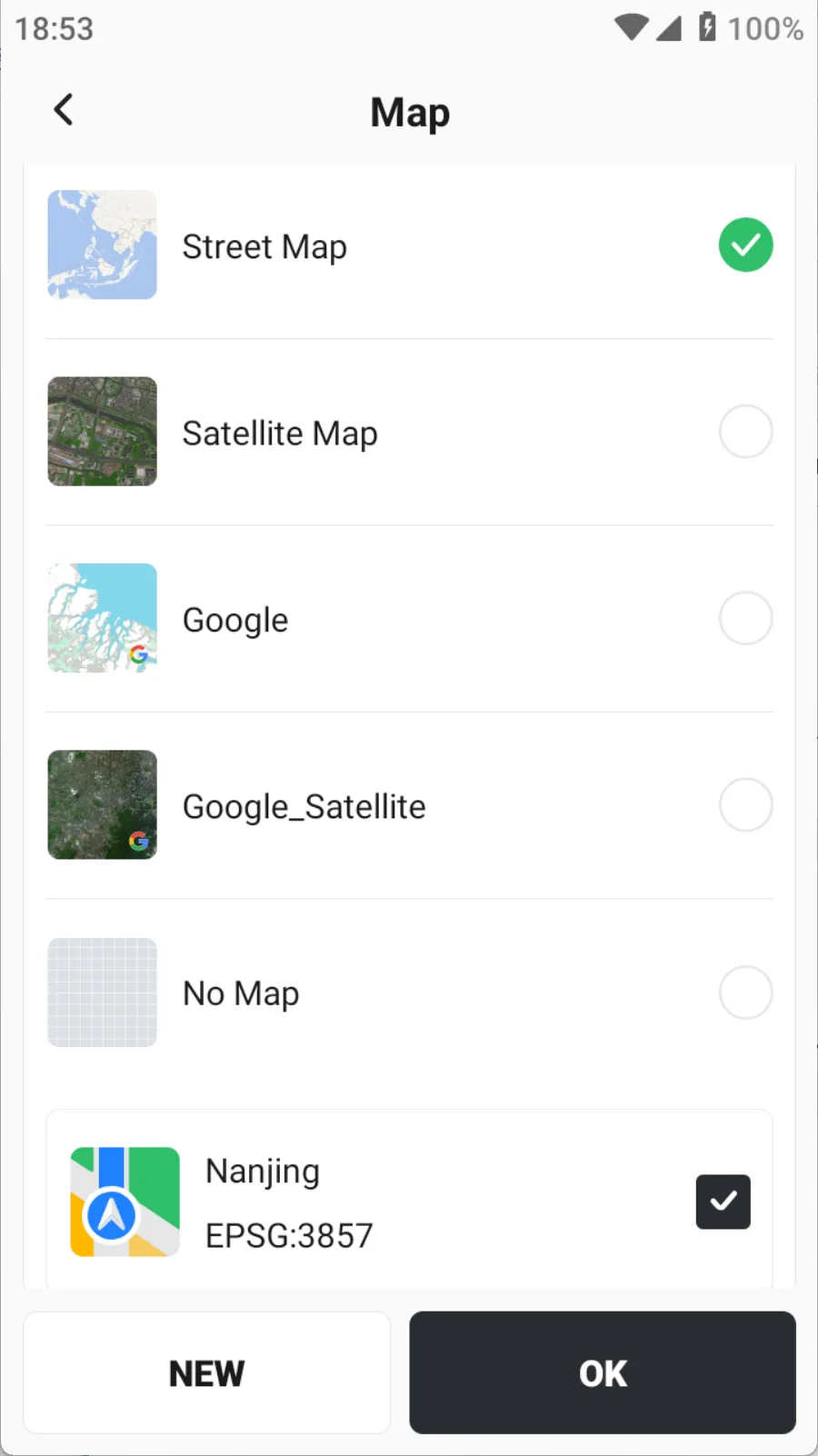
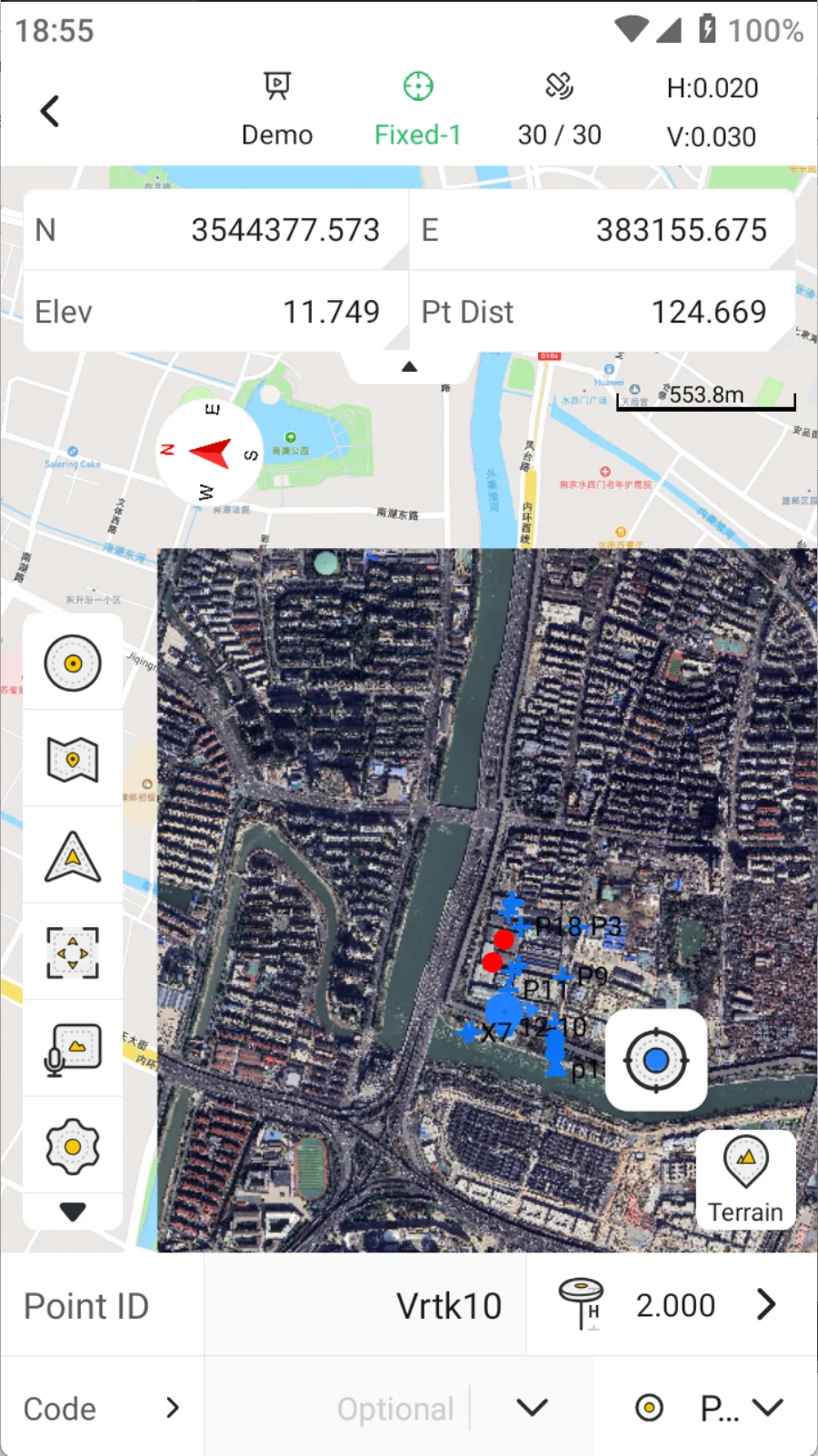
Trion Survey supports switching maps to street map or satellite map, and also supports adding multiple [WMS]/[WFS]/[TIFF]/[ECW] maps. If the added map coordinate system is EPSG-3857, it supports displaying it simultaneously with street map or satellite map.
 |  |  |
7.2.4 Centralized measure
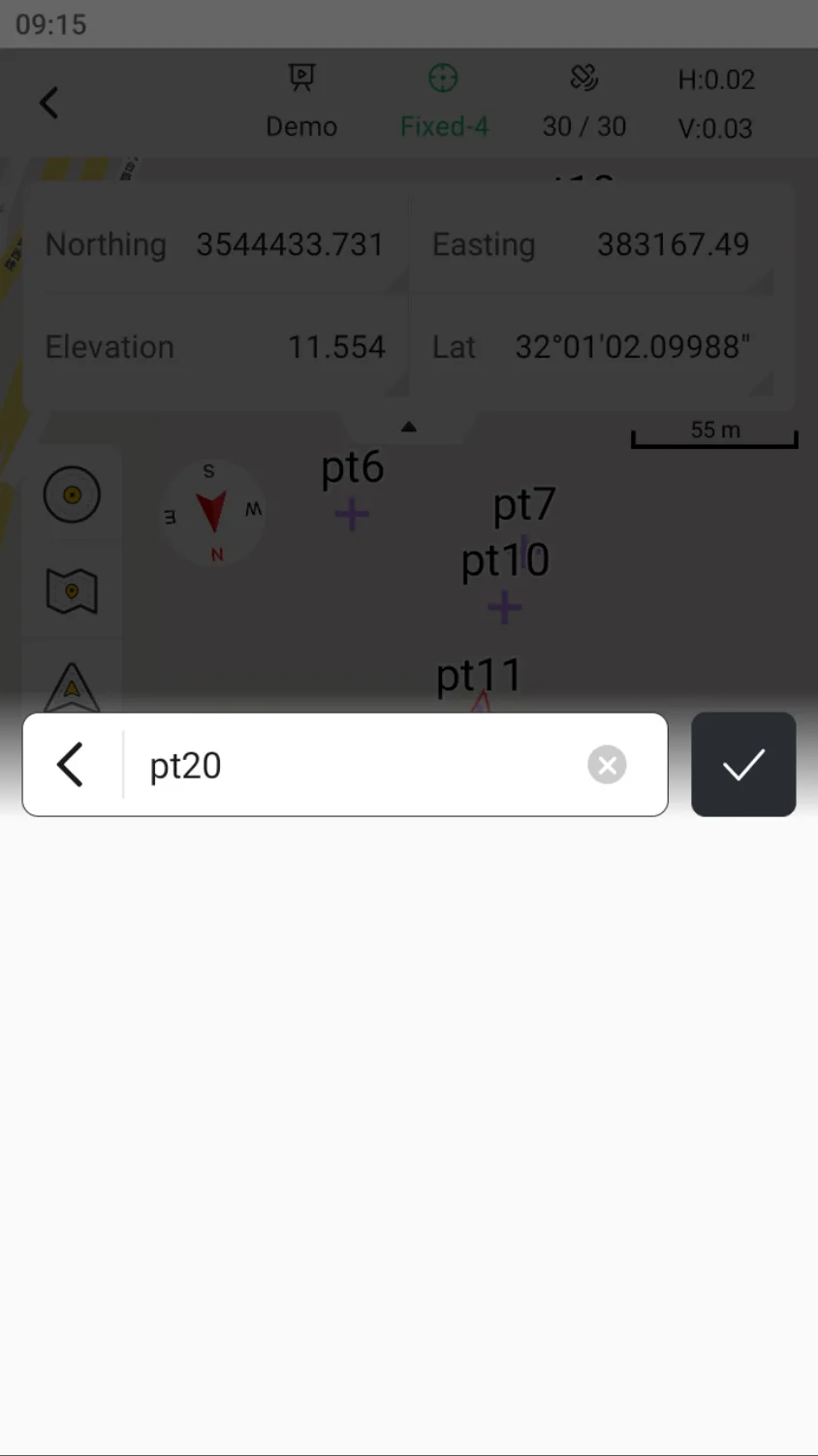
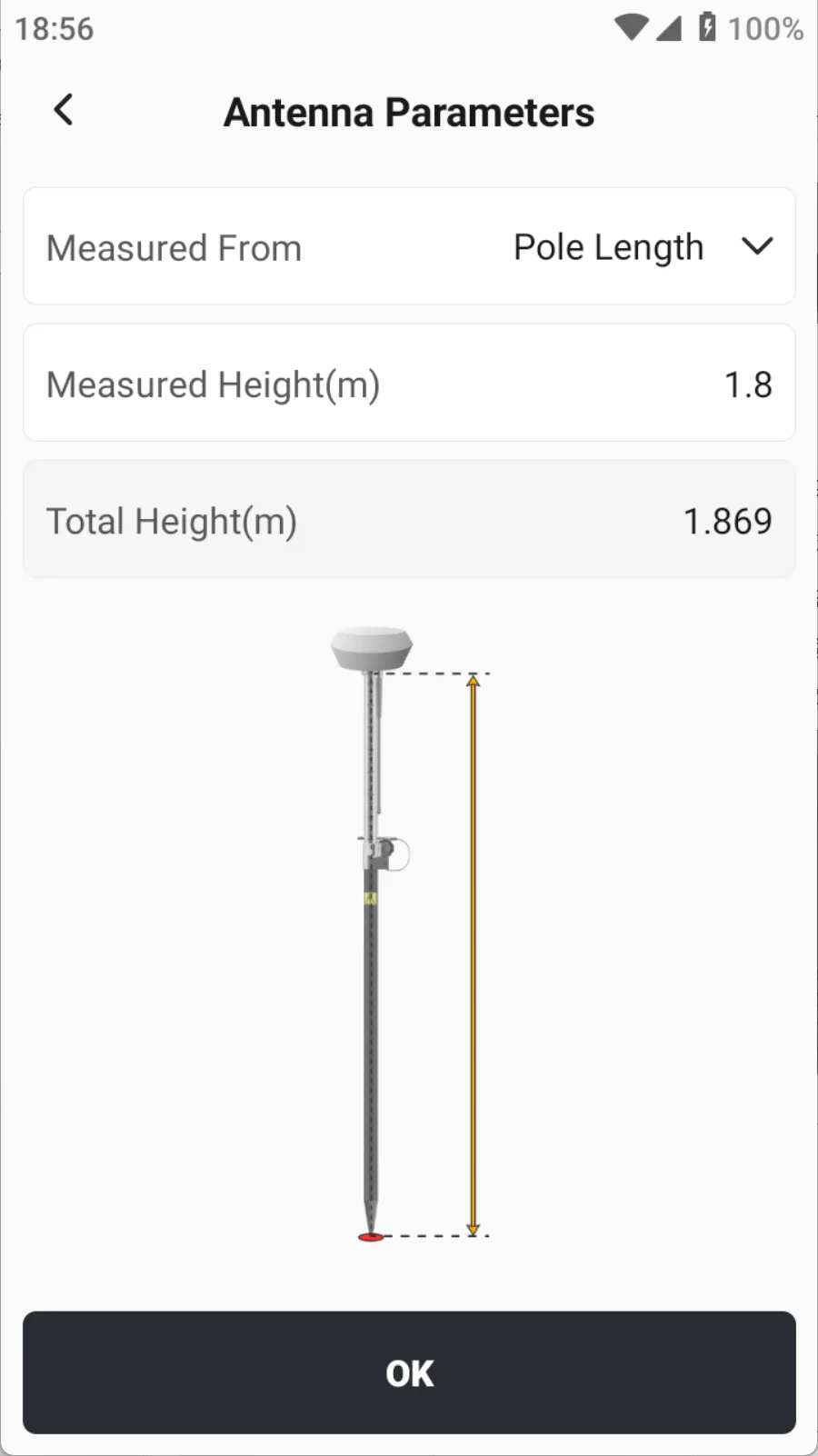
- Enter the point name, antenna height and code information in the editing area of the measurement page.
- Use the bottom tip of the centering rod to press against the point, so that the centering rod bubble is centered.
- Click the measurement button in the fixed solution state, save the measurement points to the Points, and view the measured point in the [Points] interface.
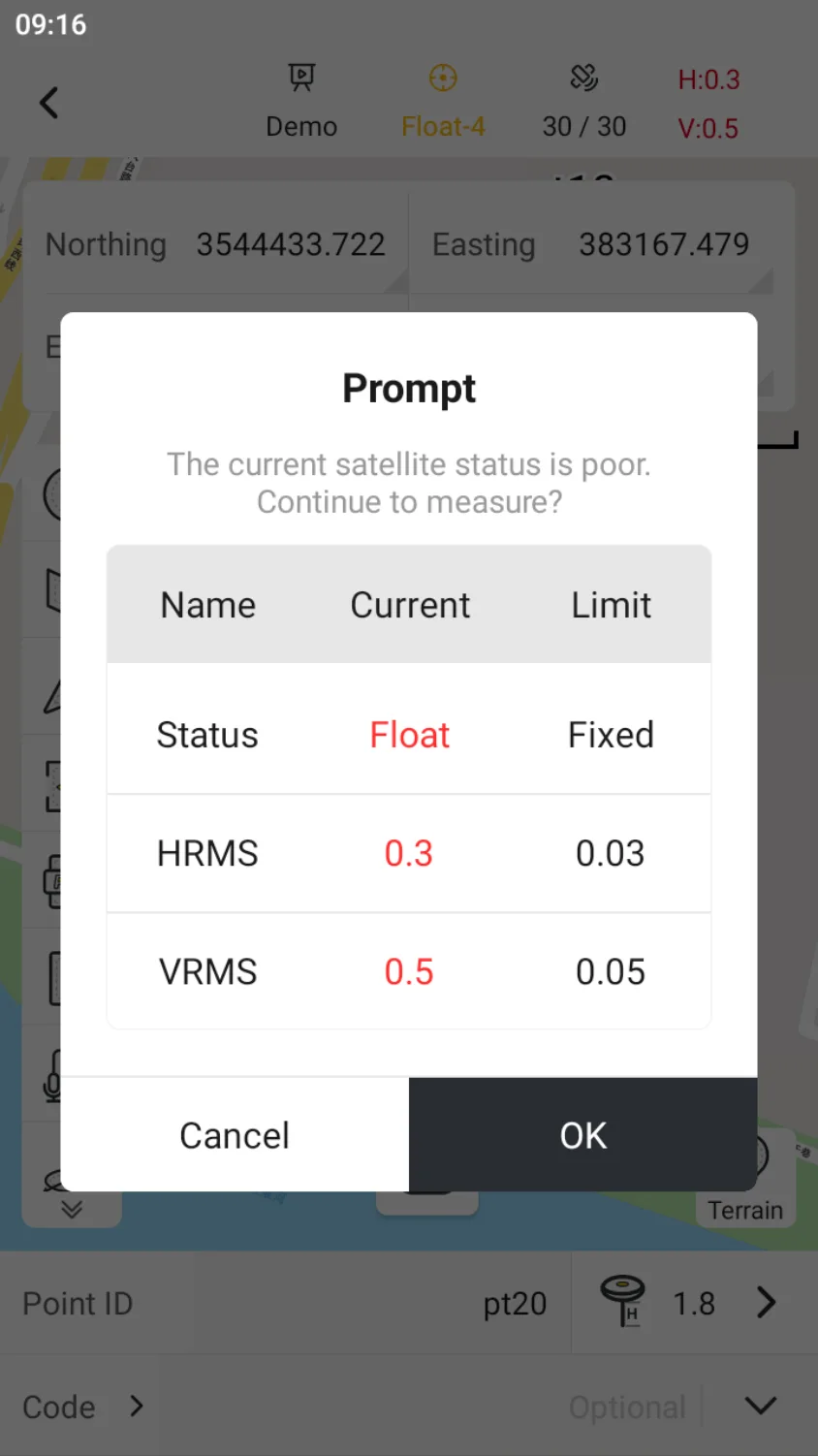
- If the measurement exceeds the limit, a pop-up window will prompt whether to continue. Click the Settings button on the toolbar to set the specific limit in the measurement settings., See Chapter 6.4.4.1 for details.
 |  |  |
7.2.5 Tilt measure
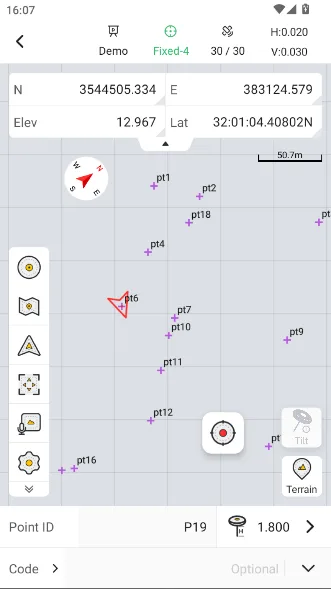
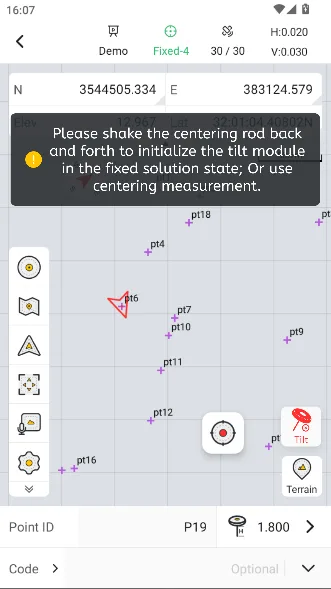
When the receiver supports tilt measurement, you can enable tilt measurement in Trion Survey by clicking the IMU icon on the right side of the measurement page. It should be noted that:
- For the first use, shake and calibrate according to the page prompts. It is recommended to shake at least 6 times to fully initialize the IMU.
- If you stay in place for a long time or the receiver rotates in place, the IMU accuracy will decrease. Please follow the page prompts to shake and recalibrate.
- The best effect is to tilt within 30 °, and the maximum tilt angle is recommended not to exceed 60 °.
- For high-precision measurements, it is recommended to turn off tilt measurement.
 |  |  |
7.2.6 PPK measure
Trion Survey supports PPK collection and calculation, see Chapter 8.7 for details.
7.2.7 Quick code
Some projects require adding codes to the points to mark different attributes. If there are too many codes and the targets are mixed, frequent switching of codes is required during measurement, which is very inconvenient. Based on this requirement, Trion Survey has supported [Quick Code] function.
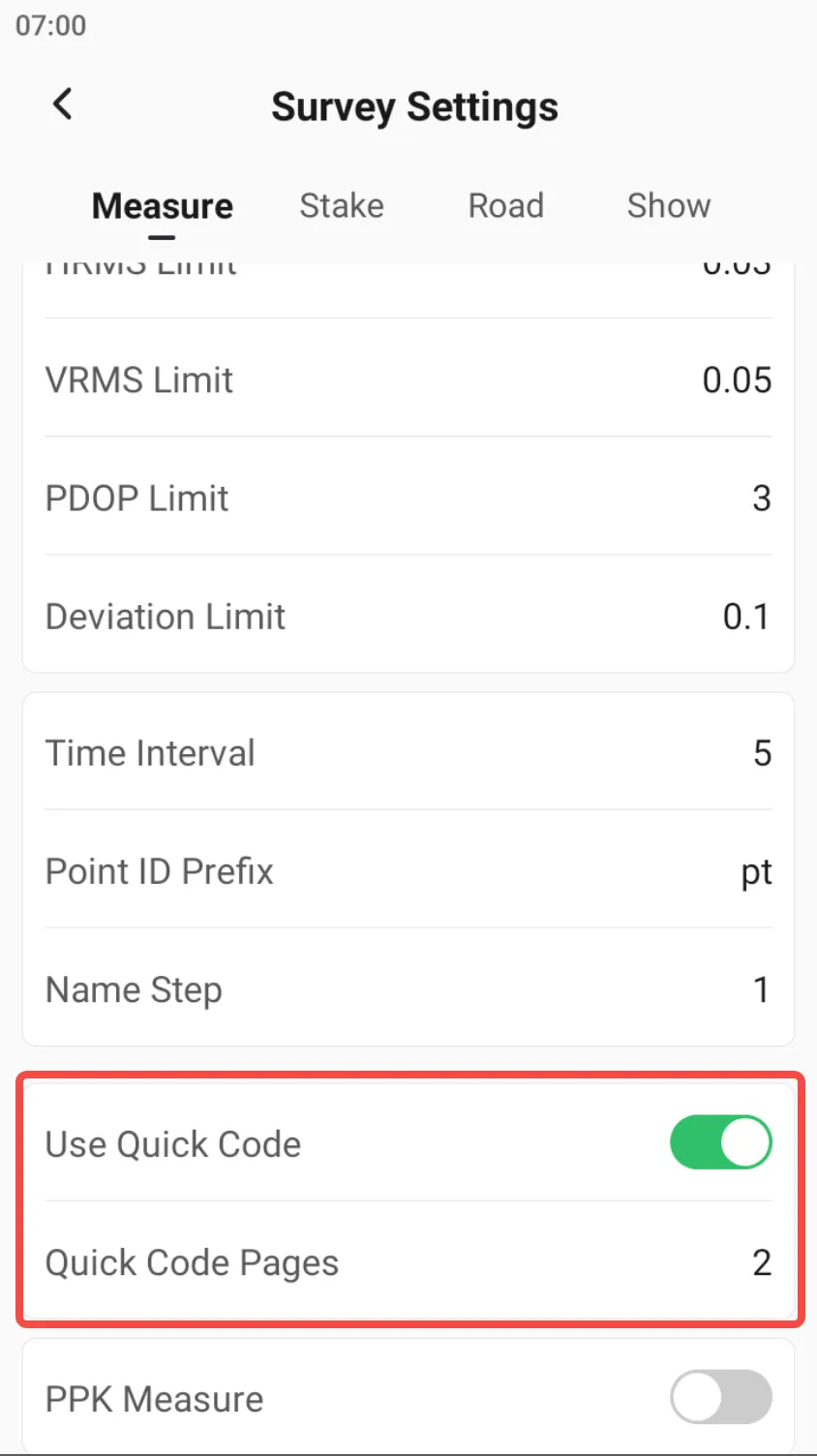
Click the Settings icon on the toolbar, turn on the Quick Code switch in Measurement Settings, and set the number of panels, the default is 2.
Note: Please add the code in Codes first before setting.
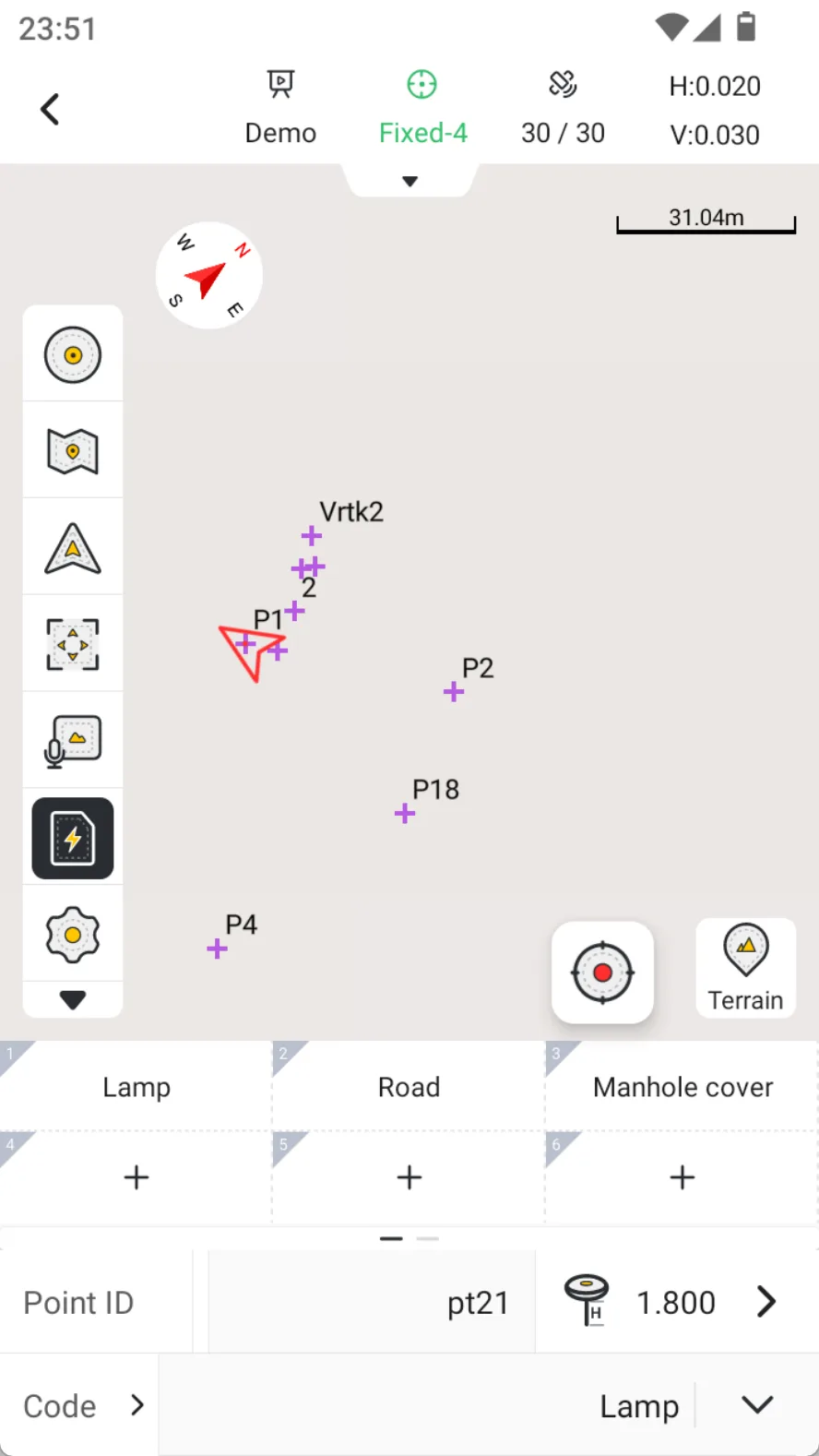
After setting up, there will be a Quick Code icon on the toolbar. Click on the icon to open the Quick Code panel. During the measurement process, you can click on the icon to show/hide the panel at any time.
The code panel is easy to operate:
- Click [+] to add a code;
- Click the code to start measuring
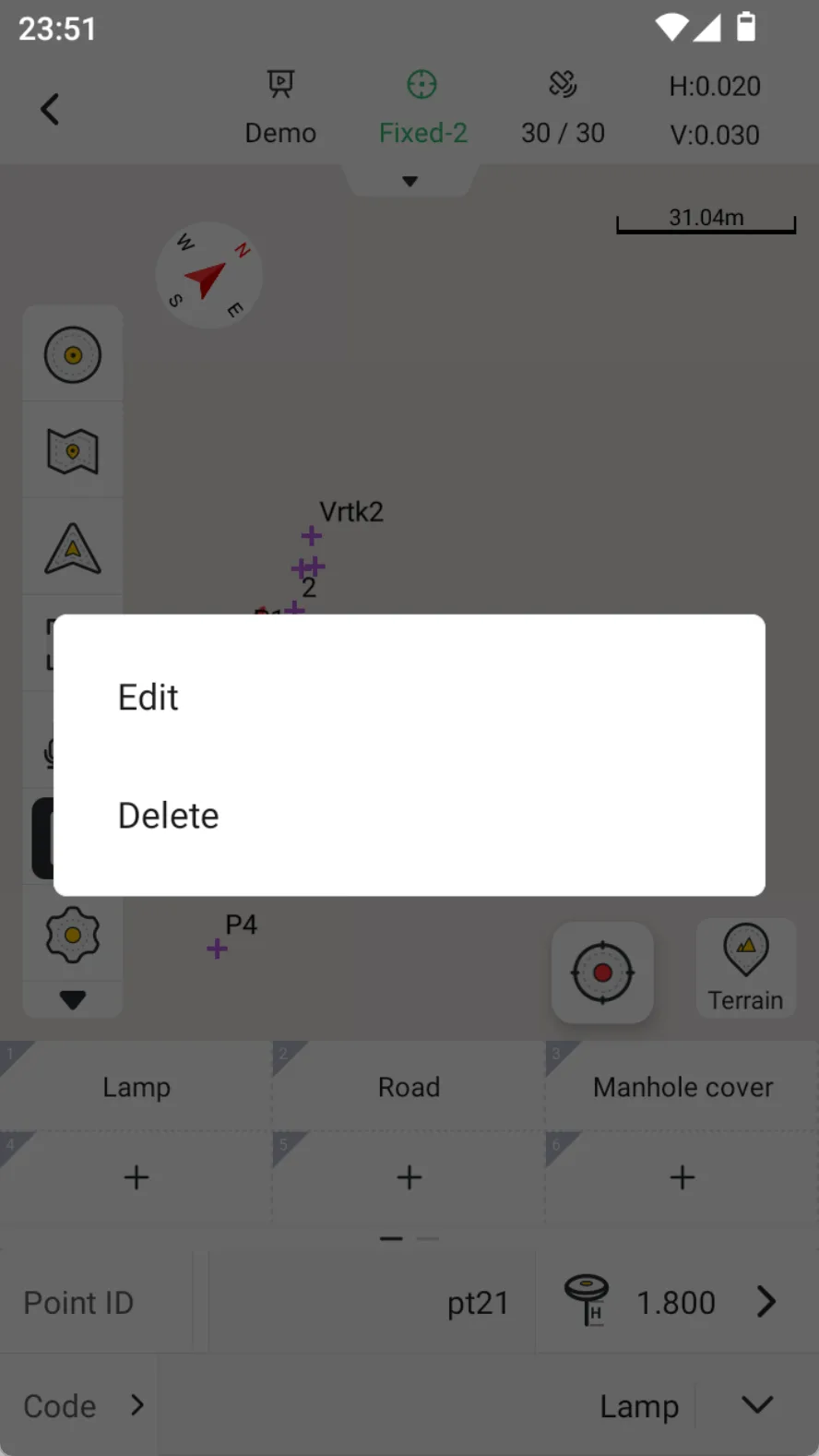
- Long press the code to modify or delete it.
- Support clicking on the numeric keypad of the controller for quick measurement.
 |  |  |
7.2.8 Media storage
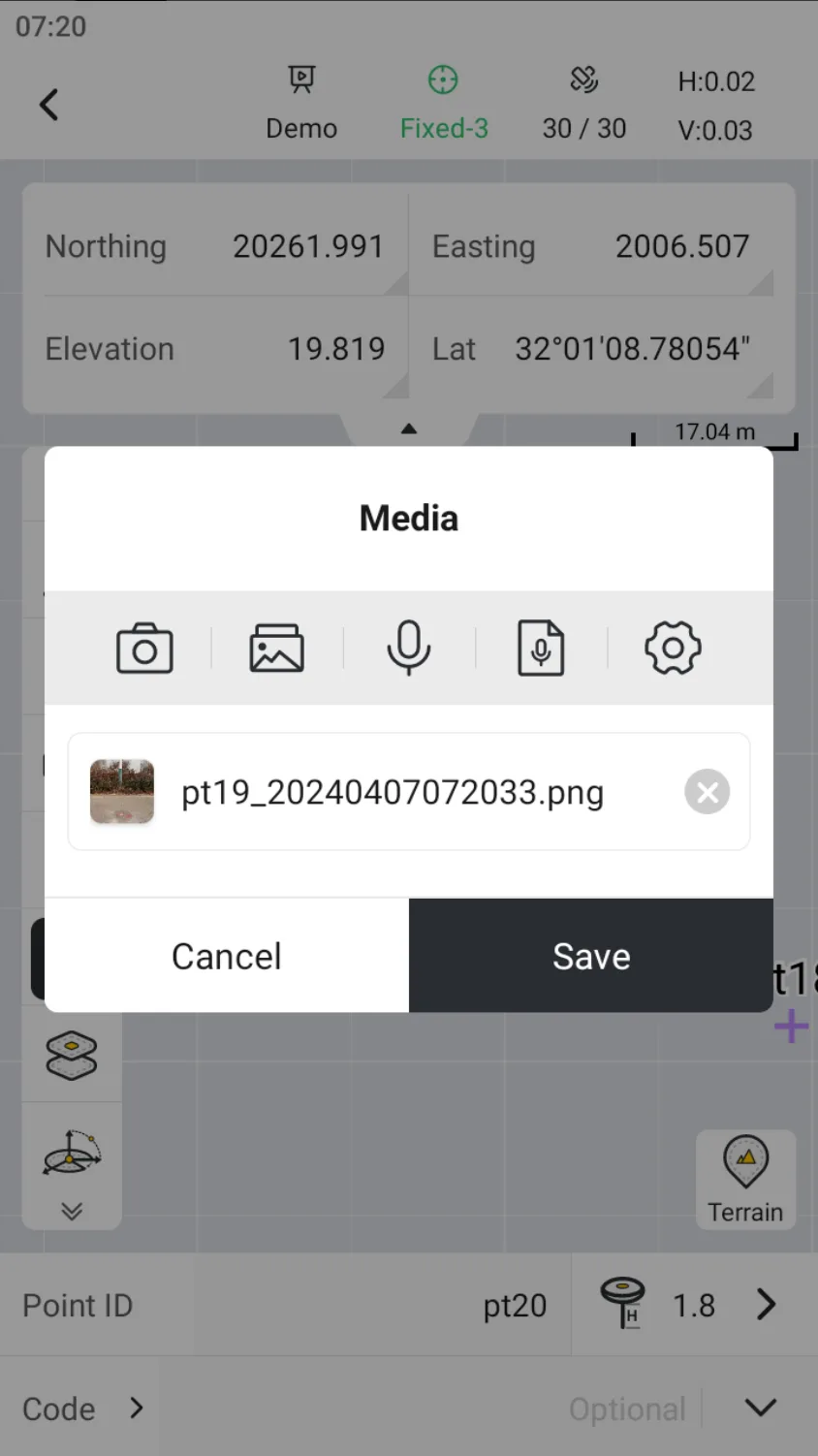
Media information can be added to points in the point details, or added in real time during the measurement process. Just activate the icon saved by media, and the media editing pop-up window will appear after the measurement is completed.
 |  |
7.2.9 COGO quick tool
Click [COGO] on the toolbar to quickly call up the COGO tool and return to the measurement page after the calculation is completed. The tool supports sorting and show/hide, see Chapter 6.4.4.4 for details.
 |  |
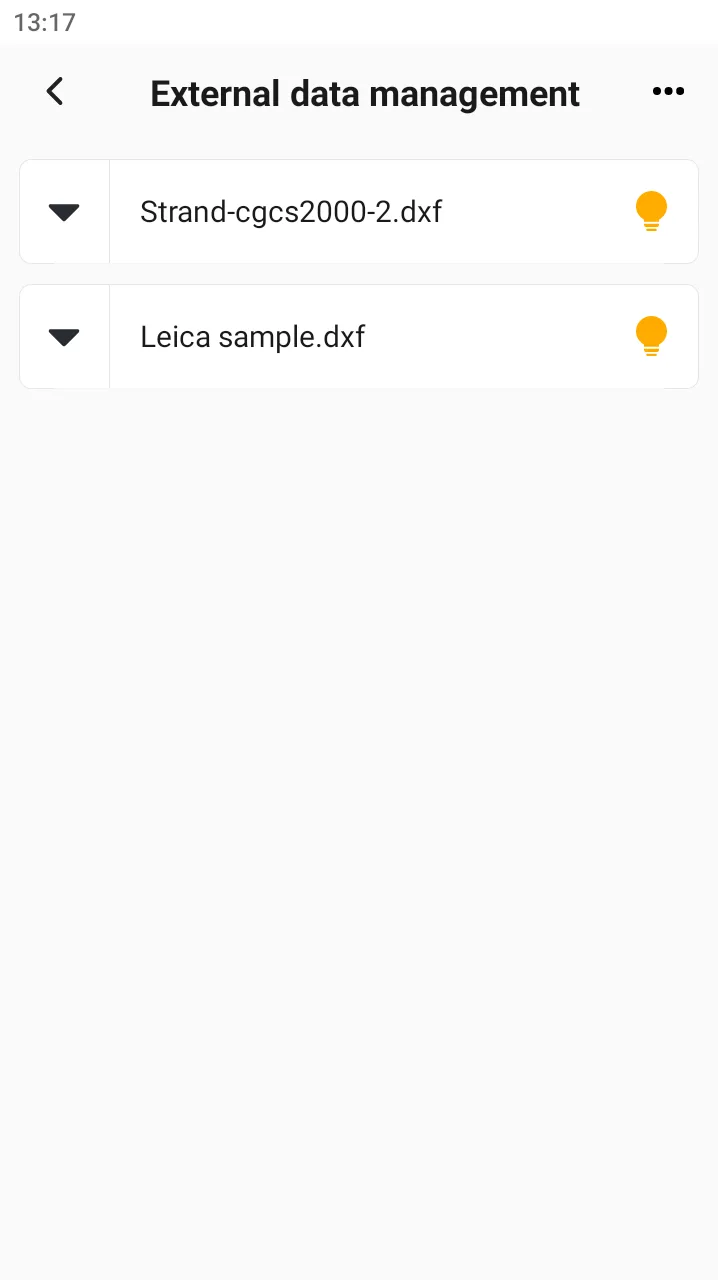
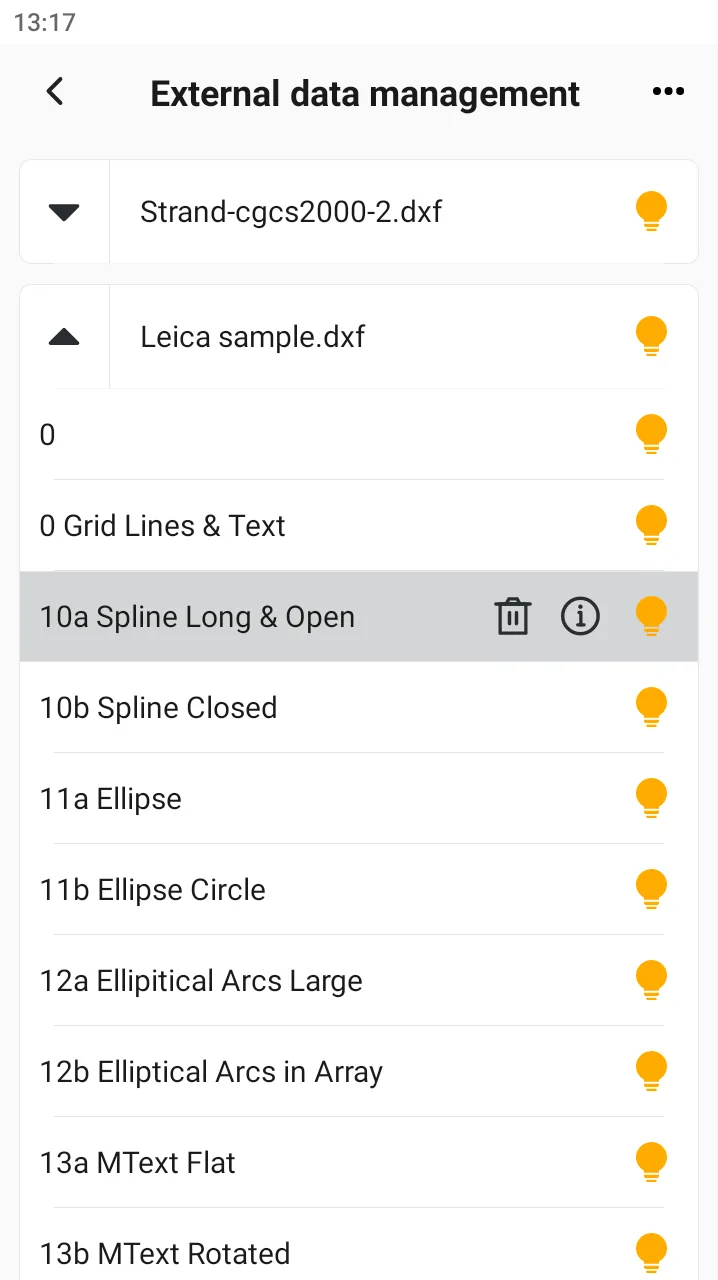
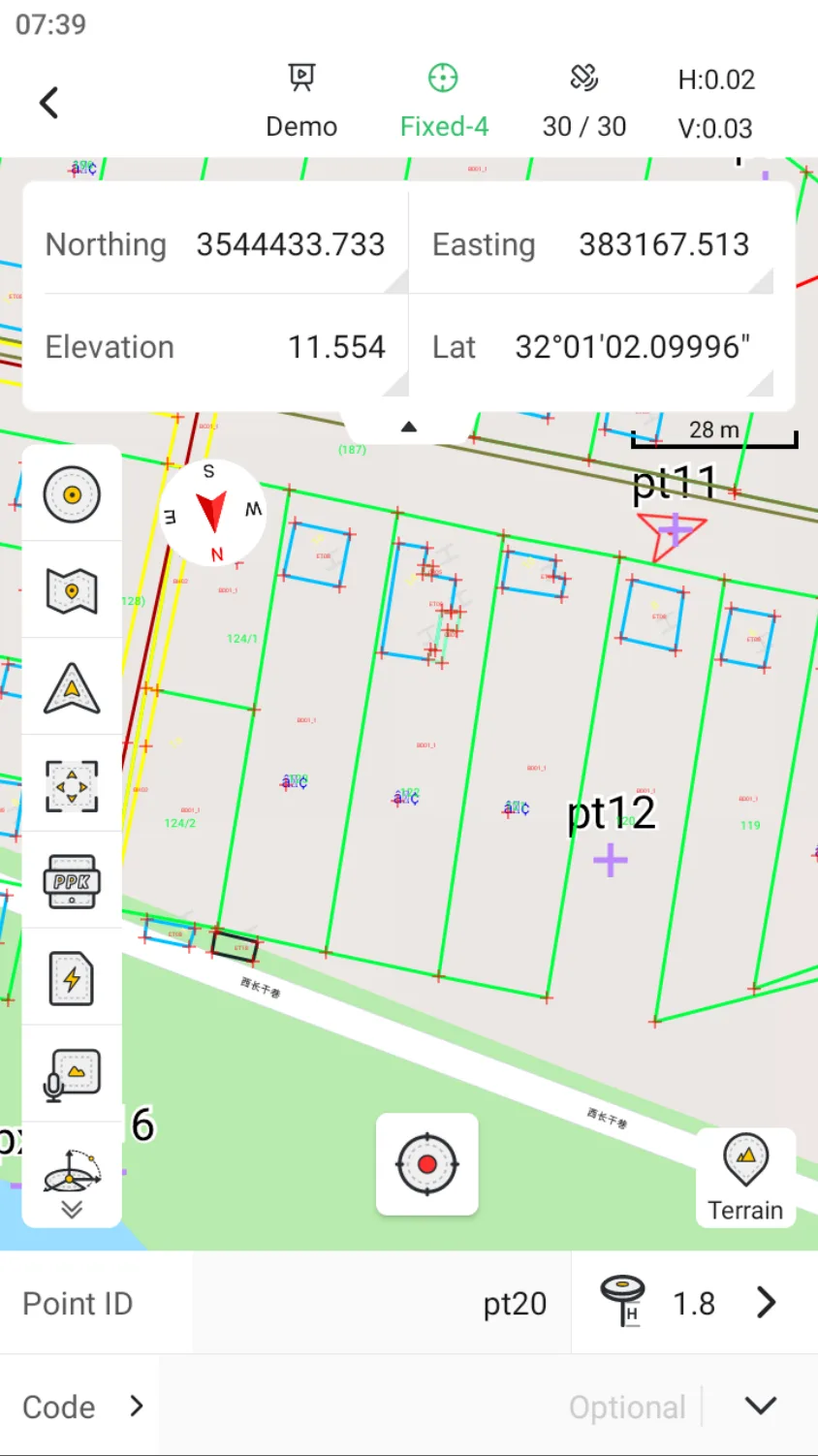
7.2.10 Layer
Support adding vector geospatial files to the map, currently supporting three formats: *.dxf , *.dwg, *.xml, *.shp and *.kml. Selecting a layer allows you to choose to show/hide, delete or edit.
Note: To ensure the smoothness of map operation, it is recommended to add a file size of no more than 10 MB.
 |  |  |
7.2.11 Auto Measure
Click the shortcut button to switch between different measurement modes.
| Mode | Description |
| Terrain | Default mode, measurement time defaults to 5 seconds. |
| Quick | Measure and record 1 epoch to quickly obtain measurement results. |
| Auto Measure | Automatic measurement based on time or distance intervals. |
| Control | IMU is not available, set multiple measurements, and obtain high-precision measurement results through limit settings. |
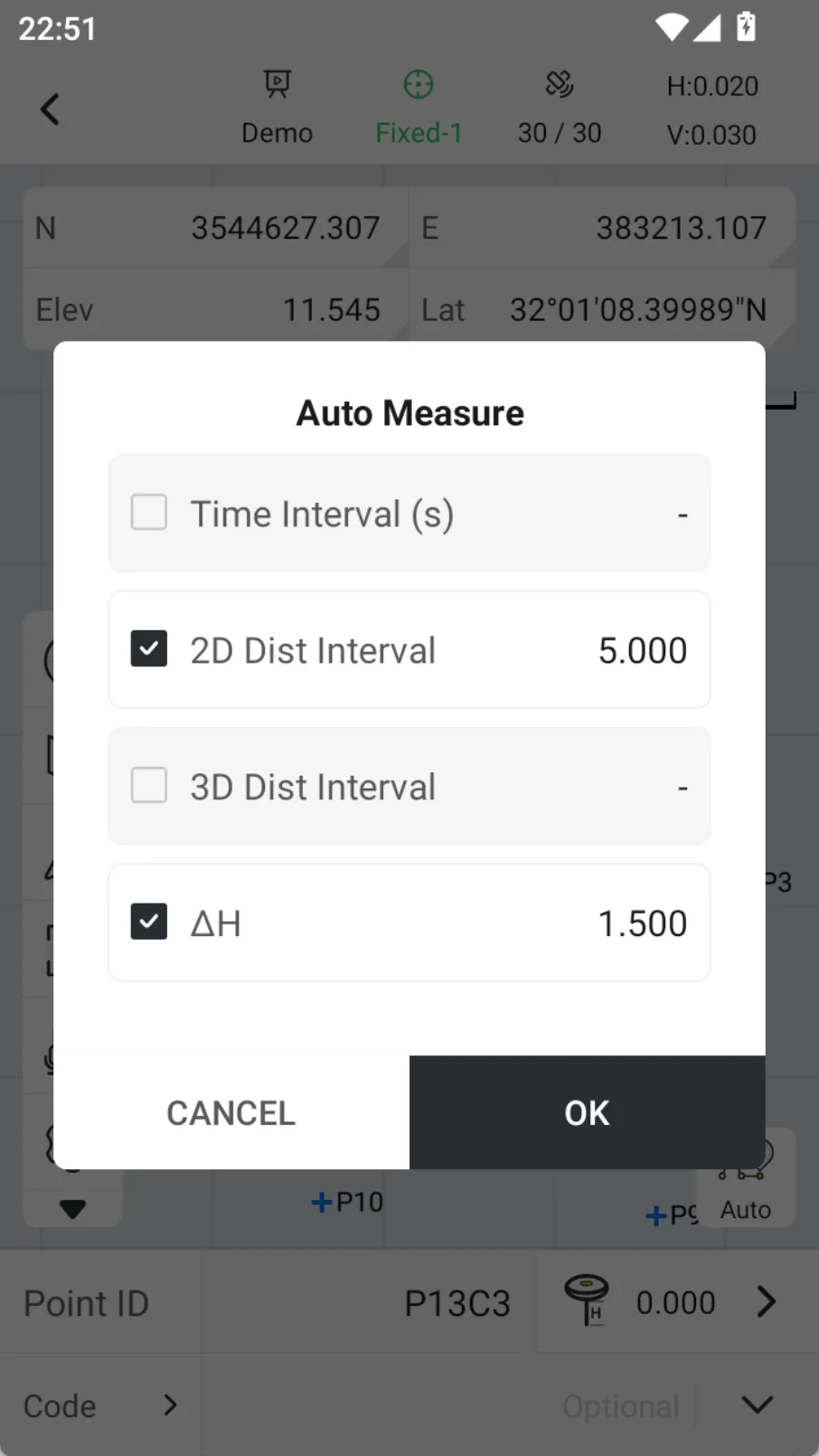
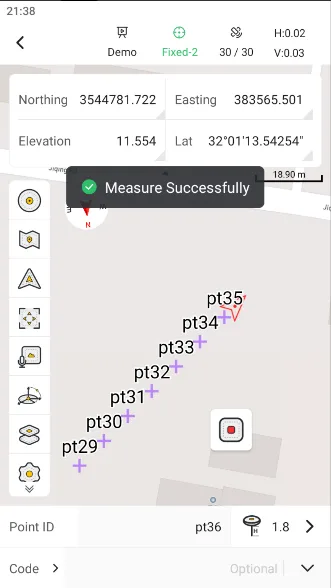
Setting up Trion Survey to automatically save measurement points according to certain rules will greatly reduce user operations. Click the shortcut button, select Auto Measure, and the optional measurement methods include time interval, 2D distance, 3D distance, and elevation difference.
Note:
- Four methods can be set simultaneously, and as long as one is satisfied, it will be automatically measured.
- For more settings of continuous point measurement, see Chapter 6.4.4.1;
 |  |  |
7.2.12 Control Measure
In topographic mapping, in order to establish a unified and reliable measurement benchmark, a series of points with high plane and elevation accuracy are usually needed to form a measurement control network, which are called control points.
Generally, to obtain control points with millimeter-level accuracy, total station observation or GNSS static measurement methods are usually used. If the project requires centimeter-level accuracy, RTK measurement method can be considered to obtain control points. By increasing the number of measurements and combining quality control conditions such as plane and elevation limits, the reliability of RTK control point measurement results can be further improved. Before starting the measurement, please check the relevant limit parameters of the control point measurement in the settings to ensure that they meet the accuracy requirements of the current project. For details, see Chapter 6.4.4.1.
 | 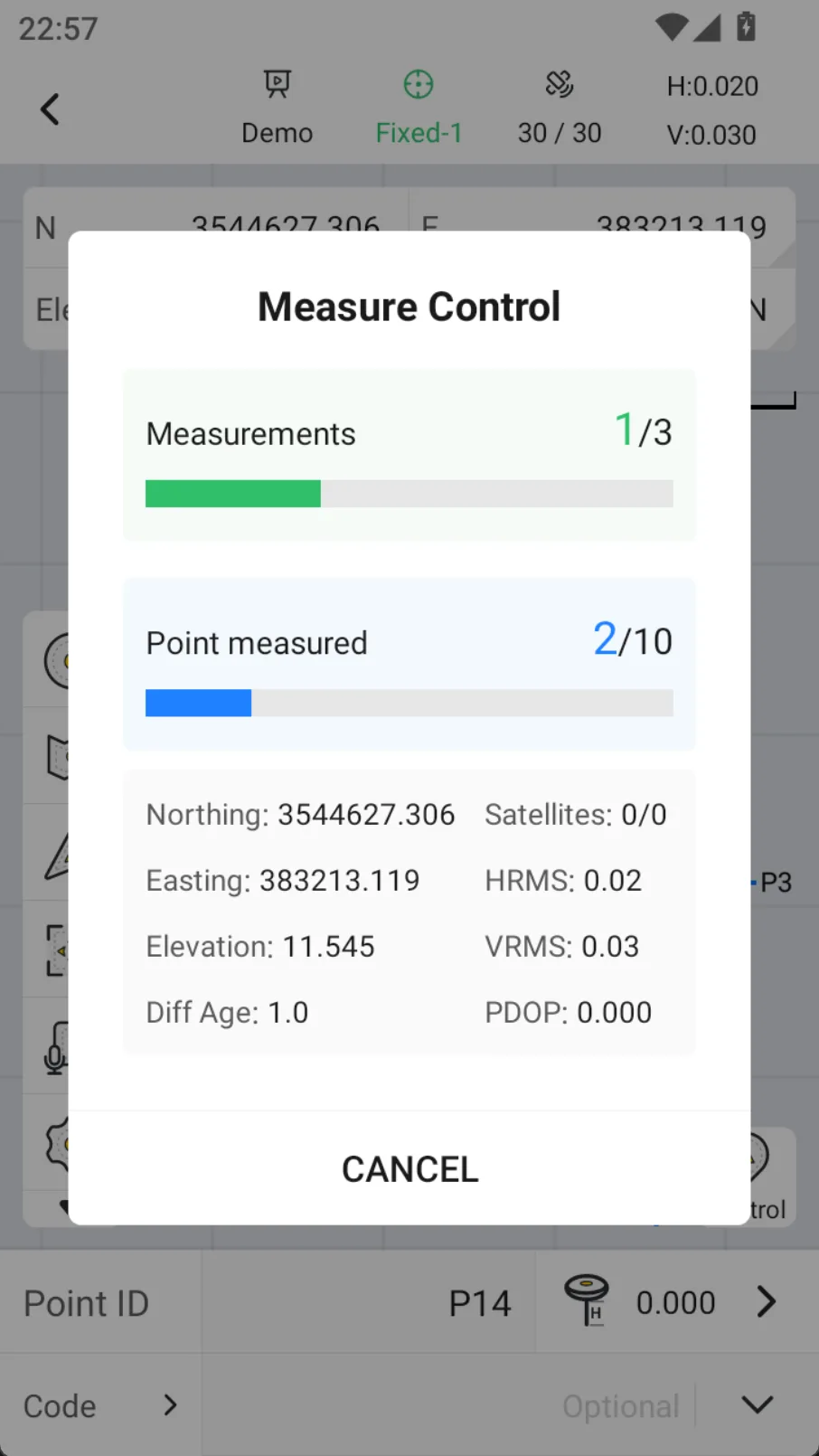 | 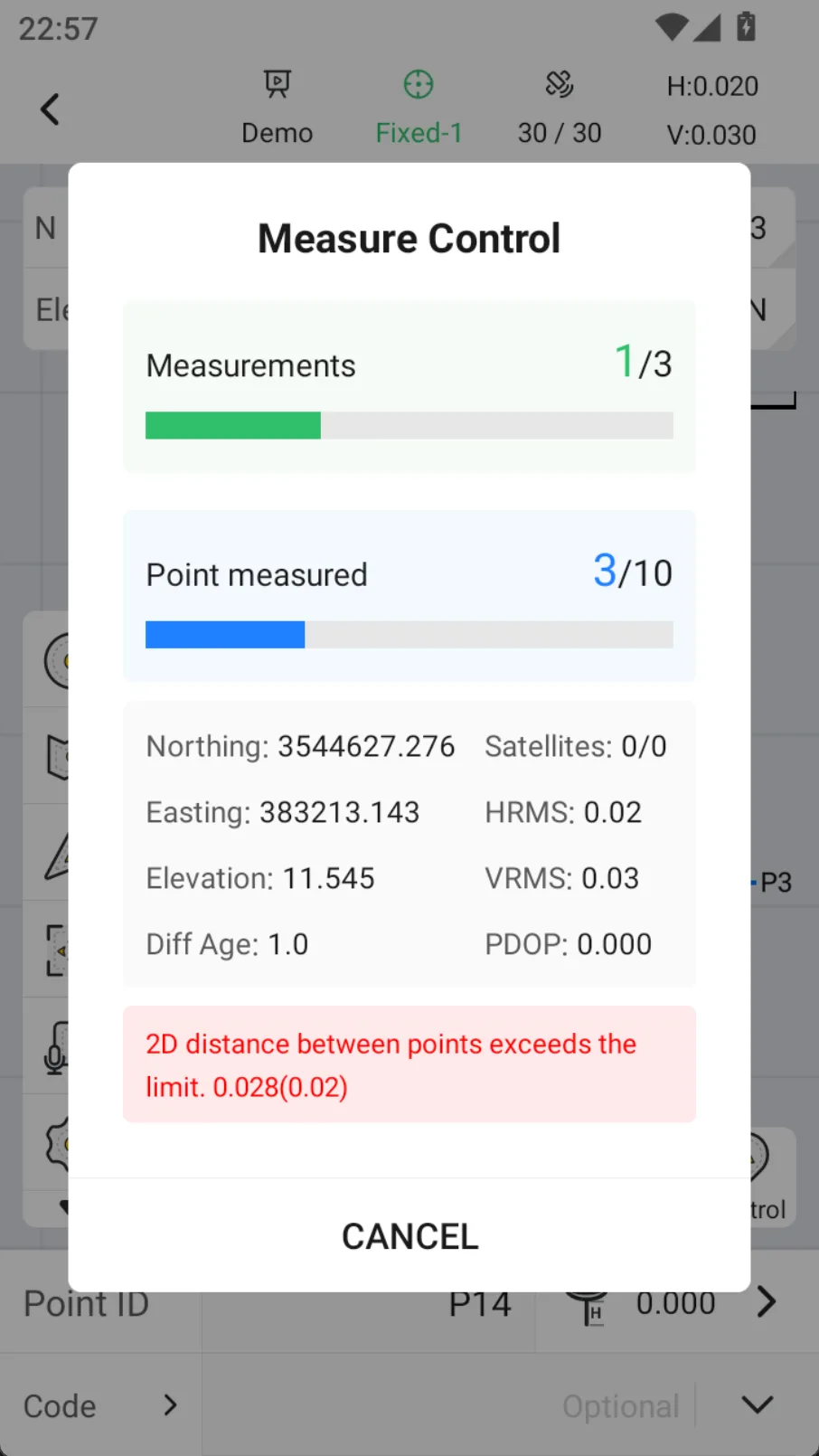 |
During the measurement process, if the error exceeds the limit, it will be highlighted in red at the bottom of the page.
7.2.13 Laser Measurement
The laser measurement function can be combined with RTK positioning capability to achieve rapid acquisition of target points. When the measuring rod cannot directly reach the target position, or when there are inconvenient situations such as obstruction, edge, and dangerous areas in the target point, users can use the laser to indicate the target, combined with the current position and posture information of the equipment, to complete the coordinate determination of the target point. This function is suitable for wall corners, elevations, edges, obstacles, and other scenes that are difficult to measure directly with a pole, which can effectively improve operational flexibility and measurement efficiency...
After entering, click on the laser icon in the left toolbar to enter the laser measurement interface. Because the laser measurement uses inertial navigation data, if the IMU is not turned on or exceeds the limit, it will prompt to shake and walk a short distance to calibrate the IMU. After completing the calibration, there will be a Toast Notification, and then you can see the receiver's forward view image from the view.
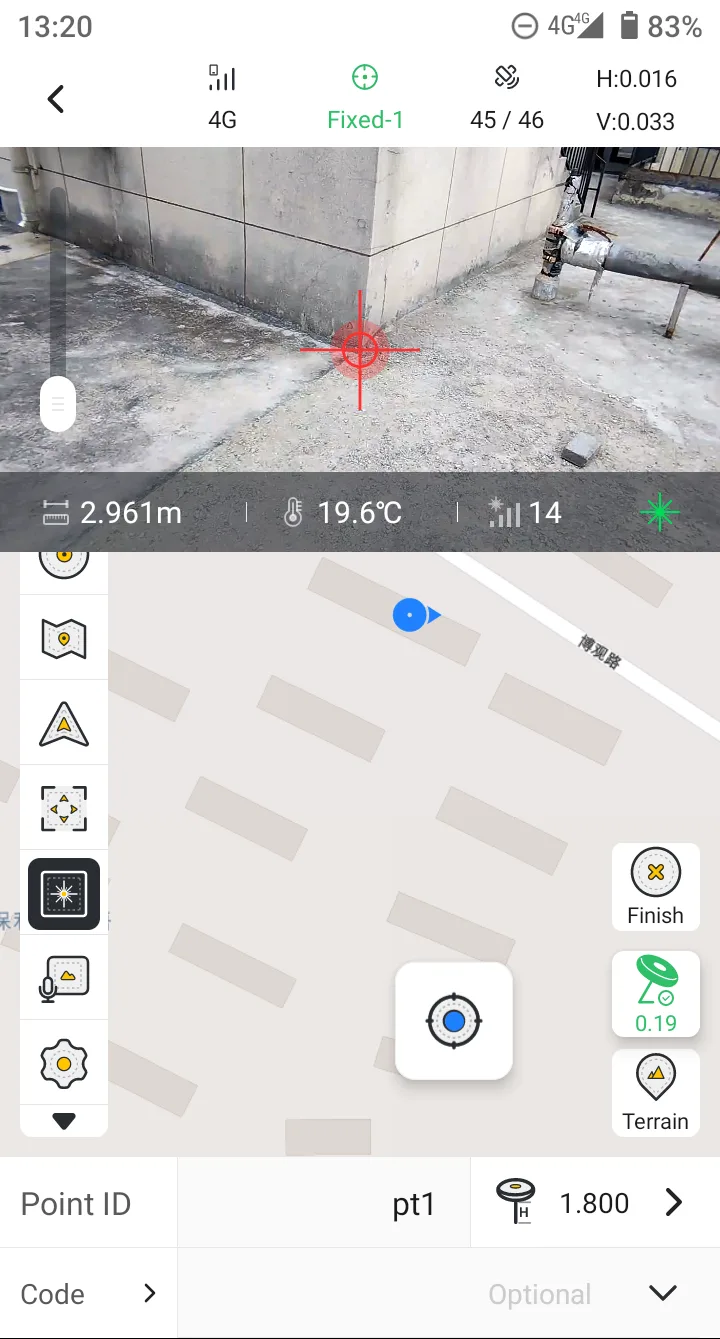 | 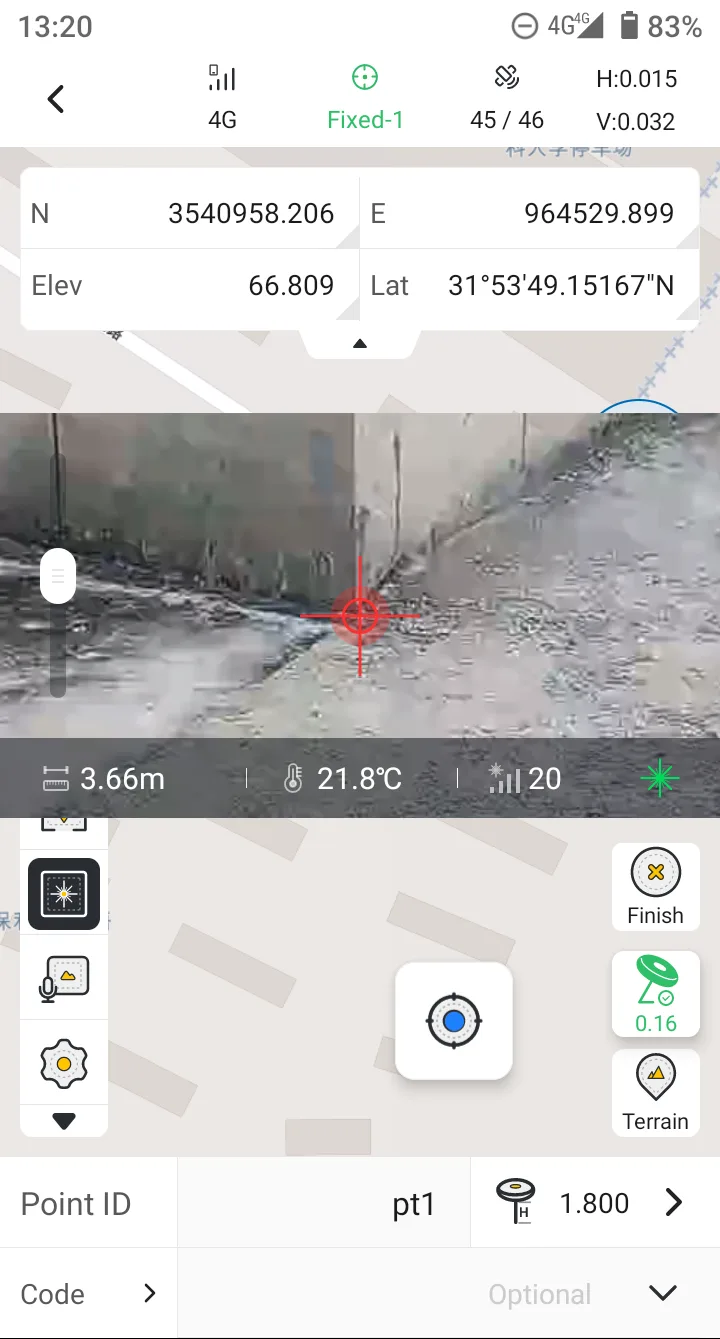 | 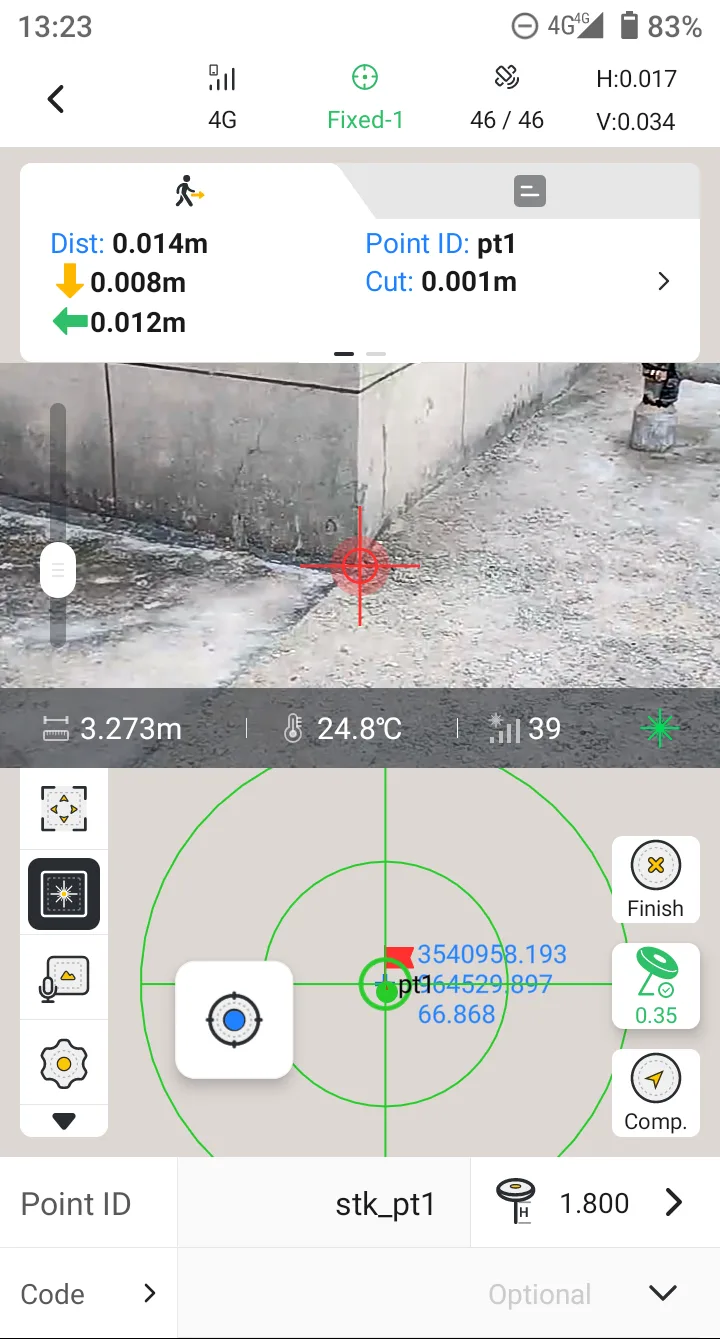 |
Laser measurement page post script:
| Name | Description |
| Camera view | Display the image of the forward camera, and the preview window can move freely. |
| Red label | The position of the laser point in the image. |
| Laser information bar |
|
| Zoom bar | Sliding up can enlarge the forward image of the receiver. Sliding down can reduce the forward image of the receiver. |
Note:
1. Only GNSS receivers with laser support laser measurement, such as V10L.
2. The IMU module must be in an available state. If the IMU accuracy exceeds the limit midway, the user will be prompted to calibrate by shaking.
3. The position of the laser and the image center is calibrated. If the position is found to be inaccurate, please contact the dealer or technical support personnel.
4. The laser measurement function can only be enabled when the connection is Wi-Fi.
5. Once laser measurement is enabled, the antenna height parameter will become invalid.
7.2.14 SureFix Measure
7.2.14.1 Feature Introduction
SureFix is a point measurement method based on SLAM positioning. After initialization is completed in an area with good GNSS signal, the device continuously calculates position and attitude through SLAM to obtain the coordinates of the pole tip, allowing users to continue collecting measurement points in areas where the GNSS signal is obstructed.
SureFix is suitable for localized areas with limited GNSS signal, such as near buildings, under bridges, under tree canopy, and at tunnel entrances. Users can move from the initialization area to the target position, place the pole tip on the point to be measured, and complete coordinate collection once the measurement quality requirements are met.
7.2.14.2 Preparation
Connect to the V100F via Wi-Fi. Confirm that the project coordinate system and antenna height settings are correct, differential data is being received normally, and the receiver has obtained a stable RTK fixed solution. Choose a location with an open view above and surrounding features such as building facades or curbs. Avoid initializing in areas with severe obstructions or a lack of identifiable surrounding features.
7.2.14.3 Steps
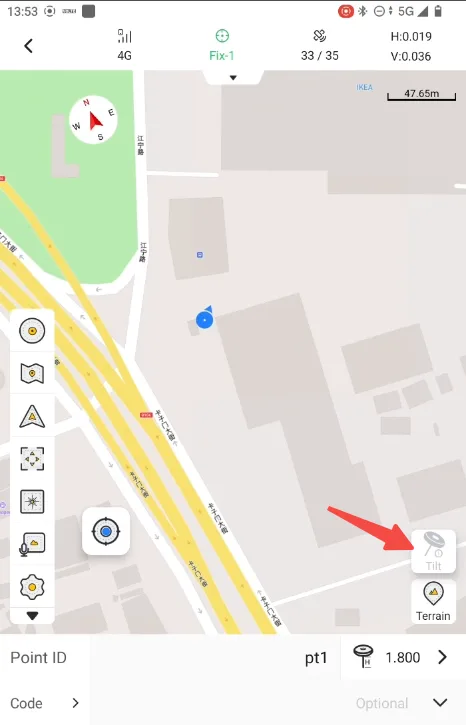
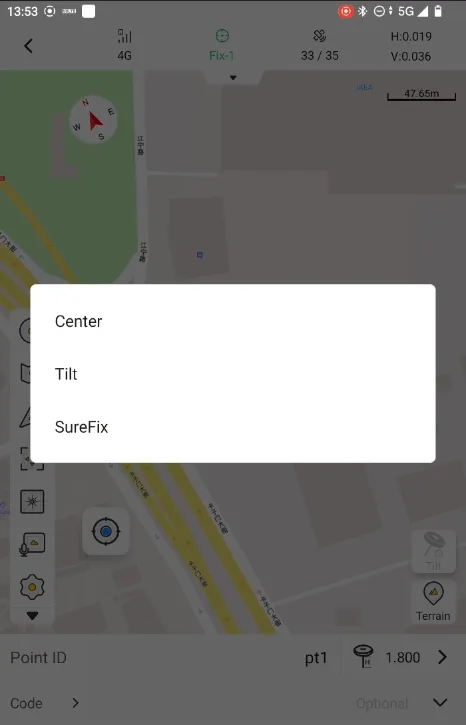
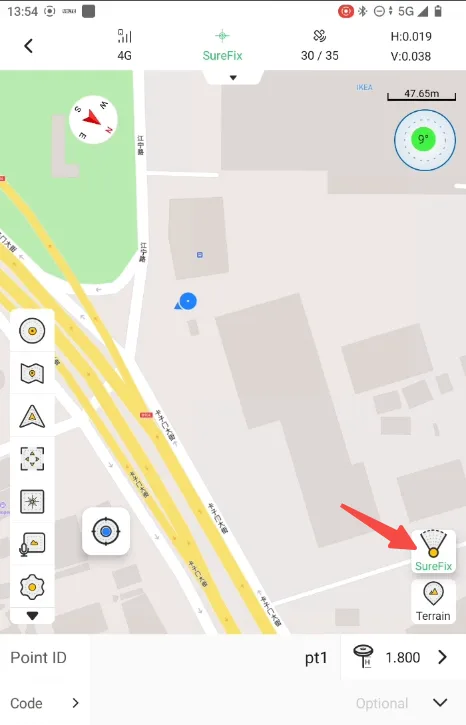
Survey → Measure. Tap the tilt icon in the lower right corner of the map. A popup will appear for you to select the measurement mode, including: Center, Tilt, and SureFix. Select SureFix to begin the initialization process.
 |  |
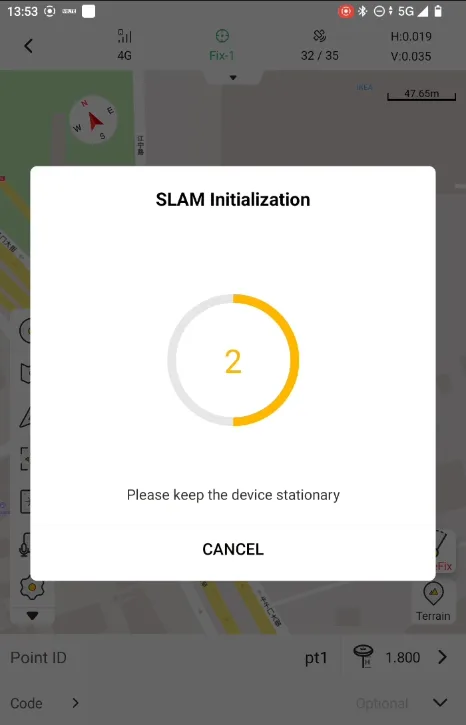
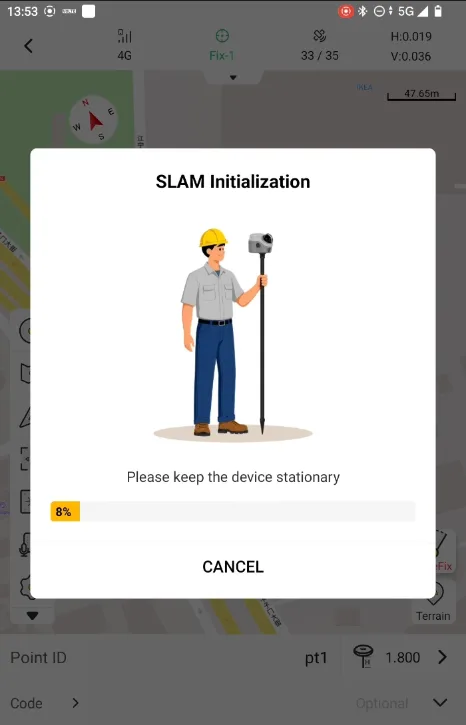
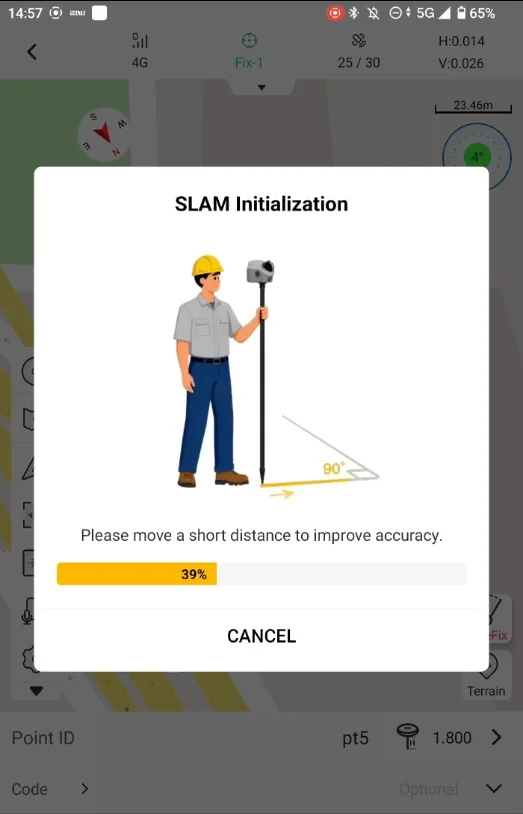
The initialization process consists of two steps:
| Step | Description | Remark |
| Keep the device stationary | Support the pole tip on a stable surface and hold the pole steady to keep the receiver stationary. During this period, do not move, rotate, or shake the device. Wait for the on-screen prompt to proceed to the next stage. | Countdown 3 seconds before it holds still. |
| Move smoothly as prompted | Walk smoothly while holding the pole and follow the on-screen guidance to complete the required motion. During movement, maintain good GNSS reception conditions, avoid obstructing the LiDAR, and avoid rapid turns, violent shaking, or bumping the device. | Walk about 6 m forward, turn 90° slowly, walk another 6 m. If the window is still open, turn again and keep walking. |
 |  |  |
|---|
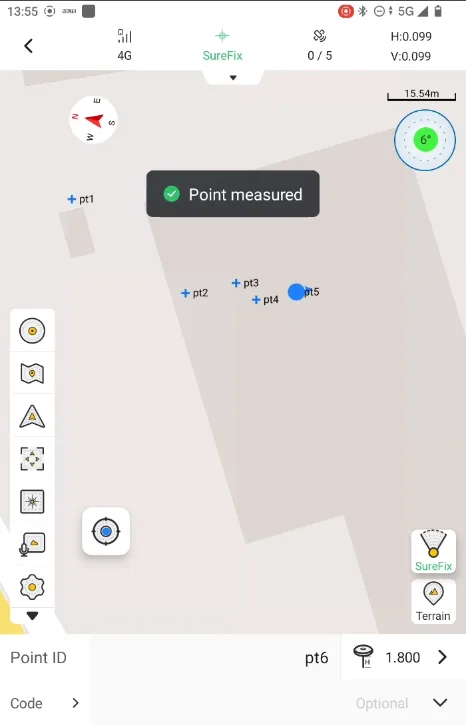
After initialization is complete, the tilt icon in the lower right corner switches to the SureFix icon. Note that a green icon indicates initialization is complete. If you want to switch back to Centered Measurement or Tilt Measurement, simply tap the icon again.
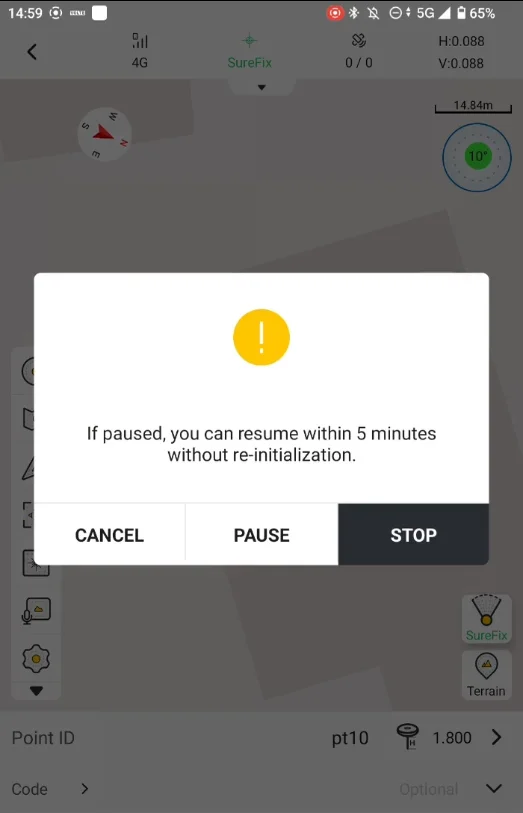
During measurement, when exiting SureFix mode, a popup will appear:
| Button | Description |
| Cancel | Close the popup and continue the measurement with SureFix. |
| Pause | Exit SureFix, but the LiDAR stays active — if you return within 5 min, no re-initialization is needed. |
| Stop | Turn off the LiDAR and exit SureFix. |
 |  |  |
- Before initialization is complete, do not enter work areas where the GNSS signal is obstructed. If initialization fails, check the positioning status, device stability, and surrounding environment, then adjust and re-initialize.
- If SLAM positioning anomalies occur during operation, stop measuring, return to a suitable area to re-initialize, and re-check the affected measurement data.
7.2.15 Verification Point
Clicking on a point on the map interface will bring up a pop-up window displaying the checkpoint page. Users can edit the point name and code, as well as choose to overwrite the data collection, delete points, and view details.
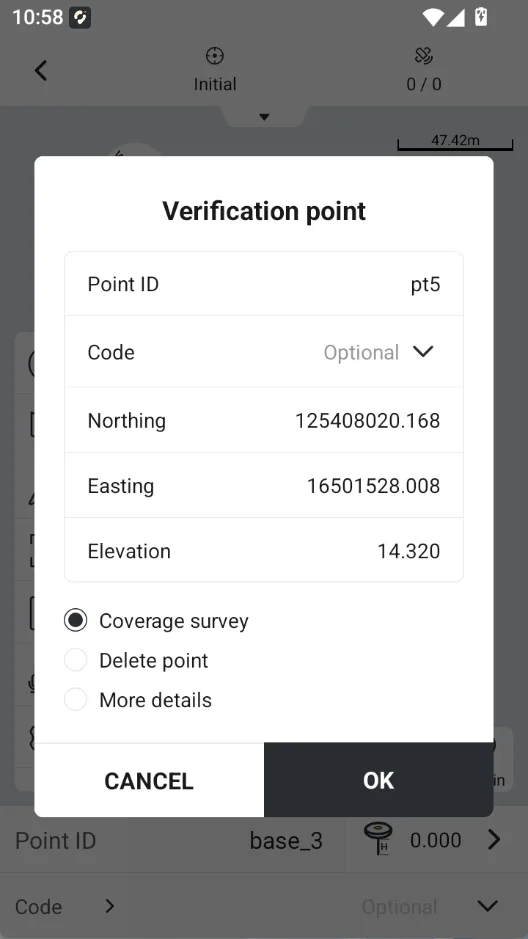
Note:
Only in the "Measure", "Measure& Draw" - Point Layer, "GIS Survey" interface, clicking on a point on the map interface will display the checkpoint page in a pop-up window.