
7.4 Stake Lines
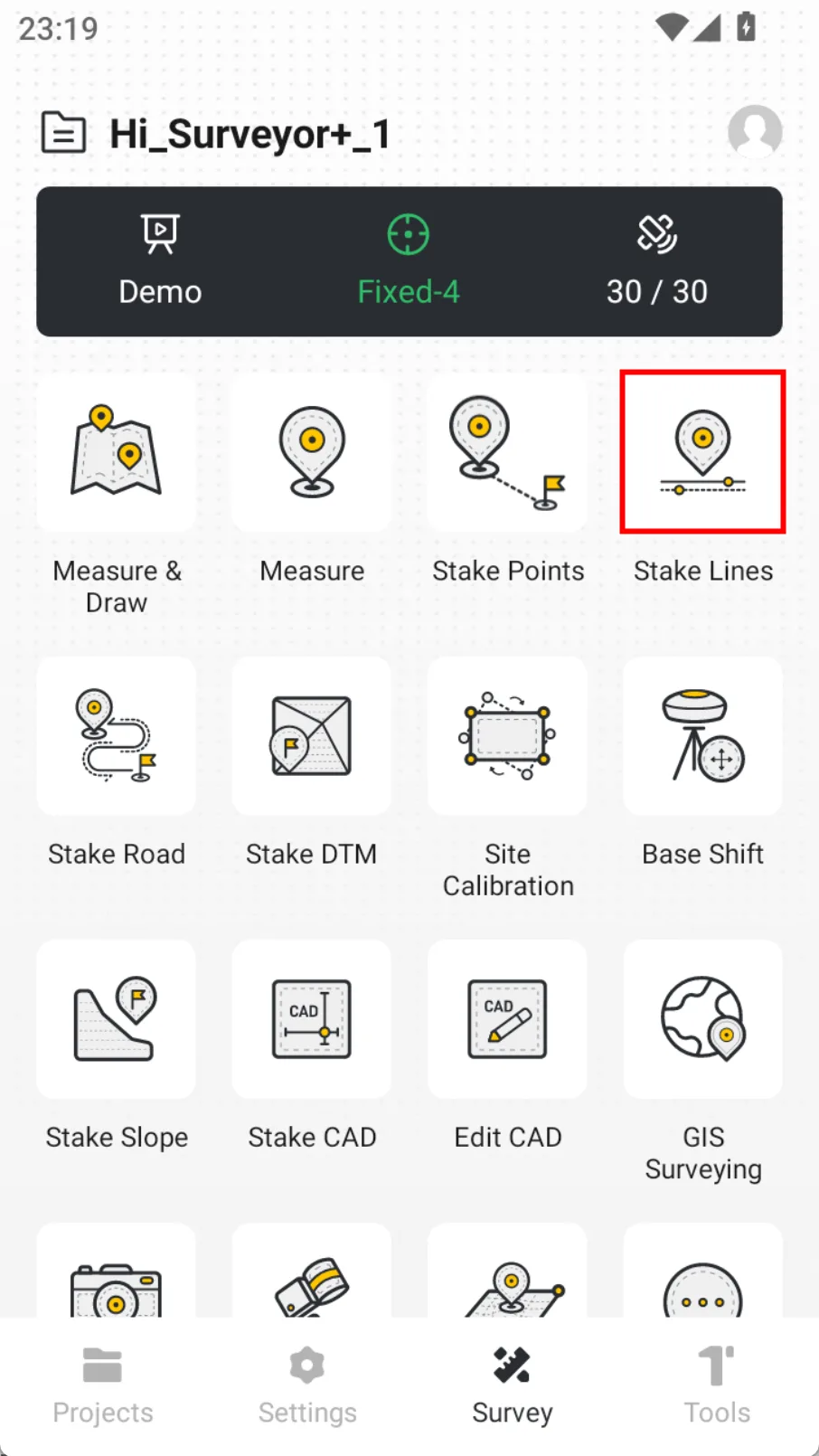
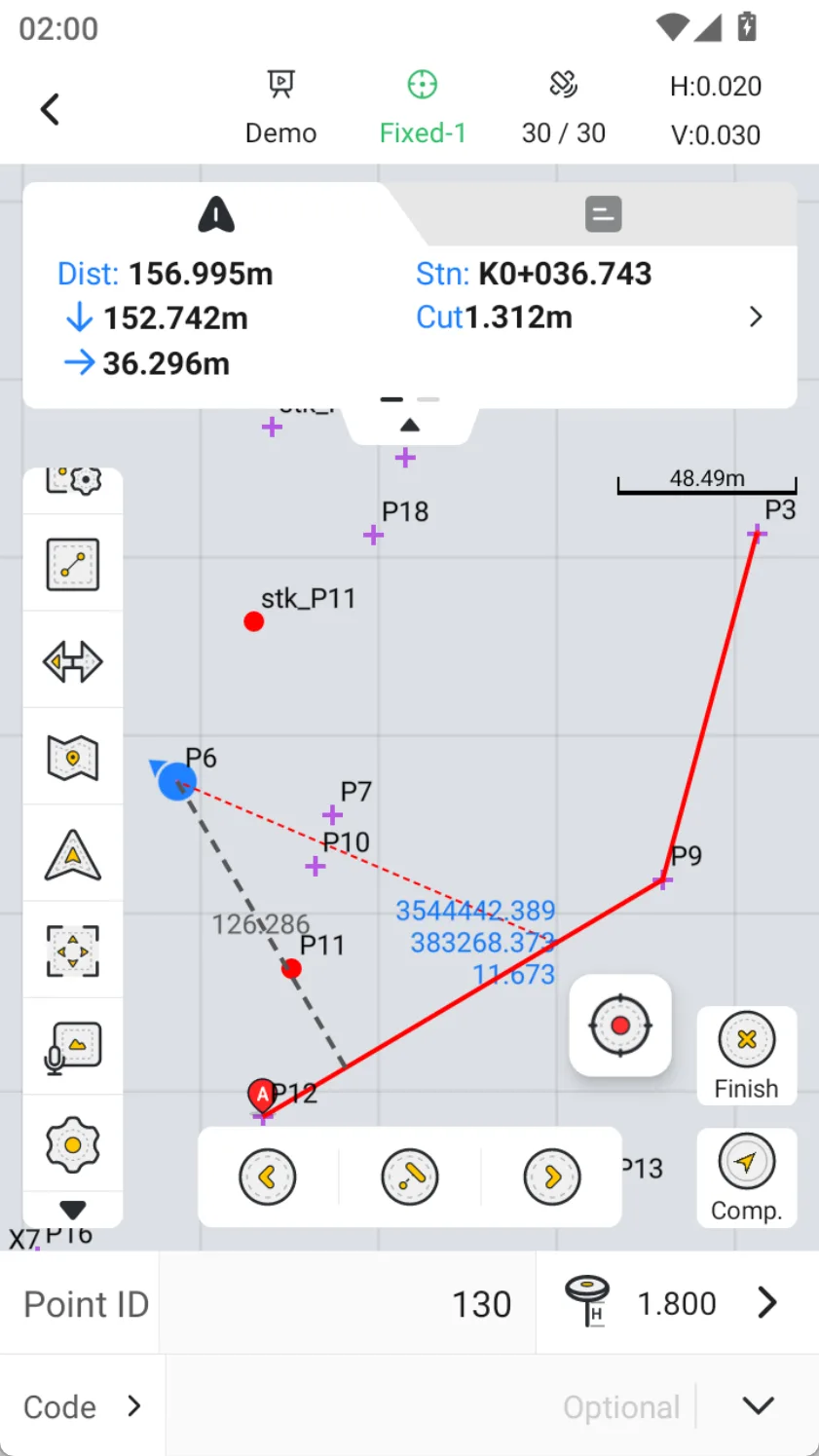
Stake Lines is a simple tool for local line stakeout. The software provides five types of line stakeout. Click [Survey] → [Stake Lines], select a line or create a line for stakeout.
 |  |
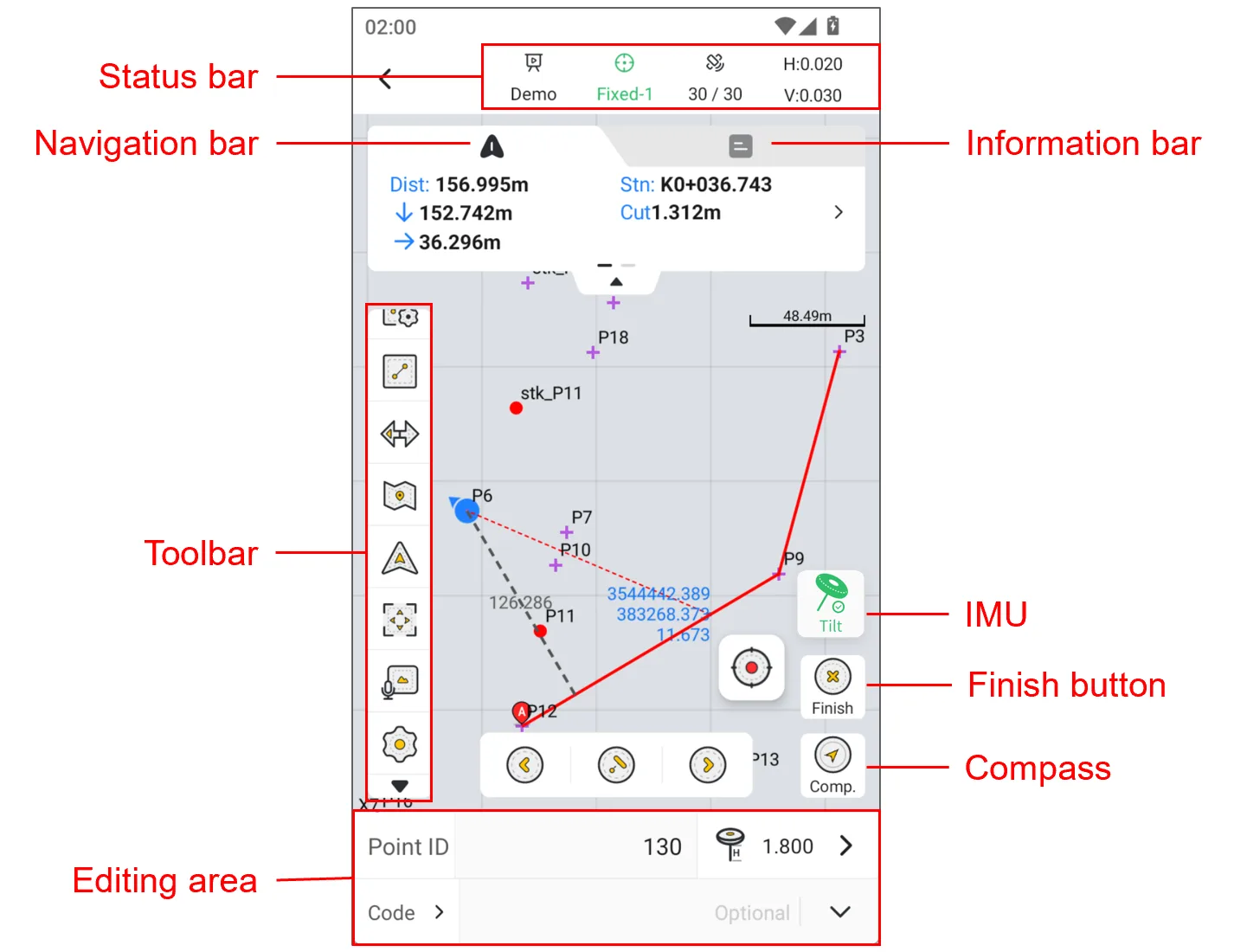
7.4.1 Stake Lines interface
7.4.2 Line stakeout toolbar
| Icon | Name | Description |
 | Line setting | Optional three ways of selecting line stakeout: 1. Chainage: Customize the distance between adjacent stations and achieve continuous stakeout by adding or subtracting chainage; 2. Line: Find the position closest to the stakeout line segment at the current position; 3. Node: including start point, midpoint, node and end point. |
 | Lines | Click to jump to line selection in the lines. |
 | Inversion | Exchange starting and ending points, and when adding chainage, follow the new forward direction. |
 | Map | Click on the optional street or satellite map, the default is to turn off the map mode. |
| Default Centered Follow | Default: The map will not automatically zoom during measurement and stakeout, and manual operation is required. The interface will not update when the position changes. Centered: The current position and target point are always displayed in the interface. If you manually drag the map, wait a few seconds and it will automatically return to the centered mode. Follow: The map rotates as the stakeout direction changes, and the current position is always in the middle of the interface. |
 | Full screen | Click to zoom the map to show all points and the current stakeout line. |
 | COGO | COGO tool shortcut entrance, can configure display/hide and sort in display settings. |
 | Laser | Laser measurement, see Chapter 7.2.13 for details. |
 | Layer | Click to open the layer management page, where you can load vector layers on the default map. |
 | Settings | Measurement settings entrance, see Chapter 6.4.4 for details. |

Enter [Stake Lines], select the line for stakeout from [Lines], open the line setting page, and choose to place chainage, line and node.
| Line setting | Description | Illustration |
| Chainage | Customize the distance between adjacent chainage and achieve continuous stakeout by adding or subtracting stations. Custom content includes: 1. Start Chainage: Set the chainage value from the start point; 2. Offset: Set the offset value, left or right; 3. Auxiliary Distance: Show/hide the distance from the current position to the line; 4. Include Node: Whether to include nodes; 5. Mileage Interval: Set the distance between adjacent stations; 6. Offset Angle: Angle of turning left/right in the forward direction. 7. Target Chainage: Set the chainage value of the target point. | 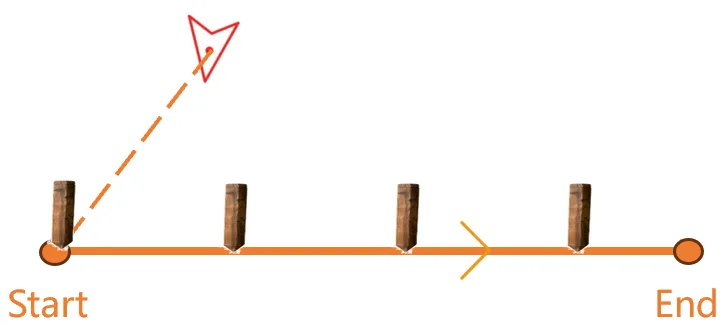 |
| Line | Find the position closest to the stakeout line segment from the current position. The custom content includes: start Chainage and Offset. | 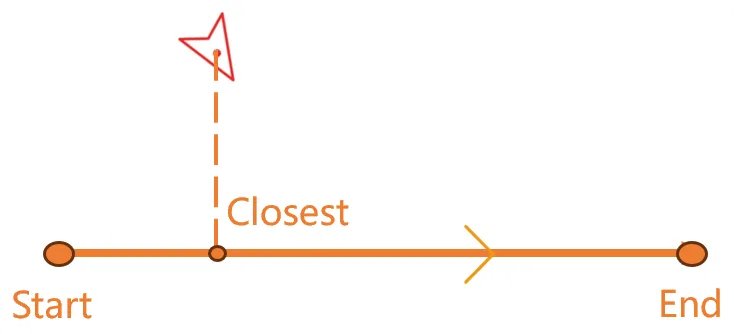 |
| Node | The stakeout targets include: start point, midpoint, node and endpoint. 📌 Note: If it is a multi-segment line, then the targets are nodes; if it is a straight line, then the targets are start point, midpoint and end point. | 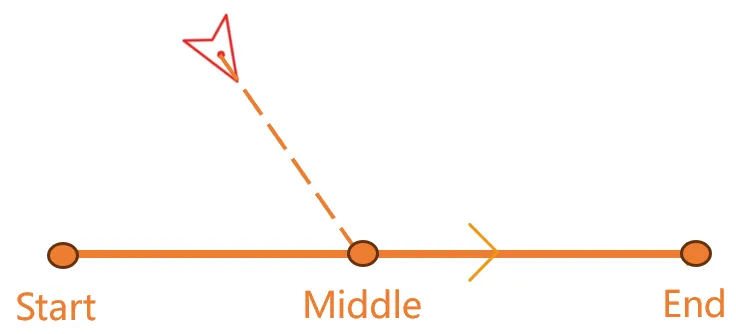 |
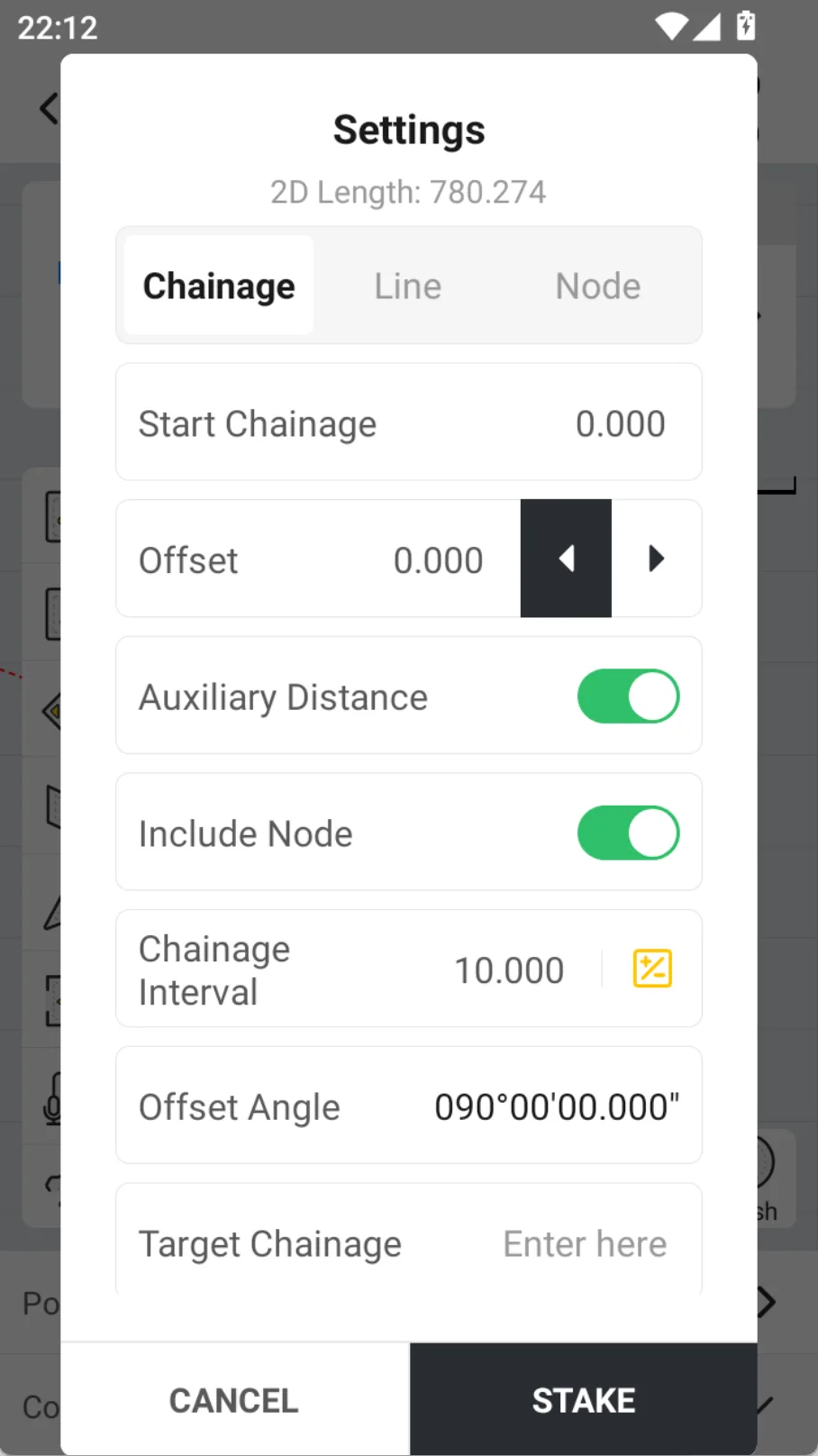 | 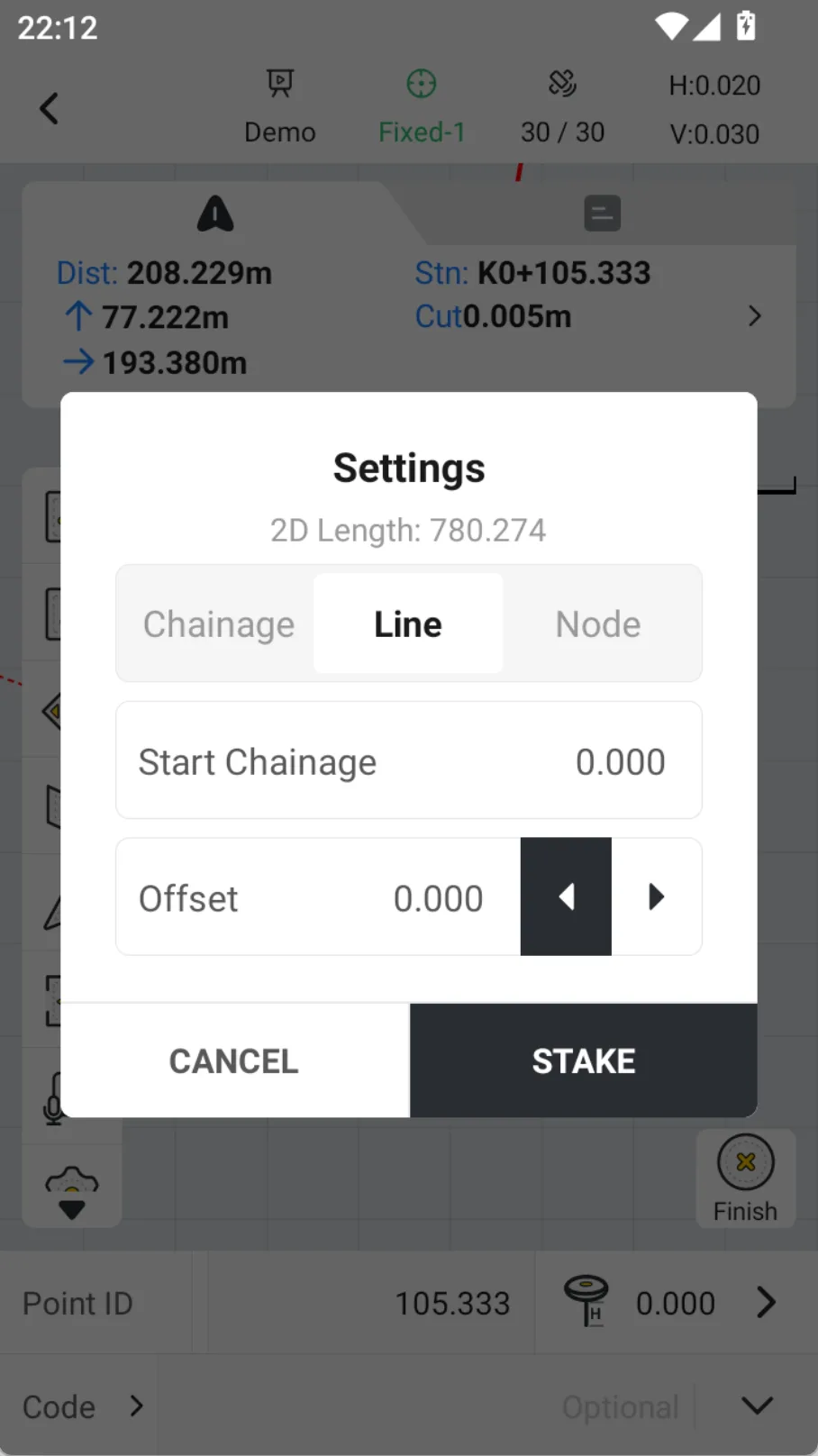 | 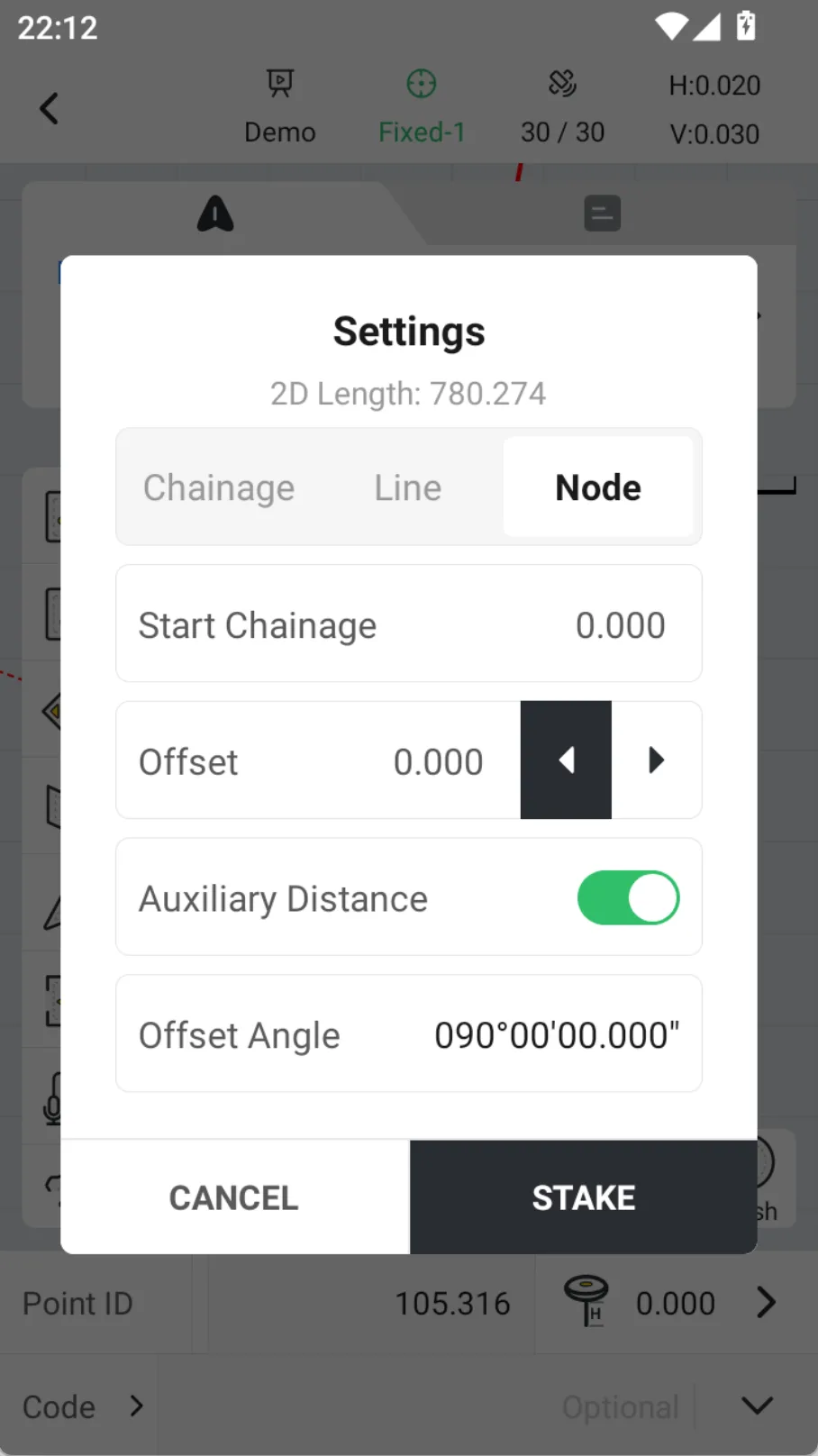 |
If there are multiple stakeout targets, three icons will appear at the bottom of the view: previous point, nearest point and next point. They can be easily switched by clicking or by pressing the left and right keys on the keyboard. During the stakeout process, you can click the Finish button on the right to end the stakeout immediately.
7.4.3 Stakeout Panel
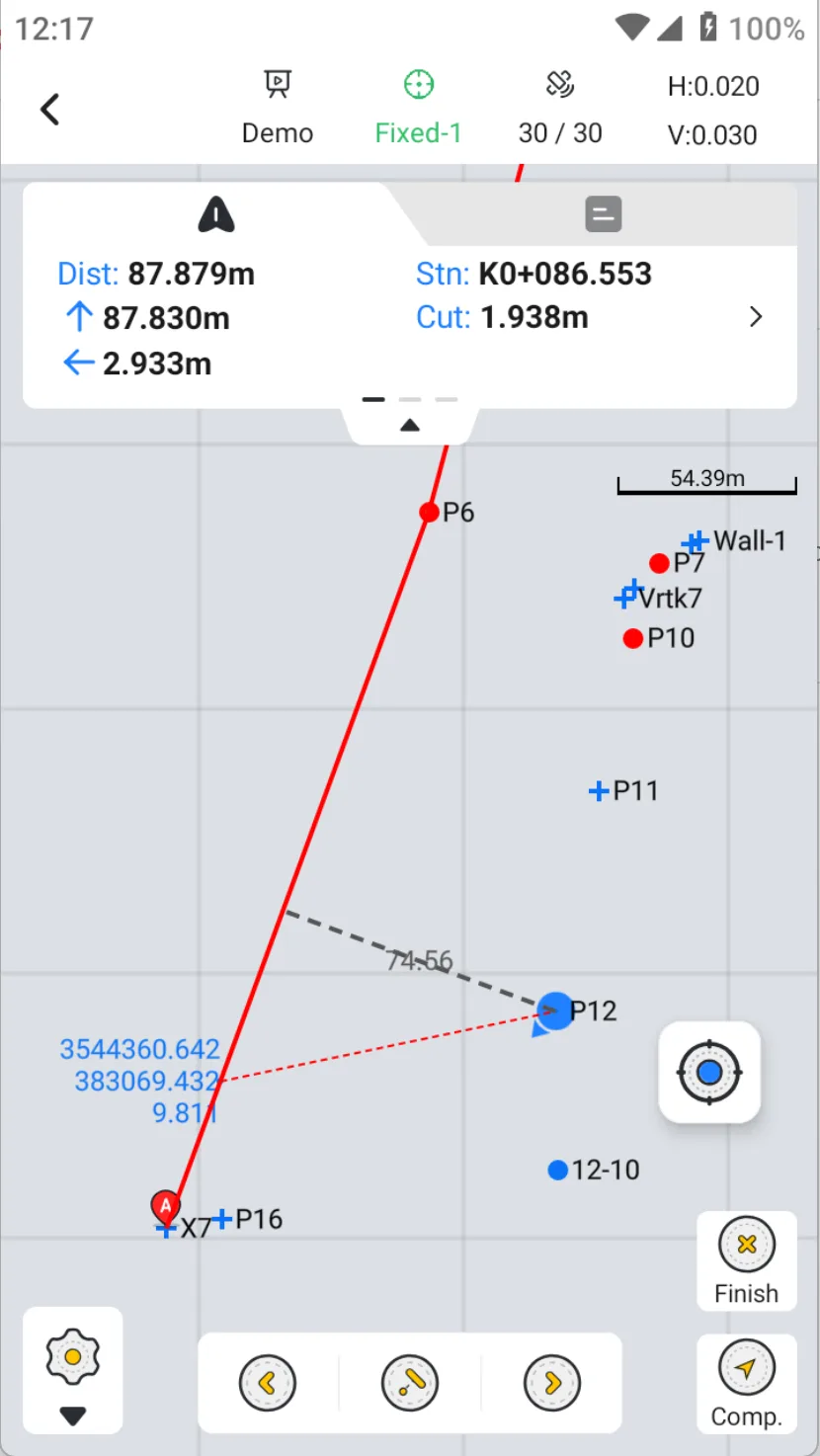
The stakeout panel is used to display the relative relationship between the current position and the target position. The line layout function supports viewing three styles.
| Panel style | Description |
| Front, back, left, right | The reference direction is the forward direction, and the relative position between the current position and the target point is displayed in real time according to the current forward direction. |
| East, south, west, north | The reference direction is the north direction. |
| Mileage difference-offset | The relative position of the foot of the perpendicular to the start and end points of the line is defined as follows: △Stn (start point): foot mileage - start point mileage △Stn (End point): End point mileage - foot mileage |
 | 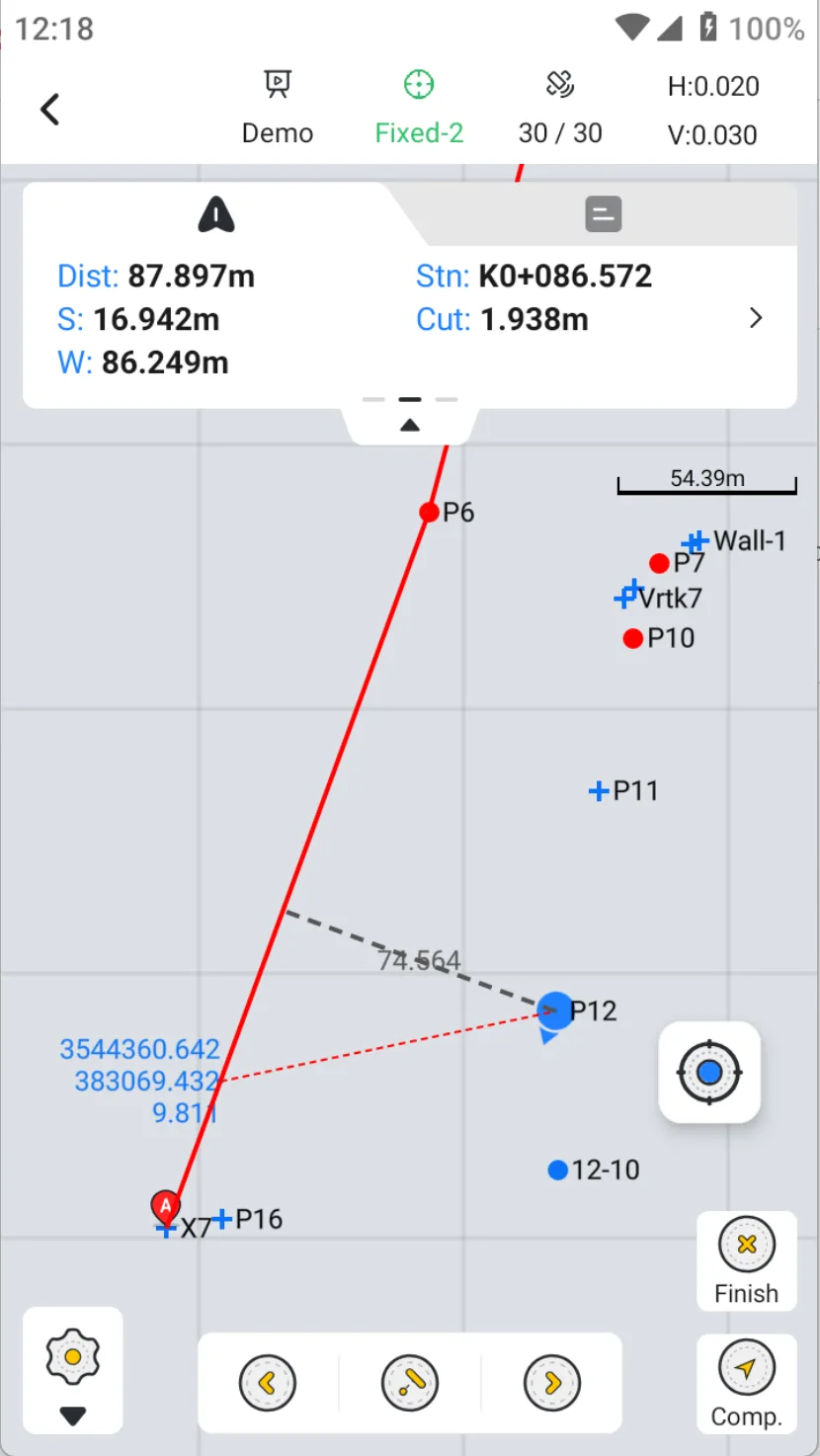 | 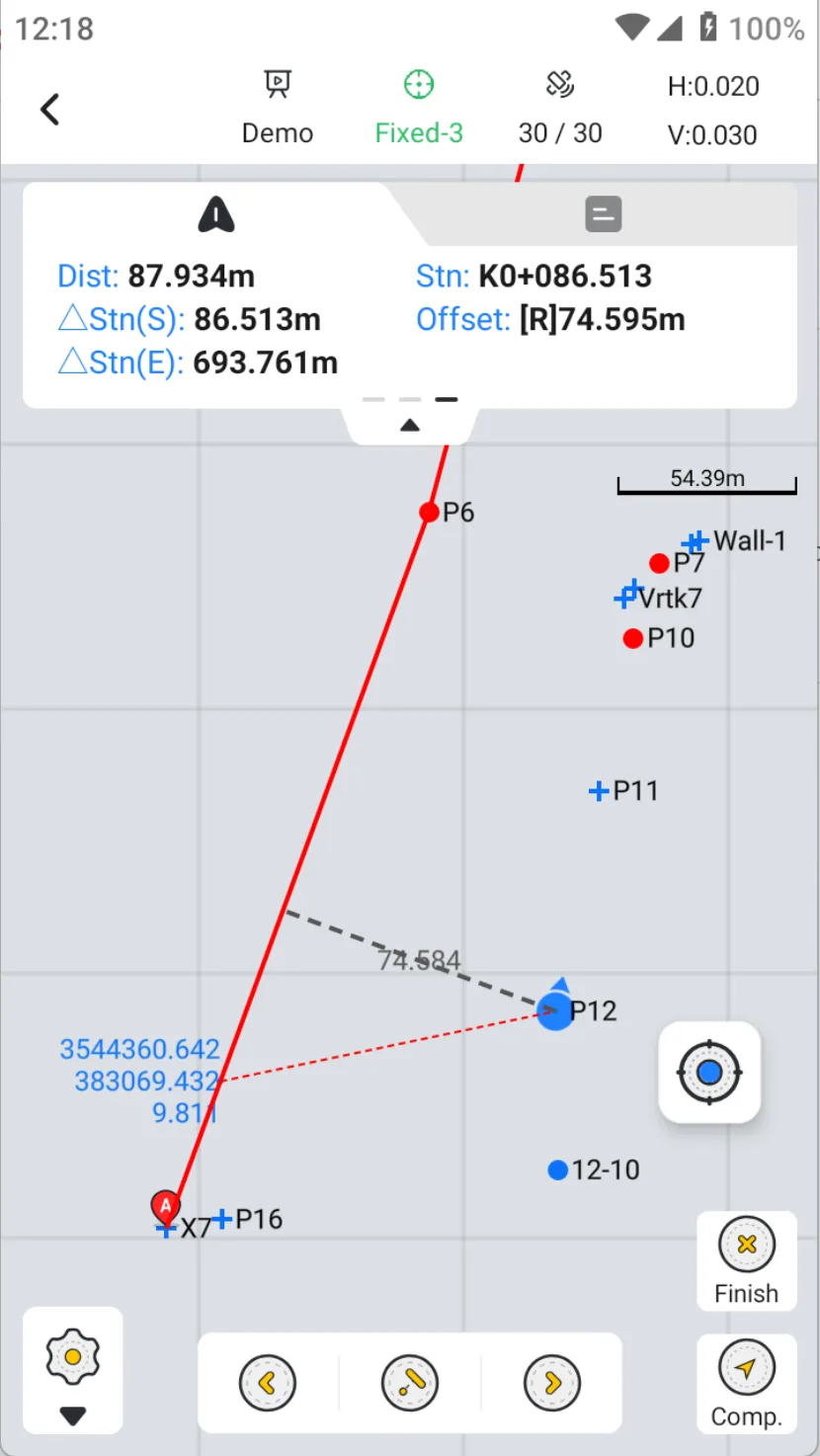 |