
FJD Trion Survey v2.1.9 Release Notes
1. Basic Information
| Product Name | FJD Trion Survey |
| Version | v2.1.9.6 |
| Release Date | 2026-7-31 |
| Controller | FJD E200 / E600 / E800 / UA80 / D10 |
| Platform | Android 8 or above |
| Update Method | OTA |
| Recommended Related Products | FJD Trion V1 / V1t: v5.0.3.4 FJD Trion V10a / V10i / V10L: v10.2.7.12 FJD Trion V4e / V4e Pro: v1.0.0.25 |
2. Overview
| New Features |
|
| Improvements |
|
| Bug Fixes |
|
3. New Features
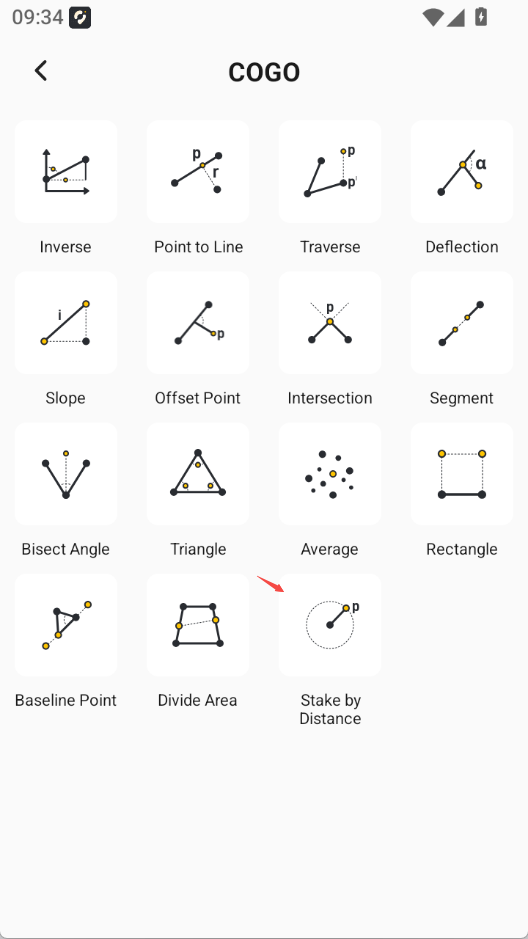
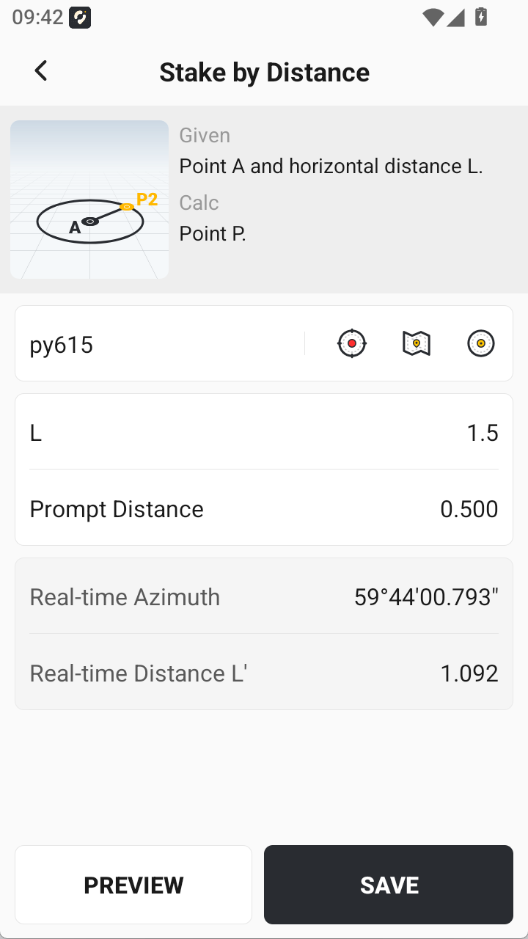
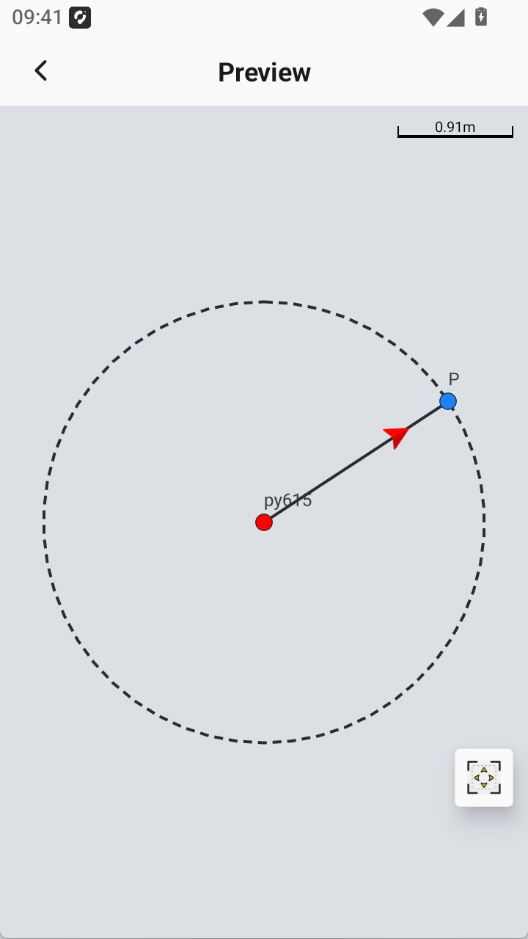
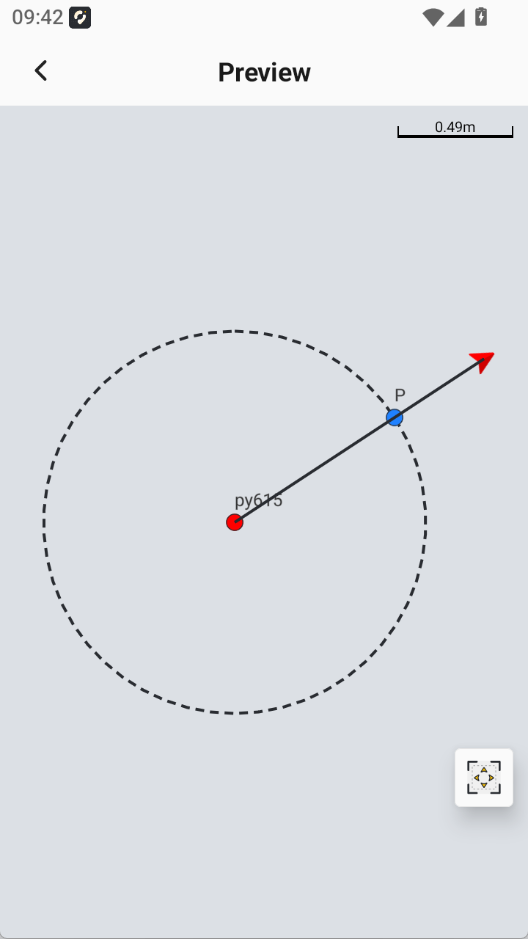
3.1 Added Stake by Distance in COGO Tools
Added the Stake by Distance tool in COGO. Users can enter a custom distance for stakeout.
 |  |  |  |
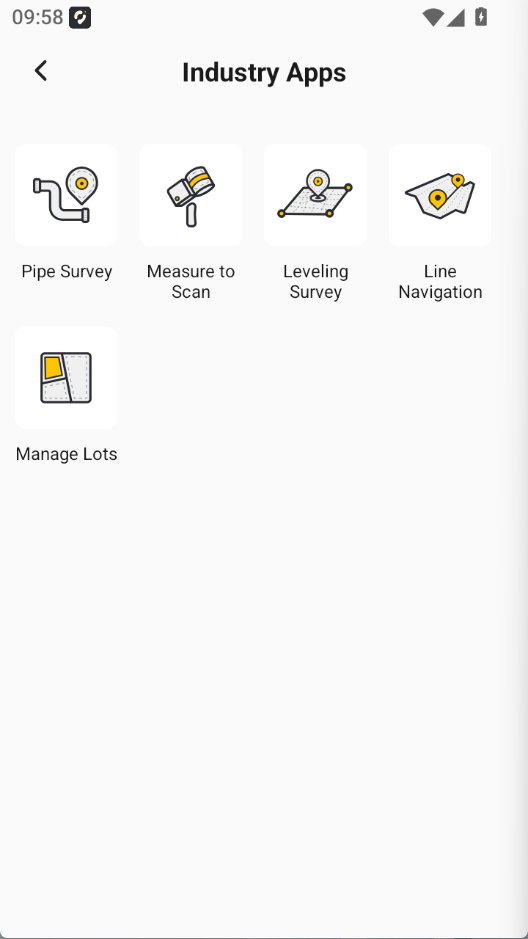
3.2 Added Lot Management
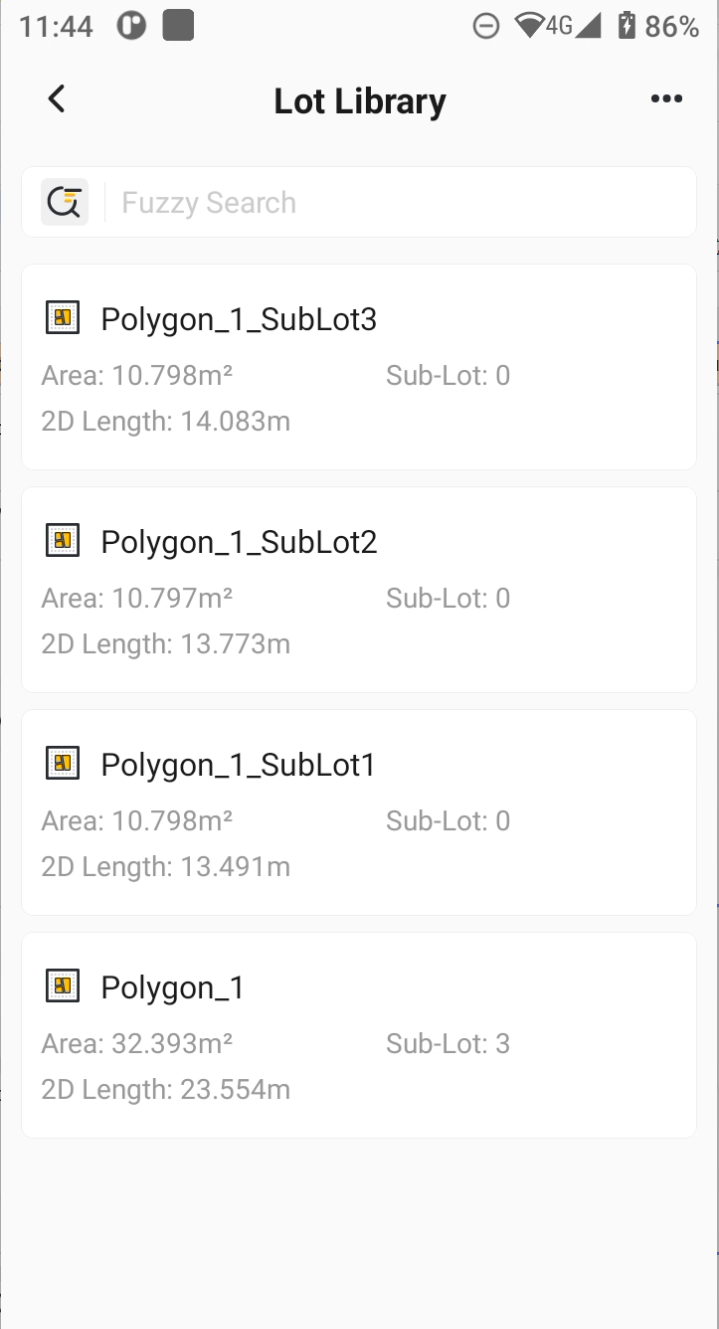
Based on a request from the Philippines distributor, Lot Management has been added under Industry Apps. It supports four lot area division methods and adds a Lot Library for storing attribute information of divided lots. Divided lots can be exported in *.shp, *.shz, *.kml, *.dxf, *.dwg, ISOXML, and *.lot formats.
This version only supports dividing surfaces (convex polygons) selected from the Graphics Library in Measure & Draw.
 | 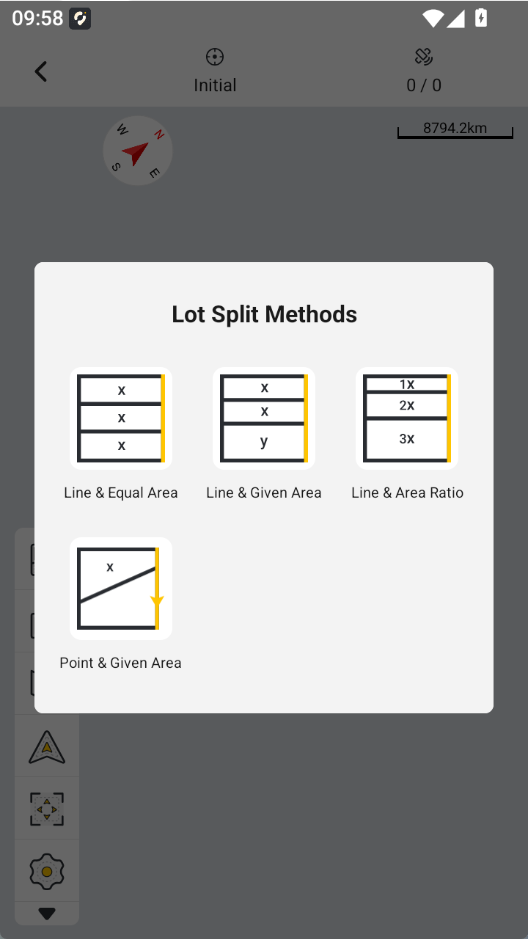 | 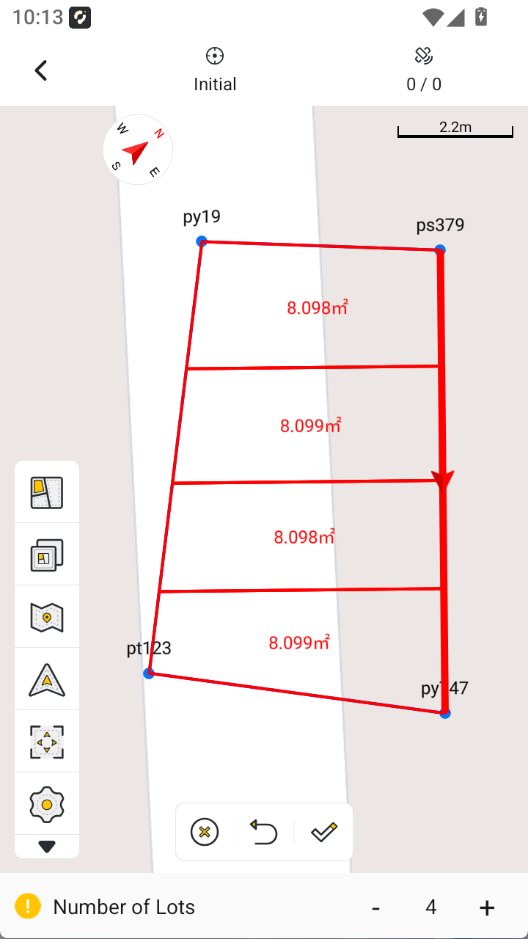 |  |
Line & Equal | Line & Given Area | Line & Area Ratio | Point & Given Area |
3.3 Coordinate System Updates
The coordinate system module continues to receive optimization and compatibility suggestions from users. This update includes the following items:
| NO. | Title | Description |
| 1 | Corrected elevation values for the Romanian RomGeo projection version | |
| 2 | Corrected elevation values for the application result of the Cyprus geoid model file | |
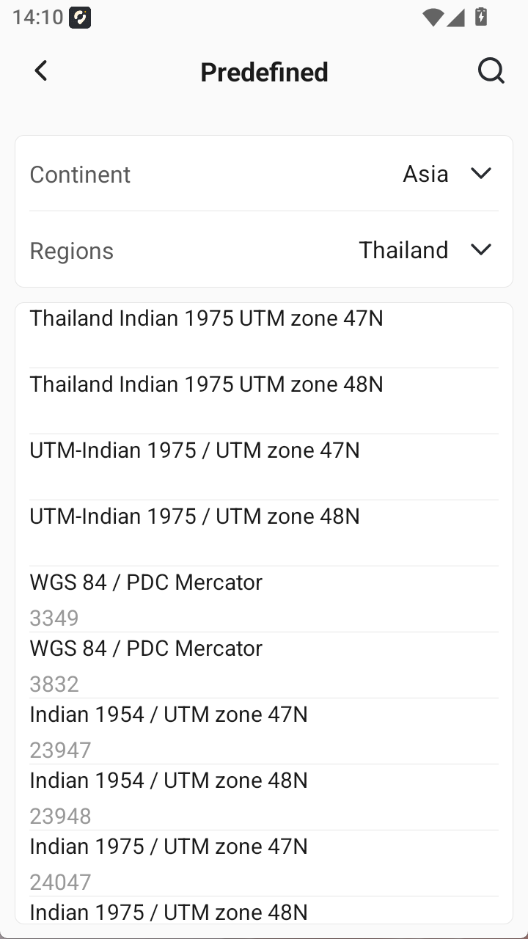
| 3 | Added four predefined coordinate systems for Thailand | Thailand Indian 1975 UTM zone 47N Thailand Indian 1975 UTM zone 48N UTM-Indian 1975 / UTM zone 47N UTM-Indian 1975 / UTM zone 48N |
| 4 | Added one predefined coordinate system for Portugal | Portugal Calibrated CS - RV |
| 5 | Added compatibility with the 2021 Poland geoid model | PL-EVRF2007-NH_2021.CGD |
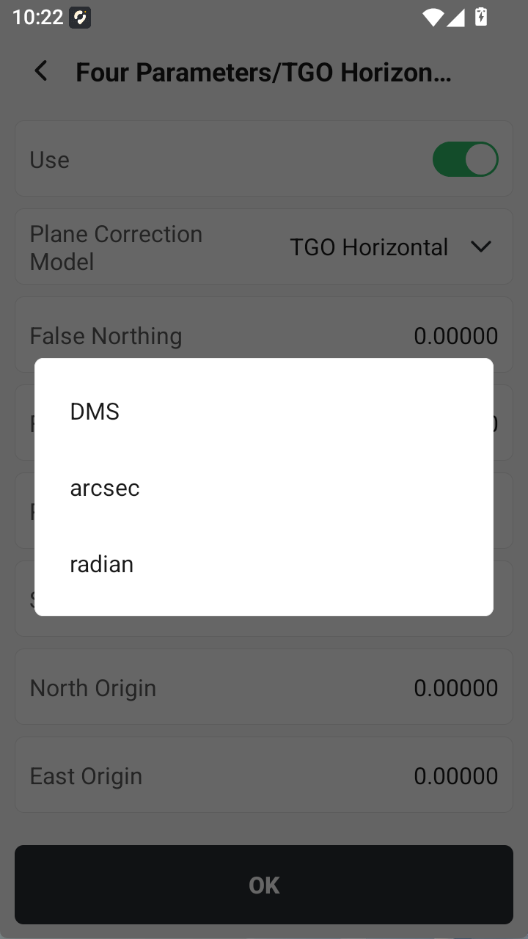
| 6 | Rotation angle supports switching among DMS / arcsec / radian | Rotation angle unit options: DMS / arcsec / radian |
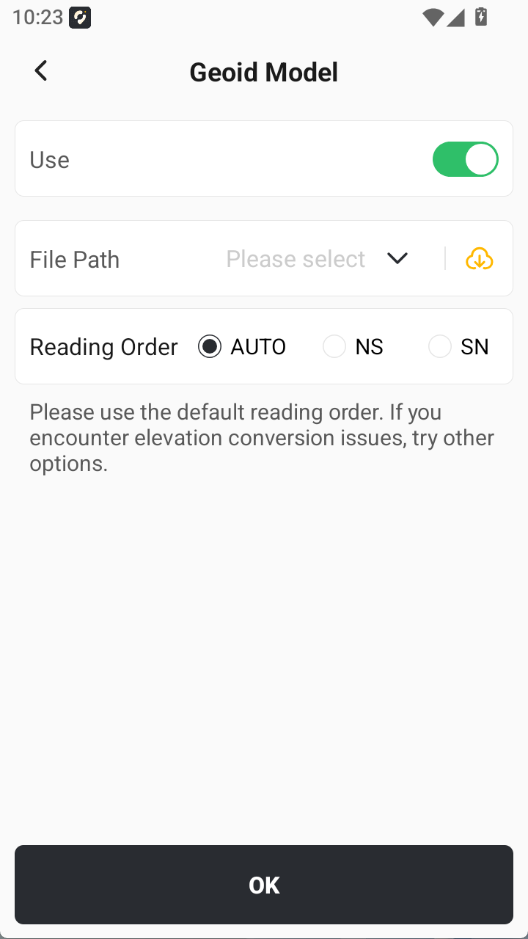
| 7 | Added a prompt for selecting the application order of geoid model files | |
| 8 | Added a predefined El Salvadoran coordinate system; | SIRGAS ES2007 |
| 9 | Modified some predefined Ecuadorian coordinate system names and projection height parameters; |
|
 |  |  |
3.4 CAD Stakeout / Edit CAD Updates
CAD is a key feature that Trion Survey continues to develop and optimize. This version includes the following CAD improvements:
| NO. | Title | Description | |||
| 1 | Alpha CAD supports map overlay |
| |||
| 2 | CAD drawing file import now displays a percentage progress bar |
| |||
| 3 | CAD layers support displaying layer colors, users can tap to modify layer colors directly. |
| |||
| 4 | CAD measurement - distance measurement supports displaying 2D distance |
| |||
| 5 | CAD measurement - area measurement supports displaying 2D edge length and 2D area |
| |||
| 6 | The default CAD engine is set to Alpha CAD |
| |||
| 7 | Added numerical display of CAD drawing file size. |
|
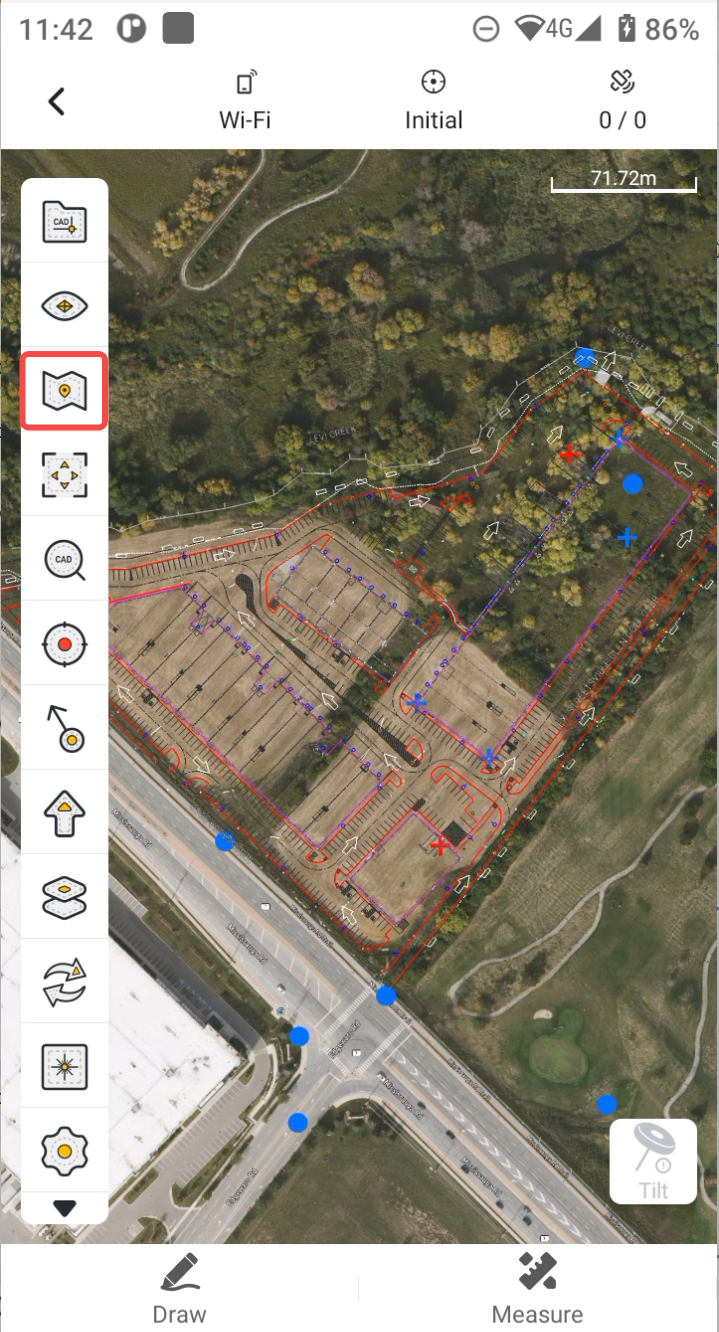
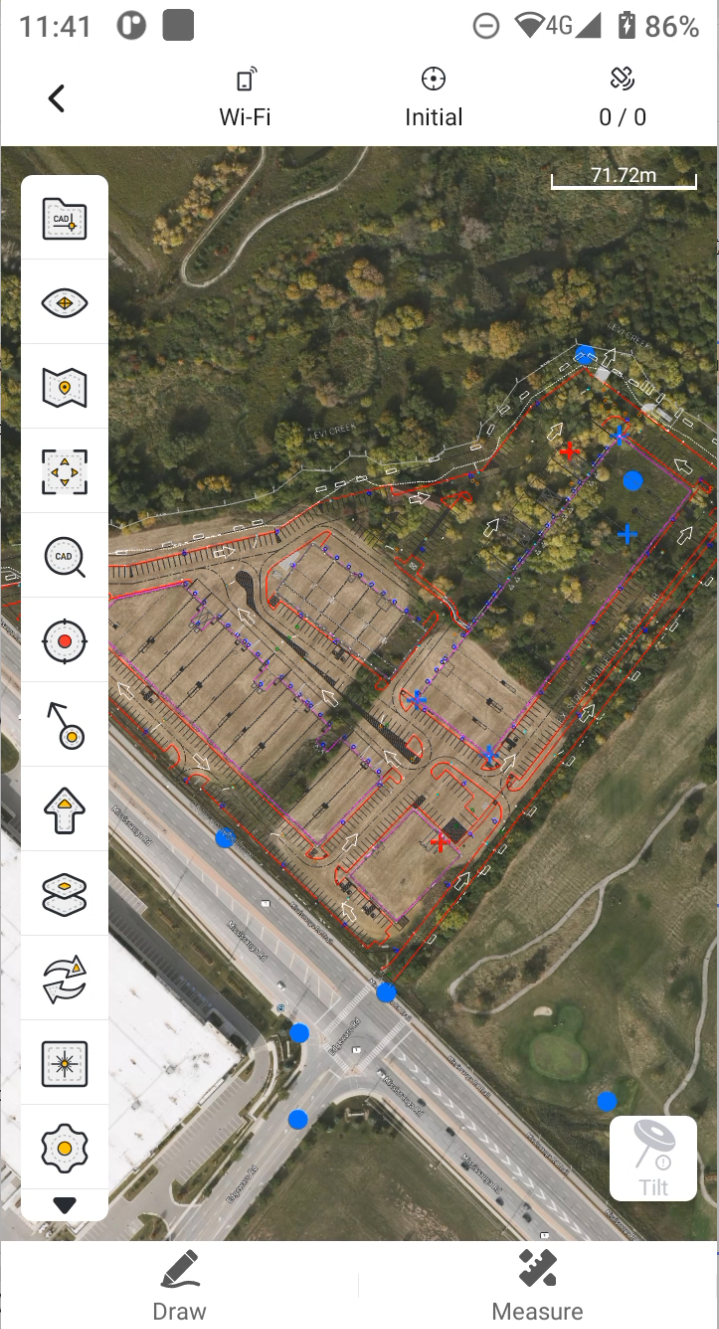
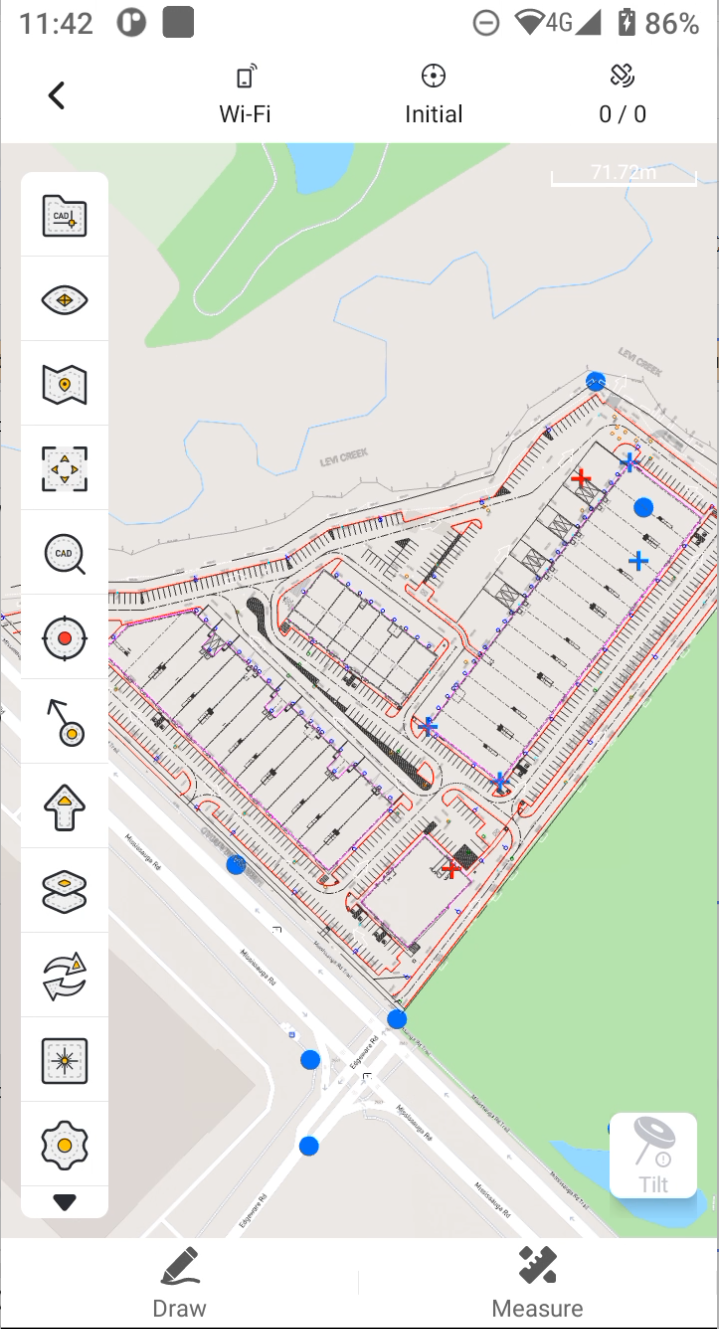
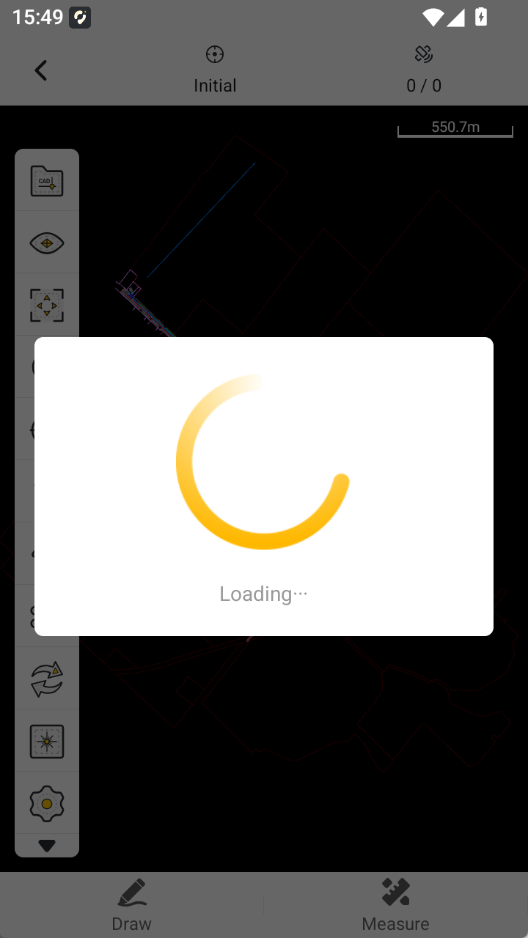
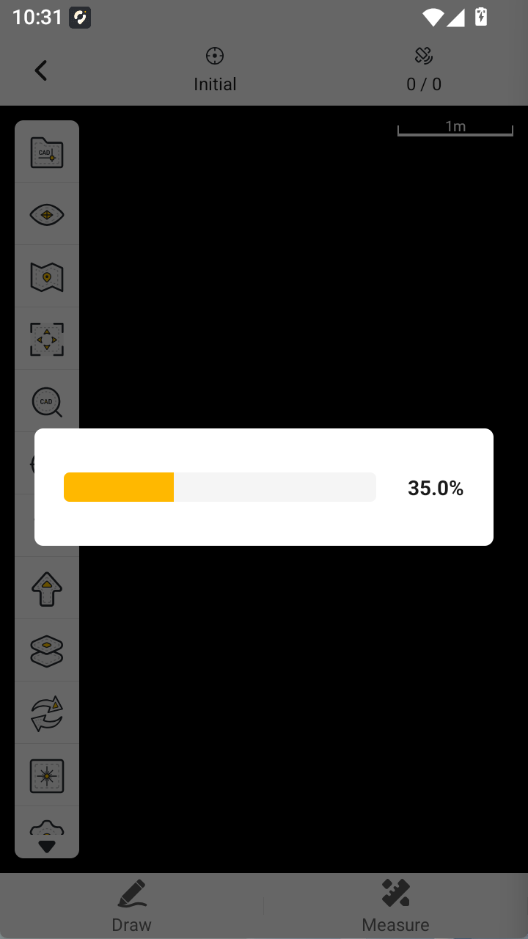
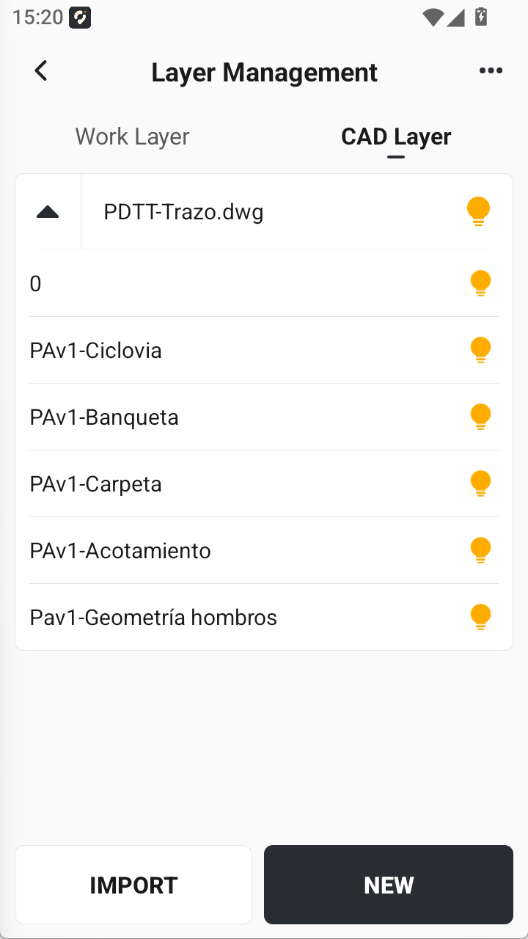
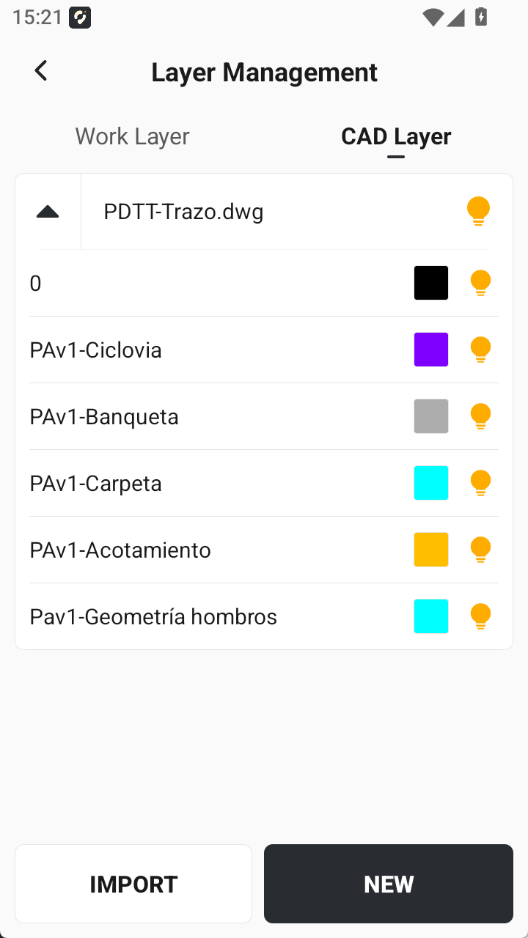
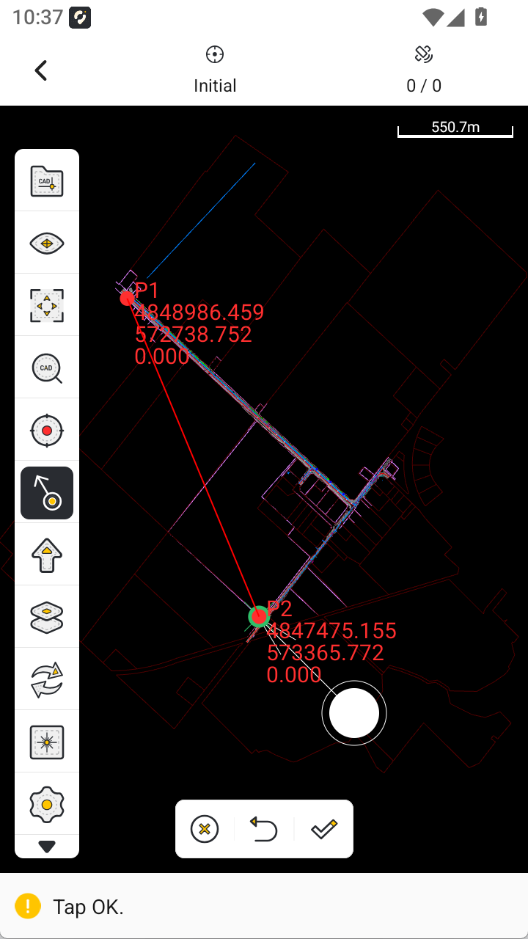
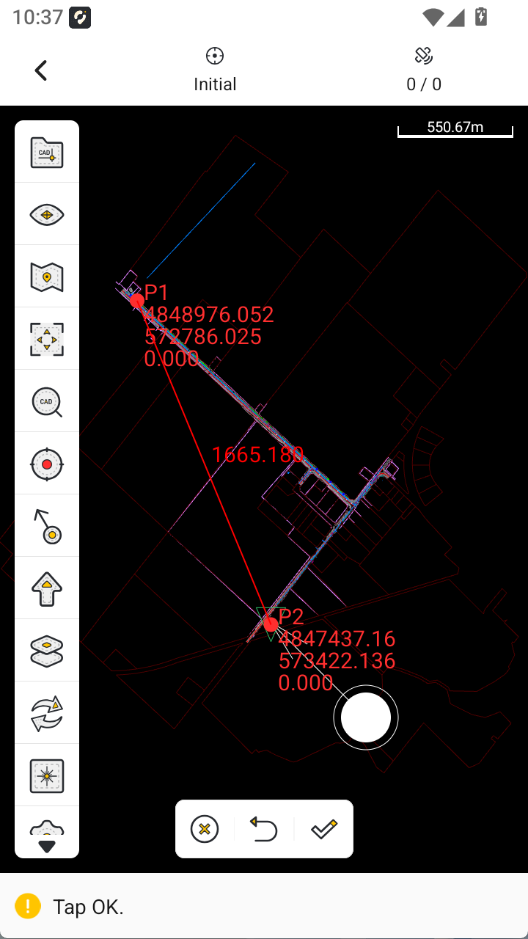
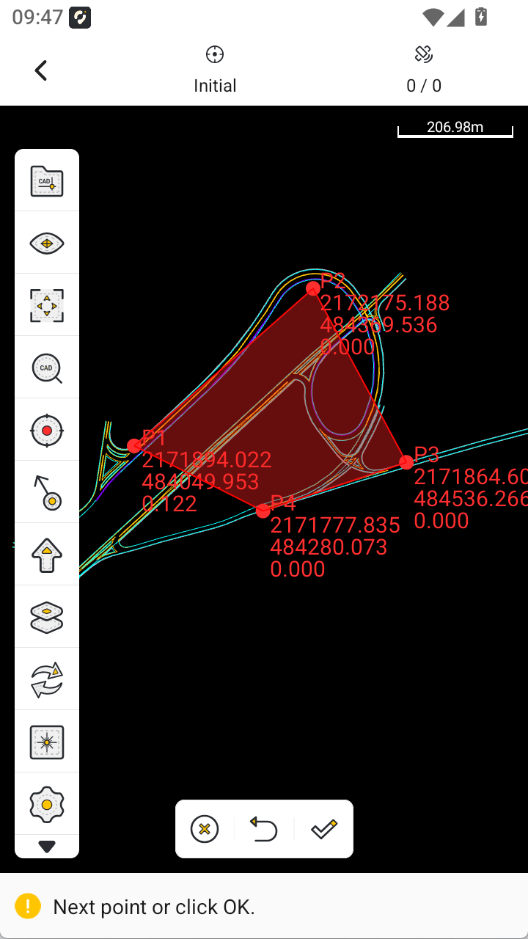
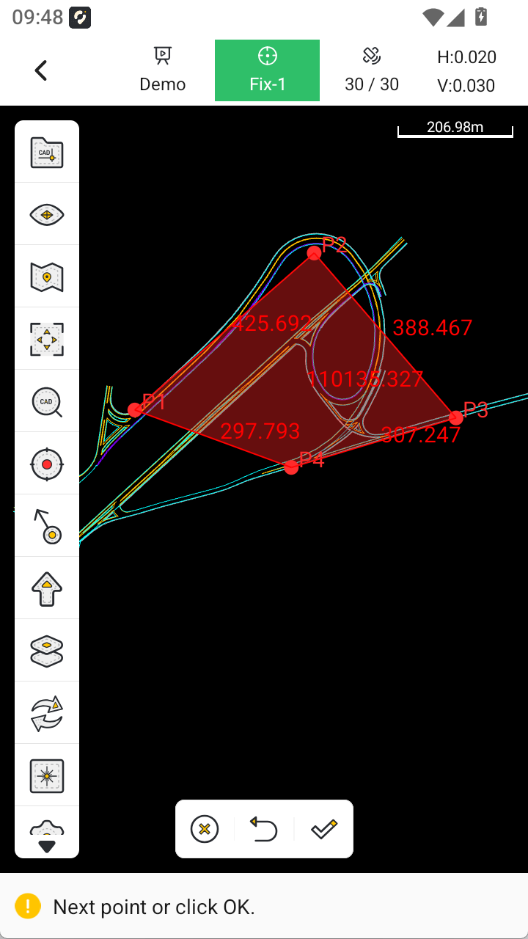
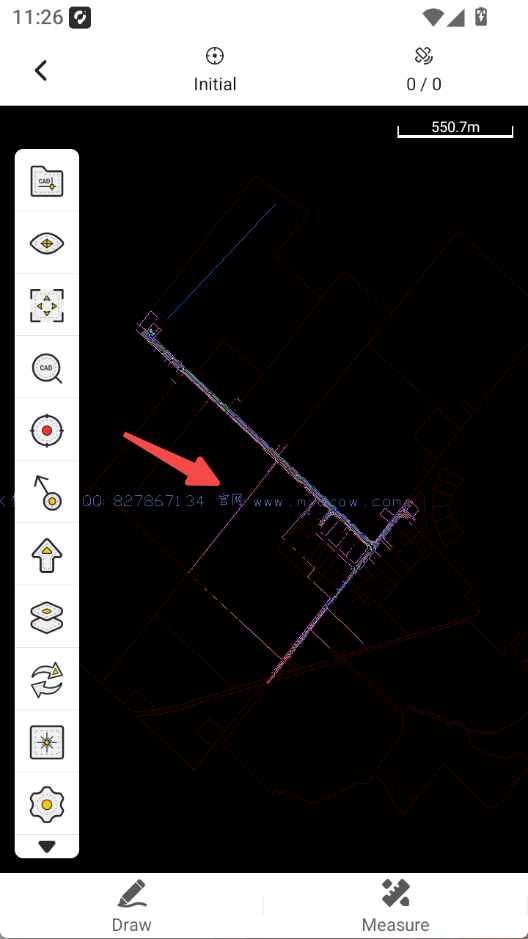
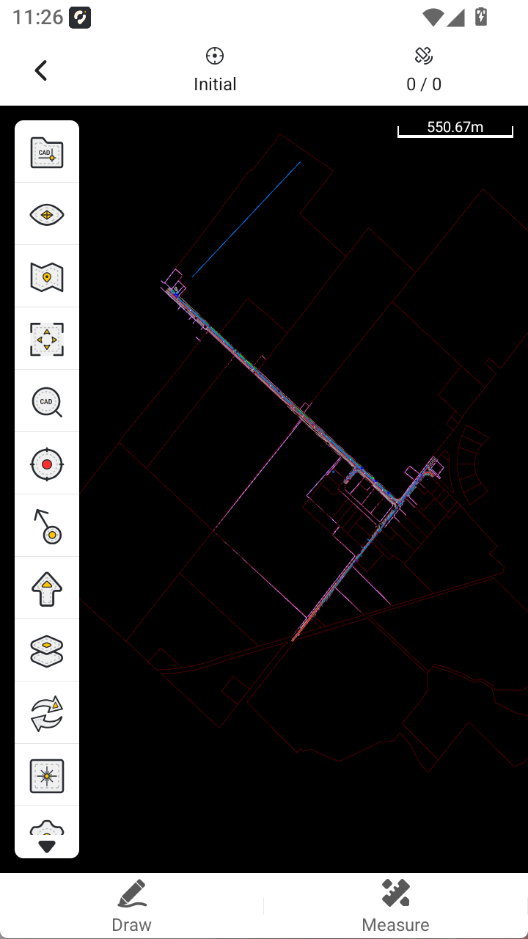
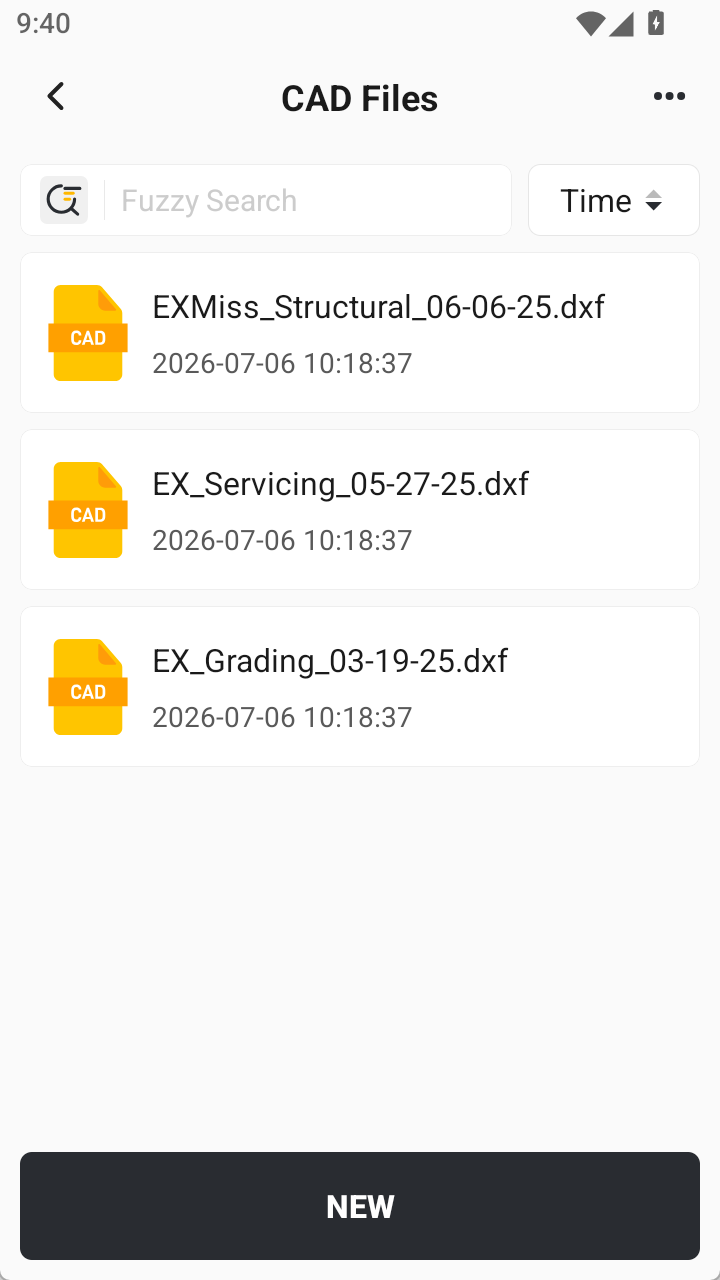
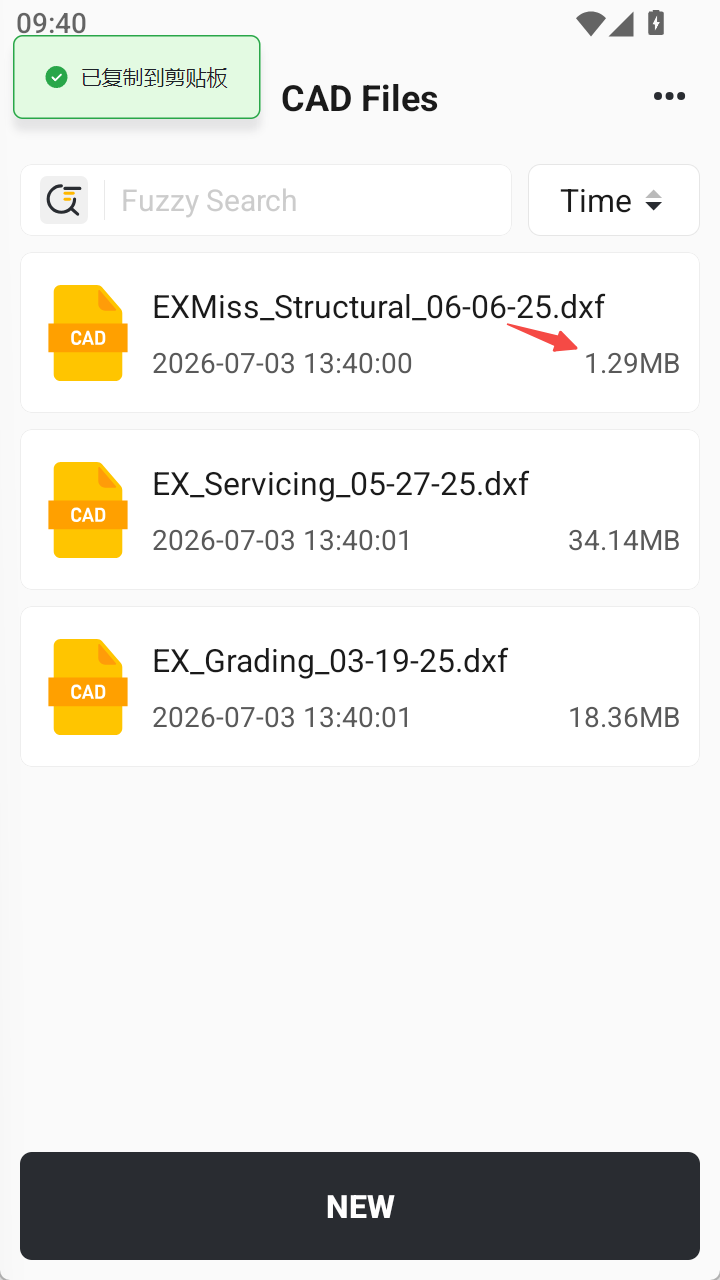
- Trion Survey version 2.1.9 recommends you use Alpha CAD;
- The default CAD engine is Alpha. If you have switched to MX, you need to switch to Alpha to overlay the map. The MX CAD engine does not have a map function;
- If you find that the scale is incorrect when using the Stake/Edit CAD function, please check the CAD drawing units again. (The APP reads the units of the CAD drawing by default, and the default unit of most drawings is Millimeters, not Meters)
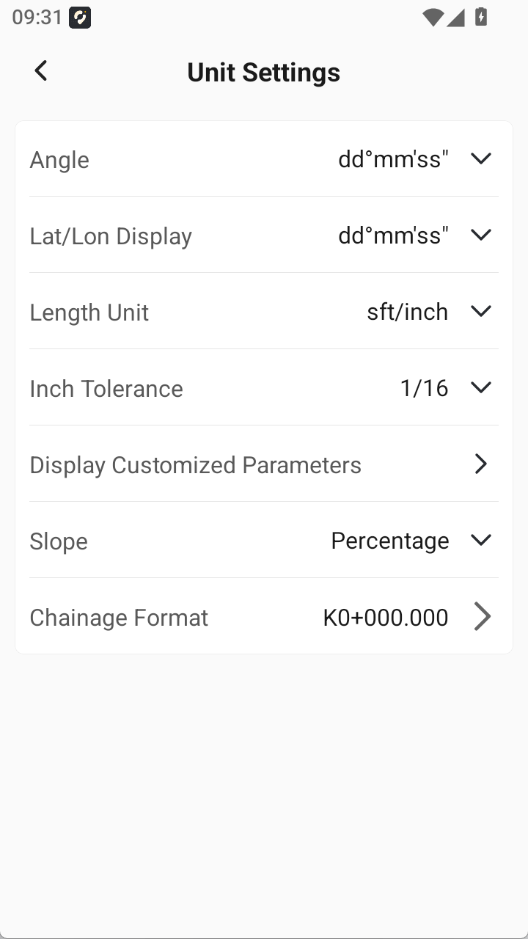
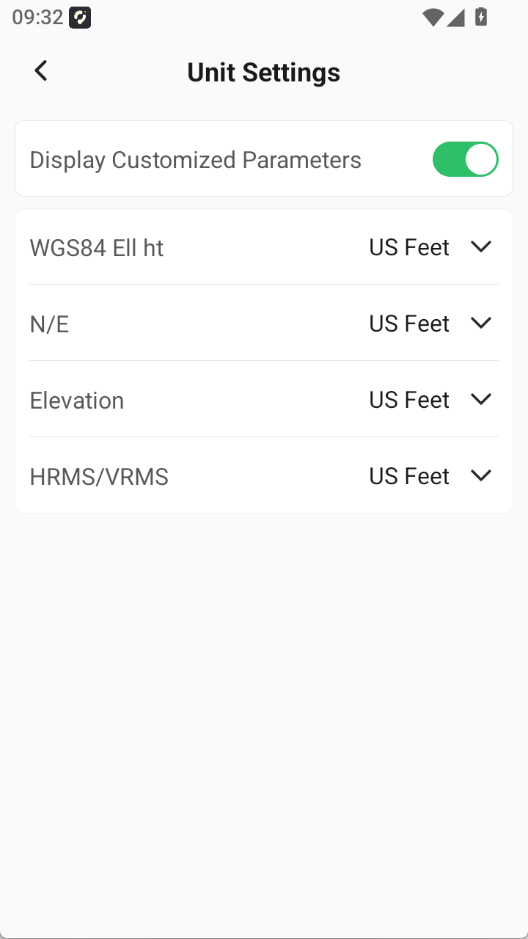
3.5 Customized Parameter Unit Display under US Feet and sft/inch Units
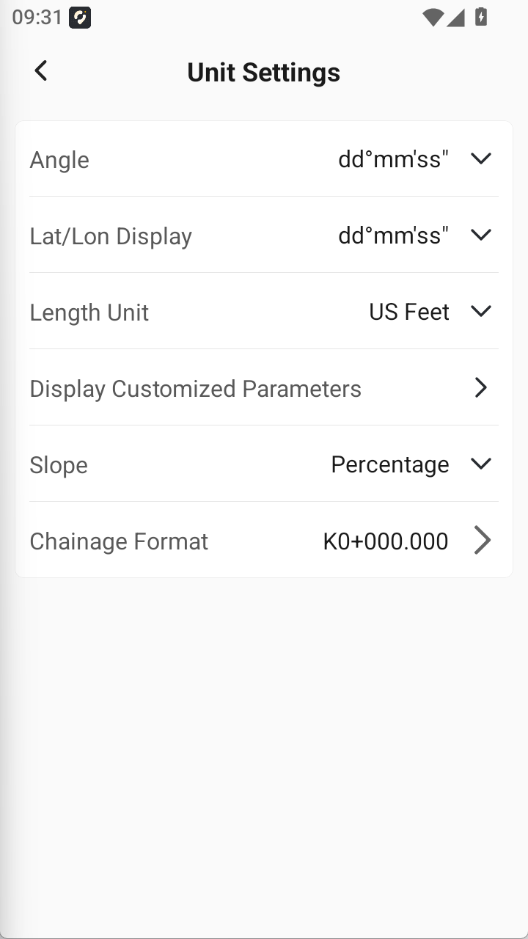
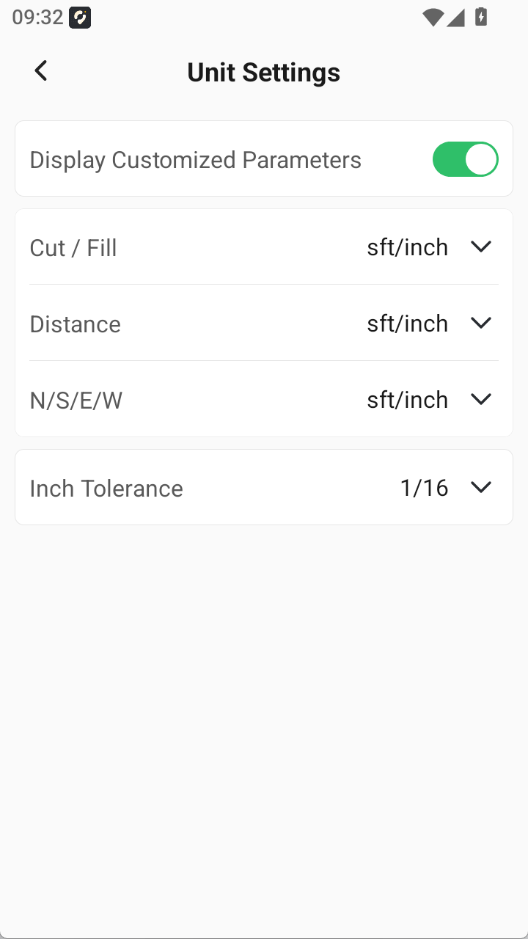
To match the usage habits of agents and end users, when the measurement unit is set to US Feet or sft/inch, the app now provides customized unit display for some parameters. This function is off by default.
1. Under US Feet, distance and cut/fill values are fixed to sft/inch.
2. Under sft/inch, ellipsoid height, N/E, geodetic height, HRMS, and VRMS are fixed to US Feet.
 |  |  |  |
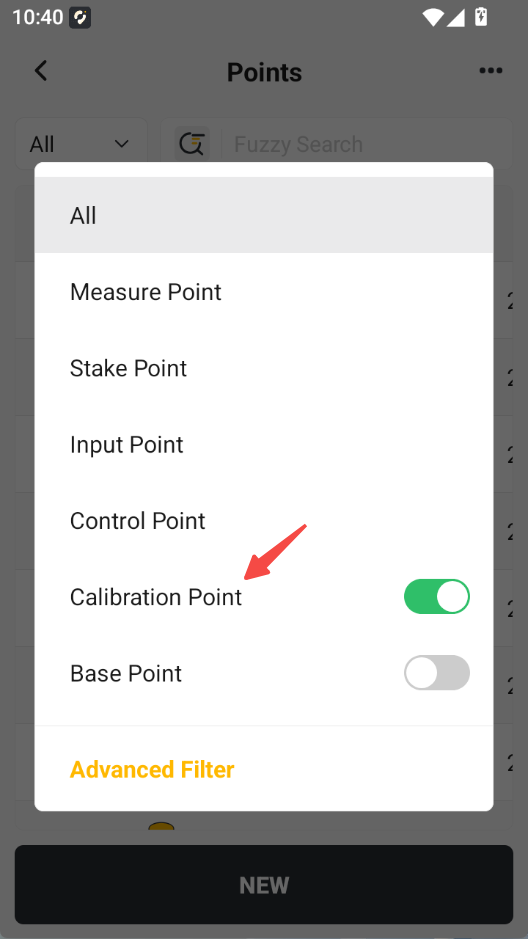
3.6 Added Calibration Point Type
Added the Calibration Point type to the point library. It is hidden by default.
Points measured during point calibration and base shift, which start with GNSS, are included in this type.
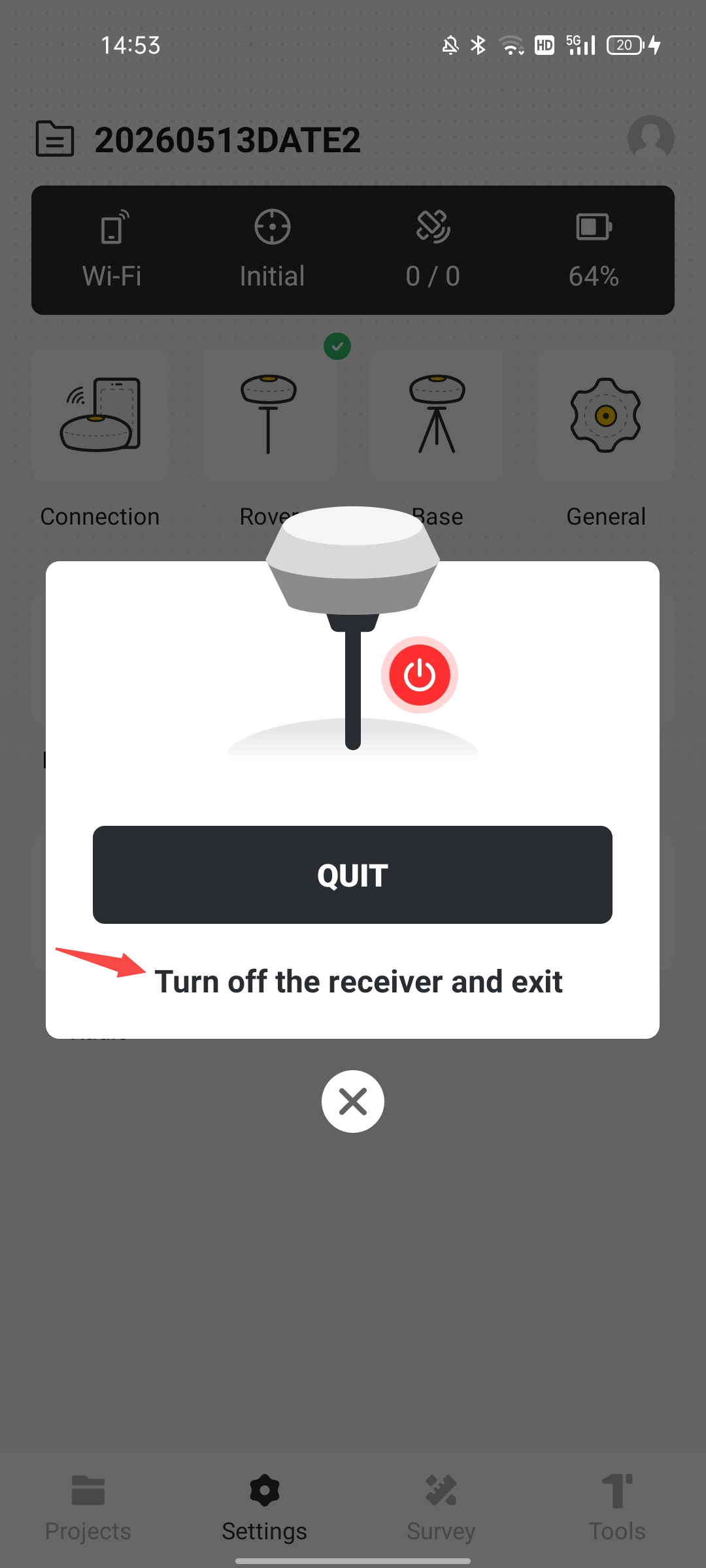
3.7 App Supports Turning Off V4e / V4e Pro Receivers and Exiting the App
When using Trion Survey to connect to V4e/V4e Pro, users can turn off the V4e / V4e Pro receiver with one tap and exit the app when exiting Trion Survey.
3.8 Supports Setting V4e / V4e Pro Receivers as Base Stations
FJDynamics App already supports setting V4e / V4e Pro receivers as base stations in network mode. This new version of Trion Survey also supports setting V4e / V4e Pro receivers as base stations through the network.
V4e mini RTK does not have a built-in radio and can only broadcast or receive differential data through the network.
3.9 Supports Disabling Side-Key Measurement on the D10 Tablet
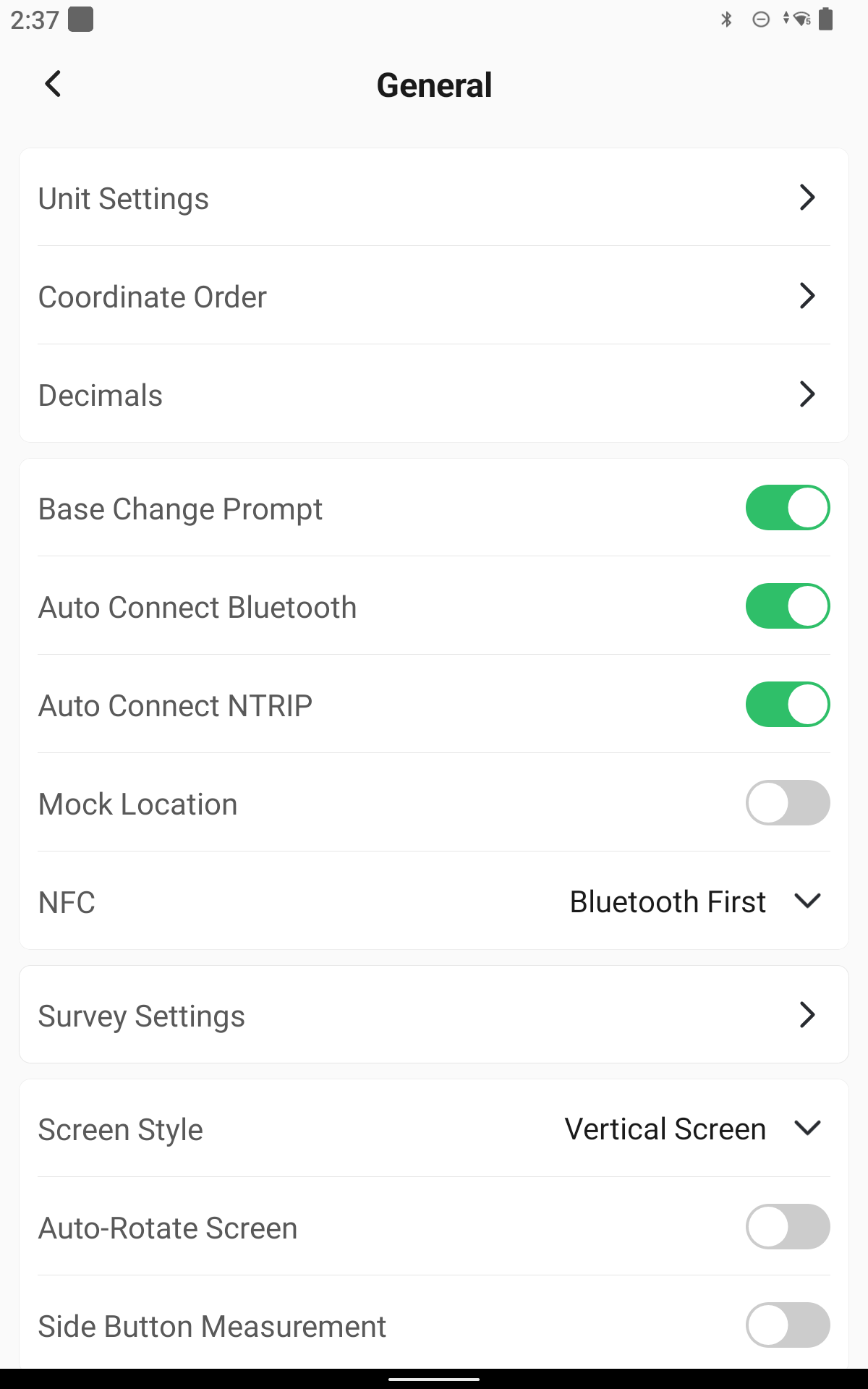
A Side-Key Measurement switch has been added to Settings. This function is displayed only when the app is opened on a D10 tablet. It is on by default. Users can switch it off to prevent accidental triggering during measurement.
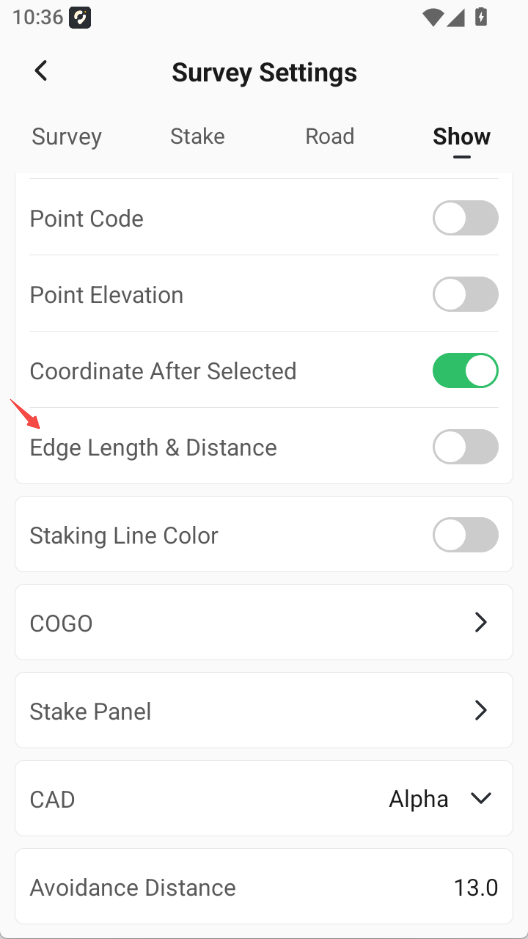
3.10 Measure & Draw Supports Displaying 2D Edge Length and Distance When Drawing Certain Elements
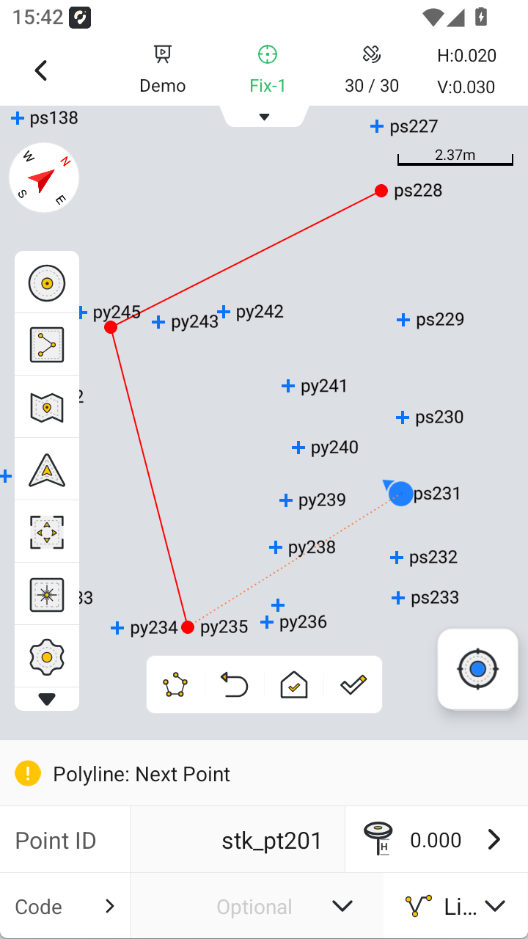
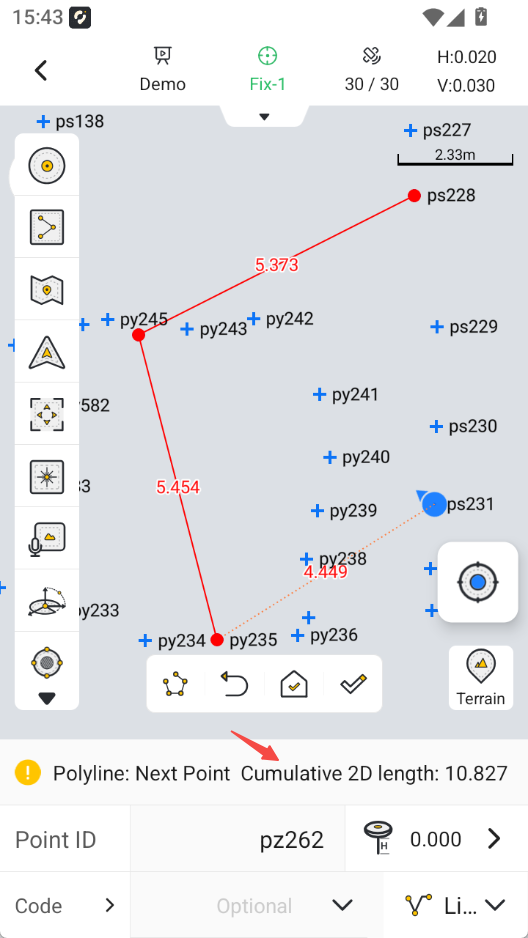
In the Measure & Draw module, when drawing certain elements (two-point lines and multi-point polylines), the 2D length of each straight edge and the cumulative 2D distance are displayed. After drawing is completed, the 2D area is displayed. In preview, 2D edge length and 2D area are always displayed.
In General > Survey Settings > Display, an Edge Length & Distance switch has been added. It is off by default. When enabled, the 2D length of straight edges and the cumulative 2D distance are displayed.
 |  |  |
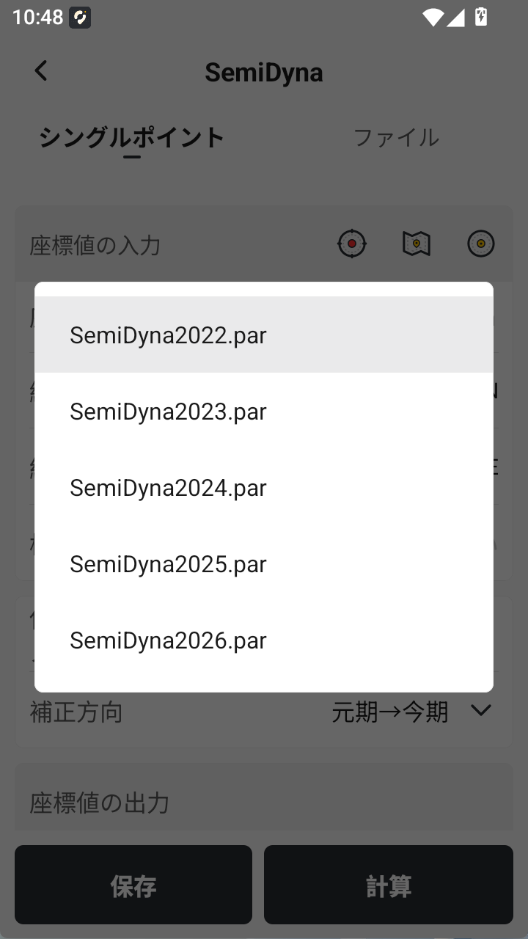
3.11 Added Japan SemiDyna2026.par Semi-dynamic Correction File
The latest semi-dynamic correction file released by the official Japanese authority has been added to the file list and can be applied.
1.The app currently stores only the most recent five years of Japan semi-dynamic correction files.
2.GNSS Studio has been updated at the same time.
3.12 Area Calculation Preview Supports Displaying Edge Length and Area
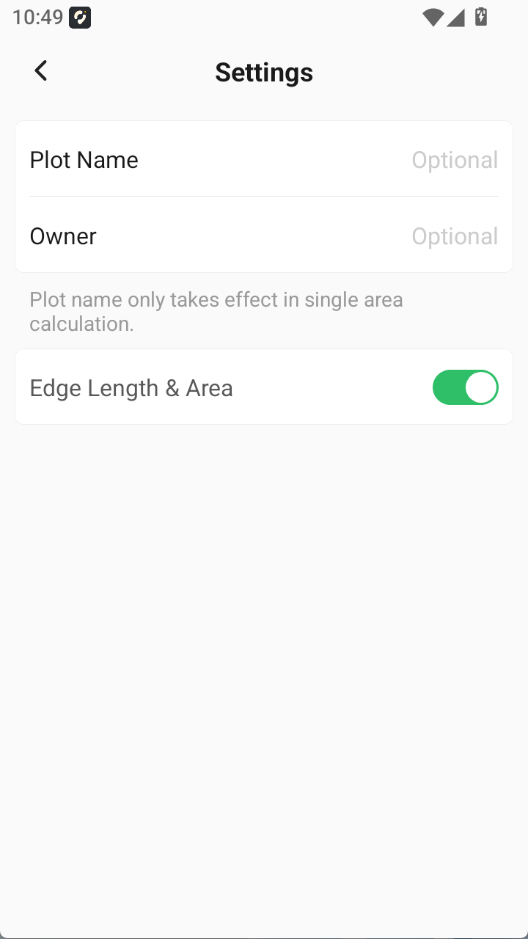
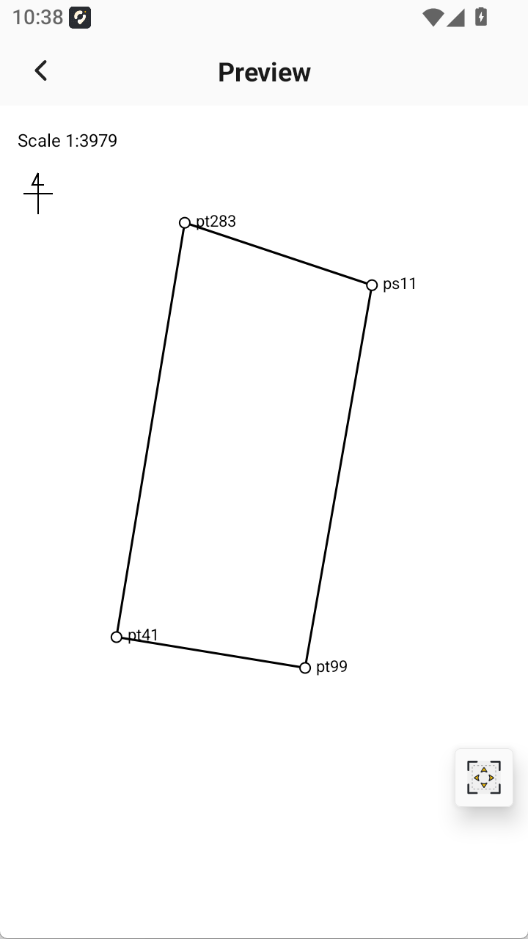
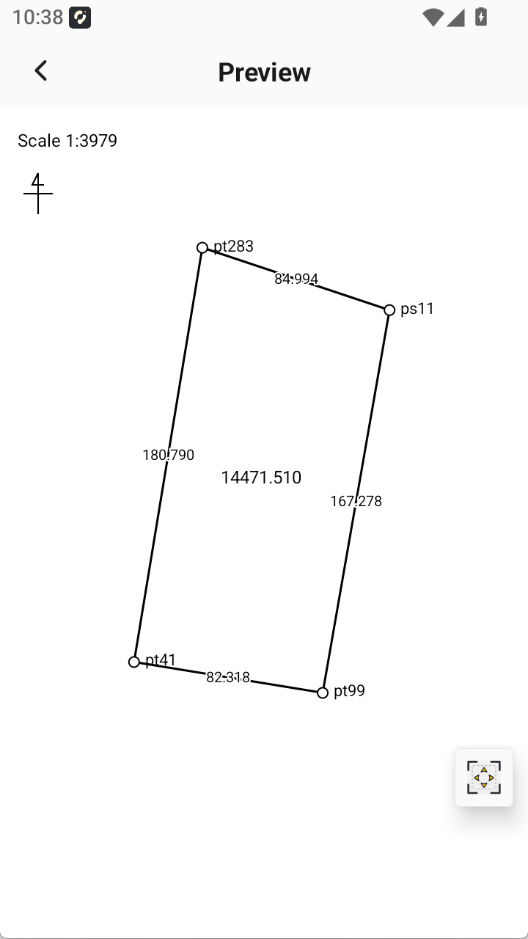
Added an Edge Length & Area button in Area Calculation Settings. It is off by default. When users need to show edge length and area, they can enable this button. In area calculation preview, each edge length and the total area will be displayed.
When exporting an area measurement report, users can turn this function on or off. The corresponding report will show or hide each edge length and the total area accordingly.
 |  |  |
3.13 Supports Configuring Elevation Mask Angle for V10 / V10L Series Receivers
This function requires upgrading the V10 series receiver firmware to v10.2.7.12.
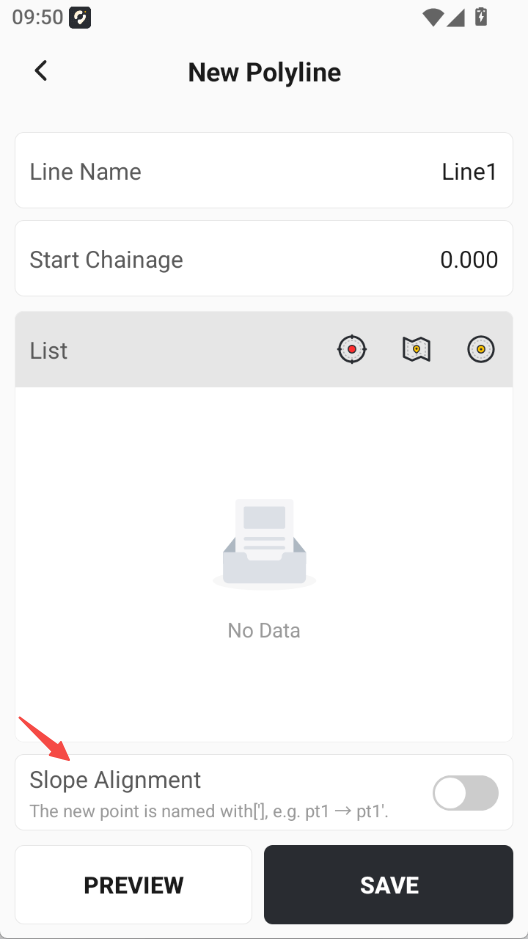
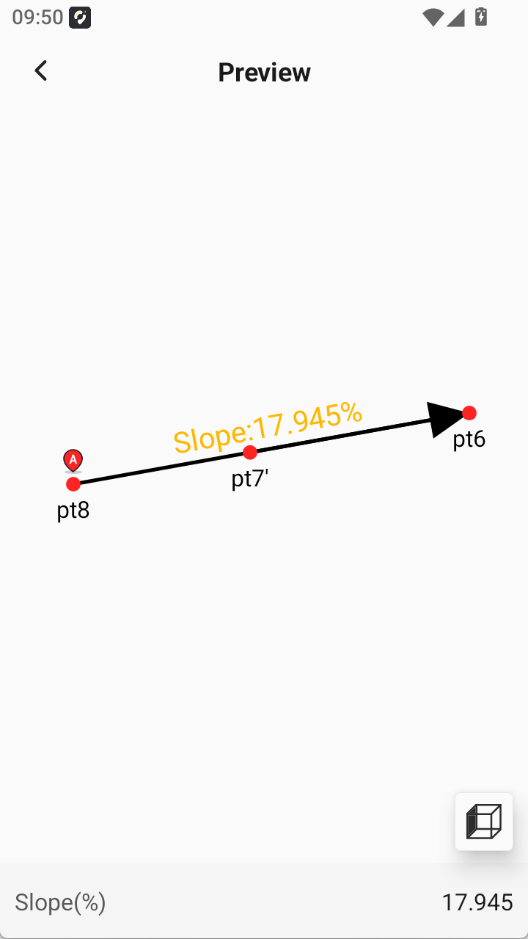
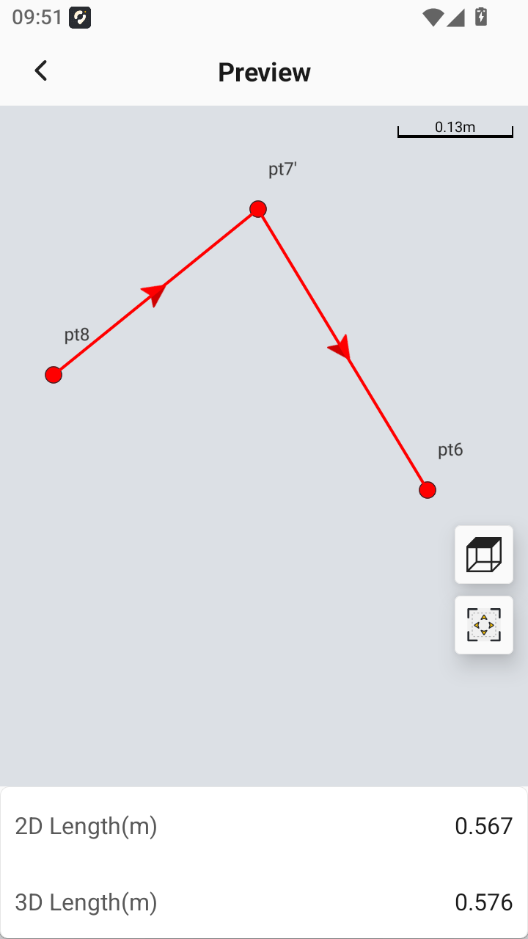
3.14 Added Slope Alignment Settings When Creating a New Polyline in the Line Library
When creating a new polyline in the Line Library, a Slope Alignment option has been added at the bottom of the page. It is off by default.
 |  |  |
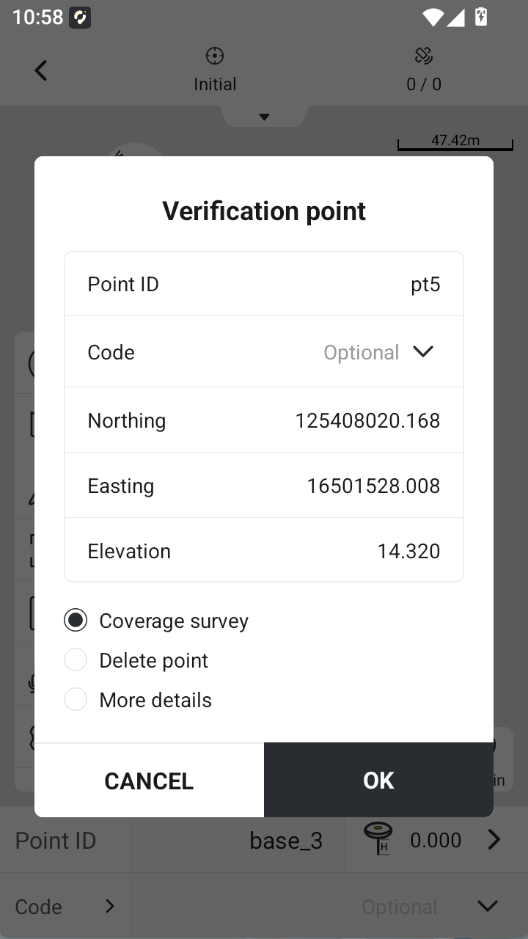
3.15 Supports Tapping Points on the Measurement Interface to Open the Verification Point Page
On the Point Measurement, Measure & Draw, and GIS Survey interfaces, tapping a point on the map opens the Verification Point page in a popup. Users can edit the point name and code, select coverage survey, delete the point, and view details.
3.16 Supports Highlighted Display of Solution Status
In General > Survey Settings > Display, a Highlight Solution Status button has been added. It is off by default. When enabled, the solution status is displayed with a background color, making the status more prominent.
Setting 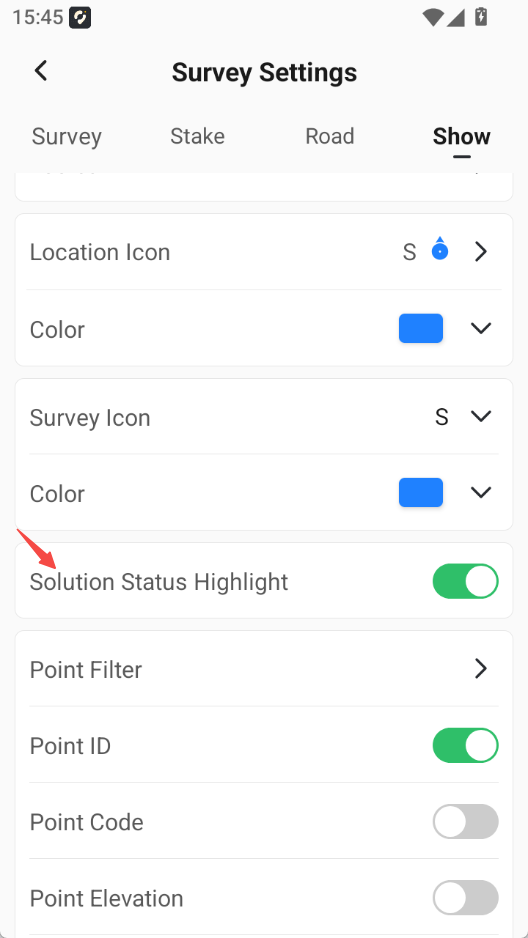 | Single 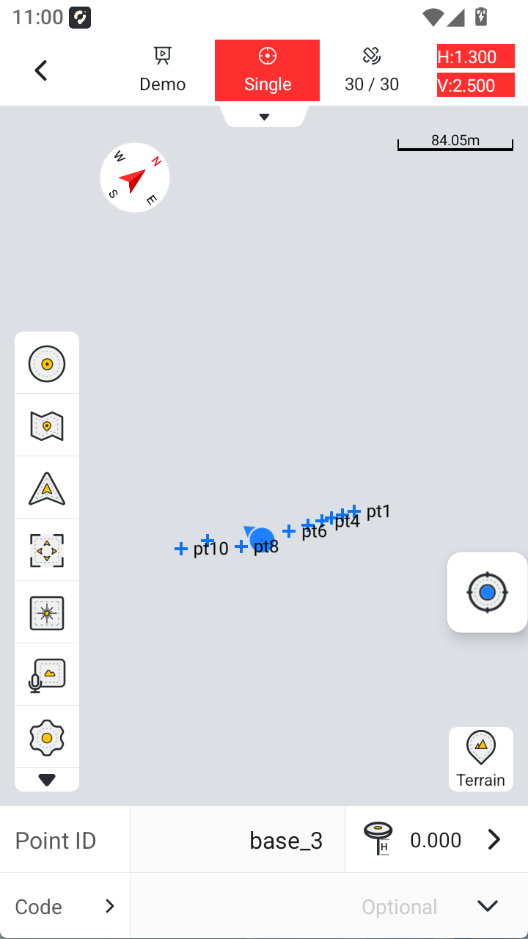 | Float 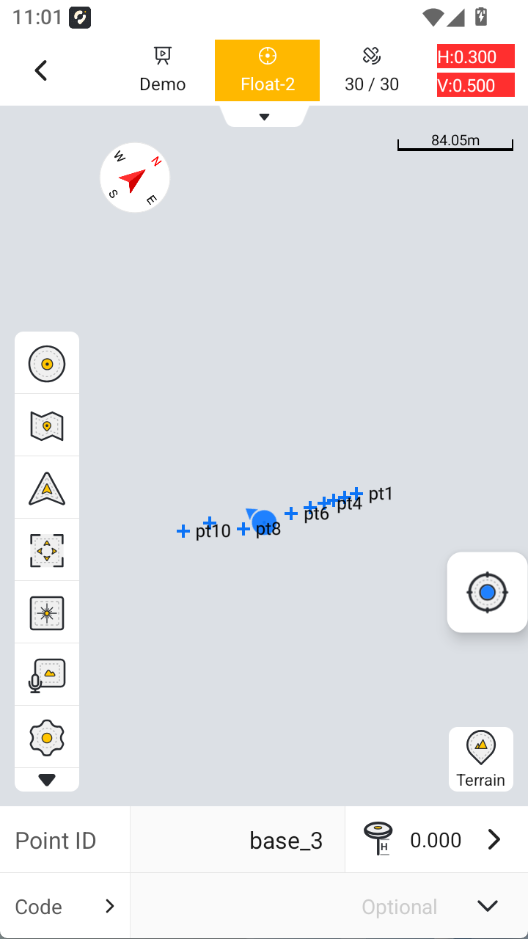 | Fix 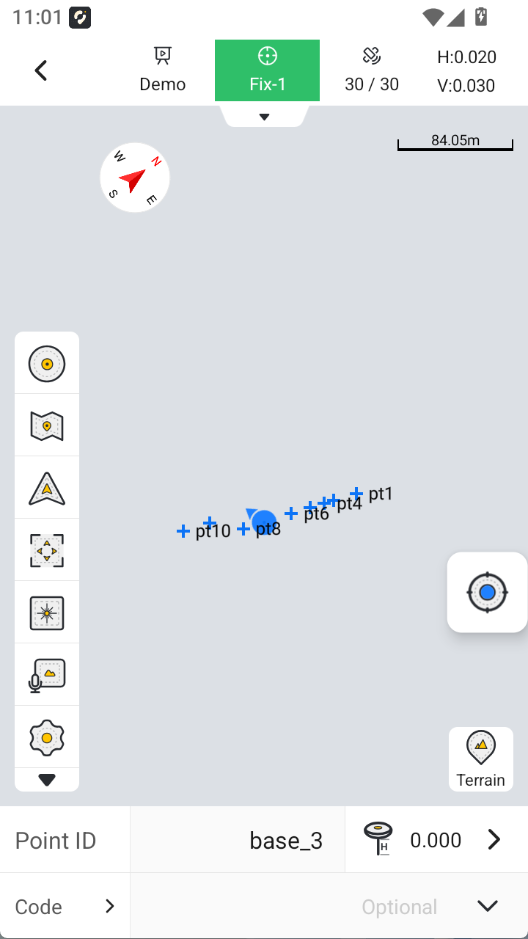 |
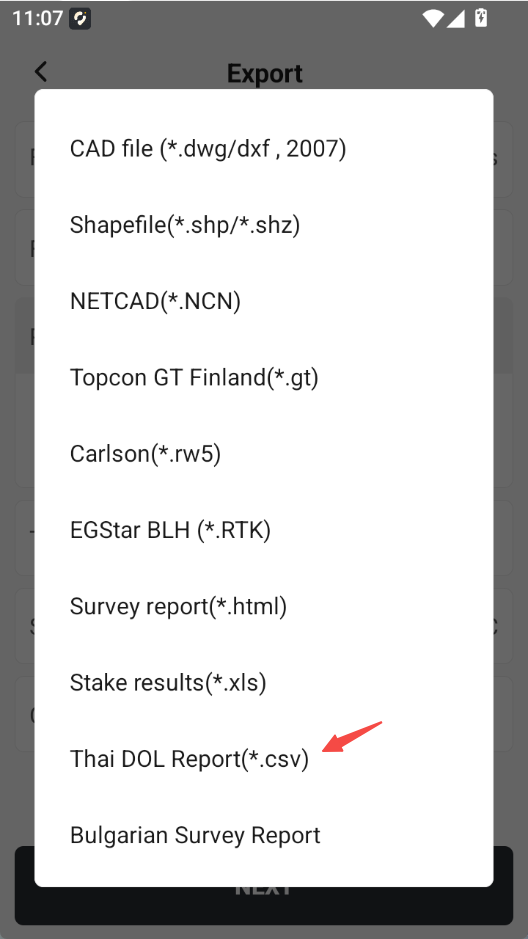
3.17 Added Thailand DOL Report Function
Added the Thailand DOL Report (*.csv) option under Other Formats in Point Library export. This supports exporting Thailand DOL reports.
 |
 |
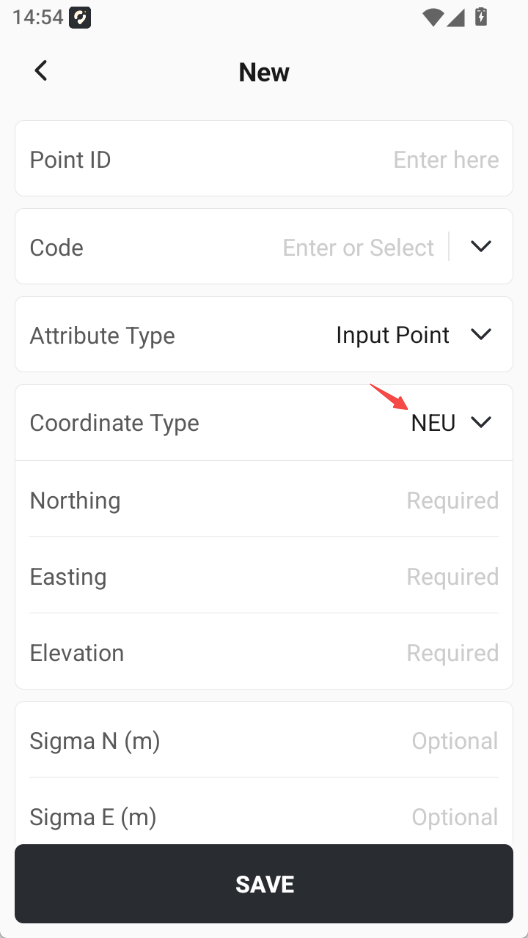
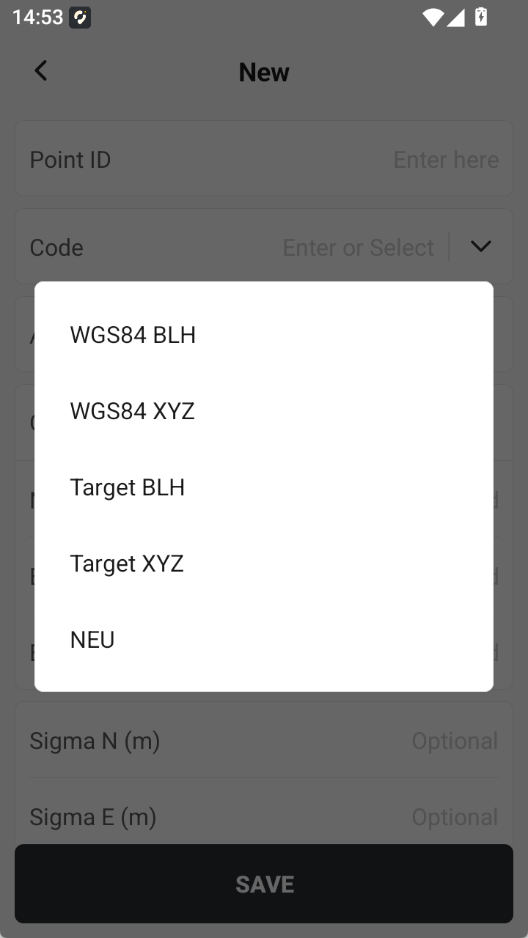
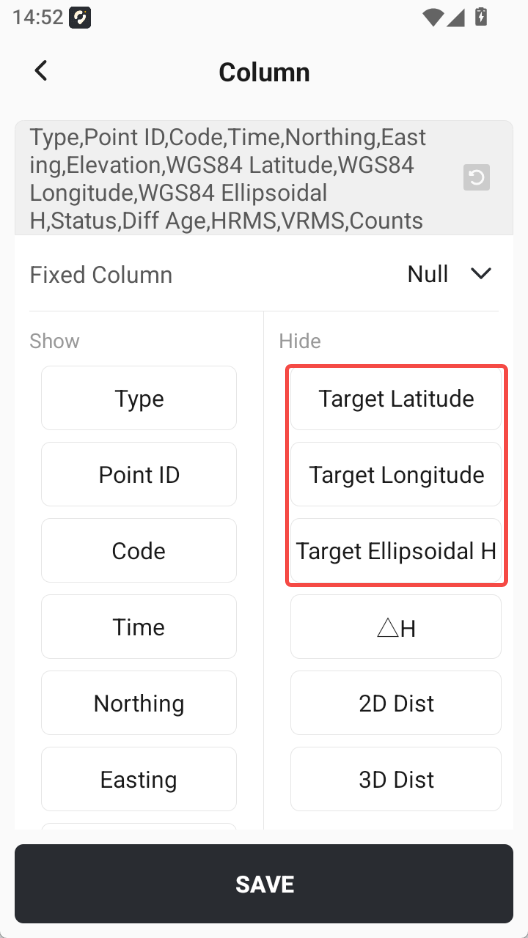
3.18 Added Target Ellipsoid BLH and XYZ Information
Added target ellipsoid BLH and target ellipsoid XYZ information to Point Details. Exporting target ellipsoid longitude, latitude, and ellipsoid height is also supported.
 |  |  |
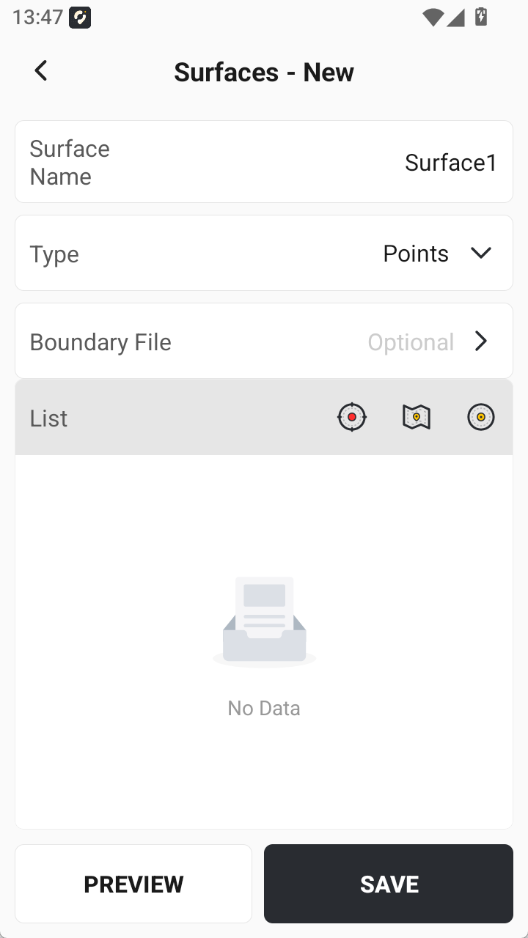
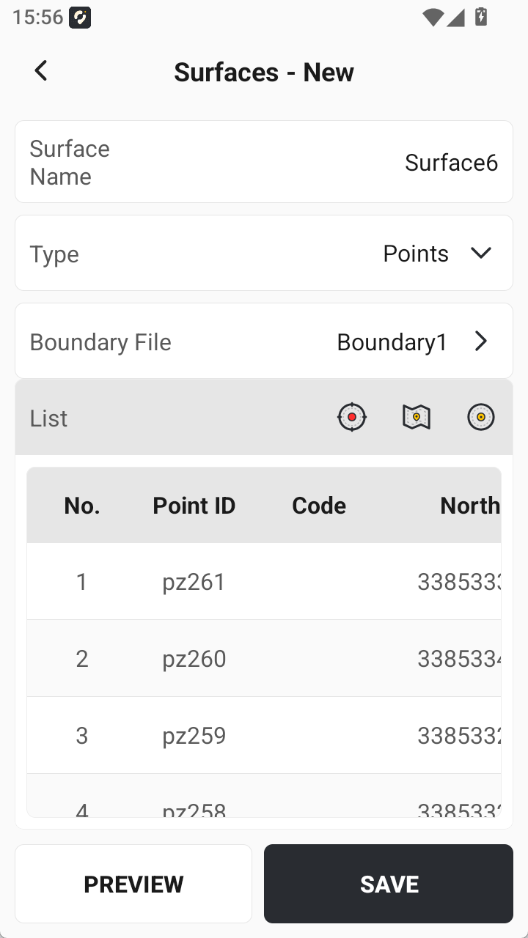
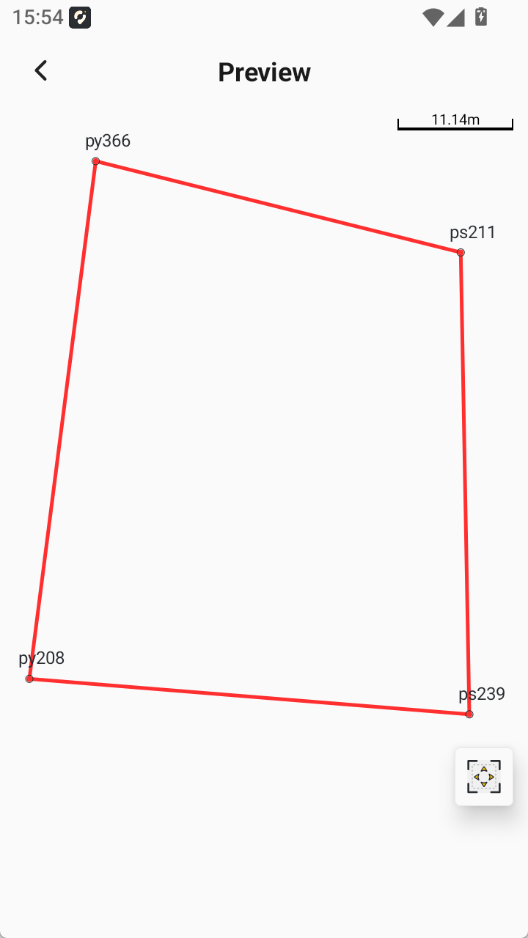
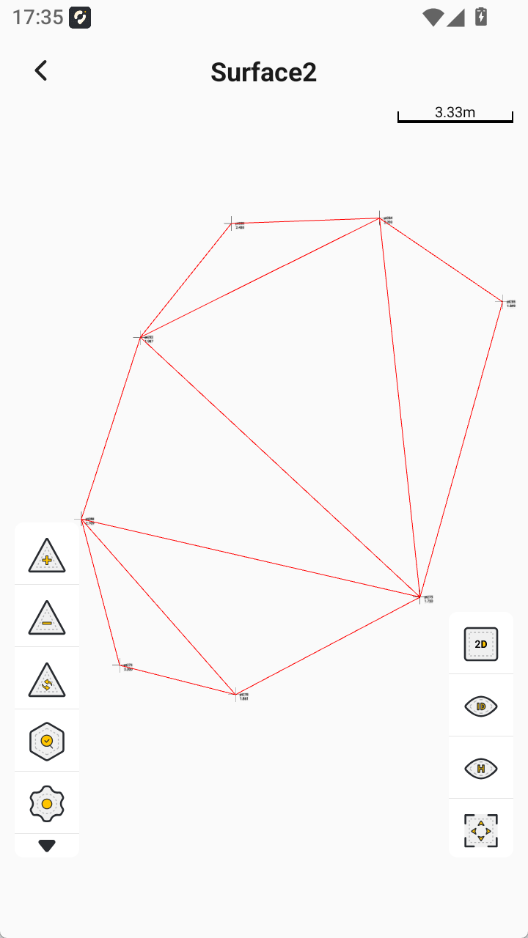
3.19 Supports Using Boundary Files When Creating Surfaces
When creating a surface with the Coordinate Points method, users can upload a boundary file. Coordinate points inside the boundary are used to build a triangulated network and create a Surface.
 |  |  |  |
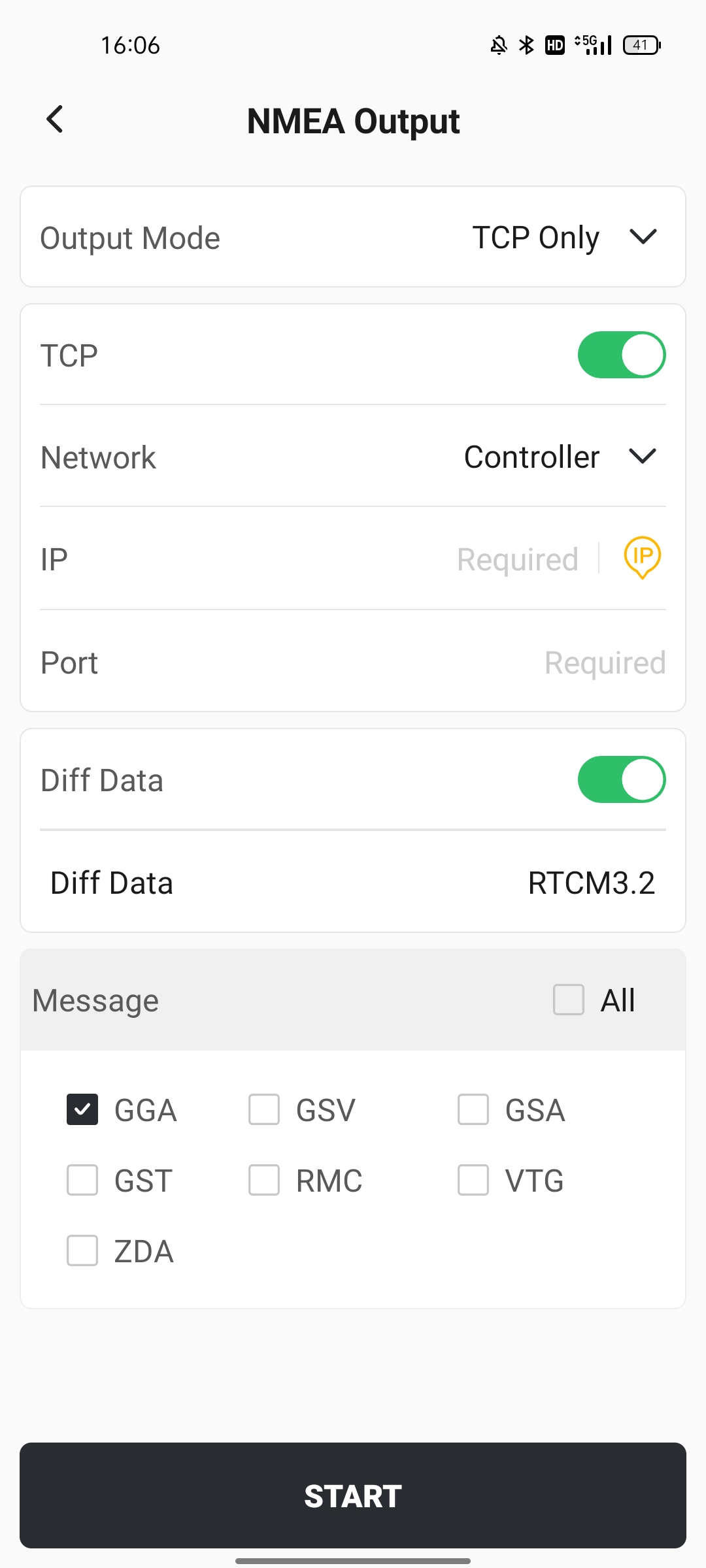
3.20 NMEA Output Supports Broadcasting and Displaying Differential Data
When configuring a base station in network mode, if the TCP Only option is selected and the controller is used for internet access, a Differential Data switch is added. When enabled, differential data can be broadcast and the differential data type is displayed.
3.21 Stakeout interface input vertical offset/new design supports the use of numeric keyboard
When inputting the vertical offset/new design height on the stakeout interface, the built-in numeric keyboard in the APP is supported, making numerical input easier.
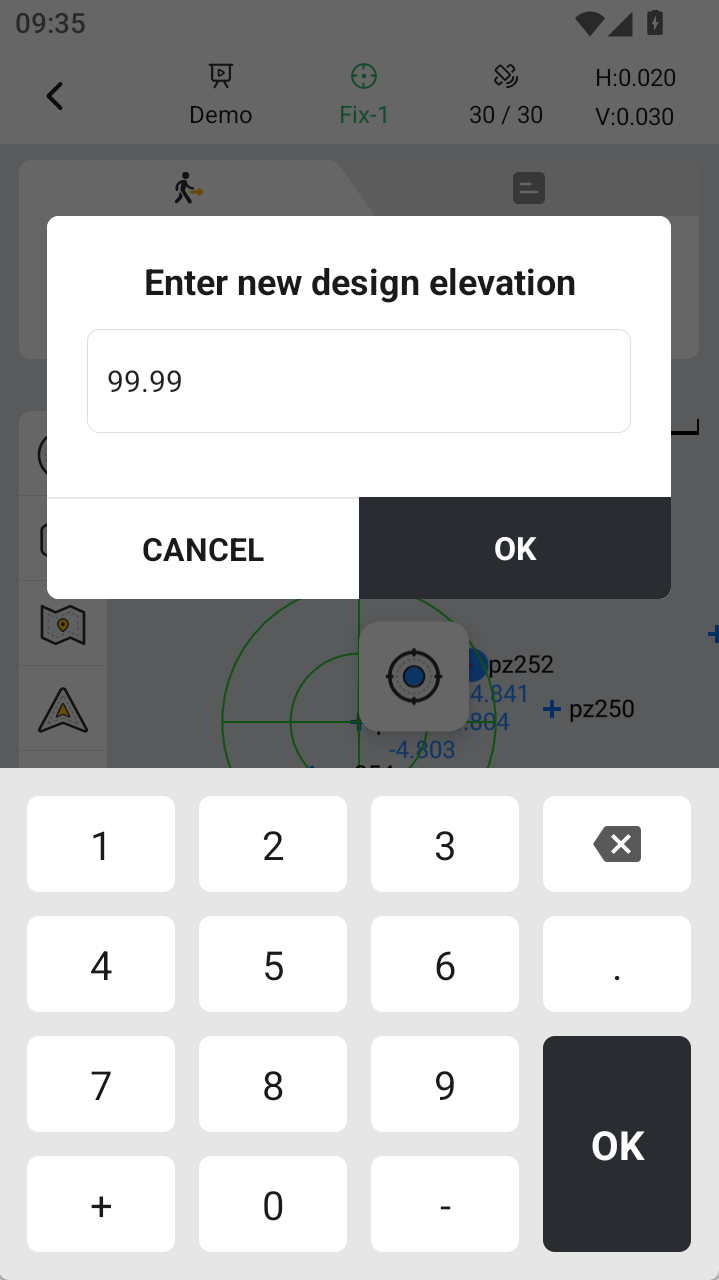 | 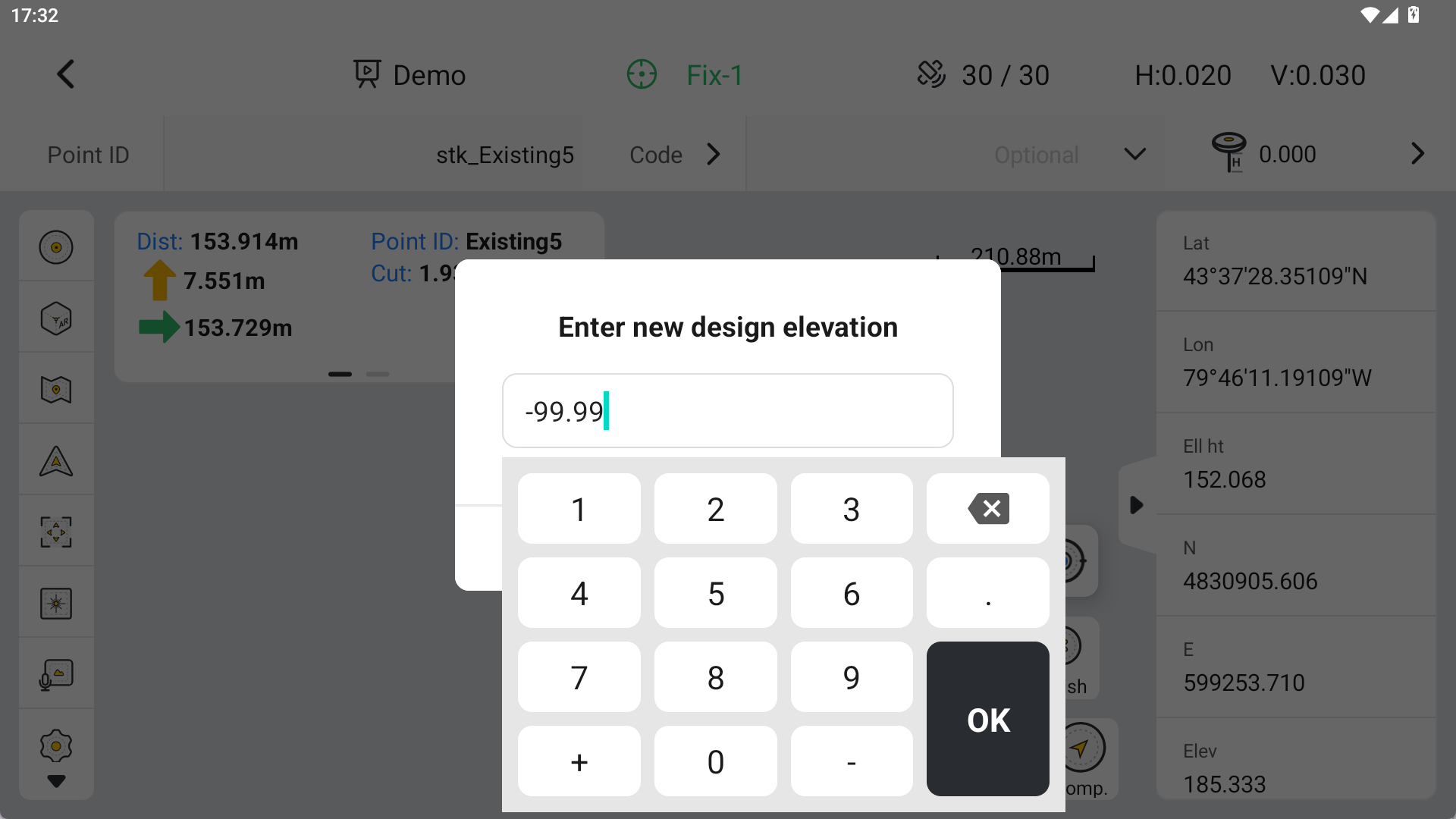 |
The numeric keyboard will be used when entering values in the following function interfaces:
1. Stake Point/Stake Lines/Stake Road
a. Input the new design height
b. Input the vertical offset
2. DTM Stake/CAD Stake - input design height
3. Stake Slope - input new design height
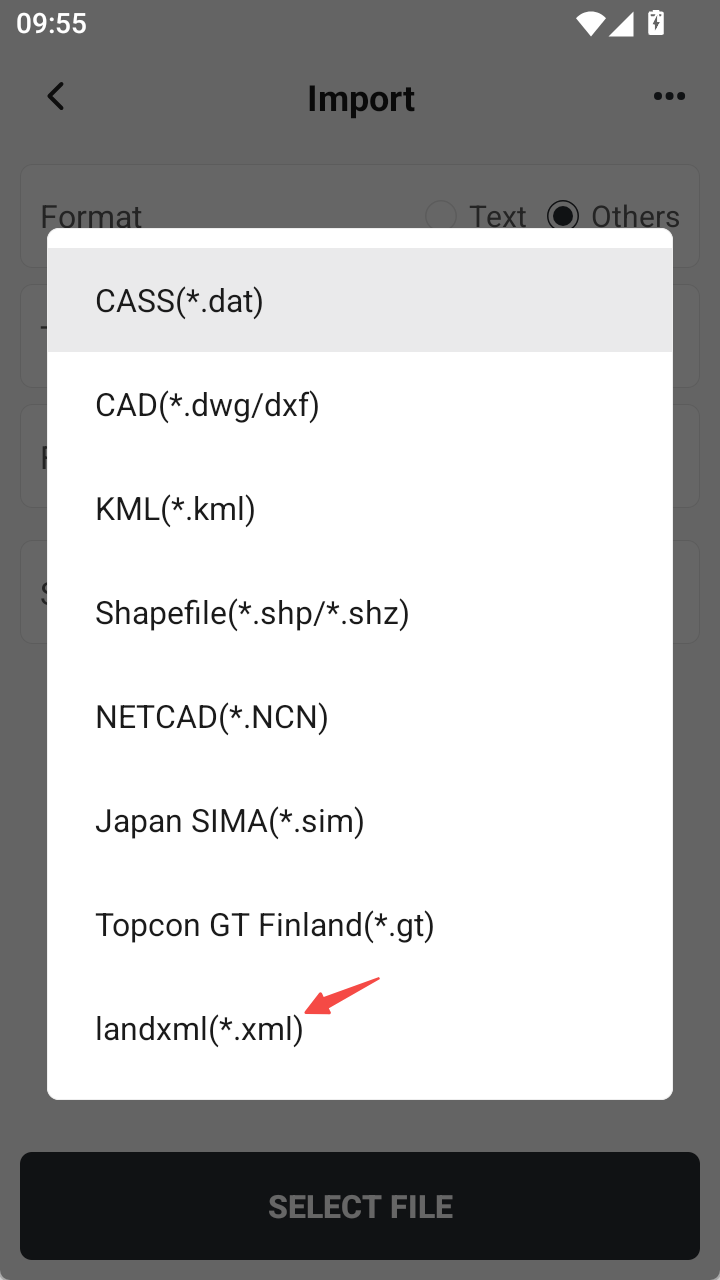
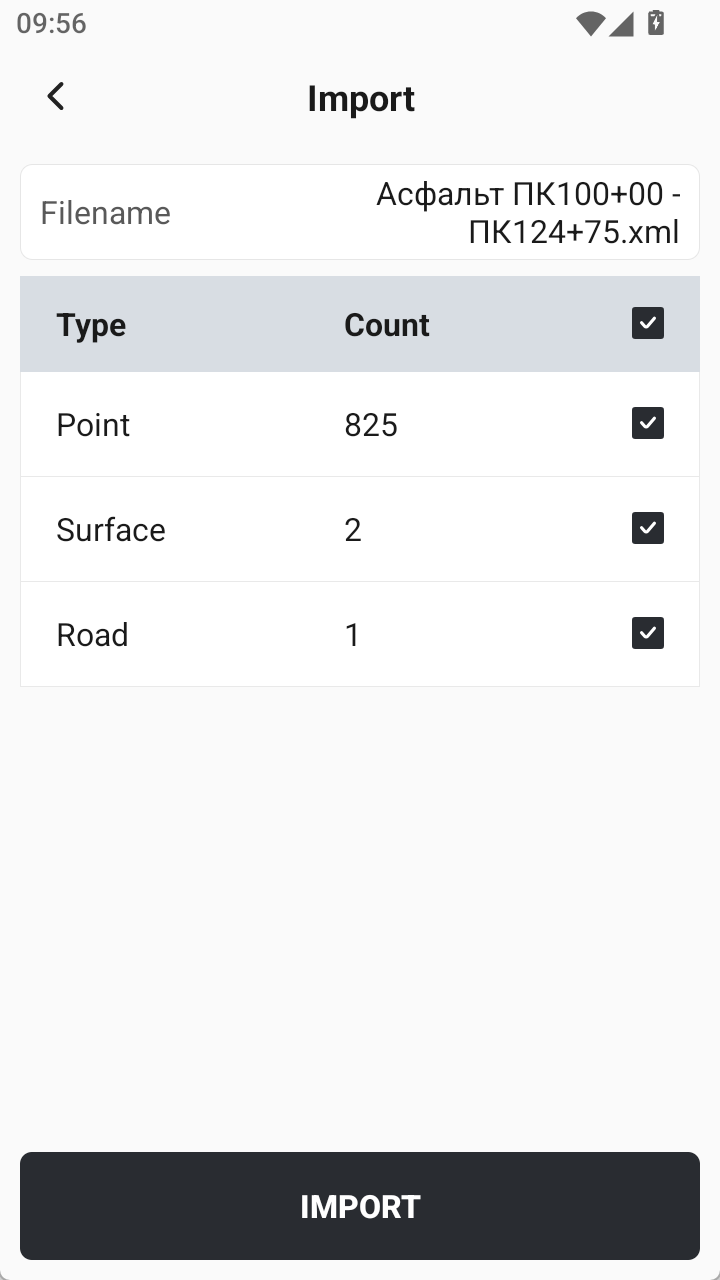
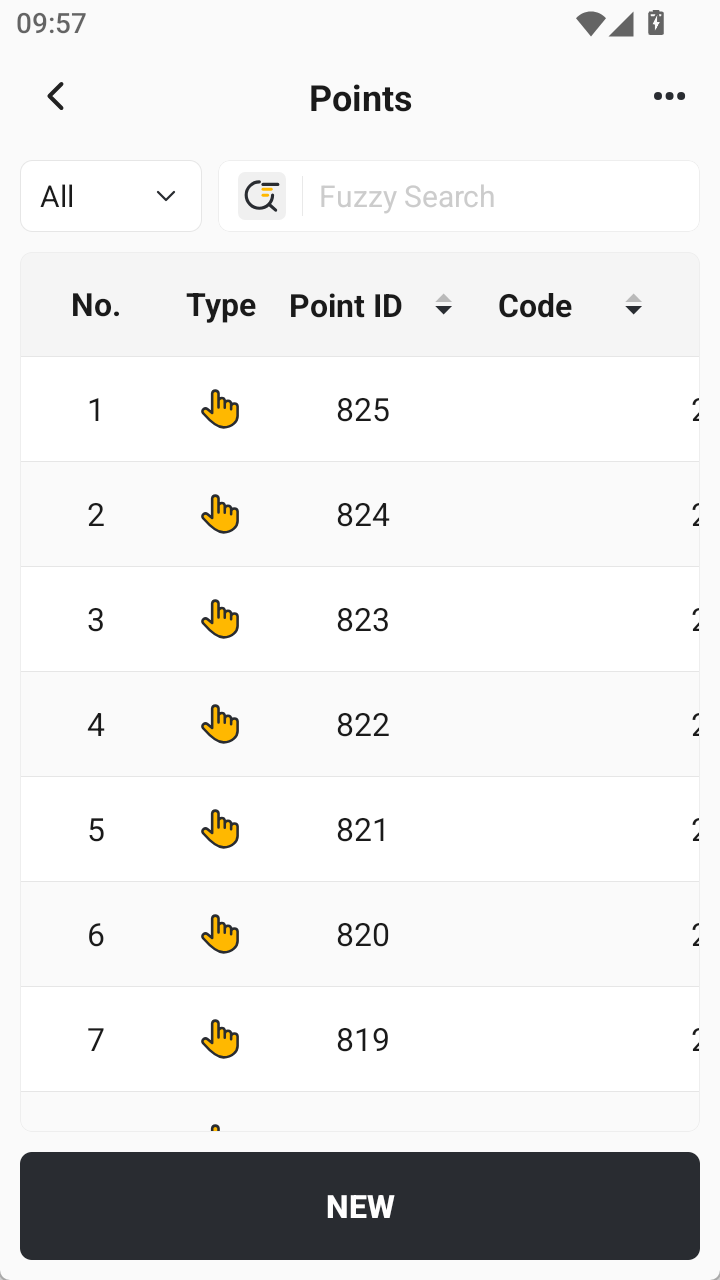
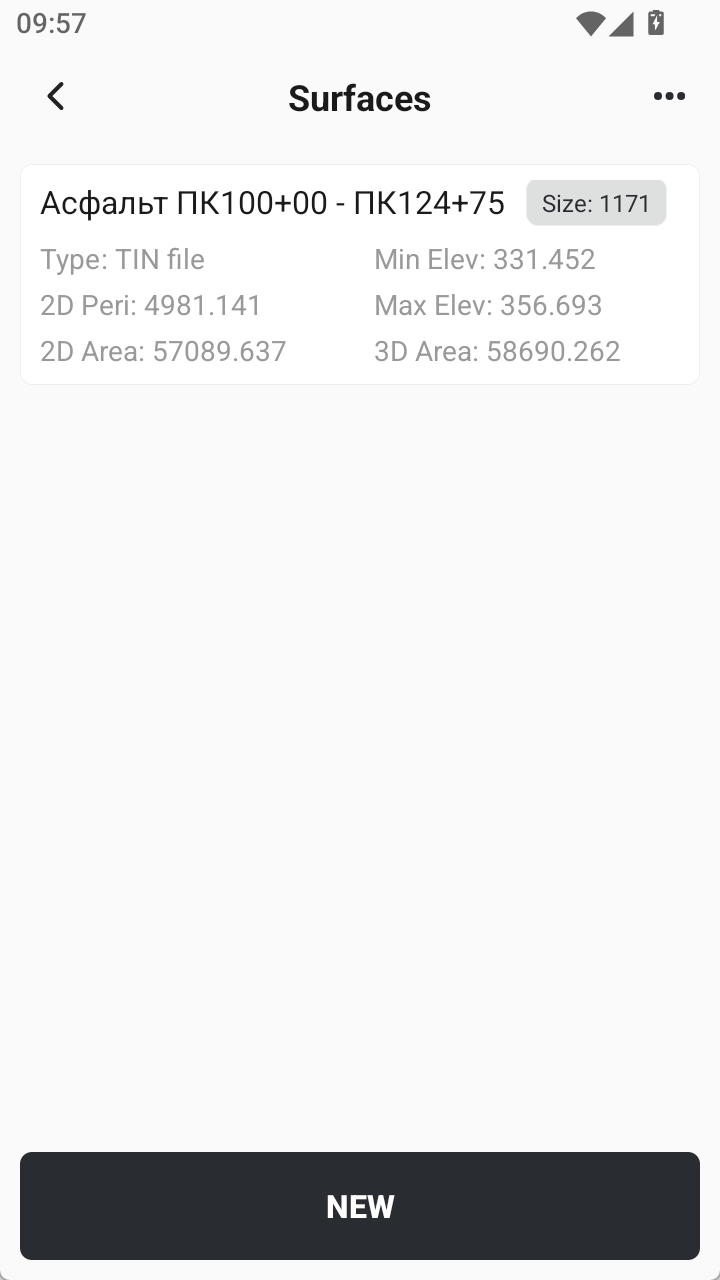
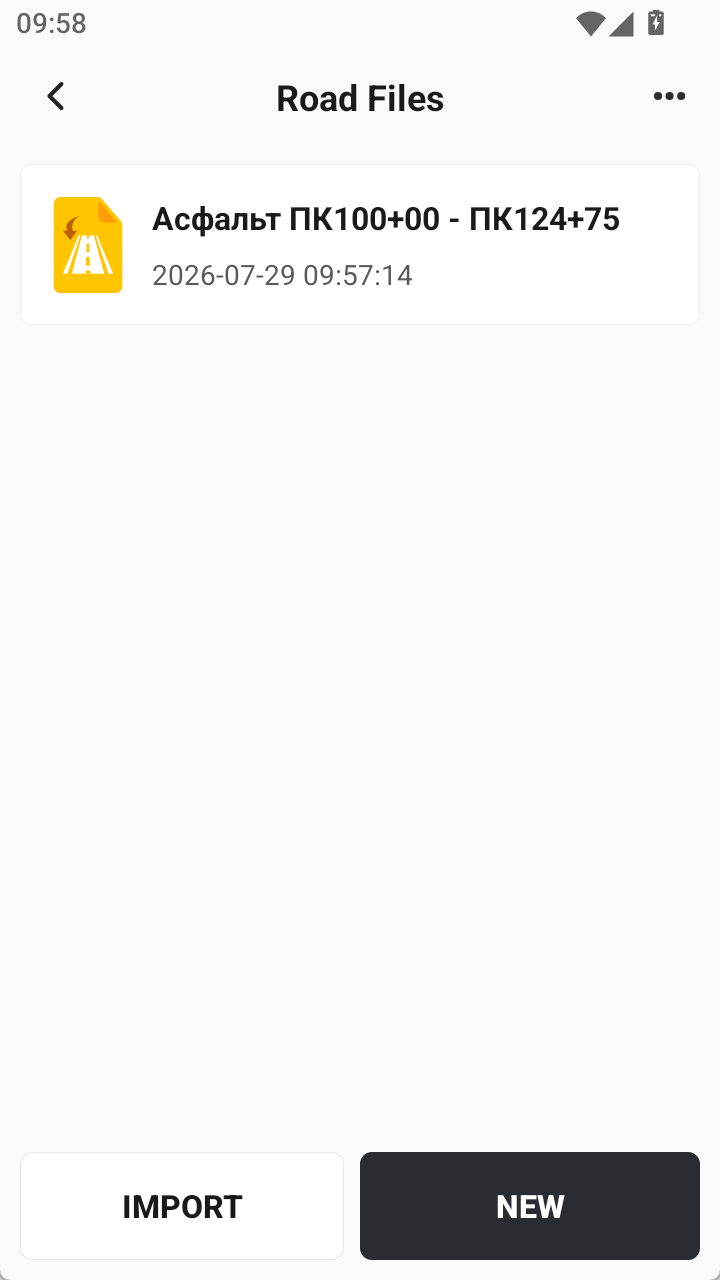
3.22 Added LandXML to import other formats, supporting batch import of point/area/road data.
Import interface, select other formats, add LandXML format import, add point/area/road element selection page, all are checked by default, support one-click import of points/area/elements into point library/area library/road library.
 |  |  |  |  |
4. Improvements
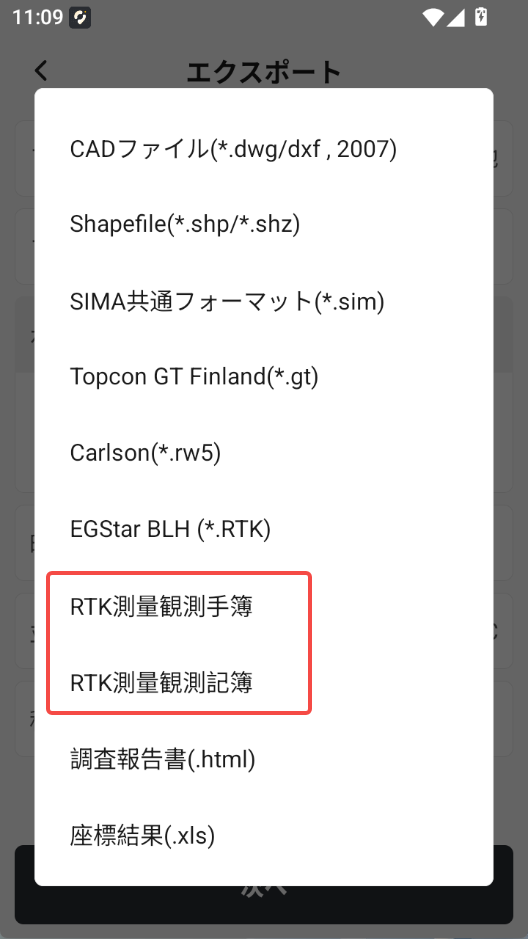
4.1 Optimized Japanese RTK Report / RTK Handset Report
Based on sample Trimble reports provided by the Japanese market distributor, the RTK Report (*.pdf) and RTK Handset Report (*.pdf) have been specifically optimized.
4.2 Optimized the Point Collection Flow When Starting a Base Station with a Known Point
When the base station is started from a known point, tapping Collect Point now directly collects the current base station point coordinates, with the popup prompt asking whether to switch the base station to rover removed for a better user experience.
4.3 NMEA Output Changed to a Free Function
Since the launch of the Trion Survey app subscription model, we have been continuously collecting user feedback and suggestions. In this version, NMEA Output has been changed to a free function.
v2.1.8 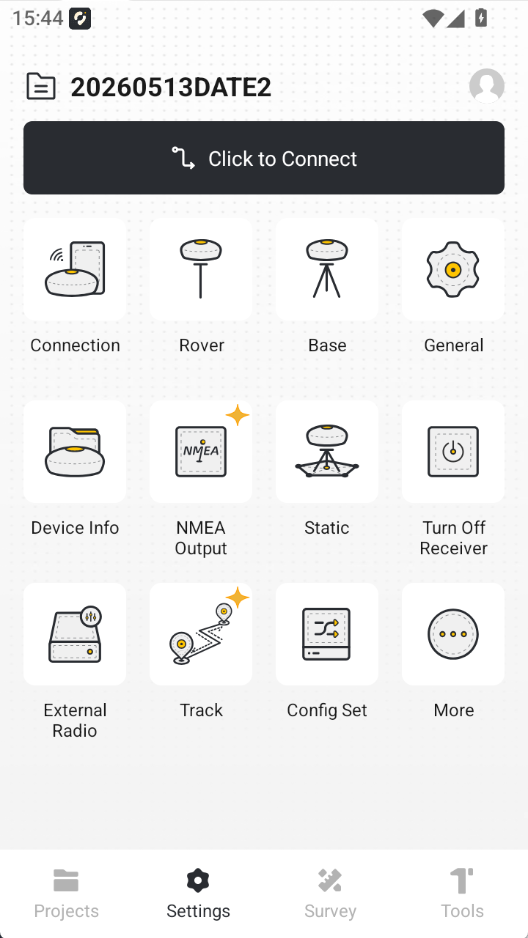 | v2.1.9 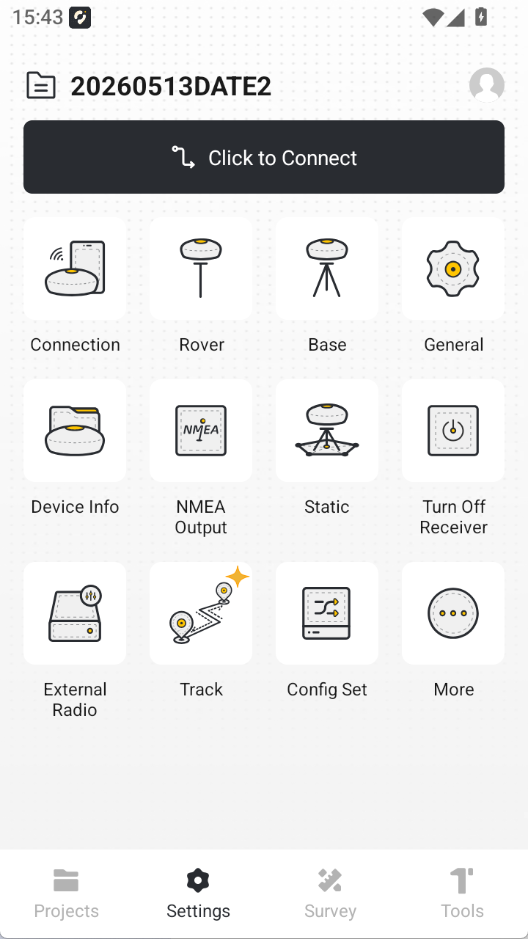 |
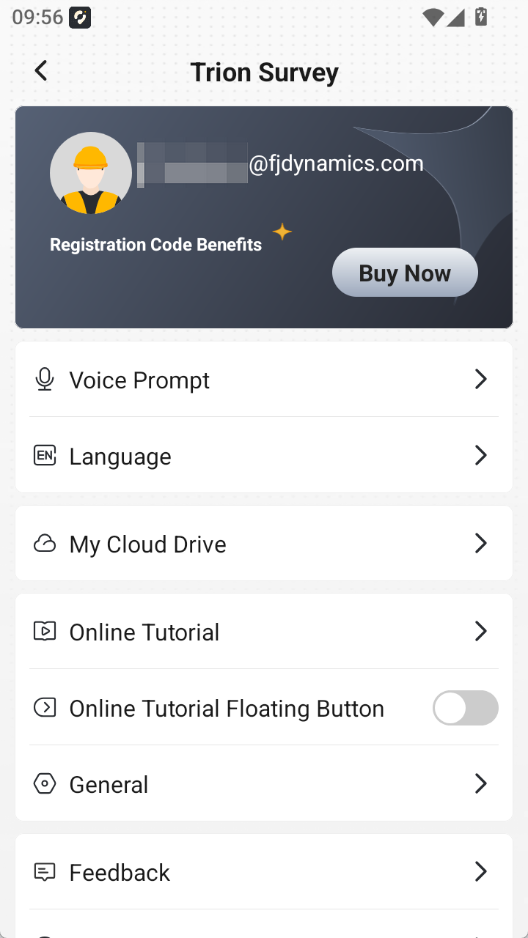
4.4 Optimized Account Entitlement Display Page for FJD Controllers
For distributors and end customers who have purchased FJD controllers (including E200 / E600 / E800 / UA80 / D10):
1. Removed the Buy Now and Apply for Trial entries.
2. Added an explanation to the account page.
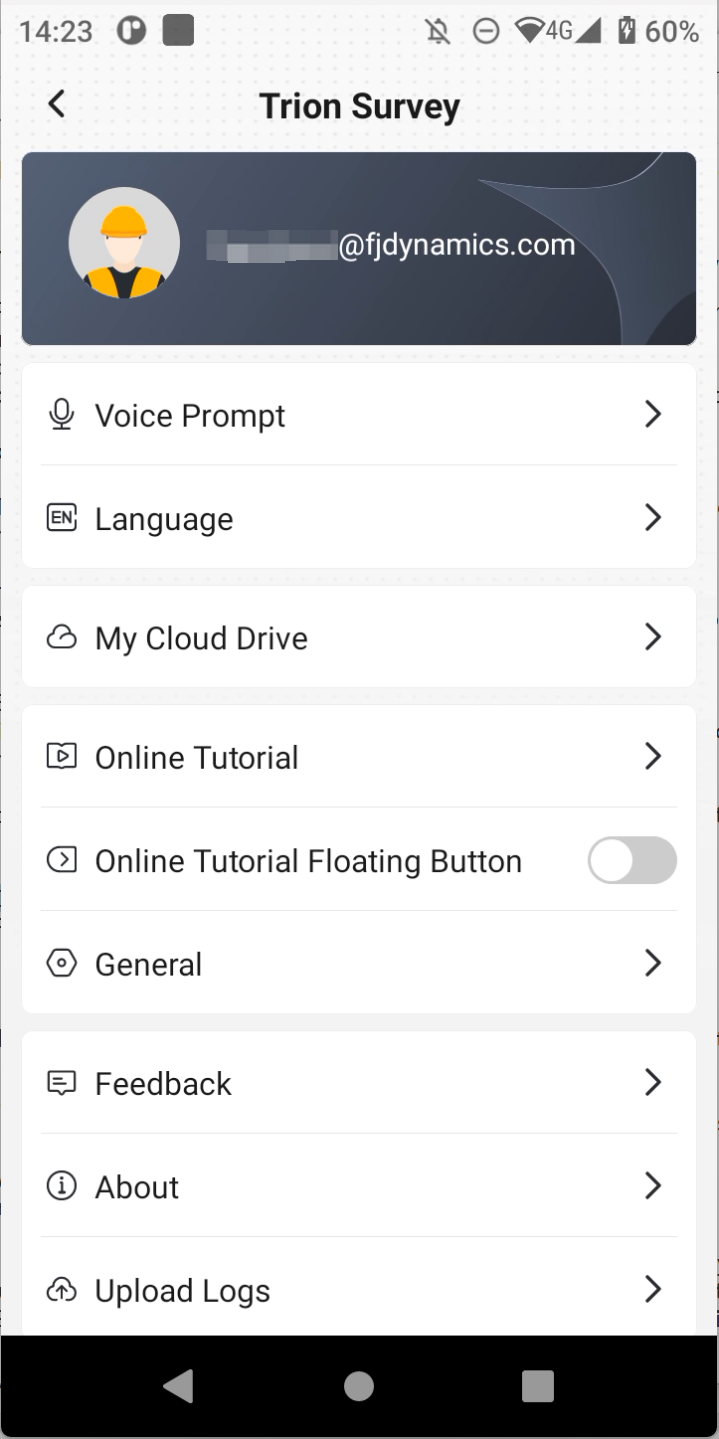 |  | 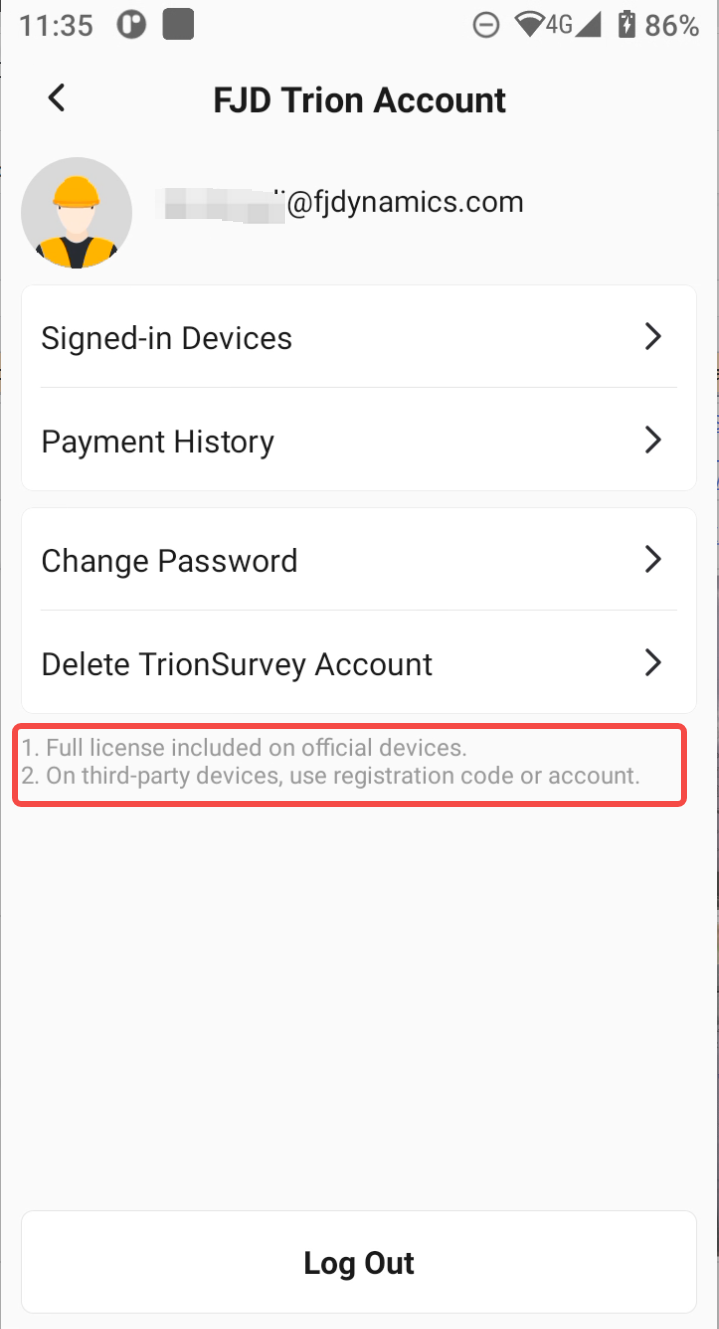 |
1. Use an FJD controller, including E200 / E600 / E800 / UA80 / D10.
2. Enter an app registration code on the terminal. The entitlement is bound to the terminal and cannot currently be unbound.
3. Purchase account entitlement: 1 month / 6 months / 1 year. The entitlement is bound to the account and follows the account.
4.5 Optimized Import Time for Cloud Drive / Share Code / Local Projects
Optimized project creation time. The time when a project is imported from the cloud drive, share code, or local project is used as the project creation time.
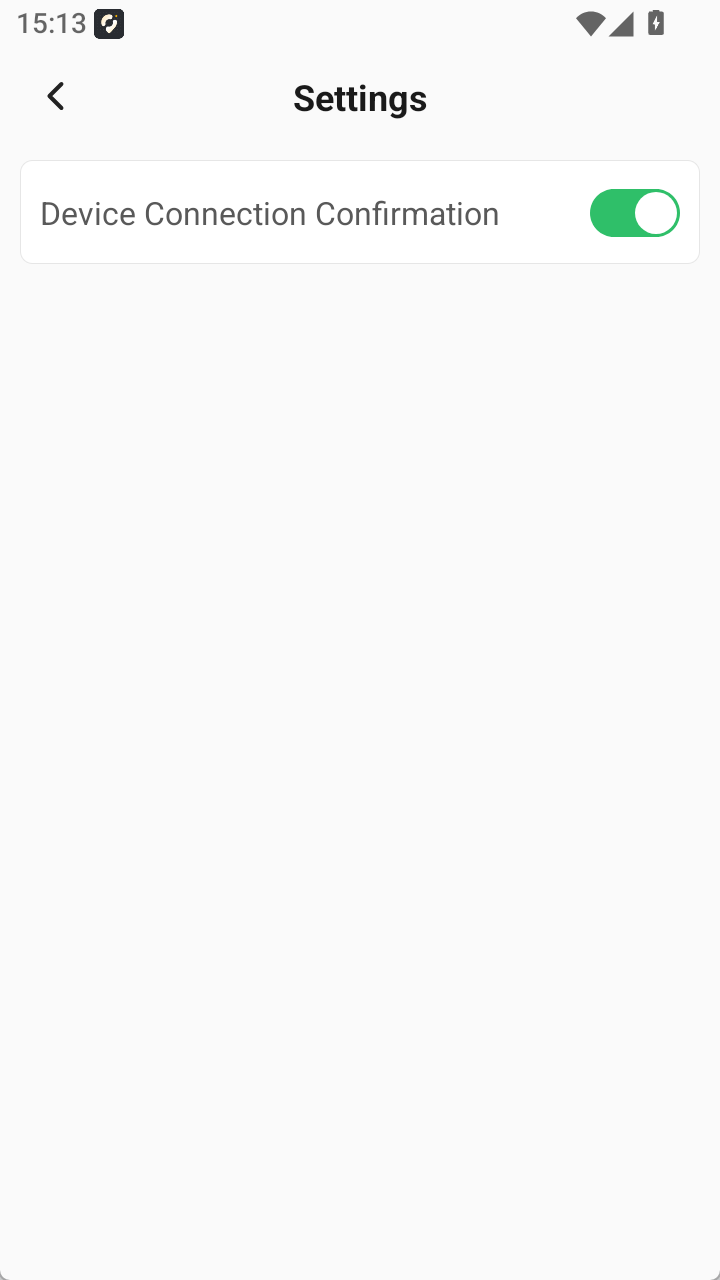
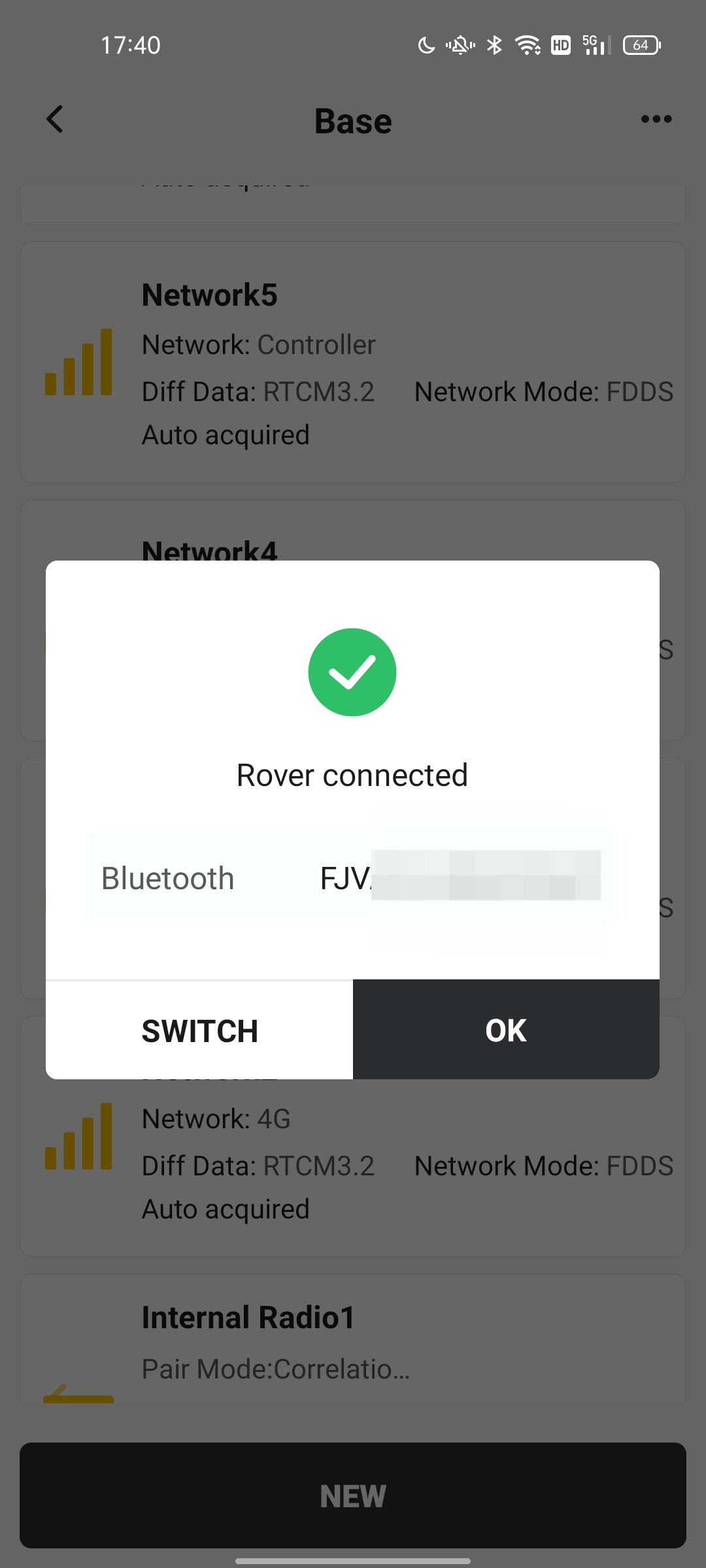
4.6 Optimized the Confirmation Popup for Switching Between Base Station and Rover Modes During Device Connection
After connecting to a receiver, if Device Connection Confirmation is enabled, a prompt is supported when switching between base station and rover modes.
 |  |
4.7 Optimized the AR Line Stakeout Interface by Adding Point Name and Code Information
The AR line stakeout interface now displays the point and code information for the point being staked, so users know which point they are currently staking.
v2.1.8 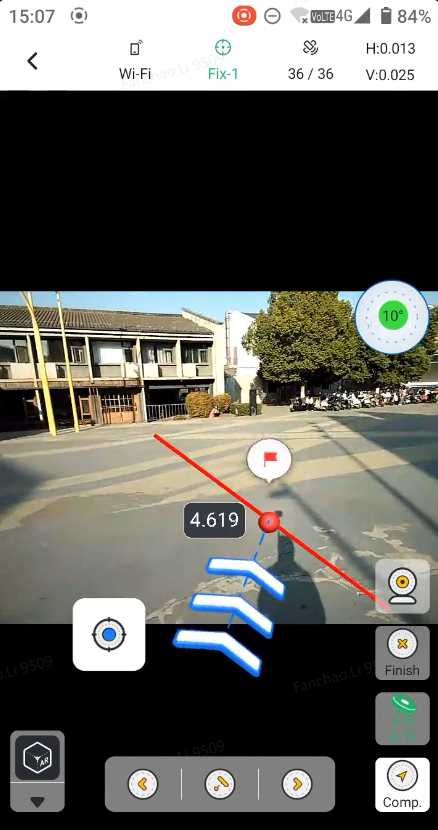 | v2.1.9 Chainage 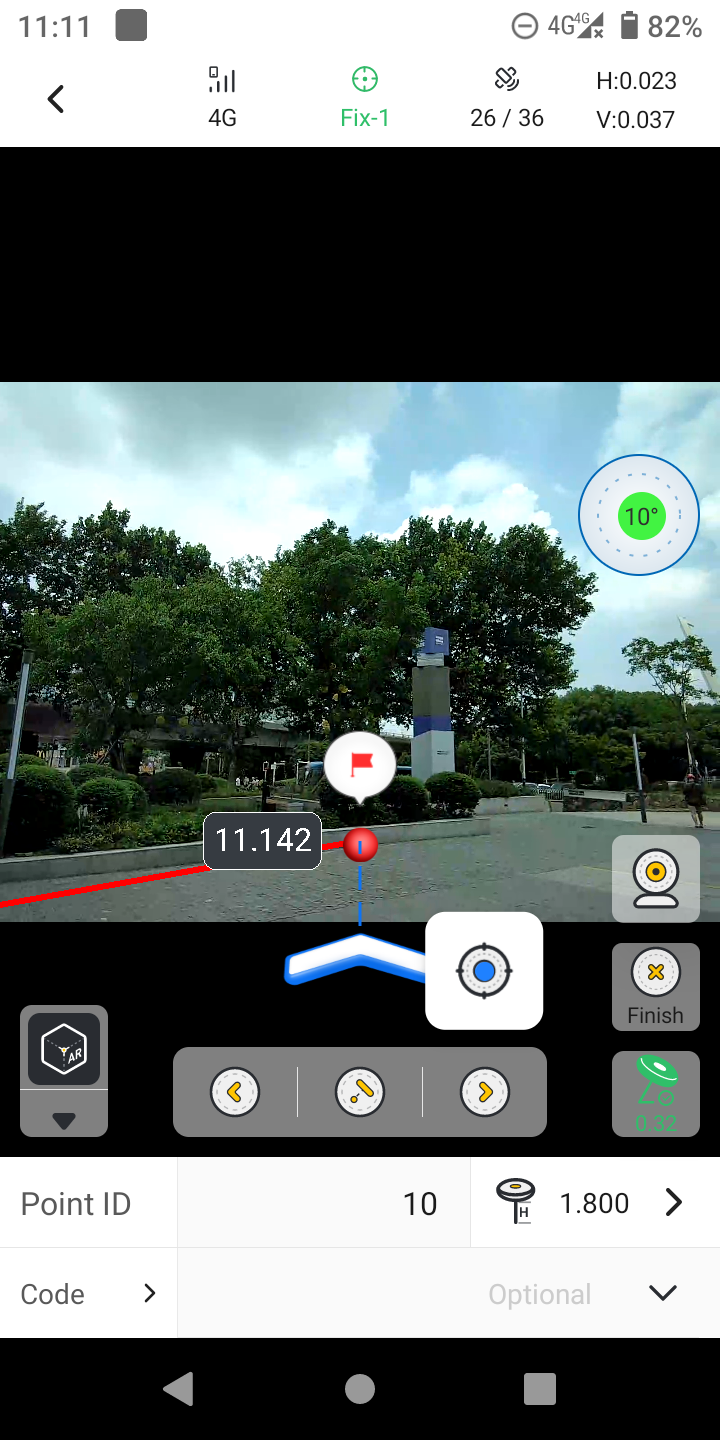 | v2.1.9 Line 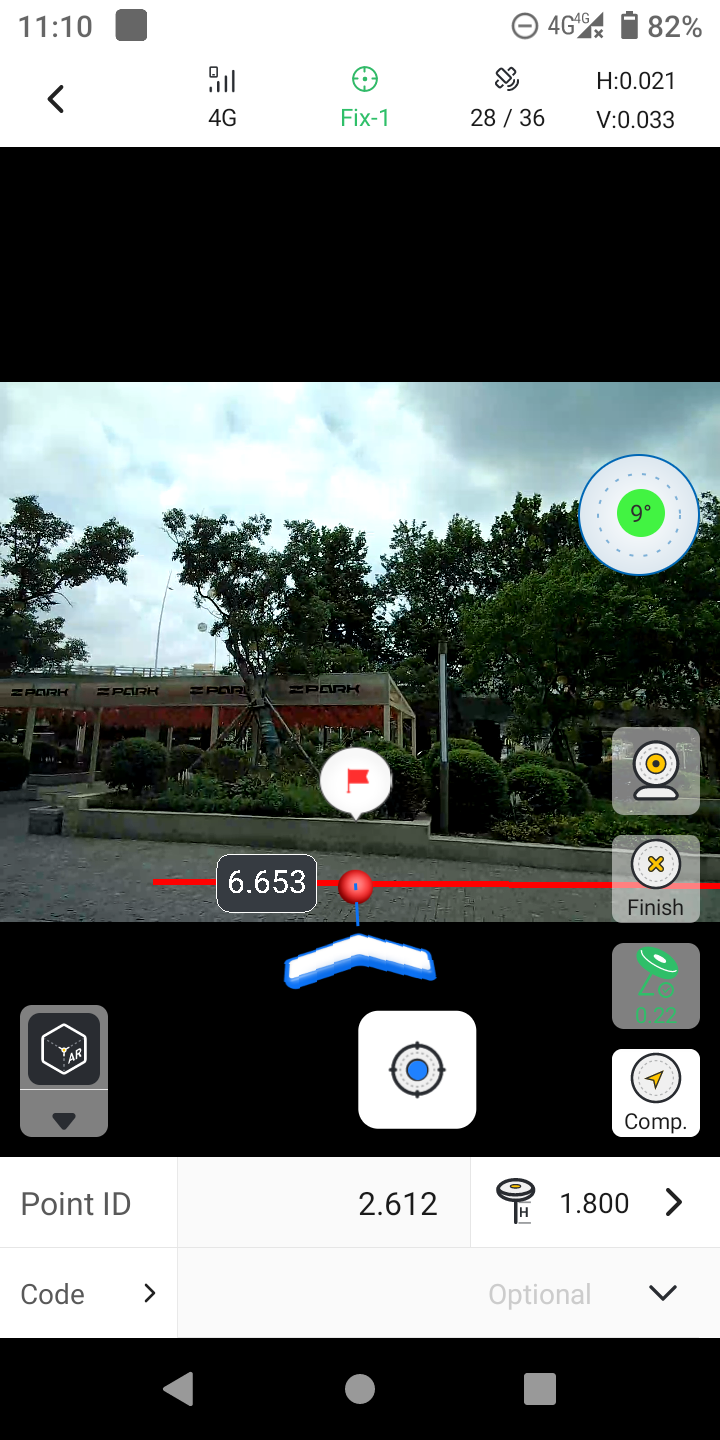 | v2.1.9 Node 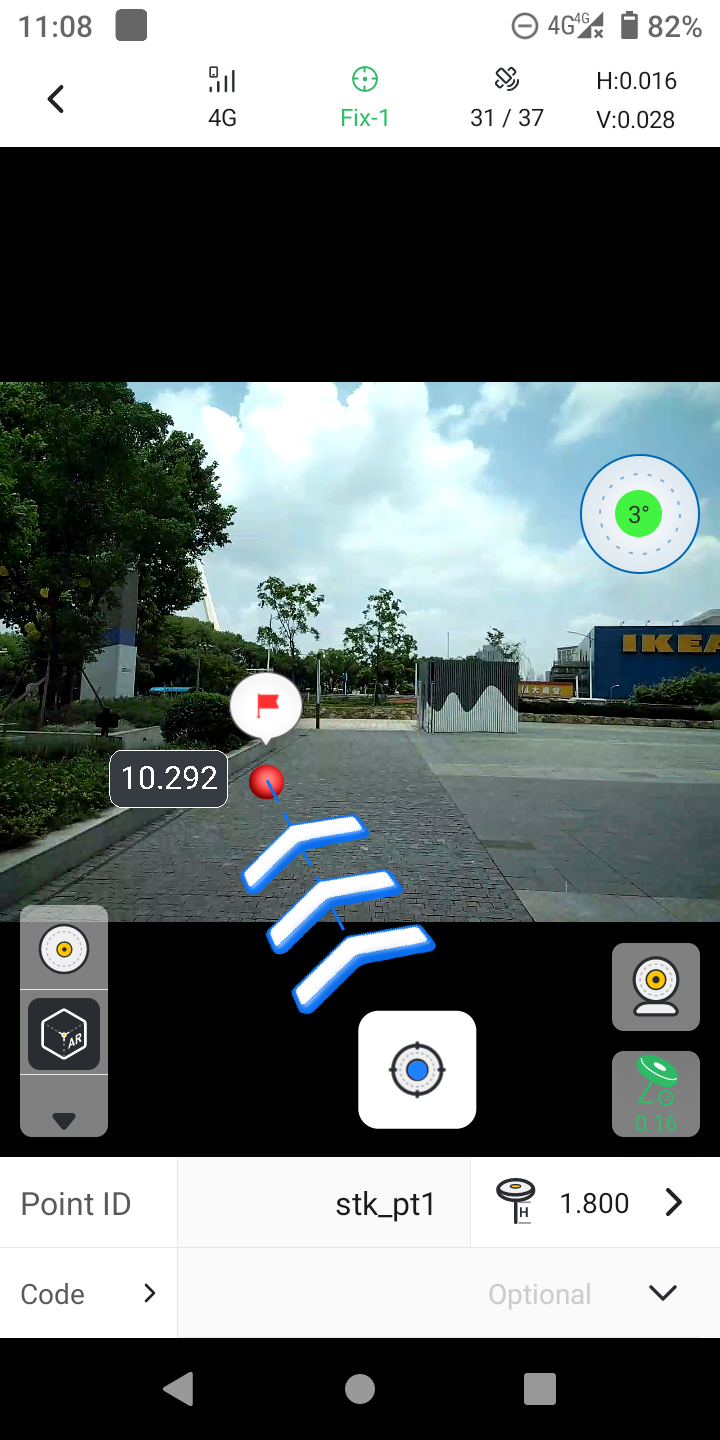 |
4.8 Optimized Point Library Column Order Memory
After users customize the display order of columns in the Point Library, the last customized column order is still saved after exiting the Point Library module or exiting and reopening the app.
4.9 Optimized the Popup Message for NTRIP Connection
Optimized the popup message when NTRIP connection fails by adding the prompt: Please check the username and password.
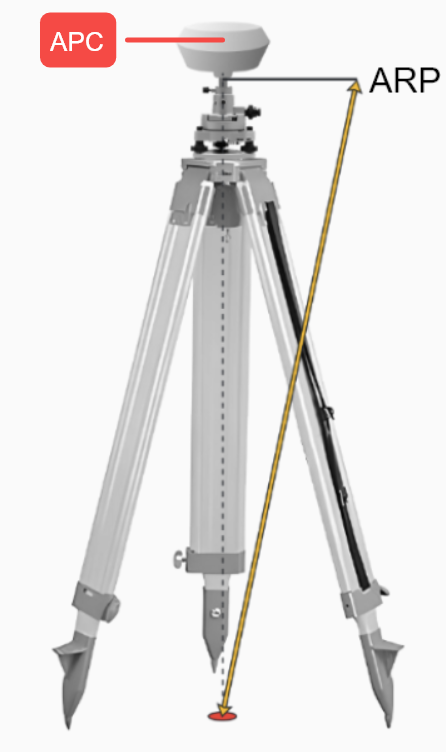
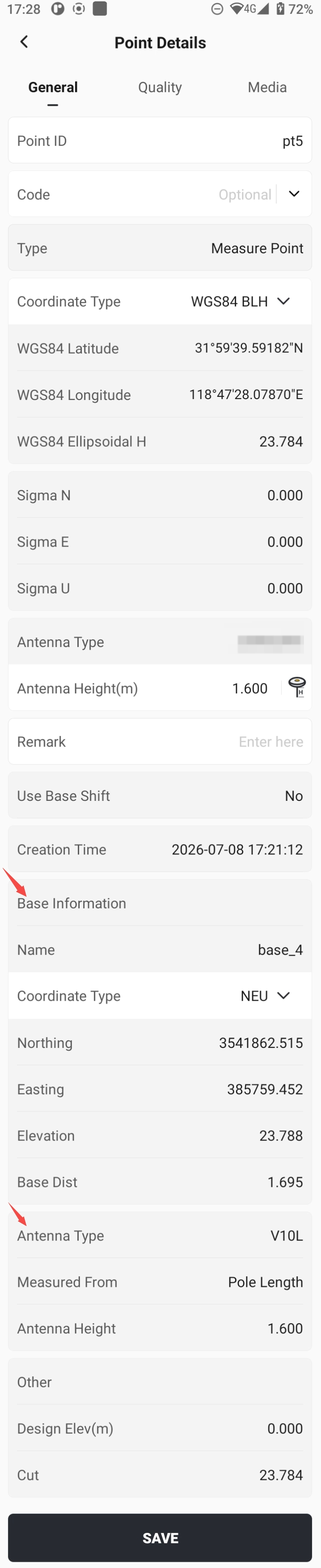
4.10 Optimized Base Station Information to Ground Point Information
In previous versions of Trion Survey, the displayed base station information was the antenna phase center information. In this version, it has been optimized to show the ground point information where the base station is set up.
 |  |
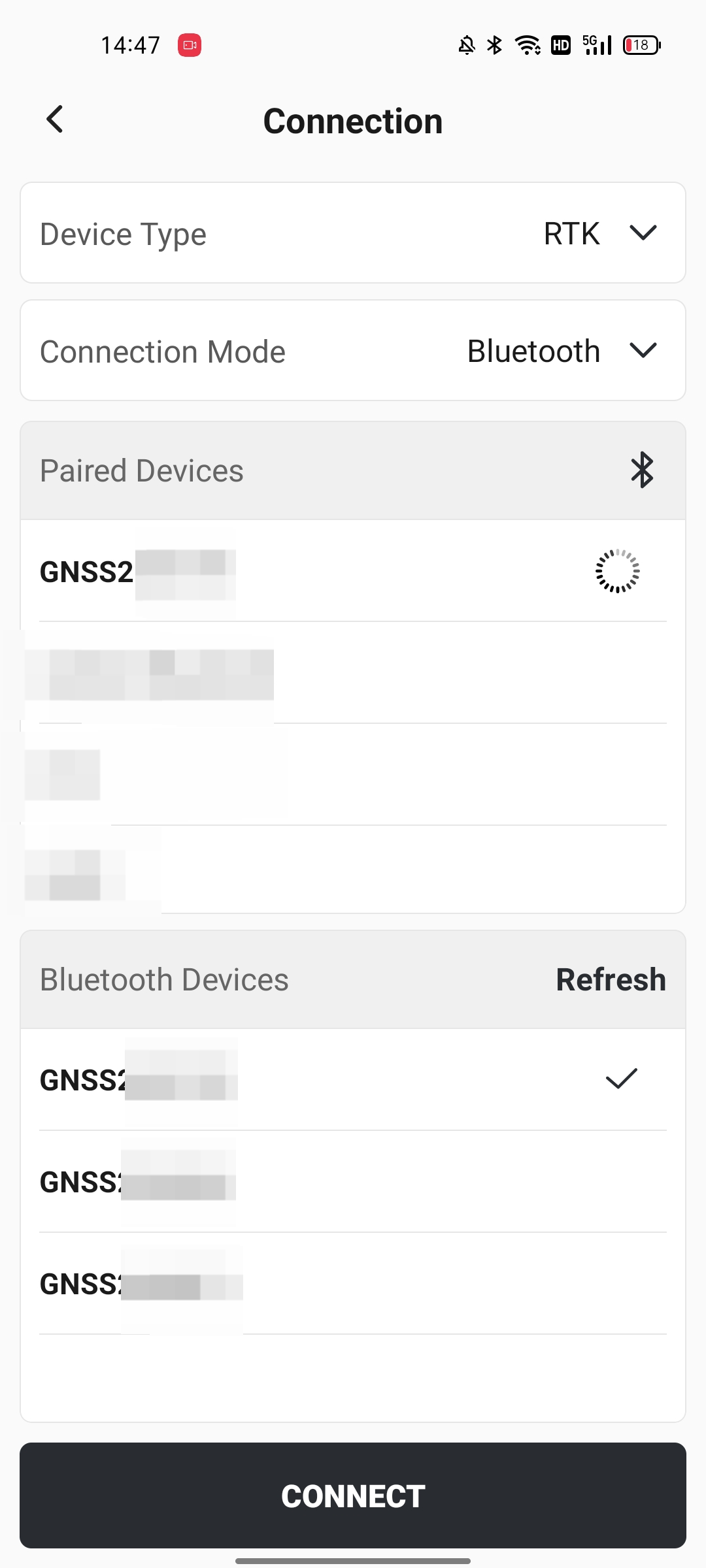
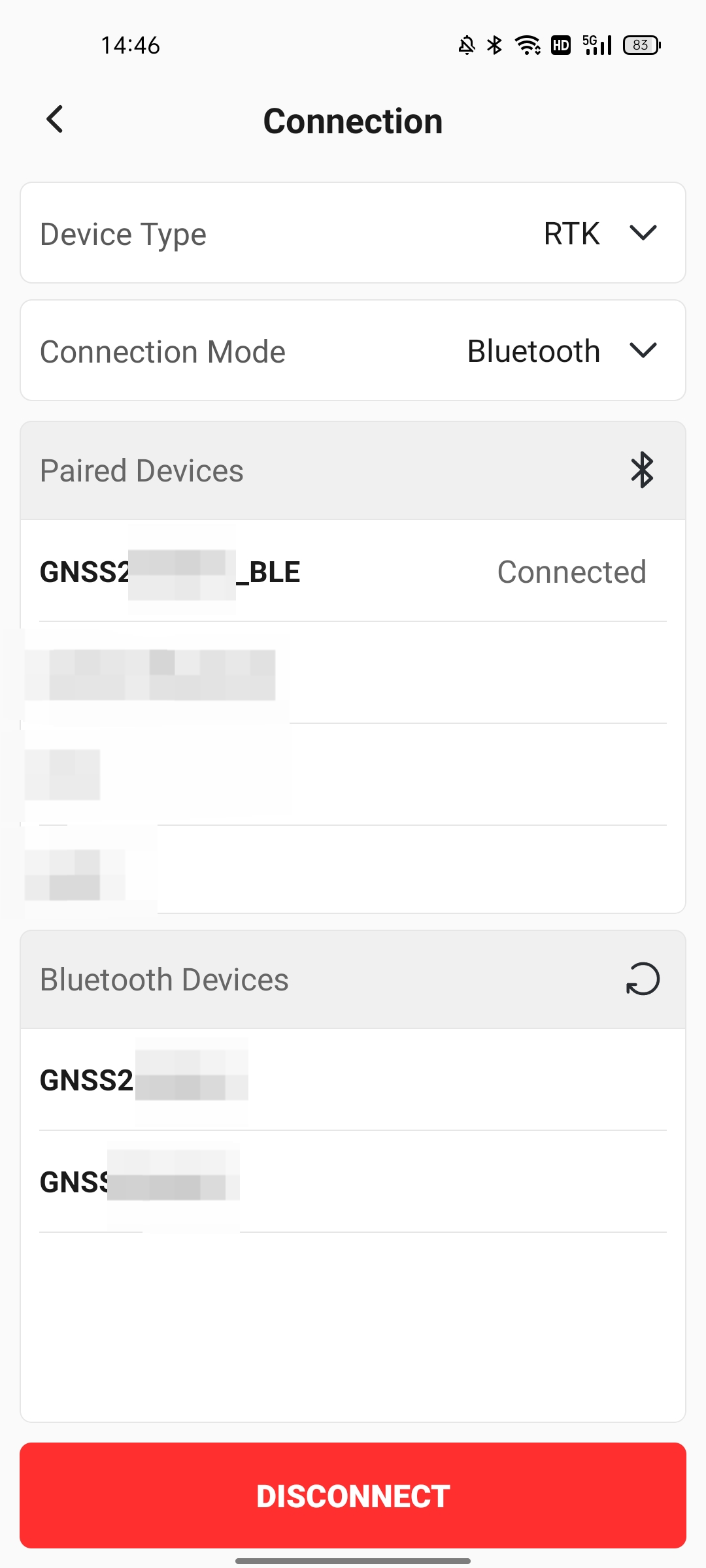
4.11 Optimized Bluetooth Communication Connection
- Optimized the Bluetooth connection icon and displayed the disconnect button in red.
- Optimized battery loading display when connecting to devices.
- Optimized automatic receiver reconnection logic.
 |  | 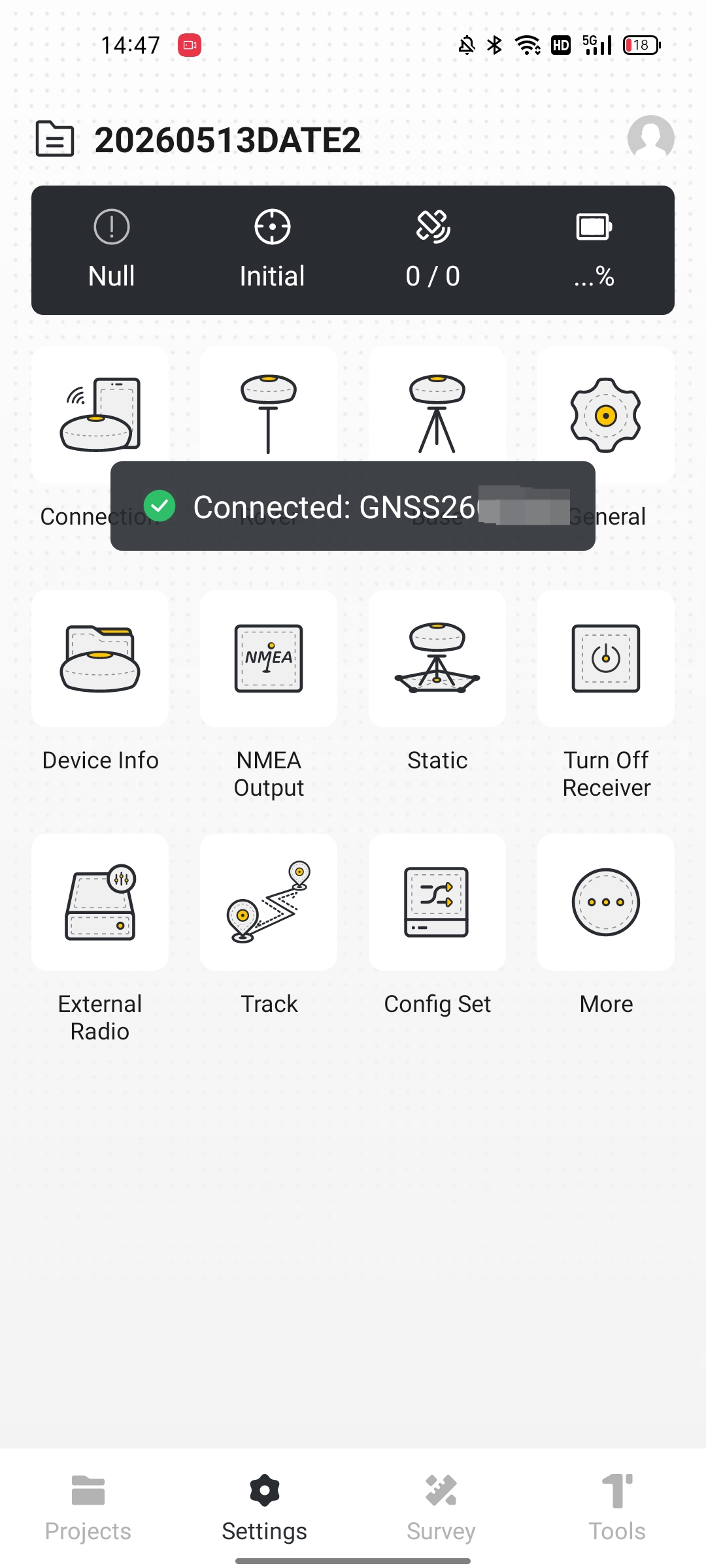 |
Device connection actually consists of two steps.
• Step 1 is “building the road”: Bluetooth or Wi-Fi pairing succeeds and the signal is connected. At this point, the device is connected, but no data is being transferred yet.
• Step 2 is “opening the road to traffic”: both sides agree on the protocol used to transmit data, and then data synchronization truly begins.
• If Step 1 is not completed, Step 2 cannot start. If Step 1 succeeds but Step 2 is stuck, the device is connected but cannot transmit data.
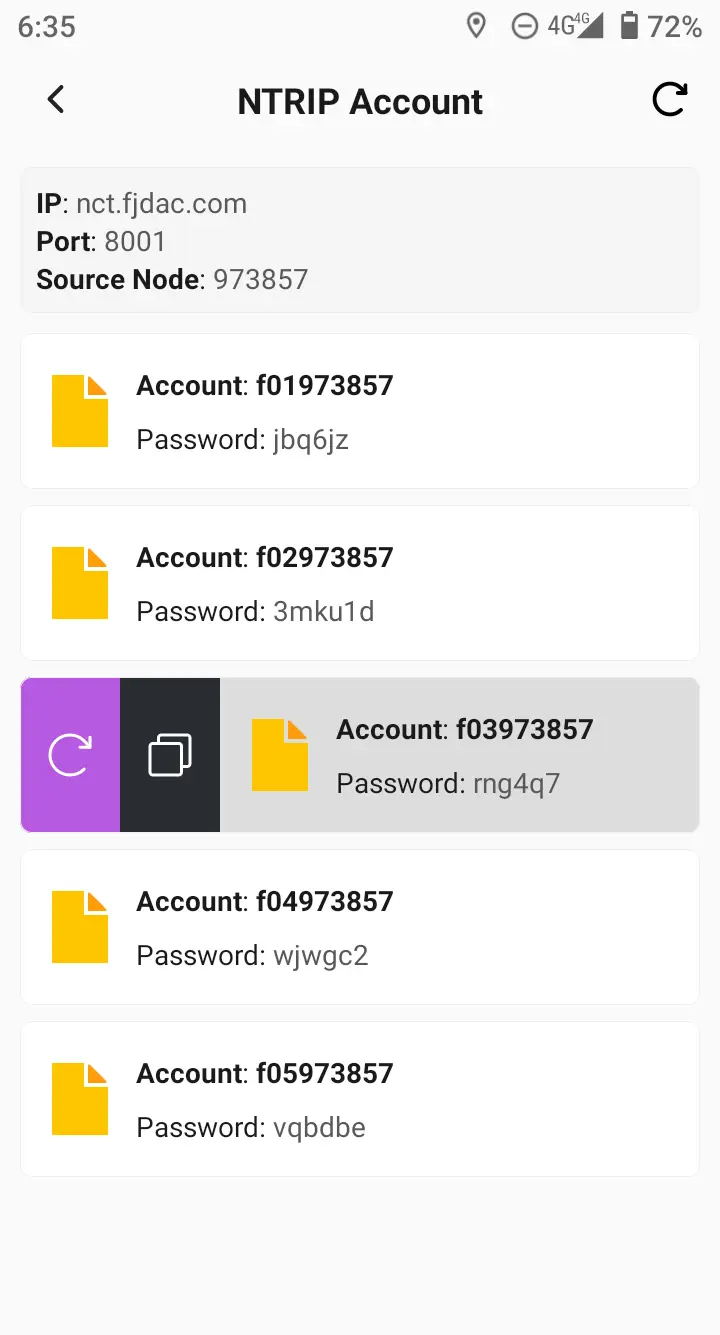
4.12 Optimized Network Base Station Settings to Support 10 NTRIP Accounts
For a large project, more than five products may need differential positioning, such as a site with both RTK devices and MC devices. If CORS is used, the same number of CORS accounts must be purchased.
If a self-built base station is used, whether through radio or network communication, no additional differential accounts are required. When setting up a base station in network mode, the same device short code now supports 10 NTRIP accounts, and other devices can use NTRIP accounts to connect to the base station.
v2.1.8
| v2.1.9 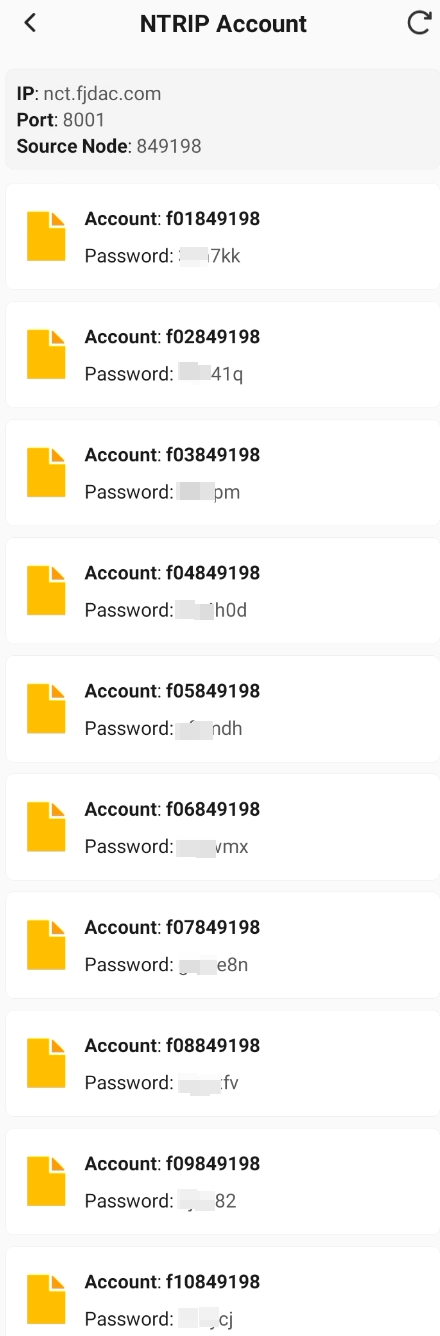 |
4.13 Optimized Measurement Points to Support Duplicate Names
Measurement points in the Point Library now support duplicate names.
This does not conflict with the existing logic for importing duplicate-name points in the app. If there are two pt1 points in the Point Library and another pt1 is imported from a point file:
1. If Overwrite Duplicate Points is selected, only the pt1 from the point file is kept, and the two existing pt1 points in the Point Library are deleted.
2. If Auto Rename is selected, the pt1 in the point file is automatically renamed to pt1(1).
3. If Keep Duplicate Points is selected, the two pt1 points in the Point Library and the pt1 from the point file coexist.
4.14 App Multilingual Optimization
| Based on ongoing market feedback, the app will continue to improve multilingual translations. 1. The app now supports 21 languages. 2. On first launch after installation, the app automatically selects the corresponding language according to the Android system language. If the language is not available, English is selected by default. 3. Many minority languages have already been optimized with the help of distributors or sales teams. If sales teams find inappropriate translations during use, they can contact @Zhixiang.Dong and @Fanchao.Li for optimization. | Language switching 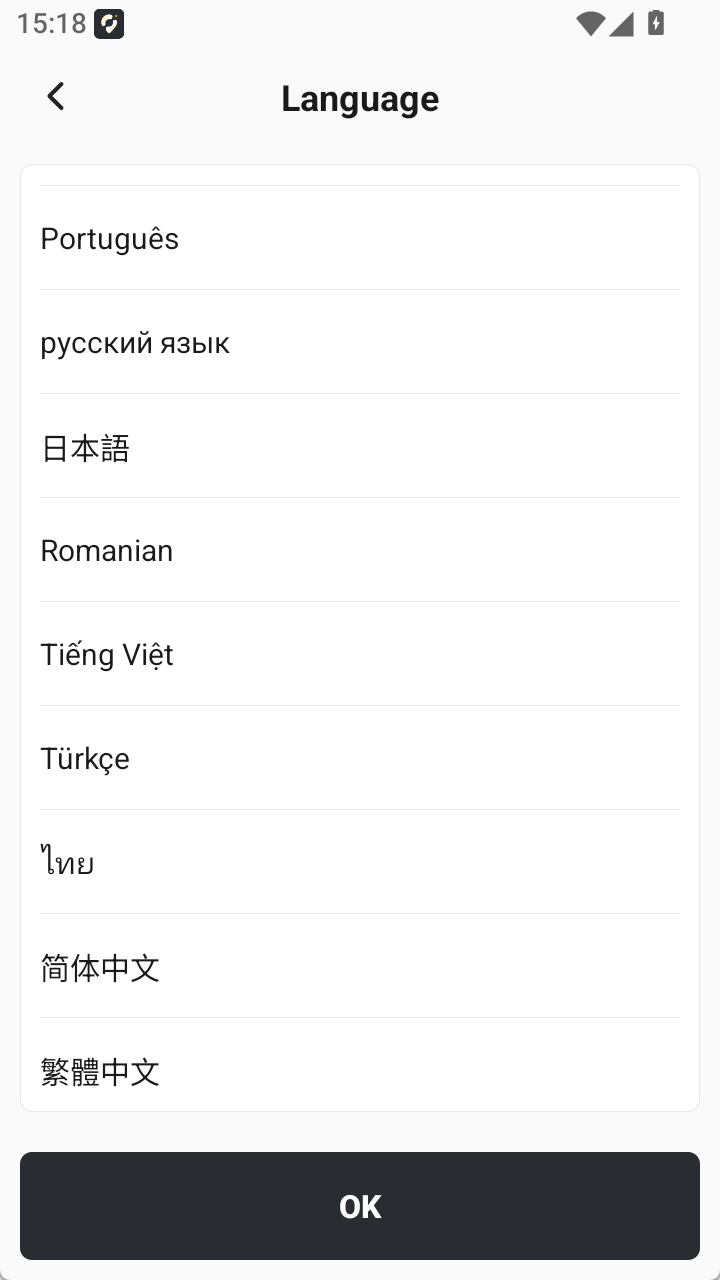 |
4.14 Optimize device registration code write-off logic and support re-registration
The current device registration code of the APP is still valid, and it also supports re-registration to bind a new device registration code.
e.g.: The user currently has a device registration code valid for 3 months and supports re-registration to cancel the permanent device registration code. Then the current APP usage period will be changed from 3 months to permanent immediately.
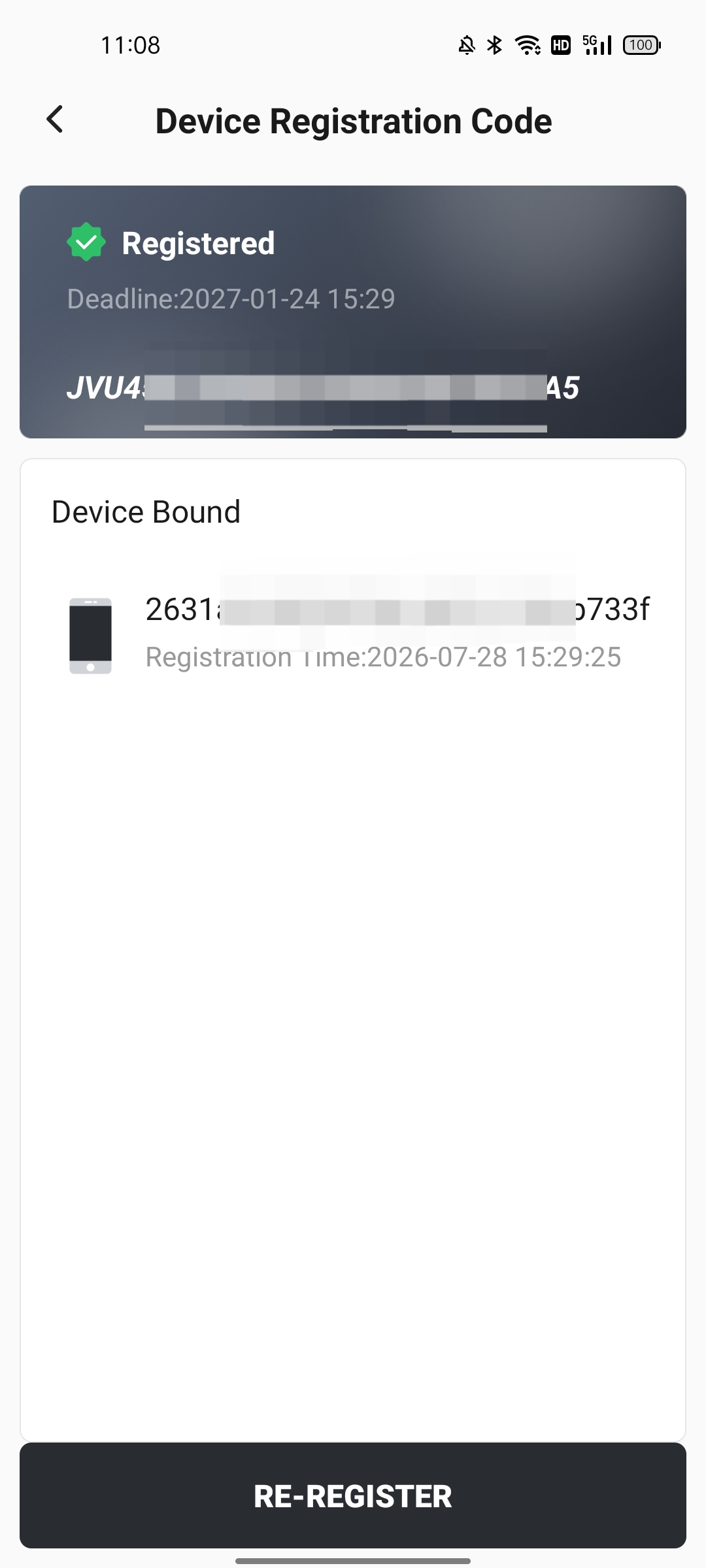 | 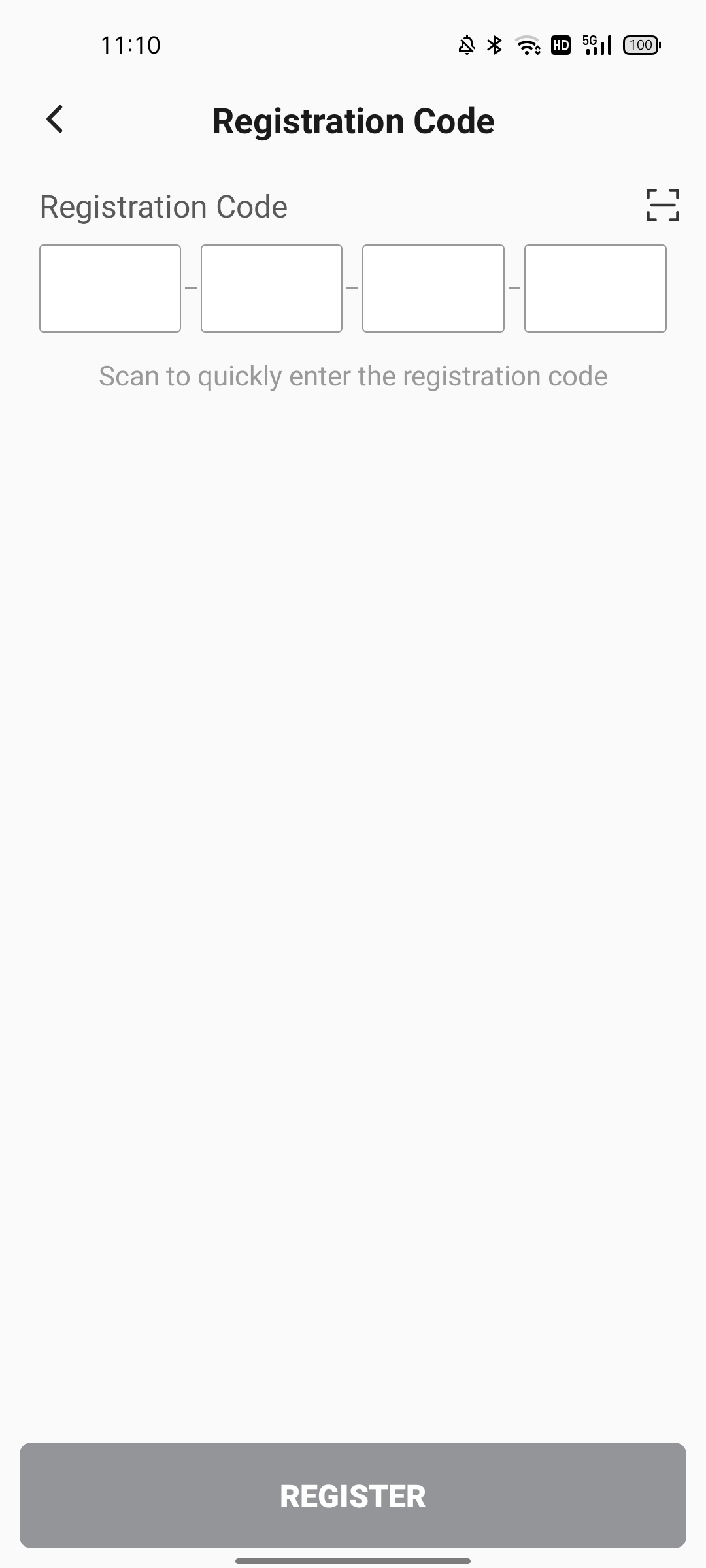 |
- If the APP already has a permanent device registration code, it cannot be re-registered;
- FJD controllers (such as E600/UA80/D10, etc.) do not have a re-registration entrance, and the APP has been permanently used on the handheld controller.
5. Bug Fixes
- UI display issues on some interfaces.
- Laser measurement and AR stakeout could be enabled at the same time.
- Some module configuration information was lost after importing a configuration set.
- Node elevation values were displayed incorrectly in Surface preview.
- Failed to export Measure & Draw DXF/DWG files to the cloud.
- Point Library filter conditions did not take effect.
- CAD drawing unit settings were not remembered.
- After importing certain drawings with Alpha CAD, the graphics changed and text shifted.
- Too many decimal places were displayed for some parameters on the Road Stakeout panel.
- The text position label was blocked in multimedia image settings.
6. Compatibility
| Receiver | Version | Description |
| V1 series | 5.0.3.4 | Trion Survey app compatibility optimization. Upgrade is recommended. |
| V10 series | 10.2.7.12 | 1. Added an elevation mask configuration feature. 2. Improved system stability. 3. Fixed an occasional issue where the satellite system would turn off unexpectedly. 4. Fixed an image lag issue in the V10 Sep version. |
| V4e series | 1.0.0.25 | 1. Added static acquisition. 2. Added base station mode settings. |
7. Known Issues
Our development team is aware of the following issue and plans to address it in a future release. We sincerely apologize for any inconvenience this may cause:
- [Issue 1]: Large CAD files, or files with many entities or text, may fail to load or cause the app to crash during use.
- Temporary workaround: Use a desktop CAD tool to remove unnecessary layers, then re-import the file and attempt to load it again.
- [Issue 2]: If a CAD file has many text labels, when opening it with Stake/Edit CAD, some text labels may be missing.
- Temporary workaround: This only affects the preview display and does not impact actual measurement or staking. We are continuing to optimize this behavior.
8. Update Notes
Thank you for updating! This is a minor update. To ensure a smooth process, please note the following:
| Update Process | The update will be downloaded and installed automatically via OTA (Over-the-Air). Simply agree and tap “Update Now” to start. |
| Data Safety | This update will not erase any personal data or account information. However, as a best practice, we recommend manually backing up any critical data before updating. |
| Preparation | We recommend performing the update over a stable Wi-Fi or 4G connection, and ensuring your device has more than 50% battery or is connected to a charger. |
| After Update | Once the update is complete, the app will automatically restart to ensure all new features and fixes are applied correctly. |
| Rollback | After updating, it will not be possible to revert to the previous version. |
9. Support
If you encounter any issues during use or have valuable suggestions, please feel free to contact us. Your feedback is extremely important to us.
- Technical Support Email: rtk-support@fjdynamics.com
- To help us resolve issues more efficiently, please provide the following information when reporting a problem:
- App version, including both the original and updated versions
- Controller model and serial number
- Operating system version
- Detailed description of the issue and steps to reproduce it
- Relevant screenshots or screen recordings
Thank you again for your continued support of our products!
Copyright © 2026 FJDYNAMICS PTE. LTD. All Rights Reserved.