
5.6 Lines
Lines is used to centrally store and manage line element data, providing a data foundation for line layout and linear engineering design. During field measurements, users can select target lines from the line library for layout operations according to project needs. Lines supports various line types such as straight lines, polylines, circles, and arcs. In the line list, clicking on the card can display executable operations: deletion, preview, and details.
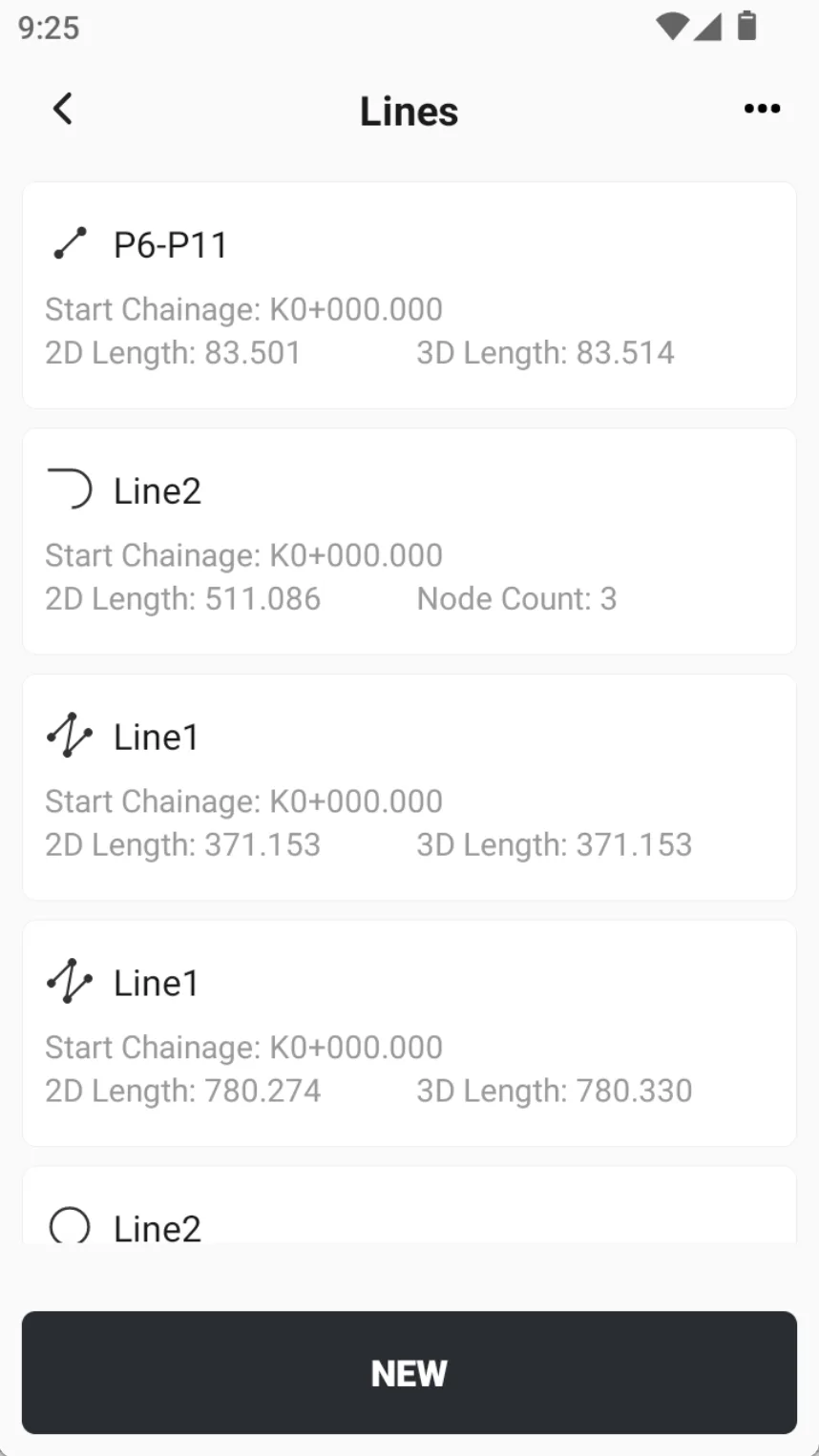 | 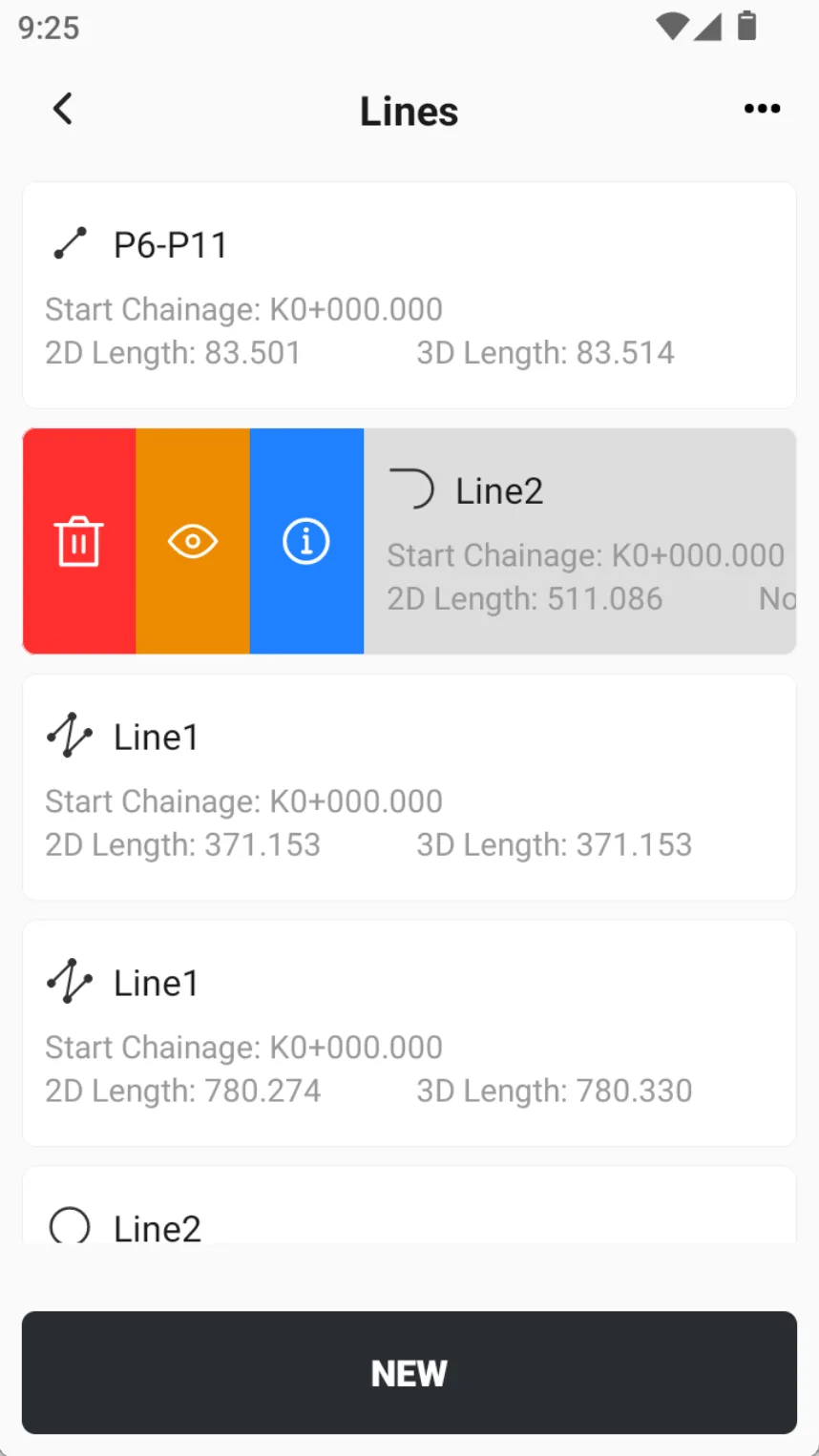 |
5.6.1 Line introduction
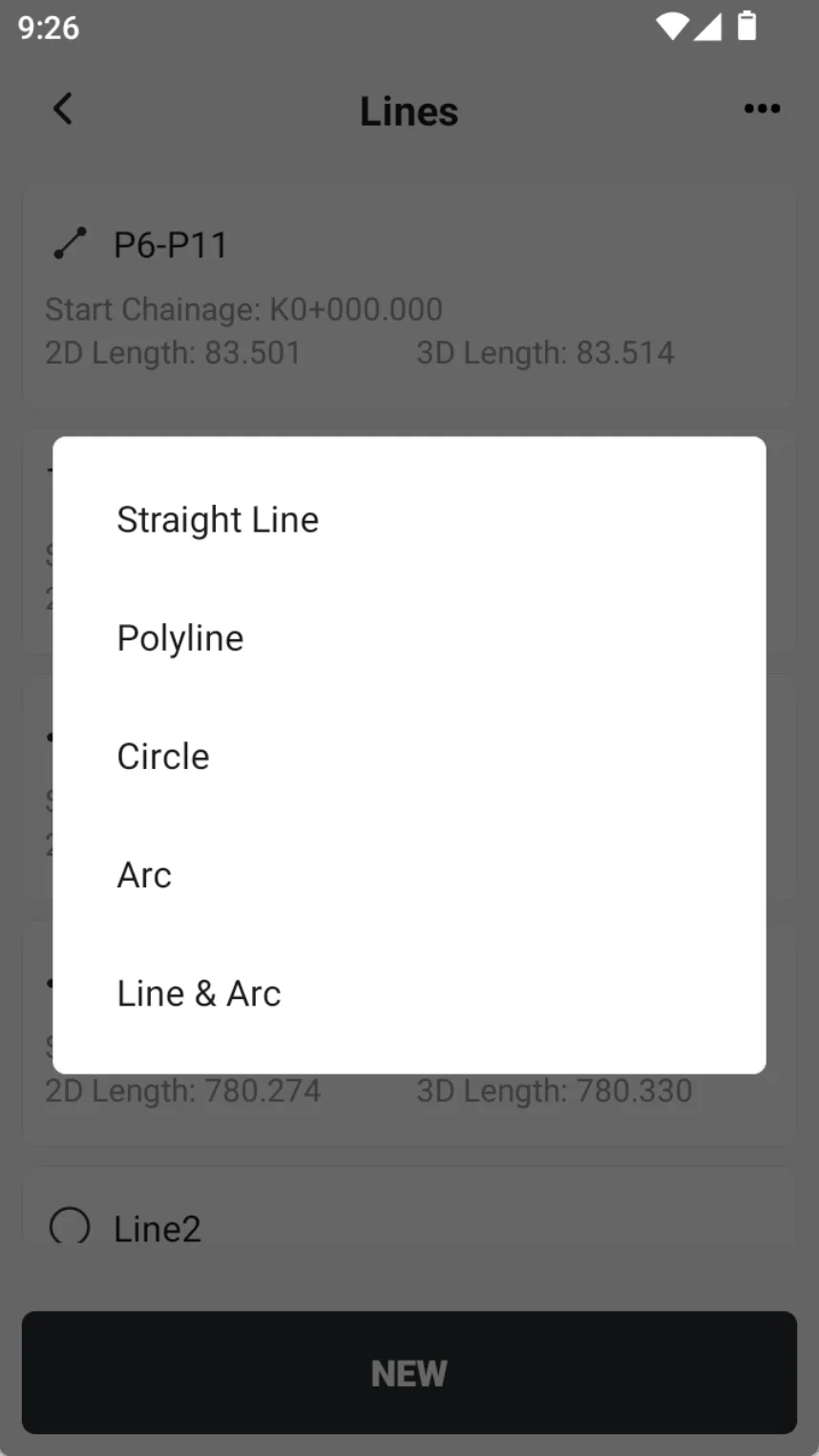
Click the bottom button [NEW] to create lines. Straight line, polyline, Circle, Arc and Line &Arc are optional:
| Line type | Creation method |
| Straight line |
|
| Polyline |
|
| Circle |
|
| Arc |
|
| Line & Arc | Add straight line/add arc |
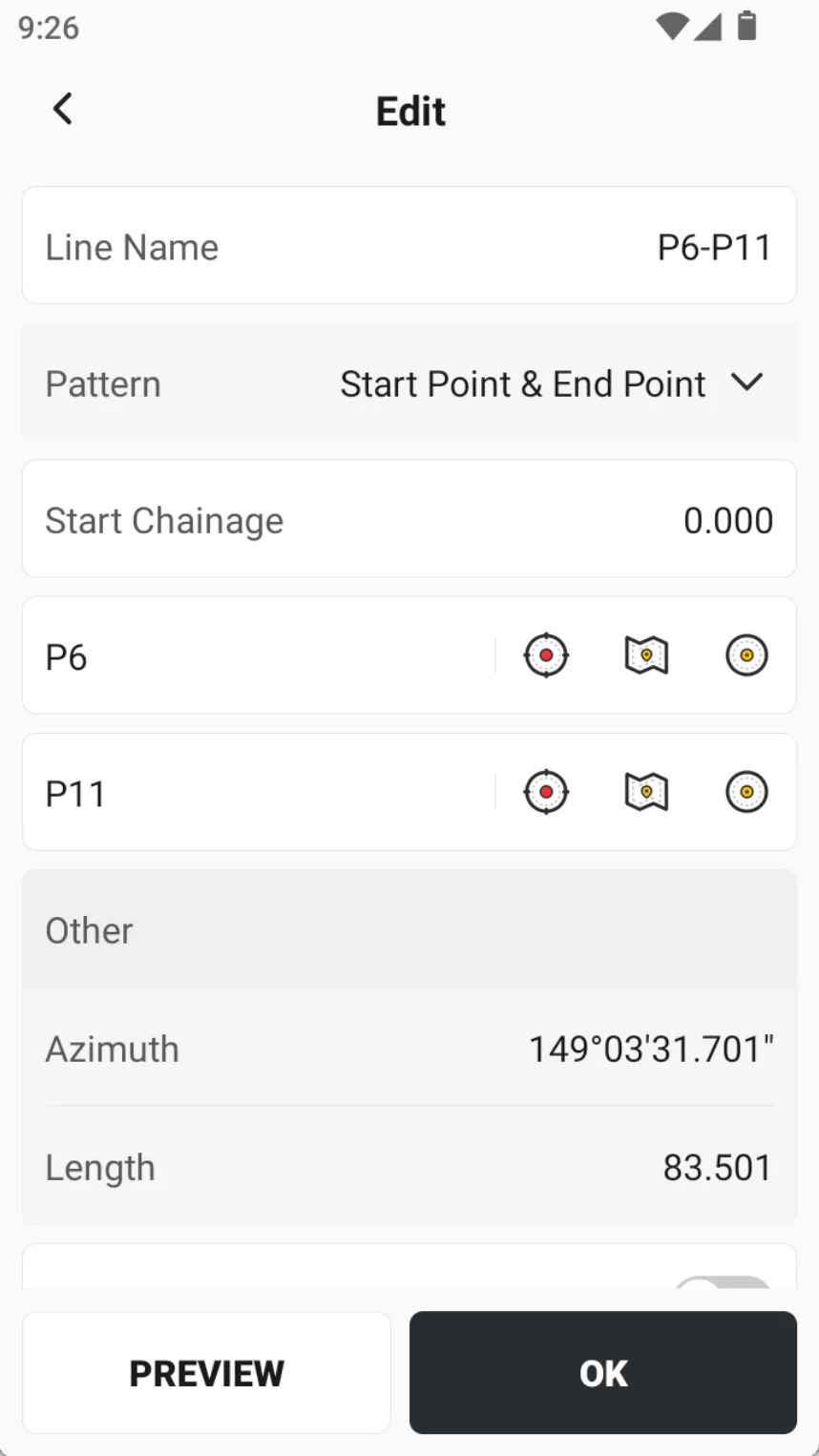
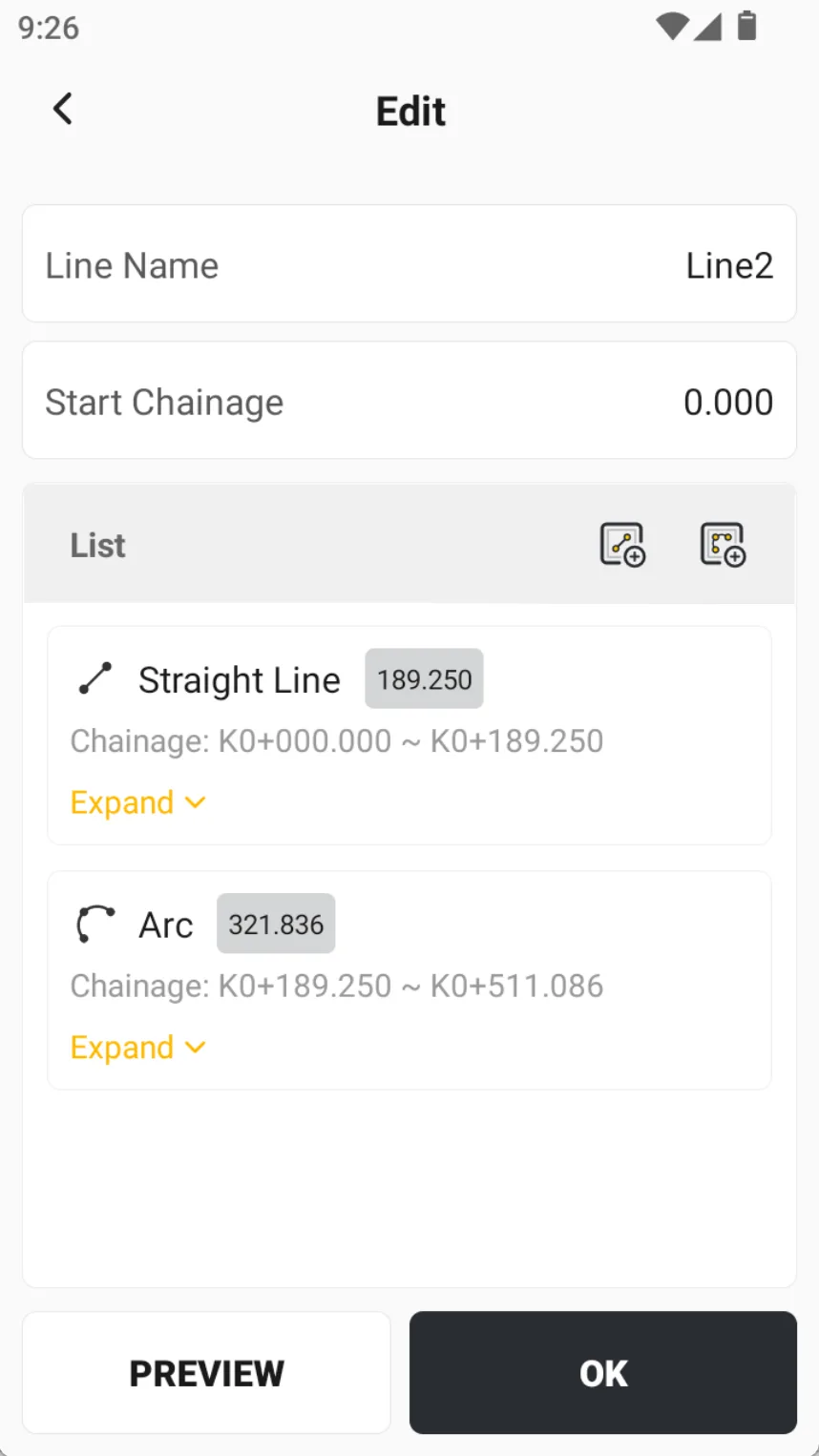
After the line type is created, users can select the line card from the line list, click the details button to enter the line details interface for parameter editing and graphic preview.
 |  |  |
5.6.2 Line preview
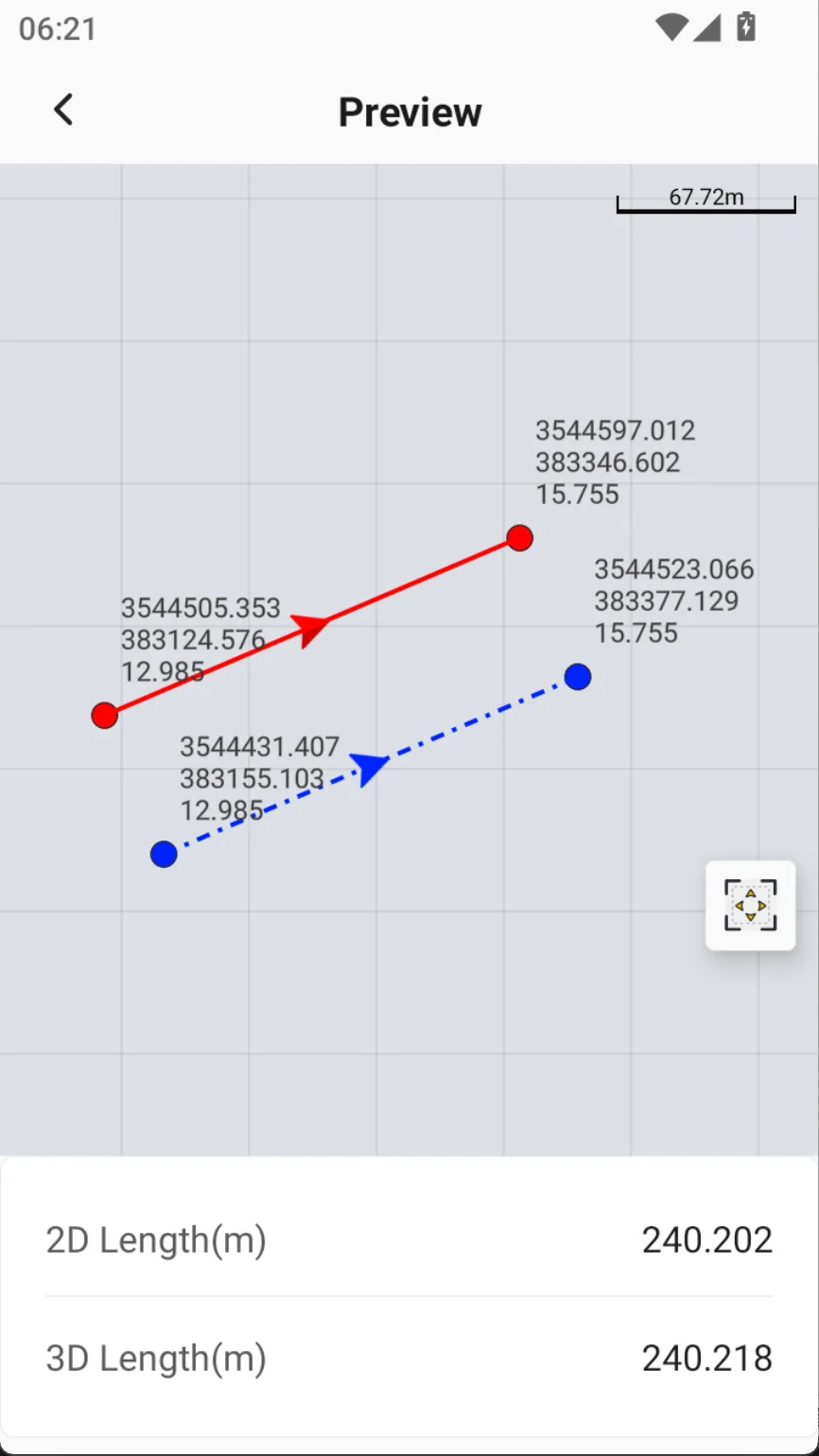
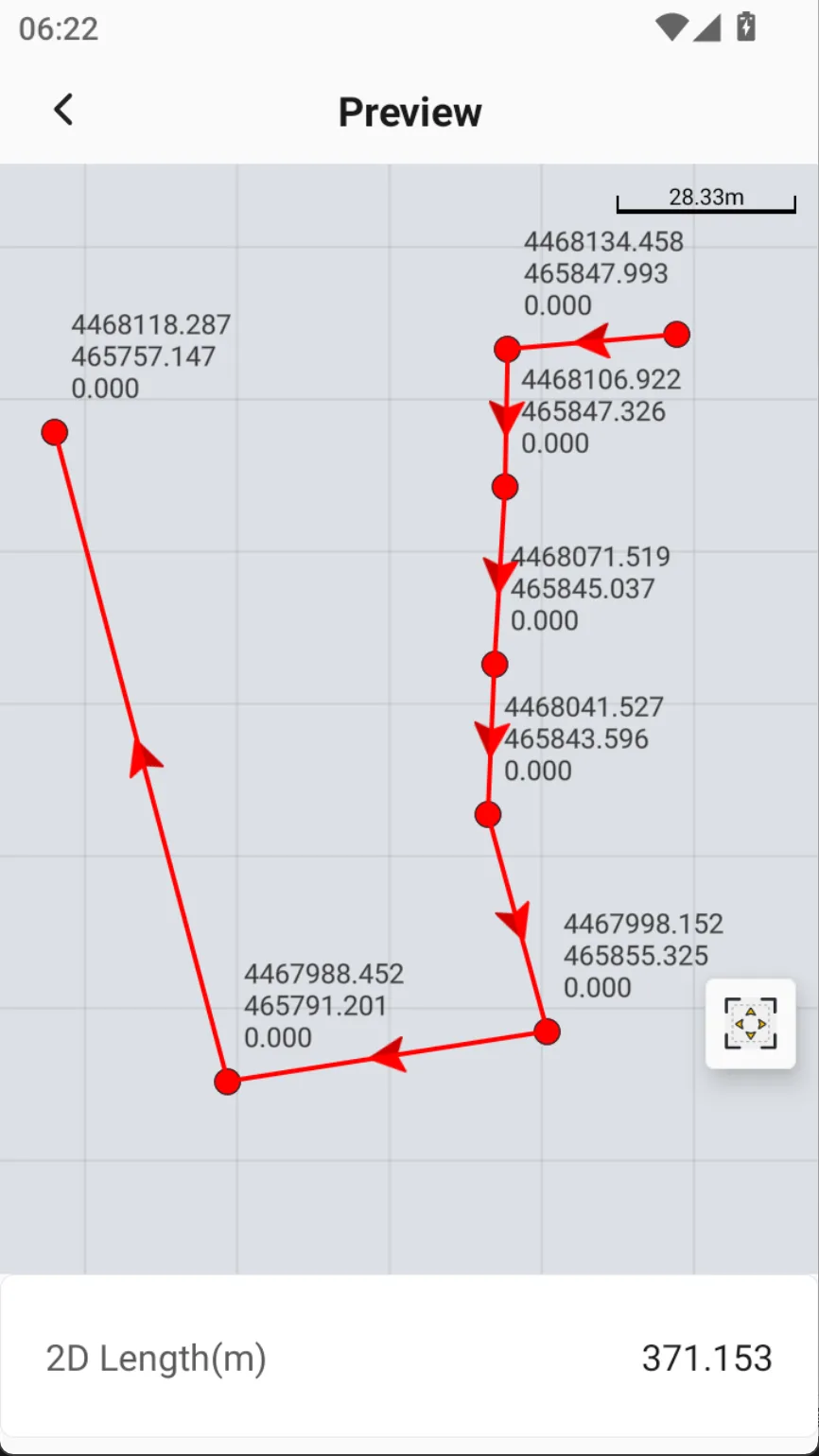
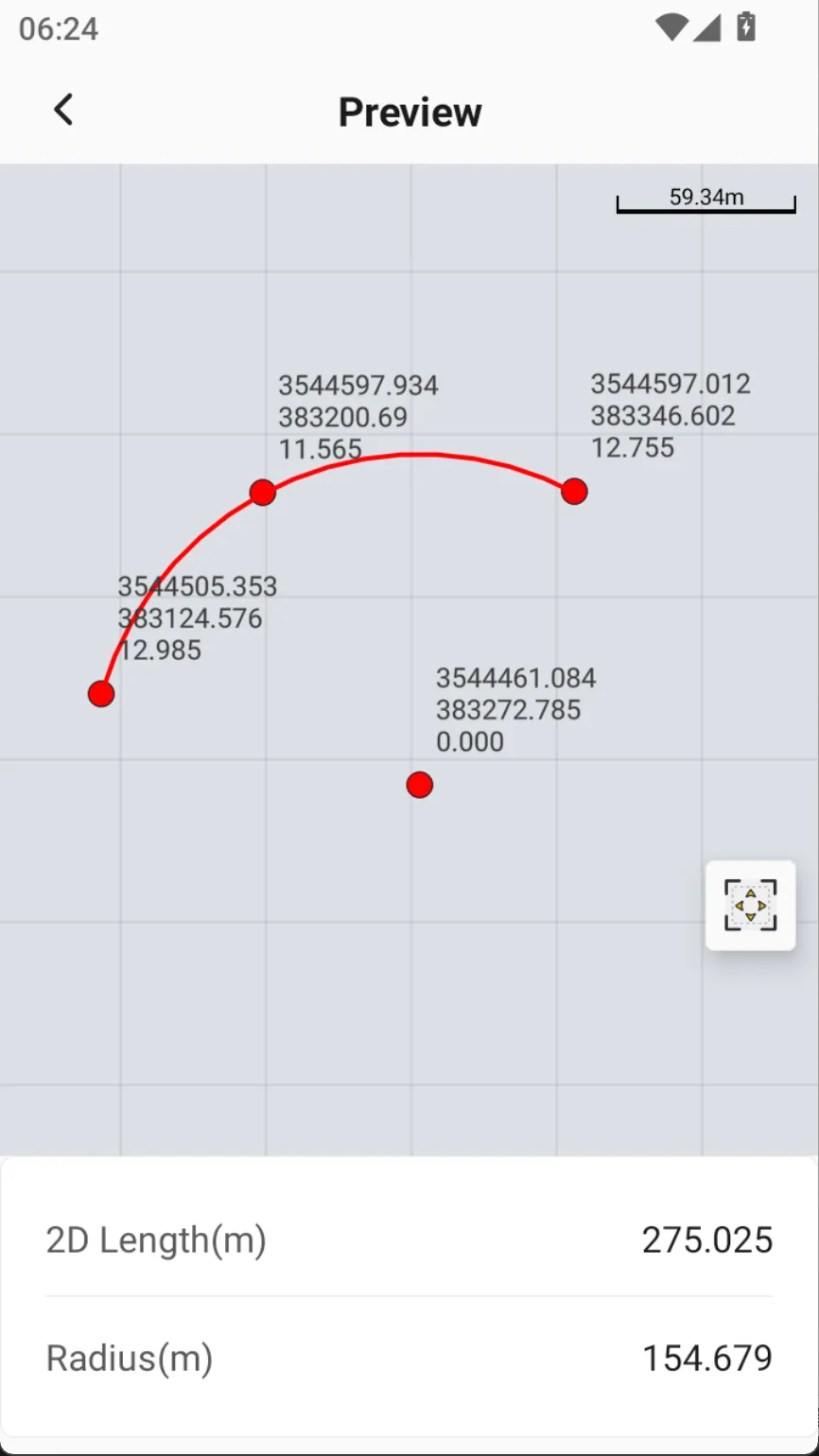
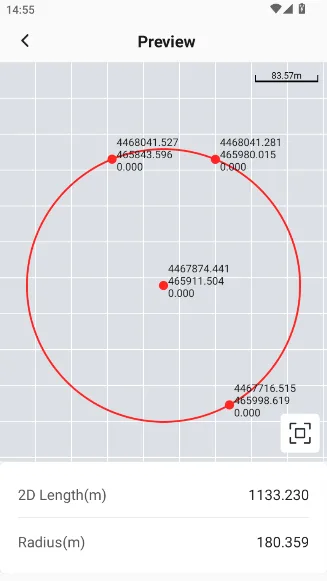
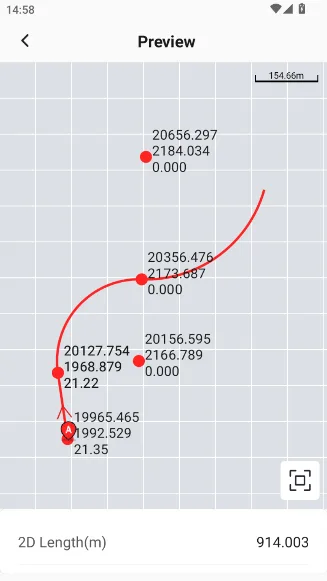
The system provides a preview function for each created line type, allowing users to verify the correctness and geometric characteristics of the line type data. In the preview interface, the labels of the line type nodes have been intelligently avoided to ensure clear display.
 |  |  |
 |  |
5.6.3 Import and export
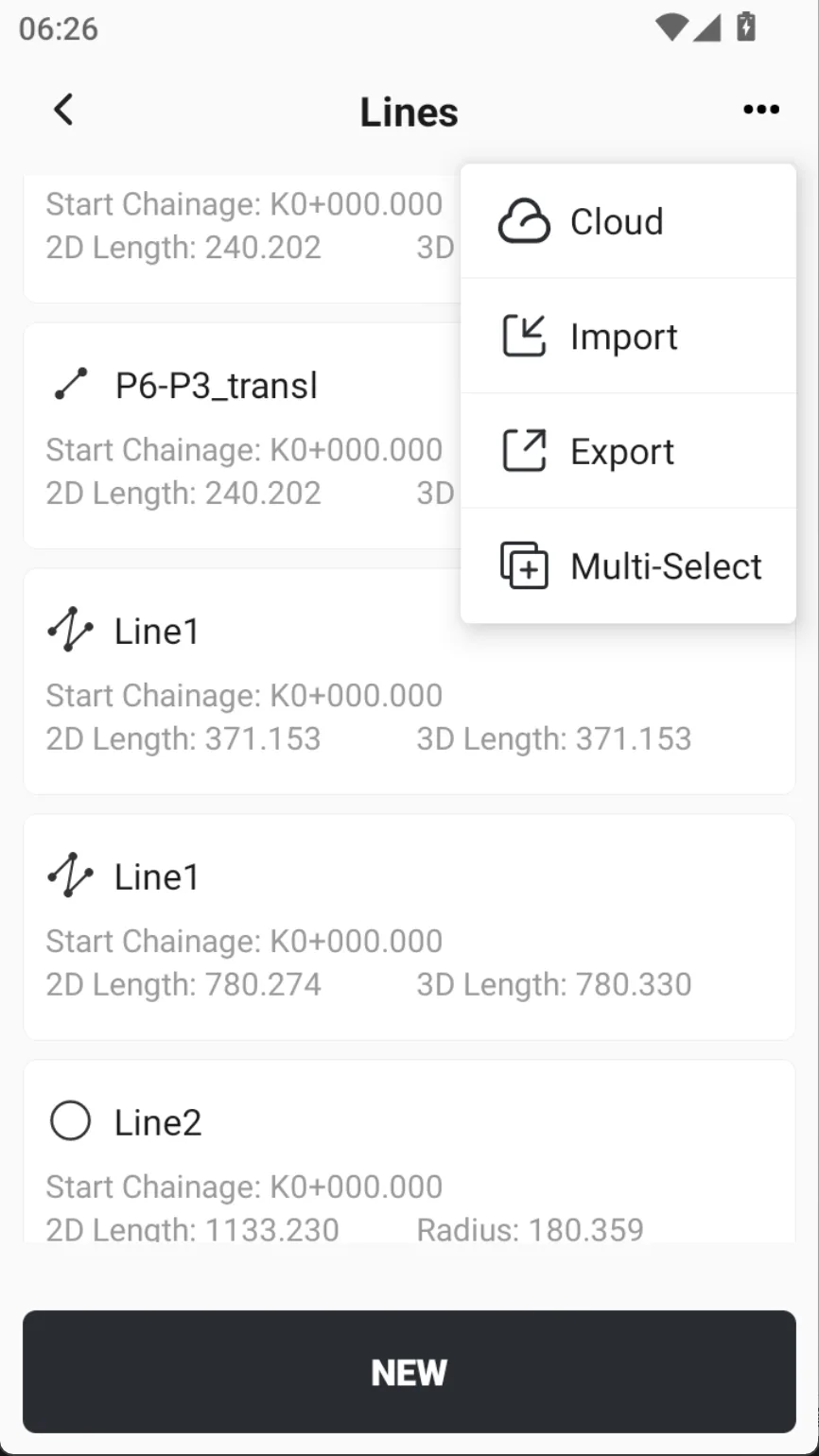
Click the [...] button in the upper right corner to select [Import], [Export] or [Multi-Select] operations. Among them, [Export] exports all line types by default, while [Multi-Select] operation is only effective for deletion.
| Option | Description |
| Import | Support importing custom *.lne format files, which can fully save and restore all parameters. Note: The lne format is currently not compatible with third-party measurement software and is only for internal use by Trion Survey. |
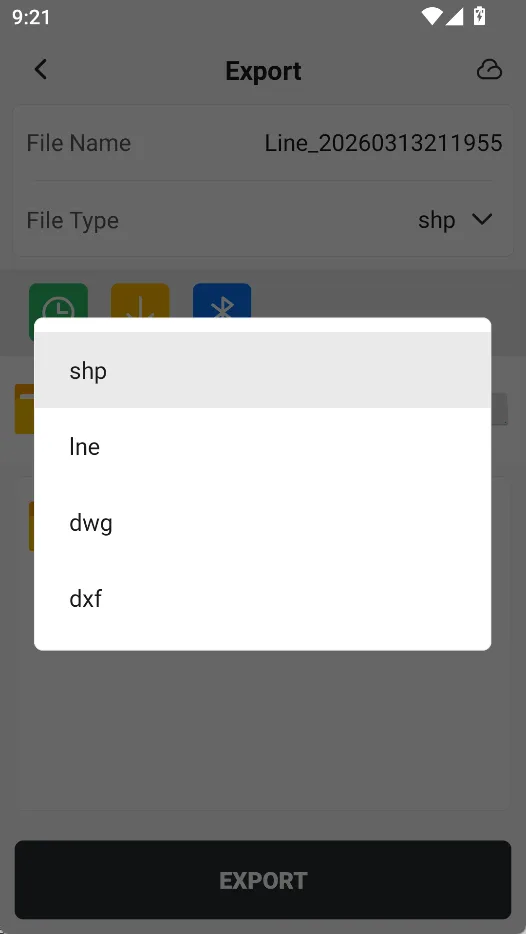
| Export | Support exporting to the following formats on demand:
|
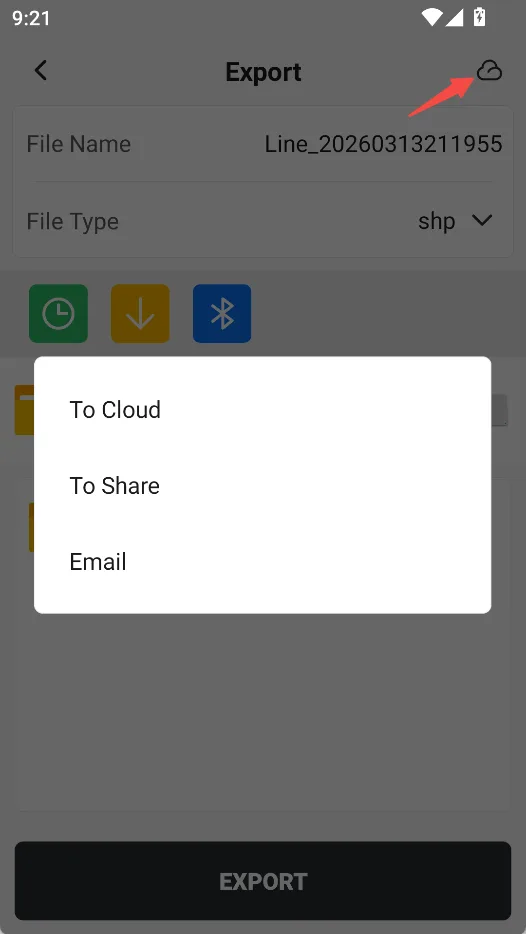
If you click the [Cloud Service] icon in the upper right corner, after logging in, more export services are supported.
| Option | Description |
| To Cloud | Upload the file to the FJD Cloud. |
| To Share | Upload the file to the FJD Cloud and generate a sharing code. The default valid period for sharing is 30min, with options of 2h, 24h, and 72h. |
| Open the email composition page, fill in the recipient's email address and send it. The file will be sent as an attachment with the email. |
 |  |  |