
5.9 Images
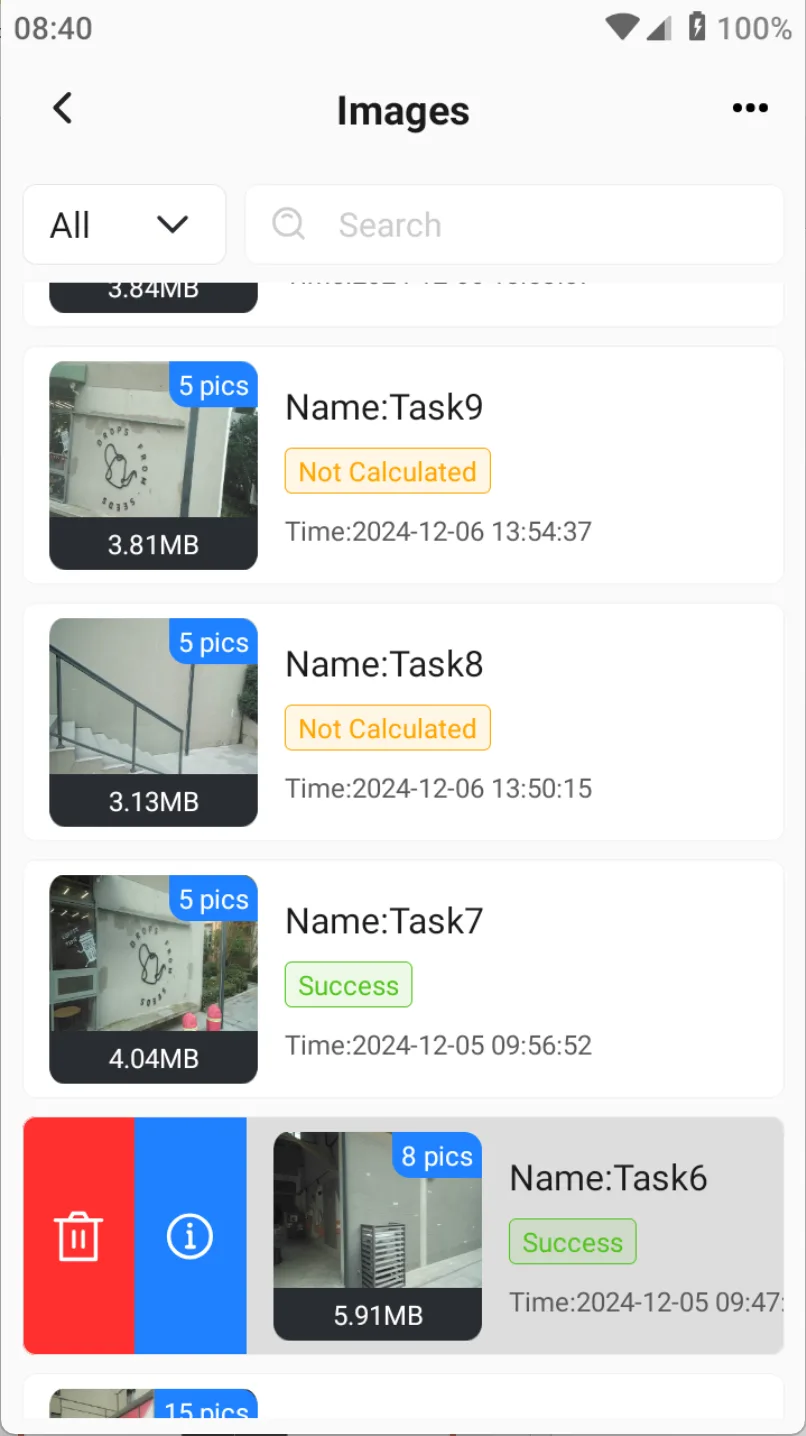
[Images] supports stereo matching and calculation of photos taken on the project site, generating digital orthophoto (DOM) or point cloud data for subsequent point measurement operations. Click on the main page [Project] → [Images] to open the image task list. The system classifies the status of each image task, including the following three types:
| Status | Description |
| Success | Display the total number of photos actually used for calculation. Click on this task to immediately start the point measurement operation. For specific operations, please refer to Chapter 7.13. |
| Failure | Display the total number of original photos taken. Users can browse the original photos, but cannot perform subsequent point measurements. They need to try to re-execute the solution or recreate the task. |
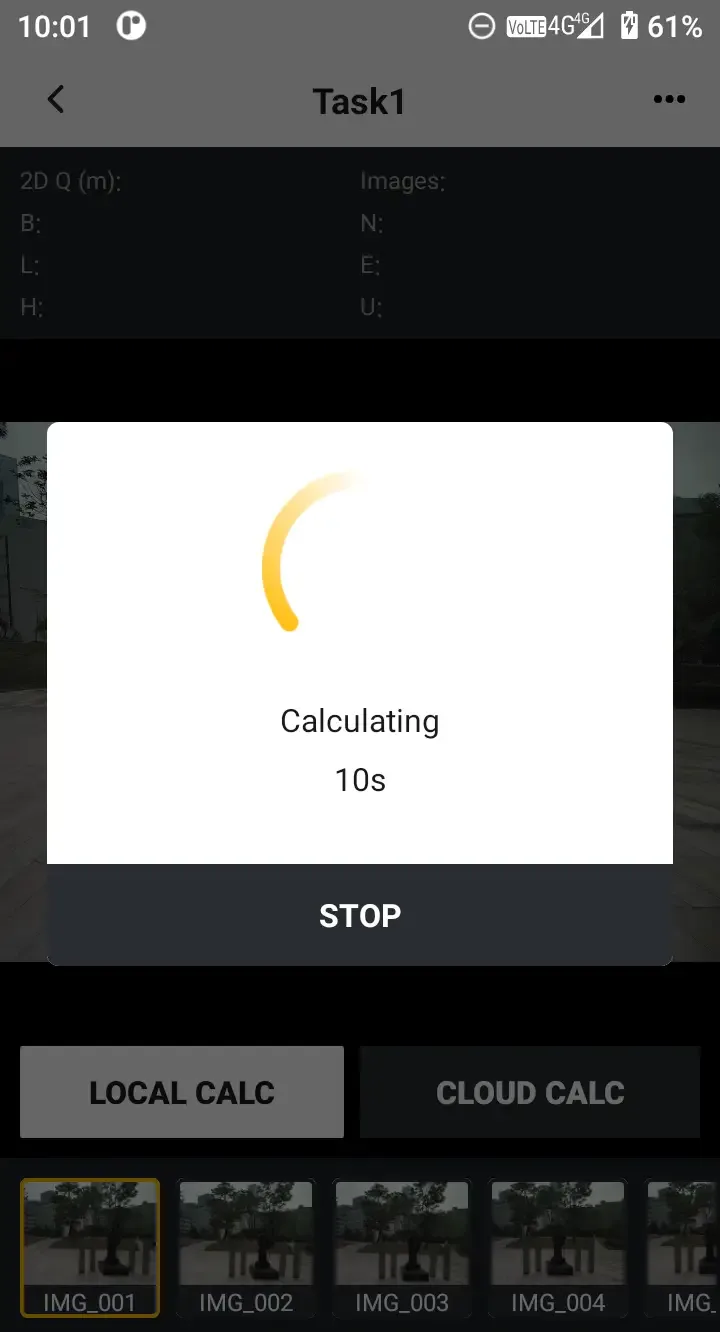
| Not calculated | Image tasks that have not been processed for calculation. Click on the card to view the task details. At the bottom, there are two calculation modes to choose from: [LOCAL CALC] and [CLOUD CALC]. When the controller is connected to the internet, it is recommended to choose cloud calculation to fully utilize the computing resources of Cloud Service to obtain faster speed and better results. |
 |  |  |
Note:
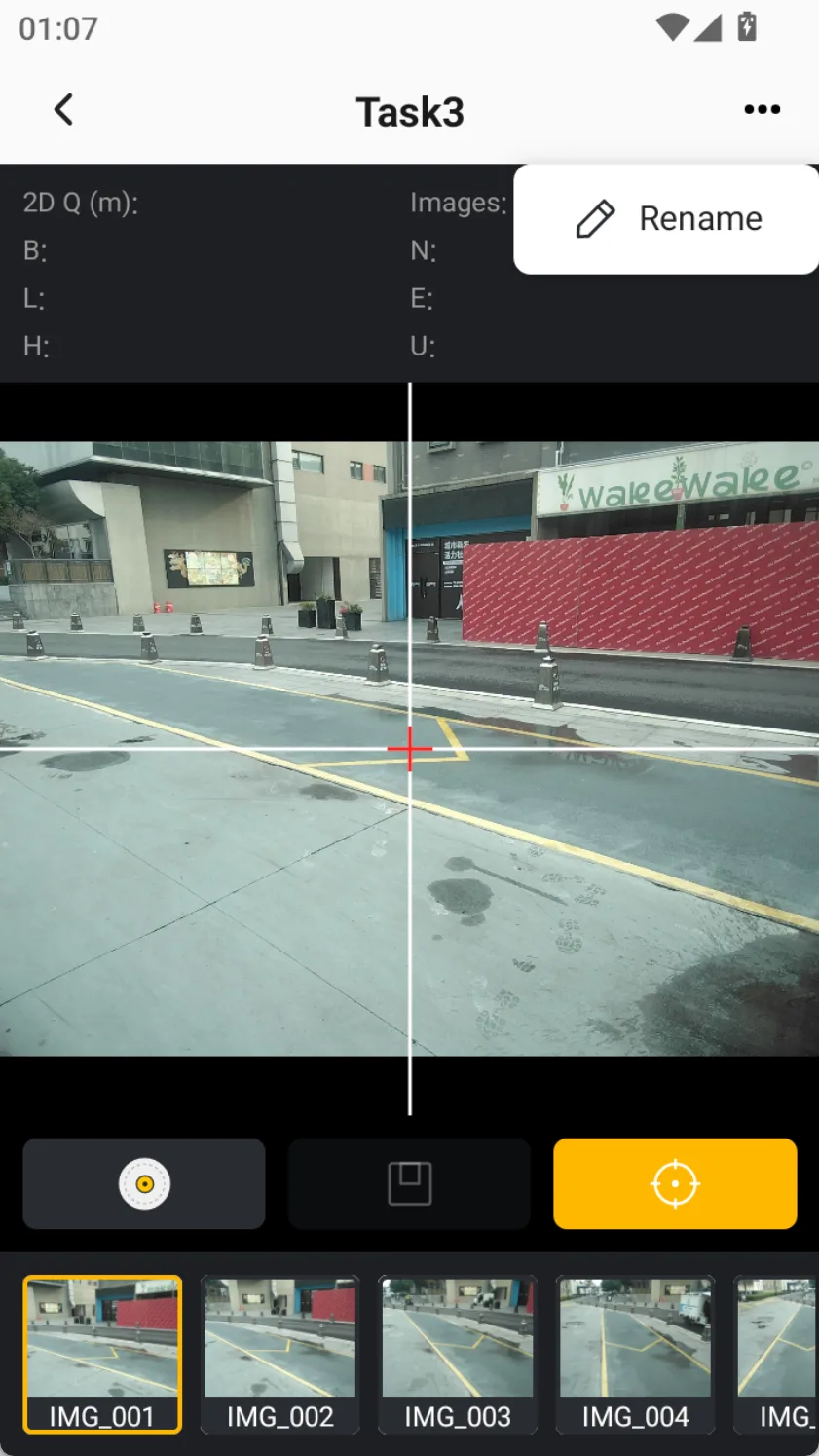
1. The number of photos is displayed in the upper right corner of the thumbnail for each task. If the calculation is successful, it displays the actual number used, otherwise it displays the number of shots taken. Click on the[...] in the upper right corner of the task list page to choose whether to display photos that have failed to calculate. Click on the[...] in the upper right corner of the details page to rename the task name.
2. Select the task that has not been calculated yet to perform the calculation. Select the task that has been calculated to choose point measurement. For details, please refer to Chapter 7.13.